How to Fix Facebook “Unable to Log In” Error?
The error message “Unable to log in” on Facebook typically appears when Facebook’s security system cannot confidently verify that you are the legitimate owner of the account.
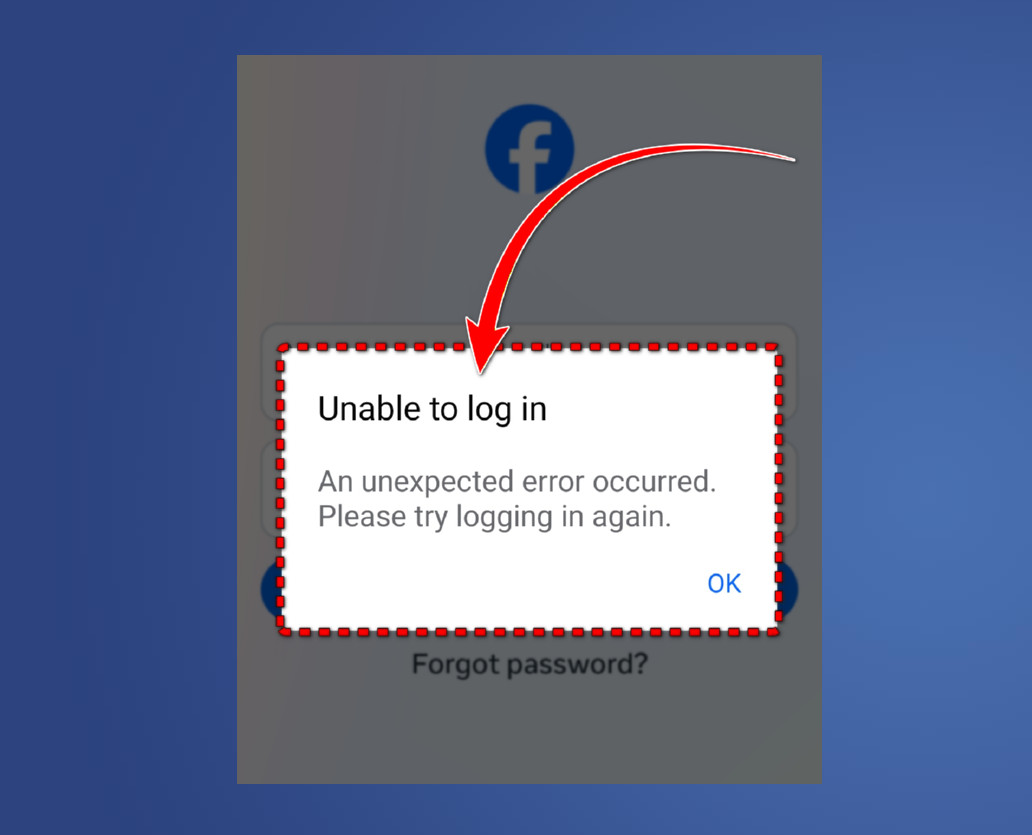
In many cases, it happens when your current login session becomes invalid (for example, after app updates, clearing app cache/data, switching networks, or when Facebook resets sessions on its end). (A session token is a temporary login credential that keeps you signed in and helps Facebook recognize your device.)
The same error can also appear if Facebook does not recognize your device, if your two-factor authentication (2FA) step fails (for example, due to a delayed SMS code or a time-based code mismatch), or if Facebook temporarily restricts login attempts after detecting unusual activity.
Once you have a general idea of what may have triggered the error, follow the solutions below one by one. These methods are based on commonly reported fixes and have helped many users resolve the same issue.
1. Wait It Out and Retry Later
When this error appears, repeatedly attempting to log in can make Facebook treat the activity as a security risk. In some cases, this can trigger a temporary restriction or lock on further login attempts.
Temporary restrictions often lift within a few hours to 48 hours, depending on the account and the security trigger. During this time, avoid repeated login attempts. After the waiting period, try signing in again. If the issue still persists after 48 hours, continue with the solutions below.
2. Remove Google Sign-In Conflict (Only If You Use “Continue with Google”)
This solution only applies if you previously used “Continue with Google” (or linked Facebook sign-in through Google on your device). In some cases, Google’s saved sign-in state may interfere with a manual Facebook login attempt, which can lead to repeated authentication failures.
Removing the saved connection can force a clean sign-in attempt and may help Facebook authenticate your login normally again.
- Go to your Google Account settings.
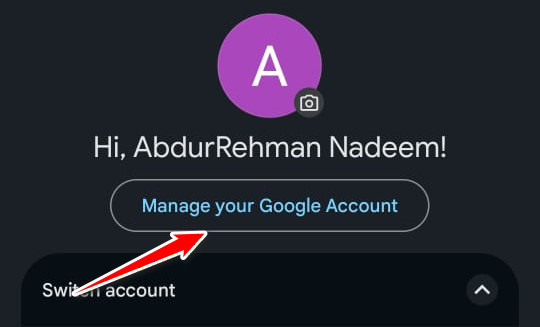
- Open Security.
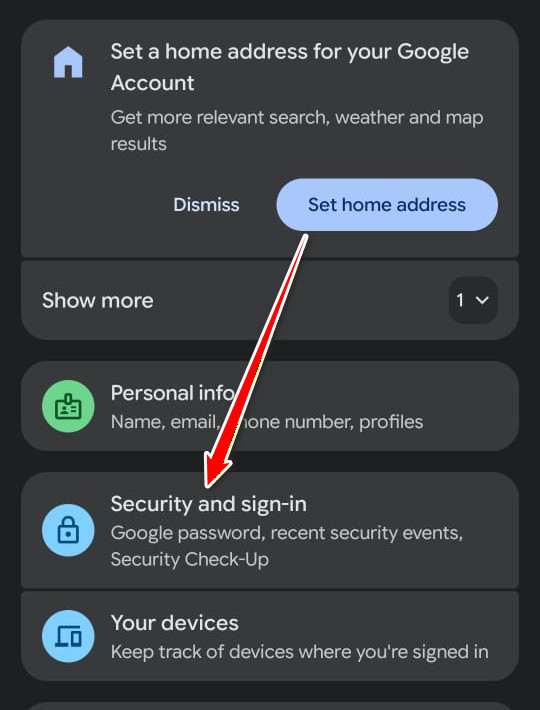
- Scroll to Your connections to third-party apps and services and tap See all connections.
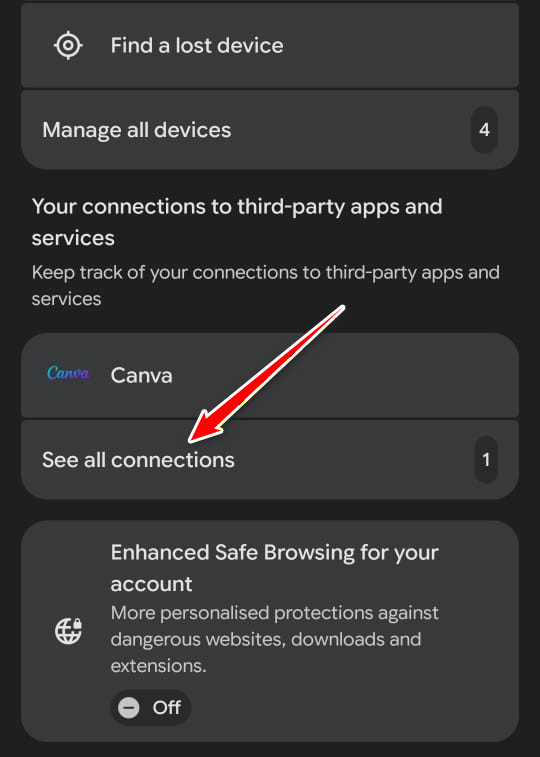
- Select Facebook from the list. (If Facebook is not shown in your list, you can skip this solution.)
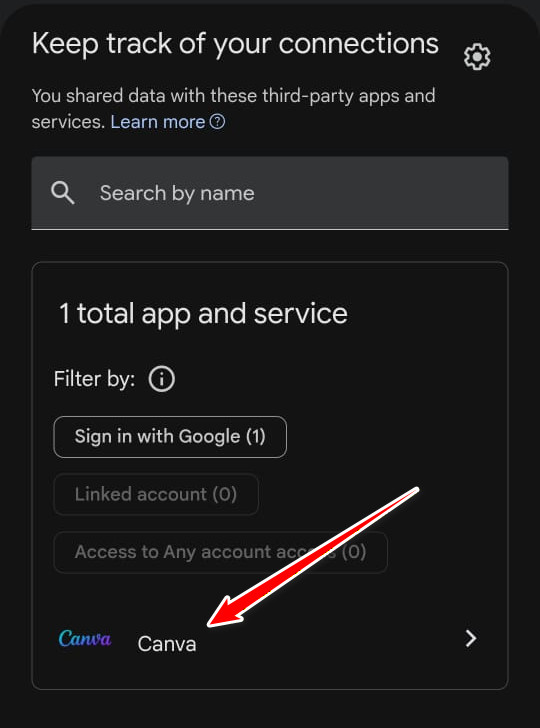
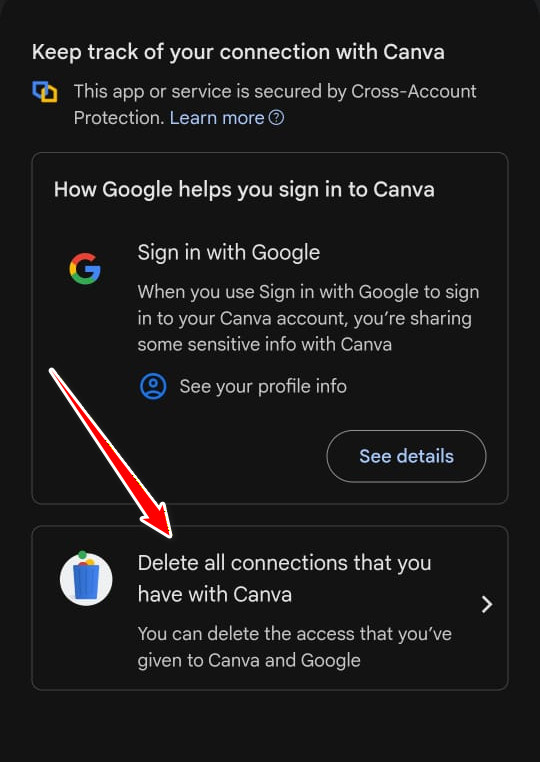
- Tap Delete all connections associated with Facebook and confirm when prompted.
- After removing the connection, try logging in to Facebook again.
3. Use Web Login to Bypass the App Authentication Loop
Over time, Facebook’s app login data can become outdated or mismatched due to app updates, network changes, or corrupted cache/session data. When that happens, Facebook may repeatedly reject your password or 2FA step and keep sending you back to the login screen.
Logging in through a web browser creates a fresh session using new cookies and updated authentication data. After that, reinstalling/opening the Facebook app on the same device may allow it to inherit the trusted session and bypass the loop. For best results, do this on the same phone you normally use for Facebook.
- Uninstall Facebook and Messenger from your phone. (Messenger is recommended because it can share related session data on some devices.)
- Open a web browser on the same device and visit this link.
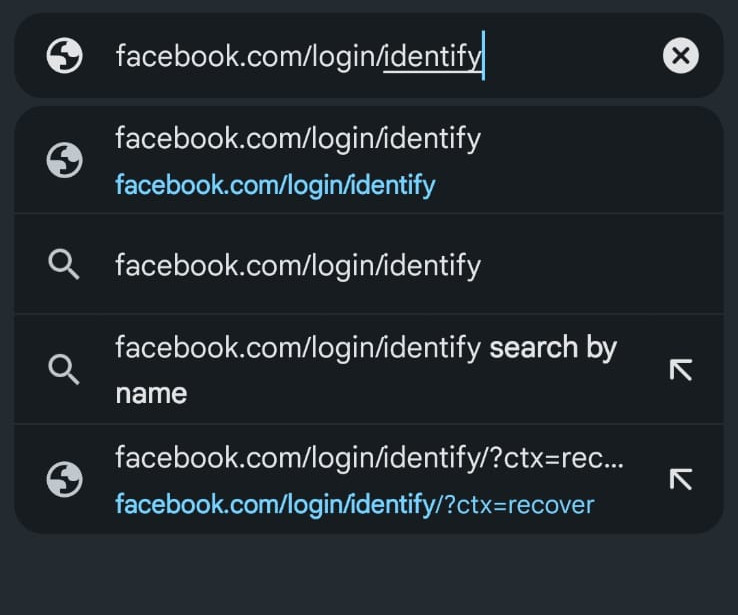
- Log in using your account credentials.
- Once you are logged in, tap Get app at the bottom of the page.
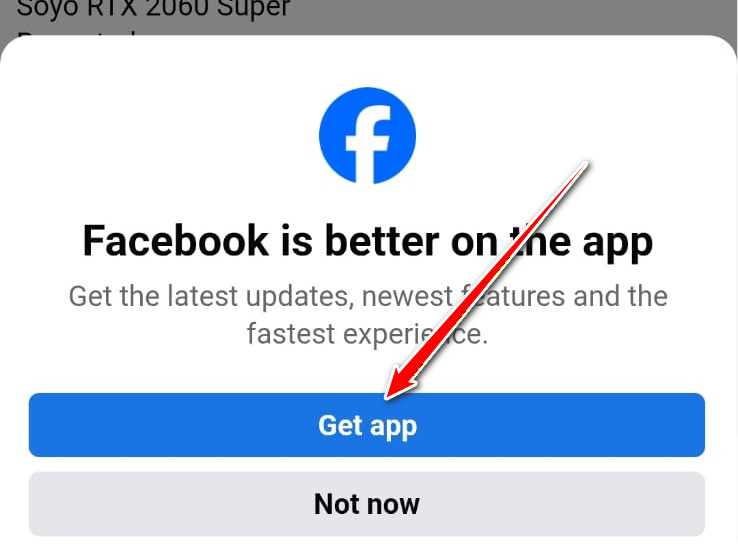
- Follow the on-screen instructions to reinstall the Facebook app.
- After installation, your account should either be logged in automatically or allow you to sign in without the previous loop.
If none of the solutions work, Facebook may require identity verification through its account recovery process before it allows you to log in again.