How to Fix “This Page Isn’t Available Right Now” on Facebook
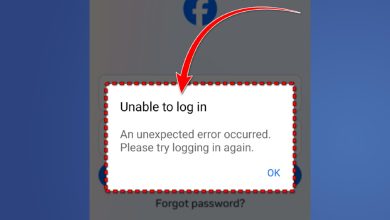
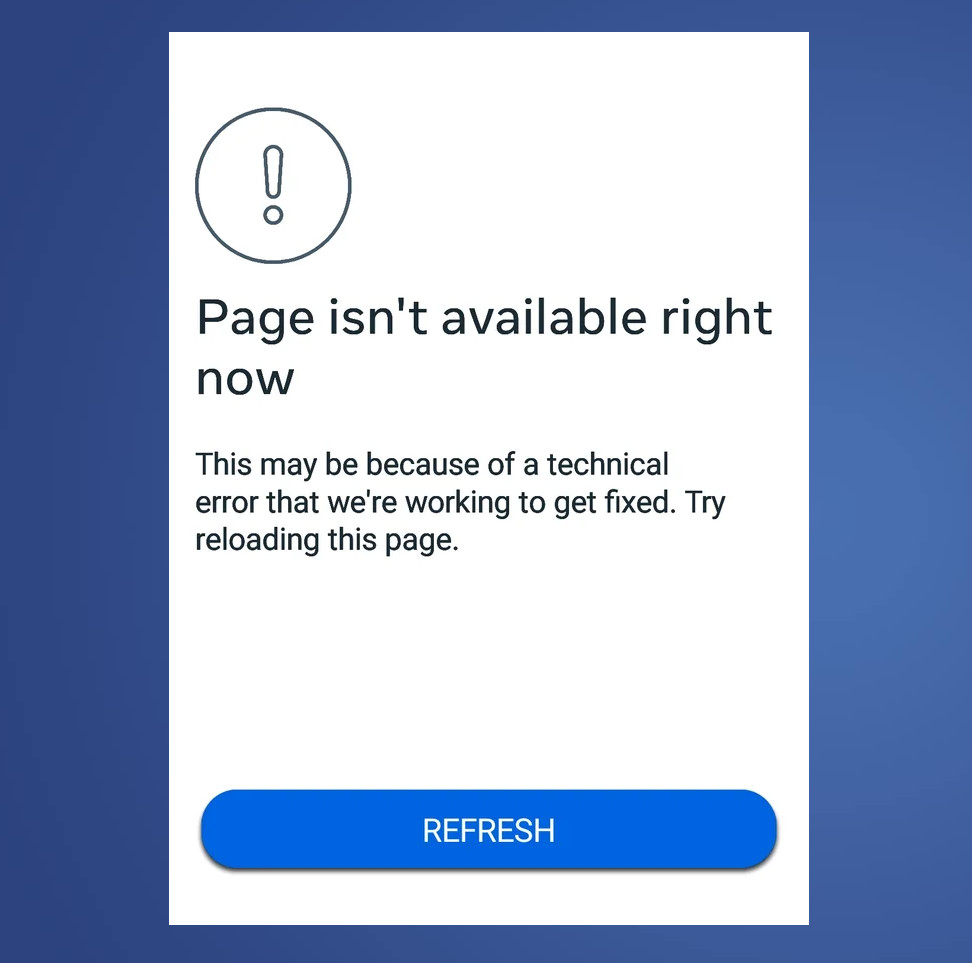
The error message “This Page isn’t available right now” appears when Facebook can’t load the page you requested. It usually happens for one of two reasons:
- Connection/request interruption: Something breaks the request between your browser/app and Facebook (VPN/proxy, strict network/firewall rules, privacy protections, ad/tracking blockers, or a bad session).
- Access/content limitation: The content isn’t available to your account (removed, unpublished, private, region/age-restricted, or you’re blocked).
How to figure out what’s causing it:
- If only one specific page/link fails while the rest of Facebook works, it’s usually an access/restriction or bad link issue.
- If many pages fail across Facebook, it’s more likely session/network/privacy or a Facebook-side problem.
Quick checks (1–2 minutes):
- Open the link in a different browser or on a different device.
- Try Incognito/Private or open it while logged out (rules out cookies/session/account state).
- Ask a friend to open it. If they also can’t, it’s likely removed/restricted/private (or the link is invalid).
- Confirm the URL is complete (not cut off). If it looks messy, open the main page/profile first, then navigate to the post.
Important: If the page/post is deleted, private, restricted, or you’re blocked, no local troubleshooting will restore access. First confirm it’s actually accessible before spending time on device/network fixes.
Once you narrow down the likely cause, follow the steps below one-by-one. If you see a Refresh option on the error screen, tap it first.
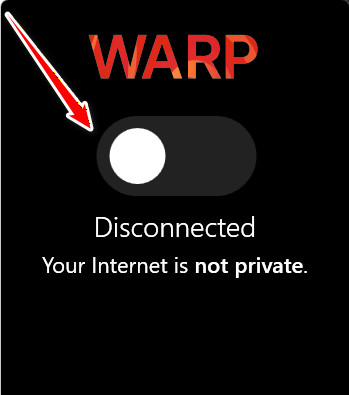
1. Turn Off Your VPN
VPN routes can fail checks or trigger extra verification. Turning it off restores your normal route and often fixes location/IP-related loading failures.
2. Sign In via Browser and Test the Link
This quickly confirms whether it’s an app/session problem. If the link loads in a browser (same account), the content is accessible and the app is likely the issue (cache/session/app state).
- Open a browser on your phone (Chrome, Safari, Edge, etc.).
- Go to Facebook.com.
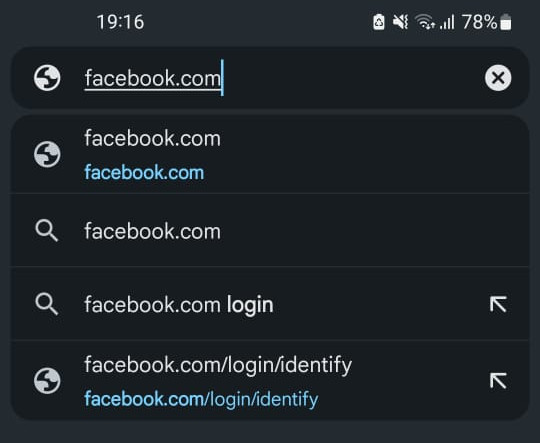
- Log in to your account.
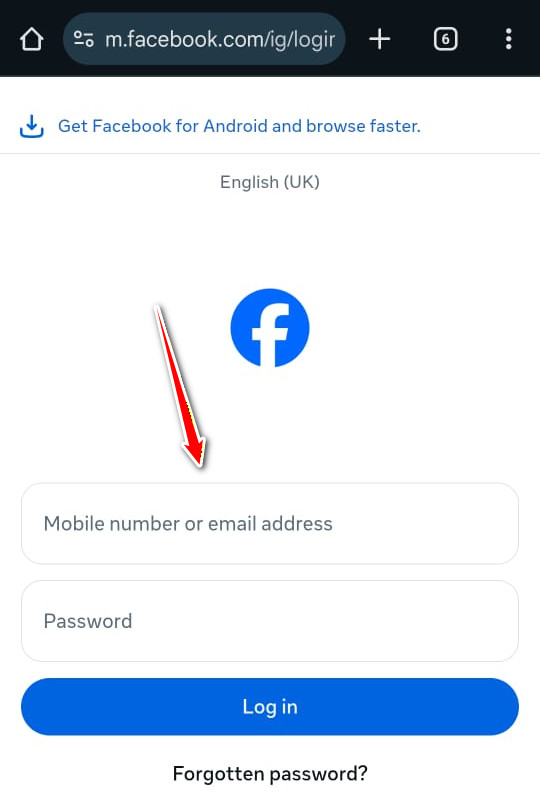
- Open the same page/link in the browser and check if it loads.
- If it loads in the browser, return to the app and continue with Steps 1, 5, and 7.
3. Turn Off AdBlock Plus (or Any Content Blocker) for Facebook
Content blockers can break Facebook scripts/cookies needed to build pages and validate sessions. Disable the blocker for Facebook and reload to test.
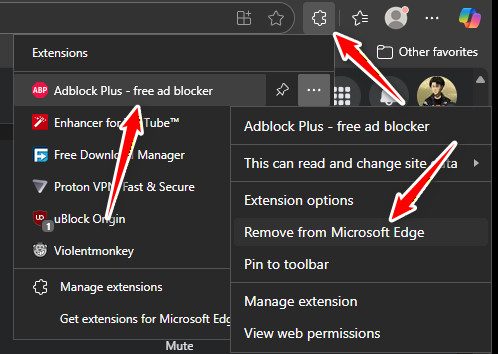
- Click the Extensions icon in your browser.
- Open your blocker (for example, AdBlock Plus) and turn it off for Facebook (or allowlist Facebook).
- If there’s no site-only toggle, temporarily disable the extension to confirm it’s the cause.
- Reload the page and check if it opens.
4. Adjust Firefox Privacy Blocks
Firefox Enhanced Tracking Protection or Facebook Container can block cookies/scripts Facebook needs to load or authenticate certain pages. Disable them only for Facebook and test.
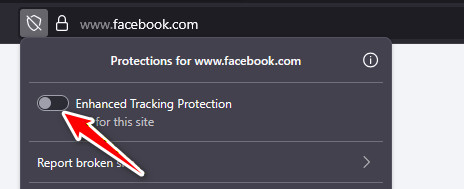
- Open Facebook in Firefox.
- Click the shield icon next to the address bar.
- Toggle Enhanced Tracking Protection off for Facebook.
- If you use Facebook Container, open Extensions.
- Click the gear icon next to Facebook Container and select Disable (or remove it).
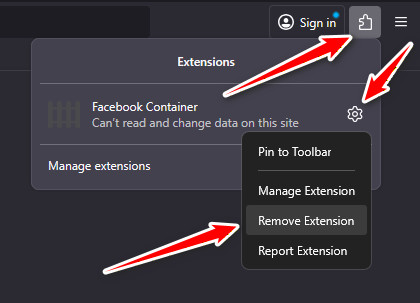
- Refresh the page and check if it loads.