Fix: “This card can’t be set up to tap to pay” Google Wallet
While setting up tap to pay in Google Wallet, you may see “This card can’t be set up to tap to pay” right after entering your card details.
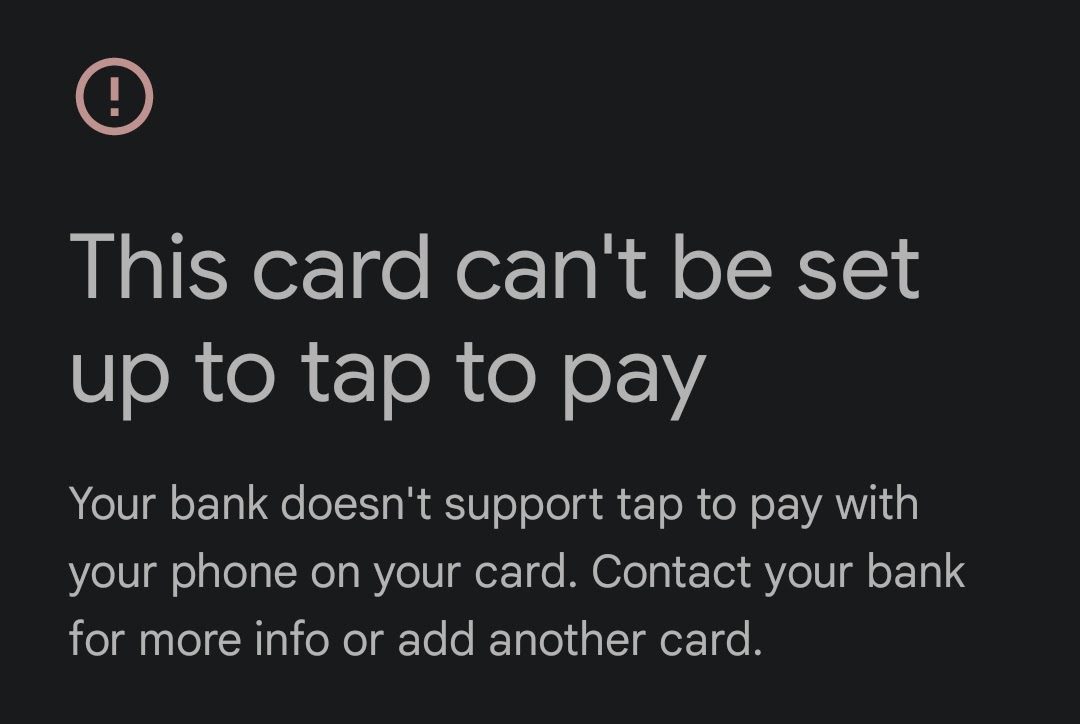
This usually means Wallet couldn’t complete card provisioning (tokenization), your bank creates a secure “token” for contactless payments so your real card number isn’t used. Sometimes Wallet blocks setup before tokenization due to bank/country eligibility, device integrity/security, or policy restrictions.
Common triggers include:
- Bank/issuer limits (not supported in your region, card type blocked, contactless off, fraud block, token/device limit).
- Device integrity failing (uncertified device, root, unlocked bootloader, custom ROM, modified OS).
- Wallet/Play services issues (outdated components, bad cache/data, stuck attempt).
- Work/MDM restrictions (policy blocks NFC payments).
- Network blocks (VPN/Private DNS, filtered Wi-Fi, firewall/captive portal).
- Eligibility: Your bank/card/region isn’t supported for tap to pay.
- Device/App/Policy: Your phone fails checks, Wallet/Play services is stuck, your network blocks verification, or work policy restricts payments.
Quick note:
- Stock phone + Play Protect certified + no work profile/VPN changes = often bank/token.
- Root/ROM/work-managed device = often device/policy.
1. Confirm Your Bank/Card Is Eligible
If your bank/card/region isn’t supported, Wallet may block setup immediately, or your bank may refuse tokenization during verification so phone troubleshooting won’t help until eligibility is confirmed.
- Confirm payments (not just passes) are supported in your country/region.
- Confirm your bank supports Google Wallet tap to pay for your card type (debit/credit/prepaid/business can differ).
- In your bank app, enable contactless/NFC (if there’s a toggle).
- If the card is new, make one chip & PIN purchase first (some issuers require initial verification).
- If the card was used on another phone, you may hit a token/device limit and need a token reset.
- Isolation test: add a different known-supported card on the same phone. If that works, the problem is likely your bank/card/token.
2. Verify Device Eligibility (Play Protect / Integrity)
Tap to pay requires Google’s integrity checks. If the device is uncertified or modified (root/bootloader/custom ROM), Wallet may refuse payments even if everything else looks fine, because payment tokens are only issued to trusted devices.
- Open Play Store > Profile > Settings.
- Go to About and find Play Protect certification.

- If it’s Not certified (or you’re rooted/unlocked/custom ROM), payments may be blocked until you return to a stock/certified setup.
- Update Google Play services, restart, and try again.
- Devices without Google Mobile Services usually can’t use Google Wallet tap to pay.
3. Turn On NFC and Set Wallet as the Default Tap-to-Pay App
Wallet can’t complete setup if NFC is off, if another app is handling contactless payments, or if the phone is set to ask every time. Setting Wallet as default ensures the NFC “tap” route points to Wallet during verification and first-use setup.
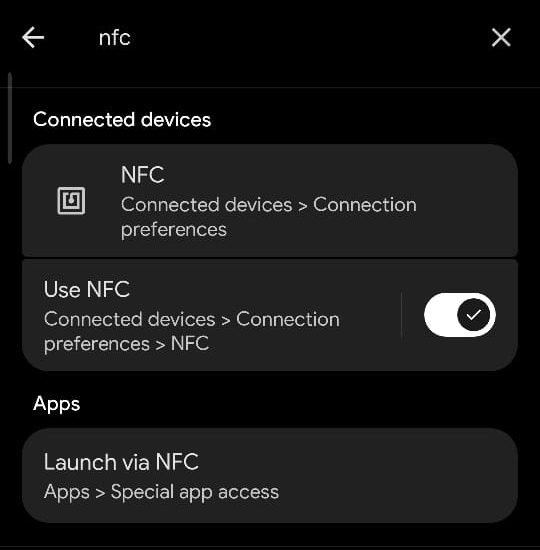
- Open Settings > search NFC > turn it ON.
- Search Tap & pay / Contactless payments.
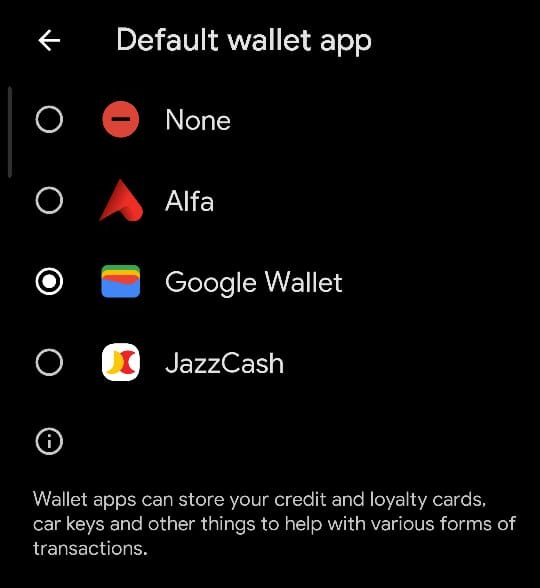
- Set Google Wallet as the default app (and enable “Use default/Always” if shown).
- Force close Wallet, reopen it, and try again.
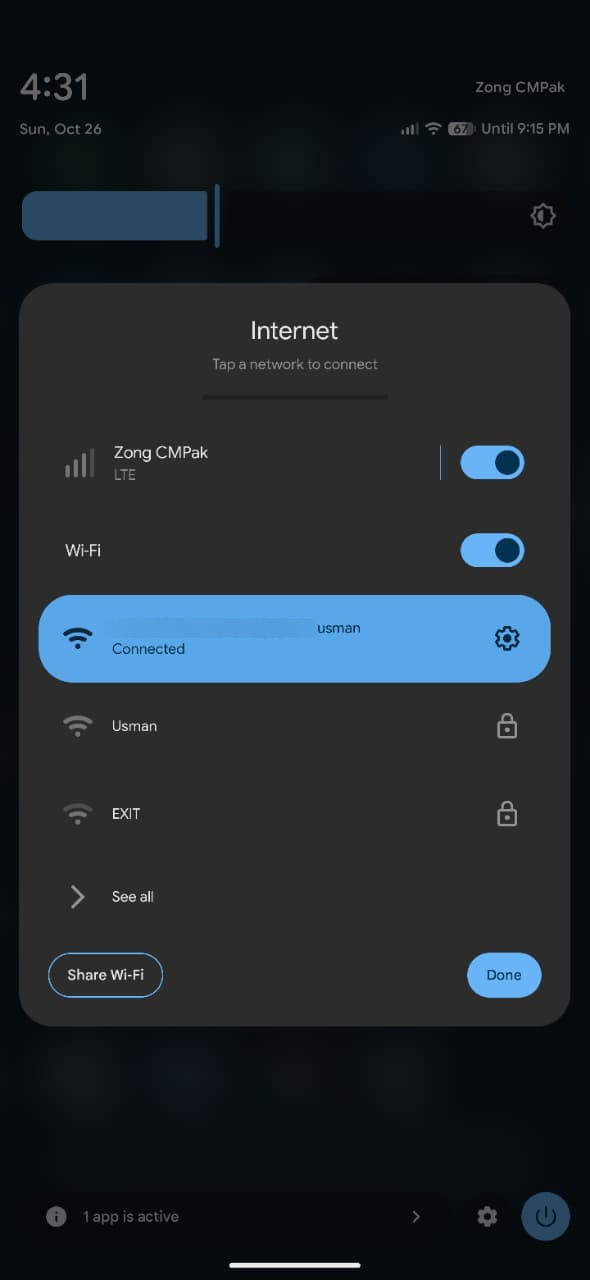
4. Switch Internet (and Disable VPN / Private DNS)
Wallet must reach Google and your bank to verify the device and provision the token. VPNs, Private DNS, office/public Wi-Fi filters, and captive portals can block these background checks even when websites load normally, switching networks removes hidden filtering and often fixes instant failures.
- Force close Google Wallet.
- Disable VPN.
- Settings > Network & internet > Private DNS > set to Off/Automatic.
- Switch Wi-Fi to mobile data (or try a hotspot).
- Open Wallet and retry setup.
5. Remove Any Existing Cards (and Old Tokens) Then Add Again
If the card was added before (on this phone or another), an old token can remain active and block a new one. Removing the card clears Wallet’s local setup state; if your bank enforces a token/device limit, you may also need the card removed on the old phone or a bank-side token reset.
- Open Google Wallet and tap your account.
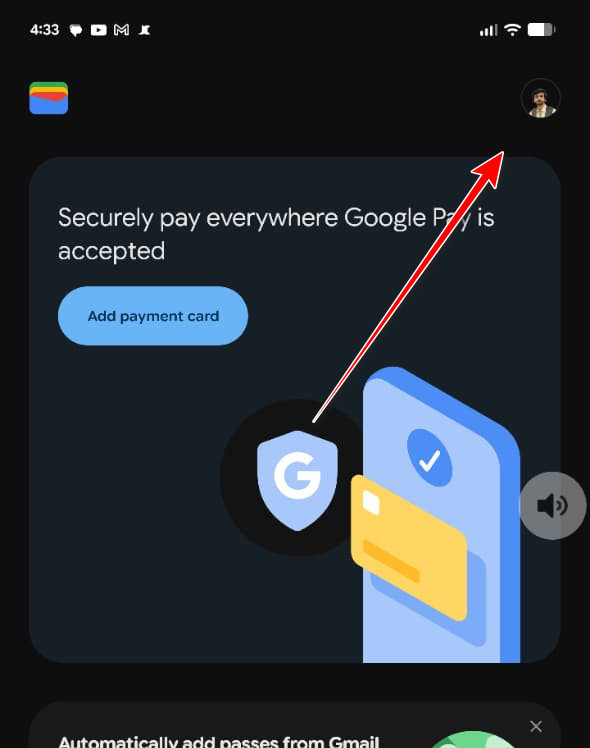
- Go to Payment methods.
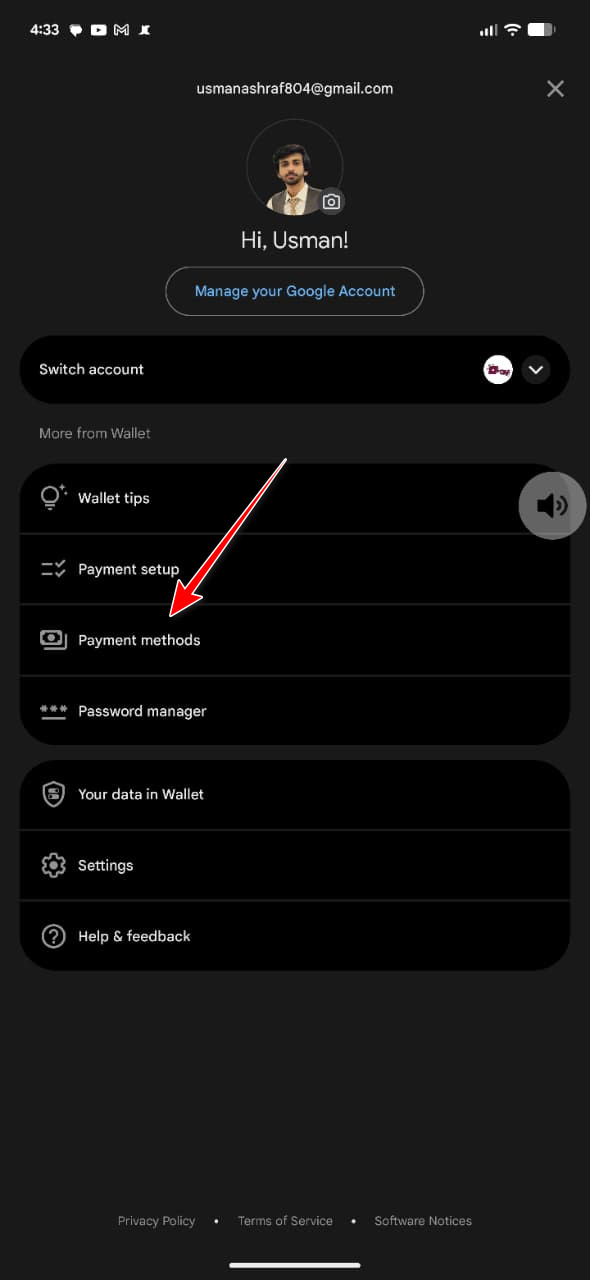
- Remove the problem card (optionally remove other cards from the same bank if you suspect a token limit).
- Restart the phone.
- Add the card again and enable tap to pay.
6. Add Using Your Banking App
Some banks verify and provision the token more reliably inside their own app. Using “Add to Google Wallet” can bypass Wallet-side prompts that fail, and the bank app can push a cleaner approval flow (OTP/app approval) directly tied to your account.
- Open your bank’s official app.
- Tap Add to Google Wallet / Add to Wallet.
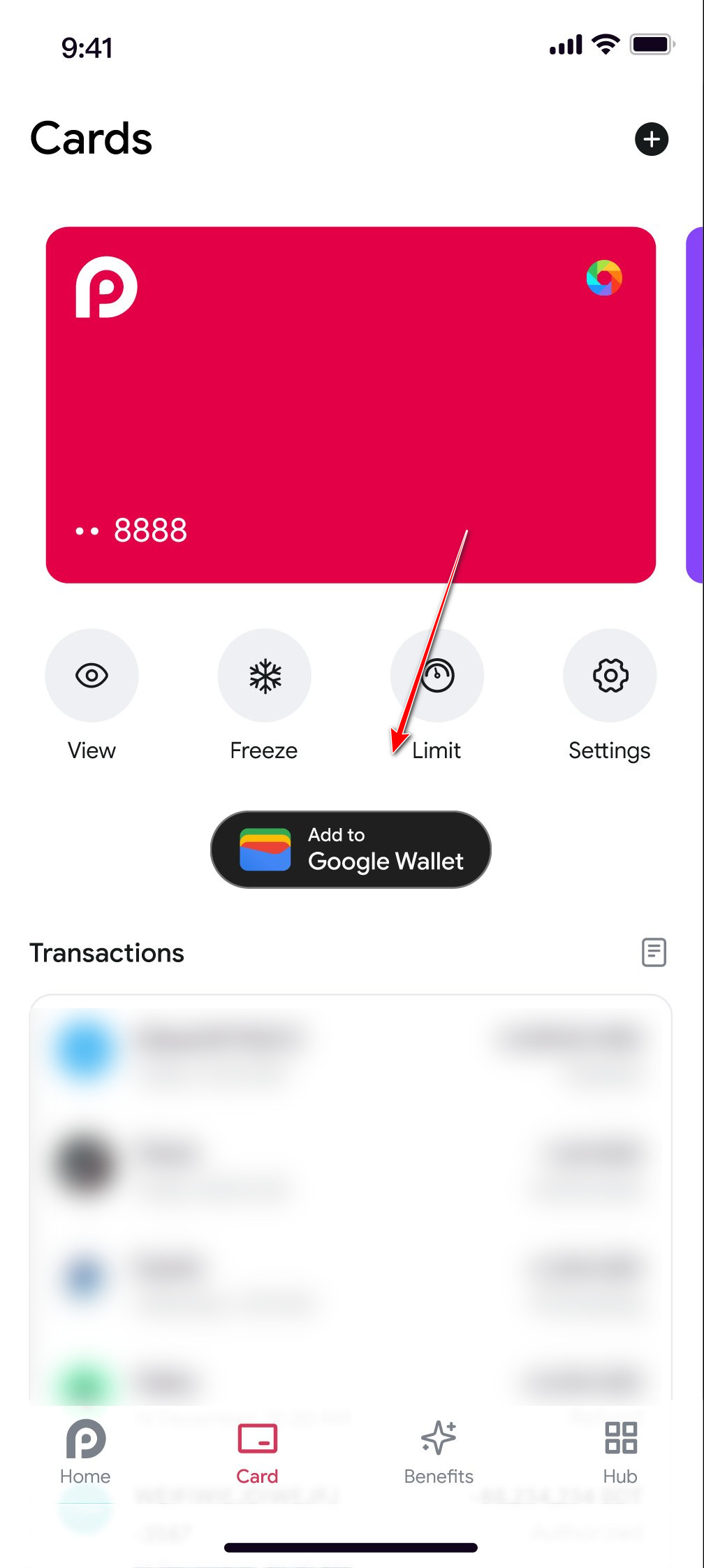
- Complete verification (OTP/SMS/app approval).
- Open Wallet and confirm tap to pay is enabled.
7. Remove Secondary Google Accounts (Optional)
Wallet can pull verification context from your active Google account. If the problem started after adding a second account, removing it can reduce conflicts with region/payment profile signals and stop Wallet from using the “wrong” account during setup.
- Open Settings.
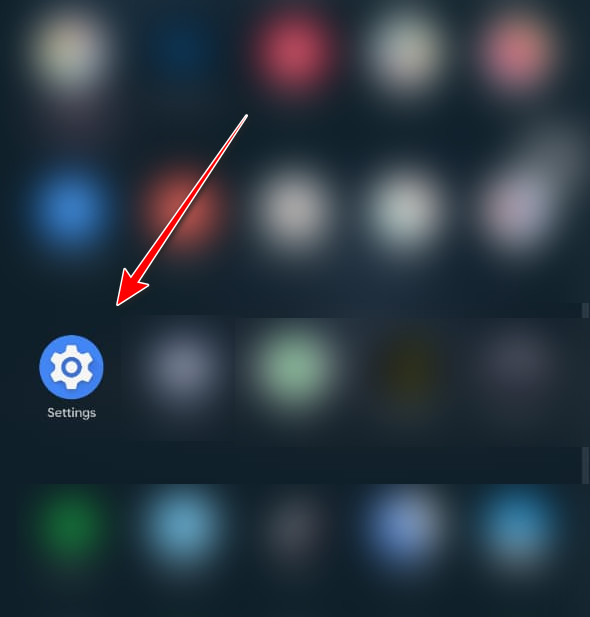
- Search for Accounts.
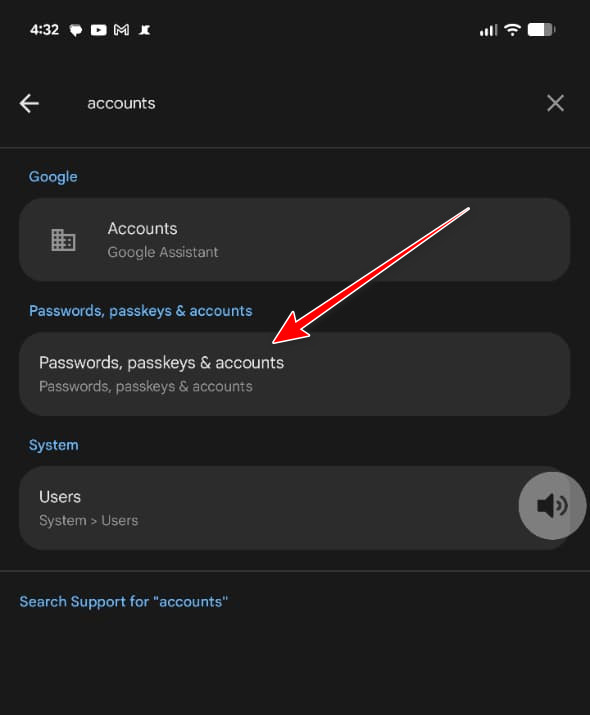
- Select the secondary Google account.
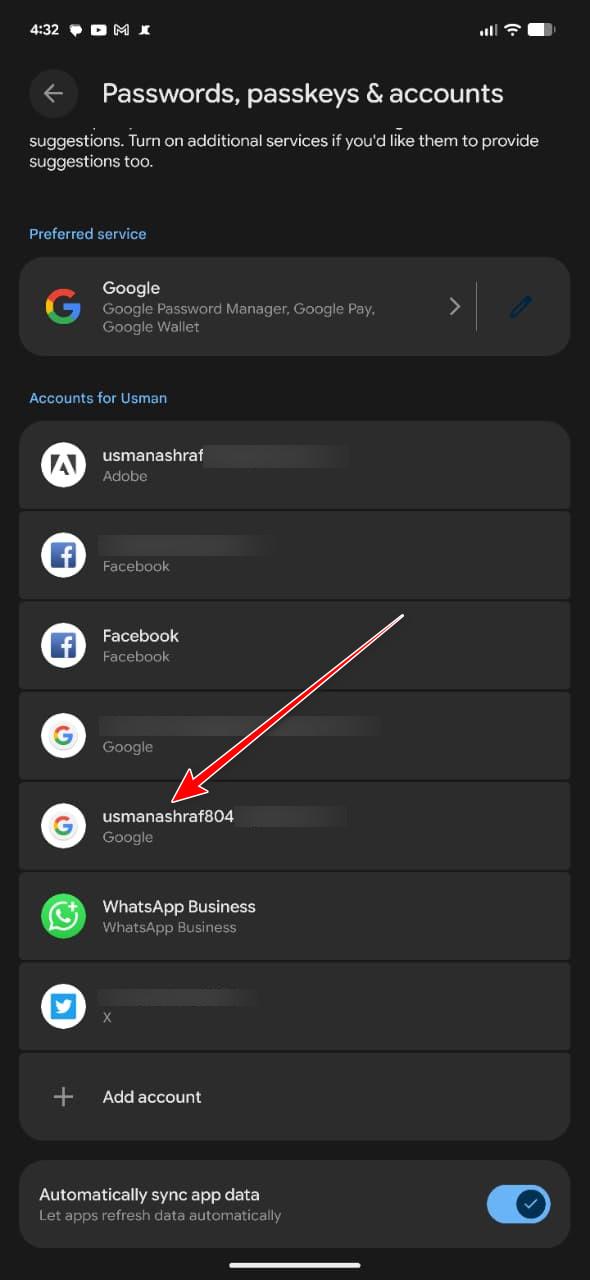
- Tap Remove account and confirm.
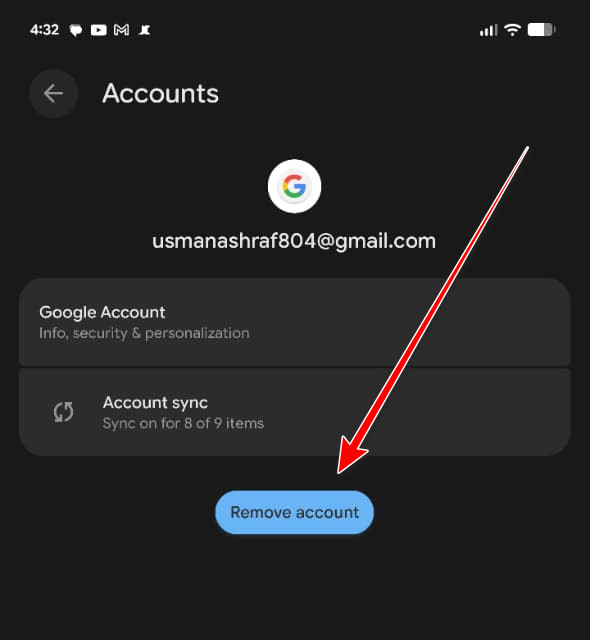
- Restart and try Wallet setup again.
8. Reinstall Google Wallet
If Wallet’s local state is corrupted (after repeated failed attempts or bad updates), reinstalling recreates the app’s storage and resets the provisioning flow. This is often cleaner than cache clearing when Wallet keeps failing at the same step.
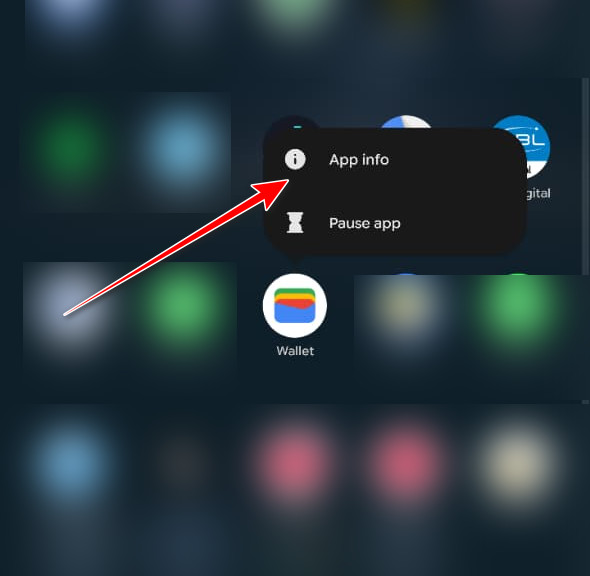
- Press and hold Google Wallet > App info.
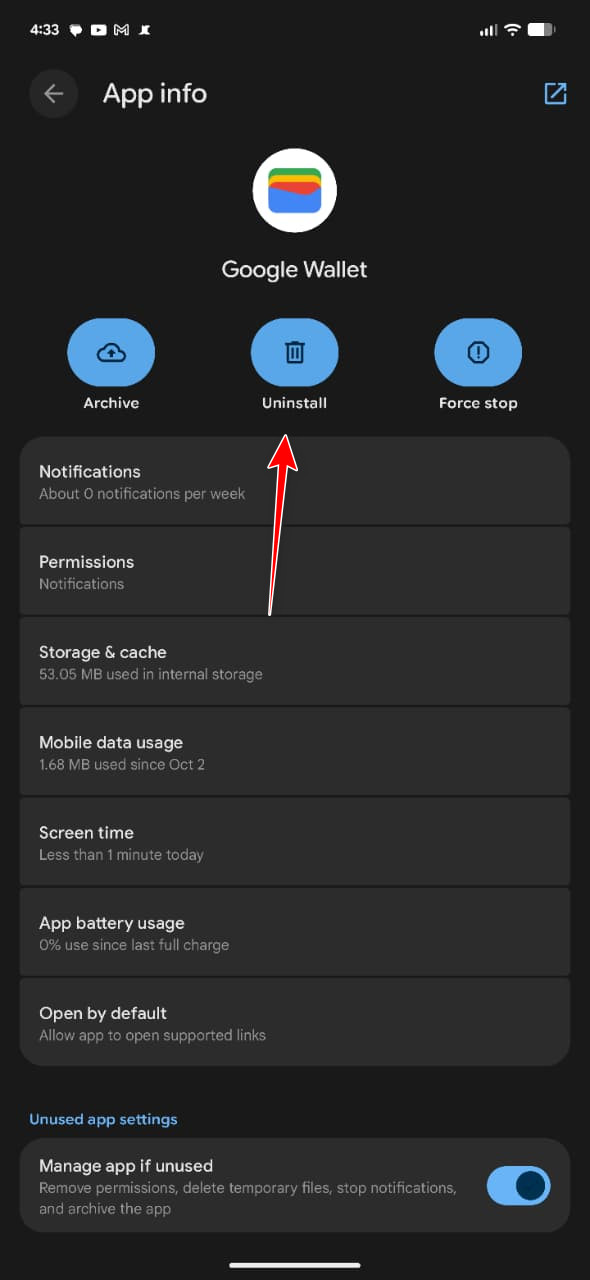
- Tap Uninstall.
- Restart the phone.
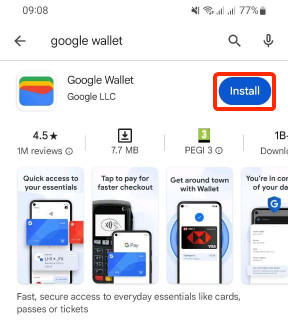
- Install the latest Wallet version from the Play Store.
- Open Wallet and try adding the card again.
Final Option. Contact Your Bank
If the error persists after the steps above, the bank is usually blocking provisioning. They can confirm eligibility, remove fraud/security holds, re-enable contactless, and reset wallet tokens so a fresh token can be issued to your phone.
- Contactless/NFC is disabled on your card
- Security/fraud block is preventing tokenization
- Your card type isn’t eligible for Google Wallet
- An old token is still active (needs reset)
- You hit a token/device limit
- Call your bank (or visit a branch).
- Say you’re getting “This card can’t be set up to tap to pay” in Google Wallet.
- Ask them to enable contactless (if needed) and reset/clear Google Wallet token provisioning for your card.
- Restart and try again.