Fix: “The Network Security Key Isn’t Correct” on Windows
Error “The network security key isn’t correct” usually occurs when you are trying to connect your computer to a Wi-Fi network, but Windows cannot verify the password with the router. In many cases, this message appears even when the password is correct, especially if the network works on mobile devices but fails on a Windows PC.

- Make sure you are selecting the correct Wi-Fi name (SSID) (some routers show separate 2.4 GHz and 5 GHz networks).
- Re-type the password carefully (watch for O vs 0 and I vs l) and ensure Caps Lock is not enabled.
- If you recently changed the Wi-Fi password, confirm you are entering the new one (Windows may still be trying an older saved profile).
The most common reasons behind this error message include a mistyped password, a router-side configuration problem, or old/corrupted saved Wi-Fi details on Windows.
Now that you know what triggers it, let’s go through the fixes that most often resolve the problem.
These steps apply to both Windows 11 and Windows 10 (menu names may vary slightly).
1. Restart Your Router
Restarting your router can help fix the error because it clears temporary glitches and refreshes the connection between your router and your computer. If the router’s wireless module is overloaded or stuck, a simple reboot can restore normal authentication and allow Windows to connect properly.
2. Forget Your Wi-Fi Network
The error may occur due to old Wi-Fi settings stored in Windows (such as an outdated or incorrect password). If the saved profile becomes corrupted or no longer matches the router’s current settings, Windows may keep rejecting the connection.
Forgetting the Wi-Fi network helps because it removes the saved profile (including stored passwords and security details). When you reconnect, Windows will ask for the password again and create a fresh network profile, which often fixes the issue.
- Press Win + I to open Settings.
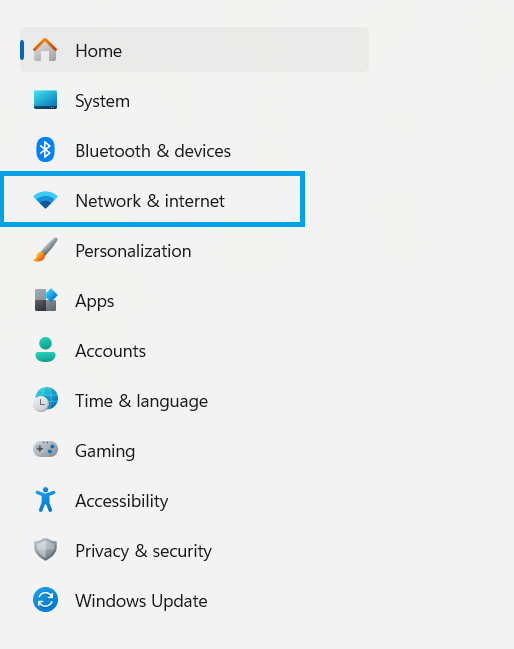
- Click on Network & Internet.
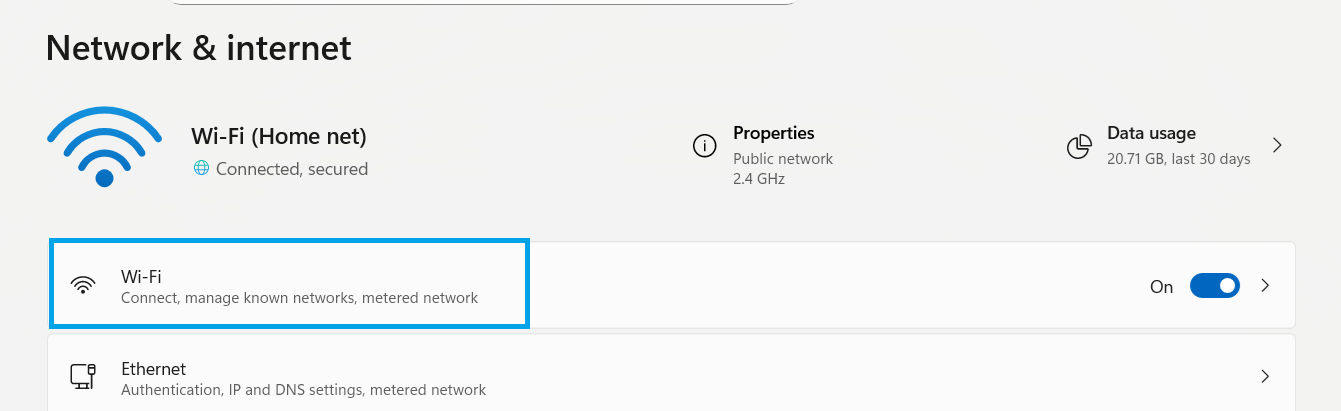
- Click on Wi-Fi.
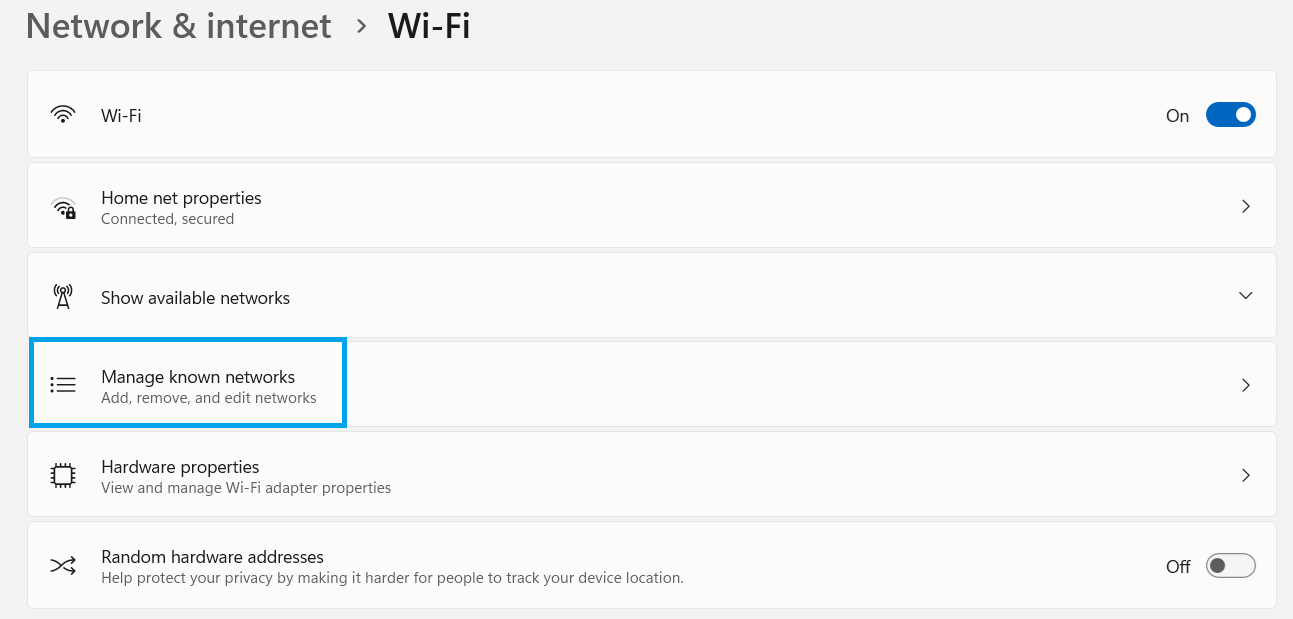
- In Wi-Fi settings, click on Manage known networks.
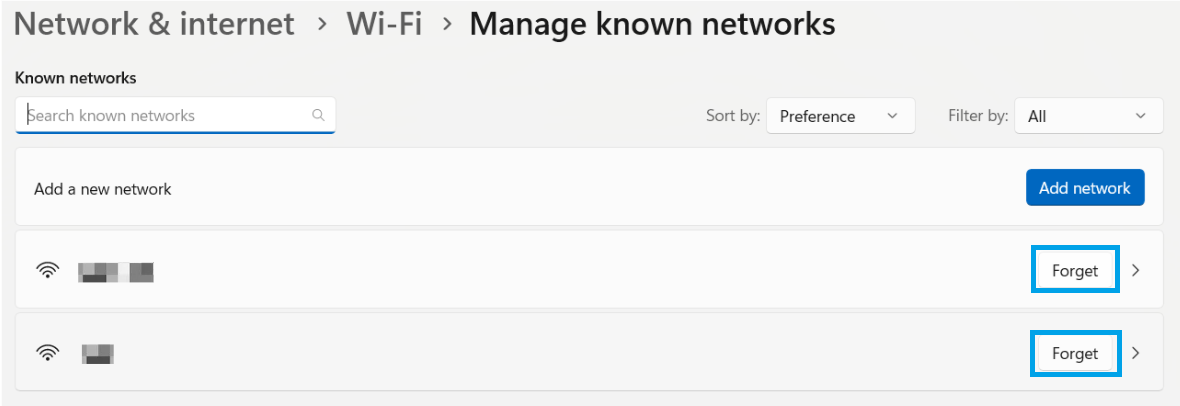
- Find your Wi-Fi network and click Forget to remove the saved connection.
- Reconnect to the Wi-Fi network and enter the password again to
check if the issue is resolved.
3. Remove Special Characters From The Password
In some cases, the error can happen if your Wi-Fi password includes special characters that are not handled correctly due to router firmware issues, encoding problems, or copied characters from a phone keyboard. Phones may still connect normally, but a Windows PC can fail authentication if the router or saved profile interprets the password differently.
To test this, change your Wi-Fi password to a simpler combination of letters and numbers, then reconnect on Windows and check if the problem is fixed. If this resolves the issue, you can later set a stronger password again (as long as your router handles the characters correctly).
4. Enable Random Hardware Addresses
The error may occur when the router has trouble recognizing your device due to a MAC address-related conflict or a corrupted network profile. A MAC address is a unique ID used by your computer when connecting to a network. If the router blocks or misidentifies your device’s original MAC address, Windows may show the “password isn’t correct” message even though the password is right.
By enabling Random Hardware Addresses, Windows presents a different MAC address to the router, which can make the router treat your PC as a new device. This can bypass old, corrupted, or outdated connection data and help you connect successfully. This setting is commonly used and is generally safe for home and public networks.
- Press Win + I to open Settings.
- Click on Network & Internet.
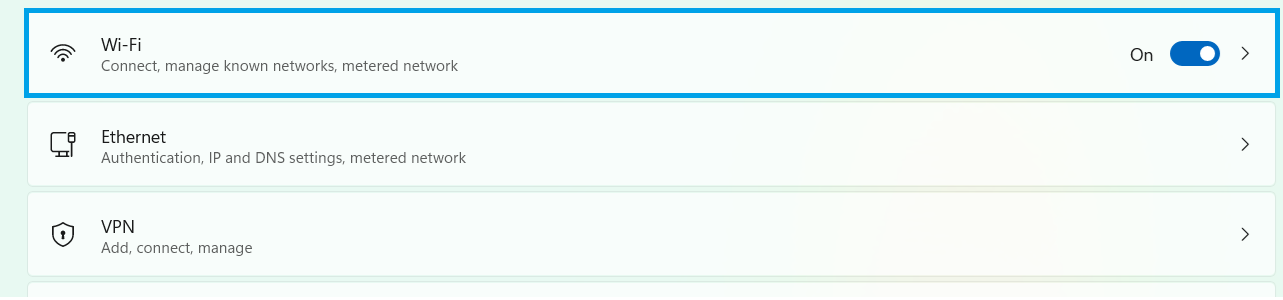
- Click on Wi-Fi.
- In Wi-Fi settings, enable Random Hardware Addresses.
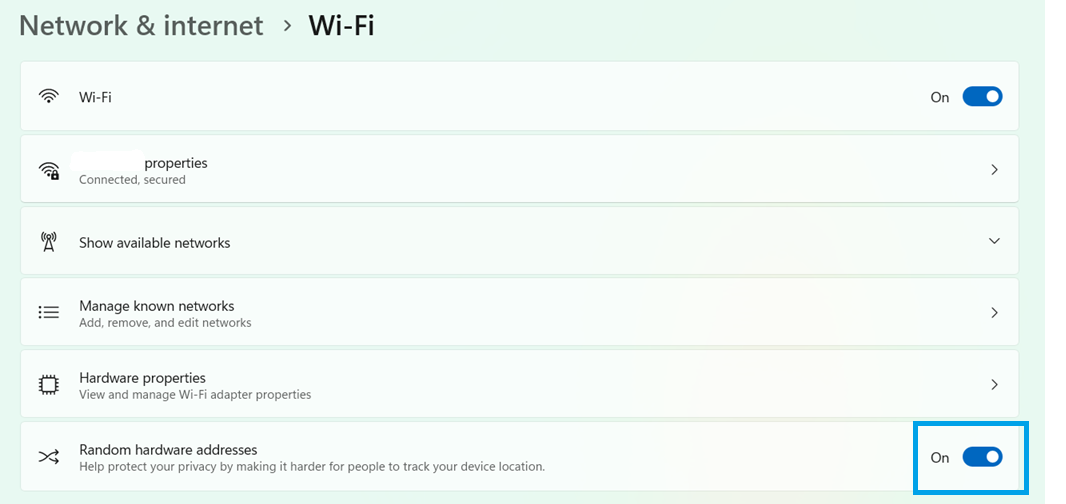
- After enabling it, try connecting to the Wi-Fi network again.
5. Reset Your Wi-Fi Router
If the error still exists, it’s likely that the problem is tied to your router settings that are blocking your device or preventing proper authentication. Resetting the router restores it to its default configuration, which can remove misconfigurations and allow you to connect to Wi-Fi normally.
Note: A router reset will remove custom settings (such as the Wi-Fi name, password, ISP login details, and any special configuration). Only do this if the earlier fixes did not work, and make sure you know how to set the router up again afterward.
If the problem still continues even after a reset, the issue may be related to device-side networking (for example, outdated Wi-Fi adapter drivers or a Windows network configuration problem), rather than the password itself.