Fix: “The following component(s) are required to run this program”
The error “The following components are required to run this program” usually appears as a Windows popup when launching a game or application. It indicates that the system is missing required runtime components such as DirectX, Microsoft Visual C++ Redistributables, or other libraries that the program depends on.
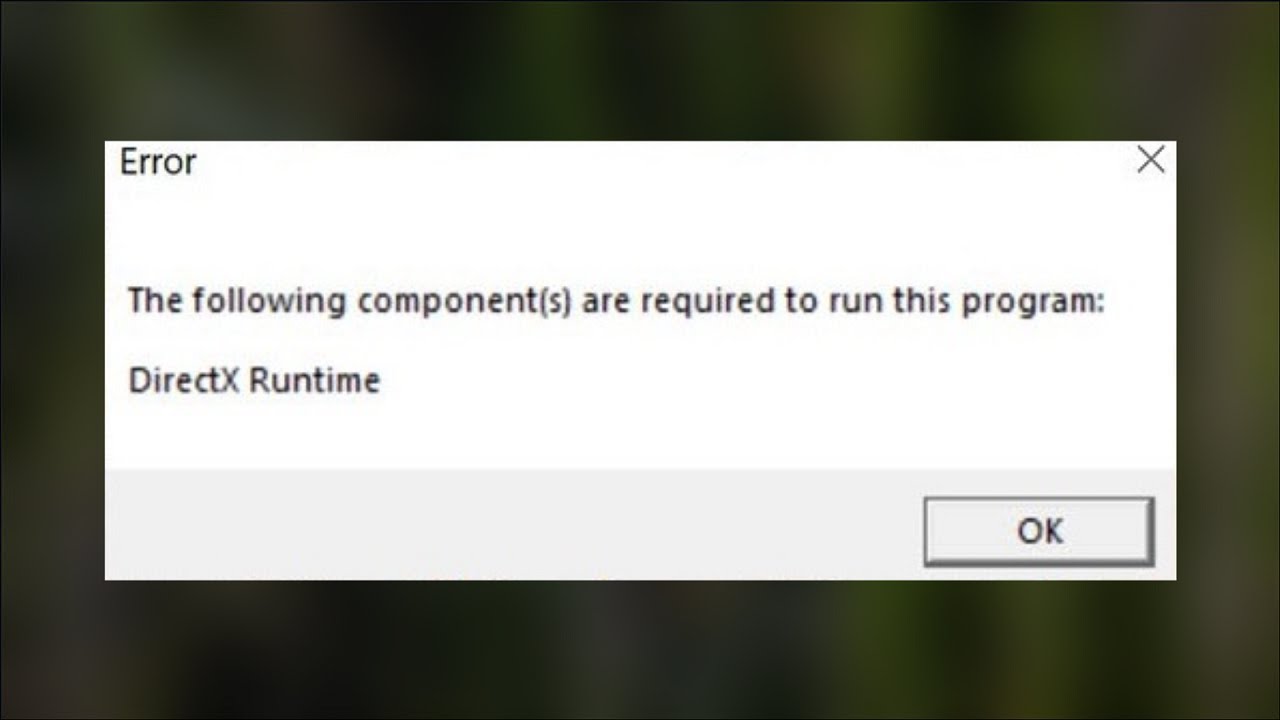
Many games and applications rely on DirectX to handle graphics, audio, and multimedia processing. Although modern versions of Windows include the latest DirectX version, some programs still require older legacy DirectX files such as D3DX, XAudio, or XInput libraries. These legacy components are not installed by default, which can prevent older applications from launching.
Similarly, applications built using Microsoft’s C++ development tools depend on Visual C++ runtime libraries. If the required redistributable version is missing or corrupted, the application cannot access the libraries it needs and may display this error.
In some cases, outdated system components, incompatible DirectX launch settings, or incomplete program installations can also trigger this problem. The methods below explain how to install the required components and restore missing dependencies.
1. Install the DirectX End-User Runtime
DirectX manages graphics, audio, and multimedia functions for many games and applications. Even though Windows includes modern DirectX versions such as DirectX 12, some programs require older runtime files that are not installed automatically.
Installing the DirectX End-User Runtime adds legacy DirectX components required by older games and applications, allowing them to locate the files needed to run.
- Close the program showing the error.
- Go to the official Microsoft website.
- Download the DirectX End-User Runtime Web Installer.
- Run the installer.
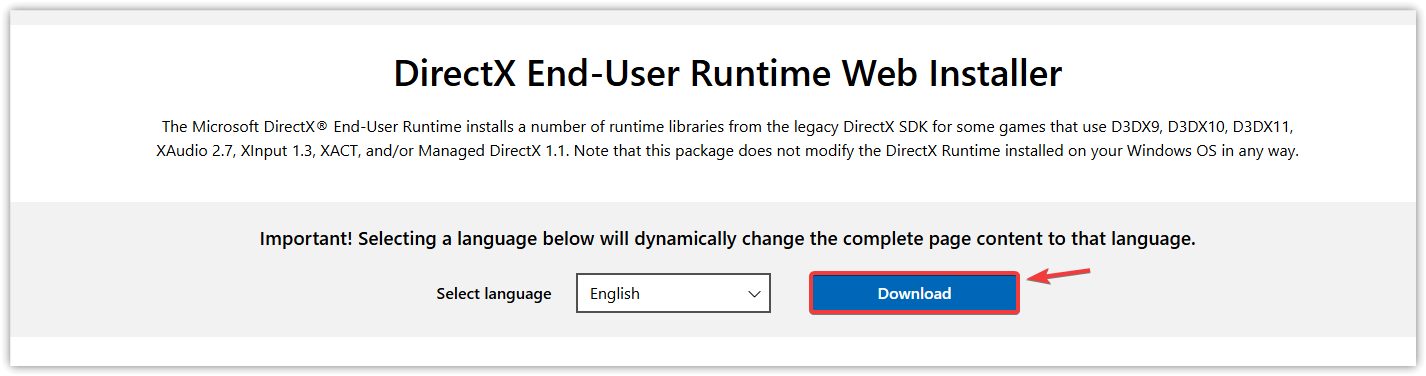
- Follow the on-screen instructions to complete the installation.
- Restart your PC.
- Launch the program again.
2. Install the Required Microsoft Visual C++ Redistributables
Many applications depend on Microsoft Visual C++ Redistributables to run. These packages contain runtime libraries required by software compiled using Microsoft’s C++ development tools.
Different applications rely on different redistributable versions. If the required version is missing or corrupted, the program may fail to start and display this error. Installing multiple supported versions ensures compatibility with various applications.
It is generally recommended to install both x86 and x64 versions, as well as multiple supported releases such as Visual C++ 2010 through Visual C++ 2015–2022, since different programs depend on different runtime libraries.
- Close the affected game or application.
- Open the official Microsoft Visual C++ Redistributable download page.
- Check whether your system is 32-bit or 64-bit (Settings > System > About).
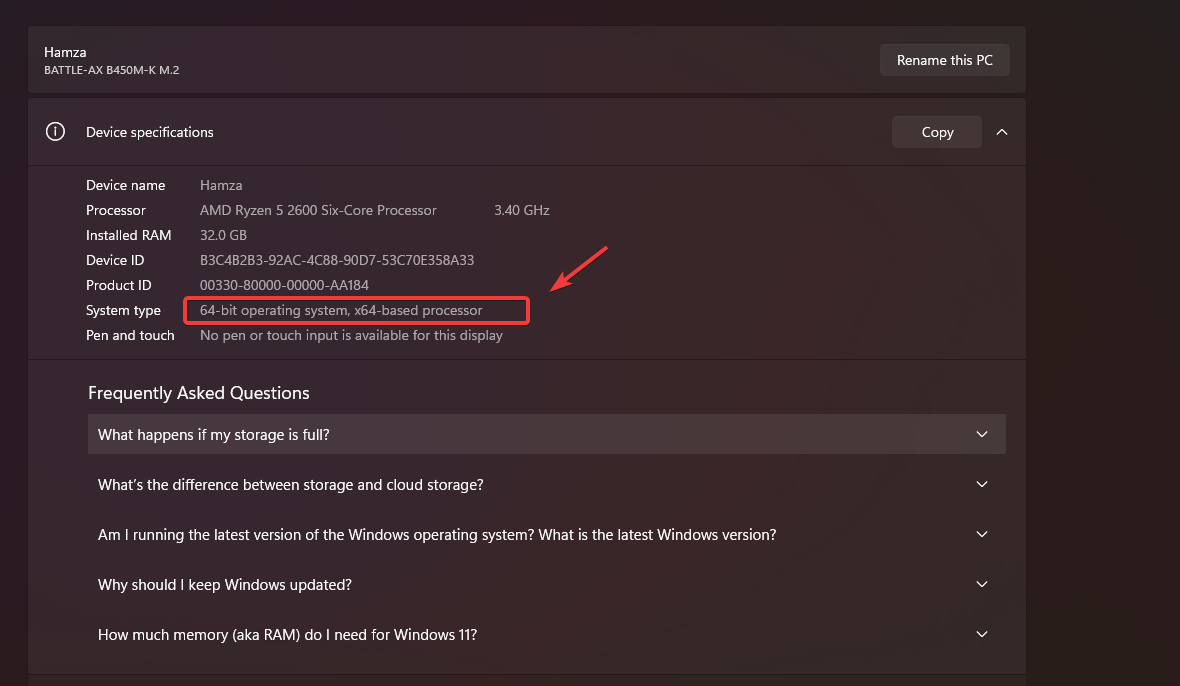
- Download the required redistributable packages. Installing both x86 and x64 versions is recommended.
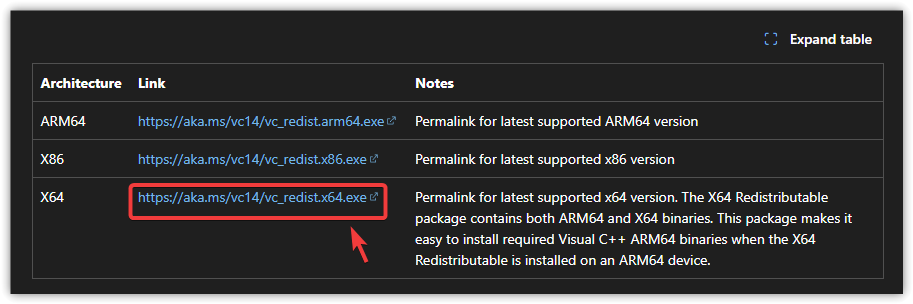
- Run each installer and complete the installation.
- Restart your computer.
- Launch the program again.
3. Change the DirectX Launch Option
Some games allow you to manually choose which DirectX version they should use. If the game attempts to launch using a DirectX version that your GPU or system does not fully support, it may fail to start and trigger this error.
For example, certain games may run more reliably using DirectX 11 instead of DirectX 12. Changing the launch parameter forces the game to use a compatible graphics API.
The following example shows how to change launch options in Steam. Other launchers may have similar settings depending on the game.
- Open your game launcher (for example, Steam).
- Locate the game in your library.
- Right-click the game and select Properties.
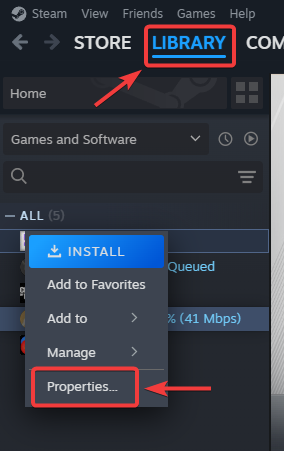
- Find the Launch Options field.
- Enter the following parameter: -dx11.
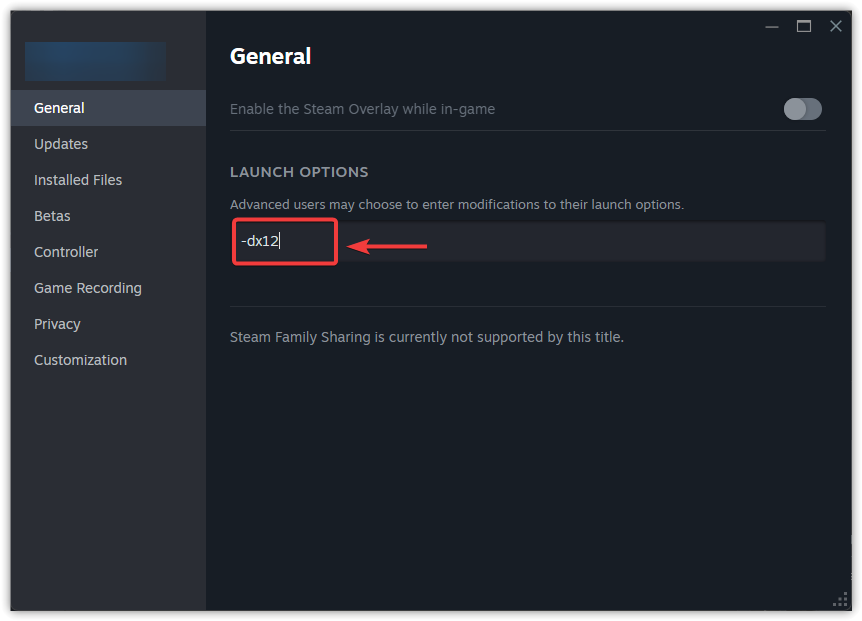
- Close the properties window to save the changes.
- Launch the game again.
4. Update Windows
Keeping Windows updated ensures your system receives the latest system libraries, graphics components, and compatibility updates required by modern applications and games.
Windows updates may also install missing dependencies and improve compatibility with newer graphics APIs or runtime libraries.
- Press Windows + I to open Settings.
- Select Windows Update.
- Click Check for updates.
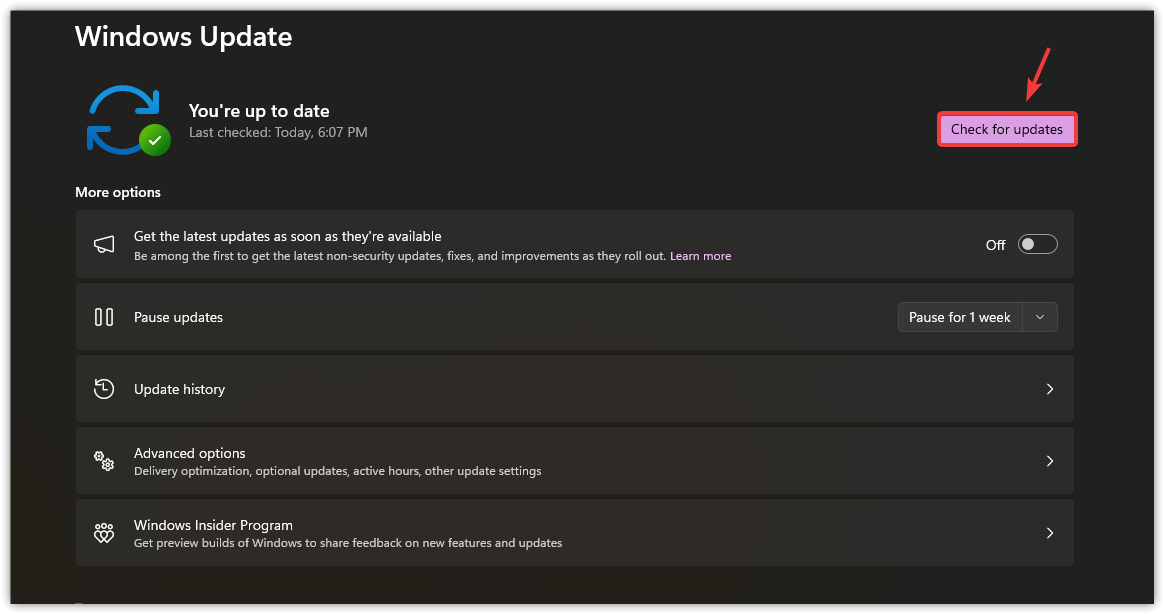
- Install all available updates.
- Restart your computer if prompted.
- Try launching the program again.
After installing the required runtime components and updates, the application should launch normally. If the error still appears, verify the program files using your launcher (for example, Steam’s Verify Integrity of Game Files) or reinstall the application to ensure that no required program files are missing or corrupted.