How to Fix Steam Guard SMS Code Not Arriving?
If Steam asks you to enter an SMS code to enable or reset Steam Guard Mobile Authenticator, but the text message never arrives, the setup gets stuck because Steam can’t confirm your number can receive verification texts.
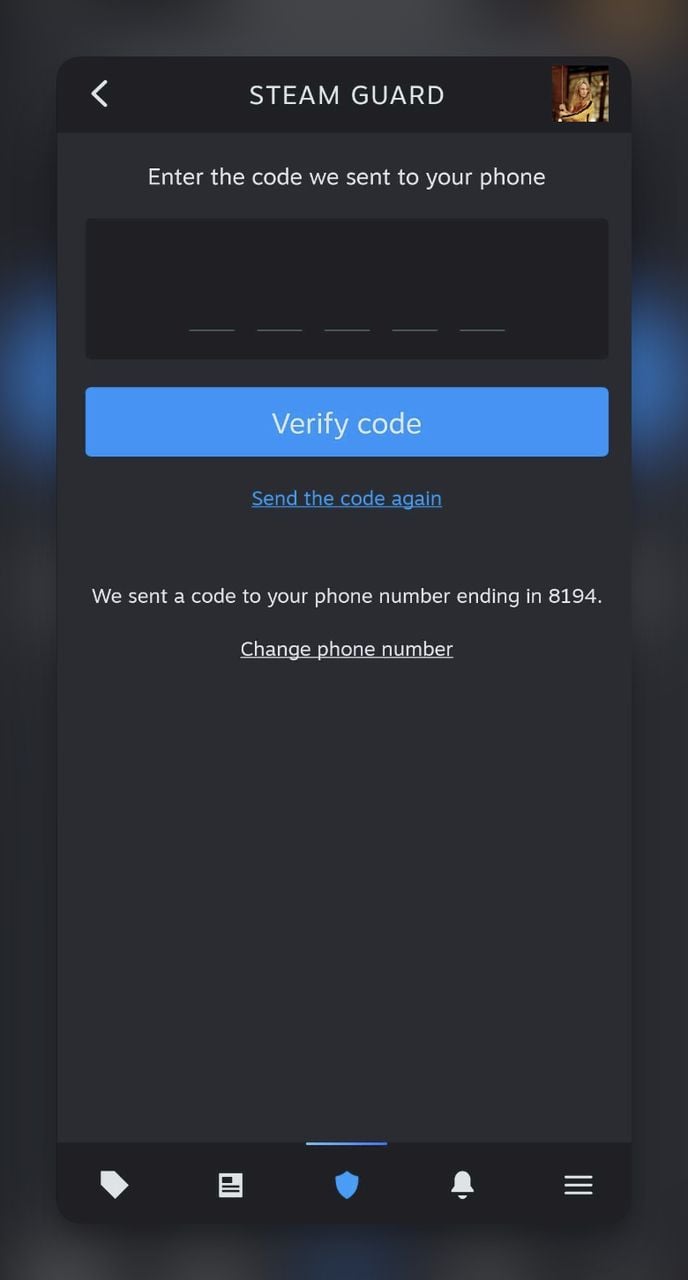
Common causes include:
- Wrong phone number/country selection (incorrect country, extra digits, spaces, or a leading 0 that shouldn’t be there).
- Carrier blocks (OTP/A2P/short-code verification SMS blocked, spam filtering, or international SMS limits).
- Steam cooldown after multiple resend attempts in a short time.
- Phone-side filtering (verification texts routed to Spam/Blocked/Unknown Senders).
Before you start (quick checks)
- Confirm your phone can receive normal SMS (ask a friend to text you).
- Make sure you have signal (bars). SMS typically uses your carrier network (unless Wi-Fi Calling is enabled and supported by your carrier).
- Toggle Airplane Mode for 10 seconds, then turn it off (forces a network refresh).
- Restart your phone once (clears temporary carrier/session glitches).
- Ensure Steam can reach the internet (Wi-Fi or mobile data) so it can request the code.
1. Fix the Phone Number Format (Do This First)
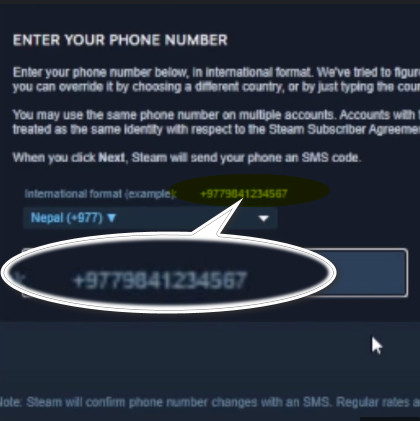
If the phone number is entered in the wrong international format, Steam may fail to route the SMS correctly. This is one of the most reliable fixes.
- On the Steam phone number screen, confirm the correct country is selected.
- Enter the number as a clean string of digits (no spaces, dashes, or symbols).
- Avoid adding a leading 0 unless your carrier specifically requires it for the format Steam expects.
- Save changes, then request the SMS code again.
- Example format reference:
2. Request the Code Once (Don’t Spam) + Wait for Cooldown
Resending can help, but repeatedly tapping “send again” can delay delivery or trigger a temporary cooldown. Request the code once, then wait before trying again.
- Tap Send the Code Again.
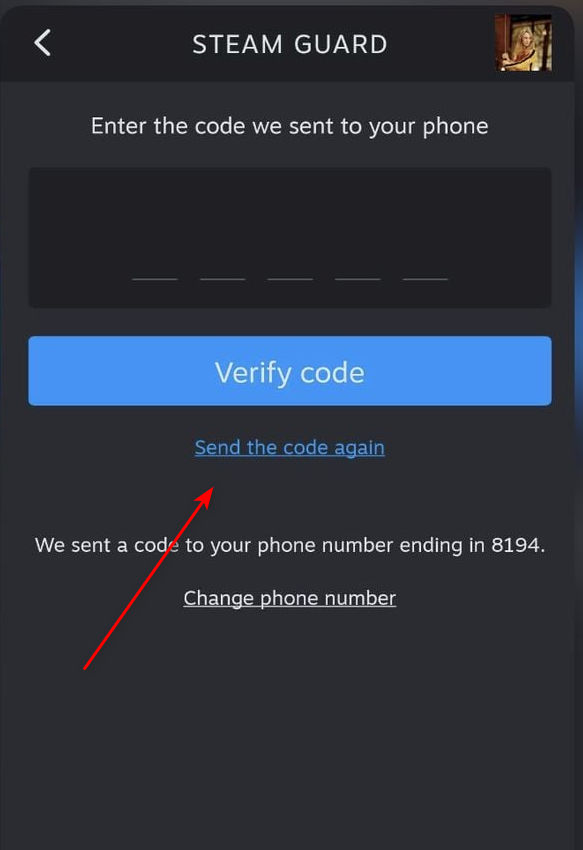
Recommended timing
- After requesting: wait 15 minutes.
- If nothing arrives: wait 60 minutes before requesting again.
- Avoid making many attempts in one session/day (cooldowns can stack).
3. Check Filtered / Blocked Folders
Some Android messaging apps automatically filter verification texts into Spam & Blocked (or similar folders). Check there before changing anything else.
- Open the default Messages app on your phone.
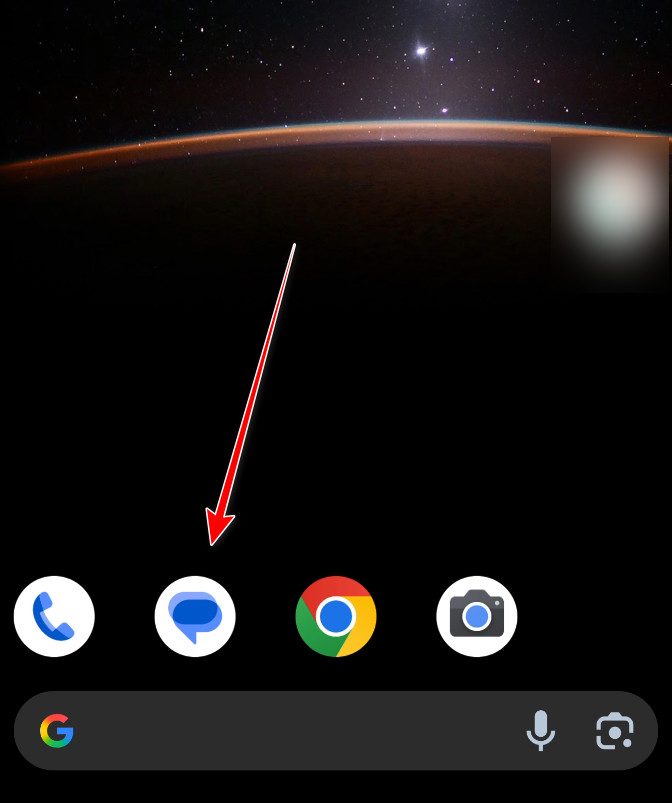
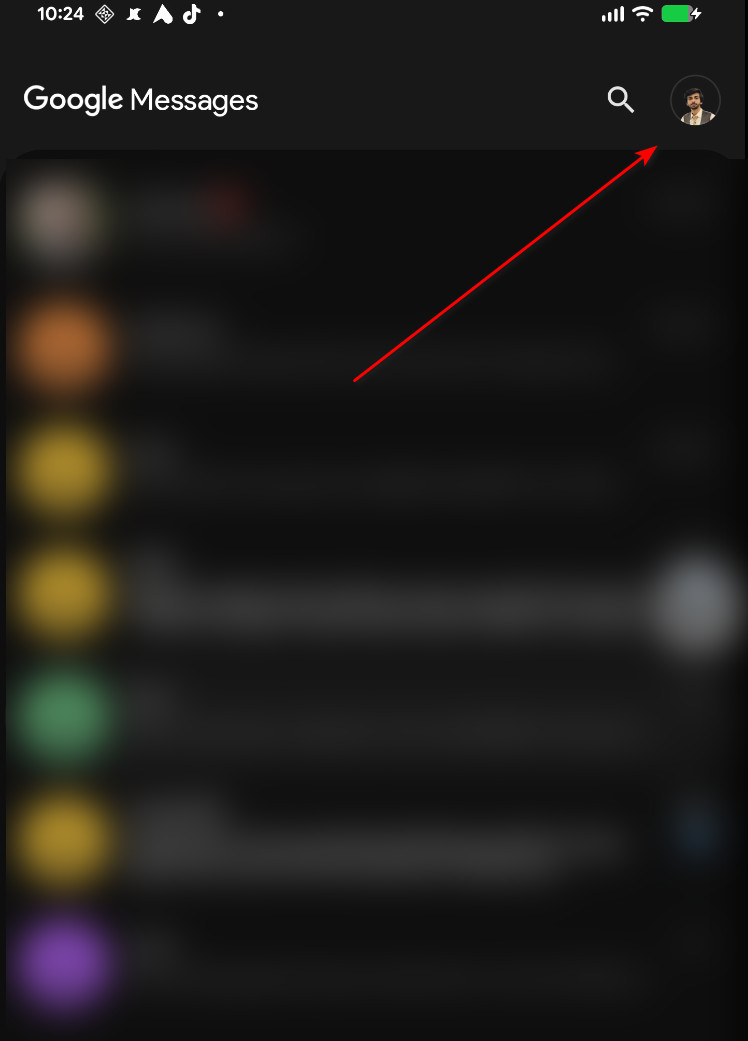
- Tap your profile icon.
- Go to Spam & Blocked.
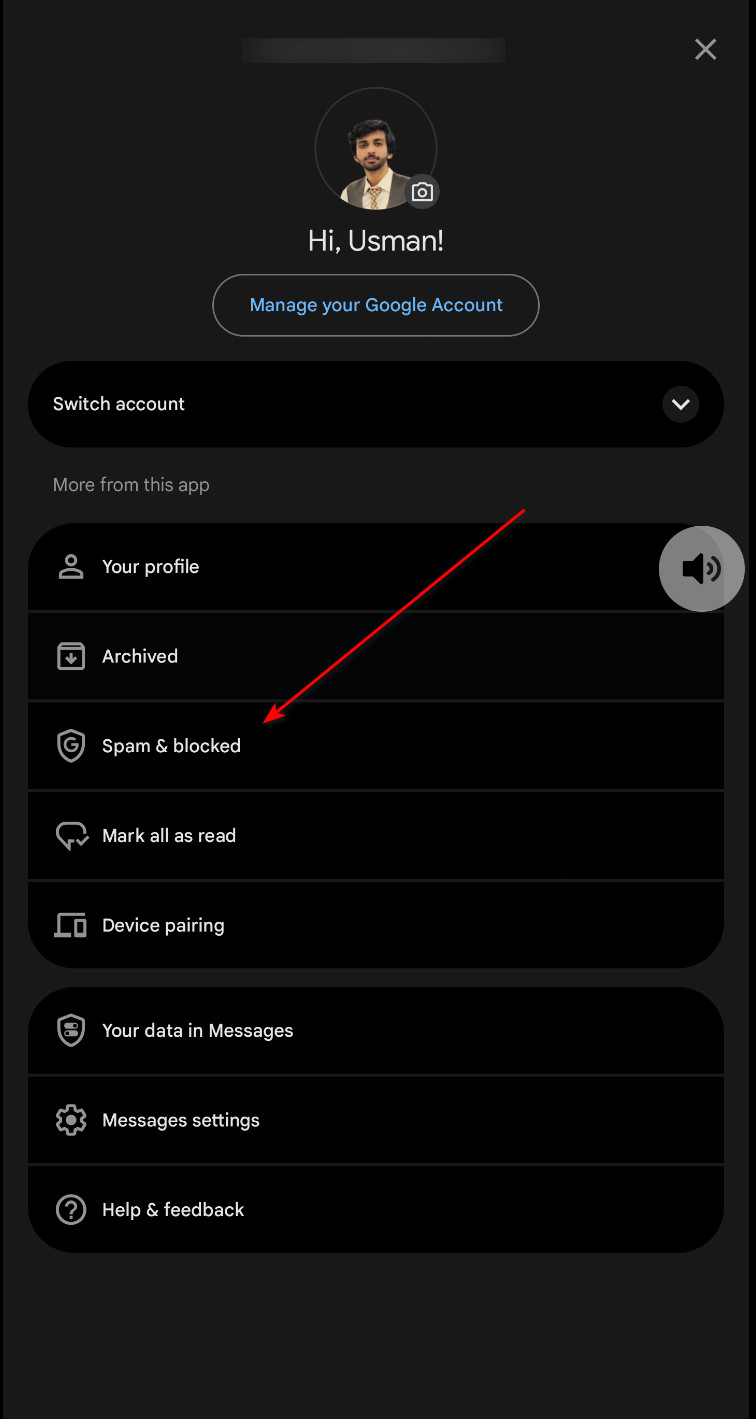
- Check if any Steam verification texts are listed there.
- If you find them, move them back to your normal inbox and mark Steam as Not spam.
- Request a new code from Steam and confirm it now shows up in the main inbox.
On iPhone, verification texts can appear under Unknown Senders instead of your main inbox if message filtering is enabled. You may still receive the SMS, but it’s easy to miss.
- Open Messages and tap Filters (top-left) if you see it.
- Check Unknown Senders.
- Check blocked senders: Settings > Messages > Blocked Contacts.
- Request a new Steam code and watch the Messages list for any new incoming verification SMS.
4. Toggle VPN / Private DNS
A VPN or Private DNS won’t block incoming SMS by itself, but it can affect whether the Steam app can successfully request a new verification code from Steam’s servers. In many cases, turning VPN/Private DNS off removes ad-block/DNS filtering that breaks Steam’s request.
However, in some networks/countries/ISPs, turning a VPN on is the fix because it bypasses routing/DNS blocks and lets Steam’s code request go through.
- If you already have a VPN or Private DNS enabled: turn it off, then request a new code (once, then wait).
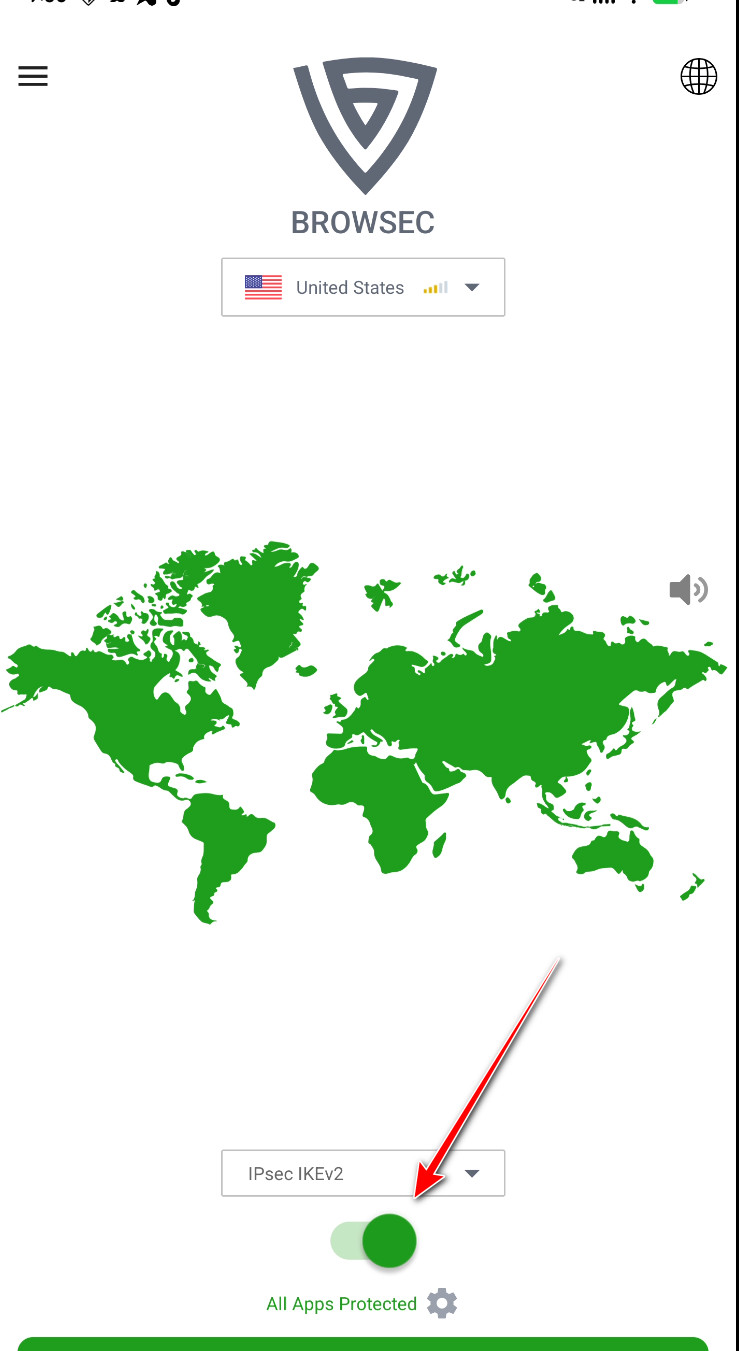
- If nothing arrives and you suspect your network/ISP is blocking Steam: turn a reputable VPN ON (pick a nearby region), then request the code again once and wait.
- Also test a different connection (mobile data ↔ Wi-Fi). Request once per test and don’t spam.
5. Turn Off VoLTE
Toggling VoLTE can change how your phone registers on the network. If you never receive any verification SMS from multiple services, you can try this as a last device-side tweak.
- Open the Settings app on your phone.
- Go to Connections > Mobile networks (menu names vary by device).
- Turn off VoLTE calls.
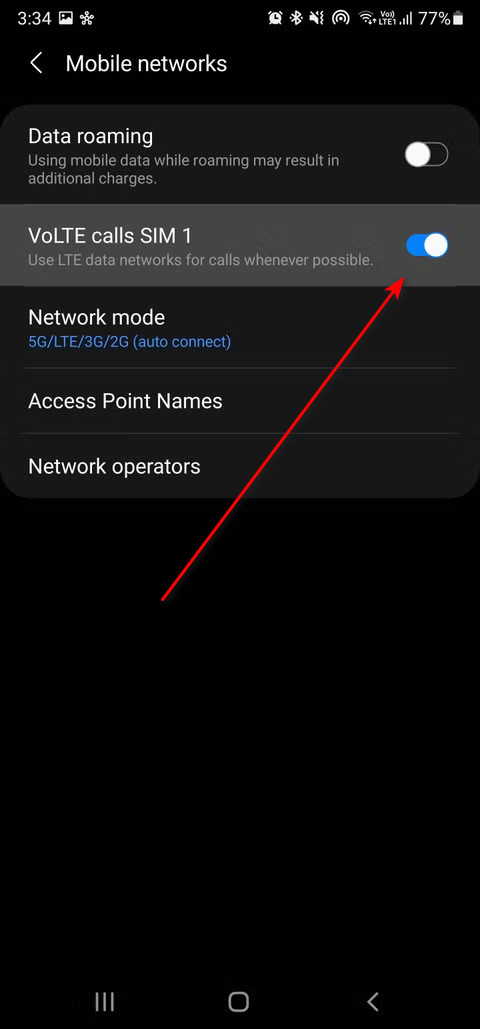
- Restart your phone to refresh the network connection.
- Open Steam again and request a new SMS code.
6. If Nothing Works: Use Steam Account Recovery Options
If you can’t receive verification SMS at all (or your carrier can’t unblock OTP messages), you may need to use Steam’s recovery options to regain access or change/remove the authenticator.
- Look for a saved recovery code (many users store it when enabling Steam Guard).
- Use Steam Support to recover your account or update your phone number when SMS delivery is impossible.
- If you can receive SMS on a different line, consider temporarily using an alternate number you control (only if Steam allows it).