Fix: Battlefront II Error Code 201 / 216 Connection to the Game Server Has Been Lost
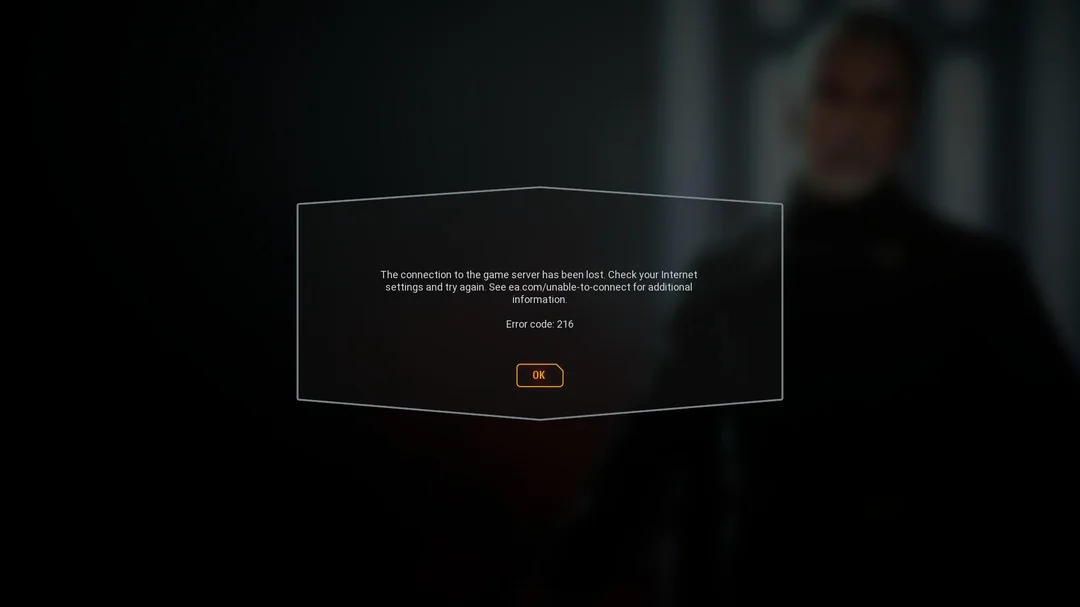
“The connection to the game server has been lost (Error Code 201 / 216)” in STAR WARS Battlefront II usually appears when the game suddenly drops its link to EA’s multiplayer servers.
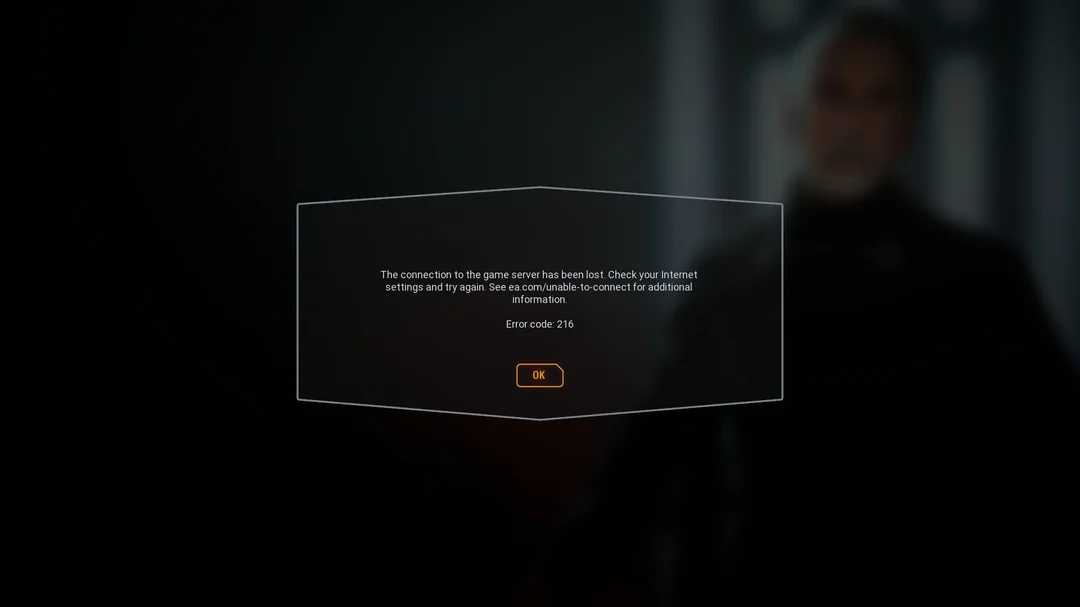
Players encounter it either while:
- Joining a match
- Loading into a new planet
- Mid-game after a short freeze, followed by a forced return to the main menu
Although the message sounds like a server outage, these errors most often point to connection-level interruptions between your system and EA’s data centers. Even brief packet loss, unstable Wi-Fi, or mismatched regional routing can break the handshake that keeps your session active.
In other cases, the problem stems from stale client sessions inside the EA App or console network cache that fail to refresh properly after disconnects.
Based on player reports, Error 201 and 216 share the same cause but appear under slightly different conditions:
- 201 – During matchmaking or mid-match drops
- 216 – Right at the start when the connection can’t be established
While server outages can occasionally trigger them, most cases are resolved by fixing local or routing-related issues.
In this article, we’ll go through several methods that can help you fix this error and reconnect to the servers.
1. Check Server Status
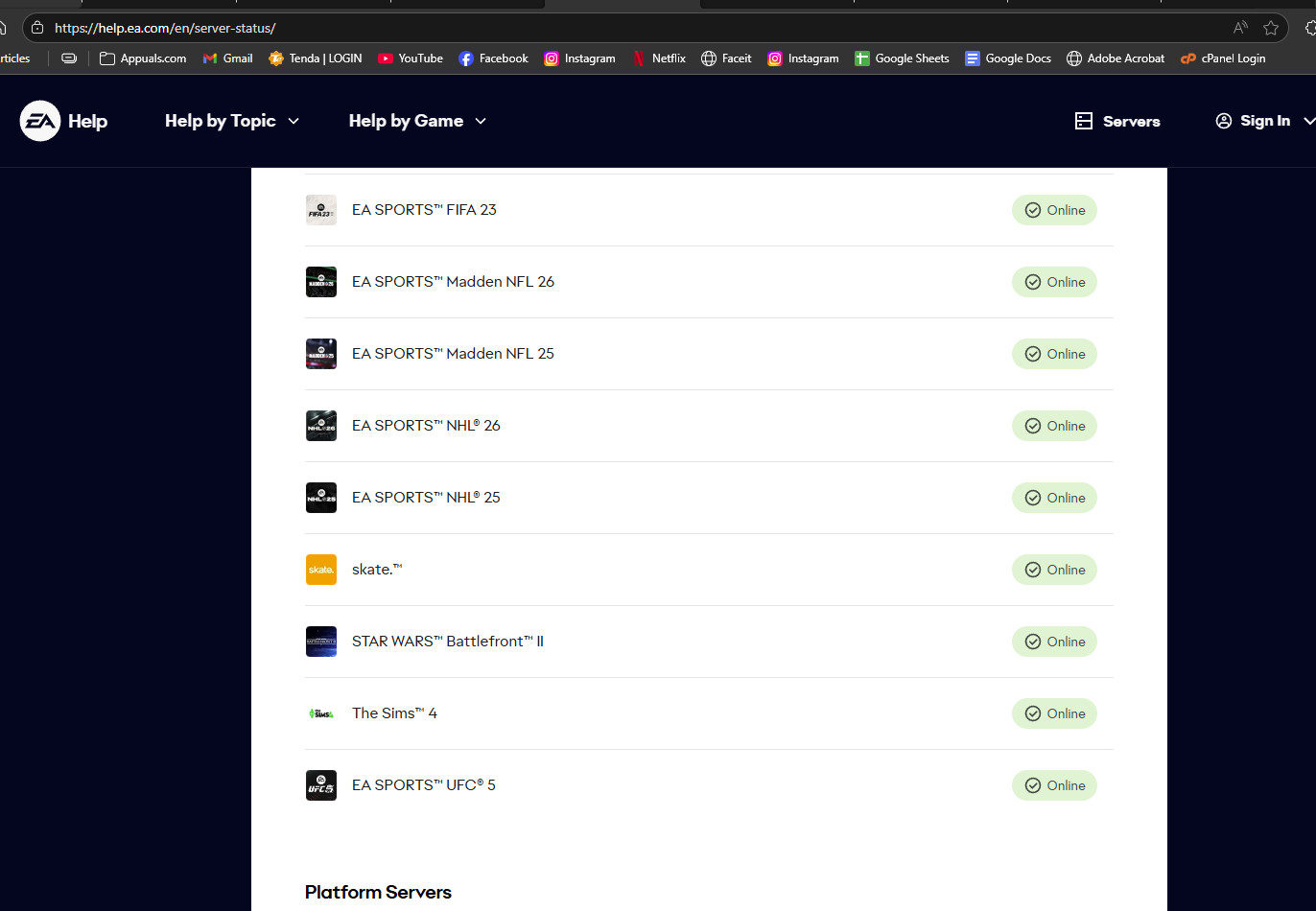
Before trying any fixes, it’s important to check the server status. Sometimes, the issue lies on EA’s end, and the servers might be temporarily down. Checking the server status will help you determine whether the problem is from your side or the server side.
- Check the server status here.
2. Join Arcade and Leave
In many cases, joining and then leaving an Arcade match (a local mode) can refresh the game’s connection to EA’s servers. This quick action reinitializes the communication link and often helps restore stable connectivity.
- Launch the game and enter Arcade mode, then exit it.
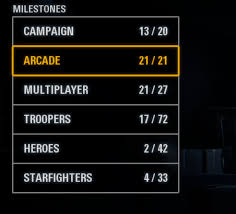
- After leaving Arcade mode, try joining the online game again.
3. Spam the Connect Button
Repeatedly pressing the Connect button can sometimes force the game to send multiple login requests, helping it bypass temporary packet loss, queue delays, or unstable connections. Eventually, one of the attempts may establish a successful session.
- Open the game and wait until the error message appears with the OK button.
- Instead of restarting or waiting, quickly press the OK button several times in a row.
4. Restart or Replace the Router
Restarting your router can refresh the network configuration, clear any temporary glitches, and reestablish a stable connection to the game servers. If the router is faulty or outdated, replacing it can also help eliminate persistent connectivity problems.
- Turn off your router and unplug it from the power source.
- Wait for 30 seconds to 1 minute.
- Plug the router back in and turn it on.
- Wait until the router fully restarts and reconnects to the internet.
- Launch the game again and try connecting to the server.
- If the issue persists, contact your ISP and request a replacement router to confirm whether the problem is hardware-related.