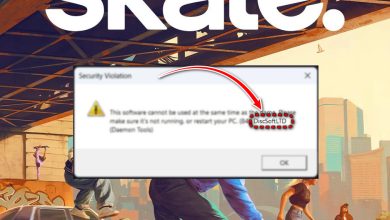
Fix: “Sorry, something went wrong” When Launching Games
When you launch a game and see “Sorry, something went wrong. For solutions please visit,” the game is usually failing during an early sign-in/ownership validation step (before gameplay). In other words, the launcher/DRM can’t confirm your access, so it stops with a generic message.
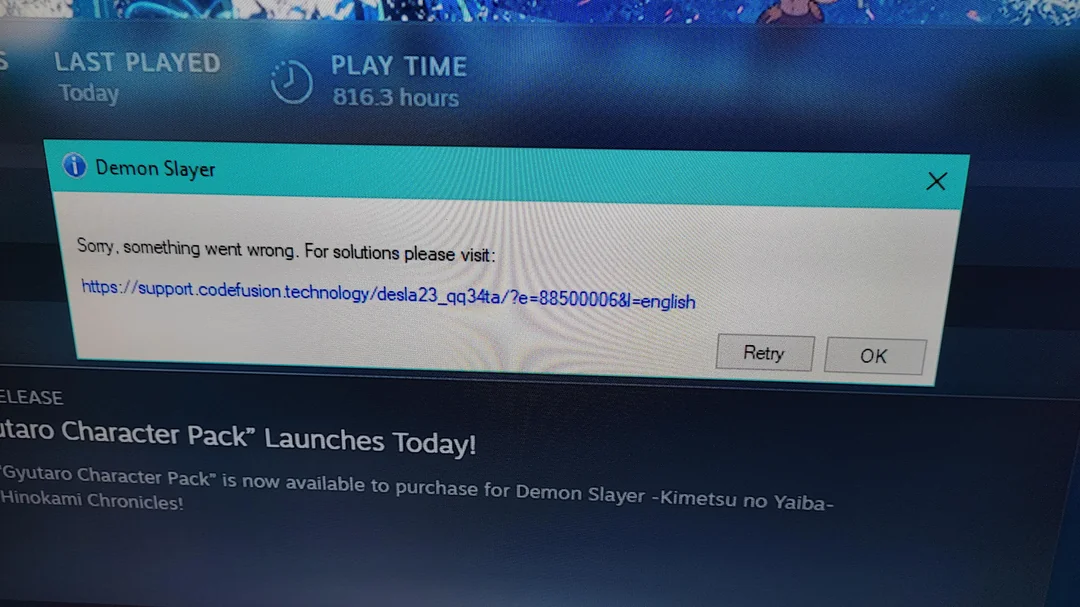
Because the message is generic, it can happen on Steam, Epic, EA App, Ubisoft Connect, or Rockstar Launcher. Most often it’s a token/session issue, but it can also be caused by a broken launcher cache, blocked network access, or anti-cheat/anti-tamper failing to initialize.
Common causes:
- Entitlement check fails: ownership can’t be verified (token/session/online validation).
- Server-side issues: platform outage or temporary service problems.
- Activation/cooldown: repeated reinstalls, hardware changes, or many attempts trigger a temporary limit (varies by game/DRM).
- Interference: overlays, antivirus, or injected background tools conflict with anti-cheat/anti-tamper.
- Network blocks: VPN/proxy, firewall, DNS, or ISP/router filtering blocks required endpoints.
- Corrupted launcher cache: broken local web login/cache causes token failures.
Try the fixes below in order (fastest, lowest-risk first). After each one, restart the launcher and try again.
Quick Checks (Do This First)
- Restart launcher + PC: fully close Steam/Epic/EA (end tasks in Task Manager if needed), then reboot.
- Confirm the correct account: sign into the account that actually owns the game. Multiple accounts/Family Sharing can fail entitlement checks.
- Test another network: use a mobile hotspot to quickly rule out router/ISP filtering.
- If you’re using EA Play, Ubisoft+, or PC Game Pass, confirm the subscription is active on the same account you’re signed into.
- If the game was refunded/removed (or a shared copy isn’t eligible), entitlement can fail even if it’s installed.
- Open the game’s store/library page and confirm it shows Owned (or Included) on that account.
Before You Begin: Possible Cooldown
If this started right after a fresh reinstall, a major hardware change (CPU/motherboard/storage), or many attempts in a short time, you may be hitting a temporary activation/cooldown. Spamming retries can keep failing until it resets.
- Close the game and launcher completely.
- Avoid reinstalling again or moving the install between drives.
- Wait, then reopen the launcher and sign in fresh (timing depends on the title/DRM).
Solution 1. Clear the Launcher Cache
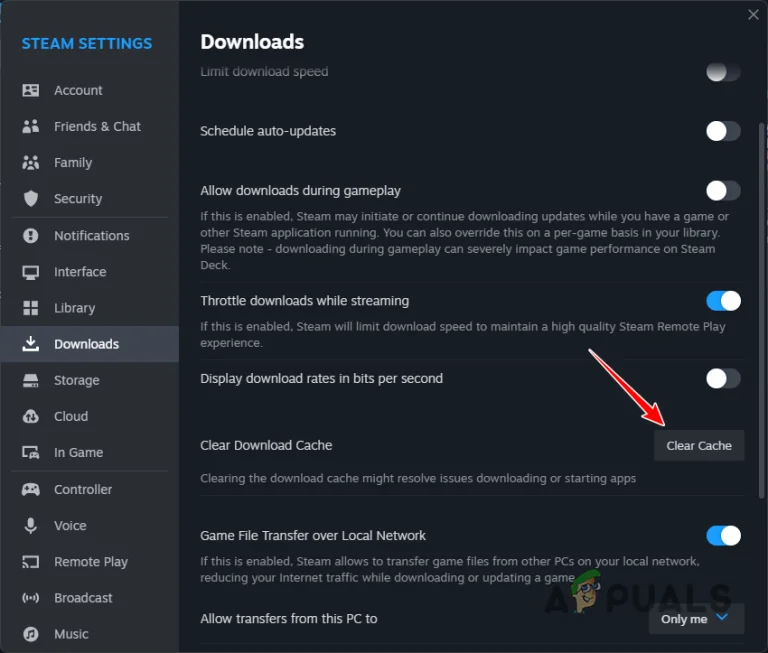
Corrupted session/web cache can break entitlement tokens. Clearing cache forces a clean rebuild and often fixes this without reinstalling the game.
Note: Clearing cache may log you out, make sure you know your credentials.
- Steam: Steam > Settings > Downloads > Clear Download Cache, then sign back in.
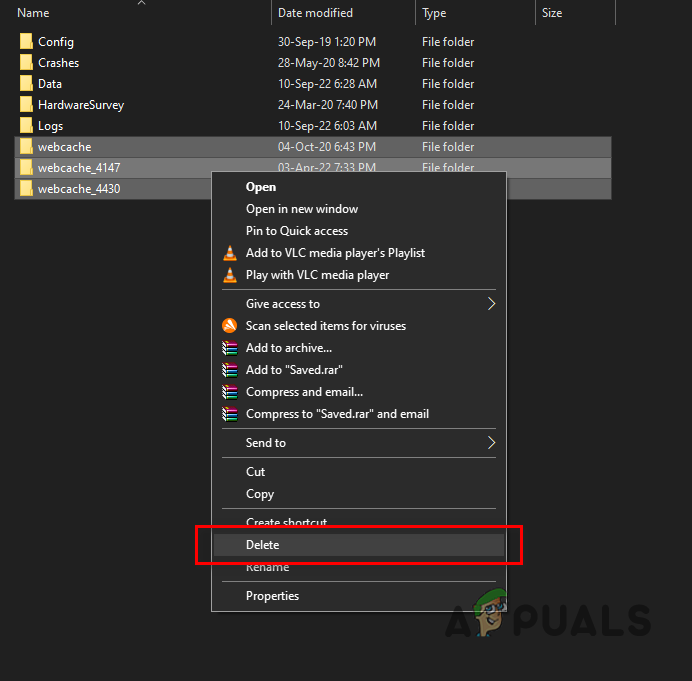
- Epic Games Launcher: close Epic completely (end tasks in Task Manager), then delete webcache:
- Press Win + R, paste: %localappdata%\EpicGamesLauncher\Saved\
- Delete webcache / webcache_* (if present), reopen Epic, then sign in again.
After clearing cache: reopen the launcher, sign in again, and launch the game.
Solution 2. Verify/Repair Game Files
Missing/corrupted files can break startup components (including bundled anti-cheat/anti-tamper). Verifying repairs the install by re-downloading damaged or missing items.
Steam (steps shown):
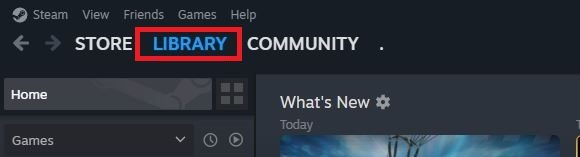
- Open Steam and go to Library.
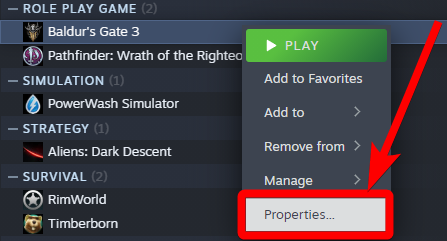
- Right-click the game > Properties.
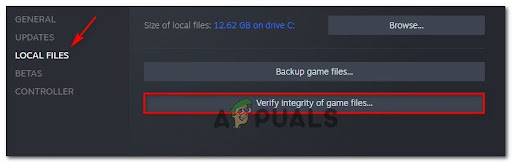
- Local Files > Verify integrity of game files.
- Wait for the scan to finish.
Other launchers (quick paths):
- Epic: Library > (three dots) > Manage > Verify.
- EA App: Library > game > Manage > Repair.
- Ubisoft Connect: Games > game > Properties > Verify files (wording may vary).
- Rockstar Launcher: Settings > My installed games > select game > Verify integrity (wording may vary).
If you need a full walkthrough: How to Verify Integrity of Game Files on All Platforms?
Solution 3. Allow the Game (and Launcher) Through the Firewall
Many games do a quick online validation at launch. If the game or launcher can’t reach required endpoints due to firewall/AV rules, the entitlement check can fail.
Important: If you use a third-party antivirus/firewall (Bitdefender, Norton, ESET, Kaspersky, etc.), allow the game/launcher inside that product too, Windows Firewall rules alone may not apply.
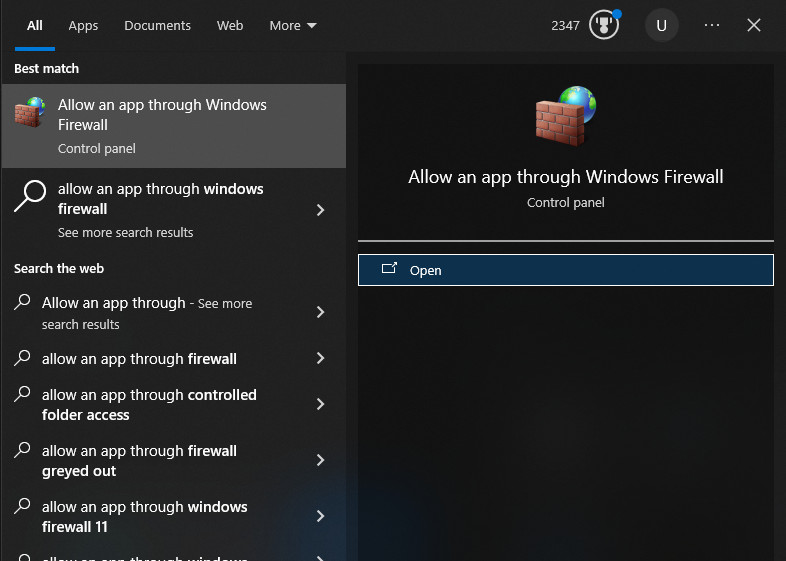
- Open Allow an app through Windows Firewall.
- Click Change settings > Allow another app.
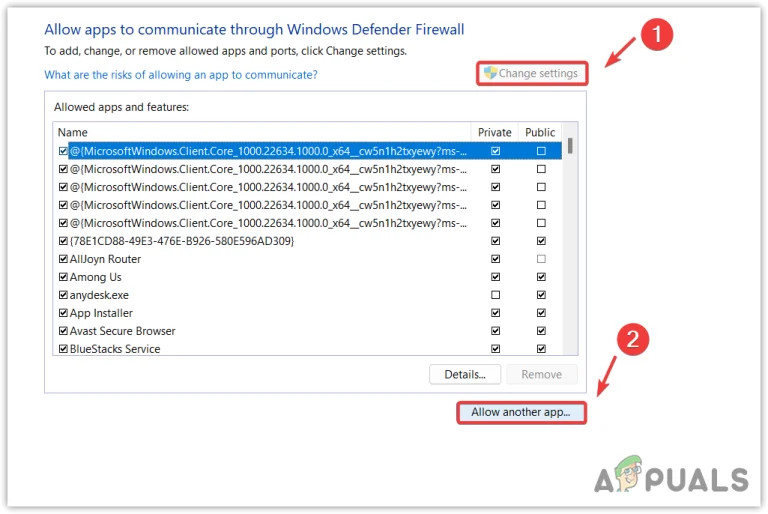
- Click Browse, add the game’s main .exe.
- Add the launcher .exe too (Steam/Epic/EA), since the session often matters.
- If the game has helper executables (anti-cheat/anti-tamper/launcher helper), add those as well.
- Tick Private. Tick Public only if you regularly play on public networks and understand the risk.
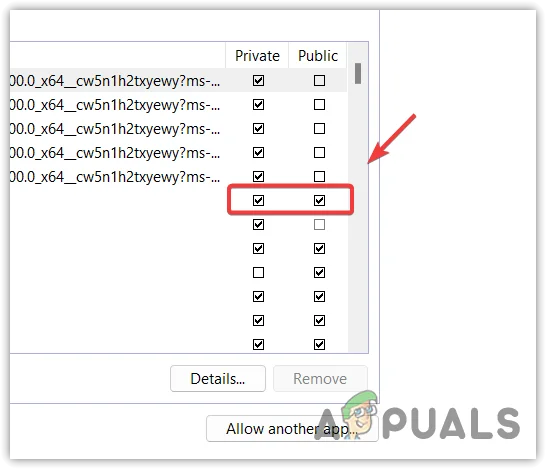
- Restart the PC, reopen the launcher, and launch the game.
Solution 4. Disable Overlays and Background Hooks
Overlays work by injecting into the game process. Some anti-cheat/anti-tamper systems treat that as interference and block startup validation.
- Disable Steam Overlay, Discord Overlay, GeForce Experience Overlay, Xbox Game Bar, and FPS/monitoring overlays. Guide: How to Disable In-Game Overlays?
- Close tools that hook games (capture tools, shader injectors, overlay-based OC tools).
- Restart the launcher and try again.
Solution 5. Repair/Reinstall the Launcher (Not the Game)
If the launcher’s login/entitlement layer is broken, verifying game files won’t help because the failure happens before the game properly starts. Repairing/reinstalling the launcher refreshes that layer while keeping installed games in most cases.
- Use the launcher’s Repair option if it exists.
- If not, uninstall the launcher, reboot, then install the latest version again.
- Sign in, let it re-detect installed games, then launch.
If nothing works: it may be account-side (license mismatch, restrictions, or a server-side block). Contact the launcher’s support and include the exact message, your platform (Steam/Epic/EA/Ubisoft/Rockstar), and whether it started after a reinstall or hardware change.