How to Fix the Skate. Black Screen Issue (Startup/Loading)
When launching Skate., you may see a black screen after the intro or during loading, with no menu or visuals. The game may still be running, but it doesn’t take display focus or fails to present the first frame.

Most reports point to display mode conflicts (Fullscreen vs Windowed/Borderless) or overlay/focus conflicts blocking the game window from rendering.
Below are the most effective fixes for the Skate. black screen issue.
1. Change Display Mode to Windowed
Windowed mode avoids exclusive fullscreen behavior that can fail at startup and helps the game present the first frame.
- Press Alt + Enter to toggle between fullscreen and windowed mode.
If Alt + Enter doesn’t respond on the black screen, try Method 6 (focus fixes) first, then retry this step.
2. Disable Overlays and Optimization Software
Overlays and monitoring/optimization tools can hook into the game during launch and prevent it from presenting a frame. Disable them temporarily to test if an overlay conflict is the cause.
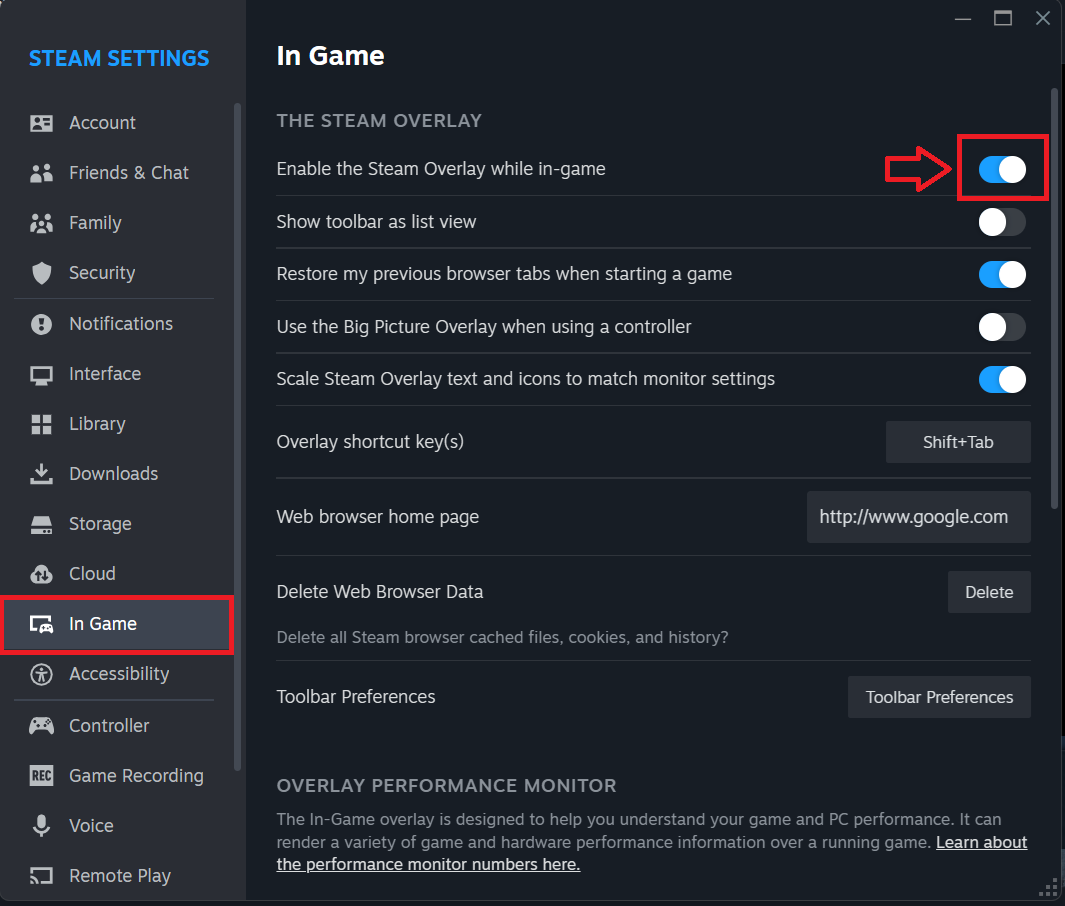
- Steam Overlay: Steam > Settings > In-Game > disable Enable the Steam Overlay while in-game.
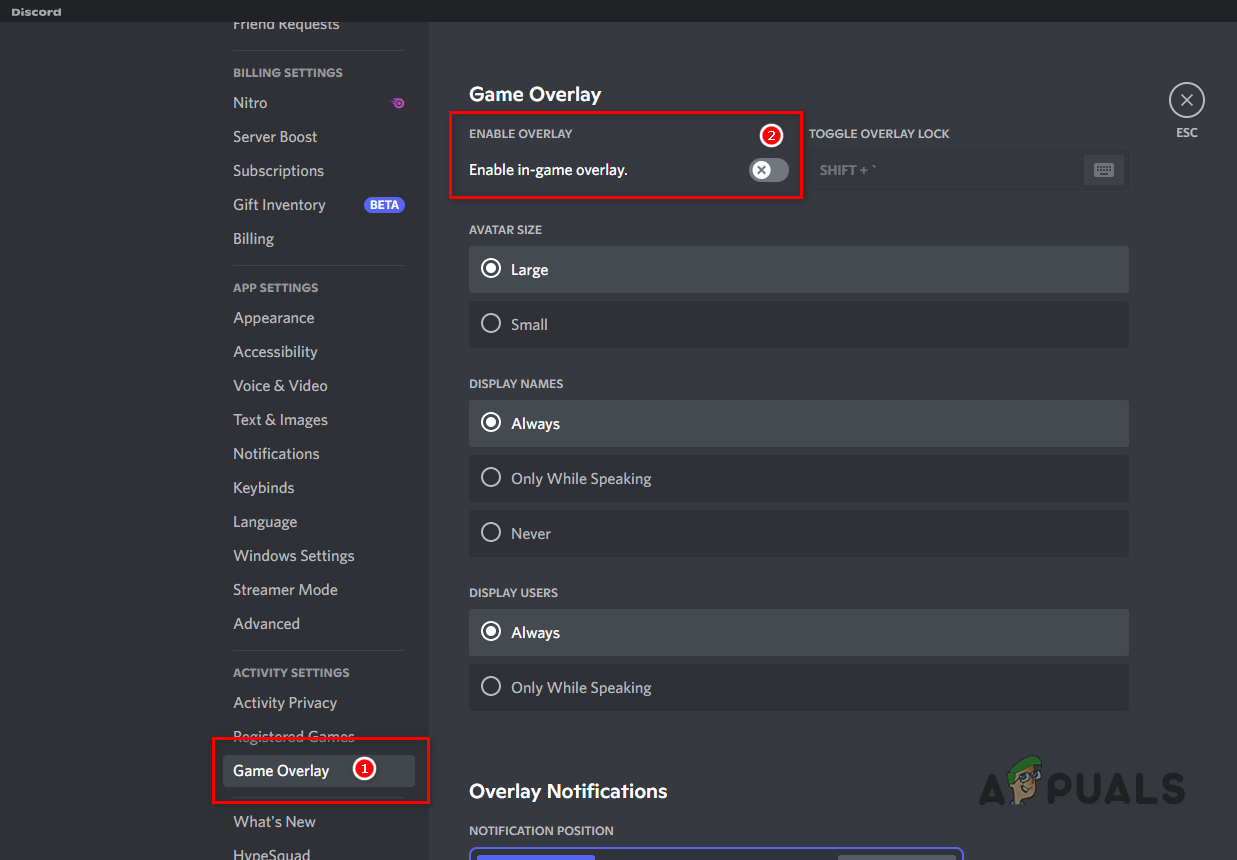
- Discord Overlay: Discord > User Settings > Game Overlay > disable.
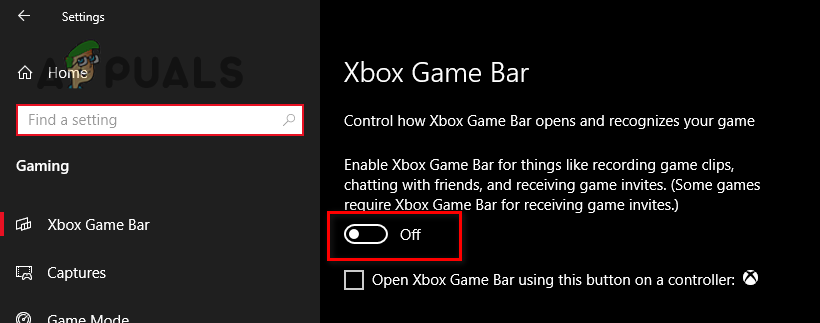
- Xbox Game Bar: Windows Settings > Gaming > turn Xbox Game Bar off (temporarily).
After disabling overlays, launch Skate. again and check if it loads past the black screen.
3. Reset Graphics/Config Settings
If the game saved an unsupported resolution, wrong monitor, HDR/refresh mismatch, or unstable display mode, it can launch to a black screen. Resetting the config forces Skate. to rebuild fresh display settings.
- Close the game and launcher completely.
- Press Win + R, paste the following, then press Enter:
%LOCALAPPDATA%\Skate
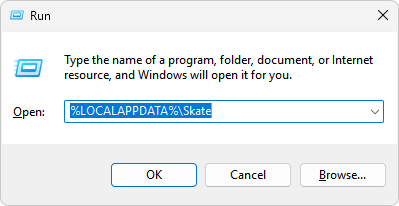
- Rename the folder (for example, add -backup), then relaunch the game so it recreates new settings.
4. Move the Game to SSD
This helps when the “black screen” is actually a loading stall (the game runs but hangs while streaming files). If Skate. is on an HDD, loading may take long enough to look frozen. An SSD reduces load time and prevents stalls.
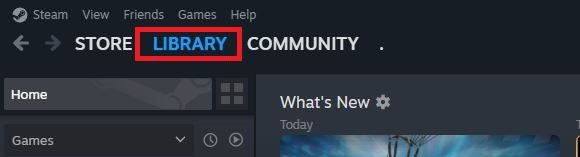
- Open Steam and go to your Library.
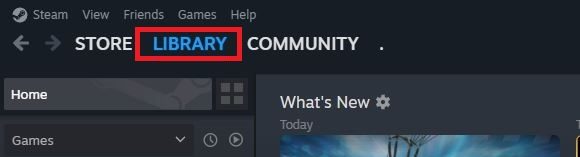
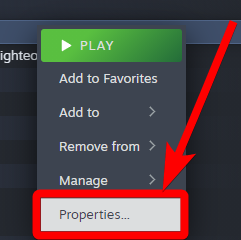
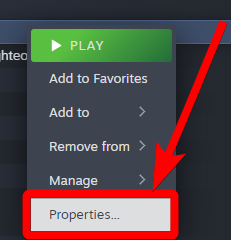
- Right-click Skate. and click Properties.
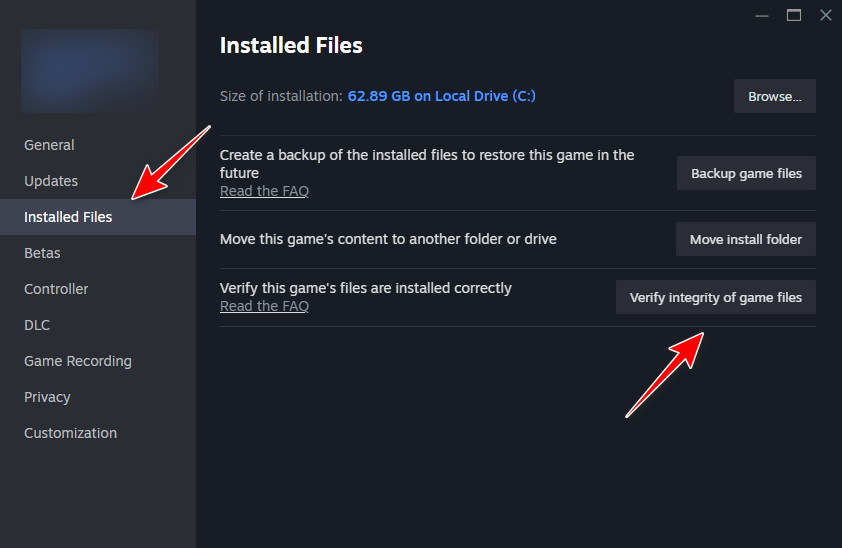
- Go to Installed Files > Move install folder.
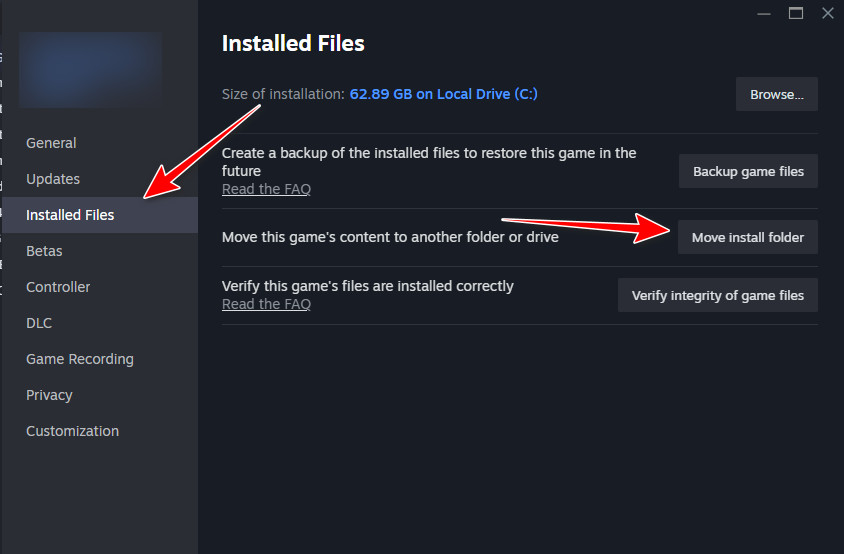
- Select your SSD and confirm the move.
- Wait for the move to finish, then close the launcher fully.
- Restart the launcher, start Skate. from the new drive, and check if it loads past the black screen.
If you’re not on Steam: Uninstall and reinstall the game to your SSD, then test again.
5. Verify/Repair Game Files
Corrupted or missing files can break loading and leave the game on a black screen. Verifying/repairing compares your install to the official version and replaces damaged or missing files.
- Open Steam and go to your Library.
- Right-click the game and select Properties.
- In the left pane, open Installed Files, then click Verify integrity of game files.
- Wait for the scan to finish (this may take several minutes, depending on your drive and game size).