How to Setup Google As Your Default Search Engine
On Google Chrome
Google is the default search engine in Google chrome, but if for some reason it’s not so, you can easily set Google as the default search engine by the following method. Run Google Chrome. Hold Alt button and press E to open Chrome menu. In the menu, click Settings. In the Search section, click on the drop down menu and click select Google. The changes will be automatically saved.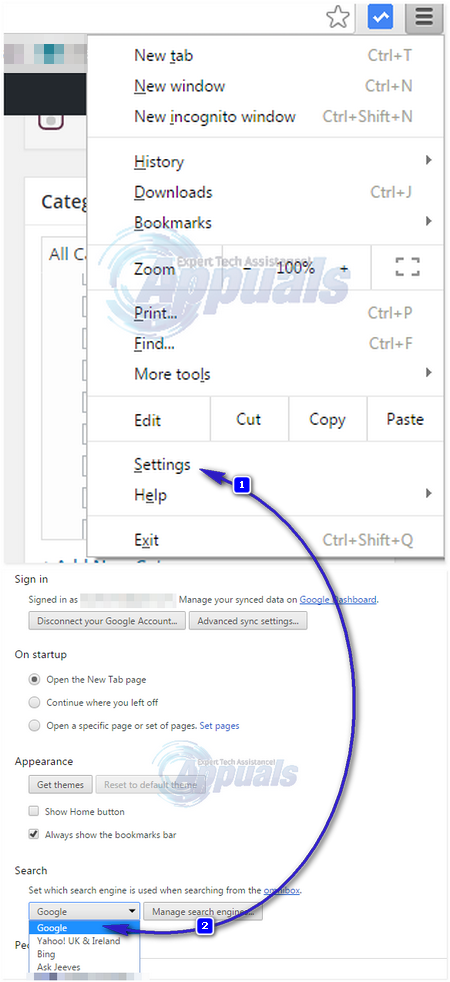
On Mozilla Firefox
Run Mozilla Firefox. Hold ALT Key and press T. In the pop up menu above, click Options.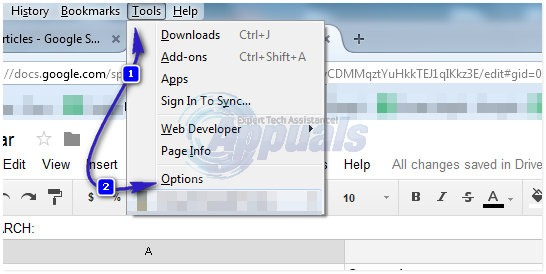 Click Search in the left pane. Under Default Search Engine section, click on the arrow to see the drop down menu. Click Google in the menu. Your changes will be automatically saved.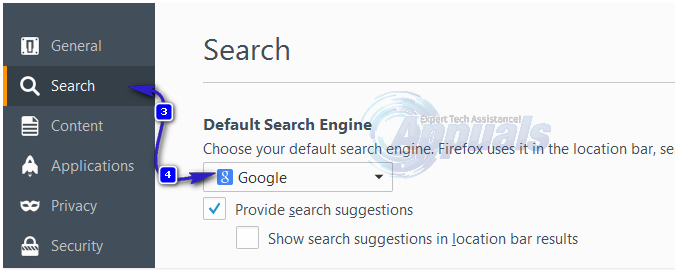
On Internet Explorer
Open the internet explorer. In the address bar above, click the small arrow button next to the magnifying glass. In the drop down menu, click the Add button in the lower right corner.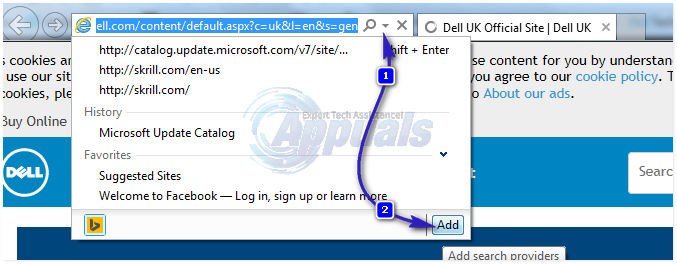 Internet Explorer gallery’s website will appear. Scroll down until you see Google Search and click Add next to it. An Add Search Provider window will appear. Check the box for Make this my default search provider. Then click Add.
 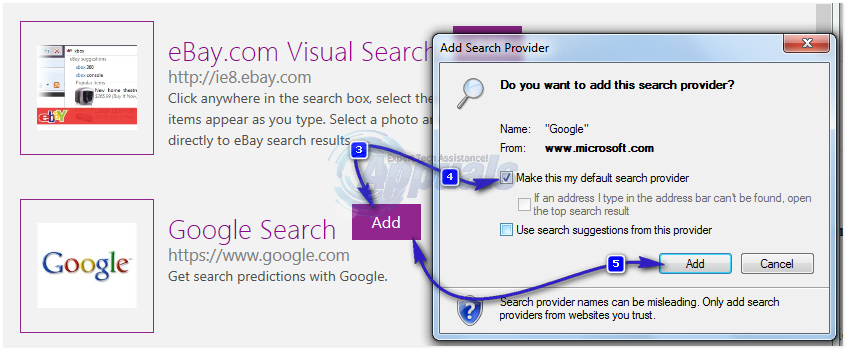 Restart internet explorer and now Google will be your default search engine.
On Microsoft Edge in Windows 10
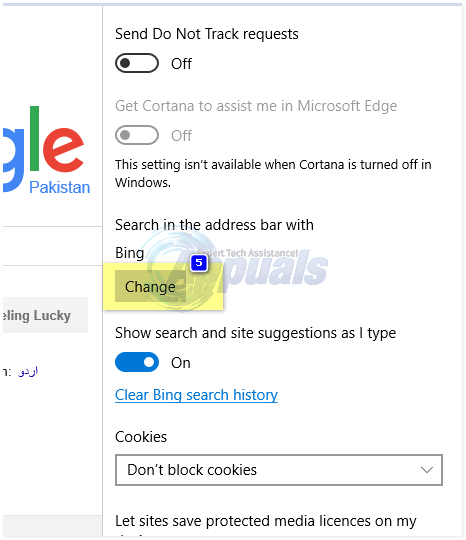
Run Microsoft Edge. To set Google as your default search engine, first you will have to visit its homepage. Copy www.google.com and paste it in the address bar above and press Enter. Once Google’s homepage opens, click on the three dots together in the upper right corner to open the drop down menu. In the menu, click Settings. Scroll down in the Settings section and click on View advanced settings button.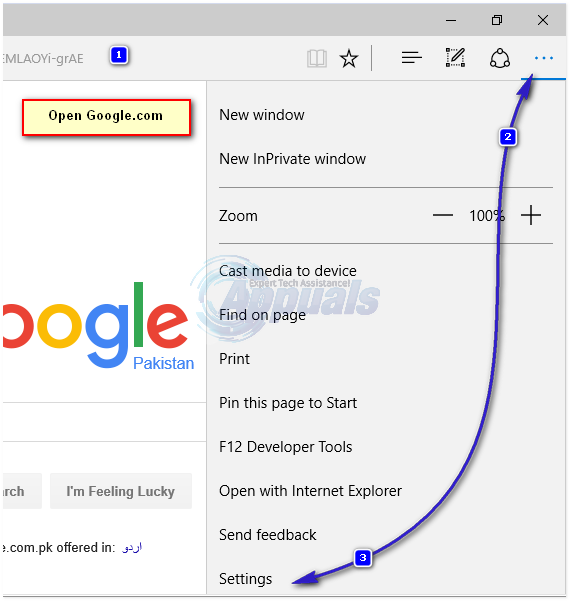 Scroll down in the advanced settings section and click on Search in the address bar with box and click Change.
  Under Chose one, click on Google to select it, and click Add as default. Restart Microsoft Edge and now Google will be your new default search engine.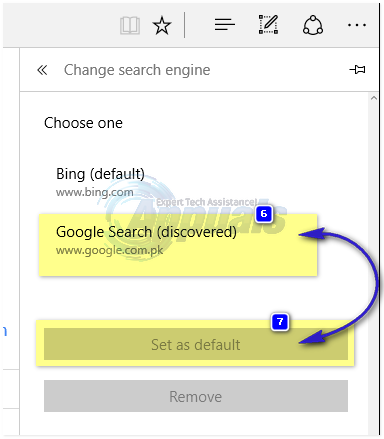
Set Google as Default Search Engine (2026 Walkthroughs)
Browsers redesign their settings frequently, so the steps below reflect the current 2026 versions of each browser. Pick your browser:
Google Chrome (Desktop)
- Click the three-dot menu in the top-right of Chrome.
- Choose Settings.
- In the left sidebar, click Search engine.
- From the “Search engine used in the address bar” dropdown, select Google.
- Close the Settings tab — the change is saved immediately.
Google Chrome (Android)
- Open Chrome on your Android phone.
- Tap the three-dot menu in the top-right.
- Tap Settings.
- Tap Search engine.
- Select Google.
Microsoft Edge (Desktop)
- Open Edge and click the three-dot menu in the top-right.
- Choose Settings.
- In the left sidebar, click Privacy, search, and services.
- Scroll down to the Services section and click Address bar and search.
- From the “Search engine used in address bar” dropdown, select Google. (If Google isn’t listed, search anything in the address bar at google.com first; this auto-discovers Google as a search engine and adds it to the list.)
Microsoft Edge (Android)
- Open Edge and tap the menu icon in the bottom-center.
- Tap Settings.
- Under “General”, tap Default search engine.
- Select Google.
Mozilla Firefox (Desktop)
- Click the hamburger menu (three lines) in the top-right.
- Choose Settings.
- In the left sidebar, click Search.
- Under “Default Search Engine”, select Google from the dropdown.
Mozilla Firefox (Android)
- Open Firefox.
- Tap the three-dot menu.
- Tap Settings > Search.
- Tap Default search engine and choose Google.
Safari (Mac)
- Open Safari.
- From the menu bar, click Safari > Settings (or press ⌘ + comma).
- Click the Search tab at the top.
- From the “Search engine” dropdown, choose Google.
Safari (iPhone and iPad)
- Open the Settings app on your iPhone or iPad.
- Scroll down and tap Apps (iOS 18+) or Safari (iOS 17 and earlier).
- If on iOS 18+, tap Safari.
- Tap Search Engine.
- Select Google.
Brave Browser
- Open Brave and click the menu (three lines) > Settings.
- Click Search Engine in the left sidebar.
- Under “Normal Window” and “Private Window”, set both dropdowns to Google.
Opera
- Open Opera and click the menu in the top-left > Settings.
- Click the Browser tab.
- Scroll to the “Search engine” section.
- From the “Search engine used in the address bar” dropdown, select Google.
Why Your Default Search Engine Keeps Changing
If you’ve set Google as your default and it switches back to Yahoo, Bing, or some unknown engine on its own, the cause is almost always one of three things:
- An adware extension you installed (often bundled with free software). Open your browser’s extensions/add-ons page and remove anything you don’t recognize.
- Malware or PUP (potentially unwanted programs) at the system level. Run a scan with Malwarebytes or Windows Defender. After cleaning, set your default search engine again.
- An app set the engine via policy. Some antivirus suites and “cleaner” apps modify browser settings. Check your installed apps for anything suspicious.
Once you’ve removed the offender, the change usually sticks permanently.
If Google Isn’t in the Dropdown
Some browsers (especially in regions where Google is not the default OEM search) ship without Google pre-listed. To add it manually:
- Visit google.com and run any search. This often auto-detects Google as a search engine and adds it to the list.
- If that doesn’t work, find the “Manage search engines” or “Add new search engine” option in your browser’s search settings.
- Add a new entry with these values:
– Name: Google
– Shortcut/Keyword: google.com
– URL with%s:https://www.google.com/search?q=%s - Save, then set the new entry as default from the dropdown.
Frequently Asked Questions
How do I make Google my default in the browser address bar?
Setting Google as your default search engine (using the steps above for your browser) automatically makes it the engine used for searches typed in the address bar — they’re the same setting.
Why does Edge keep switching back to Bing?
Microsoft Edge defaults to Bing on first launch. Once you’ve changed it to Google in Settings > Privacy, search, and services > Address bar and search, the change persists. If it keeps reverting, an extension or your work/school’s group policy may be enforcing Bing — check Edge’s “Managed by your organization” indicator at the top of Settings.
Can I set Google as default on iPhone Safari?
Yes. Open the iPhone Settings app, find Safari (or Apps > Safari on iOS 18+), tap Search Engine, and choose Google.
Will changing my default search engine sync to my other devices?
Chrome syncs your default search engine across signed-in devices. Edge does the same when sync is enabled. Safari syncs through iCloud. Firefox does not sync the default search engine across devices — you have to set it on each device individually.
