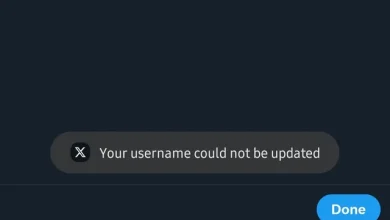
Fix: “Your device isn’t compatible with this version” RDR NETFLIX
The “Your device isn’t compatible with this version“ message means the Google Play Store is refusing to deliver the game’s install package to your phone because it’s being treated as unsupported for this release. In most cases, this is a compatibility decision (made before the download even starts), not a normal download failure.
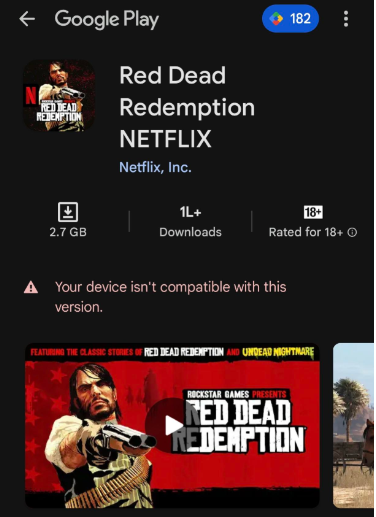
Netflix Games uses Google Play’s compatibility rules and DRM (Digital Rights Management) checks to confirm your device is eligible. So the decision is not based only on raw hardware specs; it also depends on whether your phone is recognized as a supported Android version, a 64-bit capable device, and a trusted / certified device that can pass integrity and security validation.
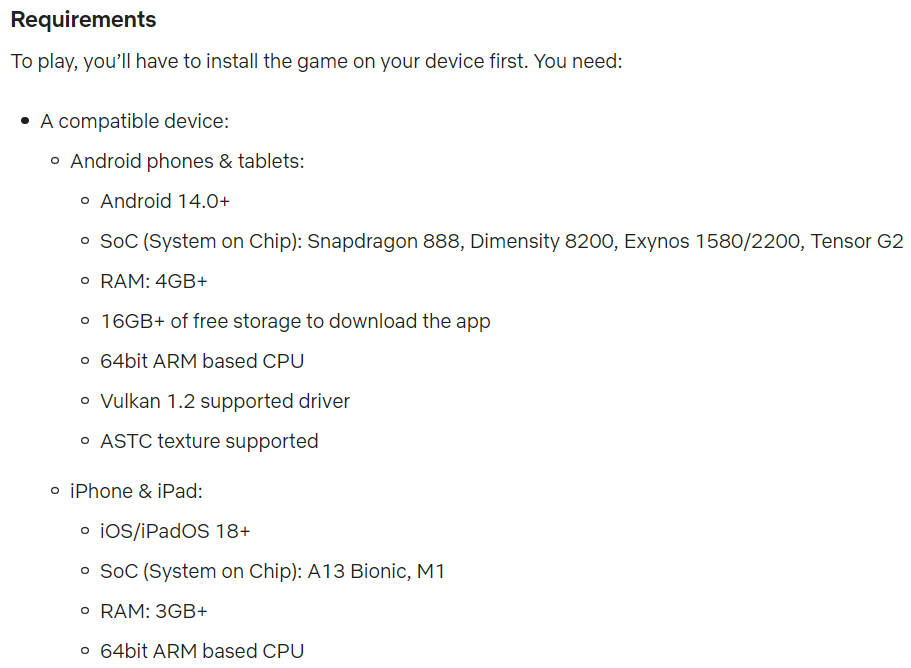
Common causes behind this message include not meeting the game’s requirements (Android version, 64-bit support, RAM/storage), a device certification problem (Play Protect certification failing), a rooted or modified device (bootloader unlocked, custom ROM, Magisk modules, system changes), outdated device software, or outdated app/store data that makes the Play Store return incorrect compatibility results for your model.
Before trying the fixes below, confirm your device meets the minimum requirements and supported device rules. Use Netflix Help’s game support and requirements information here: Netflix Games Support (Red Dead Redemption).
Also note: Netflix Games requires an active Netflix subscription and you must be signed in with a profile that can access games in your region. If your subscription is inactive or you are signed into the wrong account/profile, you may be blocked from launching the install flow, even if your phone is compatible.
Now that you understand what the error means and what commonly causes it, let’s go through the fixes that can refresh compatibility checks and allow the game to install.
1. Update Google Play Store and Netflix App
Updating the Google Play Store and the Netflix app can fix this message because both are involved in compatibility and authorization checks. If the Play Store is outdated (or stuck with old compatibility data), it may incorrectly mark your device as unsupported.
Likewise, an older Netflix app may be missing the latest Netflix Games components or updated validation logic needed for this title. Updating both apps forces these checks to refresh against the latest requirements.
- Open the Google Play Store on your phone.
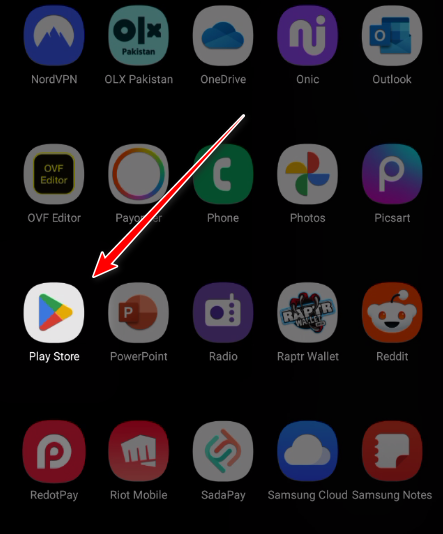
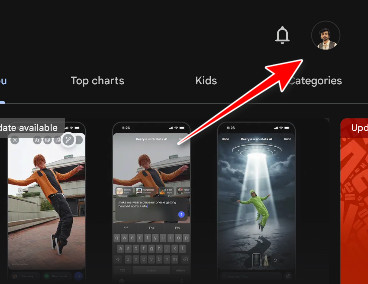
- Tap your profile icon in the top-right corner.
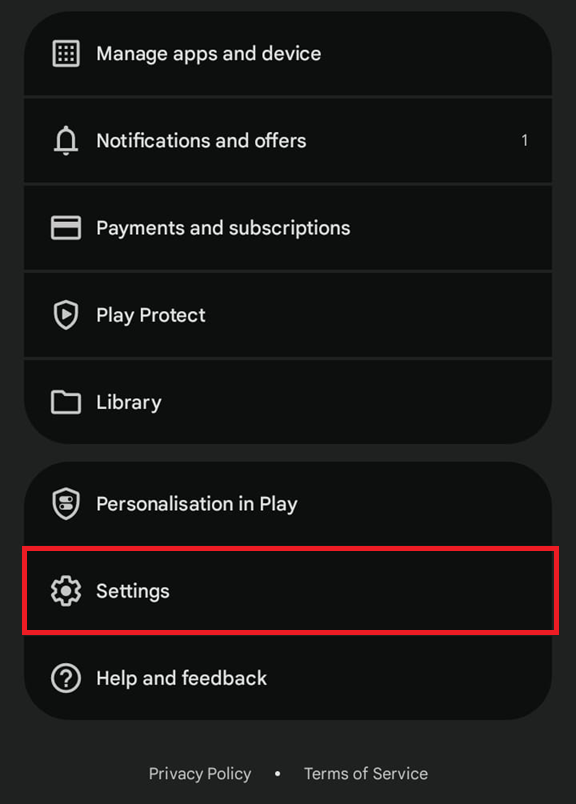
- Go to Settings.
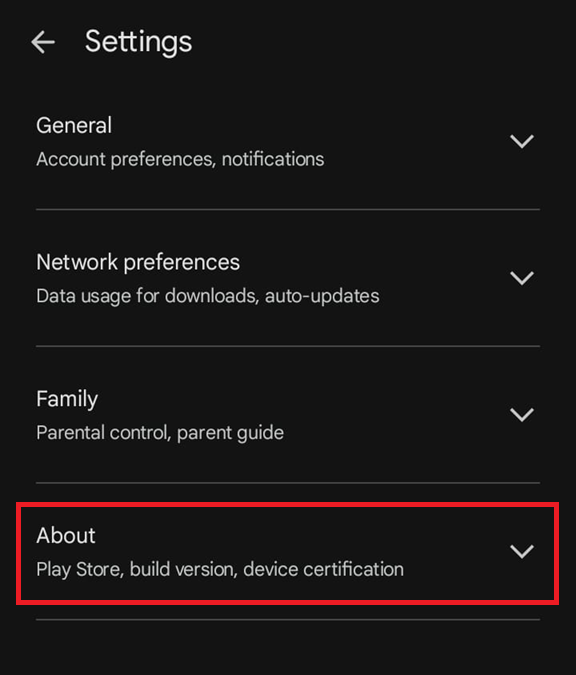
- Go to About.
- Tap Update Play Store.
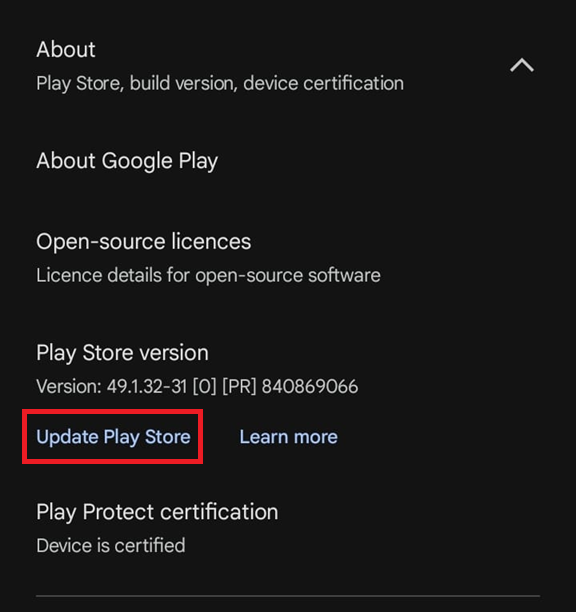
- If an update is available, it will install automatically.
- Now search for Netflix in the Play Store.
- Tap Update if one is available.
- Once the update is installed, try downloading the game again and check if the compatibility error is resolved.
2. Update Device Software
An outdated operating system can trigger this message because Netflix and Google Play regularly update security and compatibility requirements. If your Android version is too old (or missing required security components), your device may fail integrity checks or be excluded from supported device lists, which results in a compatibility block.
- Open Settings on your phone.
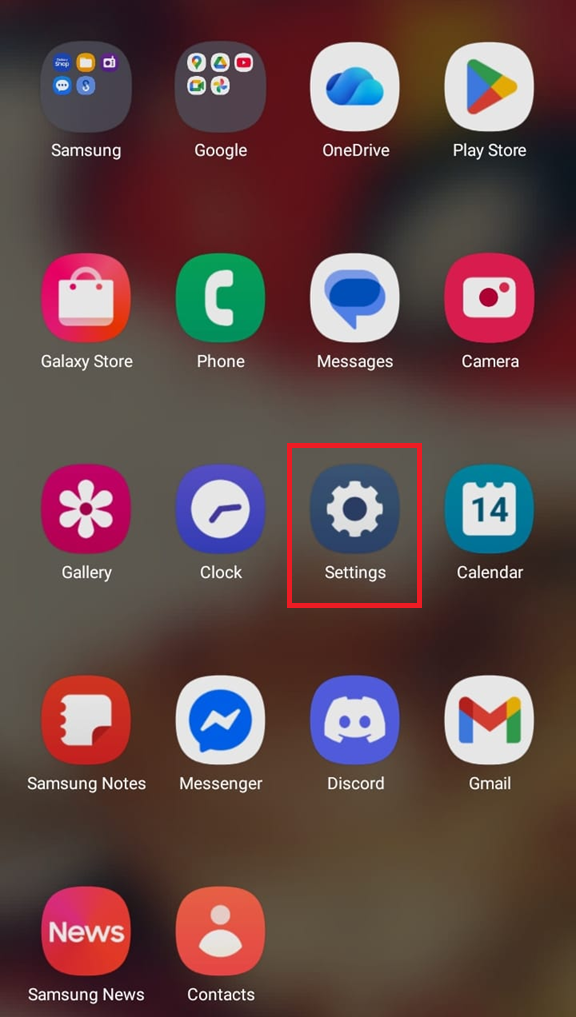
- Search for Software update (wording may vary by brand).
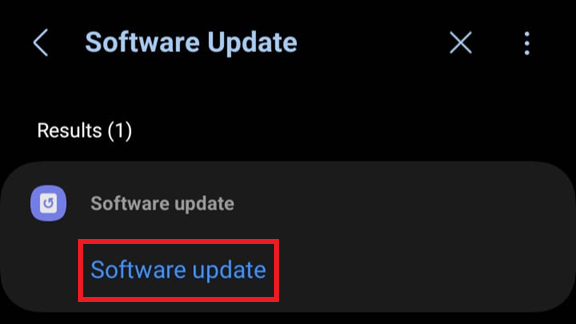
- Tap Check for updates or Download and install.
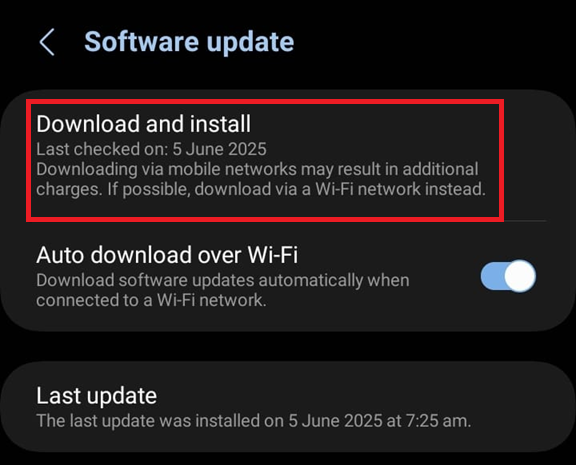
- If an update is available, download and install it.
- Restart your device after the update finishes.
- Try downloading the game again and check if the issue is resolved.
3. Check Play Protect Certification (Device Certification)
This error can also appear when your phone is not recognized as a Play Protect certified device. Many DRM-protected apps and games depend on certification and integrity signals to reduce the risk of piracy, tampering, and DRM bypass.
If your device is flagged as uncertified (often due to bootloader unlocks, custom ROMs, missing Google certification, or modified system images), the Play Store may mark the game as incompatible even if your hardware is powerful enough.
- Open the Google Play Store.
- Tap your profile icon (top-right) and go to Settings.
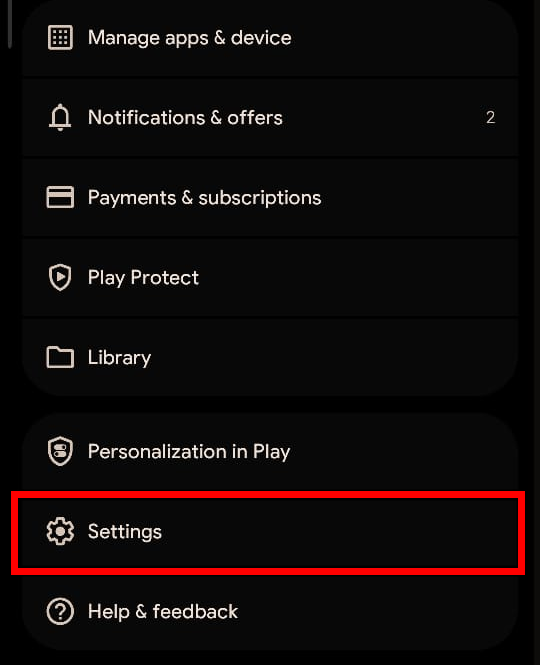
- Expand About.

- Look for Play Protect certification.
- If it says Device is certified, move to the next method.
- If it says Device is not certified, the most reliable fix is to return to a certified state (official stock firmware + locked bootloader), then try installing the game again.

4. Remove Root or Undo Device Modifications
Removing root access can fix the error because Netflix Games relies on strict security and device integrity checks before allowing a game to install. If your phone is rooted (or heavily modified), your device may be treated as untrusted, which can cause the Play Store or DRM validation to block installation.
This can also happen on some custom ROMs even if you are not “rooted” in the traditional sense, because the device fingerprint, bootloader status, or system integrity may still be flagged as modified.
To restore compatibility, you typically need to return your phone to a trusted state so it can pass certification and integrity checks again.
Note: If you are not comfortable with unrooting or restoring stock firmware, ask someone experienced to help. Incorrect steps can cause boot issues or data loss.
- If you used a rooting tool (such as Magisk), open it and use its built-in option to fully uninstall root.
- After uninstalling root, restart your phone.
- If the device is still flagged as modified, the most reliable way to restore full integrity is to flash the official stock firmware for your device model and relock the bootloader (if applicable).
- Once your device is back to stock (unmodified), open the Google Play Store and Netflix again, then try downloading the game.