How to Fix Twitch Not Working in Opera GX?
Twitch normally works in Opera GX, but it may sometimes fail to load, crash, show a black screen, or refuse to sign in.
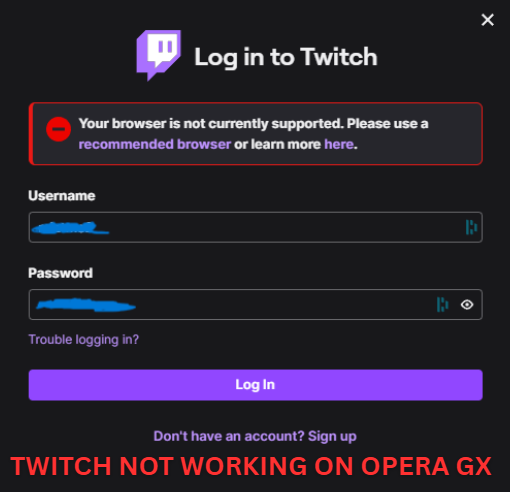
In most cases, this happens due to browser-side interference such as cookies, cache, built-in blockers, extensions, VPN/proxy filtering, or corrupted profile data, rather than Twitch being fully unsupported.
In some situations, an Unsupported Browser error may appear if Twitch cannot validate the session or playback requirements.
Before you start:
Open twitch.tv in another browser such as Chrome or Edge.
If Twitch does not work there either, the issue is likely related to Twitch’s service, your account, or your network rather than Opera GX.
The most common causes include:
- Outdated Opera GX version
- Corrupted cookies or site data
- Outdated cache
- Blocking features (Opera GX blockers or extensions)
- VPN or proxy interference
These factors may block scripts, break authentication, or stop video playback.
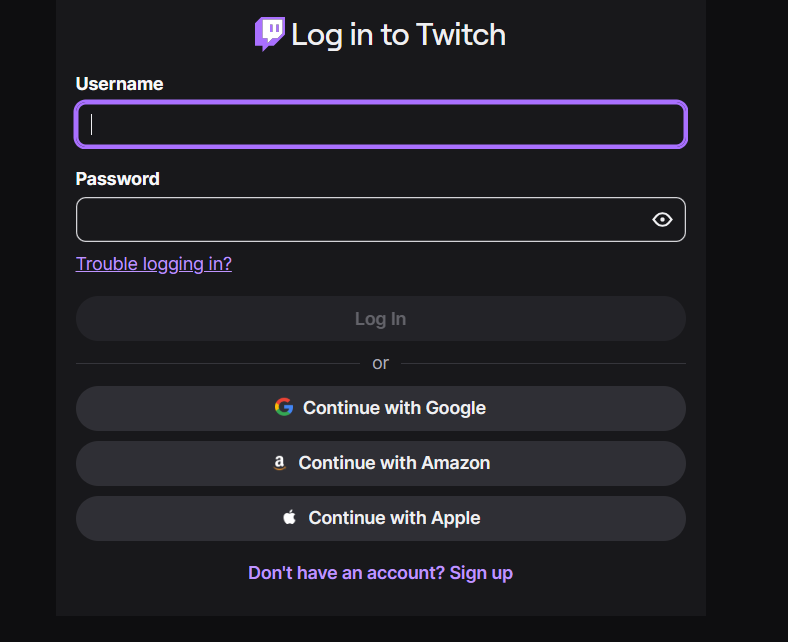
1. Log in Through Twitch Sidebar Add-on
Logging in through the Twitch sidebar add-on can help because it uses Opera’s built-in Twitch integration, which may load with fewer conflicts than a normal browser tab.
Extensions, blockers, or VPN filtering that affect regular tabs may not interfere as much inside the sidebar.
Important:
After signing in through the sidebar, open Twitch in a normal tab and test playback.
If the sidebar works but tabs do not, the issue is usually related to cookies, cache, blockers, extensions, or Opera GX settings.
If the Twitch icon is missing:
Open Sidebar Setup (three dots at the bottom of the sidebar) and enable Twitch.
- Open Opera GX.
- Locate the left sidebar.
- Click the Twitch icon.

- Click Log in and enter your credentials.
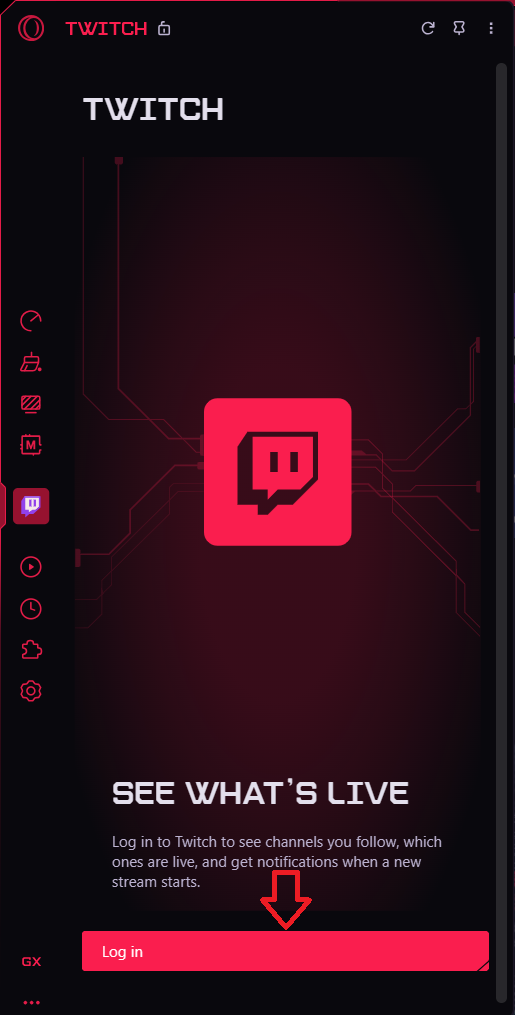
- Check Twitch in the sidebar, then test it in a normal tab.
2. Delete Twitch Cookies, History, and Cache
Twitch relies on cookies and cached site data for login sessions and playback.
If this data becomes corrupted or outdated, Twitch may fail to authenticate, loop the login page, show a black screen, or crash while loading streams.
Clearing this data forces Opera GX to create a fresh session.
Note:
Clearing cookies will sign you out of websites.
Clearing history alone does not remove logins, but selecting it with cookies and cache is a common reset step.
- Open Opera GX.
- Click the Opera GX logo.

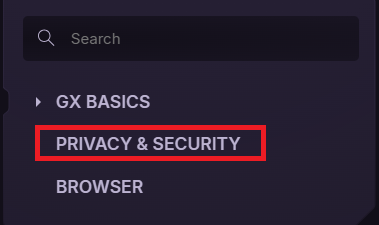
- Go to Settings > Privacy & Security.
- Click Delete browsing data.
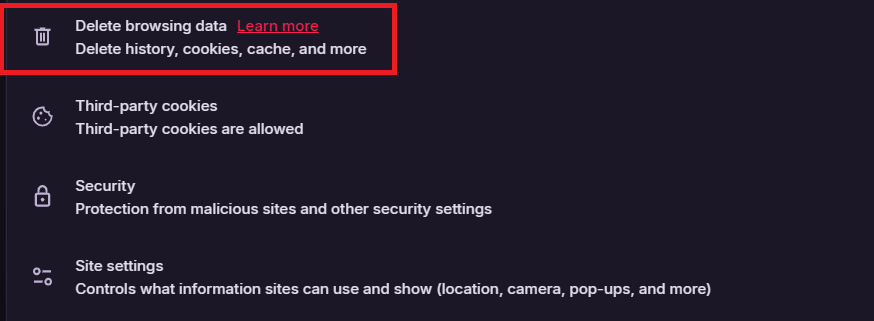
- Select All time.
- Check Browsing history, Cookies and other site data, and Cached images and files.
- Click Delete data, restart Opera GX, then test Twitch.
3. Turn Off Opera GX Blockers and Extensions
Ad blockers, privacy tools, script blockers, and VPN/proxy extensions can interfere with Twitch’s authentication system, player scripts, and DRM checks.
This can cause login failures, unsupported browser errors, black screens, or instant crashes.
Tip: Disable ad blockers and privacy-related extensions first, as they are the most common cause.
- Open Opera GX.
- Press Ctrl + Shift + E.
- Turn off all extensions and fully close Opera GX.
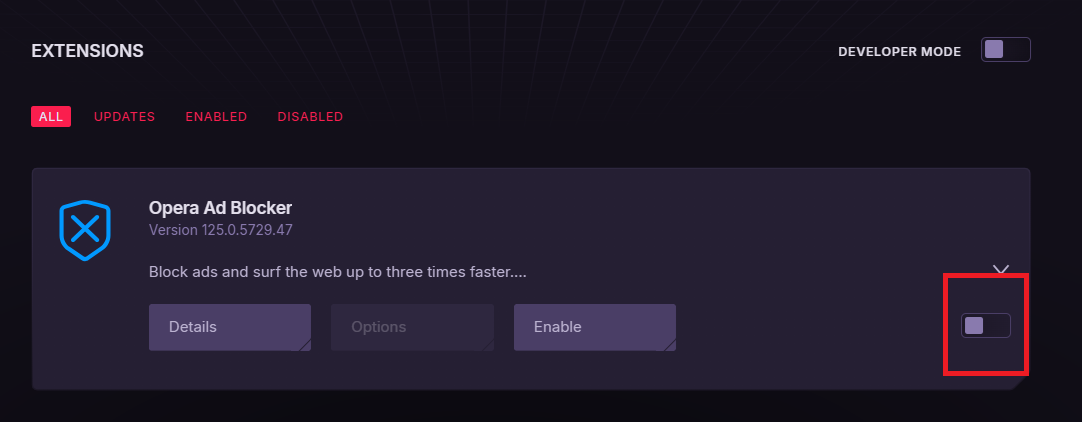
- Reopen Opera GX and test Twitch.tv.
Also disable Opera GX built-in blockers:
Opera’s ad and tracking protection can break Twitch login and playback even when no extensions are installed.
Check VPN or proxy apps:
If you use a VPN as a separate app, disconnect it temporarily and test Twitch again.
4. Update Opera GX Browser
Updating Opera GX installs bug fixes, security patches, and compatibility updates required for Twitch’s web player and authentication system.
Older versions may not work correctly with Twitch’s latest scripts or DRM requirements.
- Open Opera GX.
- Click the Opera GX logo.
- Open Update & Recovery.
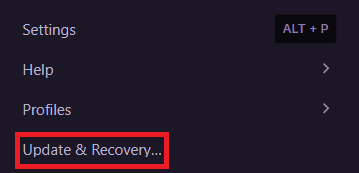
- Install any available updates and restart Opera GX.
Final check:
If Twitch works in Chrome or Edge but not in Opera GX, the issue is likely related to Opera GX settings, blockers, extensions, or profile data.
If Twitch fails in all browsers, the problem is likely account-, network-, or service-related.