Fix: No Man’s Sky Has Encountered an Error and Will Now Shut Down
“No Man’s Sky has encountered an error and will now shut down” appears when the game fails to initialize a critical startup process. The crash is usually followed by a Crash ID (for example, Crash ID: 126423_0x583D5), which helps identify the dump generated by the engine before it closes unexpectedly.
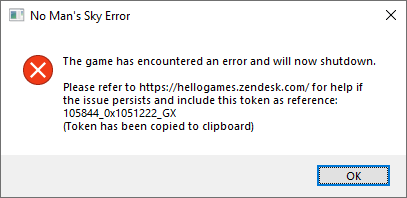
This error typically appears within a few seconds of launching the game, either before reaching the main menu or shortly after the Hello Games logo. In other cases, it can occur while loading a saved world after an update. The crash is triggered by the game forcibly terminating itself to prevent potential data corruption or failed GPU instruction handling.
Internally, this error means one or more of the game’s initialization layers (graphics, shader cache, configuration registry, etc.) failed to load correctly. Below are the most common causes:
- Outdated or corrupted GPU drivers that fail to initialize Vulkan or DirectX 11 properly.
- Damaged shader or cache data stored inside
GAMEDATA/SHADERCACHE, which prevents smooth rendering. - Broken or invalid entries in
TKGRAPHICSSETTINGS.MXMLleading to incorrect rendering parameters. - Conflicts introduced by mods or recent updates that modify core game files or assets.
1. Disable Mods
Mods often replace or modify core game files, and even a single outdated mod can cause startup crashes. Disabling them restores the original data and ensures full compatibility with the current game version.
- Open your No Man’s Sky installation folder.
- Go to the PCBANKS directory.
- Move all
.pakmod files to a backup folder outside the directory.
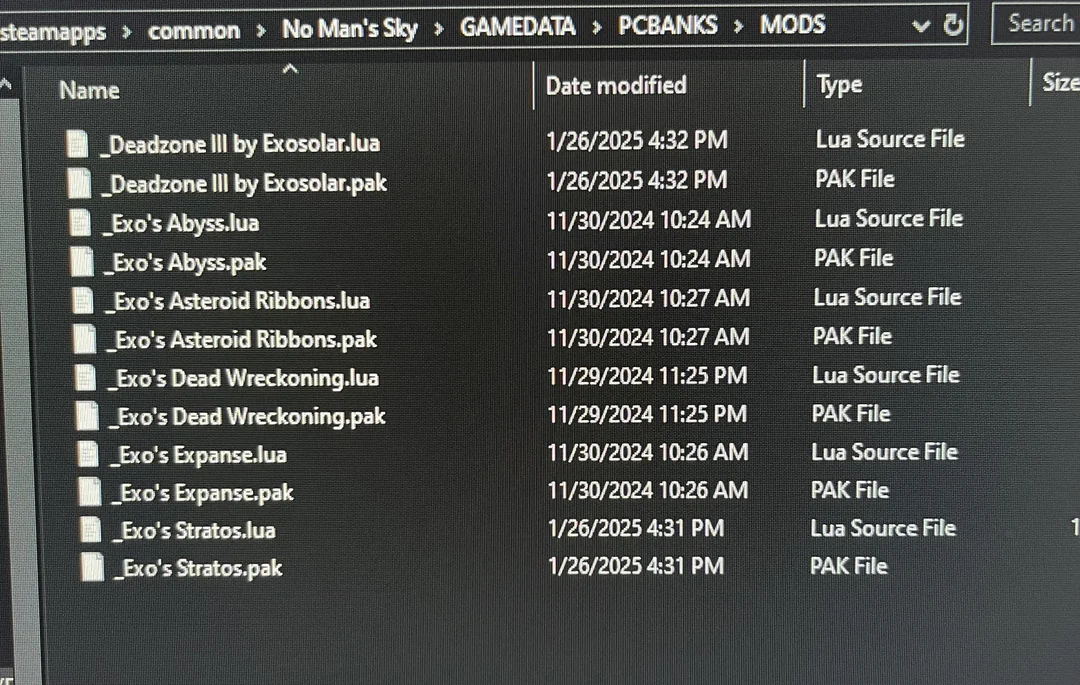
Once done, launch the game again. If it opens successfully, one of the mods was responsible for the crash.
2. Reset Graphics Settings
If the graphics configuration file is corrupted, the game may fail to detect or initialize your GPU properly. Deleting it forces the game to rebuild a clean configuration using safe defaults.
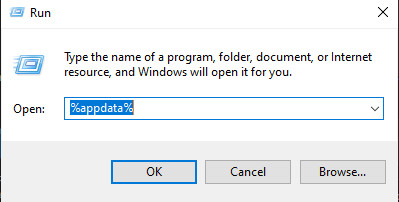
- Press Windows + R, type %appdata%, and press Enter.
- Navigate to HelloGames > No Man’s Sky.
- Delete the file named TKGRAPHICSSETTINGS.MXML.
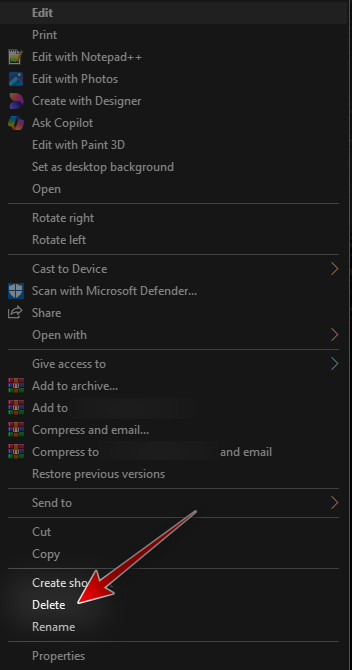
When you restart the game, it will automatically recreate this file with default settings that match your hardware.
3. Delete sl.pcl.dll
A damaged or incomplete sl.pcl.dll file can stop the game from loading essential runtime libraries. Deleting it allows Steam to restore a healthy copy through file verification.
- Open Steam and head to your Library.

- Right-click No Man’s Sky and select Properties.
- Go to Installed Files and click Browse.
- Delete sl.pcl.dll from the folder.
- Return to Local Files and click Verify integrity of game files.
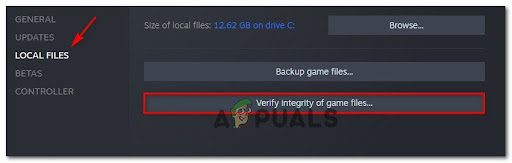
After verification, Steam will redownload any missing or corrupted files and restore stability.
4. Restart Windows Audio Service
In rare cases, a frozen or unresponsive Windows Audio service can interrupt No Man’s Sky’s initialization process. Restarting it helps reinitialize the audio layer and eliminate the startup hang.
- Press Windows + R, type services.msc, and press Enter.
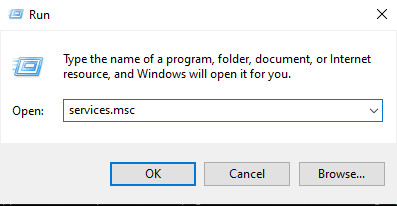
- Find Windows Audio, right-click it, and select Stop.
- Launch No Man’s Sky and wait until it reaches the logo screen.
- Return to the Services window, right-click Windows Audio again, and select Start.
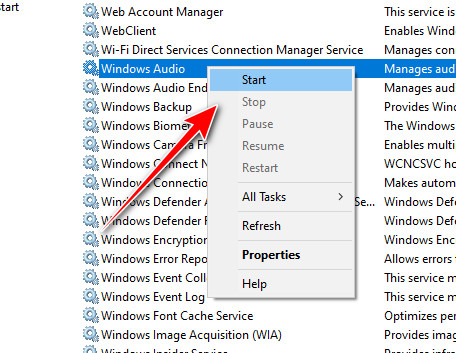
This workaround is especially effective when the crash happens right before the title screen loads.
5. Clear Temporary Files and Cache
Accumulated temporary files or cached data can conflict with newly updated game builds. Clearing them allows No Man’s Sky to rebuild a fresh cache and improve load stability.
- Press Windows + R, type %temp%, and hit Enter.
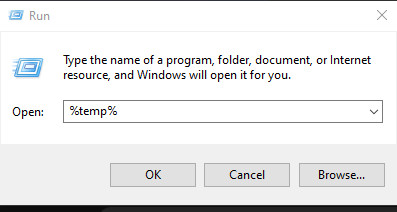
- Select all files and press Delete to remove them.
- Then navigate to:
C:\Users\[YourUser]\AppData\Local\HelloGames
and delete everything inside the cache directory.
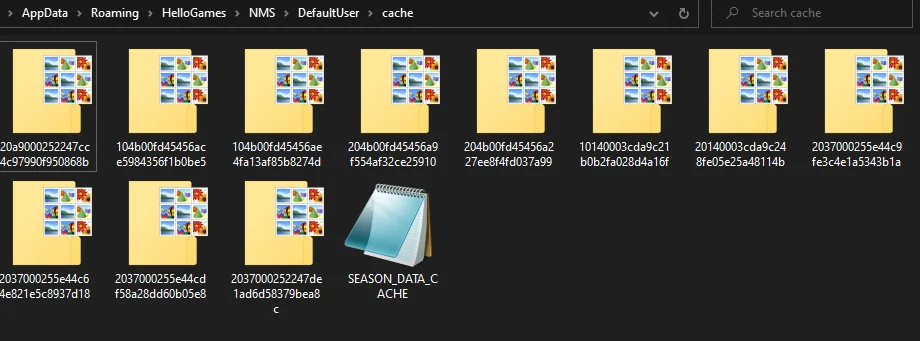
Once complete, restart your PC and launch the game again to test for improvements.
6. Disable Conflicting Applications
Background overlays and performance monitoring tools often hook into game processes, leading to conflicts or sudden terminations. Disabling them ensures a clean, interference-free startup.
- Press Ctrl + Shift + Esc to open Task Manager.
- End background processes for overlays like Discord, NVIDIA GeForce Experience, or MSI Afterburner.
- Restart the game to confirm if it launches without crashing.