How to Make Background Transparent in MS Paint?

Microsoft Paint is a straightforward and minimalist editor that may not have all the advanced capabilities of comprehensive editors like Adobe Photoshop. However, the latest Windows updates have enriched Paint with additional features, enabling users to accomplish tasks previously out of reach.
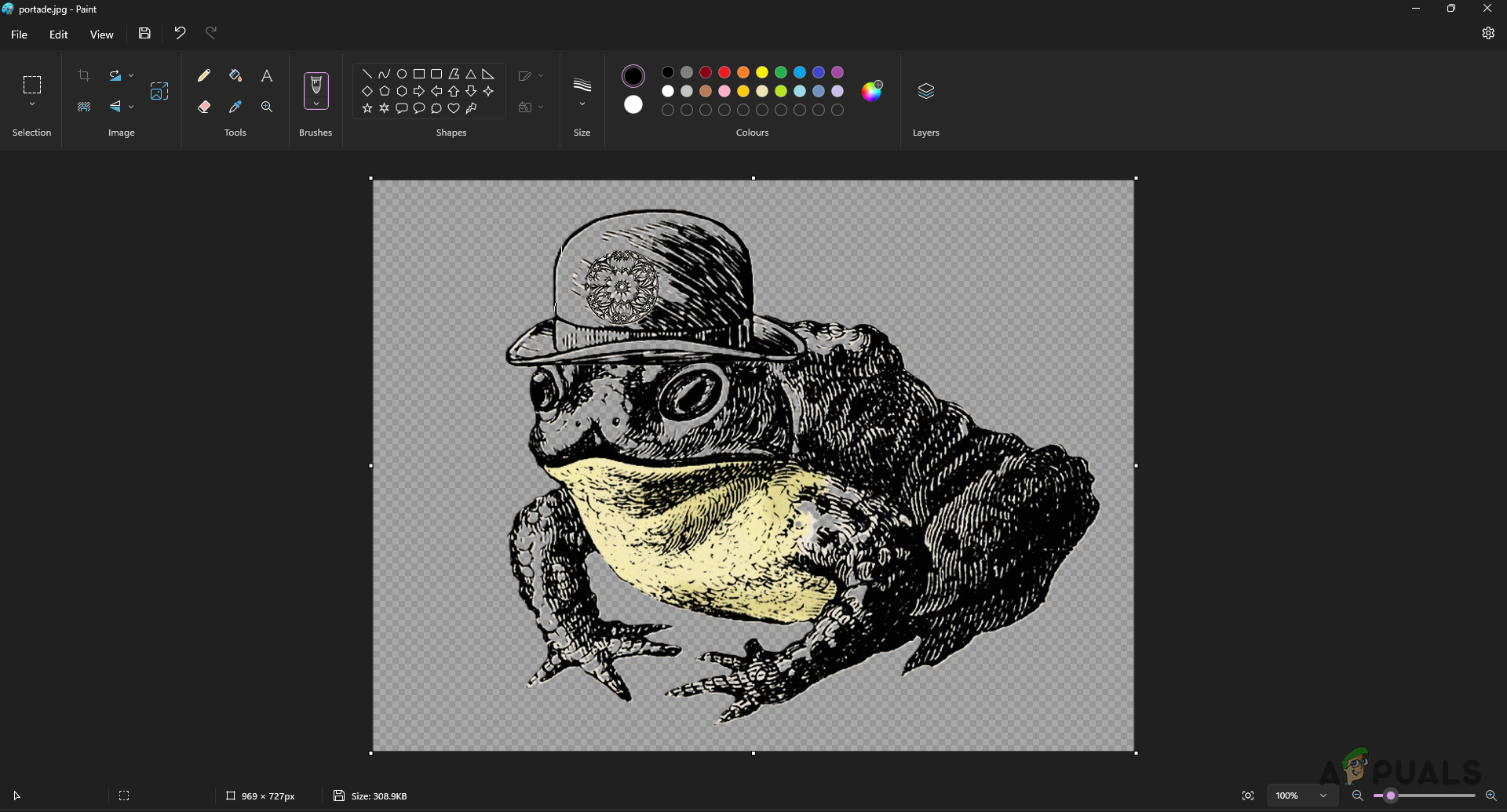
Creating Transparent Backgrounds in Microsoft Paint

Beyond its basic functions, a particularly noteworthy feature of Paint is its ability to create transparent backgrounds in images—a capability formerly unavailable.

This tutorial will walk you through the process of using Microsoft Paint to render an image’s background transparent.

Install Windows Updates — IMPORTANT

Before we begin, it is essential to makes sure that your PC is running the latest version of Windows. The features we are going to discuss are included in recent updates, specifically the Windows 23H2 version.

Installing available Windows updates is important to access these new features:

  1. Press the Win key + I shortcut to open the Settings app.
  2. Go to the Windows Update section in the Settings app.
  3. Click the Check for updates button to search for any available Windows updates.
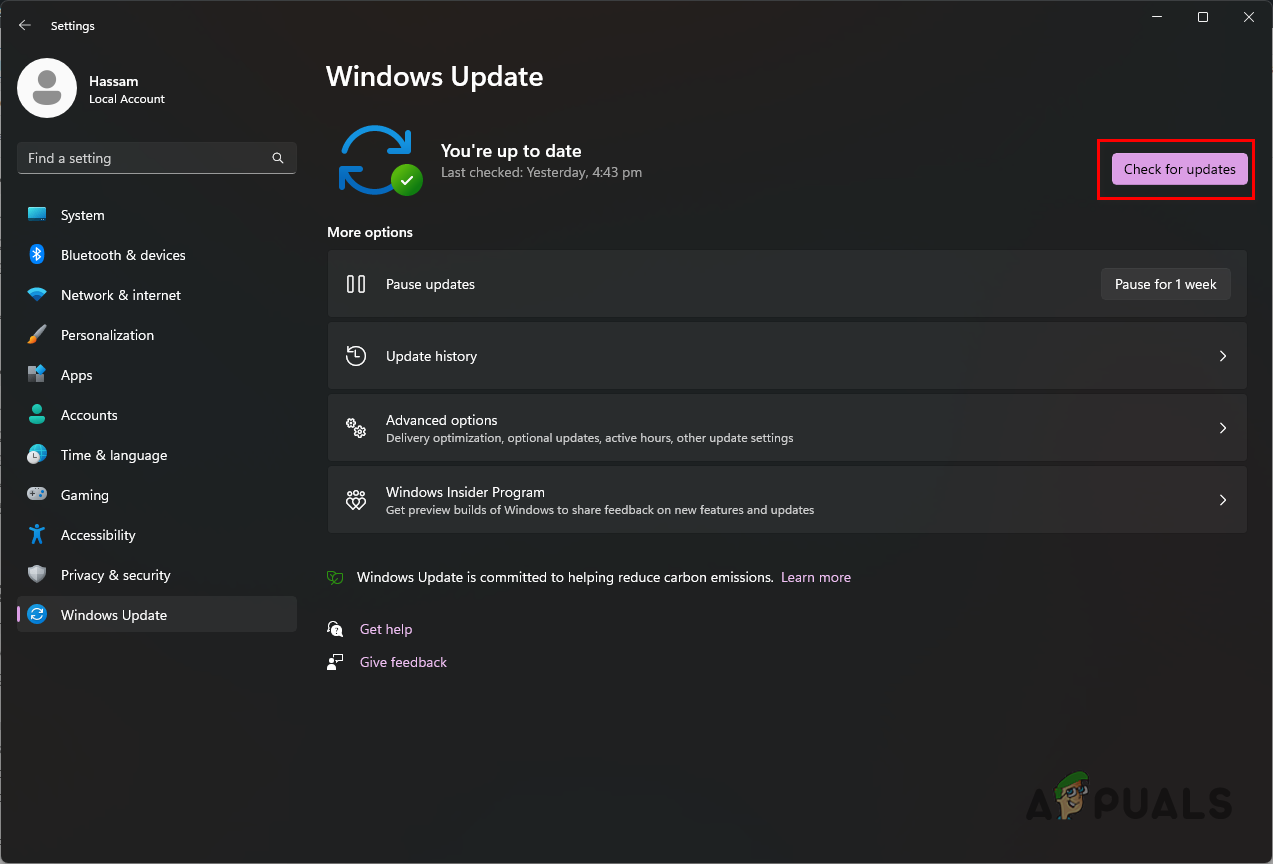
    Checking for Windows Updates
    Checking for Windows Updates
  4. Download and install any updates that are found.

1. Create Transparent Backgrounds in Microsoft Paint

Microsoft Paint offers two methods for removing backgrounds from an image. The first is the newly added Remove Background feature in Paint, which can automatically distinguish and exclude backgrounds in pictures.

The second method is the Transparent Selection option, which permits manual selection and removal of the desired background sections. Let’s delve into both methods.

1.1 Using Remove Background

  1. Open the Microsoft Paint app on your PC by searching for it in the Start Menu.
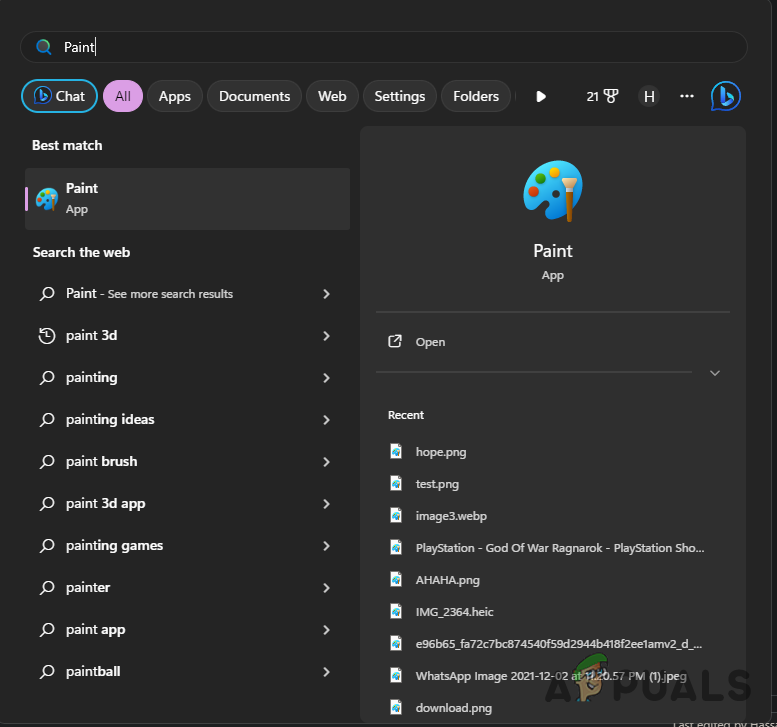
    Opening Microsoft Paint
    Opening Microsoft Paint
  2. Load your image in the Paint window by using either the drag and drop method or via File > Open.
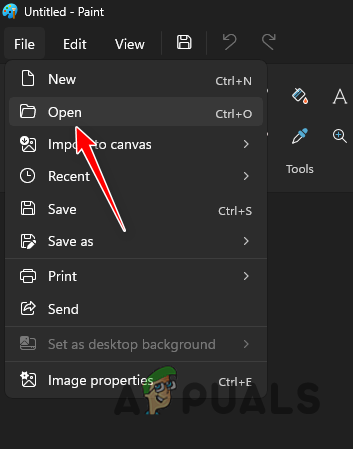
    Opening File in Paint
    Opening File in Paint
  3. With your image open in Paint, access the Remove Background tool from the Image toolbox, consulting the image below for guidance.
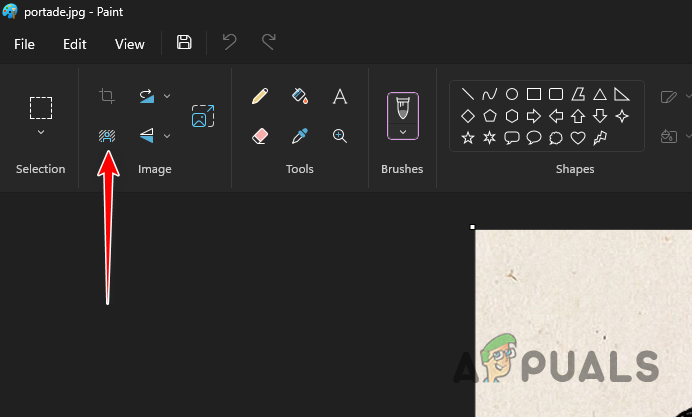
    Removing Background in Paint
    Removing Background in Paint
  4. Paint will process the image and automatically remove the background.
    Creating Transparent Backgrounds in Microsoft Paint
    Creating Transparent Backgrounds in Microsoft Paint
  5. Save your edited image using the CTRL + S shortcut or select the File > Save as option.
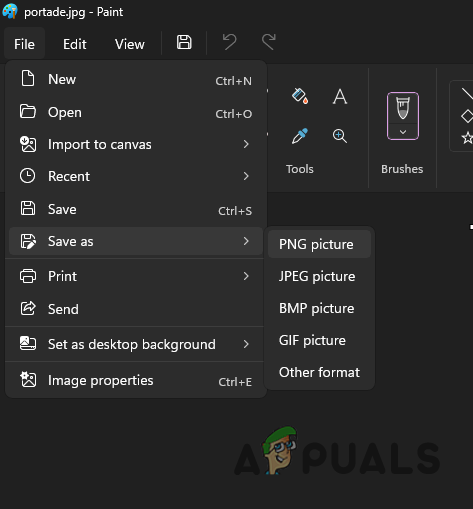
    Saving Output Image
    Saving Output Image
  6. Note: The CTRL + S shortcut will overwrite the original image with the new version that has a transparent background.

1.2 Using Transparent Selection

  1. Start the Paint app by searching for it in the Start Menu.
    Opening Microsoft Paint
    Opening Microsoft Paint
  2. Upload your image into Paint by choosing File > Open or drag and dropping the file.
    Opening File in Paint
    Opening File in Paint
  3. Once your image is open, select the Transparent Selection option from the Selection menu.
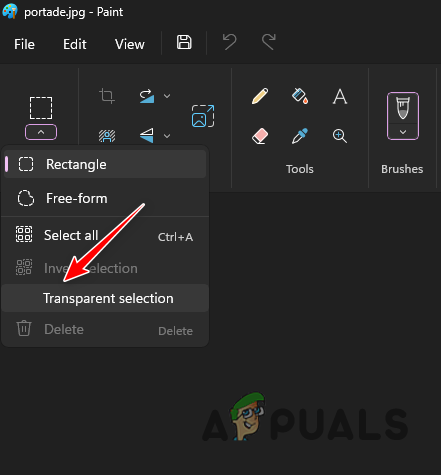
    Enabling Transparent Selection
    Enabling Transparent Selection
  4. Return to the Selection menu and pick the Free-form selection tool.
  5. Outline the section of the image you wish to keep.
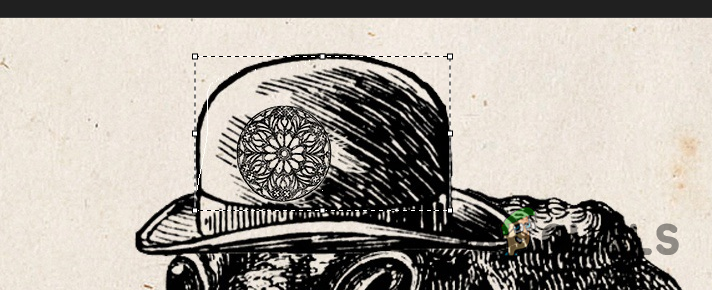
    Tracing Image for Selection
    Tracing Image for Selection
  6. Copy the traced selection by pressing CTRL + C.
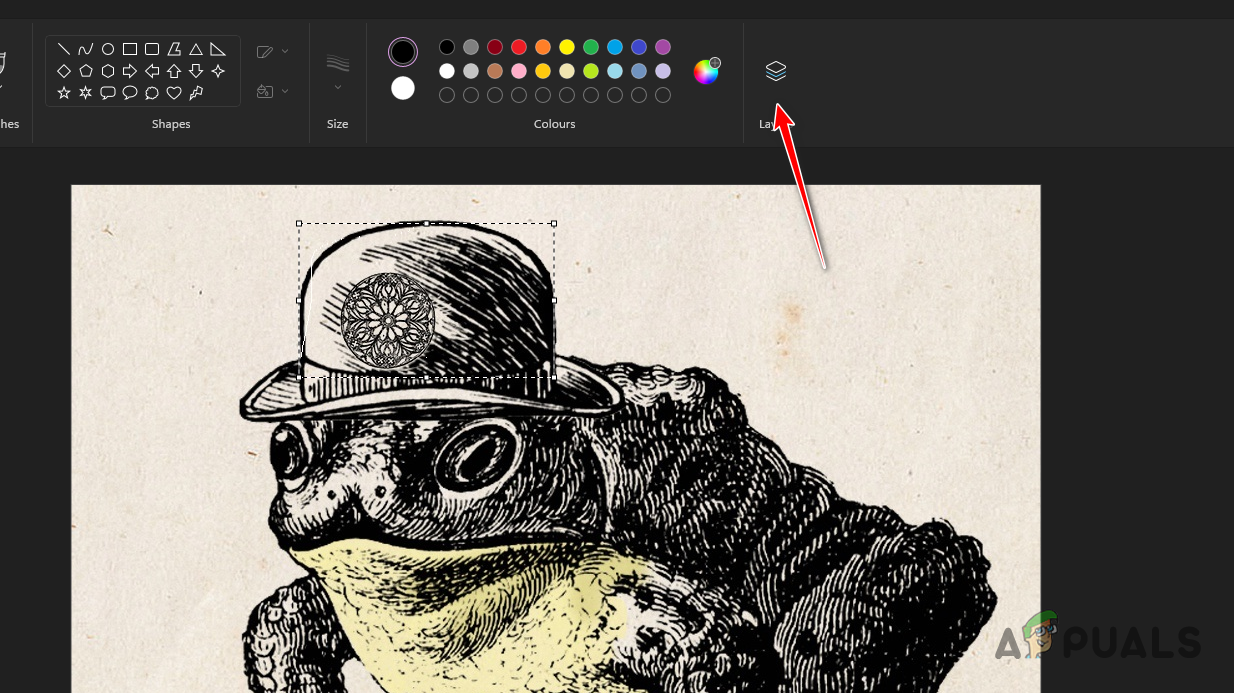
  7. Access the Layers menu afterward.
    Enabling Layers in Paint
    Enabling Layers in Paint
  8. Initiate a new layer by clicking the + icon.
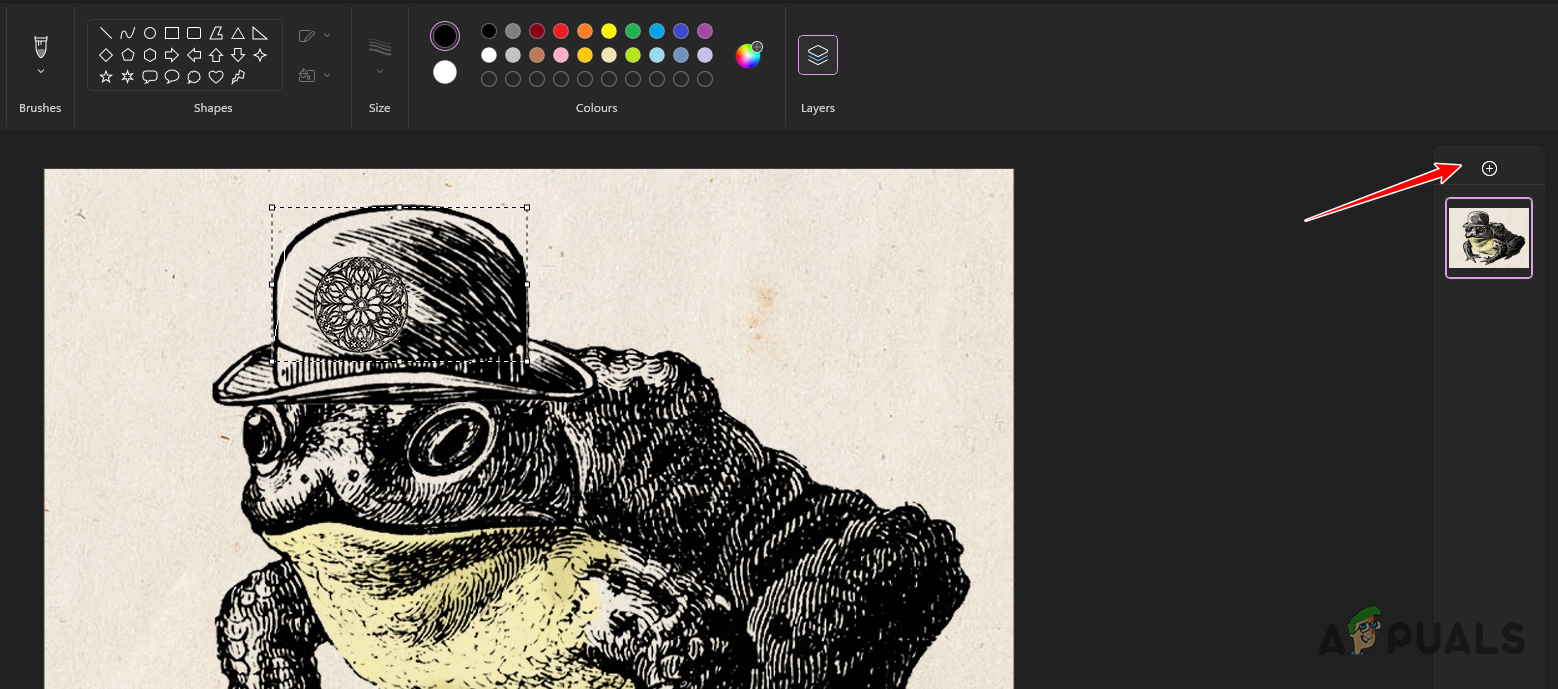
    Adding a New Layer
    Adding a New Layer
  9. Select the new layer and paste your selection with CTRL + V.
  10. Delete the original layer by right-clicking it and choosing Delete layer.
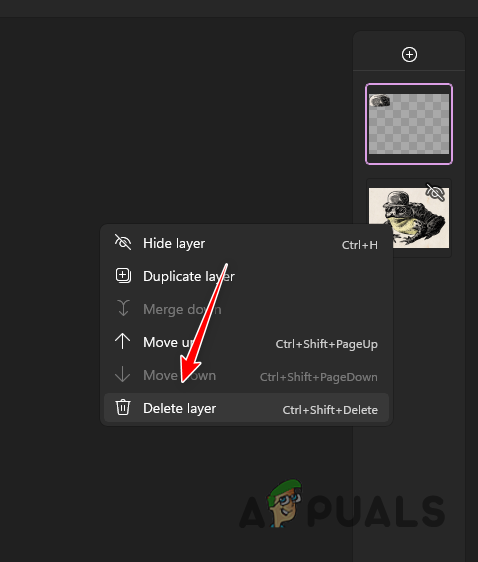
    Deleting Layer in Paint
    Deleting Layer in Paint
  11. Finally, save your image to the computer through File > Save as.
    Saving Output Image
    Saving Output Image

2. Other Services and Tools

In addition to Microsoft Paint, there are various online services that allow you to remove backgrounds from images to create transparent versions. There’s an abundance of options for this purpose.

More advanced image editors like GIMP or Adobe Photoshop can also be used for picture editing. These applications provide an extended range of features and functionality for intricate image manipulation.
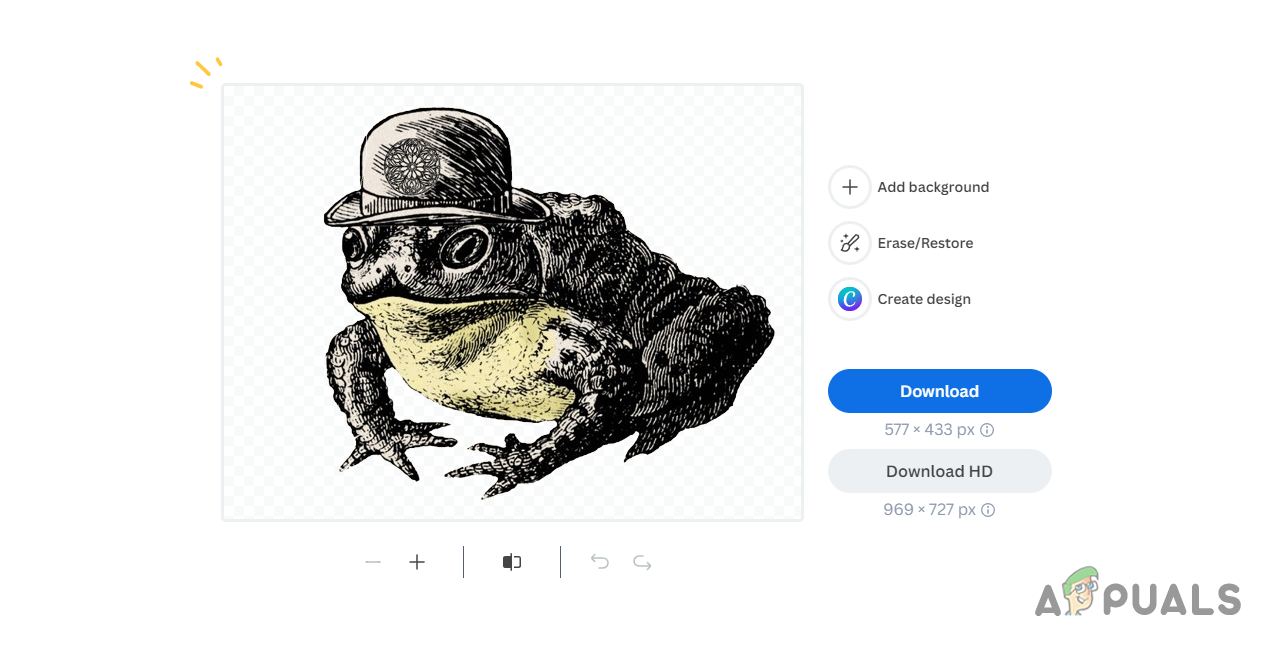
Removing Background via RemoveBG

A prominent online service for background removal is RemoveBG. Simply upload your image and it will process the background deletion automatically. You can then download the image with the transparent background using the provided download button.

ABOUT THE AUTHOR

Kevin Arrows


Kevin Arrows is a highly experienced and knowledgeable technology specialist with over a decade of industry experience. He holds a Microsoft Certified Technology Specialist (MCTS) certification and has a deep passion for staying up-to-date on the latest tech developments. Kevin has written extensively on a wide range of tech-related topics, showcasing his expertise and knowledge in areas such as software development, cybersecurity, and cloud computing. His contributions to the tech field have been widely recognized and respected by his peers, and he is highly regarded for his ability to explain complex technical concepts in a clear and concise manner.

Comments

76
    MM
    Meeghan Mousaw Jul 11, 2016

    Thank you! I looked for an hour to find an answer that helped me. This helped me!

      KA
      K. Arrows Author Jul 12, 2016

      Welcome

    NB
    Nathan Brunaugh Aug 18, 2016

    Great help. Thx.

    DO
    dooule Sep 8, 2016

    Just a random tip to anyone happening to read this guide, It also won’t work if you paste the image into PPT apparently. You have to save the new image and then insert into PowerPoint.

    Reply
      TA
      TAV Dec 16, 2016

      YES!. Thanks very much for the added info. Insert and not a paste job.

      CS
      Christian Sirolli Jun 2, 2017

      I don’t know what you did wrong but I could copy the picture (or part of it) inside of paint and paste it straight into PowerPoint.

    BE
    bepri Sep 29, 2016

    …what? That’s not a hack, that’s just being resourceful

    Milan Řeřicha Oct 12, 2016

    Thank you for this tip, it was helpful.

    JE
    JenSki6 Oct 13, 2016

    A big thank you ! I love simple ways to sort things and this was just what I needed ! well done for discovering !

    SM
    Spelfie Morgan Nov 13, 2016

    that’s not a hack , it is just using another program you have to pay for…. you have literally NOT told us how to make a transparent background using paint. You basically said, to make it transparent in Paint , you have to close it, pay for another program, and use that one instead. You could have easily said there is no way to do it in Paint.

      KA
      K. Arrows Author Nov 13, 2016

      You need PPT to make it work, other then that i am not aware of a different method, if you are or if you find one, let me know and i’ll credit you here for the method.

        JV
        Jiří Grizzly Vizi Apr 8, 2017

        dunno if i am right, but u can use powerpoint just online for free, on microsoft webside i think 😀 dunno if it works that way. just type powerpoint online 🙂

          NM
          no name (Seem to keep mystery) Dec 19, 2021

          u don’t type ppt online u type office 365 then click the 1st option and then sign up if you have not yet, if you have then log in. After that click “Apps” and then click on the app ya wanna open, voila! Done!

          MA
          MackNCheeze Sep 1, 2023

          You can use the free version online, but the option to make an image transparent isn’t available until you pay for the full version 🙁

      GM
      Guillermo Maldonado Nov 13, 2016

      I’ll give credit to Kevin. At the end the outcome is what we all wanted. Anyone that has Paint in their laptop/PC probably has PowerPoint.

        OS
        Oldmonkey Stargrabber Oct 20, 2017

        unless they don’t, considering the fact that Windows hasn’t come with Office since the days of XP. you’d have to pay for Office to get PowerPoint. the assumption that someone has a built-in program so they must have a paid subscription is asinine.

          BM
          burt macklin Aug 28, 2018

          Mine came with office… It’s windows 10, and one of the cheapest I could find.

          AS
          Aleksandr Strizhevskiy Nov 30, 2019

          You probably bought your pc and it came with office. Many people upgrade older computers to a new operating system, those dont come with office. Others build a computer from scratch and for that all the software has to be bought separately. The fact that you got a great deal on your computer is wonderful, but there is no rule that office must come with windows.

          OM
          Owen Makowski Dec 27, 2021

          Every computer comes with office silly

          LU
          lugh Dec 30, 2021

          that is not true, it is a paid for feature. If you opt not to pay, you do not get office.

      LA
      Lay Nov 27, 2016

      you are right. if I have to use power point, it is not a method to make a trasparent background with paint.

      AS
      Antonio Szlobodnic May 19, 2017

      Enough said.

      AN
      Andrew Jan 19, 2020

      MAybe you can do it on the free online version of powerpoint now.

      MD
      Mary Schuyler Dunkeson Aug 11, 2021

      I don’t see why you can’t do a screen shot while it is transparent in Paint , then crop and save your screen shot.

    VC
    Vishwas Chaudhary Jan 24, 2017

    Hey! Great Method friend.Was way too much confused before finding your blog.[Thumbsup] for you!!

    LF
    lisa francis Feb 21, 2017

    thank you so much it worked in power point!

    AR
    ArgyleGrant Apr 20, 2017

    Thank you very much, this helped. Will remember this in the future

    AA
    ajaheh ajaheh Apr 30, 2017

    it works. thank you.

    AS
    Ashley May 22, 2017

    Please help me. I am trying to edit minecraft materials, but whenever i go in to edit them, and then go on my singleplayer server, the backgrounds instead of transparent, are WHITE! How do I make them transparent???

    SU
    SubspaceX May 29, 2017

    Thanks for you help!!

    DH
    Deborah Hunt May 31, 2017

    Thanks for this, it helped me no end on a project I am working on 🙂

    CS
    Christian Sirolli Jun 2, 2017

    You can also do this with Microsoft Word and Excel, not just PowerPoint.

    Reply
    MM
    Maxime Manuel Jun 8, 2017

    Excellent!!!
    Tried starting from MS Paint that is available for free on any computer and finished with Power Point which is free also. It worked. Thank you!

    MM
    Maxime Manuel Jun 8, 2017

    Once again, great tips! 🙂

      KA
      K. Arrows Author Jun 8, 2017

      thank you

    IS
    Ilaria Spina Aug 11, 2017

    Thanks very much for this guide ^^

    LS
    Lucas Servi Aug 13, 2017

    You are a ***** Genius! Thanks a lot!

    H
    h Aug 14, 2017

    I just want to remove the white

    SH
    Sherry Aug 30, 2017

    It worked! I wasn’t planning to use the clipart in Paint anyway. I just thought that it might be a program that would do the job. Since it wasn’t, I was glad to find instructions to use another program. And, yes I have Windows 10, which came with Windows Office, which has PowerPoint.

    JS
    Judi Swift Scrogham Sep 3, 2017

    I can’t tell you how much time I have spent removing backgrounds and trying to get them to be transparent! Thank you so much for sharing this tip, Kevin. Short of a one-step quick fix, this is the solution I need!

    MM
    Mohammed Muzzamil Sep 12, 2017

    Nice hack it worked.

    ((
    (((Inquisitor))) Sep 26, 2017

    Doesn’t work with 2016.

      OS
      Oldmonkey Stargrabber Oct 20, 2017

      it absolutely does- i just did it.

    CM
    Corinne Minerve Oct 11, 2017

    Dear Kevin, this is an amazing tip!! I know a bit of Powerpoint but I never guessed such a thing could be done there! It works like a charm! Wholehearted thanks!! Please keep up the good job!

    JD
    John Davis Nov 8, 2017

    It’s close, but I’m still getting some white pixels around the edges.

    JM
    Jerome Mcdonald Nov 15, 2017

    Thank youuuuu !

    ED
    Ellen Doran Nov 19, 2017

    Great – thank you!

    JC
    Jo Clark Jan 15, 2018

    I’m personally THRILLED to have this information – I struggled with trying to FORCE Paint to do this for over an hour. I did this in like 2 minutes and have what I want for my web page.

    BR
    brad Jan 25, 2018

    The article says that “white” is the Transparent colour. This is not true, it’s the background colour (“Color 2”) that can be made transparent.
    If you wanted to make green the transparent colour, use the eyedropper to pick up the desired colour, but use the right click so it’s colour 2 that gets selected.
    Highlight the picture or region with “Transparent selection” active. (You can use “Free form selection” to highlight just a part, or use Ctrl-A to highlight the whole thing.)
    Use Ctrl-C to copy the region minus the transparent colour.
    You can open another instance of Paint and set the same Color 2 colour (or use the same instance of Paint and load the new background you want for your picture).
    Activate “Transparent selection” for the new image, then use Ctrl-V to paste the cutout area.

    It’s totally using Paint — without any other applications — to cut and paste using a transparent colour. Happy Painting.

    Reply
      SP
      Sean Peery Oct 9, 2018

      ^ THIS! ^

      This should have been the article. Also, bonus points for spelling colour right while simultaneously spelling the colour selector the same way paint does.

    TL
    Trond Eirik Ludvigsen Apr 27, 2018

    An excellent guide! Worked really fine. A big thank you from Norway 🙂

    UR
    URBOI May 8, 2018

    y not screenshot the image while transparent as it is open in paint?

    JO
    joeb1kenobe Sep 7, 2018

    If you use the 3D paint application in Windows 10, you can have a transparent canvas.

    Reply
    TA
    tarekahf Sep 12, 2018

    Another way is to use GIMP free application which is similar to Photoshop. Drag-n-drop the image into GIMP, go to Layer/Transparency/Add alpha layer. Then Colors/Color to Alpha, then click the picker next to “Color” bar, then select the background to remove, and click it. Click OK until done. Click File/Export to get the new image file without the background. Hope this helps also.

    Reply
      DR
      Datchus Ragas Sep 16, 2020

      very helpful. thanks for this tip

    EB
    Eric Barr Oct 2, 2018

    Even if it is in Power Point, I didn’t know Power Point could do that and I have Power Point, so this is a great solution for me. Thank you!

    NO
    Nobody Nov 26, 2018

    Stop complaining. The guy clearly explained that what you’re asking for is not possible. However if he said ITS NOT POSSIBLE at the top, nobody would bother reading the rest, so he smartly explained alternate methods. Those methods work. Thanks 🙂

    BO
    Bobort Dec 4, 2018

    This statement is patently false: “it only works with the white background.” Paint looks at the currently selected background color. It never has to be only white. Sheesh…so-called “experts”…

    Reply
    JA
    Jamie Feb 11, 2019

    Kevin, it helps if you don’t assume we know how to use Power Point. Where the heck is picture tools???

      SW
      Shane Warren Author Sep 19, 2019

      What we mean is, click on “Format” tab and select “Colour”

    RP
    Raymond Kenneth Petry Mar 9, 2019

    [WITHDRAWN: reiterates previous corrections for uncorrected documentation error re color]

    JB
    John Blair Mar 19, 2019

    Excellent article! Powerpoint to the rescue for transparent background. For such a common request youd think all tools like mspaint would do it for you. I cannot believe mspaint lets you set the transparent colour for selecting an area but then doesn’t save it as a transparent colour – but as white!

    MA
    Maha Nadeem Akhtar Mar 18, 2020

    Could’ve just mentioned powerpoint. loved the hack. Thanks a ton!

    AM
    Alfonso M Apr 24, 2020

    This article helped me. Thank you, Mr. Arrows.

    MF
    MRJ Financial Apr 24, 2020

    it DOESN’T WORK!!!!!!! LIAR

      SW
      Shane Warren Author Apr 25, 2020

      What part of the process doesn’t work for you?

    KM
    Karl-Erlend Mikalsen May 5, 2020

    Thank you!
    I spent half an hour trying to make white a transparent color in Corel Photo-Paint. With this, I was done in a minute.
    You are awsome!

    BO
    bob Jun 18, 2020

    ***** brill, thanks Kevin, got the job done for me

    BO
    bob Jun 18, 2020

    ***** brill, job done, thanks Kevin

    BO
    bob Sep 7, 2020

    nope dosent make transparent just makes it white

      MZ
      Muhammad Zubyan Author Sep 7, 2020

      Are you sure that the image you are trying to make transparent is a PNG and is transparent? Because if not then it will stay white you can’t change that from MSPaint you have to manually make it transparent through a photo editor.

    EM
    Eric M Nov 15, 2020

    Thanks for this, never would have found it on my own.
    I would suggest changing the title to indicate PowerPoint instead of Paint. A brief aside re Paint not having the functionality would suffice, methinks.

    WC
    William Copes Dec 19, 2020

    Apache Open Office is a free download with applications similar to MS Office… and it is all free. I really missed MS stuff when I switched from Windows XP to Windows 10 and “discovered” Apache. I haven’t looked back. Apache Open Office has a similar program to MS’s Power Point in almost every way. You should be able to use the method Kevin discusses here with Open Office Presentation. I am not a paid spokesperson, just a guy who needs to watch every penny.

    Reply
    ST
    steve6375 Jul 20, 2021

    For some reason, although I have done this several times before (saving using PowerPoint 2007), it no longer seems to work! The area is transparent in PPT but not when saved to a file.
    I now use IrfanView – load up image – select File tab – Save – tick ‘Show options dialog’ and select ‘Save Transparent colour’ and ‘Save transparency as Alpha’ – it will then prompt you to click on the transparent colour just before it saves the file.

    Reply
    WE
    What on earth Oct 4, 2021

    Awesome, thanks!

    MO
    Moxy174 Mar 26, 2022

    sorry im on windows 7