Fix: Minecraft Bedrock “Error Code: Drowned”
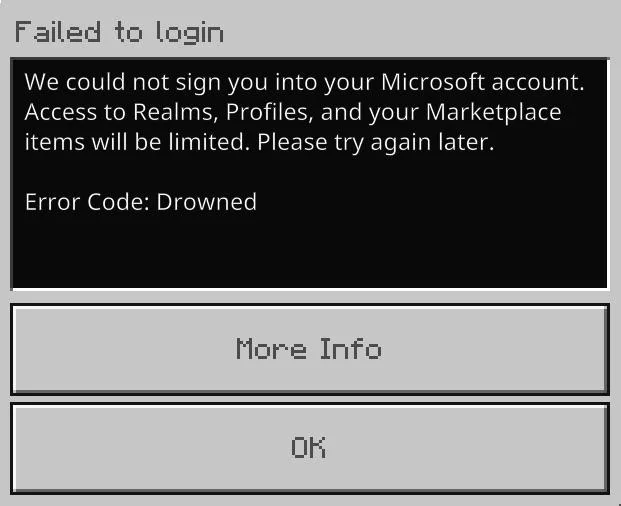
When Minecraft Bedrock (Minecraft for Windows) loads your Microsoft profile, it may show:
“Failed to login: We could not sign you into your Microsoft Account… Error Code: Drowned”.
This blocks Realms, Marketplace, and other online/synced features because Xbox/Microsoft authentication fails.
This usually happens due to account restrictions (family/age settings), a stuck sign-in token, or broken Xbox / Gaming Services components on Windows.
1. Check Microsoft/Xbox Service Status
If Xbox/Microsoft sign-in services are down, local fixes won’t help. Check status first.
- Open the Xbox Status page: support.xbox.com/xbox-live-status.
- Look for incidents under Sign-in, Account & Profile, or similar.
- If there’s an active issue, wait, then retry.
2. If You Use Passwordless Sign-In, Add a Temporary Password
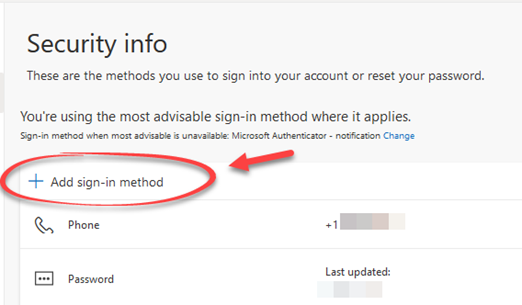
Passwordless sign-in can sometimes loop on a specific PC. Adding a password helps force a standard login path (you can remove it later).
- Go to account.microsoft.com and sign in.
- Open Security and find Passwordless account / Sign-in methods (wording varies).
- Add a password (or temporarily disable passwordless).
- Restart Minecraft and try signing in (choose the password option if prompted).
3. Ensure Xbox/Gaming Services Aren’t Disabled
If required Xbox services are Disabled or can’t start, Minecraft can’t complete authentication.
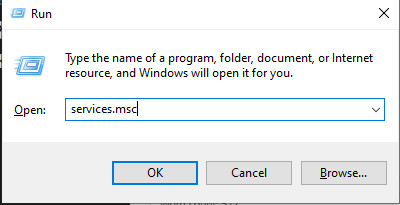
- Press Windows + R > type services.msc.
- Find these services (skip any that aren’t listed on your PC):
- Xbox Live Auth Manager (XblAuthManager)
- Xbox Live Game Save (XblGameSave)
- Xbox Live Networking Service (XboxNetApiSvc)
- Gaming Services (GamingServices / GamingServicesNet)
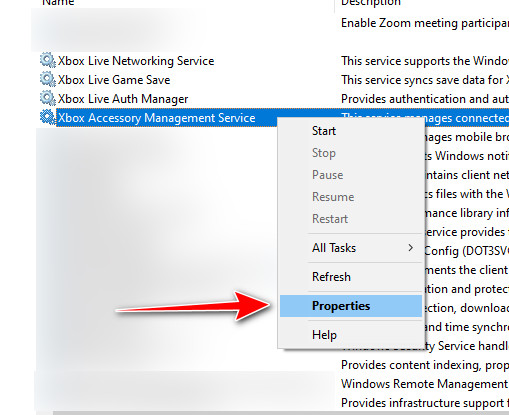
- Open each service and set Startup type to not Disabled (Automatic or Manual/Trigger Start is fine).
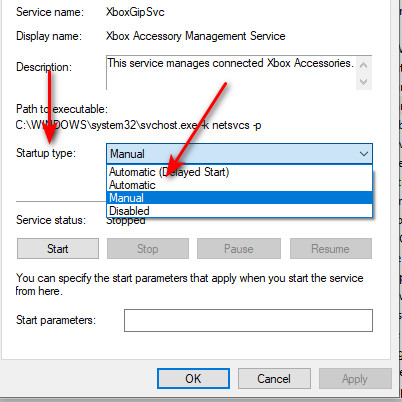
- If the service is Stopped, click Start > Apply > OK.
- Restart the PC and test Minecraft again.
4. Launch Offline, Then Reconnect
This can break a stuck session and force a fresh sign-in attempt.
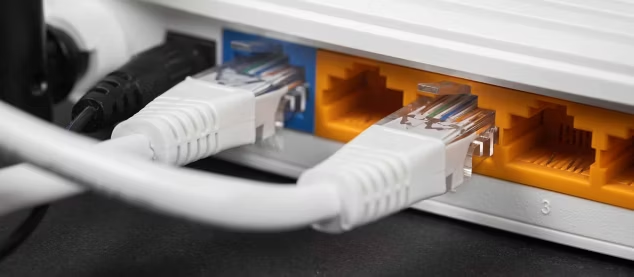
- Disconnect from the internet (turn off Wi-Fi or unplug ethernet).
- Open Minecraft and wait for the main menu.
- Reconnect the internet.
- Try signing in again.
5. Change Your Microsoft Account Password
This resets active sessions and can clear stale/corrupted tokens.
- Go to account.microsoft.com and sign in.
- Go to Security > Change password.
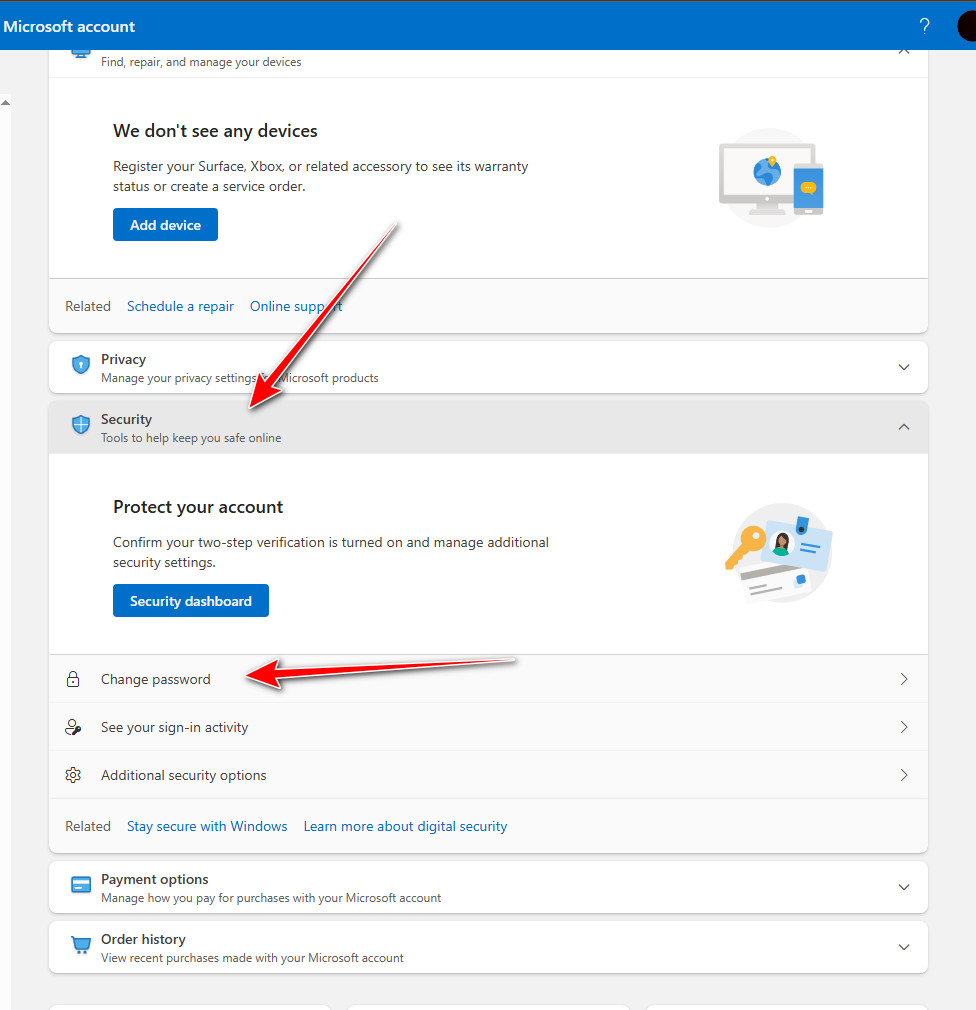
- Set a new password.
- Launch Minecraft and sign in with the new password.
6. Sign Out/In of Xbox App and Microsoft Store (Same Account)
If the Store/Xbox account doesn’t match Minecraft (or the token chain is broken), re-signing often fixes it.
- Open the Xbox app > sign out.
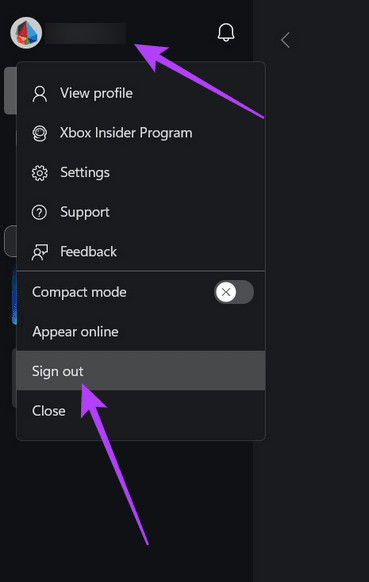
- Fully close the Xbox app (don’t leave it in the tray).
- Open Microsoft Store > profile icon > Sign out.
- Sign into the Store using the same Microsoft account used for Minecraft.
- Reopen the Xbox app and sign in again.
- Launch Minecraft and test.