Fix: Minecraft “Connection Refused” Error When Joining a Server
The “Connection refused: no further information” error in Minecraft appears when your game reaches the destination address, but the server rejects the connection or is not accepting connections on that port.
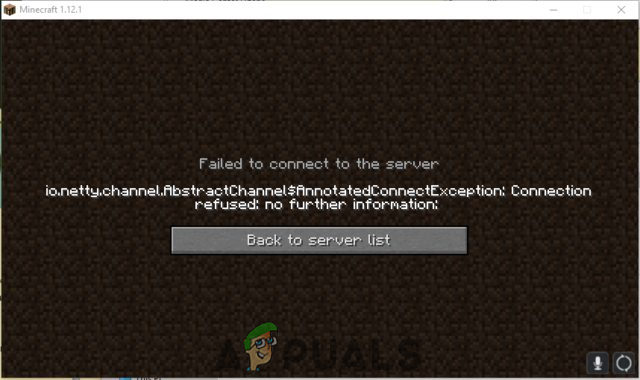
You may also see it as io.netty.channel.AbstractChannel$AnnotatedConnectException.
Minecraft tried to connect, but the server did not accept the request.
This usually happens because the server is offline, the IP address or port is wrong, Windows Firewall or another security tool is blocking Java, or the server is hosted incorrectly. If you host the server yourself, a bad port forwarding rule is one of the most common causes.
Start with the simple checks first. If those do not help, move to the network and firewall fixes below.
1. Make Sure the Server Is Online
Before changing your PC or router settings, confirm that the server is actually running. This error often appears when the server is offline, restarting, overloaded, still loading, or failed during startup.
If you are joining a friend’s or public server, ask the owner whether it is online and whether other players can connect. If you host the server yourself, check the server window or logs and make sure it fully started without crashing. If the server never finished loading, Minecraft will still show a connection error on the client side.
2. Restart Your Router and PC
A restart clears temporary local network issues such as stale routing, DNS problems, or a bad local IP assignment. It is simple, but it often fixes connection problems that appeared suddenly.
- Turn off your router and modem by unplugging them from power.
- Wait for 2 to 5 minutes.

Disconnecting power cord - Reconnect the power and wait until the internet connection is fully restored.
- Restart your PC.
- Open Minecraft and test the server again.
3. Verify the Server Address and Port
An incorrect address or port is one of the most common reasons for this error. Even one wrong number can send Minecraft to the wrong service, which then refuses the connection.
If someone else gave you the server details, ask them to confirm the exact IP address and port. If you host the server yourself, make sure you are using the correct address for the type of connection:
- Same network as the host: use the host PC’s local IPv4 address.
- Outside the network: use the host’s public IP address and the correct forwarded port.
- Open Minecraft and go to Multiplayer.
- Select the server, then click Edit.
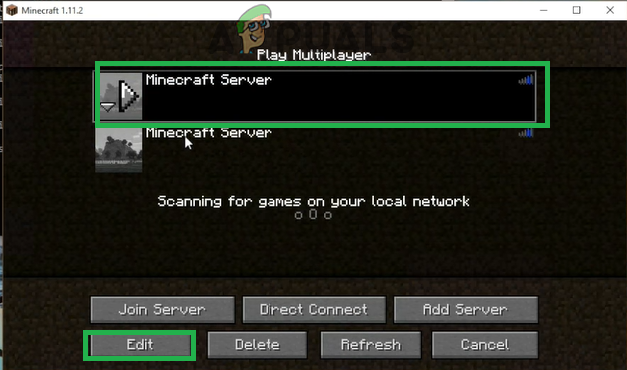
Selecting the server and clicking “Edit” - Check that the server address is correct.
- If a custom port is required, enter it in this format:
IP_ADDRESS:PORT
For example:
192.168.1.10:25565
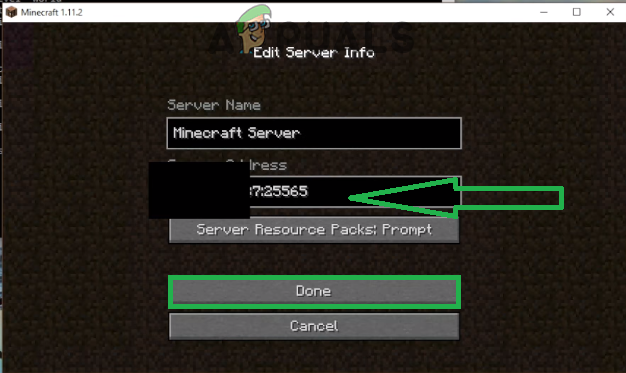
Editing the server address and clicking “Done” - Click Done, then Refresh, and try joining again.
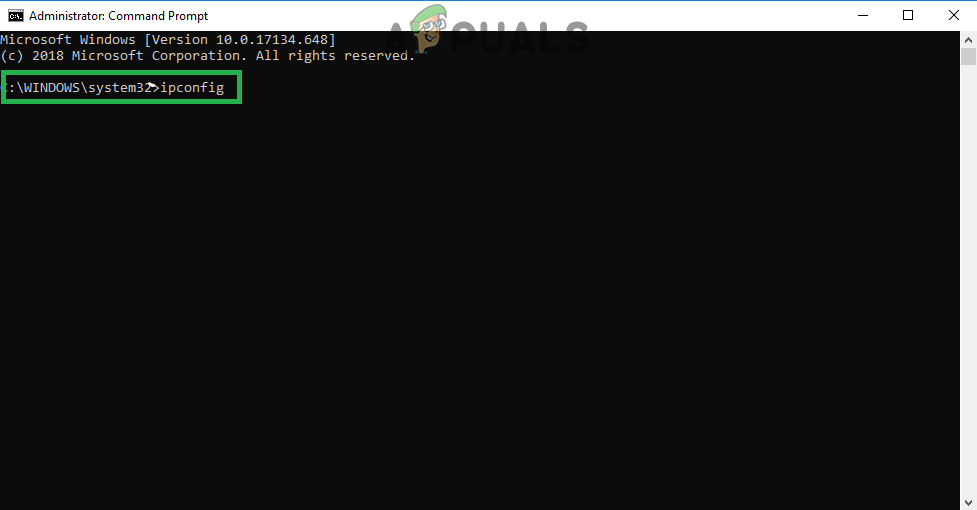
If you host the server on your own PC, you can check your local IP by opening Command Prompt and running:
ipconfig
Then look for IPv4 Address.
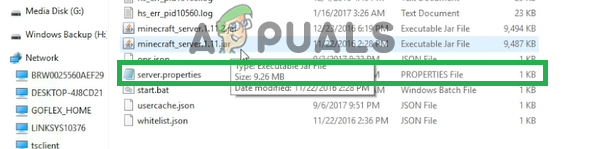
Also check the server.properties file and confirm that the server-port value matches the port you are using in Minecraft and in your router settings.
4. Reset Your Network Settings
If the server details are correct, Windows network settings may be the problem. Corrupted DNS cache, broken Winsock entries, or bad IP settings can stop Minecraft from reaching the server properly. Resetting them forces Windows to rebuild those components.
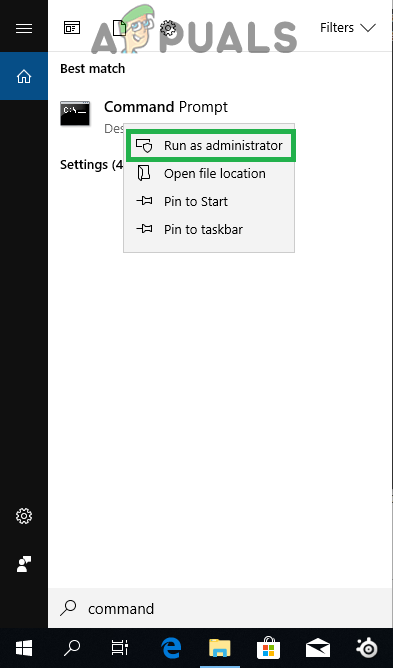
- Search for Command Prompt and click Run as administrator.
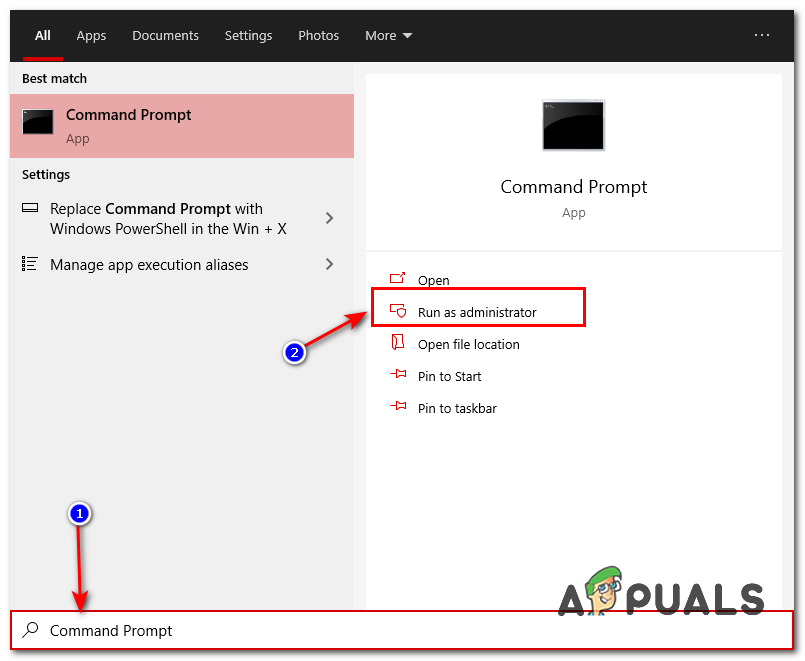
Running Command Prompt as administrator
- Enter these commands one by one:
ipconfig /flushdns
ipconfig /release
ipconfig /renew
netsh winsock reset
netsh int ip reset
- Restart your computer.
- Open Minecraft and test the connection again.
This method is useful when the problem affects multiple servers or started after a network change, VPN use, or router issue.
5. Allow Minecraft and Java Through Windows Firewall
Minecraft depends on Java and the launcher to make the connection. If Windows Firewall blocks either one, the server may appear unreachable even though it is online. This is especially worth checking if the error started after a Windows update, Java update, or fresh install.
- Open the Start menu and go to Settings.
- Go to Update & Security > Windows Security.
- Click Firewall & network protection.
- Select Allow an app through firewall.
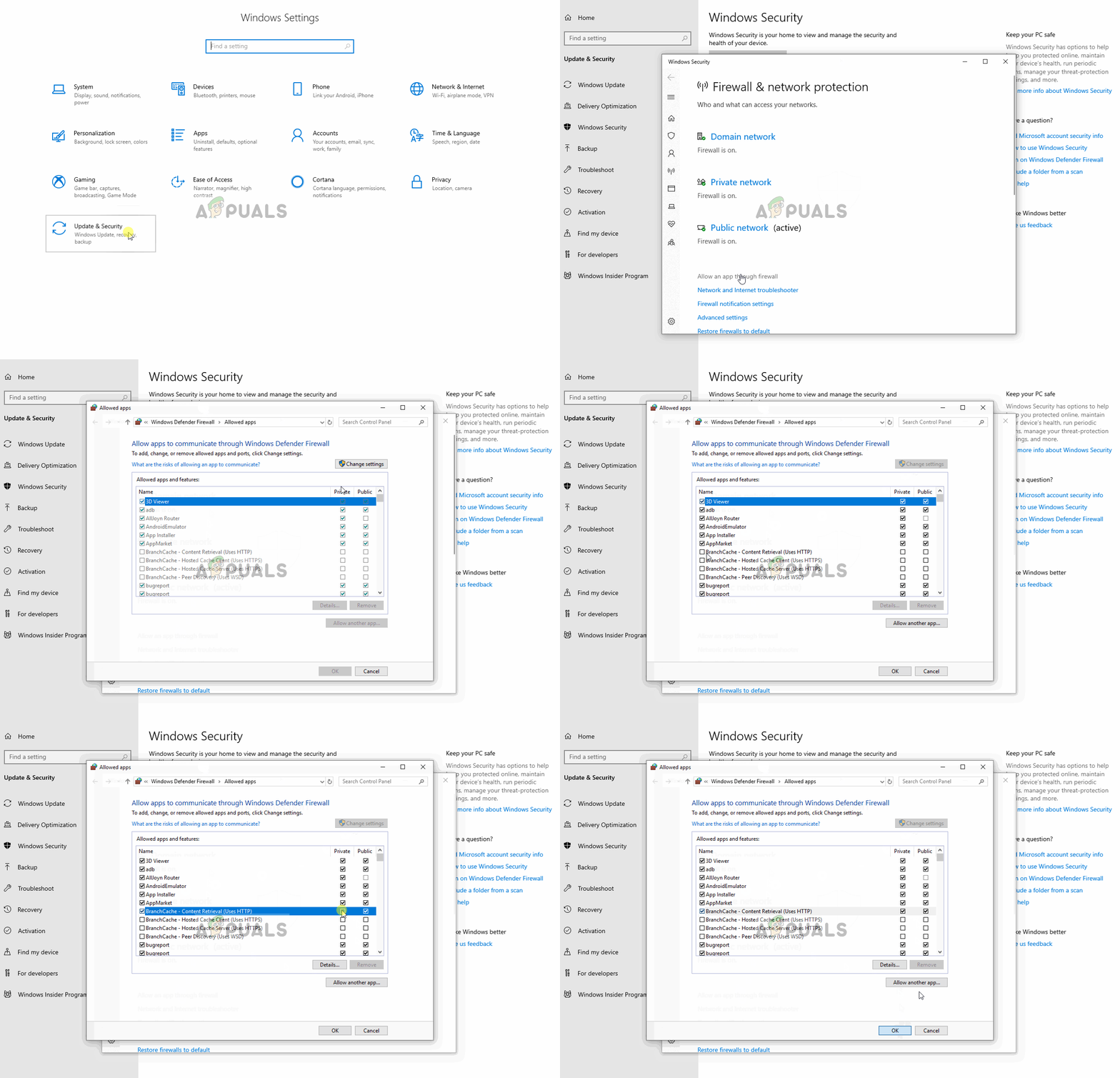
Allowing an application through Windows Firewall - Click Change settings.
- Find Minecraft, Minecraft Launcher, and all Java Platform SE Binary entries.
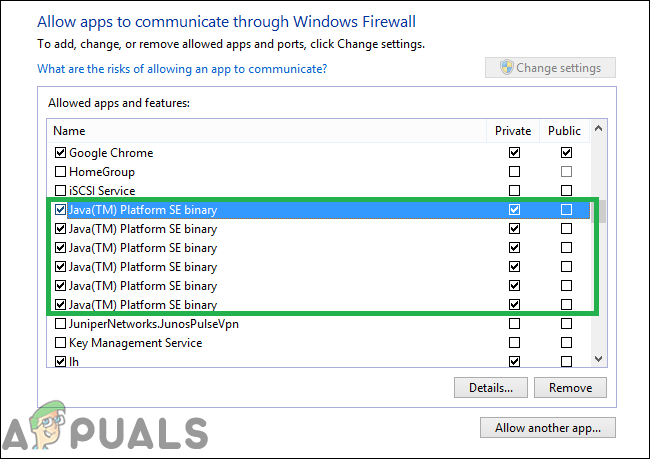
Applications that may need to be allowed through Windows Firewall - Make sure they are allowed on both Private and Public networks.
- If any entry is missing, click Allow another app and add it manually.
- Click OK, reopen Minecraft, and test again.
If you use a third-party antivirus with its own firewall, check that too. Allowing the app only in Windows Firewall may not be enough.
6. Check Whether Security Software Is Interfering
Some antivirus programs, VPNs, third-party firewalls, and network filtering tools can interfere with Java connections. If the issue began after installing or updating one of these, temporarily disable it and test again.
If the connection works after that, do not keep the protection disabled. Add Minecraft, Java, or the launcher to the allowed list or exceptions section, then enable the software again. This lets you keep protection without blocking the game.
7. Test a Different Internet Connection
Testing another network helps you separate a PC problem from a network or ISP problem. A mobile hotspot is usually the easiest way to do this.
- Disconnect from your current Wi-Fi or Ethernet connection.
- Connect your PC to a mobile hotspot or another network.
- Open Minecraft and try joining the same server again.
If Minecraft works on the other connection, the issue is likely on your original network. That usually points to router filtering, DNS problems, ISP restrictions, or a firewall rule on your main connection.
In most cases, this error is caused by one of four things: the server is offline, the IP or port is incorrect, Java is blocked by a firewall, or port forwarding is broken on a self-hosted server. Check those first, then move to network resets and security software if needed.






Make sure that the port is forwarded properly on the server computer. Also, try the first 3 solutions on the server computer