Fix: Fortnite “Media Streaming Error Detected” Error
When playing Fortnite, you may see “Media Streaming Error Detected”. When this happens, song previews, stage intros, cutscenes, or other streamed media may not load, and you can be kicked back to the lobby.
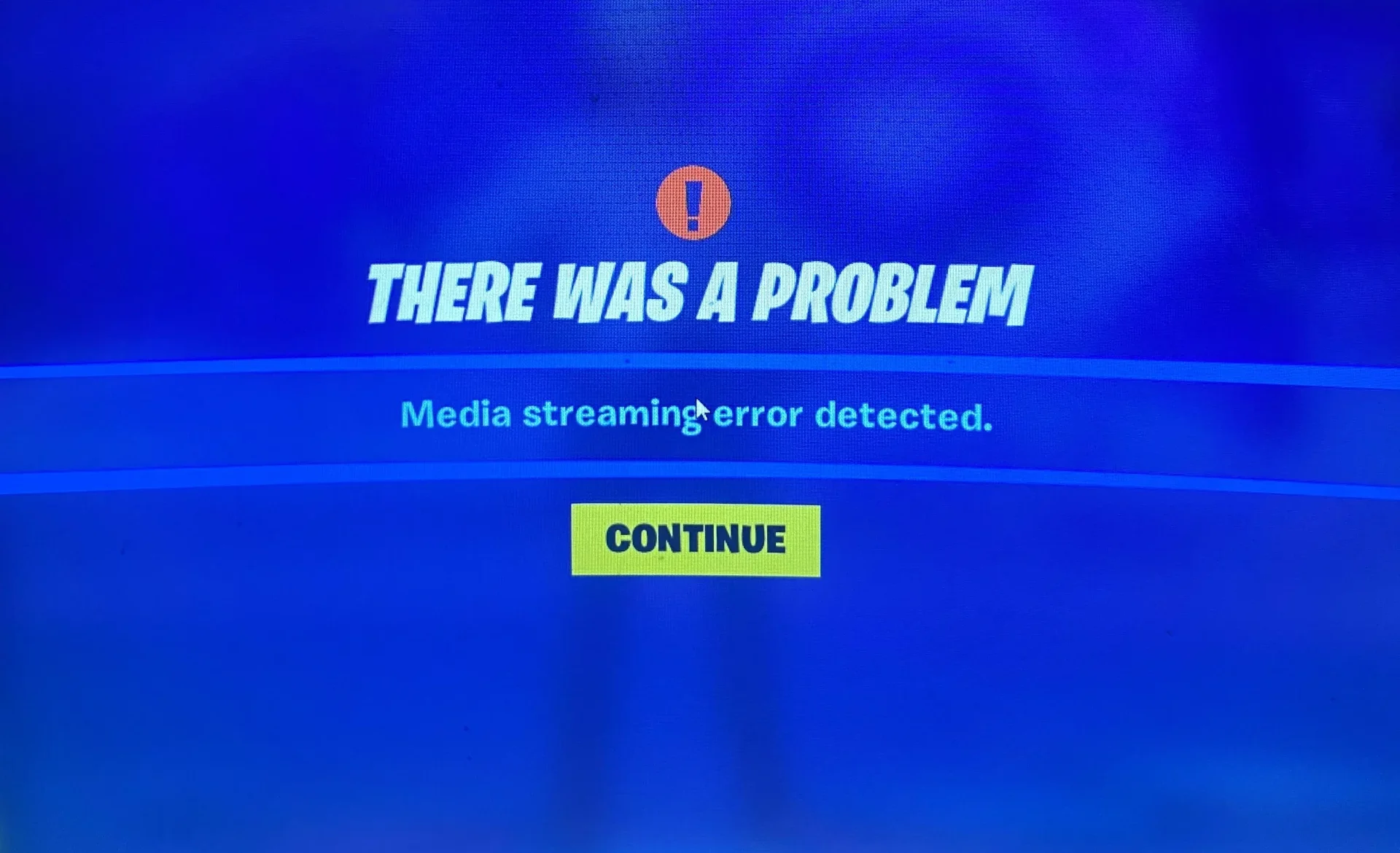
In most cases, Fortnite cannot fetch media from Epic’s services/CDN. The cause is usually either a server-side issue (Epic’s delivery problems) or a network/path issue on your side (DNS, routing, unstable Wi-Fi, VPN/proxy, firewall filtering).
Common triggers include:
- Unstable connection (packet loss, jitter, congested Wi-Fi).
- DNS/routing issues that send you to a slow or problematic CDN edge.
- VPN/proxy/ad-blocking DNS interfering with Epic endpoints.
- Firewall/AV inspection causing HTTPS requests to fail.
- IPv6 instability on some ISPs/routers.
1. Check Fortnite / Epic Servers
First, confirm whether Epic is having issues. If Fortnite services or media delivery are degraded, local fixes will not help until Epic restores service.
- Check Epic’s status page here.
If you see Outage or Degraded Performance related to Fortnite or core services, wait and retry later. If everything is operational, continue below.
2. Restart Fortnite and Your PC
This clears temporary client state and forces a fresh connection to streaming endpoints. It helps if Fortnite got stuck in a bad session.
- Close Fortnite completely.
- Restart your PC.
- Launch Fortnite again and test Fortnite Festival.
3. Reset Network and Flush DNS
If your DNS cache or network stack is holding bad routes or stale lookups, Fortnite may fail to reach the correct media endpoints. A reset clears cached entries and rebuilds networking. This is especially useful when regular matches work but Festival media fails.
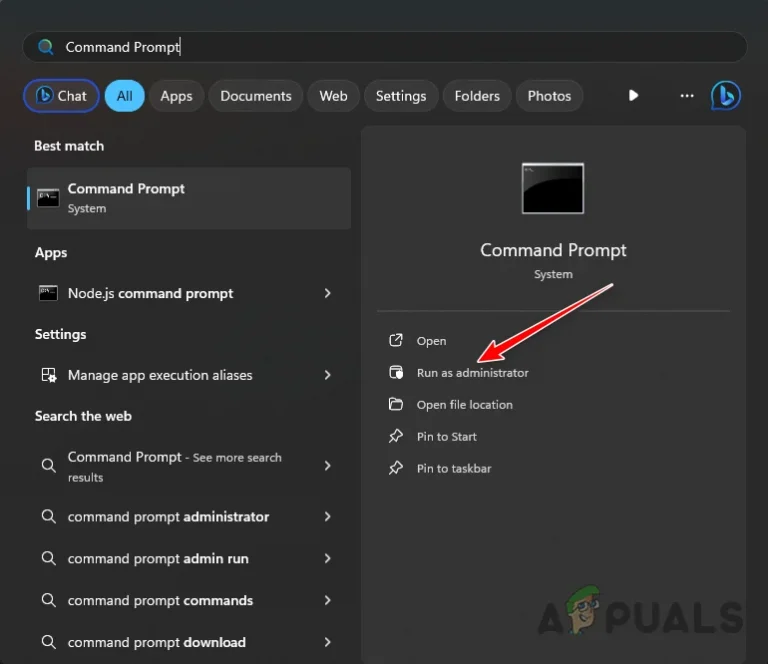
- Search for Command Prompt in Windows Search and select Run as administrator.
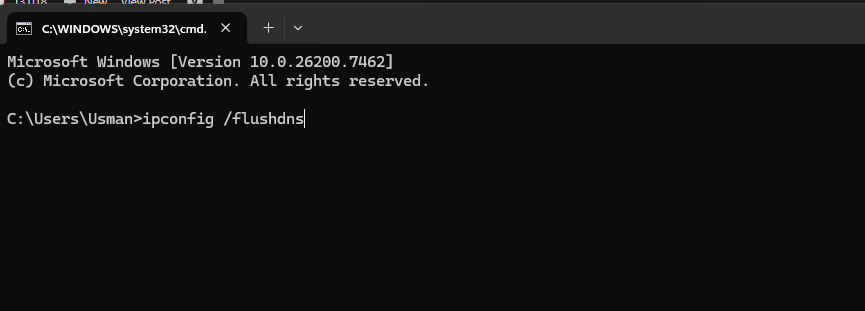
- Run these commands one by one (your internet may briefly disconnect):
ipconfig /flushdns
ipconfig /release
ipconfig /renew
netsh int ip reset
netsh winsock reset
netsh winhttp reset proxy
- Restart your PC, then launch Fortnite and test Fortnite Festival again.
Tip: If you are on Wi-Fi, try Ethernet or move closer to the router. Streaming failures are often caused by packet loss and unstable latency, not just slow speed.
4. Use a Track You Already Own
This is an isolation step. If a specific track’s media bundle is failing to download, switching tracks forces a different media request and can bypass the stuck fetch.
- Open Fortnite and go to the Locker.
- Select the Music Packs section.
- Choose a music track you already own.
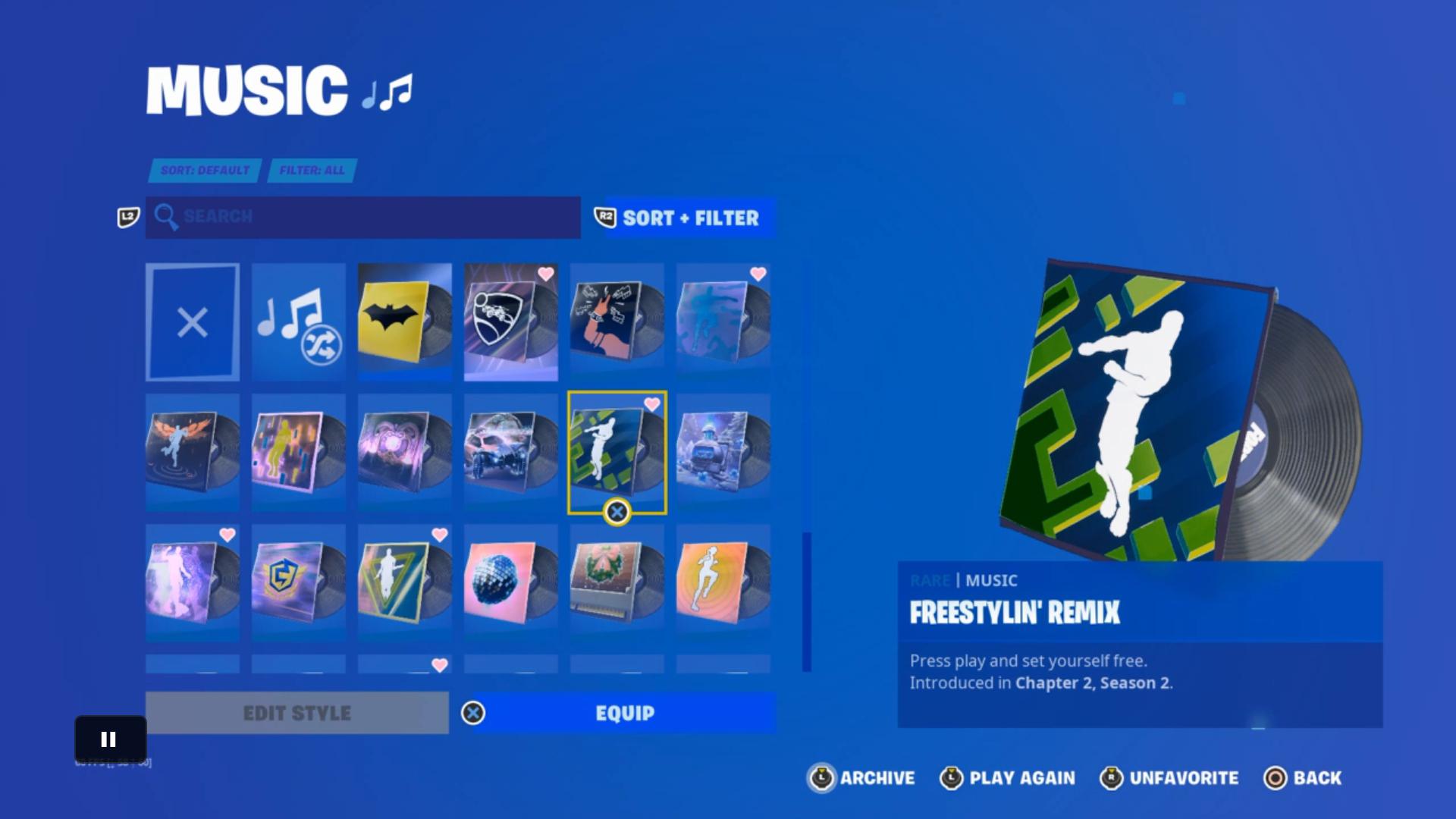
- Equip it, return to Fortnite Festival, and test again.
5. Switch to the Default Outfit (Isolation Step)
This mainly helps rule out a cosmetic or locker sync issue. If the error disappears only with a simpler loadout, a specific cosmetic configuration may be involved.
- Open Fortnite and go to the Locker.
- Select the Outfit slot.
- Choose Default (or a simple outfit), then equip it.
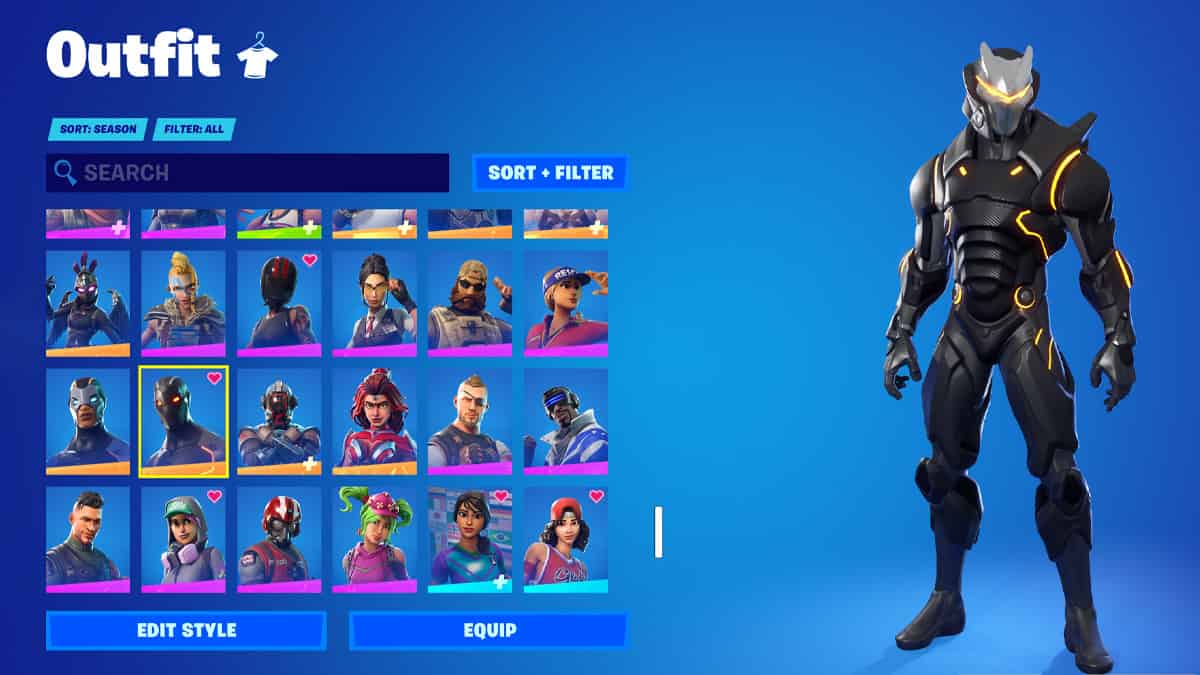
- Return to Fortnite Festival and check if the error is gone.
If none of the fixes work and the issue happens on multiple networks or devices, it is likely a server-side Festival/media delivery problem. Your best option is to retry later after Epic’s services stabilize.