How to Fix Instagram Live Option Missing Issue?
When the Instagram Live option disappears from Create (+) or the Stories camera, it usually is not removed. It is either moved, not loading, or temporarily unavailable for your account.
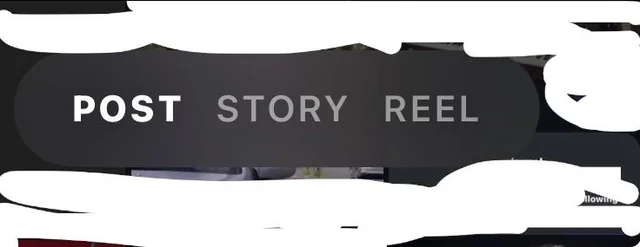
Instagram changes where Live appears based on region, account type, and app version. Sometimes it is a camera mode (swipe across modes), and sometimes it is inside the + creation flow.
Before you start
- Stories camera: Open Instagram, swipe right (or tap your profile picture), then swipe through all camera modes to see if Live appears.
- Create (+): Tap + and check every option.
- Try another account: Switch accounts and check if Live shows there. If it does, your device is fine and the issue is likely account-side.
Try the fixes below in order. After each one, reopen Instagram and check both Stories camera (swipe modes) and + (Create).
Quick Test: Test Your Account on Another Device
This quickly tells you whether it is a device issue or an account issue.
- Live shows on another device: your current phone or app install is the problem (cache, beta, corrupted files, network filtering).
- Live missing on other devices too: it is likely account-side (eligibility, restriction, or rollout).
Log into your account on another phone and check Stories camera modes and + (Create).
1. Restart Instagram and Your Phone
This clears temporary UI and background glitches and forces Instagram to reload its camera modules.
- Close Instagram fully (remove it from Recent Apps/App Switcher).
- Restart your phone.
- Open Instagram and check Stories camera and + (Create).
2. Leave the Beta Program (If You’re Using Instagram Beta)
Beta versions often have unfinished UI changes or bugs that can hide features. Switching to stable is one of the best early checks.
On Android (Google Play Beta)
- Open the Google Play Store.
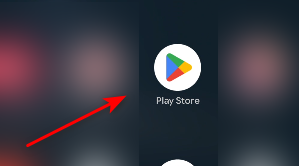
- Search for Instagram and open its page.
- If you see “You’re a beta tester”, tap Leave.
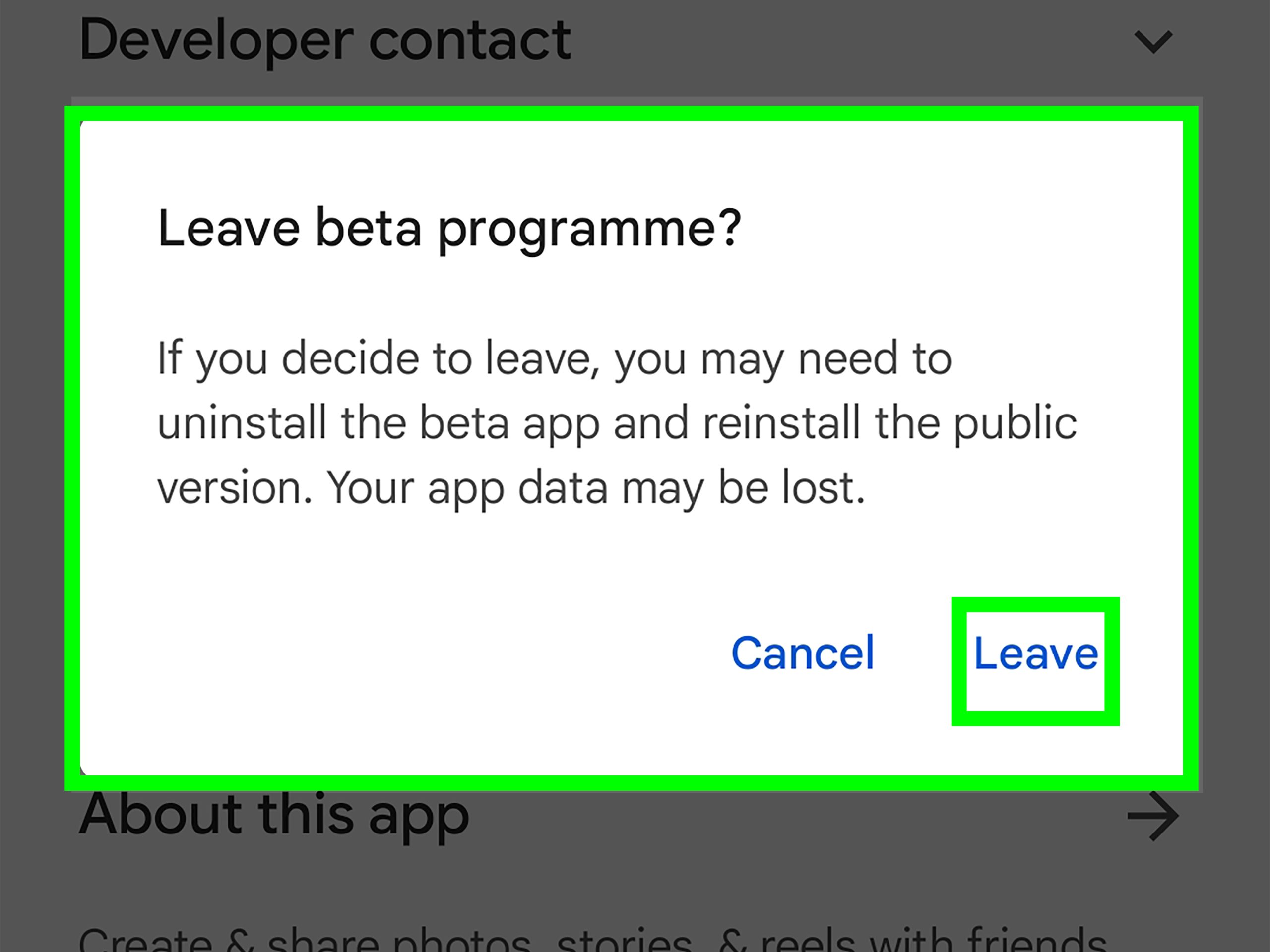
- Wait a few minutes, then update Instagram.
On iPhone (TestFlight Beta)
- If installed via TestFlight, open TestFlight and stop testing Instagram.
- Install Instagram from the App Store (stable version).
- Open Instagram and check if Live is back.
3. Clear Cache (Android) / Offload App (iPhone)
If cached camera data is broken, refreshing it can restore missing tools without a full reset.
On Android (Clear Cache)
- Hold the Instagram icon and tap App info.
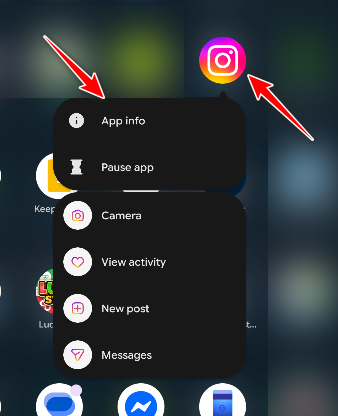
- Go to Storage > tap Clear cache.
- Reopen Instagram and check Stories camera and + (Create).
On iPhone (Offload App)
- Settings > General > iPhone Storage.
- Tap Instagram > tap Offload App.
- Reinstall from the same screen, then check if Live returns.
4. Reinstall Instagram (Clean Reinstall)
A clean reinstall replaces corrupted app files and refreshes feature modules that may fail to load.
On Android
- Hold the Instagram icon and tap App info.
- Tap Uninstall.
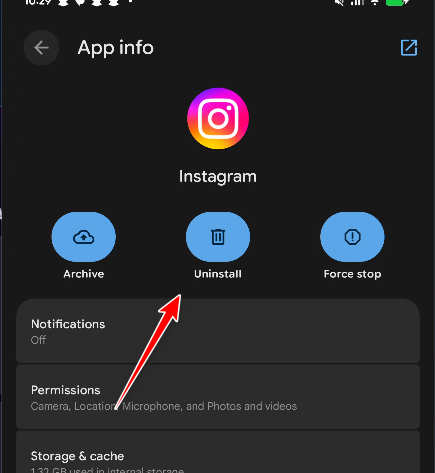
- Restart your phone.
- Reinstall Instagram from the Play Store and log in.
- Check Stories camera modes and + (Create).
On iPhone
- Press and hold Instagram > Remove App > Delete App.
- Restart your iPhone.
- Reinstall from the App Store and log in.
- Check Stories camera modes and + (Create).
5. If It’s Account-Side: Check Restrictions, Eligibility, and Rollouts
If Live is missing on multiple devices, device fixes will not help much. Instagram may hide Live due to account standing, eligibility, temporary limits, or a regional rollout change.
- Check Account Status: Settings and privacy > search Account Status and review limitations.
- Think about recent flags: warnings, removed content, unusual login activity, or rapid follows can trigger temporary limits.
- Wait and retest: rollouts can change within hours or days.
- Report it: Settings and privacy > Help > Report a problem, explain that Live is missing from camera/create.