How to Fix Instagram Links Not Working Issue?
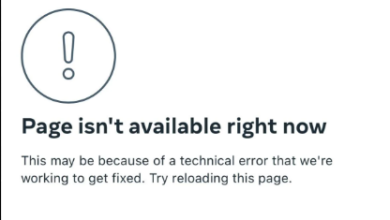
When an Instagram post link, bio link, Story link, DM link, or external URL won’t open, does nothing, or shows a blank (white/black) screen, the issue is usually Instagram’s in-app browser (webview) or your phone’s link routing.
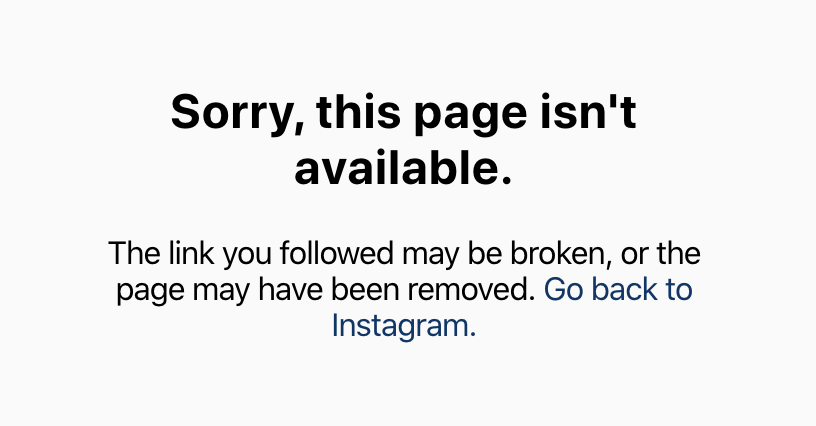
The link is often fine, but something like WebView/Chrome, Instagram cache, VPN/Private DNS/ad-block, default browser settings, or network filters stops the page from loading.
Try these in order. Each step helps you identify whether the problem is Instagram, your phone settings, your network, or the website.
1. Quick Test: Copy the Link and Open It Outside Instagram
This isolates the problem fast.
- Works in Chrome/Safari: Instagram’s in-app browser or cache is the issue.
- Fails everywhere: network, DNS/VPN, or the website is the issue.
- In Instagram, use Copy link (or press and hold a URL in DMs to copy).
- Paste into Chrome (Android) or Safari (iPhone).
2. Use “Open in Browser” (Bypass Instagram’s In-App Browser)
If the page is blank inside Instagram, opening it in your real browser usually works because it handles redirects, cookies, and scripts better.
- Tap the link so it opens in Instagram.
- Tap ⋯ (three dots) in the top corner.
- Select Open in browser / Open in external browser.
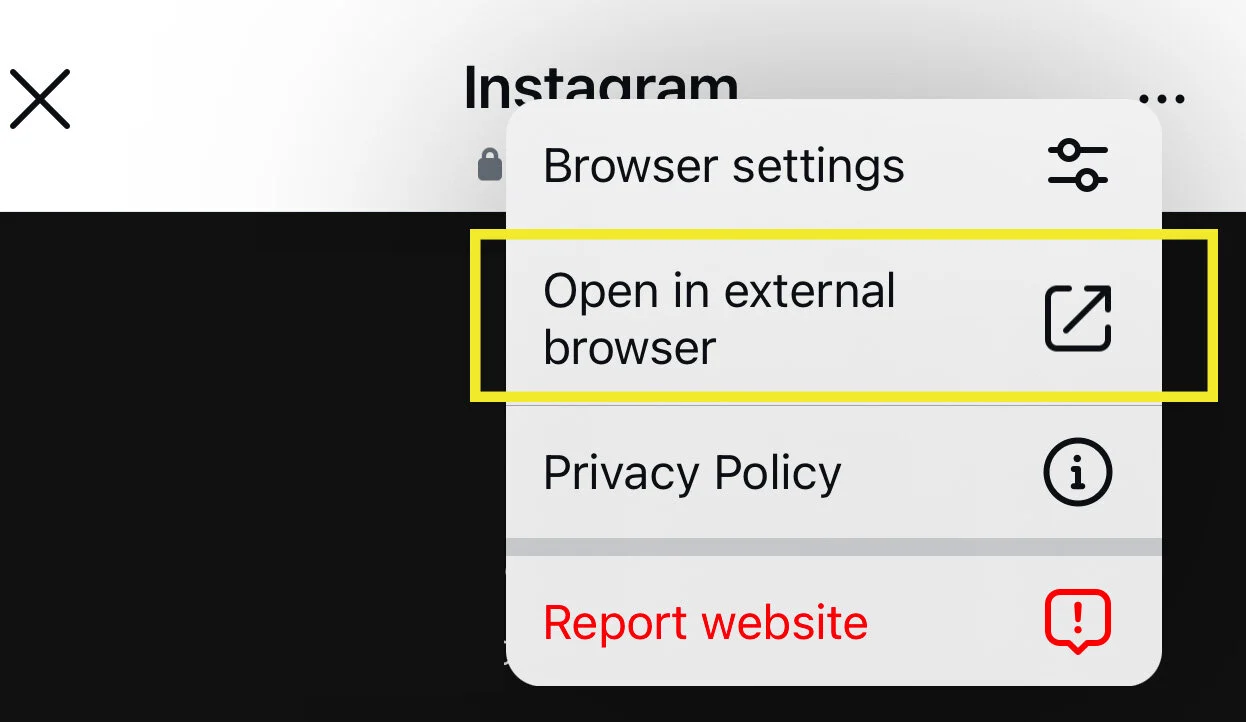
- If you do not see it, use Copy link and paste into your browser.
3. Restart Instagram
This refreshes the session and reloads link handling, which fixes many temporary blank-screen issues.
- Close Instagram completely (swipe it away from recent apps).
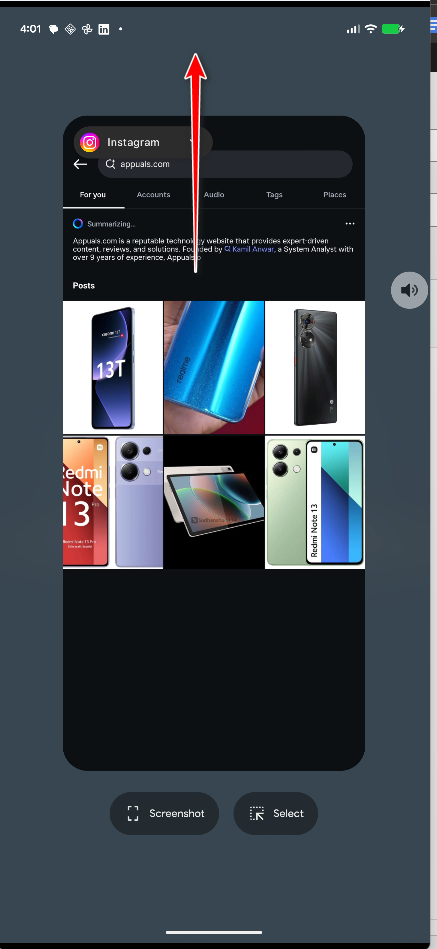
- Wait 5 to 10 seconds.
- Open Instagram and test the link again.
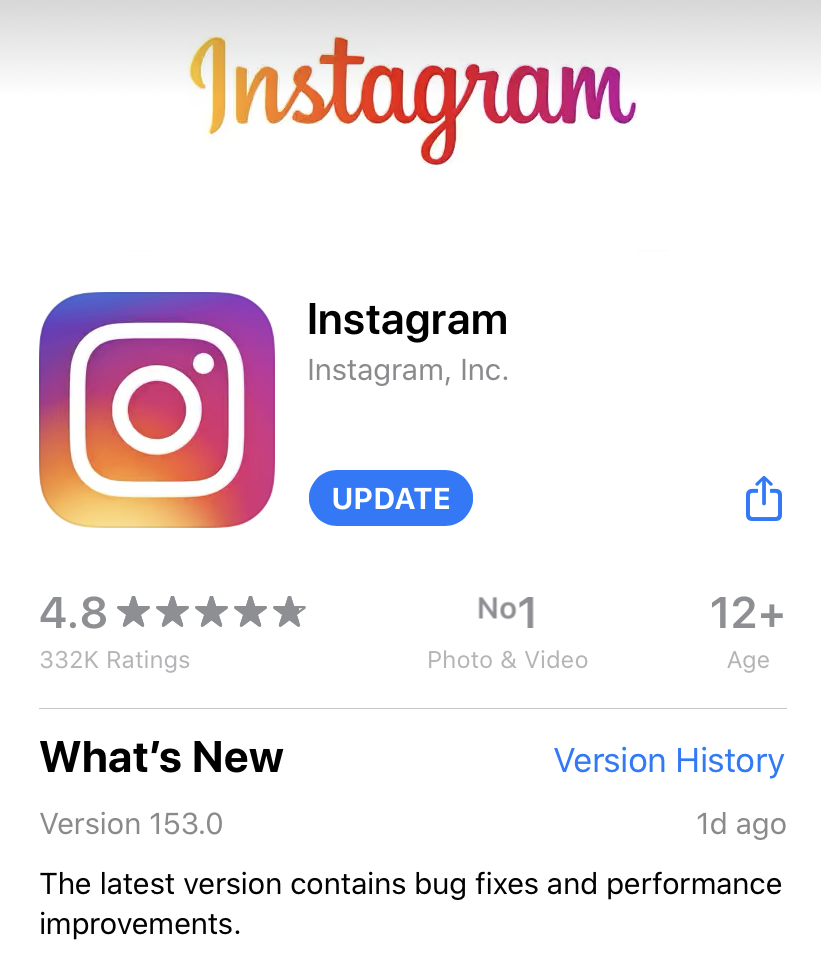
4. Update Instagram (and Restart Your Phone)
Updates can fix bugs in the in-app browser. A restart also refreshes the webview and link-routing layer.
- Update Instagram from Play Store (Android) or App Store (iPhone).
- Restart your phone.
- Test the link again.
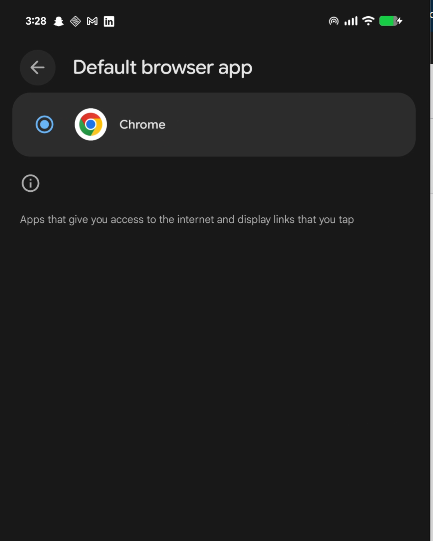
5. Reset Default Browser (Android and iPhone)
If tapping a link does nothing, your phone might not know which app should open it, or the current default is stuck.
- Android: Settings > Apps > Default apps > Browser app > select Chrome (or your preferred browser).
- Android (optional): Settings > Apps > Instagram > Open by default > Clear defaults (if available).
- iPhone: Settings > your browser app (Safari/Chrome) > Default Browser App > choose one.
- Return to Instagram and test the link.
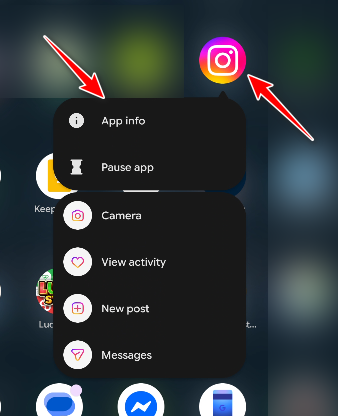
6. Enable Supported Links for Instagram (Android)
This helps when links open the wrong app, do nothing, or get stuck during redirects. It is a routing fix, not a website-down fix.
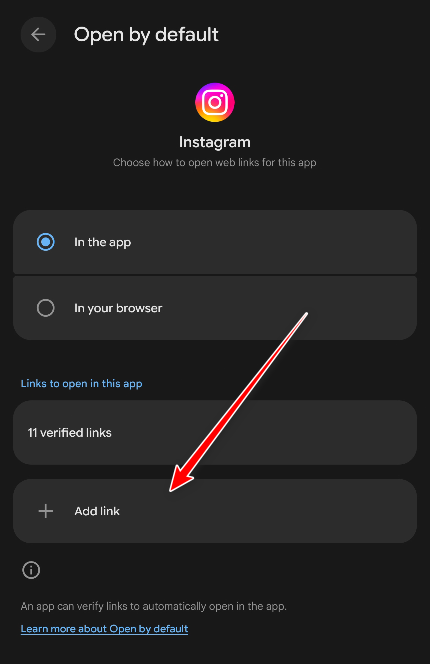
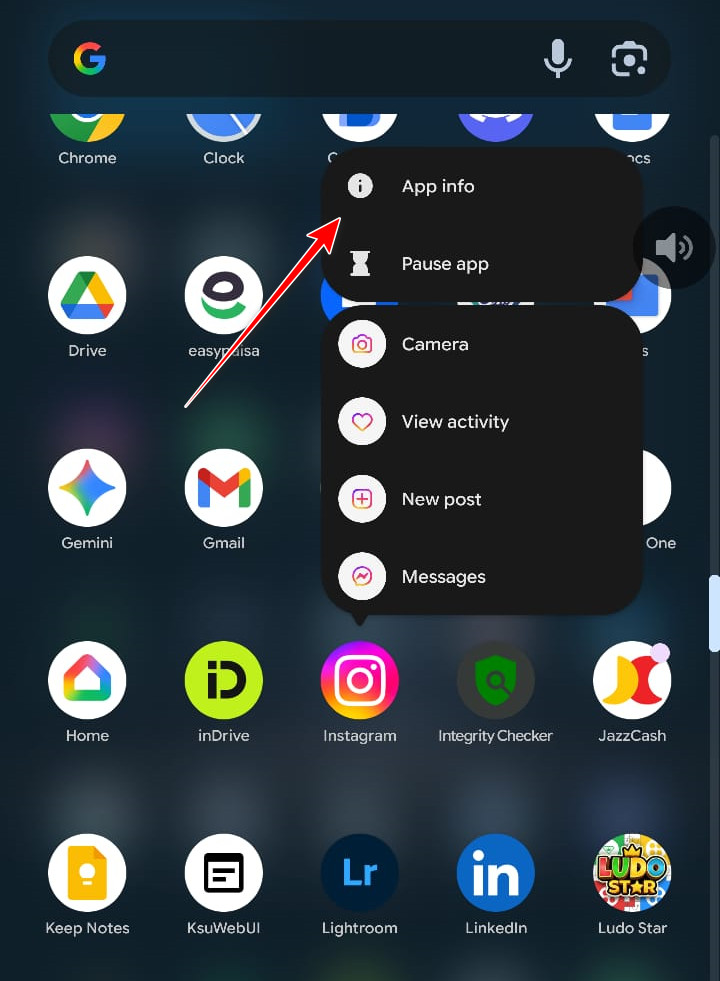
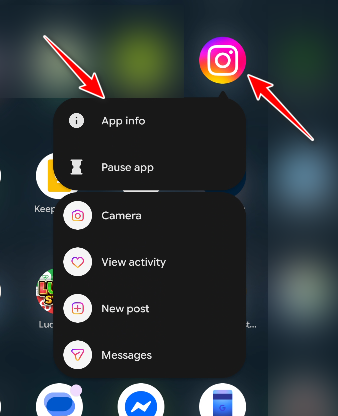
- Press and hold the Instagram icon and tap App info.
- Tap Open by default.
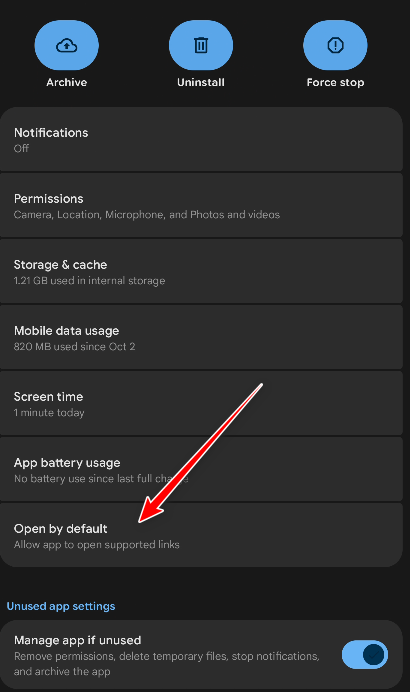
- Tap Add link and enable all available Instagram-related domains.
7. Clear Instagram Cache (Android)
If Instagram’s webview cache or site data is corrupted, links can open blank. Clearing cache forces a clean rebuild of temporary data.
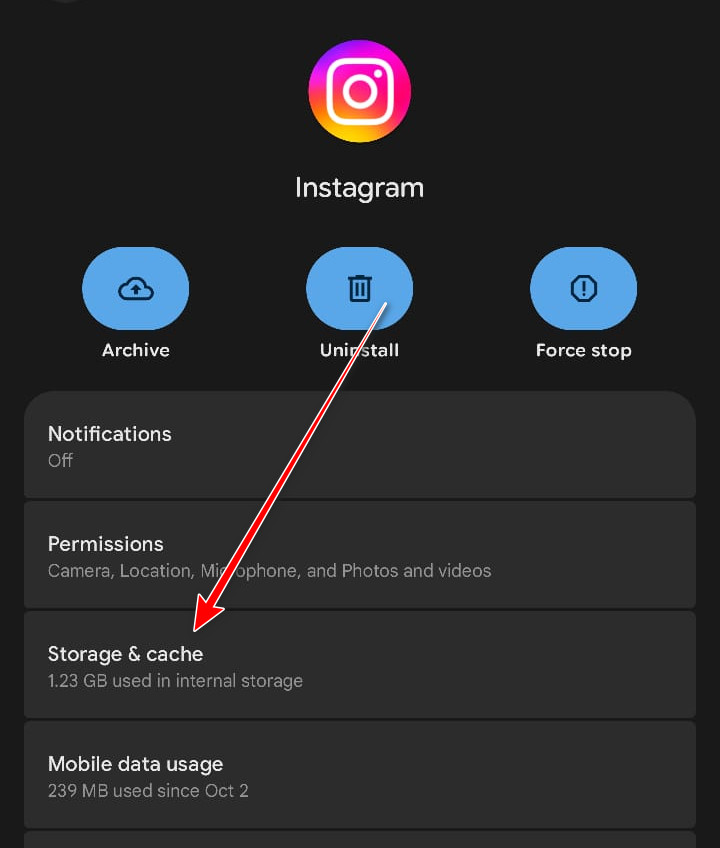
- Settings > Apps > Instagram (or press and hold Instagram > App info).
- Tap Storage (or Storage & cache).
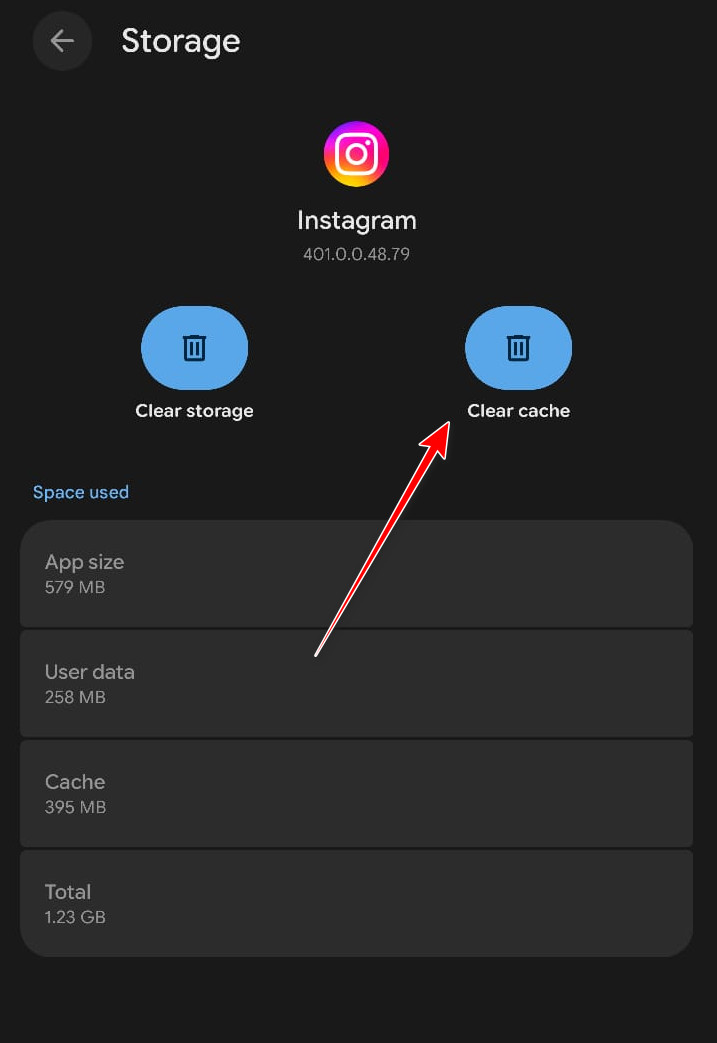
- Tap Clear cache.
- Reopen Instagram and test the link.
Note: Clear storage / Clear data is stronger, but it logs you out and resets Instagram locally.
10. Update Android System WebView / Chrome (Android)
Instagram’s in-app browser depends on WebView (and often Chrome). If they are broken or outdated, pages may render blank.
- Open Google Play Store.
- Update Android System WebView and Google Chrome.
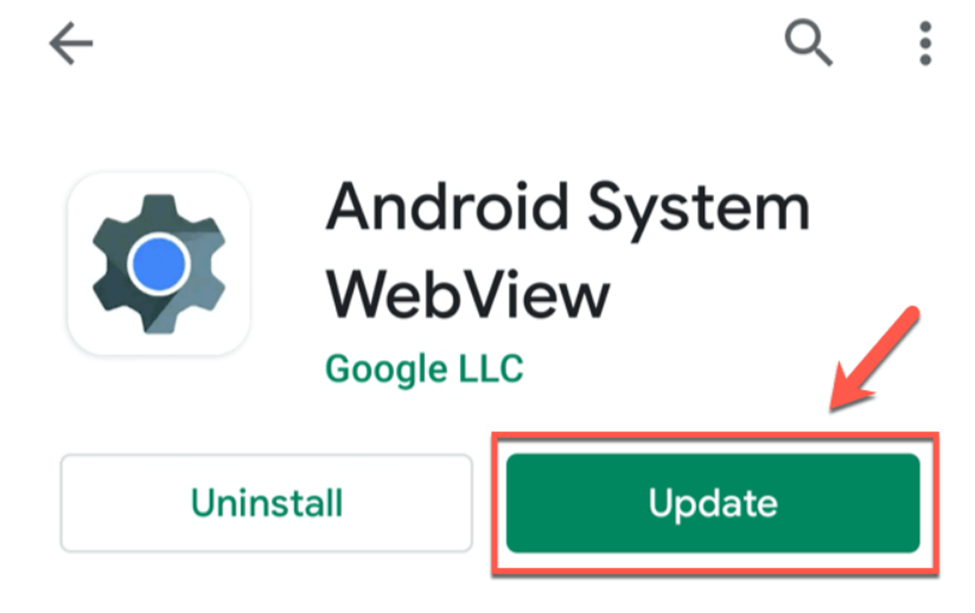
- If WebView does not appear, update Chrome anyway.
- Restart your phone and test again.
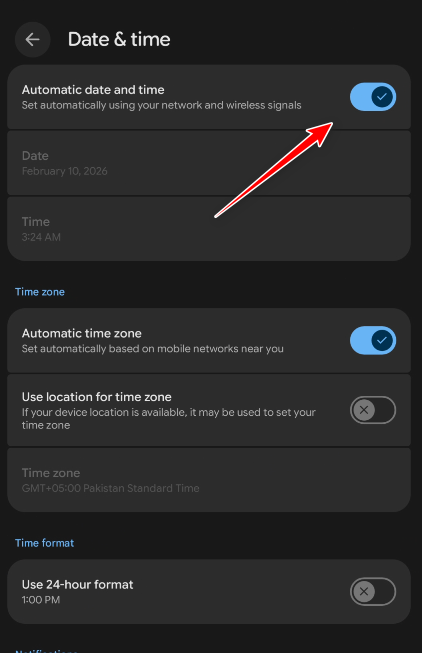
12. Check Date & Time (Fixes Some HTTPS Loads)
Incorrect date/time can break secure (HTTPS) validation and cause pages to fail or appear blank.
- Android: Settings > System > Date & time > enable Set time automatically.
- iPhone: Settings > General > Date & Time > enable Set Automatically.
- Retry the link.
13. Reinstall Instagram
If link handling is corrupted, reinstalling removes broken local data and rebuilds Instagram’s webview and routing.
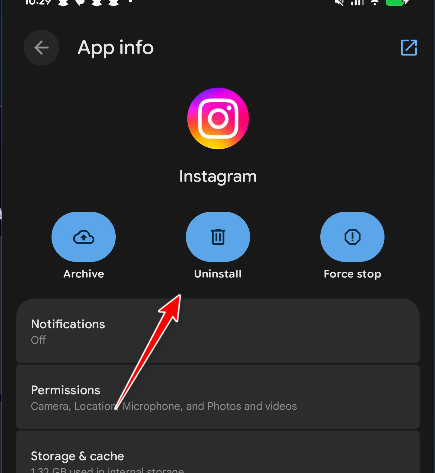
- Press and hold Instagram > App info.
- Tap Uninstall.
- Restart your phone (recommended).
- Install Instagram again from the app store.
- Sign in and test the link.
14. If You’re Using Instagram Beta (Rare)
Beta builds can ship webview or link bugs. If the problem started after an update, switching to stable can help.
- Android: In Play Store, open Instagram > leave Beta (if enrolled) > update or reinstall.
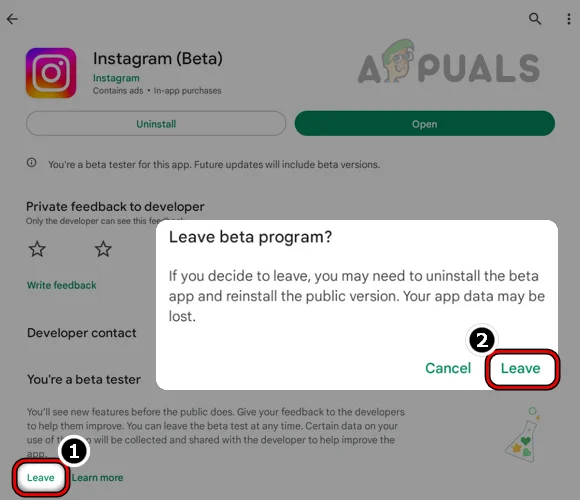
- iPhone: If using TestFlight, switch back to the normal App Store version.
- Restart your phone and test again.
15. If Only One Specific Website Won’t Open
If most links work but one domain always fails, the site is likely the cause.
- Open the same link in Chrome/Safari to confirm the website works.
- If it works outside Instagram but fails inside, always use Open in browser (Fix #2) or copy and paste into your browser.
- If it fails on multiple devices or networks, the website may be down or blocked by your ISP or network.
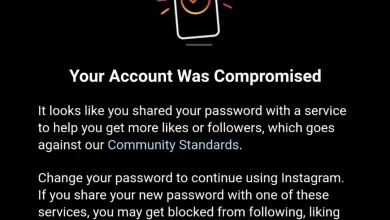
Rare case: If Instagram is temporarily restricting actions due to unusual activity, links may behave oddly alongside other limits (likes, follows, DMs). If you notice that pattern, update the app, restart your phone, and try again after a few hours.