How to Fix iCloud Mail Not Receiving Emails?
iCloud Mail can open normally while new emails never appear in the Inbox. Refreshing Mail may bring them in on one device but make no difference on another. A missing message can also have arrived somewhere other than the Inbox.
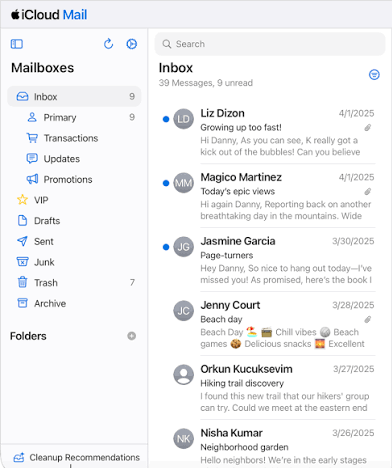
Full iCloud storage can prevent new mail from arriving, even if the iPhone itself has free space. Messages already visible on iCloud.com have reached the account; the Mail app may be behind on syncing or showing a filtered view.
1. Check Whether the Message Reached iCloud
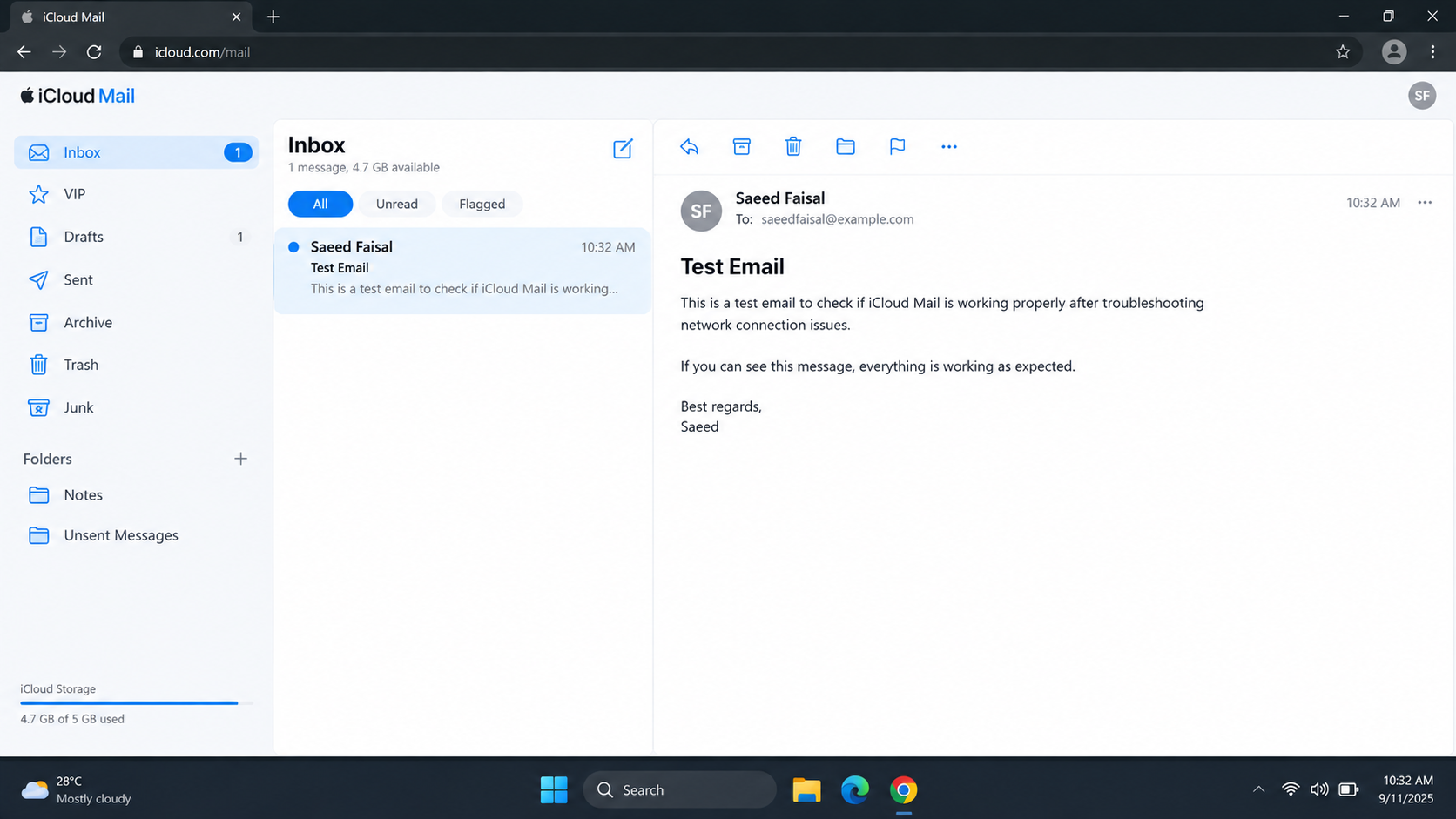
A test in webmail is more useful than repeatedly refreshing an empty Inbox. It checks the mailbox without relying on the affected Mail app.
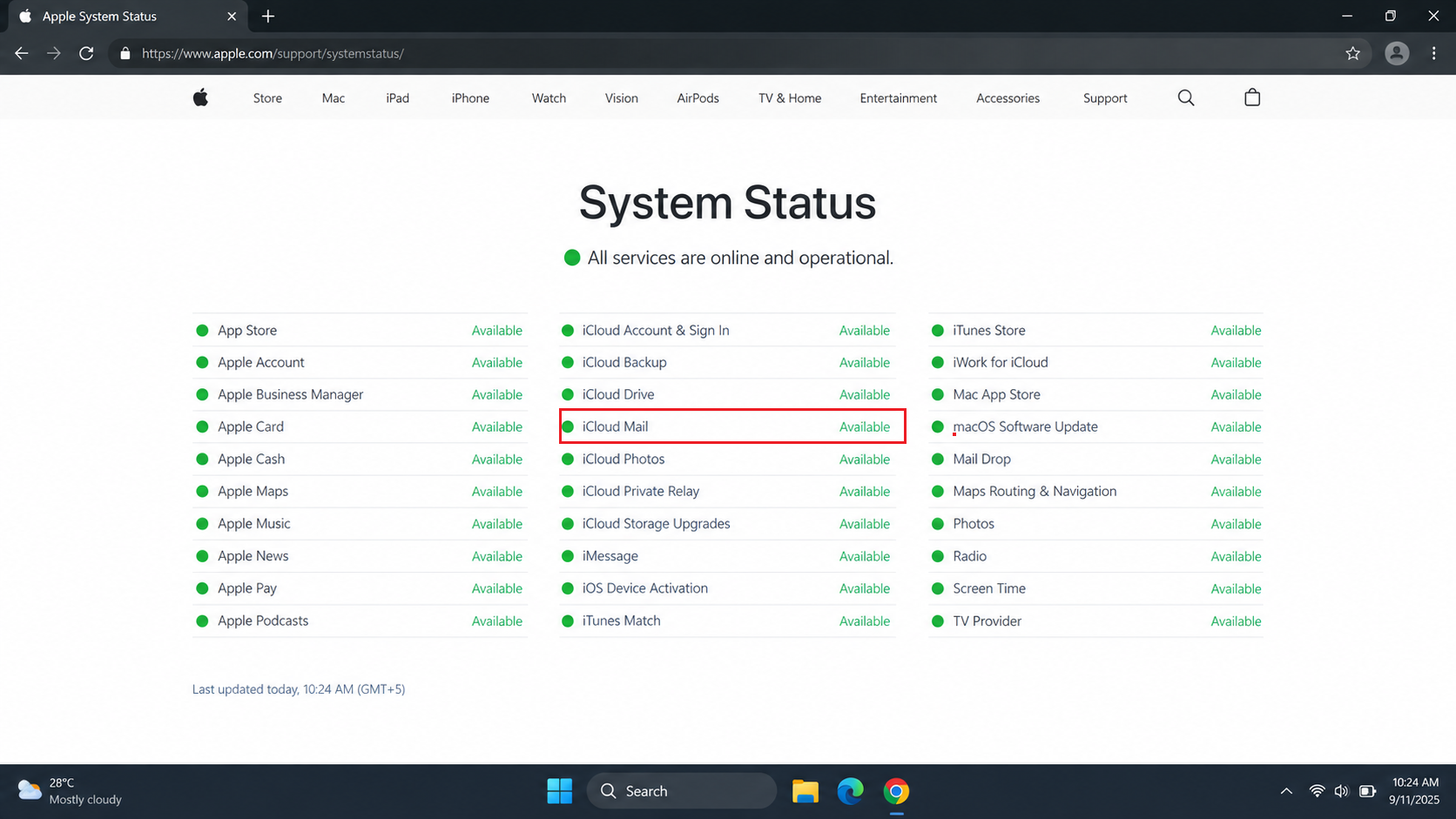
- Check iCloud Mail on Apple System Status. During a reported interruption, wait for service to recover before changing account settings. A green status does not rule out every brief or account-specific problem.
- Sign in to iCloud Mail in a browser with the Apple Account that owns the address. Send a short, plain-text test from another email account to the exact address that is missing mail.
- Check Inbox, Junk, Trash, Archive, and any custom folders. Search for the test’s sender and subject, not just unread messages.
If iCloud.com receives the test message, delivery succeeded for that message, focus on the affected device.
| Where the test appears | What to check |
|---|---|
| On iCloud.com, but not in the Mail app. | Check the affected device’s account and mailbox view. |
| In Junk or an unexpected folder. | Use the Move button to return legitimate mail to Inbox, and review any matching rule. |
| Nowhere in webmail. | Check iCloud storage and the sender’s delivery error. |
| Webmail will not open or sign in. | This is not a delivery test. Try an updated browser or another trusted connection; follow Apple’s iCloud Mail access checks if it still fails. |
In webmail, open Settings > Rules and correct any rule moving or deleting wanted messages. Record the original conditions first. Rule changes can take up to 15 minutes to affect incoming mail.
Also check Settings > Mail Forwarding. To keep forwarded mail in iCloud, deselect Delete messages after forwarding; to stop forwarding, deselect Forward my email to. Only move messages out of Junk when you recognize and trust them.
Forwarding you did not configure also warrants checking your Apple Account’s security, not just correcting the Mail setting.
2. Check iCloud Mail on the Affected Device
The account can still appear in Settings when Mail syncing is off. Confirm it matches the Apple Account used in the webmail test.
iPhone or iPad
- Open Settings > [your name] > iCloud > Mail. Turn on Use on this iPhone or Use on this iPad.
- In Mail, open Mailboxes > iCloud > Inbox and pull down to refresh. Tap an active filter button to show all messages. If categories are shown, choose More (…) > List View to see messages beyond Primary.
Mac
- Open System Settings > [your name] > iCloud > Mail and enable Sync this Mac. Labels vary on older macOS versions.
- In Mail > Settings > Accounts > iCloud > Account Information, check that the account is enabled and online. Select a warning icon to read the connection or sign-in error; use Take Online if offered.
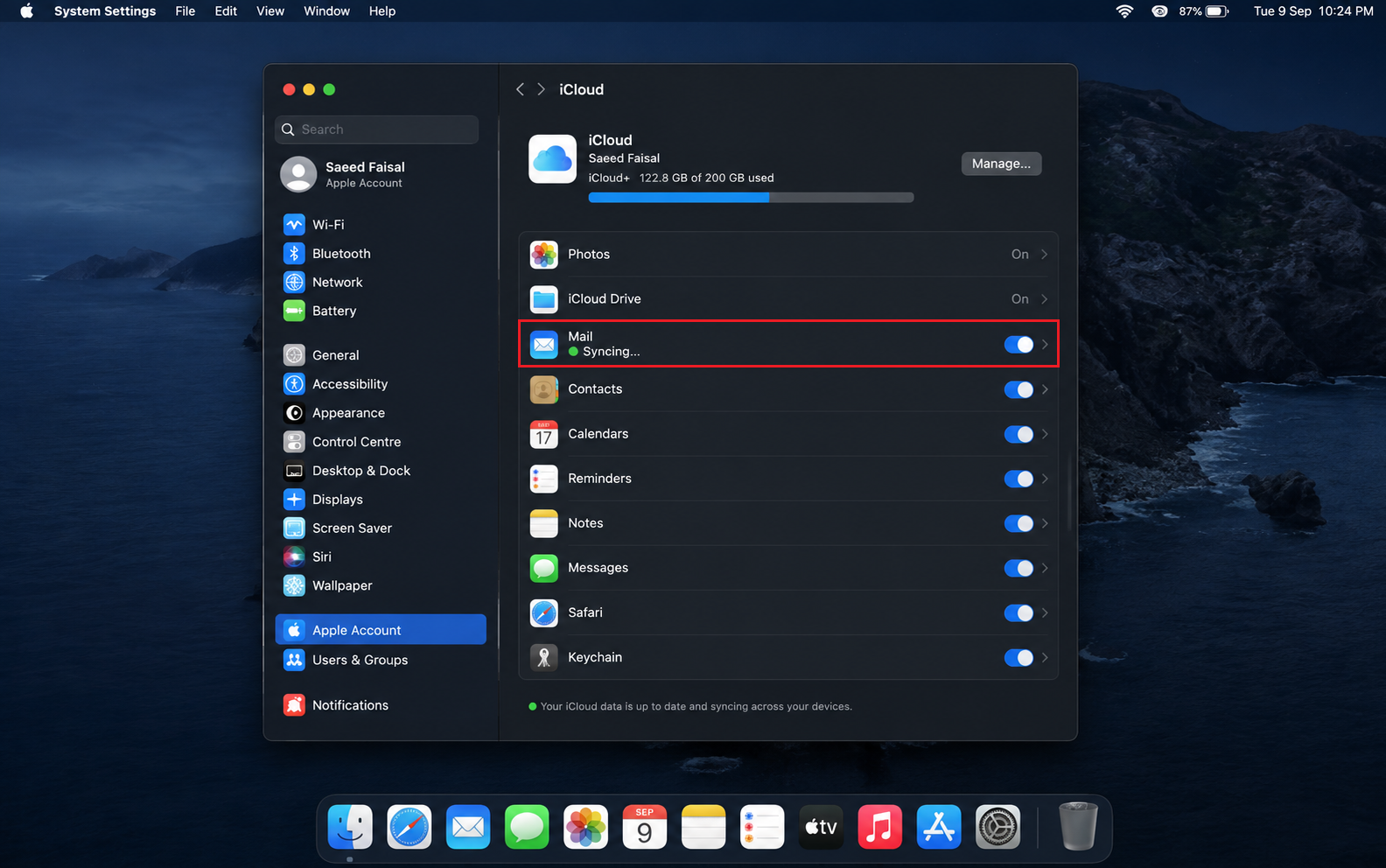
iCloud Mail must be turned on for the affected device before new messages can sync.
Install pending system updates and restart the affected device, then check Mail again. A password or Apple Account prompt needs attention; repeatedly refreshing will not complete a required sign-in.
For a wider Mac sign-in failure, our iCloud connection guide includes restart and clock checks. Keep those checks non-destructive: leave Keychain and account configuration files untouched.
3. Make Room if iCloud Storage Is Full
Mail uses the same iCloud storage as photos, files, and backups. Check the account’s storage limit, not the phone’s storage screen.
- On iPhone or iPad, check Settings > [your name] > iCloud. On Mac, check System Settings > [your name] > iCloud. Confirm the storage allowance is actually full.
- Free space using Apple’s iCloud storage instructions, or choose a larger plan if you need more capacity.
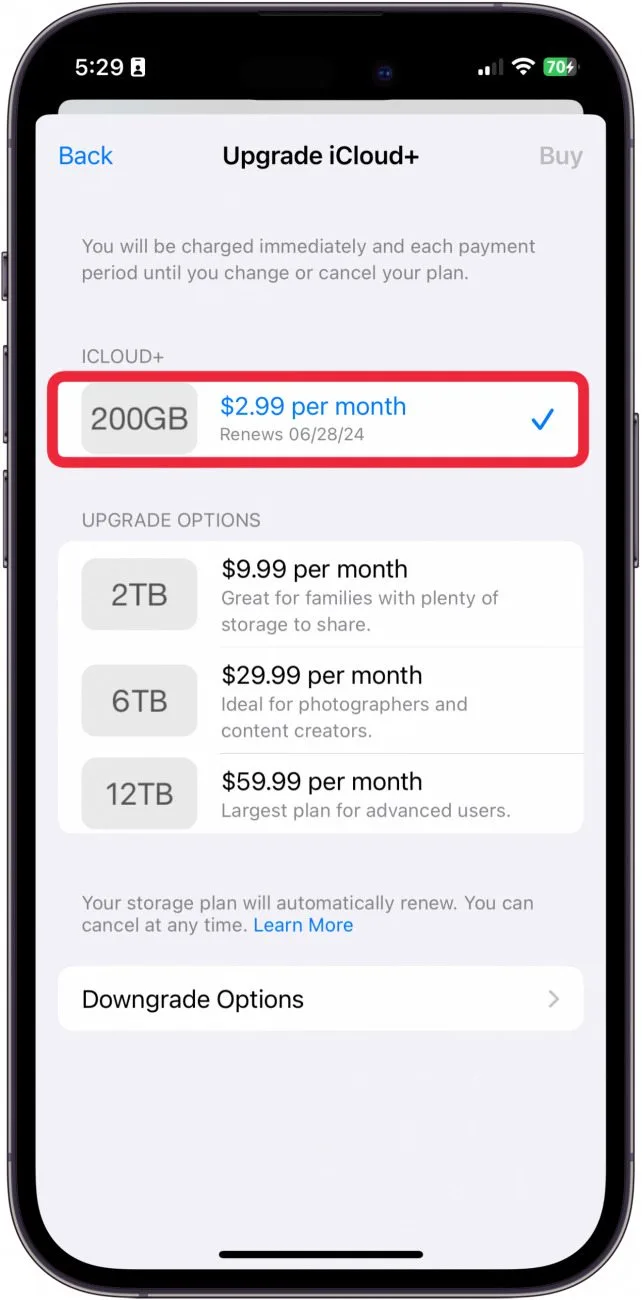
A full iCloud storage quota can stop new iCloud Mail messages from arriving. - Once the storage display shows free space, send a new test message and check iCloud.com.
Ask senders to resend important messages that failed while storage was full. Rejected mail is not guaranteed to arrive later just because space is available again.
4. Restore Automatic Delivery on iPhone or iPad
Messages that appear only after you open or refresh Mail have reached the account. Push and Fetch control how Mail receives updates in the background.
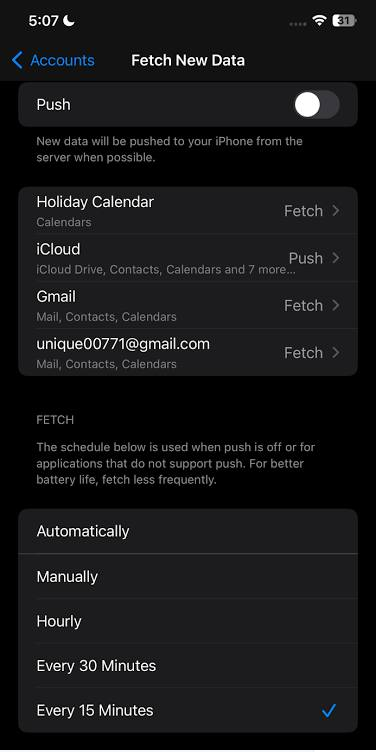
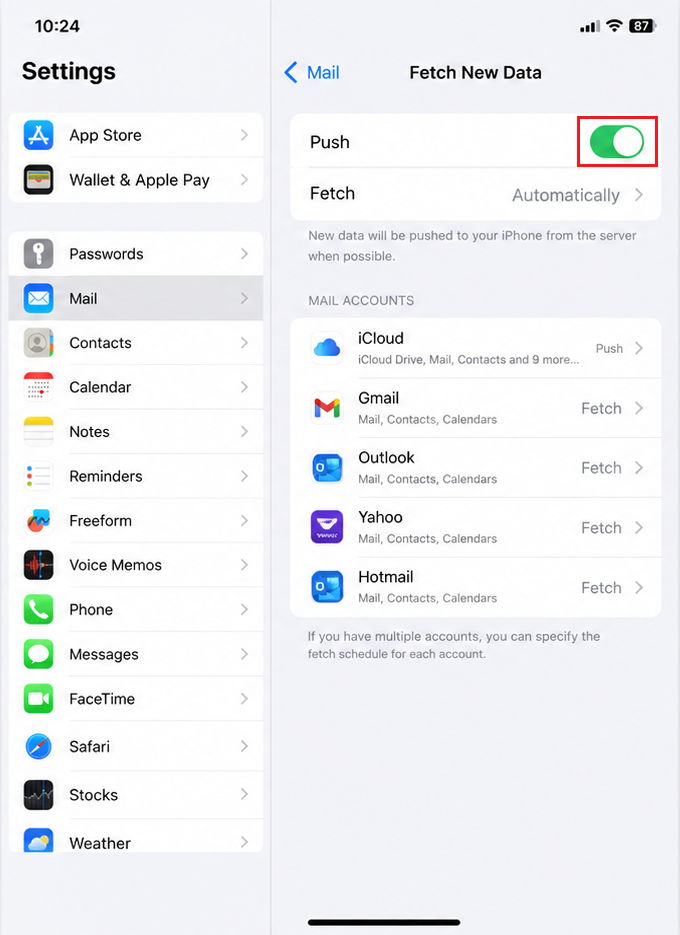
- Open Settings > Apps > Mail > Mail Accounts > Fetch New Data. On older versions, Mail is directly under Settings.
- Turn on the main Push switch, select iCloud, and choose Push if available.
- Under Fetch, select Automatically for the default setup. Return to the Home Screen without force-quitting Mail, then send a new test from the other account.
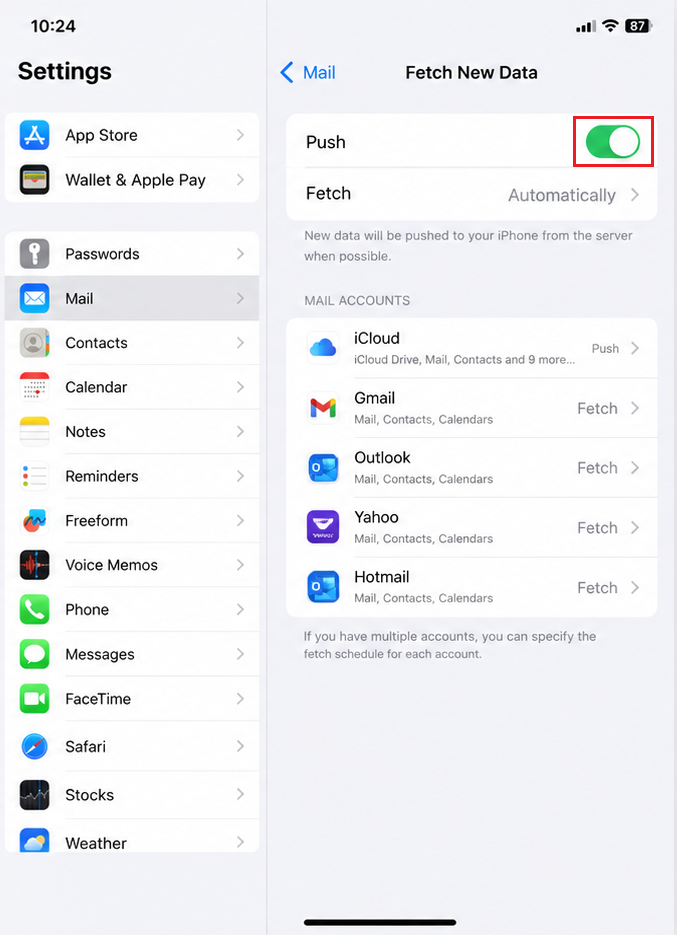
Push and automatic fetch help iCloud Mail reach the iPhone or iPad without manual refreshes.
Automatically under Fetch is not continuous delivery. Apple says automatic background fetching happens while the device is charging and on Wi-Fi. Fetch is the fallback when Push is off or unavailable; a timed schedule checks more often outside those conditions.
If the message is already in Mail but no alert appears, check Settings > Notifications > Mail. Alerts and badges are separate from whether the mailbox received the message. Apple’s Mail settings guidance covers both.
5. Check the Connection and Any VPN
Web browsing can work while Mail cannot connect to its server. A different connection and a brief VPN comparison can reveal whether the problem follows the network.
- Try another trusted connection: compare Wi-Fi with cellular data on iPhone, or another network on Mac. For a cellular test, allow Mail under Settings > Cellular (or Mobile Data); data charges may apply.
- On a trusted private network, temporarily disconnect a VPN you control and reopen Mail. Ask IT before changing a required work or school connection. Do not disable the firewall or remove security profiles.
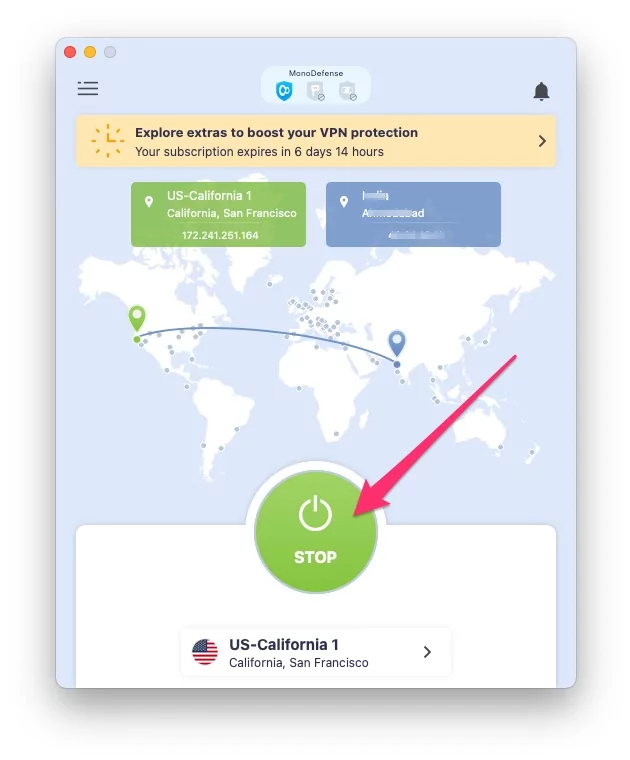
A network tunnel or filter can block sync even when ordinary browsing still works. - Send a fresh test and compare the Mail app with iCloud.com.
Restore the VPN after the comparison. If Mail works only without it, ask its provider or IT to correct the configuration; do not leave required protection off. If nothing changes, the VPN test has not identified the cause.
For connection failures across several iPhone apps, a network-settings reset is a later option. It removes saved Wi-Fi credentials and network settings. It is not a useful first response to one missing email.
6. Refresh iCloud Mail Sync on iPhone or iPad
When webmail has the messages but the device still does not, Apple’s Mail-and-Push reset can reconnect syncing. It will not recover mail that never reached iCloud.
Confirm important messages are on iCloud.com and save unsynced drafts or local-only mail first. Changing account settings can remove downloaded copies.
A device backup stores Mail settings, not mailbox contents. Use the Mail switch, not Apple Account sign-out or Delete Account.
- Open Settings > [your name] > iCloud > Mail and turn off Use on this iPhone or Use on this iPad.
- Open Settings > Apps > Mail > Mail Accounts > Fetch New Data and turn off Push.
Turning both switches off and back on can force a clean mail sync on iPhone or iPad. - Restart the device, then return to both menus and turn iCloud Mail and Push back on.
- Allow Mail to sync, then check a new test message. If it fails again later, note when syncing stopped rather than repeating the reset daily.
7. Check the Failing Address and Contact Support
One missing sender or alias does not establish that the whole mailbox is broken. Compare a new plain-text message from two different providers and ask each sender for any bounce or rejection text.
- Only an iCloud alias fails: in webmail Settings, select the alias and clear Disable alias if needed. Save and retest that address. Re-enable the alias rather than deleting it; deletion is permanent.
- Only a custom-domain address fails: confirm the address is assigned and domain setup is complete. Check Apple’s domain setup instructions with the domain administrator; do not remove the domain as a test.
Ask the sender’s provider to investigate any rejection. If several providers’ messages remain absent from webmail, or the device still will not sync messages visible there, contact Apple Support.
Share the affected address and type, sender domains, test times with time zone, bounce text, and webmail result privately. For device-only failures, add the device model, OS version, and exact Mail alert. Never send passwords or verification codes.