How to Fix Photoshop Error ‘scratch disks are full’

Photoshop is an incredibly powerful application. Even if you’re a die-hard fan of Corel Draw, you’ll probably admit that some Photoshop features are simply superior. But while the UI of Photoshop is overly intuitive, the same cannot be said about dealing with Photoshop errors.
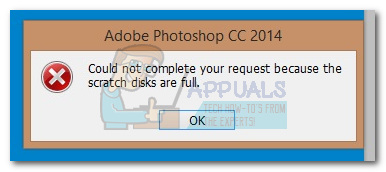
By far, the most common Photoshop error is “scratch disk is full“. Some users get it when they try to start Photoshop, others when trying to complete a certain action. But why does this happen and how can we fix this issue?

What causes the Scratch Disk Error?

Before we get to the potential fixes that will remove photoshop scratch disk full error, it’s important to understand what a scratch disk actually is.

All Adobe programs like Photoshop or After Effects need a working space to store temporary project files. If Photoshop, (or another program) doesn’t have enough RAM memory to store something temporarily, it uses hard drive space as a temporary virtual memory holder. This hard drive space is referred to as a scratch disk.

Photoshop is more than capable of creating a mountain of temp files if you’re working with large elements, so don’t be quick to put the blame on your computer. If both the RAM and the scratch disk become full with temporary files, you will get a “Scratch Disk is full” error which might also prevent you from creating new files.

If you get “scratch disk is full” errors when you start Photoshop or when performing certain actions, there are a few potential fixes that proved to be effective. Below you have a collection of methods that proved to be effective in removing the “scratch disk is full” error. Please follow each guide in order until you find a fix that works in your situation.

Before You Continue: Make sure that you don’t set the blank page/image resolution to something unreasonable like 1920×1080 inches. Sometimes users confuse inches and pixels and set the resolution in inches instead of setting it in pixels which is a very unreasonable length. Make sure to set the resolution in pixels and not in inches.

1. Free up enough disk space

Before you do anything else, make sure that you have enough space in the drive partition where the scratch disk is located. The most common cause of the “scratch disk is full” error is the lack of free space in the drive that accommodates the scratch disk. If you don’t set it yourself, the C:/ drive is automatically chosen to serve as a scratch disk. If you’re unsure which drive is used as a scratch disk, open Photoshop and go to Edit > Preferences >Scratch disks.
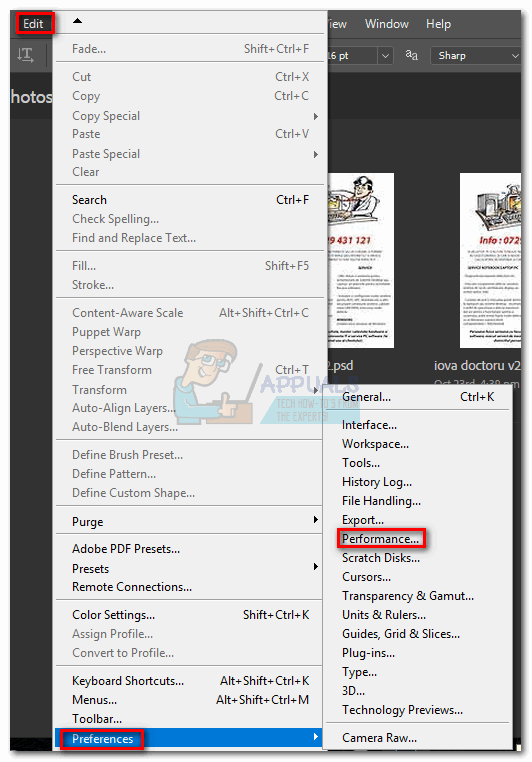
Once you’re into the Preferences menu, confirm which storage drives serve as a scratch disk and make sure it has at least 40 GB of free space. If it doesn’t, access your drive and start removing unwanted files until you free enough space.

2. Delete temporary files

If you have the habit of force-closing Photoshop without giving it enough time to properly close down projects, it will leave a large chunk of temporary files behind. If you do this enough times, your temp folder will become full of Photoshop related files.

The good news is, Photoshop files can be easily identified and deleted. Usually, their name starts with ~PST or Photoshop Temp (in newer versions). You can delete them safely without any risk of affecting your system. Your temp folder is located in C:/Users > “YourUser” > AppData > Local > Temp.

3. Changing the scratch disk location

In the event that your photoshop shows you, the “scratch disk is full” error before you manage to get into the settings, there’s a neat shortcut that you can use to change Scratch Disk Preferences. To use it, launch Photoshop and as soon as the window pops up press and hold CTRL + Alt or press Cmd + OPT on a Mac. You will shortly see a Scratch Disk Preferences menu.


Select another partition from the drop-down menu near First and hit Ok. Your Photoshop should know restart without showing the “scratch disk is full” error.

4. Increasing the RAM allowed by Photoshop

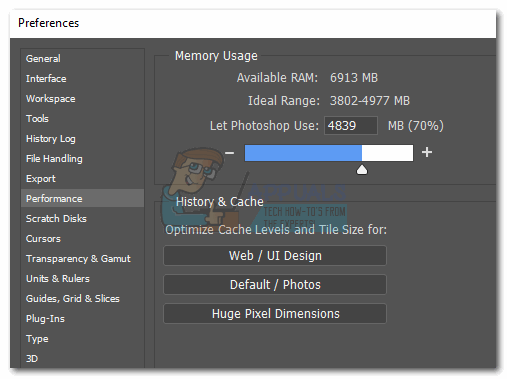
Another fix that might make the error message go away is to allow Photoshop more RAM. By default, Photoshop is programmed to draw 60% of your total RAM, but you can make it use even more. Here’s how:

  1. Open Photoshop and go to Edit > Preferences and click on Performance.
  2. Once you’re in the performance menu, adjust the sliders in Memory Usage to increase the RAM memory that Photoshop is allowed to access. Do not set it about the 80% threshold, as it can make your PC run slower.
5. Adjusting your scratch disks

Experienced “photoshopers” will sometimes set up a dedicated hard drive partition specifically to prevent an issue like this from happening. Although Photoshop is capable of functioning perfectly well with the default scratch disk configuration, you might get rid of the error by allowing Photoshop to use other partitions.

By default, only your C:/ drive is selected to serve as a scratch disk, but you can allow all your partitions to share this burden. To do this, go to Edit > Preferences and click on Scratch Disks.
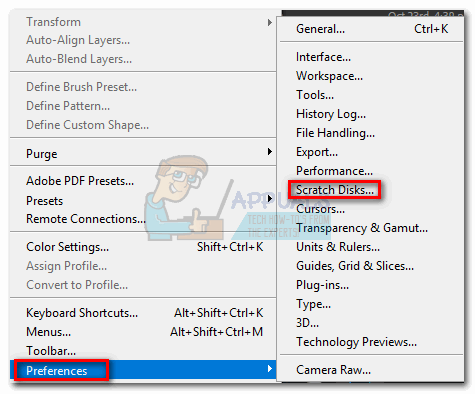
Once you reach the Scratch Disks tab, check the box near each partition to enable them as scratch disks. Then click Ok and restart Photoshop.

6. Purging Cache

While working on projects you might have added a lot of layers to an image or done a lot of editing, as we all know you can easily undo your previous steps and experiment with the image. But the storage of these steps that you perform takes up a lot of space on the scratch disks and if you are working with a huge project these steps can take up gigabytes of space. Therefore, in this step, we will be purging this cache but keep in mind that the undo steps will be gone and you won’t be able to revert back to an older version of the image. In order to do that, follow the steps below.

  1. Open the Photoshop window in which you are currently working.
  2. In the top tray, click on the “Edit” option and select the “Purge” button.
    Clicking on the “Purge” button
  3. There are a couple of options here. These are explained as follows.
    Undo: Clears the record of your changes and by deleting you won't be able to undo your changes.
    Clipboard: Clears the clipboard of the things that you might have copied. You won't be able to paste anything that you have copied so far if you clear this.
    History: Deletes the history of your changes to the image. The changes stay but you won't be able to lookup the changes that you have made to an image.
    All: Deletes all cache.
    Video Cache: Deletes all video cache that you might have in store. Deleting this won't allow you to revert changes made to a video.
  4. Click on the option which you want to clear and confirm the warning prompt.
  5. Check to see if the issue persists.

7. Creating Partition for Scratch Disks

Creating a partition has also been reported by users as a possible workaround. Please follow this method only if you are already familiar with the functioning of disk management. Incorrectly, removing or creating a partition may result in data loss.

1. Open Run by Pressing the “Windows + R” keys together.
2. Once Run is opened type “diskmgmt.msc” and press enter.
3. Now select a disk that you were using as a Scratch Disk before. Right-click on it and press Shrink Volume.
4. Now Select the Size you want your Scratch Disk to be.
5. After creating a new partition, Open Photoshop and press “CTRL + ALT” then select the new Partition you just created.

ABOUT THE AUTHOR

Kevin Arrows


Kevin Arrows is a highly experienced and knowledgeable technology specialist with over a decade of industry experience. He holds a Microsoft Certified Technology Specialist (MCTS) certification and has a deep passion for staying up-to-date on the latest tech developments. Kevin has written extensively on a wide range of tech-related topics, showcasing his expertise and knowledge in areas such as software development, cybersecurity, and cloud computing. His contributions to the tech field have been widely recognized and respected by his peers, and he is highly regarded for his ability to explain complex technical concepts in a clear and concise manner.

Comments

37
    DE
    Deon Jan 17, 2019

    Hi
    so i’ve been having this problem for some time now and I have troubleshooted it by using method 1 and 4, but it only fixed the problem temporarily. Now I am not able to open Photoshop on my Mac and needed to use method 3. Problem after that was it didn’t restart and after I forced the application to quit I reopened it just to have the same error pop up. I tried method 3 again and my setting was set back to the ‘startup’ default.

      SW
      Shane Warren Author Sep 20, 2019

      Maybe you can try to reinstall the software entirely, also, make sure that there isn’t any third-party application that is causing this issue.

    DL
    Deon Lodewick Jan 18, 2019

    Hi
    ive used method 2 and 4 and it fixed the problem temporarily. now im forced to use method 3 but i am not able to save the settings as it keeps on giving me the same error on my mac, could you lease help?

      SW
      Shane Warren Author Sep 20, 2019

      What is the error that is popping up?

    HC
    Hail Cthulhu!!! Jul 23, 2019

    this would be handy if the problem wasn’t that I CANNOT OPEN Photoshop due to the disks being full.

      SW
      Shane Warren Author Sep 8, 2019

      That’s the thing you need to be able to open Photoshop before you can take the precautionary measures. For that, you need to free up some space.

      Reply
        DA
        Dakota Sep 16, 2019

        How do you clear space if the application will not open?

          SW
          Shane Warren Author Sep 18, 2019

          You don’t have to run Photoshop free up space. We recommend that you try the Disk Cleanup Tool from Windows for that purpose.

          DA
          dawesi Oct 13, 2019

          So with method 4 to change PS prefereences you used disk cleanup tool?

          This whole error is just plain stupidity on Adobe’s part, too many managers and no-one who uses Photoshop in real life… typical adobe. (small a)

          SW
          Shane Warren Author Oct 17, 2019

          Read the whole thread carefully, it told him that he needs to be able to run the application to be able to apply the other methods but to do so, he needs to free up a bit of space which can be done using the disk cleanup tool or manually.

        SA
        samroz May 29, 2020

        I had done everything, but when i open custom file in photoshop, it says ”couldn’t load the command because scratch discs are full” i literelly had done all the cleanups but ir keeps saying that, it only says when i make a document upto 500 of width

          SW
          Shane Warren Author Jun 1, 2020

          Try reinstalling Photoshop

    NH
    Nancy Edmonds Hanson Aug 5, 2019

    Thank you for this information. It worked perfectly and solved a persistent problem!

    TT
    Tori Tarantino Sep 11, 2019

    Okay, any further suggestions for me? Lightroom and Photoshop CC are the ONLY programs installed on my laptop other than what came with it, there’s nothing else I can clean out from my computer at the moment, and I don’t have anything else to use as a scratch disk. Only a small portion of my 128 GB is being used by my system and the rest is free.Literally all I’m trying to do is create a document for a watermark by creating a new image and using the text feature. Adobe isn’t very prompt with their customer service either, I’m learning 🙁

    SW
    Shane Warren Author Sep 13, 2019

    Try to delete all temporary files from the “Appdata” folder. Also, try to clear any broken registry items.

    EA
    eapo Oct 8, 2019

    To Set Scratch Disks Hold down Ctrl+Alt or Cmd+Opt on launch of Photoshop.

    Reply
    AN
    Aimee No Oct 29, 2019

    it wont let me open Photoshop so i can only try method three, however method three doesn’t work and I’ve tried it many times

      SW
      Shane Warren Author Oct 31, 2019

      You can try to free up some space on the hard drive yourself. You can also try method 2 as it doesn’t require you to start Photoshop.

      WT
      Wayne Tran Nov 16, 2019

      I think method 2 or some recommend the disk cleanup app that is built in your windows, the key here is to clean the temporary files that we left behind I think. I hope that should be able to free up disk space, if not a lot.

    AA
    Amin AminFakhr Mar 2, 2020

    thanks

    SS
    Susan Smitha Mar 10, 2020

    Method 6 have worked like a charm! Keep it up!

    SA
    samroz May 29, 2020

    I have done everything, but when i create new custom document it says ”could not load comand scratch discs are fulll” can you please give me a solution real quick.Its really important

      SW
      Shane Warren Author Jun 1, 2020

      Try to reinstall Photoshop as it is the only workaround that seems useful at this point.

    FD
    fd0s Jun 17, 2020

    tried all but never fixed :/

      SW
      Shane Warren Author Jun 18, 2020

      How much storage space is available in your HDD? Also, what resolution are you using for the picture that you are trying to open

    JL
    Jamie lynn lloyd Aug 10, 2020

    I don’t get the option to use my hard drives as my scratch disk or changing it when im opening photoshop and pressing cmd + opt, ive cleaned space and been trying and I don’t know why photoshop isn’t allowing me to change this or unselect scratch disk.

      SW
      Shane Warren Author Aug 11, 2020

      Is your Photoshop installed on the root drive of the system?

    VL
    Vladimur Aug 29, 2020

    kek. There is 64GB RAM on board, in the Preferences->Perfomance memory usage set on 70%. Photoshop uses only 5,3GB according to Windows Task Manager, but I still have the error about “Scratch disks are full”.

      SW
      Shane Warren Author Aug 30, 2020

      Check if your paging memory is running out on the system disk.

        NO
        Noelle Sep 11, 2020

        Can I ask how you do this on a Mac? And also what this is? I’m having similar issue as Vladimur above. Scratch disk is set to my external hard drive which has 1.1TB free, yet Scratch Disk prefs in PS say there is only 8GB free and return error. Fans on laptop whizzing as well. Greatly appreciate any info you could give as I’m so lost!

          KA
          K. Arrows Author Sep 11, 2020

          What does scratch disk prefs in PS say?
          Can you try starting PS using
          Holding Cmd/Option or CTRL/ALT and a screen should come up. See if you can reset scratch disks?

    NB
    Natalie Blanco Nov 16, 2020

    my scratch disk is macinstosh hd & has 129 GB of free space but i cant use the type tool because it says it’s full. i’ve tried everything in this article and more

      MZ
      Muhammad Zubyan Author Nov 22, 2020

      It’s possible that the disk you selected with 129 GB of free space isn’t first in priority so for fixing that open Photoshop and then Press and Hold down the “CTRL+ALT” keys together then make sure that your drive is selected as first in there and if it is selected as the first drive make sure to add second and third drive there just in case to trick the Photoshop.

      Reply
    MS
    M Strange Jul 1, 2022

    Hello , need help here. i have SSD up to 168 GB free space and the bar is in blue color. Even I am facing scratch disk error in photoshop. After doing several processes the error popes every time when I starts a new project. While photoshop running in background my local disk bar becomes red with less then 3 to 2 GB left, but when I close photoshop my local disk bar become blue and the space comes to normal at 168 GB. Please help, what to do?

      MZ
      Muhammad Zubyan Author Jul 2, 2022

      In my case, I was selecting “Inches” instead of “Pixels” on the screen when you start a new project check if that’s the case. Also, try decreasing the resolution to check if that helps.

      Reply
        MS
        M Strange Jul 2, 2022

        But what if I want to work in 1920-1280?

          MZ
          Muhammad Zubyan Author Jul 3, 2022

          Just test and if it works I will gather more data about the issue.