How to Fix Instagram Notifications not Working

Several Instagram users are reporting that they are not getting the notifications every time they get new likes, friend requests, DM or any other activity. Instagram is one of the most used application nowadays. Notifications are important for Instagram users when the application is not running. However, due to this problem, they are unable to get any notification for any activity.
Instagram notifications not working

What is Causing Instagram Notification not Working issue?

We managed to discover some of the most common causes that will trigger this particular issue. We have done this by looking at various user reports and the repair strategies that they used to get the issue resolved. Here is a shortlist with common scenarios that have the chance of triggering this particular error:

  • Push notifications are off – In some cases, settings for push notifications can be responsible for this particular error. Users need to enable the push notifications in their Instagram application to get any notification.
  • Instagram cache data is corrupt – Another potential case in which this error occurs is when your Instagram cache data is corrupt. Several users finding themselves in a similar situation have reported that they managed to resolve the issue after clearing the cache data of Instagram from phone settings.
  • Application is not working properly – As it turns out, this issue can also occur if the application you’re using is corrupt or not working properly. If this scenario is applicable, you can resolve the issue by reinstalling the application from the app store.

This article will help you with different methods to resolve the issue. We will start from the most common and simple method to the detailed one.

Method 1: Checking Push Notifications Settings

Most of the time if a user is not receiving the notifications of only a certain application, then the problem will be in that application settings. Instagram has settings for Push Notifications, where a user can select to get notification of what they want and disable notifications of what they don’t want. You can check the settings to confirm or change by following the below steps:

  1. First, open your Instagram by simply tapping on the application icon on your phone.
  2. Tap on your profile icon, then tap on the Settings icon and choose Notifications.
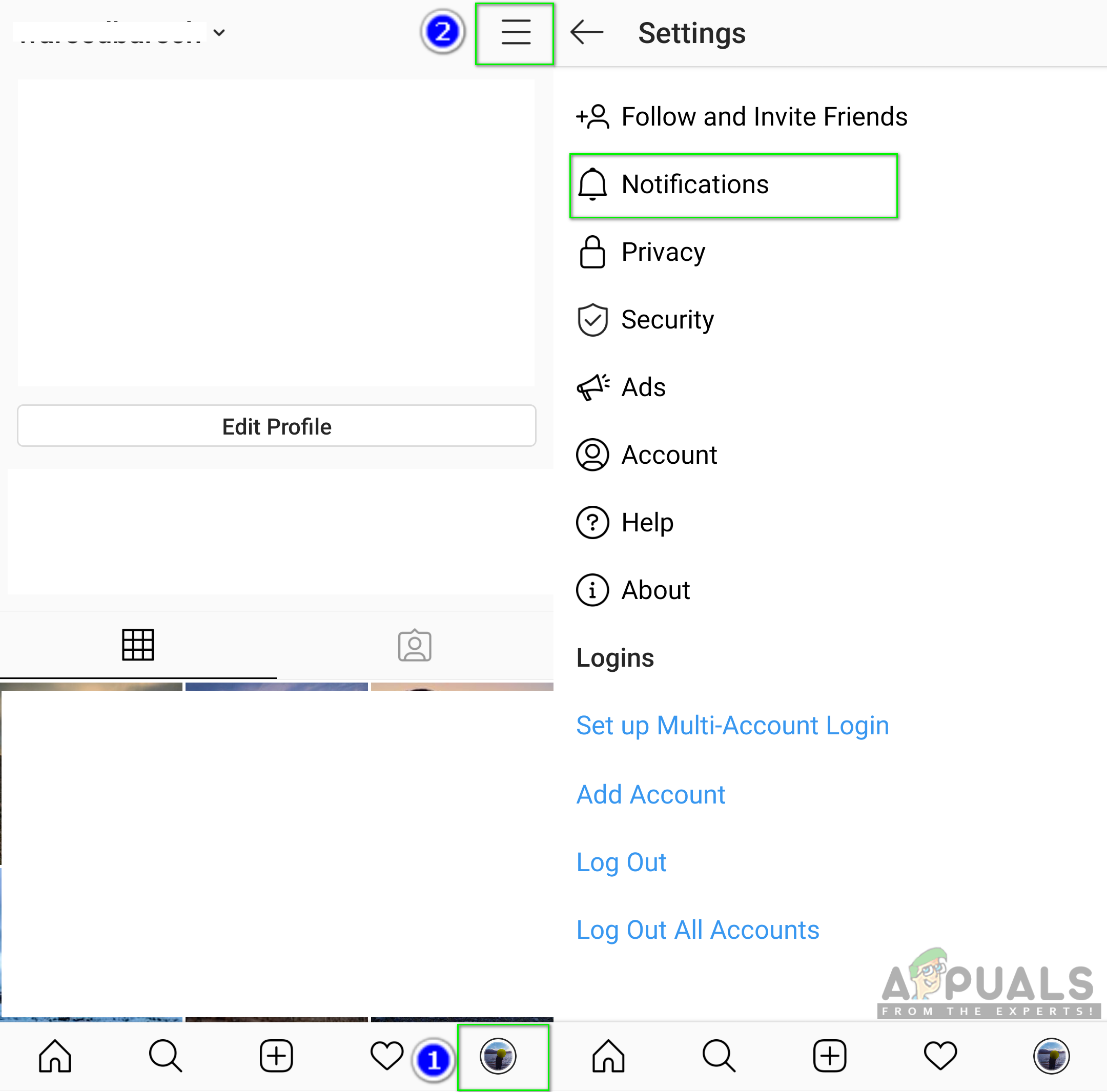
    Opening Instagram notification settings
  3. In notifications option tap on Push Notifications.
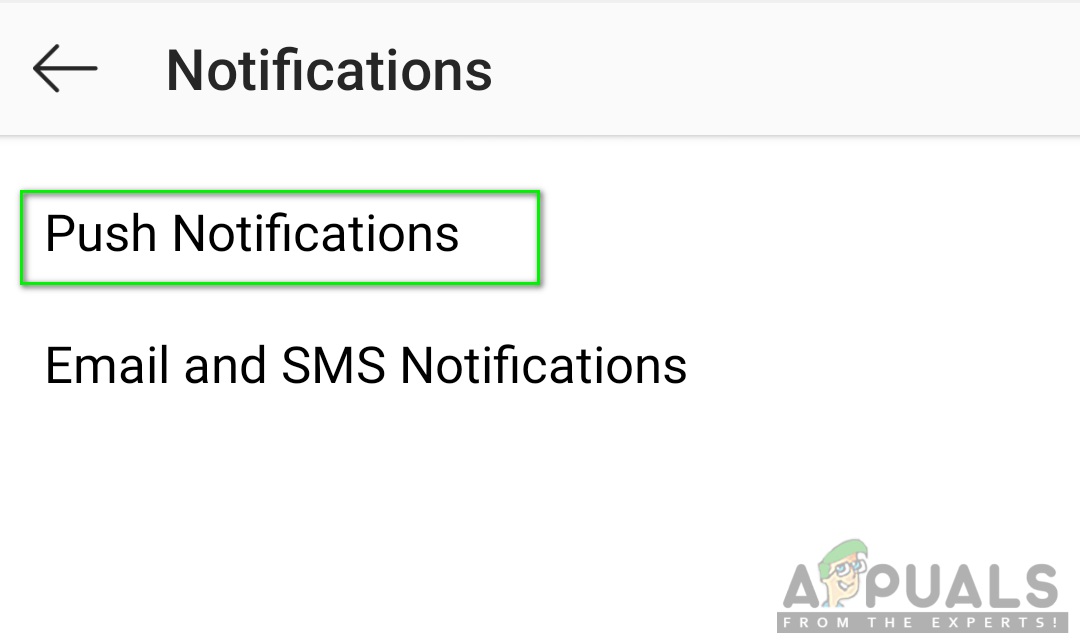
    Opening Push Notifications
  4. Now check notifications setting for each option and make sure Mute Push Notifications toggle is off.
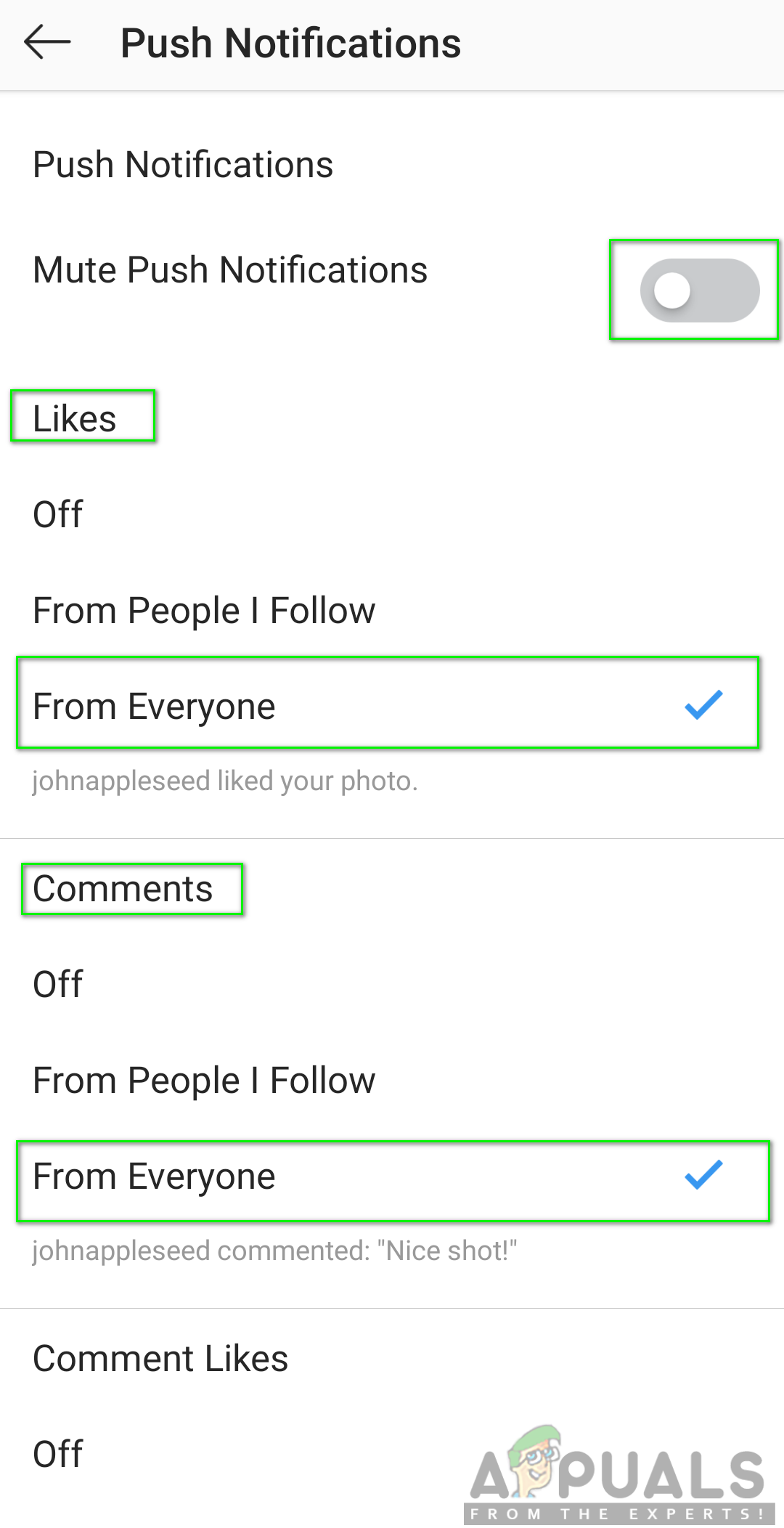
    Checking notifications settings
  5. If you’re still not getting notifications for Instagram then check the next method.

Method 2: Checking Phone Notification Settings

There is a major chance that your phone can be blocking the notifications for your Instagram application. Each phone has an option to not allow/show notifications for the applications that users don’t want. You can check and enable the notifications for Instagram in your phone settings by following the below steps:

  1. Go to your phone Settings and open Notifications & status bar
  2. Tap on App Notifications to find the notification settings for a specific application.
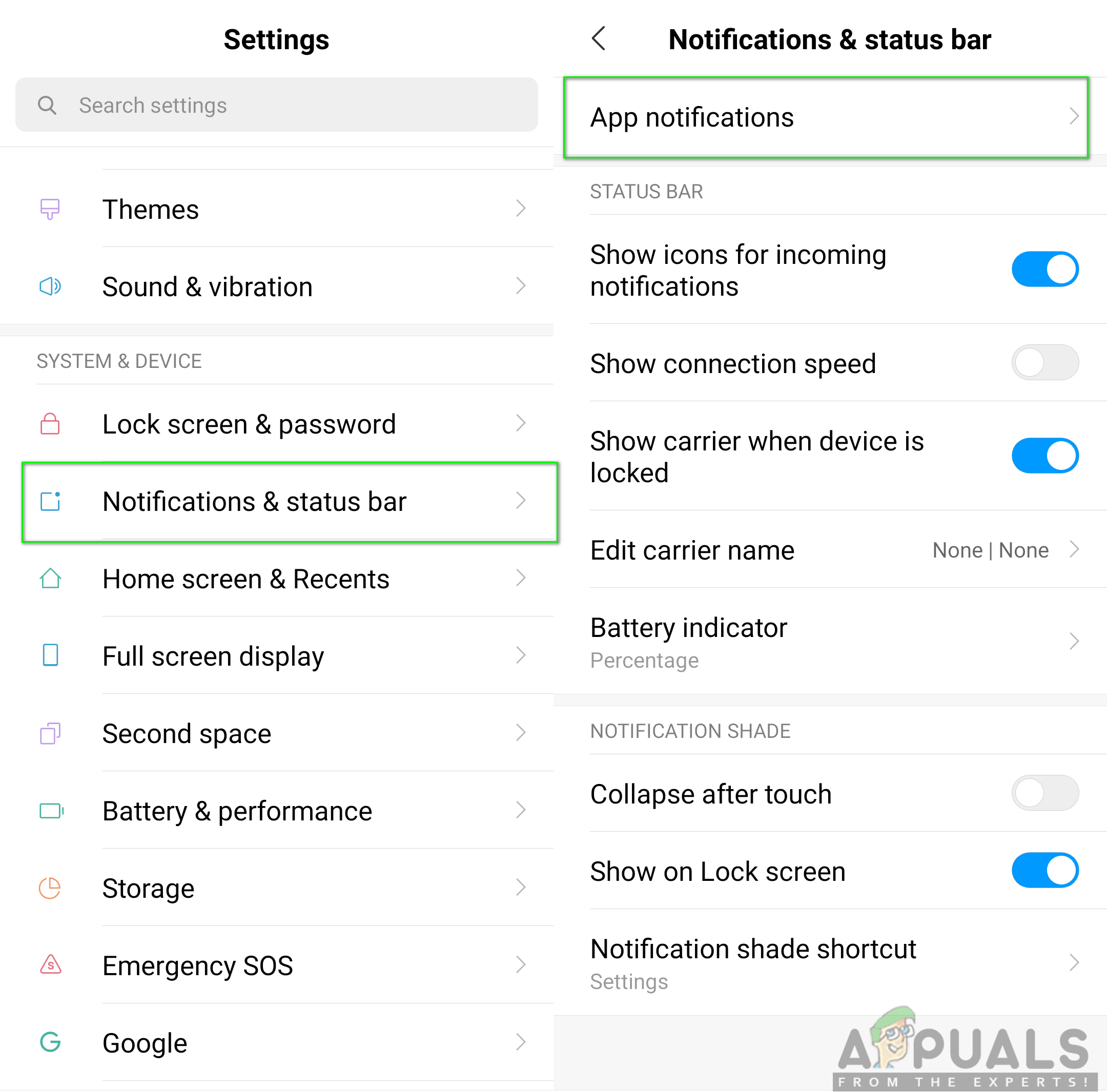
    Phone notification settings
  3. Search for the application named Instagram in the list and open it.
  4. Enable the Show notifications toggle option for Instagram.
    Note: For some devices, the option will be called “Allow” instead of Show.
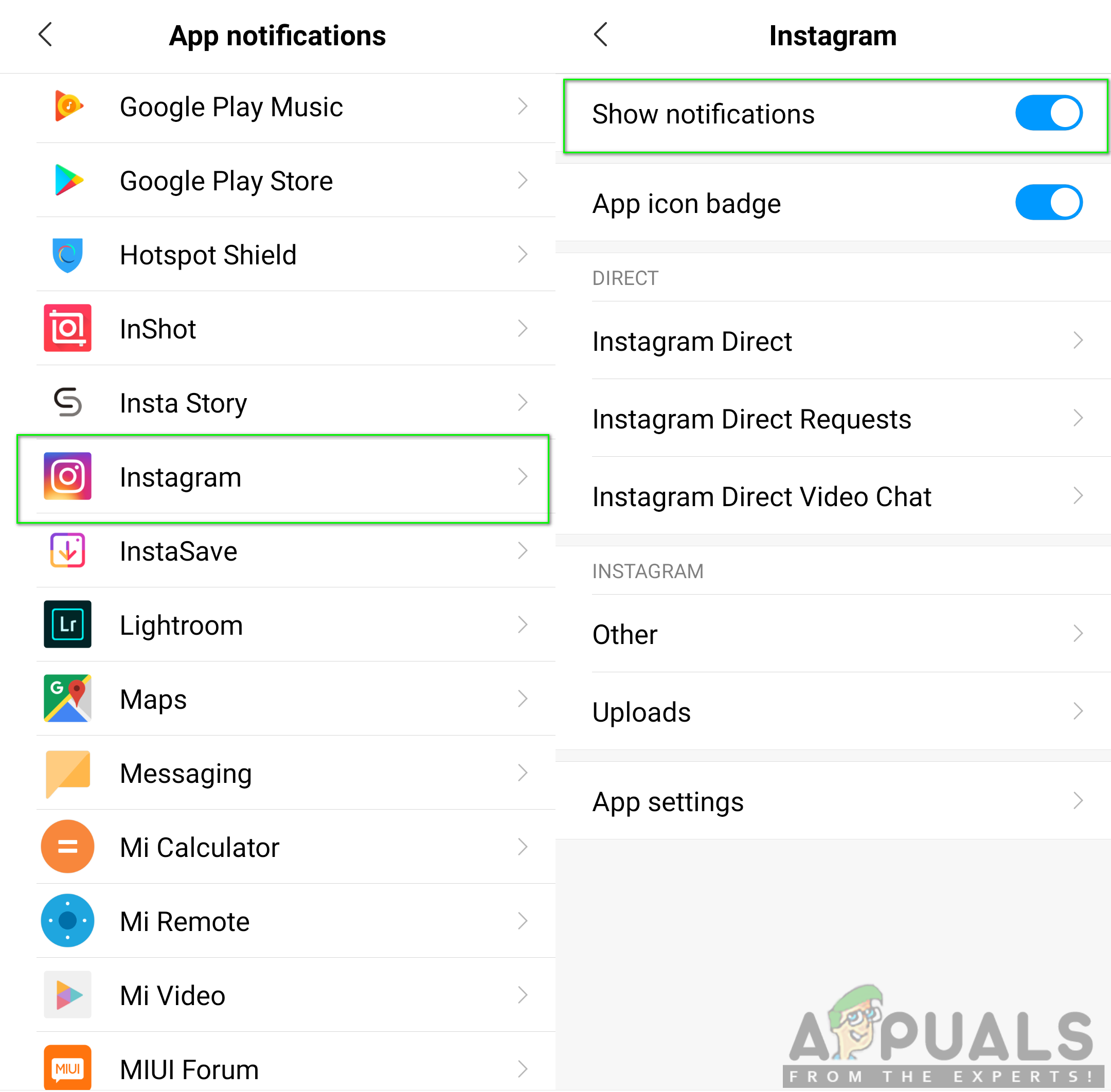
    Allowing Instagram notifications
  5. Once you changed the settings, go and check the application notification for your device.

Method 3: Clearing Cache Data of Instagram Application

Another issue can be the corrupt and broken data of the Instagram application. Cache data is used to save the user information for application to complete tasks faster. However, this data can also get corrupt or broken due to which users can get various kind of issue regarding their application. To solve this issue follow the below steps:

  1. Open the Instagram app on your phone and tap on your profile icon.
  2. Tap on the menu bar icon and Log out from your Instagram account.
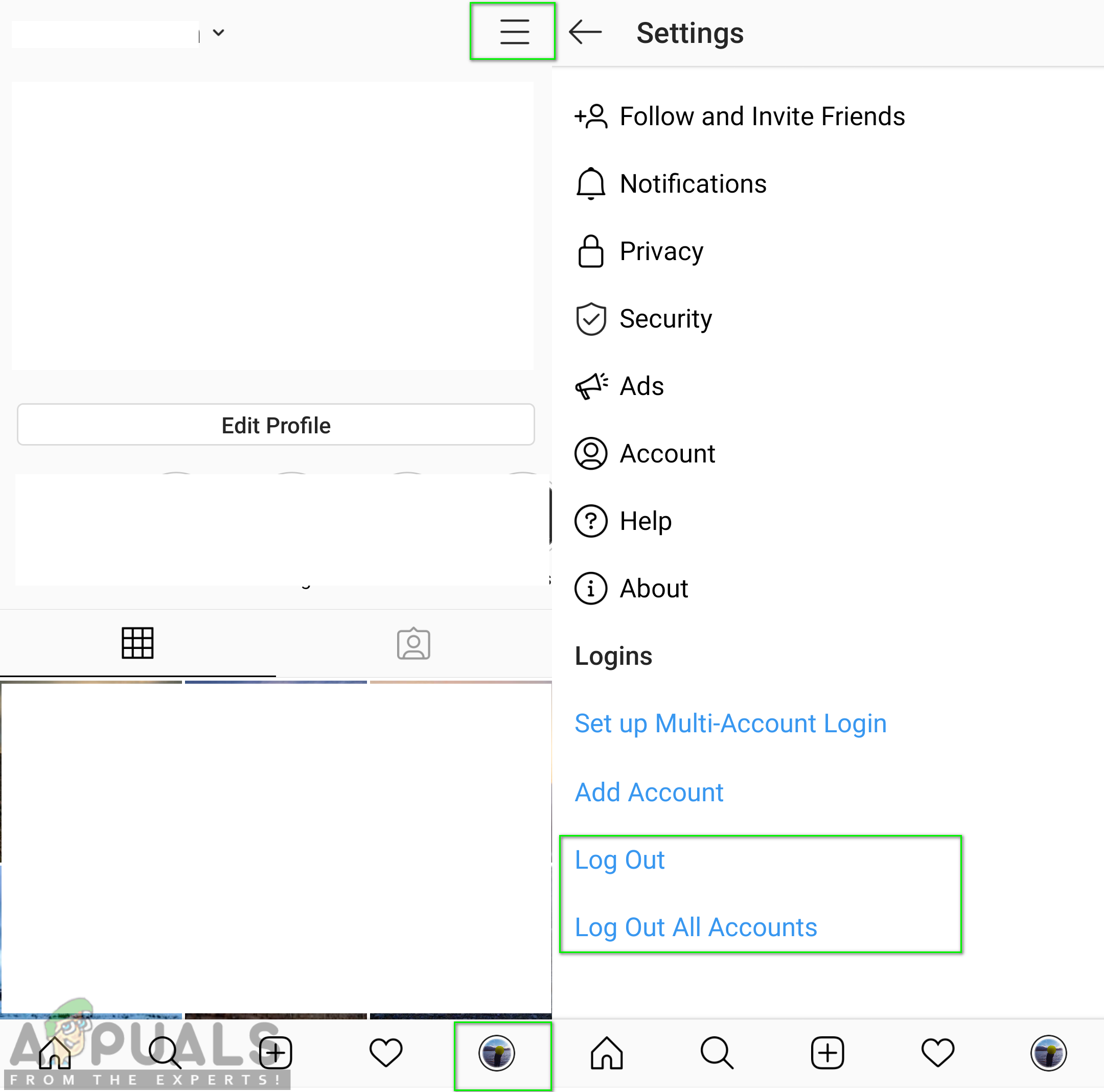
    Logging out of Instagram account
  3. Go to your phone Settings and open Manage Apps/Apps.
  4. Search for the Instagram application in the list and Open it.
    Note: If your device has multiple tabs, select ‘All’ in manage apps to find the application.
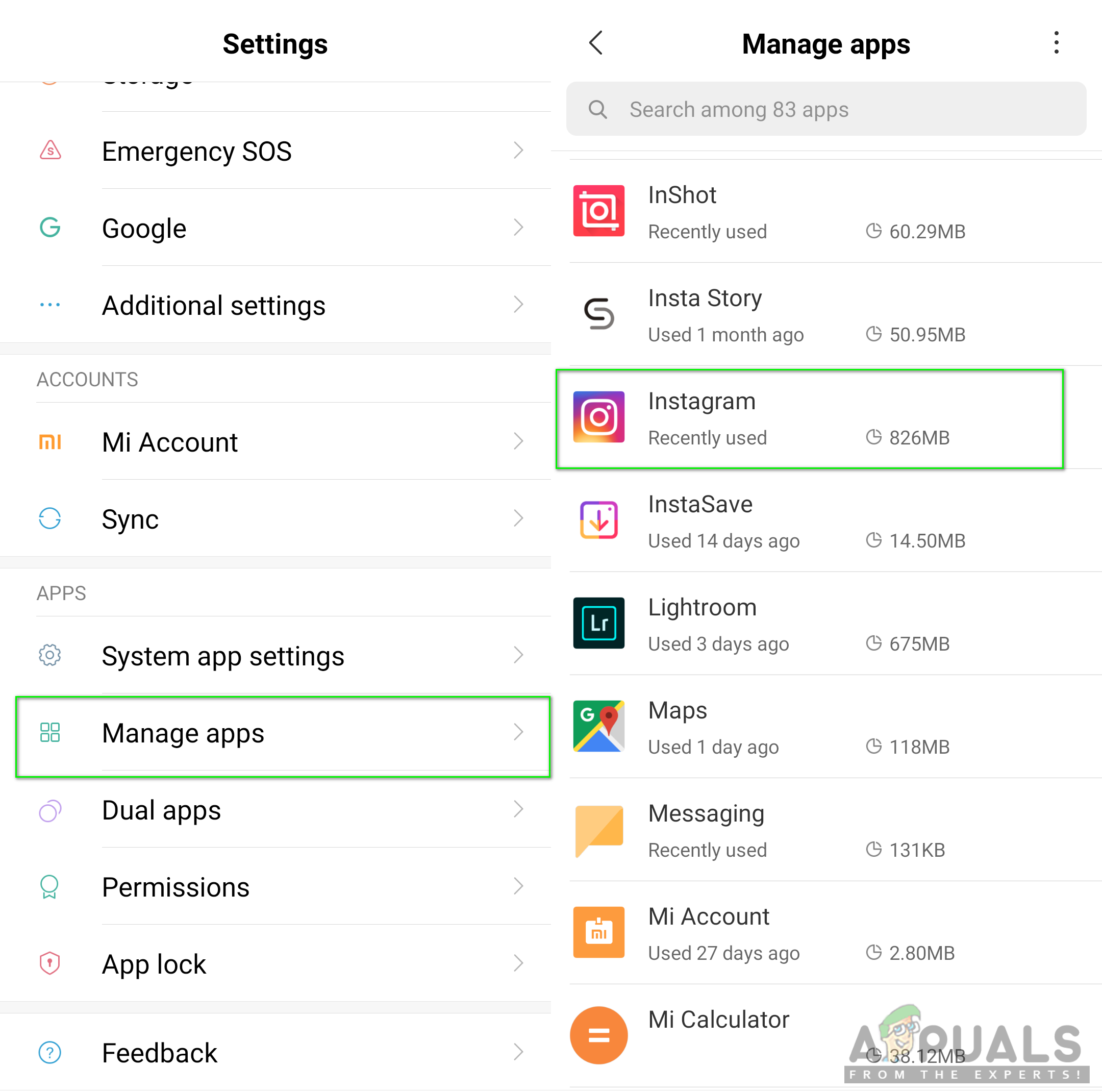
    Opening Instagram in Manage apps
  5. Tap on Storage option to reach the option about clearing data.
  6. Then tap on Clear data and choose the Clear all data and Clear cache both.
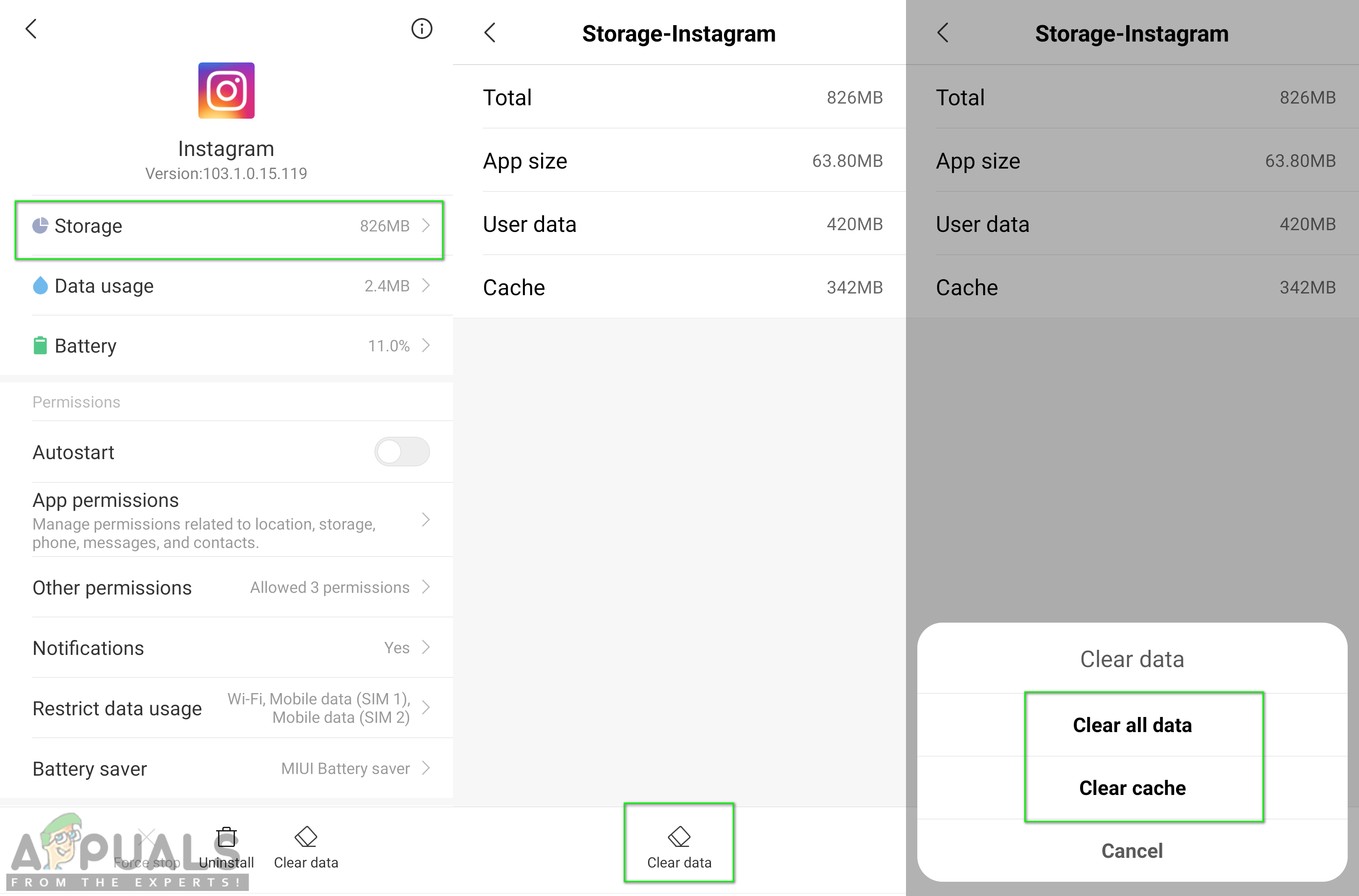
    Clearing the Instagram application cache data
  7. Reboot your phone, login back to your Instagram and check the notification problem will be resolved.

Method 4: Reinstalling the Instagram Application on iPhone

When nothing above works, you can finally do a complete reinstallation for the application to fix the issue. Reinstalling an application will reset all the data and options for the application in your phone with new default options.

  1. Search for the Instagram application on your phone, tap and hold the application icon.
  2. You will get a small cross on the app icon, tap on that to delete and press done.
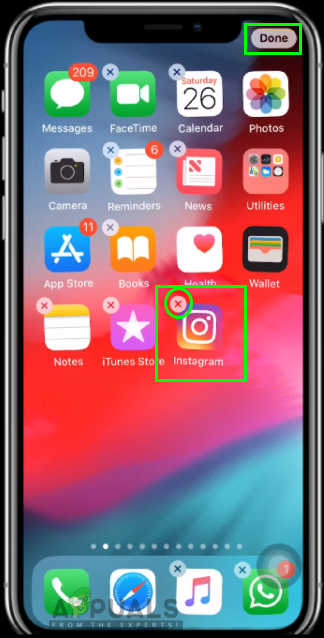
    Deleting the Instagram application from the phone
  3. Go to your phone App Store and search for Instagram to install it back again.
  4. Tap on Cloud icon (install) and wait for it to install on your phone.
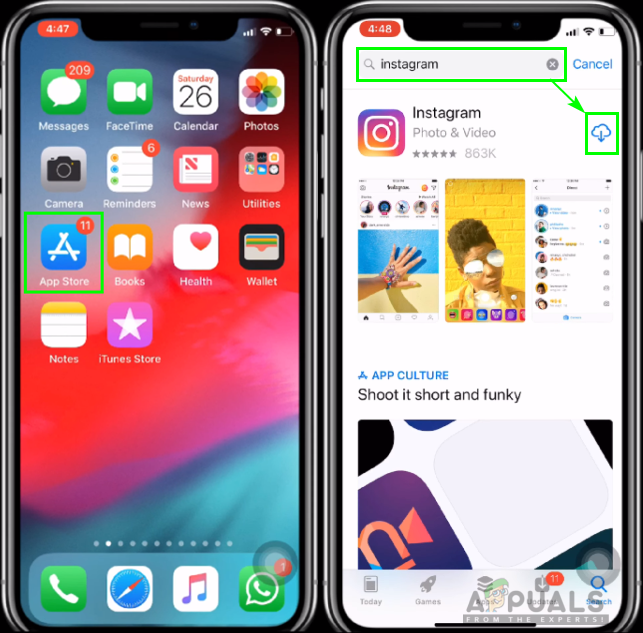
    Installing Instagram again
  5. Once it is installed, after that Login to your account and allows the notifications for your Instagram application.
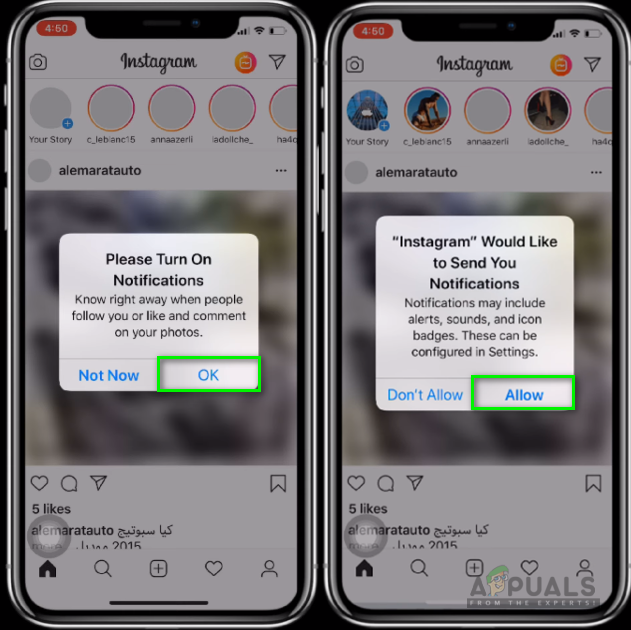
    Allowing notifications for Instagram
ABOUT THE AUTHOR

Kevin Arrows


Kevin Arrows is a highly experienced and knowledgeable technology specialist with over a decade of industry experience. He holds a Microsoft Certified Technology Specialist (MCTS) certification and has a deep passion for staying up-to-date on the latest tech developments. Kevin has written extensively on a wide range of tech-related topics, showcasing his expertise and knowledge in areas such as software development, cybersecurity, and cloud computing. His contributions to the tech field have been widely recognized and respected by his peers, and he is highly regarded for his ability to explain complex technical concepts in a clear and concise manner.

Comments

33
    NA
    na Nov 4, 2019

    It is still not working. I even restarted factory settings

      SW
      Shane Warren Author Nov 5, 2019

      Do you face issues with other applications? Maybe sign out of the Google Account on the device and then reinstall Instagram using a different or new PlayStore account. Check your Power settings as well which might be preventing Instagram from working in the background.

    LU
    Luke Dec 17, 2019

    ive tried reinstalling the app but i still dont get notifications.
    all my other apps are fine

      SW
      Shane Warren Author Dec 18, 2019

      Is there a battery-saving or background restriction app that is preventing it from showing the notifications for Instagram? Also, sign out of the google account and then reinstall the app and check if that works.

        TO
        Tom Jul 19, 2020

        What do you mean with battery-saving or background restriction app? Can you give an example?

          SW
          Shane Warren Author Jul 20, 2020

          For example, CC cleaner on iOS which can prevent background applications from running properly. Any such “Optimizer” or “Cleaner” can cause this particular issue.

    JO
    John Dec 21, 2019

    When install on iPhone it only shows the second pop up not the first idk y every other app has notif just not this one

      CA
      Caleb Jul 11, 2020

      Same here man I’ve done everything and still get no notifications

        SW
        Shane Warren Author Jul 11, 2020

        Are there any battery optimizers installed on your phone? also, check with another account it might just be an account-based glitch.

      CA
      Caleb Jul 11, 2020

      I only get the second pop up as well

    AB
    Aman Bajaj Mar 31, 2020

    Heyy ,,,,, can you please help me I’m not getting any notification on my Instagram account plz help me to solve this problem plzzz it’s a humble request to you …. I had try all thinks you have given above… Plz help me

      SW
      Shane Warren Author Apr 3, 2020

      Okay, check if there is any battery saver app on the phone and uninstall or disable it. Also, try to uninstall Instagram and wipe the cache partition. Then reinstall and see if that fixes the issue. Also check if another account is getting the notifications on the same mobile.

    AC
    Autumn Clark Apr 9, 2020

    It actually worked for me to delete then install again thx

    SW
    Shane Warren Author May 11, 2020

    Login with another account on instagram and check if notifications work.

      KH
      Khaled Feb 7, 2021

      Please can you help me with my instagram notifications? I didn’t receive any notifications on my instagram and i make all tips and make manu trials but still not working BUT it works on another mobile ! All my accounts on My mobile didn’t receive any notifications.. please help me

        MZ
        Muhammad Zubyan Author Feb 8, 2021

        Try Loggin in with another account on Instagram and check if notifications work. Also, are you using any kind of power-saving feature in your phone or do you have any app like that installed on your phone?

    AF
    Afshan Aug 18, 2020

    I’ve tried everything above (I’m an iPhone user) and nothing works. What can be the reason? I’ve tried to reset my phone which didn’t help, and I’ve also tried to download with another Apple ID, the problem is the same.

      SW
      Shane Warren Author Aug 20, 2020

      Try using different Instagram accounts, try disabling any “Power Saving” applications and check again. Also, make sure to try and disable any VPN software that might be connected on your phone.

    DG
    Desiree Garvin Oct 11, 2020

    i did everything EVEN got a new iphone and they still don’t pop us. even with a new account. but i log out of my icloud and let my brother try and i logged into my account and still won’t work

      MZ
      Muhammad Zubyan Author Oct 12, 2020

      It seems like posting a picture on Instagram will most likely fix this issue I suggest you post the picture on your Instagram account and then archive or delete it. Let me know how it goes.

      Reply
        MO
        Mo Nov 3, 2020

        Why would that fix the issue? Im curious because im having the same issue.

          MZ
          Muhammad Zubyan Author Nov 4, 2020

          It worked for someone I helped before that’s why I suggested it if you don’t feel like uploading the photo you can archive it after posting it. Keep me updated!

    YR
    Yaneli Rubio Nov 12, 2020

    I did everything I reinstalled it and cleared the date on my settings all of my notifications are on… I get notifications from every app except Instagram.. what do I do ?

      MZ
      Muhammad Zubyan Author Nov 13, 2020

      Try posting a picture on Instagram as it will most likely fix this issue after the issue is fixed you can then archive or delete the photo you posted. Let me know how it goes.

    NI
    Nida Nov 27, 2020

    I’ve tried all the methods: reinstalling the app, resetting my phone, turn off “Do not disturb” and all other things. I recently got a new phone yet my notifications for instagram are still not working. I’ve looked through the comments here and tried to post a picture but it’s just not working. I really want to get this fixed because I’m tired of not getting any notifications.

    KA
    Kat Feb 11, 2021

    I tried everything I have no apps in the way Im not logged into any other accounts I even tried the picture thing it just doesnt work.

      MZ
      Muhammad Zubyan Author Feb 12, 2021

      Try Logging in with another account on Instagram and check if notifications work. Also, are you using any kind of power-saving feature in your phone or do you have any app like that installed on your phone?

    JC
    Jannat Choudhury Mar 10, 2021

    I have tried every tips possible, however, I am still not receiving notifications! What are the next steps I can take?

      MZ
      Muhammad Zubyan Author Mar 11, 2021

      Try Logging in with another account on Instagram and check if notifications work.

    HA
    Hal Mar 16, 2021

    Hi. None of this has helped me. What is there let to do? I’ve deleted, reinstalled, emptied cache, posted pictures. Nothing

      MZ
      Muhammad Zubyan Author Mar 17, 2021

      Try Logging in with another account on Instagram and check if notifications work.

    PR
    Preeti Apr 17, 2021

    I still don’t get notifications after trying all the steps. I have another business account that does give me All the notifications on time. Wonder why this is the case with my personal account. Help?

      MZ
      Muhammad Zubyan Author Apr 18, 2021

      Hey Preeti,

      You can try checking your Instagram account’s notification settings here:-

      1. Open your Instagram first.
      2. Head over to your profile and click on the hamburger menu on top.
      3. Head over to “Settings > Notifications”
      4. Now make sure that you have all the notifications enabled over there.

      If this doesn’t help you then unfortunately you will have to contact Instagram as it seems like an account issue to me.

      Reply