How to Clean Boot Windows Computers?

Clean booting refers to starting up the system with only Windows services loaded and the default programs needed for the system’s functioning. Over time, a number of programs and services can automatically integrate themselves into the startup routine, even though they aren’t necessarily needed. Most users aren’t aware of this, and it consumes CPU, memory, and disk space, leading to unnecessary high resource utilization that slows down the system and increases the CPU temperature.

Clean booting is also handy when troubleshooting high usage issues. I always recommend performing a clean boot once every two months. Your startup programs will accumulate over time. Think of it as ‘scaling your system’ every six months, similar to a dental cleaning recommended by the doctor.

Clean Booting a Windows 10 Computer

Hold the Windows Key and press R;
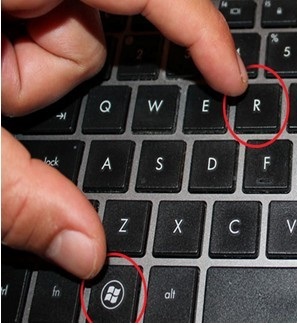
Windows-key-R

In the run dialog that opens up, type ‘msconfig’ and then click ‘OK’.
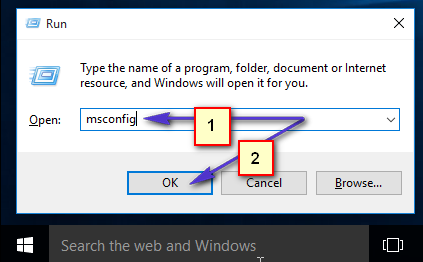
clean boot windows 10 - 1

This will load the system configuration window. From here, choose the Services Tab, then put a check on Hide All Microsoft Services and select Disable All.
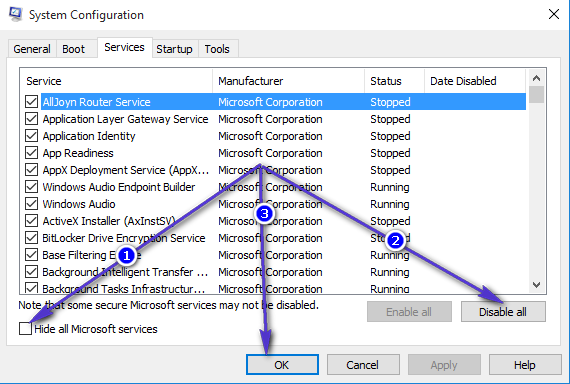
clean boot windows 10 - 2

First, click ‘Apply’, then click ‘OK’. You will be prompted to restart; choose ‘Restart Later’. Hold the Windows Key and press R again; then type ‘msconfig’ and click ‘OK’. This time, when the System Configuration dialog box opens, choose ‘Start Up’ and select ‘Open Task Manager‘. From this pane, look at the last field called ‘Start-Up Impact’ and disable all the ones with ‘High’ impact. You can disable them by right-clicking on them and choosing ‘Disable’. This only disables them from automatically starting up when the computer reboots, so you can still start them up normally and re-enable them later if you want them to be started up automatically. Follow the same steps as above, but instead of choosing ‘Disable’, choose ‘Enable’.

Once this is done, reboot your system and it will start up in clean boot mode.

ABOUT THE AUTHOR

Kevin Arrows


Kevin Arrows is a highly experienced and knowledgeable technology specialist with over a decade of industry experience. He holds a Microsoft Certified Technology Specialist (MCTS) certification and has a deep passion for staying up-to-date on the latest tech developments. Kevin has written extensively on a wide range of tech-related topics, showcasing his expertise and knowledge in areas such as software development, cybersecurity, and cloud computing. His contributions to the tech field have been widely recognized and respected by his peers, and he is highly regarded for his ability to explain complex technical concepts in a clear and concise manner.

Comments

14
    SD
    Sdgh Aug 12, 2016

    Done all that now my wiffi has gone missing..?

      KA
      K. Arrows Author Aug 12, 2016

      Is the wifi adapter external or internal? Go back to the services tab, and the start tab, and enable only the wireless utility.

    FB
    Francesca Barberis Sep 19, 2016

    Hi Kevin! My Microsoft 10 Upload Centre told me to perform a clean boot to fix an issue with my Document Cache. I completed the steps and now, in trying to restart my computer, there is no option to log-in. I can’t find any way to get past the initial log-in screen. Any suggestions? Thanks!

      KA
      K. Arrows Author Sep 19, 2016

      What does the screen says? Is it blank?

        MA
        Max May 3, 2021

        Yes. it is blank from last 3 hrs, now what to do?

          MZ
          Muhammad Zubyan Author May 3, 2021

          Hey Max,

          My friend had this issue before we tried to fix it but ended up resetting the whole Windows, however, there are some things that you can try. First of all, let’s try the simple things first. So, hold the power button located on your computer and hold it for 30-40 seconds. This will make sure to restart all the services and whole Windows properly. If that doesn’t work try press the combo of keys “Ctrl + Shift + Esc” then check if the login screen appears. If none of these worked for you we can move on to advanced troubleshooting.

          Follow these steps to boot into the safe mode:-

          1. Once you are on the Log-in page, hold the right shift button on your keyboard and press the restart button on your Windows.
          2. Click “Troubleshoot > Advanced Settings > Startup Settings > Restart”.
          3. Once the computer is restarted, check if you can see the login screen. If you can simply log in and follow the steps.

          (Note: If you can’t see the login screen, restart your computer, hold the right-shift button on your keyboard then press the restart button on your Windows but now click the following options: “Troubleshoot > Advanced Settings > Startup Repair”. Wait for it to try and repair the possible problems.

          4. Once you are in the safe mode, press and hold the Windows key then press the “R” key. This should open the Run program.
          5. Type: “msconfig” and press enter.
          6. In the “General” tab select “Normal Startup” then restart your computer.
          7. Check to see if the issue persists.

          If the issue persists, then unfortunately you will have to reset your Windows.

    FB
    Francesca Barberis Sep 20, 2016

    Hi Kevin! Yes it is blank. I think the problem is that we have Sharepoint so doing the clean boot seems to have disabled the option to log-in to our company network. Any thoughts?

      KA
      K. Arrows Author Sep 22, 2016

      Possible. Can you hold the shift key at the login screen, and choose restart (by pressing the power icon) and then choose restart, once it boots into advanced mode, choose start up settings and boot into safe mode, then enable all services and start-up entries from msconfig and (reboot) back into normal mode and then test

    D
    Dave Riggle Jr. Mar 15, 2017

    thanks you.

    SU
    sue Jan 30, 2018

    Hello. I have problem with my laptop. Firstly, it gets stuck more frequently since last week. And now, all the words have disappeared.i cant even boot clean my laptop because i cant see the files’name

    RJ
    Ryan James Jun 26, 2018

    This did not work for me. I have a Seagate external 4 TB drive that stopped accepting transfers from my W10 desktop. I did a clean boot, but nothing is dfferent.

    SW
    Steve Walker Dec 20, 2018

    I have tried this and it hangs after I hit apply. Left the laptop for hours and checked again it is “not responding”
    Finally gave up and went for a restart and now that screen is just going around and around. Any ideas why the clean boot doesn’t work?
    TIA

    SW
    Shane Warren Author Sep 27, 2019

    Then the issue might not be with the software

    PE
    perakojotsuvi Oct 2, 2020

    Thanks for advice,
    First solution fix my problem