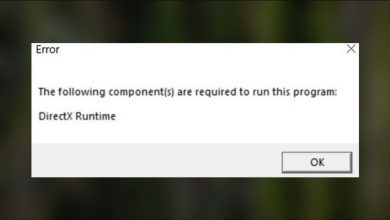
How to Fix Hogwarts Legacy Not Launching Problem?
When launching Hogwarts Legacy from the Epic Games Launcher, the button may switch to “Launching” and then return to normal without opening the game (no window, no sound, no error). This usually means Epic starts the process, but the game fails during early startup and the launcher closes it silently.
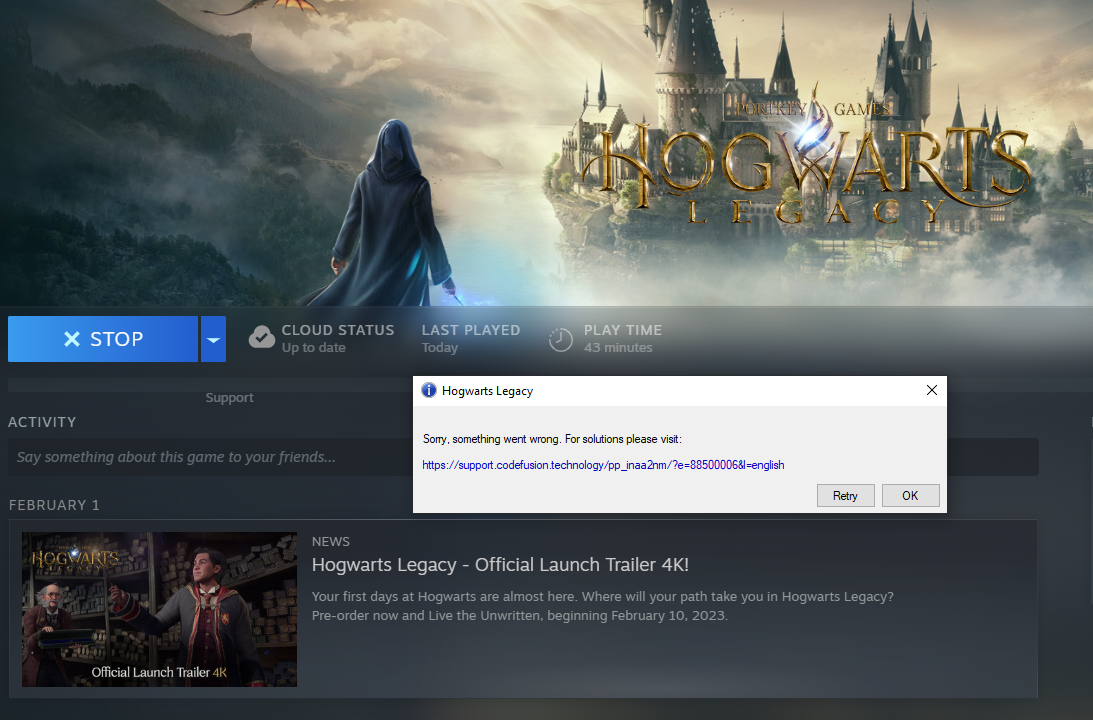
Most commonly, this happens due to corrupted game/config data, missing or blocked dependencies, shader/cache conflicts, or launch-time interference (mods, overlays, background tools, or unstable CPU/GPU/RAM settings).
1. Fully Close Epic and Run Epic as Administrator
Epic can fail to hand off the game if its background processes are stuck or if Windows blocks permissions. Fully closing Epic and launching it as admin removes these basic launch blockers.
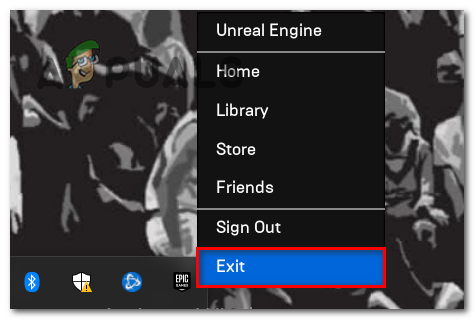
- Exit Epic Games Launcher (right-click the tray icon > Exit).
- Open Task Manager and end any EpicGamesLauncher / EpicWebHelper processes.
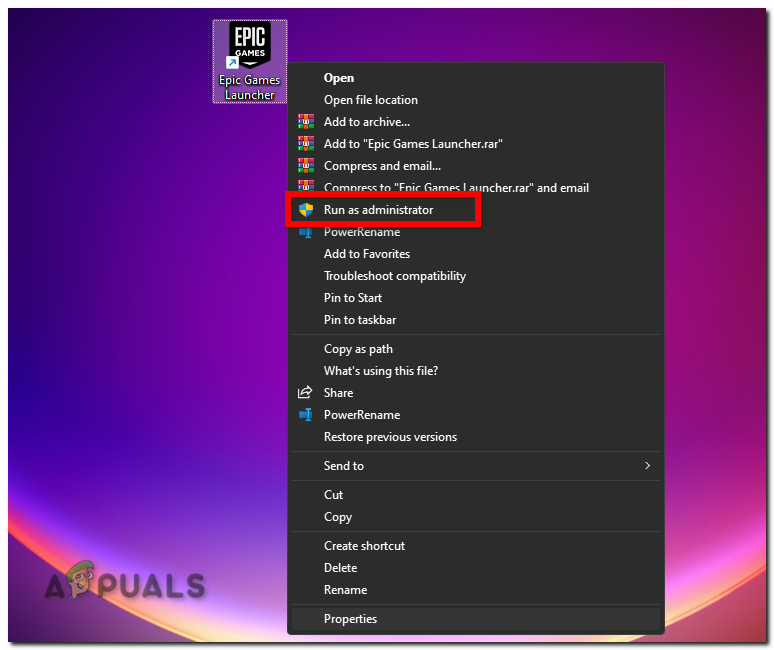
- Right-click Epic Games Launcher > Run as administrator.
- Launch Hogwarts Legacy again.
2. Verify (Repair) Hogwarts Legacy in Epic
If the game closes immediately, a damaged or missing file is one of the most common causes (interrupted update, incomplete patch, drive hiccup). Verify forces Epic to re-check the install and re-download only what is broken.
- Open Epic Games Launcher > Library.
- Click the three dots next to Hogwarts Legacy > Manage.
- Select Verify.
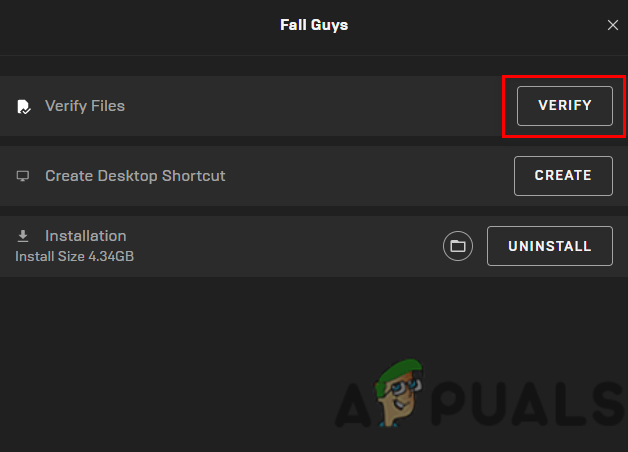
- After it completes, try launching again.
3. Reset Hogwarts Legacy Config and Cache (LocalAppData)
If config or cache files are corrupted, the game can fail before it even shows a window. Resetting these forces Hogwarts Legacy to rebuild fresh settings and caches on next launch.
Important: This may reset in-game settings. Saves are commonly in Saved\SaveGames, so back them up first. The safest reset is deleting Config and DerivedDataCache only.
- Close Hogwarts Legacy and fully exit Epic Games Launcher.
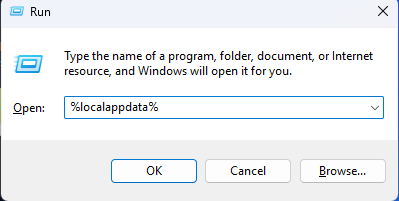
- Press Win + R, type %localappdata%, and press Enter.
- Open HogwartsLegacy or Hogwarts Legacy (folder name can vary). If you do not see it, skip this fix.
- Open Saved. If you see SaveGames, copy Saved\SaveGames somewhere safe.
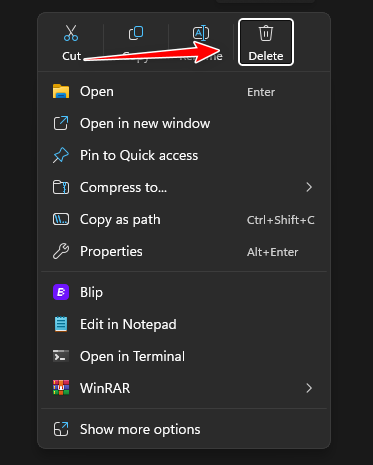
- Recommended (safer reset): Delete:
- Saved\Config
- Saved\DerivedDataCache (if present)
- Stronger reset (only if needed): Delete the whole Saved folder except Saved\SaveGames.
- If you want an easy rollback, rename the main folder to HogwartsLegacy.bak instead of deleting it.
- Reopen Epic and launch the game.
4. Remove Mods (Only If You Use Any)
After updates, mods can become incompatible or conflict with core files, causing instant exits. Starting once with no mods confirms whether mods are the trigger.
If you never installed mods, skip this.
- Close Hogwarts Legacy and exit Epic Games Launcher.
- Open the install folder (Epic Library > three dots > Manage > Open Install Location).
- Go to: Phoenix > Content > Paks.
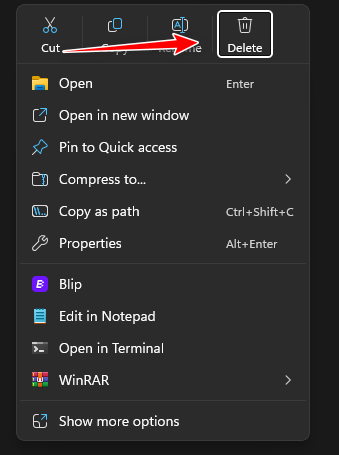
- If a ~mods folder exists, rename it to ~mods.bak (recommended) or delete it.
- Launch the game once. If it works, add mods back one-by-one to find the one causing the crash.
5. Turn Off Background Apps and Overlays
Overlays and monitoring tools can hook into the game at launch, which can cause a silent failure. Disabling them reduces conflicts and also frees up CPU/GPU/RAM during startup.
- Open Task Manager (Ctrl + Shift + Esc).
- End task overlay or monitoring apps (for example: Discord overlay, GeForce Experience overlay, Xbox Game Bar, MSI Afterburner/RTSS, Overwolf, screen recorders, RGB utilities).
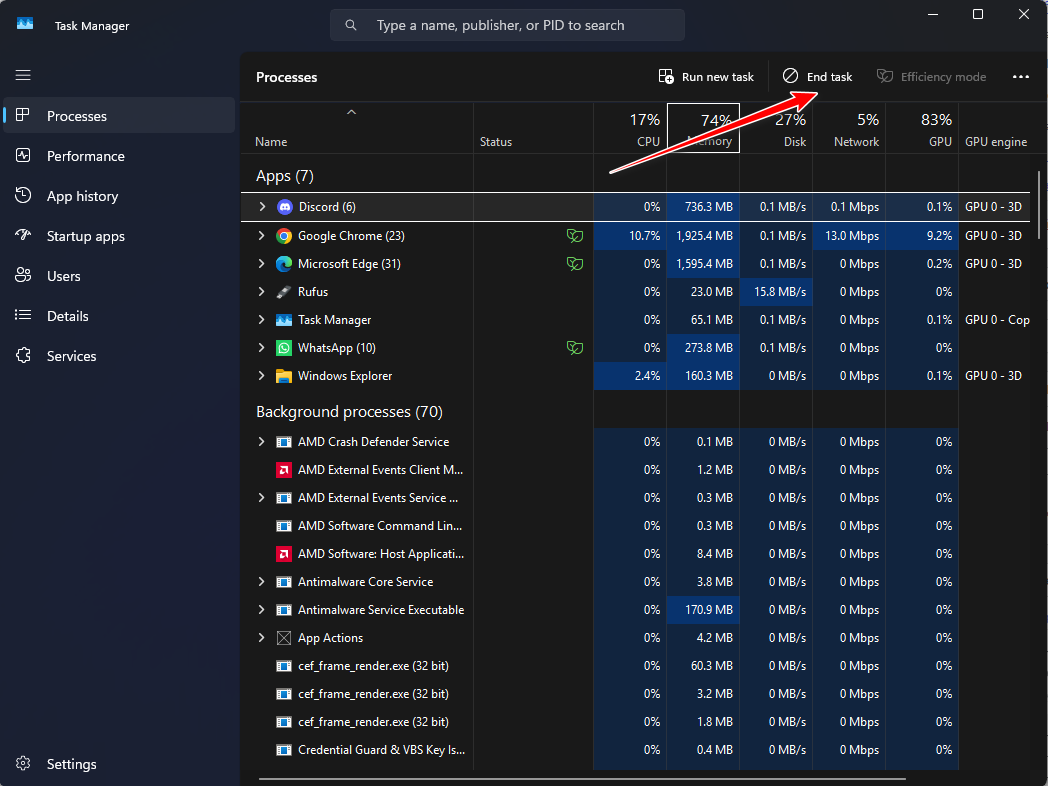
- If needed, disable overlays using our guide here.
- Try launching Hogwarts Legacy again.
6. Disable Overclocking (Including XMP/EXPO) and Retest
Startup is often more sensitive than gameplay. Even a “stable” overclock can crash the game during initialization. Returning CPU/GPU/RAM to default settings removes instability as a variable.
Note: You do not need to underclock. Just revert to default and test. If you enabled XMP/EXPO, temporarily disable it to rule out memory instability.
- If you use MSI Afterburner (or similar), open it and click Reset.
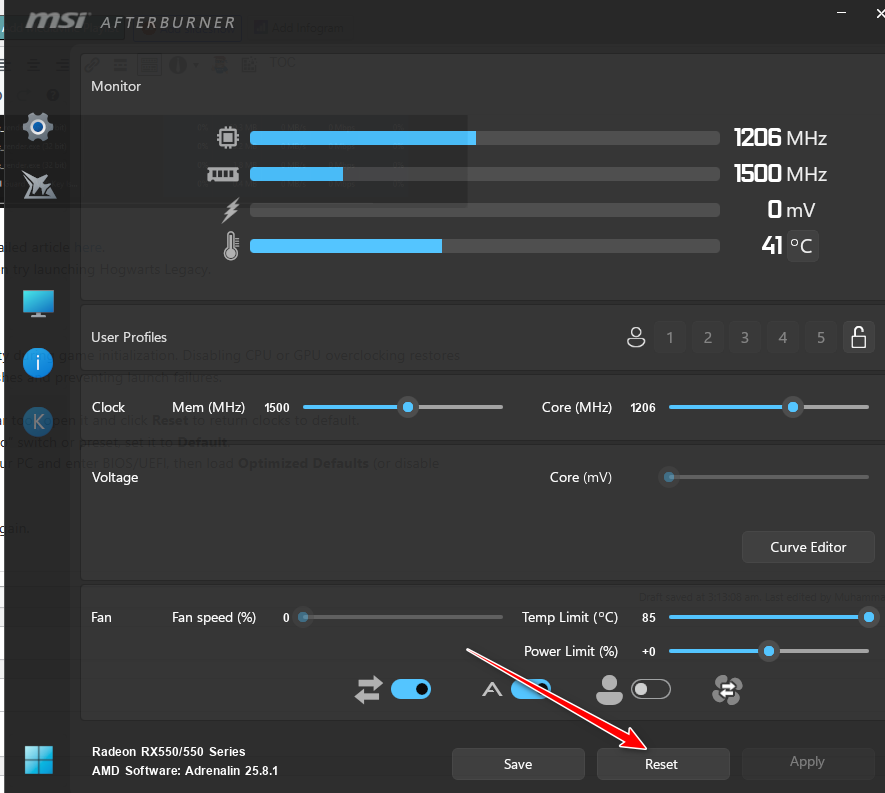
- If your GPU has a Performance/Turbo preset or switch, set it to Default.
- If you overclocked in BIOS/UEFI, restart and load Optimized Defaults (or disable your OC profile, and disable XMP/EXPO).
- Boot back into Windows and launch the game again.
7. Rename or Remove sl.pcl.dll (Only If It Exists)
If a Streamline/DLSS component fails to load, the game may exit instantly with no visible error. If sl.pcl.dll exists in your install, renaming it can bypass the broken file, then Verify can restore the correct version.
Important: Only do this if you actually find sl.pcl.dll. For the safest approach, rename it to sl.pcl.dll.bak instead of deleting it.
- Close Epic Games Launcher completely.
- Open the game install folder.
- Use Windows search in the install folder and search for sl.pcl.dll.
- If found, open its location (often under Engine > Plugins > Runtime > Nvidia > Streamline > … > Win64).
- Rename sl.pcl.dll to sl.pcl.dll.bak (or delete it).
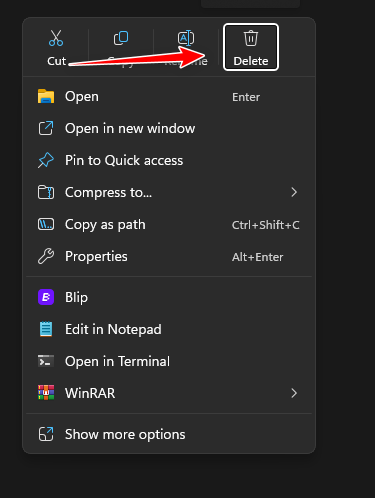
- Run Verify again (Fix #2), then launch the game.
8. Delete Hogwarts Legacy Folder in ProgramData (If Present)
Some systems store shared game data in ProgramData. If that data is corrupted, the game can fail before loading. If you do not see a Hogwarts Legacy folder there, this fix does not apply.
Note: The first launch after this can take longer while caches and shaders rebuild.
- Close Hogwarts Legacy and Epic Games Launcher.
- Press Win + R, type C:\ProgramData, and press Enter.
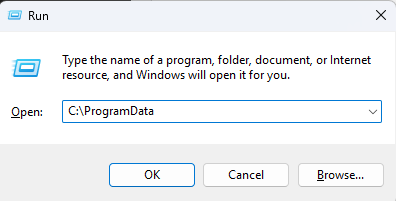
- Look for Hogwarts Legacy (or similar). If it is not there, skip this fix.
- Rename it to Hogwarts Legacy.bak (recommended) or delete it.
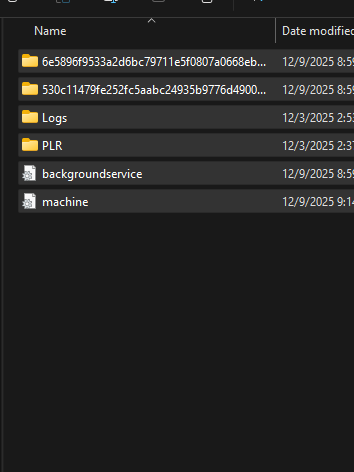
- Launch the game and give it a few minutes on the first startup.