Fix: Fortnite “Signature Error Detected When Reading Container Header”
The message “Signature error detected when reading container” in Fortnite usually appears after an update when the game can’t validate (verify) one or more of its packaged, digitally-signed content containers. Fortnite uses packaged content files (often .utoc/.ucas alongside .sig and sometimes .pak files) that must match Epic’s expected signatures. If even one container is partially downloaded, corrupted, or blocked from updating, the signature check can fail and Fortnite may stop at the error screen instead of finishing the load process.
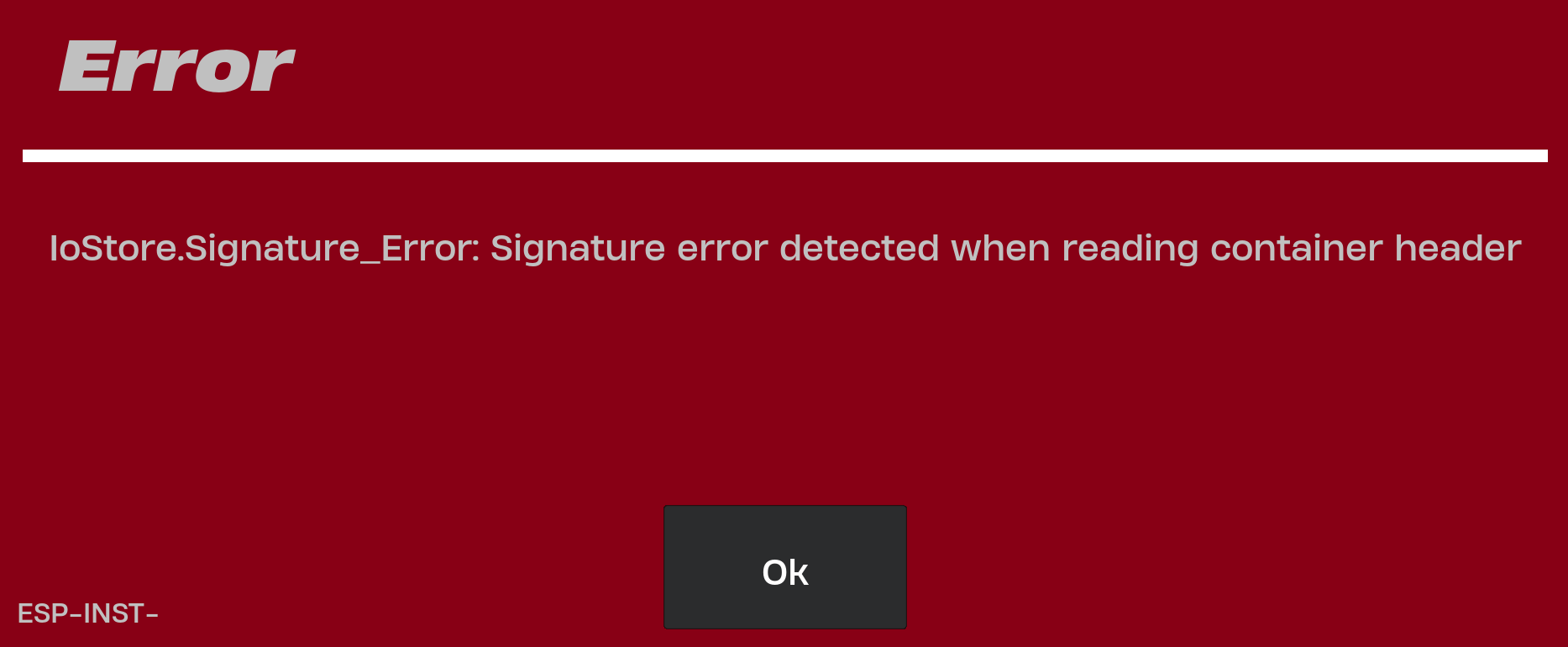
This error is most commonly linked to damaged/partially-updated containers, a launcher cache/manifest mismatch, disk write failures (low free space, file system errors, bad sectors), or security controls (antivirus / Windows Controlled Folder Access) preventing the Epic Games Launcher from replacing Fortnite’s files correctly.
Follow the solutions below in order. Start with the lighter fixes first, then move to the heavier ones.
Quick Checks
- Restart your PC and relaunch the Epic Games Launcher.
- Make sure you have enough free disk space on the drive where Fortnite is installed.
Tip: Keep a buffer (often 15–30 GB or more) because updates and verification can require temporary space. - If you’re using an external drive, try installing/running the game from an internal SSD/HDD instead.
1. Verify Fortnite Files (Recommended First Fix)
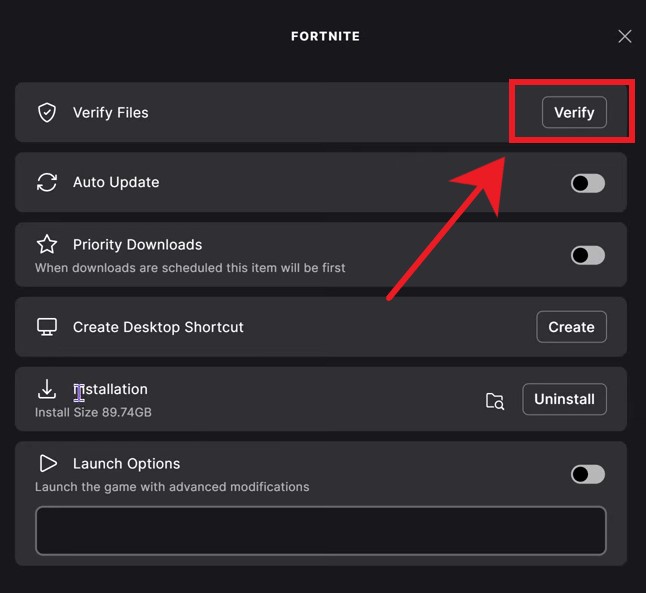
Since this error often happens when an update leaves some containers incomplete, the best first step is to run Verify in the Epic Games Launcher. Verification compares your installed files against Epic’s official versions and
re-downloads anything that’s missing or corrupted.
- Open Epic Games Launcher.
- Click Library in the left sidebar.
- Find Fortnite and click the three dots next to it.
- Select Manage.
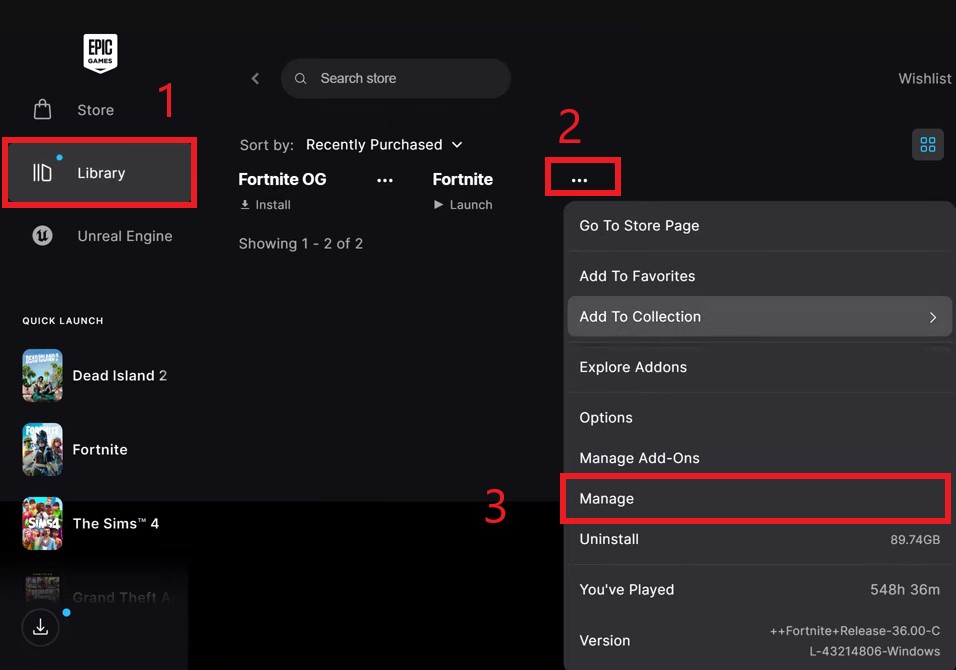
- Click Verify and wait for it to finish.
2. Clear Epic Games Launcher Cache
If the launcher cache/manifest gets out of sync after an update, it can repeatedly flag the same container as “invalid” even after repair attempts. Clearing the launcher cache forces Epic to rebuild cached data.
- Close Epic Games Launcher completely (right-click the tray icon and choose Exit).
- Open Task Manager and end any remaining EpicGamesLauncher processes (optional but recommended).
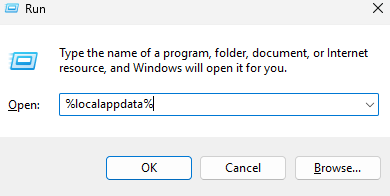
- Press Win + R, type %localappdata%, and press Enter.
- Open the EpicGamesLauncher folder > Saved.
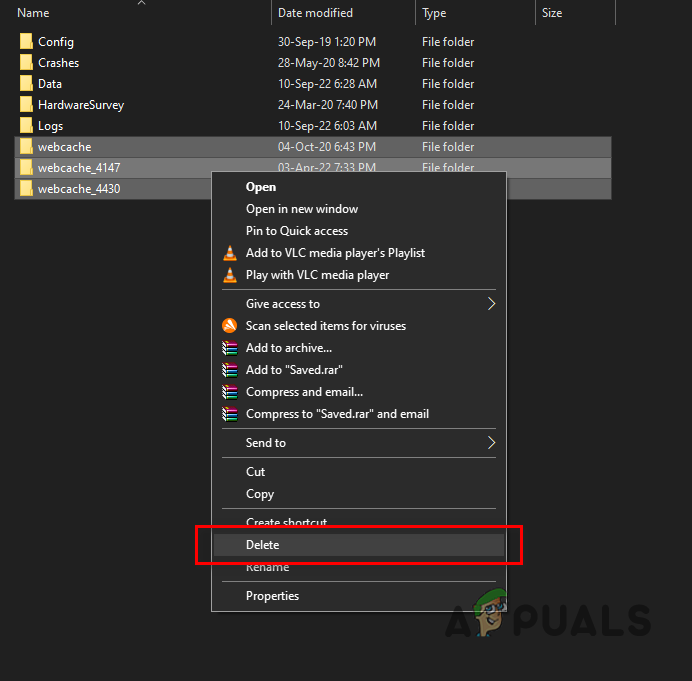
- Delete the webcache folder (and any webcache_* folders if present).
- Relaunch Epic Games Launcher and try starting Fortnite again.
Note: The cache rebuilds automatically. In some cases, Epic may ask you to sign in again.
3. Delete Problematic Pak/Container Files (Advanced)
If verification doesn’t repair the same container repeatedly, you can force a clean re-download by removingFortnite’s packaged content files so the launcher must replace them.
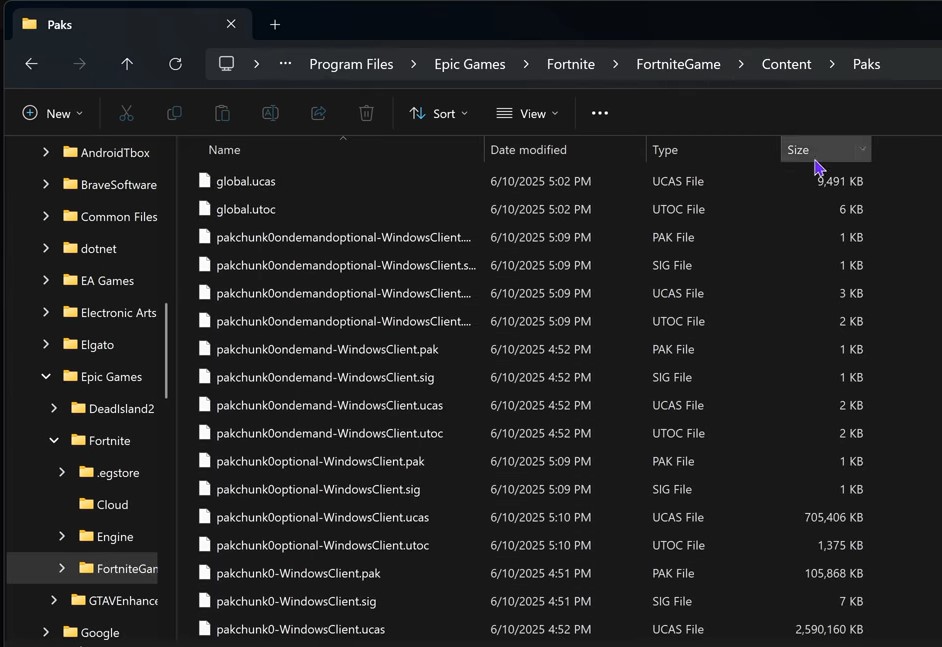
Fortnite stores packaged content in the Paks folder. Depending on the build, you may see files such as .pak, .sig, .utoc, and .ucas. If any of these are corrupted or partially updated, Fortnite may fail signature checks and trigger this error.
Important: Many container files come in matching pairs (for example .utoc and .ucas). If you delete one, it’s safest to delete its matching partner (and any related .sig) so Verify can re-download a consistent set.
Also important: Only delete files inside the Paks folder. Do not delete folders like Saved or Config for this fix.
This does not permanently delete the game, but it can trigger a large re-download. The deleted files will be downloaded automatically when you run Verify in the Epic Games Launcher.
- Launch Epic Games Launcher.
- Click Library in the left sidebar.
- Find Fortnite in the list and click the three dots next to it.
- Select Manage.
- Click the folder icon in the Installation section.
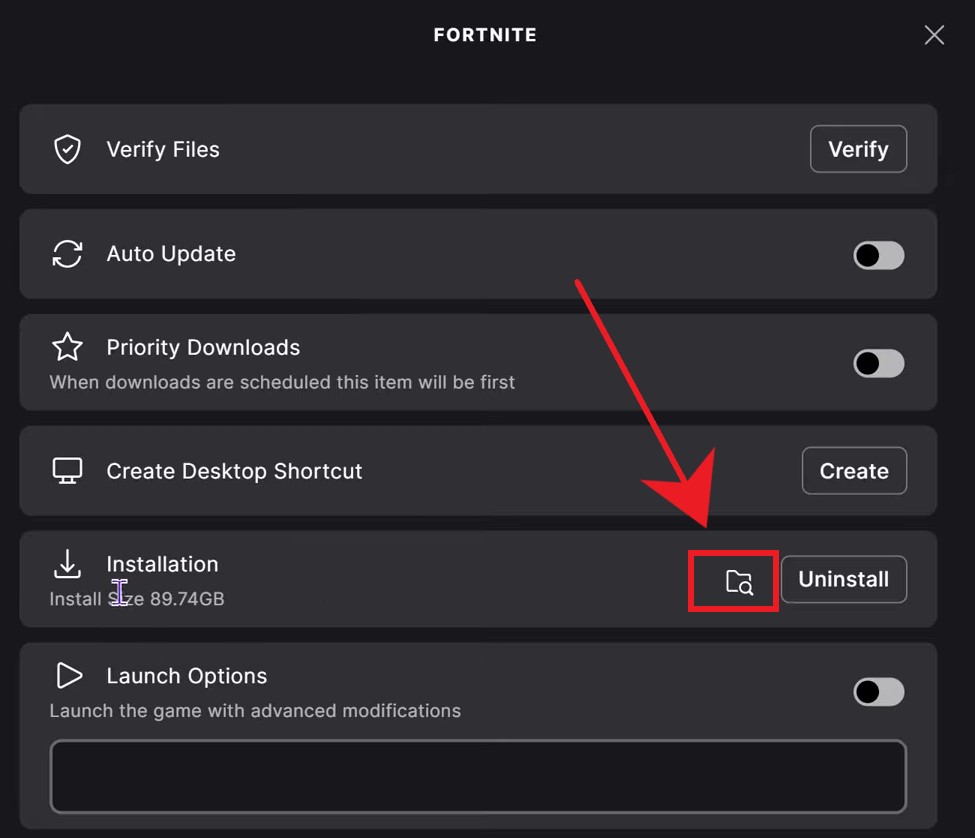
- Navigate to FortniteGame > Content>Paks (often FortniteGame\Content\Paks on Windows).
- Recommended: First try deleting only the most recently modified large container files (and their matching pairs if present).
If you’re unsure which ones are involved or the error still returns, you can delete all files in the Paks folder as a last resort.
- Go back to Epic Games Launcher.
- If you closed the Manage panel, click the three dots next to Fortnite > Manage again.
- Click Verify to begin checking and redownloading the deleted files.
If Fortnite still shows the same error after containers are re-downloaded, proceed to the reinstall method.
4. Reinstall the Game (Last Resort)
If verification and forced container re-download don’t work, a reinstall removes any leftover or corrupted data that may be repeatedly causing signature checks to fail. This ensures every file is freshly downloaded from Epic’s servers.
- Open the Epic Games Launcher.
- Click Library and locate Fortnite.
- Click the three dots next to Fortnite and select Uninstall.
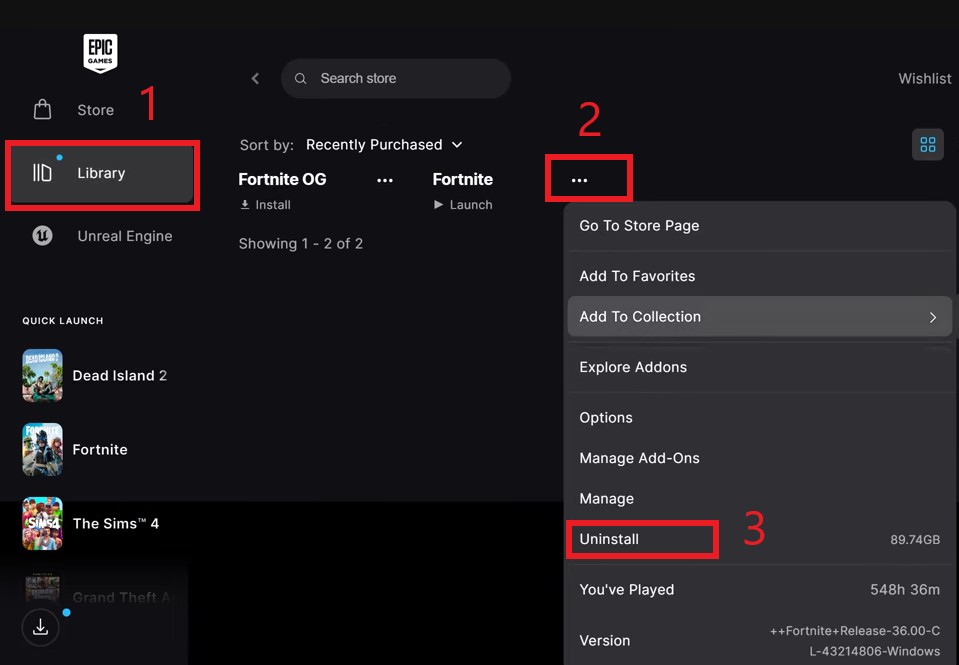
- Once uninstalled, click Install to download a fresh copy of the game.