Fix: The graphics driver couldn’t find compatible graphics hardware

This error is exclusive to NVIDIA users and it appears when try to install a new graphics card driver on their computer. The full error message goes like:

NVIDIA Installer cannot continue – the graphics driver could not find compatible graphics hardware
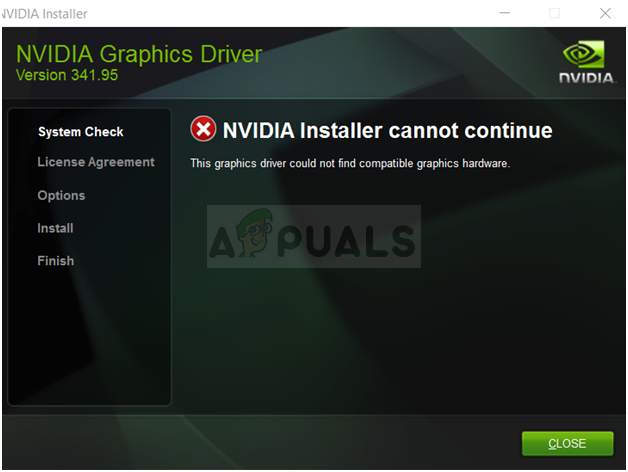
The Graphics Driver Could Not Find Compatible Graphics Hardware Installer­

The error message sounds quite self-explanatory if you have indeed downloaded the wrong driver for your graphics card but the error quite often appears to users who have downloaded the correct graphics card and who want to install the latest driver. Check out the methods we have prepared below which should take care of the problem!

What Causes The Graphics Driver Could Not Find Compatible Graphics Hardware Installer­ Error?

The list of things which cause this error is not long and the problem is often a technical mistake made by NVIDIA. There are two main reasons for the problem:

  • Your Device ID is not listed in the required files supplied by the driver’s installation.
  • The enforced driver signing may cause a problem with this driver so make sure you to turn it off for now!

Solution 1: Create a Device ID for your NVIDIA Graphics Card

This problem can appear because of the fact that your graphics card’s ID is not listed in any of the ‘info’ files the driver uses to recognize what graphics card you have on your computer. This is a rare error and this method will definitely require some work to be done.

This is applicable to users who have decided to manually download the driver’s installation file from the NVIDIA’s website. All examples will refer to a sample file and your file will differ in certain parts which will be mentioned below!

  1. Click Start and type Run. Select Run, A Run dialog box will appear.
  2. Type “devmgmt.msc” in the run dialog box and click the OK button. This opens Device Manager immediately.
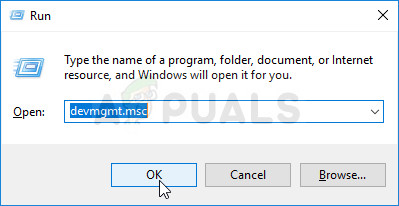
Running Device Manager from the Run dialog box
  1. In Device Manager, expand the Display adapters category by clicking the arrow next to it and locate your NVIDIA graphics card. Make sure you find out the name of your device. There should be no doubt as you don’t want to end up uninstalling the wrong device.
  2. When you locate the device, right-click on it and choose the Properties option from the context menu.
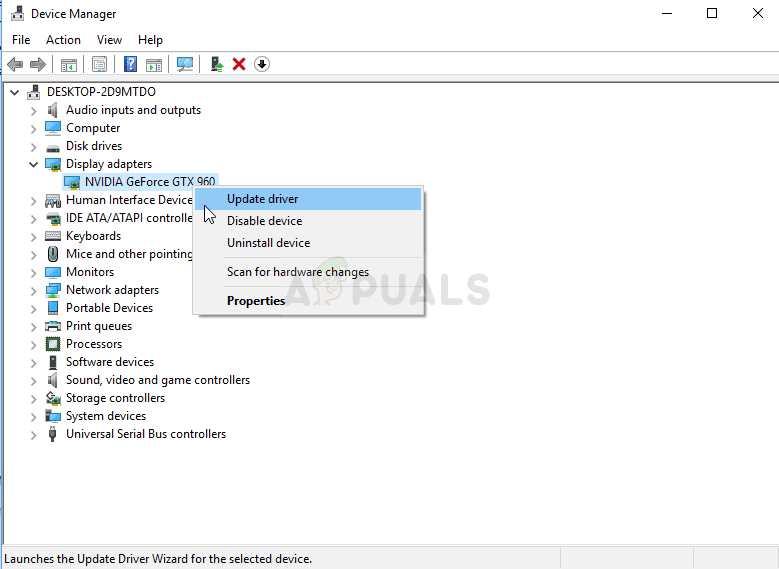
NVIDIA driver in Device Manager
  1. Navigate to the Details tab in the Properties window and left-click the menu under the Property text. Choose the Device instance path option and, under Value, you should see a text which should look something like this:
PCI\VEN_10DE&DEV_0DD1&SUBSYS_20421043&REV_A1\ 4&30DE1B
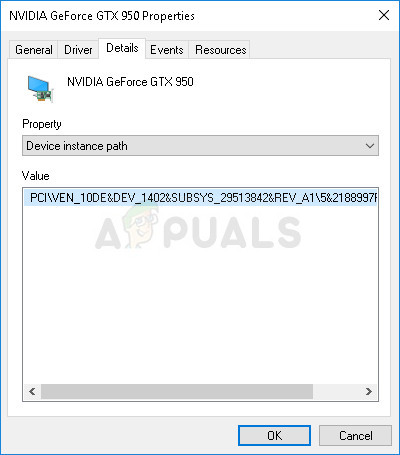
NVIDIA driver’s Device instance path
  1. This text contains information about the video card manufacturer, the chipset and the model. If you have downloaded the driver file from NVIDIA’s website, run it, and you should see the familiar “This graphics driver could not find compatible graphics hardware” message.
  2. Don’t worry about it yet. Navigate to the install directory. The default path should look something like the examples below:
C:\NVIDIA\DisplayDriver\<DriverVersion>\<YourVersionOfWindows>\English\Display.Driver\
C:\NVIDIA\DisplayDriver\<DriverVersion>\<YourVersionOfWindows>\International\Display.Driver\
  1. It’s the same folder you chose at the beginning of the installation so make sure you rerun it to see what it is if you are not sure.
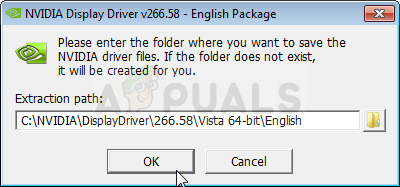
NVIDIA driver’s installation folder
  1. Open of the files whose extension is ‘.inf’. For example, you can choose the ‘inf’ file. Make a backup copy of this file by right-clicking on it and choosing the Copy option. Paste it anywhere else.
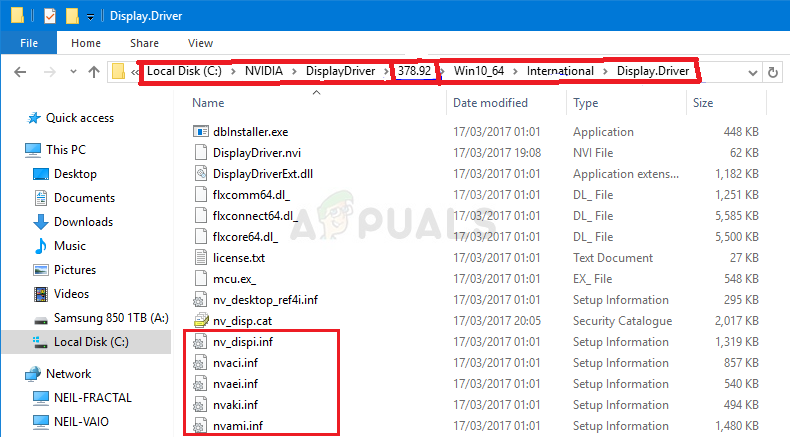
‘.nfo’ files in the installation folder
  1. Right-click on the same file still located in the NVIDIA folder and choose Open with >> Notepad (or any other text editor).
  2. Scroll down until you see lines looking like this:
[NVIDIA_Devices.NTx86.8.1] (or NVIDIA_SetA_Devices with similar combinations)
%NVIDIA_DEV.0405.01% = Section001, PCI\VEN_10DE&DEV_0405&SUBSYS_15D21043 
%NVIDIA_DEV.0405.02% = Section001, PCI\VEN_10DE&DEV_0405&SUBSYS_16341043 
%NVIDIA_DEV.0407.01% = Section001, PCI\VEN_10DE&DEV_0407&SUBSYS_080117FF %NVIDIA_DEV.0407.02% = Section002, PCI\VEN_10DE&DEV_0407&SUBSYS_15881043

Note: If see multiple NVIDIA_SetA_Devices or NVIDIA_Devices sections, repeat the process for all of them!

  1. You will see that these lines appear quite similar to the Device instance path you took note of in Device Manager. Scroll down until you reach the section which is similar to your chipset number (the number appearing after DEV in Device instance path).
  2. Now comes the hard part. We are about to create a device ID for the graphics card you have installed on your computer! You will input it in the middle of the list, next to the similar looking chipset numbers.
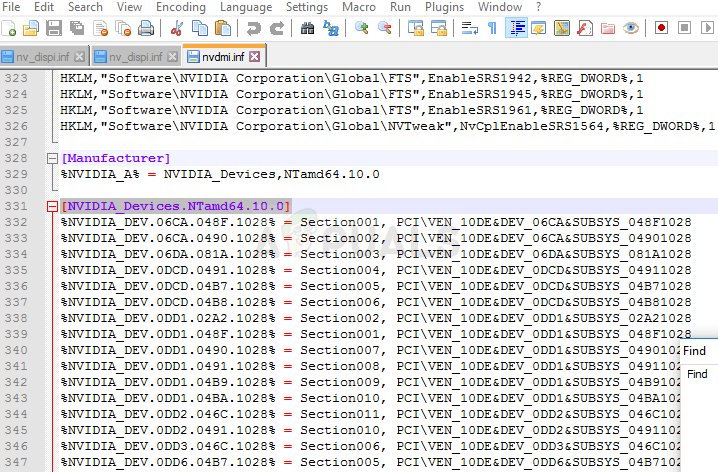
Browsing through the chosen ‘.nfo’ file
  1. The first part is the same for everyone: ‘%NVIDIA_DEV’. The next part is the four-character DEV code (appears after DEV in Device instance path). If you notice that there is already the same DEV as yours, you will need to increment it. For example, if the DEV is ODD1 and you see a line starting like this:

%NVIDIA_DEV.0DD1.01%…, your line will start off as %NVIDIA_DEV.0DD1.02%

  1. The next part is the section. The number should be the same section as the one in which you insert it in so just check the number above. If the line above starts off like this:

%NVIDIA_DEV.ODD1.01% = Section042…, your line should start like %NVIDIA_DEV.ODD1.02% = Section042,

  1. The final part should simply match your Device instance path. Put a comma after the section part and insert a space. After that, you can simply right-click on your Device instance path in Device Manager, choose copy and paste it here. Finally, the line should look like this:

%NVIDIA_DEV.ODD1.02% = Section042, PCI\VEN_10DE&DEV_0DEE&SUBSYS_15621043

  1. Use the Ctrl+S key combination in order to save the changes. Run the setup file manually from the NVIDIA install directory. It should be the same folder where you have located the ‘.inf’ file and it should be named ‘setup.exe’.
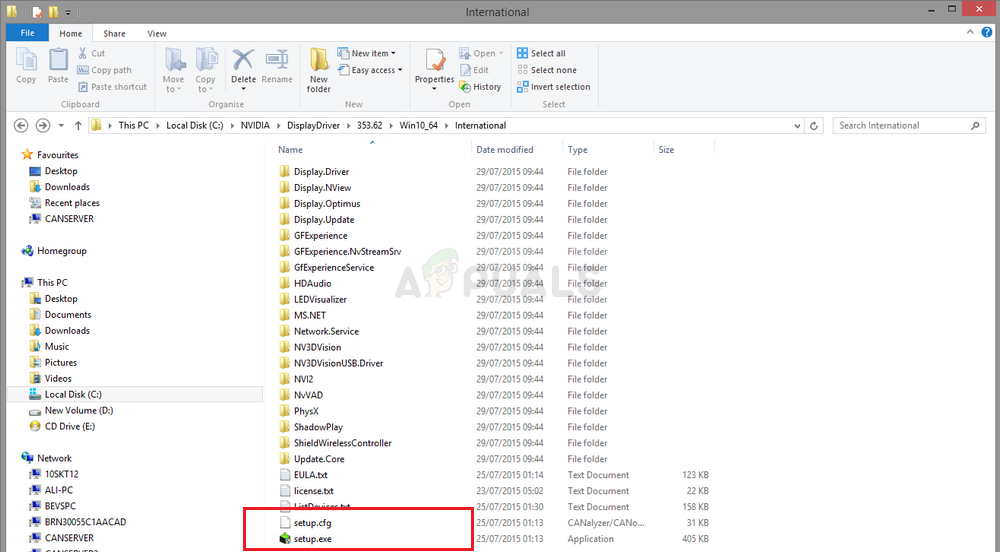
Locating the ‘setup.exe’ file

Note: If you run the file you have downloaded from NVIDIA’s website, everything you have done will be overwritten and you will be forced to start again!

  1. Check to see if the problem is resolved! The answer may be long but it works!

Solution 2: Disable the Driver Signature Enforcement

This option disables the driver signature enforcement which may be one of the reasons for why your drivers refuses to be installed. This simple solution has helped plenty of folks so make sure you try it out.

  1. Click on the Start button and click on the cog icon in order to open Settings. You can also search for “Settings” in the search bar.
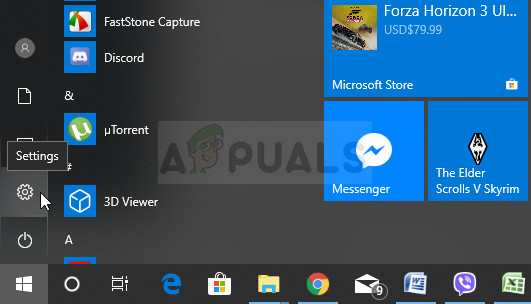
Running Settings from Start Menu
  1. Scroll down to the bottom of the Settings app and click on Update & security.
  2. Click on Recovery from the tabs located on the left side of the Update & security screen.
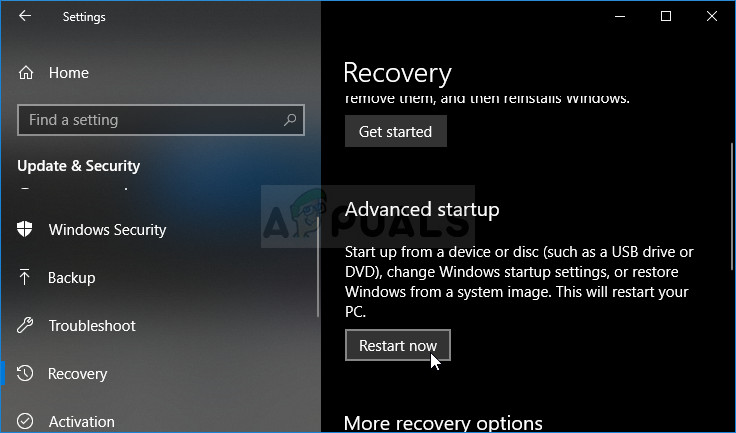
Advanced Startup Settings from the Settings tool on Windows 10
  1. Advanced startup section should be located in this option so locate it at the bottom of the Recovery tab. Click on Restart now. Advanced Startup Options should appear.

Note: If you are using Windows 8, swipe from the right in order to access the charms bar. Click on the Change PC settings option and choose the Update and recovery from the list. Click on Recovery and follow the steps from 4-6 from the solution above.

After you have successfully accessed the Advanced Startup Options, you can now freely navigate to the Startup Settings option by following the instructions below.

  1. Click on the Troubleshoot option located just under the Continue button.
  2. You will be able to see three different options: Refresh your PC, Reset your PC, and Advanced options. Click on the Advanced options button.
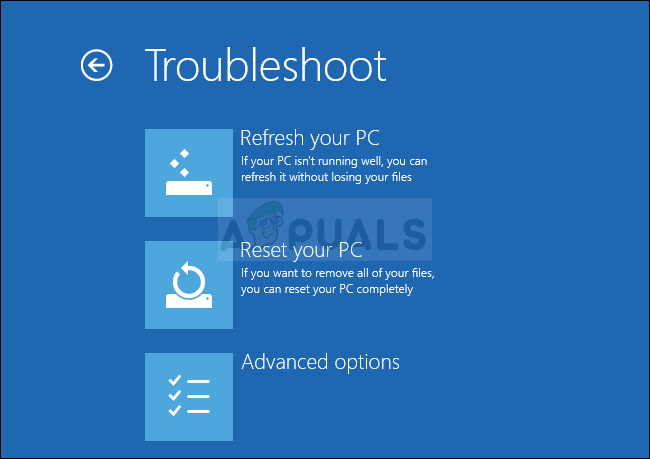
Advanced options from the Troubleshoot menu
  1. Under the Advanced options screen, click on Startup Settings which will open a list of available startup options for you.
  2. The option number 7 should be named Disable driver signature enforcement. Click on the number 7 on your keyboard or use the F7 function key.
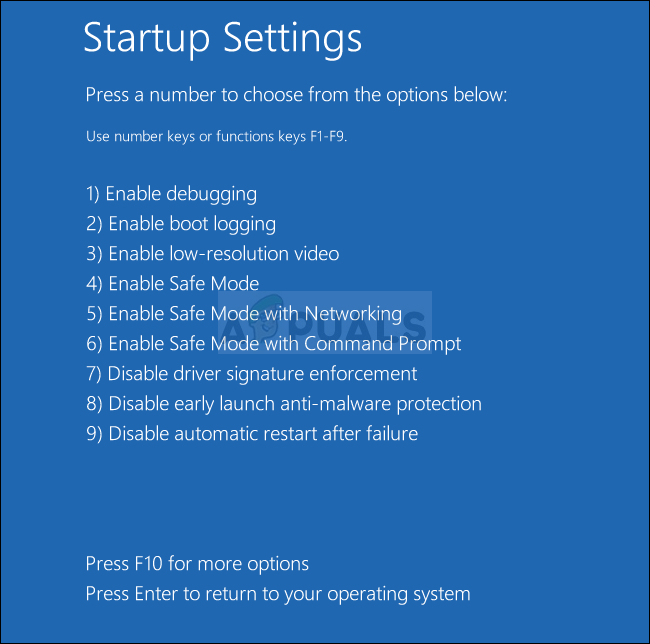
Disable driver signature enforcement
  1. Press Enter in order to return to your operating system.
ABOUT THE AUTHOR

Kevin Arrows


Kevin Arrows is a highly experienced and knowledgeable technology specialist with over a decade of industry experience. He holds a Microsoft Certified Technology Specialist (MCTS) certification and has a deep passion for staying up-to-date on the latest tech developments. Kevin has written extensively on a wide range of tech-related topics, showcasing his expertise and knowledge in areas such as software development, cybersecurity, and cloud computing. His contributions to the tech field have been widely recognized and respected by his peers, and he is highly regarded for his ability to explain complex technical concepts in a clear and concise manner.

Comments

49
    KG
    Killian goossens Jul 24, 2019

    I know this is from a year ago but… I cant even find any code that’s similar to mine (1C82)

      SW
      Shane Warren Author Jul 26, 2019

      In step 5 instead of selecting “Device Instance Path” select the “Hardware ID” option and try the rest of the method in a similar fashion

        GH
        Ghiffary Apr 2, 2020

        I dont know i must open all .inf with notepad or just nv_dspi.inf. my hardware ID 1341&SUBSYS_381817AA and i just find the 1341 on all page (nv_dspi, nvaci, nvaei, nvaki, nvami) but nothing near 3818

          SW
          Shane Warren Author Apr 2, 2020

          Did you see the ” NVIDIA_SetA_Devices or NVIDIA_Devices” sections? if so then the process is to be done for all of them. Open all of them and see in which the method is applicable. Furthermore, just try selecting Device Instance Path” if you cant find the hardware ID and see if the method proceeds for you.

    DS
    Danish Shafi Shaikh Sep 6, 2019

    I deleted my Driver, i thought re-installing will fix it. But it didnt now how will i come to know its ID from Hardware ID if i dont have the driver listed in my Display adapters?

      PM
      Prathamesh More Jan 22, 2020

      Did you got solution for that?

    SW
    Shane Warren Author Sep 8, 2019

    Right-click on “Microsoft Basic Display Adapter” select “Properties”. Click on “Details” and from the dropdown click on “Hardware IDs”. The number listed on the top will lead you to the make and model of the GPU. Instead of doing that you can use third-party software like “Driver Easy” to identify the model and the make of your GPU.

    FU
    Funso Feb 26, 2020

    I followed instruction 1 but when I got to display adapters I was not seeing the newly downloaded Nvidia I was only seeing the Intel(R) hd graphics

      SW
      Shane Warren Author Feb 29, 2020

      Then your card isnt being detected by the system at all. Have you installed all the drivers and is the card connected properly?

        SP
        Sá Pereira Apr 4, 2020

        same problem for me, i have a laptop so the card is definitely connected properly, i’ve tried every option there is in any forum, but nothing seems to work….

          SW
          Shane Warren Author Apr 10, 2020

          It could still have gotten disconnected. What laptop make and model do you have?

          SP
          Sá Pereira Apr 10, 2020

          Its an Omen by HP Laptop 15-Ce0xx from 2017

          SW
          Shane Warren Author Apr 13, 2020

          Have you already tried reinstalling Windows?

          SP
          Sá Pereira Apr 13, 2020

          yep, and i did a complete factory reset as well

          SW
          Shane Warren Author Apr 17, 2020

          Then it has most likely been disconnected.

          SP
          Sá Pereira Apr 18, 2020

          So, good news are its not that expensive to repair (i suppose). Bad news are I have to wait until stores open due to corona…
          Thank you for the reply, i’ll post an update when i get this done

    RV
    Rahil Varma May 11, 2020

    Hi!
    solution 1!
    I have been trying to do this, for your example there is the DEV code, 4 characters then 1028%, mine is exactly the same, so when you say incriment, do you mean to 1029%? what about the 4 characters?
    Following your instructions, I have got this as my path %NVIDIA_DEV.13D8.1029% = Section156, PCIVEN_10DE&DEV_13D8&SUBSYS_67551A58&REV_A14&18B0E0A2&0&0008
    but it doesnt seem to be working.
    Also do I have to do this for every inf file in this folder? Or just nvdmi?
    Many thanks!!!
    Rahil v

      SW
      Shane Warren Author May 17, 2020

      Yes you have to increment it like that and also verify that you have done this for all rows if there are multiple. In the end, do it for every info file and check if this works.

    V
    VILE J. May 22, 2020

    I’m not saying that I advocate trying this method, so for the sake of public safety, I will tell you that you should NOT do what I’m about to tell you…However, I deleted the entire NVIDIA folder from my Program Files Folder out of desperation and it worked. What you choose to do with this information about my experience is YOUR RESPONSIBILITY, let me remind you that you should NOT do this. But, it did work for me so…¯_(ツ)_/¯

    Reply
    DE
    Deepti Jun 16, 2020

    hi! tried method 2 since i did not have nvidia before and was downloading it newly.It didnt work. I dont know why but is it becuse i am downloading it newly.????? any help will be nice. Thanks in advance

      SW
      Shane Warren Author Jun 16, 2020

      You are installing a new Graphics Card? try using Geforce Experience to install your drivers its easier that way.

    CR
    CrappySign Jun 21, 2020

    I think I’ve just made a little bit mistake by uninstalling the current driver, once I was initially wanted to try to update to the latest driver version, as I performed the latest driver installation, then it does failed
    and shows that “installation cannot continue” Then I thought that the only core of the problem is on the current version of the driver i had. As an estimated result, I decided to uninstall all my current Features & version of the driver, restarted the Computer, and became even much more complicated, the display and performance became soggy and dissatisfying. Providing information that the display adapter that I’m using right now is a Microsoft Basic Display Adapter. I used to install the latest driver after all i uninstalled the current driver, it’s struggling and failed again as i did it couple times. Kind of wondering on how do i restore my computer back to normal. I think that’s enough, could be my first proposal ever on this server so far. And thank you so much for being responsive.
    – Rafli (15)

      SW
      Shane Warren Author Jun 21, 2020

      Download an older version of the driver and try to install that. The performance is soggy because no driver is installed as of now.

    C
    Cameron D. Jul 12, 2020

    Hi! I was going through this process and was confused about the DEV code. I have my 4 digit dev code, but in the picture after step 13 it shows 4 more digits after those initial 4. How do I find those extra 4 digits?
    Ex. %NVIDIA_DEV.xxxx.xxxx.1028%

      SW
      Shane Warren Author Jul 13, 2020

      Images are just for displaying, focus on the steps. You need to find similar looking entries and then increment them as indicated in the 13th step.

    VA
    VISNA ADI BRAHMANTIO ahay Jul 23, 2020

    hi, just you know, my NVIDIA GTX 1050 ti is not appear in device manager – and display adapter, i’ve already scan for it, and when in try to insall the driver, the notification always said “DRIVER can not find the compatible hardware graphics”, this happen after i update the June release, with July Release, after that my nvidia device wasn’t appear in device manager, and when i try to re-install the driver, always can’t

      SW
      Shane Warren Author Jul 26, 2020

      Try to use the restore point to restore your computer to an earlier date and wait for a more stable build of Windows to roll out.

        NN
        Nhat Nguyen Aug 5, 2020

        I have the same problem with NVIDIA GTX 960m. what do you mean by “wait for a more stable Windows to roll out?

          SW
          Shane Warren Author Aug 9, 2020

          Downgrade to the previous Windows Version and wait for a later version such as 1906 build after the 1903 one and so on. Downgrade to the previous version and update when there is a more stable and error free build of Windows 10 available.

    EK
    Ekian Sep 10, 2020

    The only ‘.inf’ file that I found on “C:NVIDIA373.19Display.Driver” directory is ‘nvtf.inf’ and opening it with Notepad++ it does not have parts that look like this;
    “%NVIDIA_DEV.0405.01%…”I don’t know what to do Shane. I need your help. This probably happened because I fresh installed Windows 10 and I formatted both my drives.

      KA
      K. Arrows Author Sep 11, 2020

      Can you download PSPad and search within the C:NVIDIA? Alternatively, you can try download GeForce Experience and see what it can automatically update to. If it finds no updates, then try the PSPad method, and if that doesn’t work, then from safemode, rename the NVIDIA folder to NVIDIA.old, make sure to uninstall nvidia gpus from under display adapters in device manager and then run geforce experience again.

    NG
    Nayan Gurung Oct 5, 2020

    I uninstalled the driver manually earlier and now I can’t find the driver in Device Manager. What can be done now?

      MZ
      Muhammad Zubyan Author Oct 6, 2020

      Can you tell me which graphics card do you have? so that I can help you accordingly. You can check which graphics card you are using by opening “run” and type “dxdiag” then press enter. Once dxdiag is opened head over to the Display tab and it will tell you all the details about your GPU let me know all those details or just post a screenshot if possible. Thanks.

        NG
        Nayan Gurung Oct 6, 2020

        I use a gtx 1050ti max https://uploads.disquscdn.c… q , and i cant see my graphics card in dxdiag as well, i’ve tried downloading all the old to new drivers for my card from dell(i have a dell laptop) and nvidias site

          MZ
          Muhammad Zubyan Author Oct 6, 2020

          Can I have the Model number of your Laptop, please? Also, Can you confirm you haven’t changed anything from your BIOS after uninstalling the driver was driver from Nvidia?

          NG
          Nayan Gurung Oct 6, 2020

          Yes, I own a Dell XPS 15 9570 FHD. Also, yes i’m sure I havent changed anything in the bios. The card wasn’t being detected so I thought uninstalling and reinstalling would do the trick. I’ve tried download the driver from nvidia as well as dell’s “drivers & downloads” page.

          MZ
          Muhammad Zubyan Author Oct 7, 2020

          If your Dell XPS 15 9570 FHD isn’t using your Nvidia GPU you have to update your BIOS to 1.15.1 you can download the BIOS Firmware here:-https://sudo.to/2a3Warning: Do not turn off your computer or disconnect from the power source while updating the BIOS as this could harm your computer. During the update, your computer will restart and you may briefly see a black screen.Once your BIOS is updated, Reboot your Computer.After the reboot Install the Dell Nvidia driver 26.21.14.4145 from this link:-
          https://sudo.to/2a5 and rebootIf that still doesn’t detect your GPU it’s a hardware related issue.

          NG
          Nayan Gurung Oct 7, 2020

          I did what you said and I’m still getting the same error.
          https://uploads.disquscdn.c
          What can be done if it’s a hardware related issue?

          MZ
          Muhammad Zubyan Author Oct 7, 2020

          There are two possible things now. Either your laptop is damaged and needs to be repaired or you have to buy a new monitor and use your other Graphics port as sometimes laptop’s GPUs are linked to other ports.

          NG
          Nayan Gurung Oct 8, 2020

          Do you think my gpu can be swapped out with a new one or should the whole motherboard be replaced?

          MZ
          Muhammad Zubyan Author Oct 8, 2020

          The whole motherboard will be replaced if anything related to GPU needs to be repaired but I don’t think that in this situation they will have to replace your GPU just explain your problem to them they might be able to repair it from BIOS or by using the Other Display port.

          NG
          Nayan Gurung Oct 9, 2020

          Thank you very much for your help, much appreciated. I’ll go get my laptop repaired from a local repair shop.

          RA
          Rahul Aug 13, 2022

          Hello Nayan, I am also facing the same issue as you recently I went to repair my laptop for power issue after that I am not able to see anywhere my nvidia graphic. please tell me is it resolved for you. I am also suspecting the repair shop either damaged the gpu hardware.

    HC
    Hobbit_CZ Oct 12, 2020

    Can you PLEASE explain what do you mean by: “increment them as indicated in the 13th step.” All the entries clearly even in your picture have xxxx.xxxx.xxxx%
    They look like this:
    %NVIDIA_DEV.719A.0670.1462% = Section004…
    but then you ignore 4 numbers when you create the new entry. It would be immensely helpful if you showed how the final file will look like. My card string says DEV_6740 According to you it will be:
    %NVIDIA_DEV.719A.6740.1462% = Section004…
    %NVIDIA_DEV.6740.1463% = Section004…
    %NVIDIA_DEV.719A.7220.1462% = Section004…

    Right? It just looks very wrong to me. Why we suddenly ignore 4 numbers? Why we change the % number when they are the same afterwards?

      MZ
      Muhammad Zubyan Author Oct 15, 2020

      The final line should look like this:-%NVIDIA_DEV.ODD1.02% = Section042, PCIVEN_10DE&DEV_0DEE&SUBSYS_15621043

      Reply
    MC
    Miles Cabador Jan 18, 2021

    Hi! After I tried to edit the file and save it (overwrite) it doesn’t let me. It says I need a permission..but my account is an administrator and I run the driver as admin..I notice too that after I tried to install it and got an error message the close it. The NVIDIA folder in drive C is gone too.. So what I did was I didn’t close it then do the editing.. but the problem now is I can’t save it/overwrite..

      MZ
      Muhammad Zubyan Author Jan 19, 2021

      Sometimes the file is set to read-only or they have their own permissions set to prevent any changes that affect the file. Try this:-

      1. Right-click on the file and go to properties.
      2. Make sure that the read-only parameter is unticked.

      If you are still having the same issue try Method 1 from this article:-

      https://appuals.com/cant-delete-folder-on-windows-10/

        MC
        Miles Cabador Jan 19, 2021

        Will try this once I’m home. Thanks man!

    CS
    Cvetelina Stoyanova Jan 20, 2021

    Hi, if that’s helpful to somebody, I had this issue with the Game Ready Driver (GRD), but I downloaded the Studio Driver (SD) and the installation finished successfully (GeForce GTX 1050).

    Reply