Error 0x800710E0 The operator has refused the request (Solved)
Windows Task Scheduler is used to created automated tasks with no user intervention. A couple users, especially system administrators have reported some tasks failing with the message: “The operator or administrator has refused the request (0x800710E0)”.
This issue largely comes as a result of the wrong permissions set during the scheduling. Tasks created with an administrator or system account require the involving applications to run with admin privileges. Such tasks cannot run on normal accounts without any elevated privileges. Another less obvious reason is the power options enabled. If your computer is not running plugged into a power source, you are likely to get this error, unless ofcourse you change this setting.
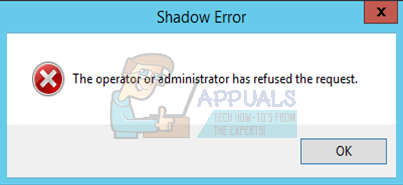
In this article, we’ll see how to fix this error using by either setting the right privileges or additional settings.
Method 1: Setting User Permissions
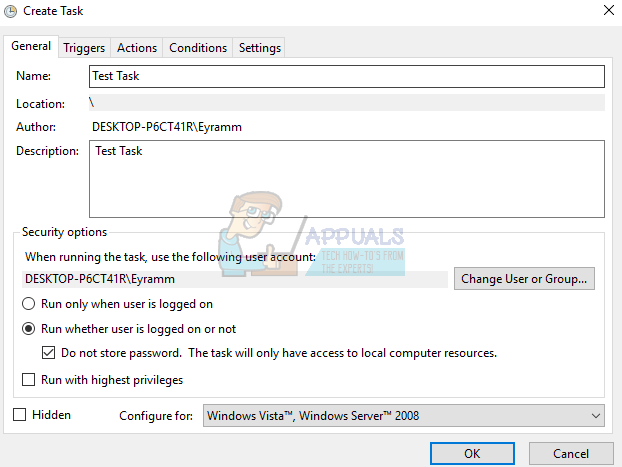
Consider the following tips:
- When creating a task, under the Security options, make sure the right User Account is selected or is spelled correctly. Click on the Change User or Group button to assign the task to the right user or group. Creating a task with an administrator or System user account may not work on a normal users account.
- Enable the option: Run whether the user is logged on or not if you want the task to run at all times.
- When you select the Run with highest privileges option, make the user to which the task runs under has the privileges to run it. For example, if the task is supposed to run application X under user A, and the application requires admin privileges but the user isn’t authorized, this error will occur. Make sure the user is part of the administrators group or the application. You can try the following:
- Right-click on the application and select Properties.
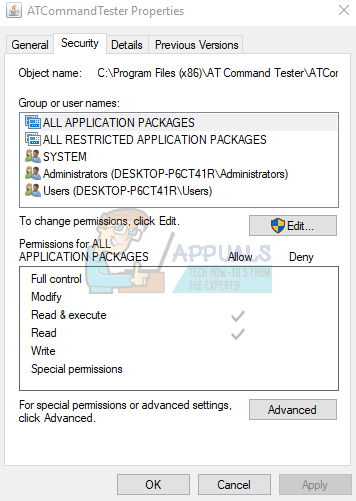
- Select the Security tab and click Edit.
- Under the Permissions, select the user account and check the allowed permissions that apply. If the user isn’t available, click on the Add button and add the user.
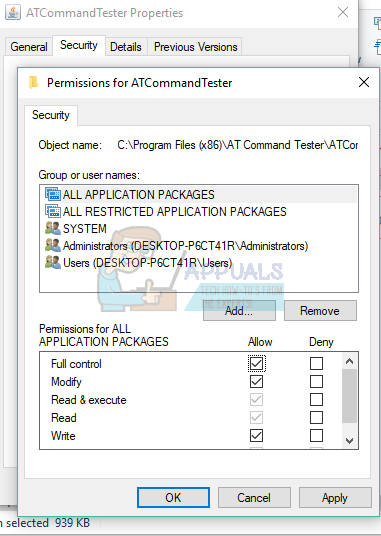
This tip also applies to folders and not just applications.
Method 2: Changing the Power Setting
If you’re using a laptop rather than a server which is always plugged to AC power, you will get this error is your laptop isn’t connected to a power source. To fix this error, you should make sure the right power settings are applied.
- In the new task scheduler window, select the Conditions tab
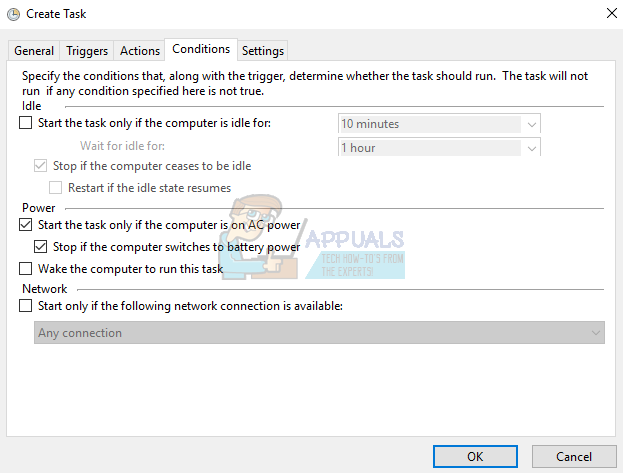
- Under the Power subsection, uncheck Start the task only if the computer is on AC power.

You should check Wake the computer to run this task if you want the task to run when the computer is asleep. This will prevent the error from occurring as a result of the PC being offline.
- Run the schedule again to see the the error ceases.


Thanks.
I get this 0x800710E0 task scheduler error when I playback videos on full screen even if I check “Run with elevated privileges” option in the task options.
Is there a way to fight this?