How to Fix DS4Windows Not Detecting Controller Windows Issue?

When DS4Windows fails to detect a controller, it usually means that the software isnt recognizing the connected device, even though it might be visible in Windows. This error generally occurs due to outdated or conflicting drivers, such as the ViGEmBus driver required by DS4Windows, or issues with Bluetooth connectivity.
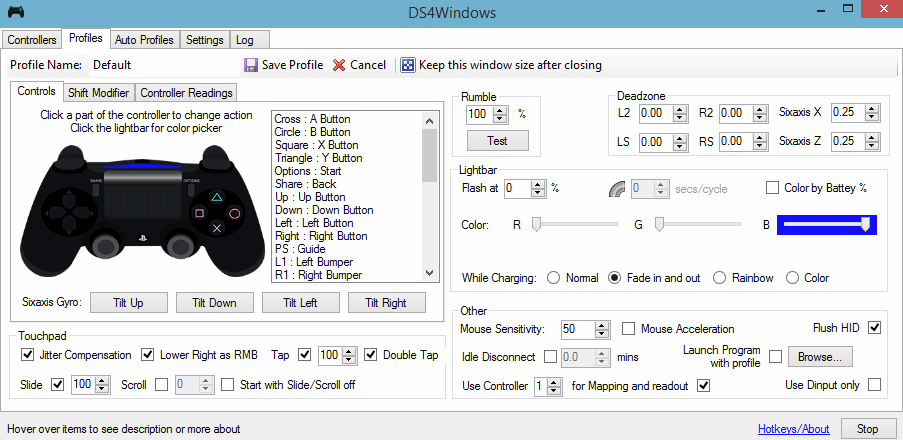
DS4Windows interface

Why Wont DS4Windows Detect the Controller in Windows 10?

There could be several reasons for this problem, which include:

  • Windows 10 Update: The latest update of Windows 10 could restrict the use of DS4 Controllers.
  • Malfunctioning Device Drivers: DS4 controller device drivers might be malfunctioning, which can be resolved by reinstalling the drivers.
  • Controller Disabled by DS4Windows: DS4Windows could accidentally disable the controller from being used in Windows 10.

1. Uninstall and Reconnect DS4 Controller Device

By uninstalling the driver, you remove any potentially corrupt or conflicting settings that might be causing the issue. When you reconnect the DS4 controller after this reset, Windows will attempt to reinstall the drivers as if the device is being connected for the first time.

This can often clear up any problems associated with the controllers inability to connect, essentially allowing for a fresh start in terms of device recognition and functioning.

  1. Close DS4Windows and disconnect your DS4 controller, if not already done.
  2. Press Win + R keys to open the Run dialogue box, type in control panel, and press Enter.
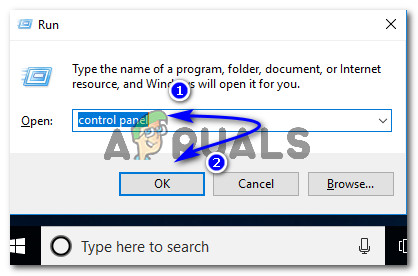
    Accessing the Control Panel using the Run dialogue box
  3. In the Control Panel, click on Hardware and Sound. Now, click on Devices and Printers to view all devices connected to your PC.
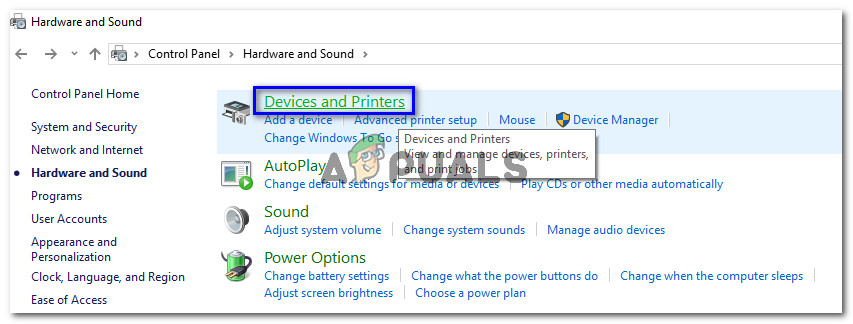
    Devices and Printers connected to PC
  4. Reconnect your DS4 controller to your PC. An icon of a game controller will appear as shown in the image below. Right-click on the icon and select Properties.
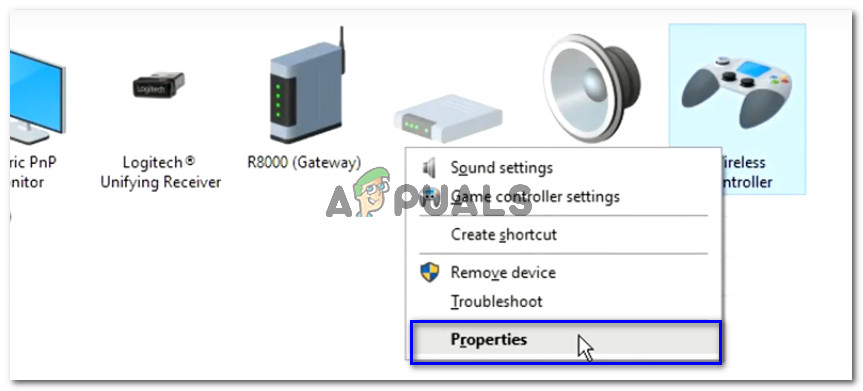
    DS4 Controller Properties
  5. Go to the Hardware tab within your DS4 controller properties and double-click HID-compliant game controller to view its properties.
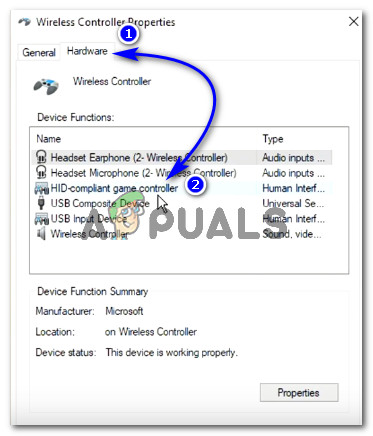
    HID-compliant game controller properties
  6. In the Driver tab, click Uninstall Device to uninstall the game controller. Disconnect it from your PC once completed.
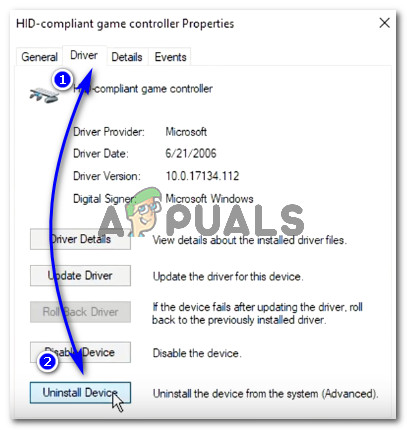
    Uninstalling the DS4 HID-compliant game controller
  7. Re-open DS4Windows on your PC and reconnect your DS4 controller. It should now appear within the Controllers section.
  8.  
  1.  

2. Re-enable DS4 Controller

Some users have experienced this issue during gameplay, i.e., the DS4 controller stops working and becomes disabled automatically. By going into the Device Manager and re-enabling the DS4 controller, you are basically making the device visible and active again, allowing DS4Windows to recognize the controller and re-establish the necessary communication for gameplay.

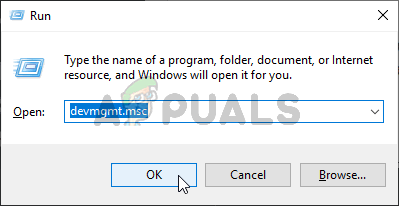
  1. Press Win + R to open the Run dialogue box, type devmgmt.msc, and press Enter.
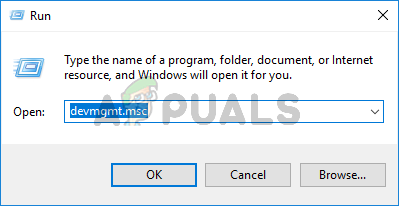
    Opening Device Manager
  2. Expand the Human Interface Devices category and double-click on HID-compliant game controller.
  3. Enable the controller to have it detected by DS4Windows.

3. Uninstall Windows Update

When you uninstall a recent Windows update, you are basically reverting your computer’s operating system to an earlier state. This may remove any new changes that could be conflicting with DS4Windows and its ability to detect your controller. By rolling back these updates, you’re eliminating any new variables that might be causing the connectivity troubles, potentially restoring your setup to its previously functional configuration.

  1. Press Windows + I to open Settings.
  2. In Settings, click on Update & Security.
  3. From the left pane, select Windows Update and click on View installed update history.
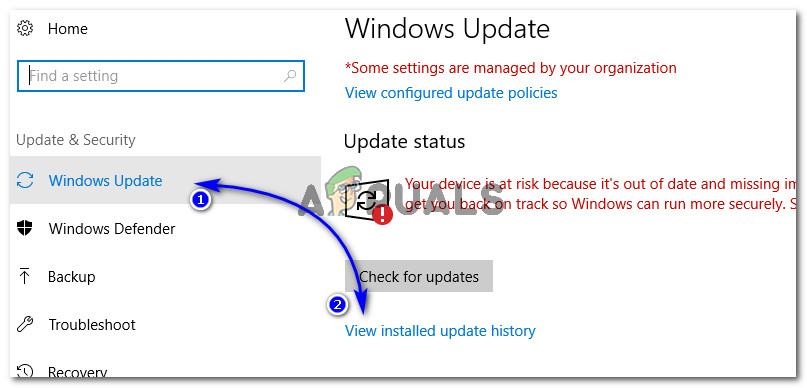
    Installed update history in Windows 10 Settings
  4. Next, click on Uninstall updates. Wait for the installed updates list to populate.
  5. Organize the list to show the most recent updates first. Select the problematic update, click Uninstall, and follow the uninstallation wizard. Restart your computer afterward.

4. Uninstall Driver and Set DS4Windows Up

By removing the existing driver, you allow Windows to reinstall a fresh driver upon reconnection. This renewal can often clear any configuration issues or corrupt files that were causing the device to malfunction. After the fresh installation of drivers, setting up DS4Windows makes sure that the controller is configured correctly and recognized properly by your system for optimal performance.

  1. Navigate to this link and download the Remote Play App for your PC.
  2. If the controller still doesn’t work, press Windows + R, type devmgmt.msc, and press Enter.
    Opening Device Manager
  3. Look for a Lib32 Wireless Driver in Device Manager.
  4. Right-click on it and select Uninstall Device.
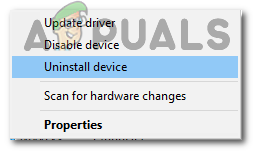
    Uninstalling the device
  5. Reconnect the controller to the PC using a USB cable and allow Windows to install the drivers.
  6. Test if the Remote Play App works now. Its functionality could be limited.
  7. Disconnect your controller and download DS4Windows.
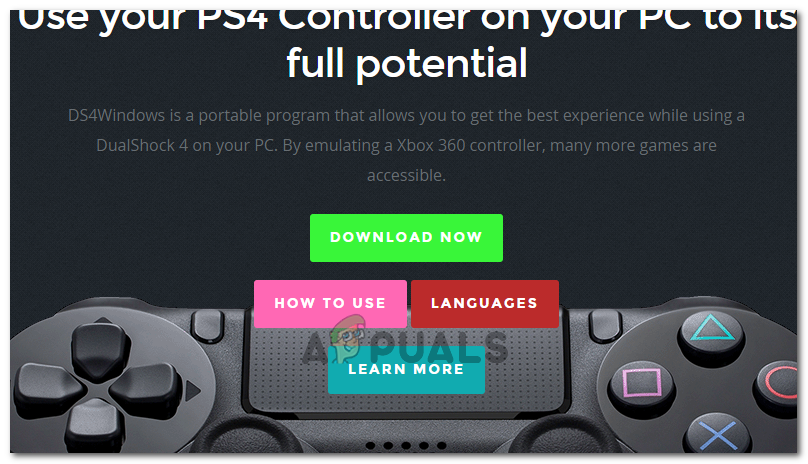
    Downloading DS4Windows
  8. Set up DS4Windows using the provided instructions.
  9. Reconnect the controller and verify if it is recognized.
  10. Select the Hide DS4 option.
    Note: Uncheck the Swipe touchpad to change profile option and check if the issue persists.

5. Scan for Hardware Changes

Scan for hardware changes prompts Windows to re-evaluate all connected hardware devices. This re-evaluation forces the operating system to detect any previously unrecognized connected hardware, such as your DS4 controller, potentially resolving any connection issues that came from drivers that were not properly recognized or installed during initial connection.

  1. Press Windows + R keys to open the Run prompt.
  2. Type in devmgmt.msc and press Enter.
    Launching Device Manager
  3. Click the Scan for hardware changes button.
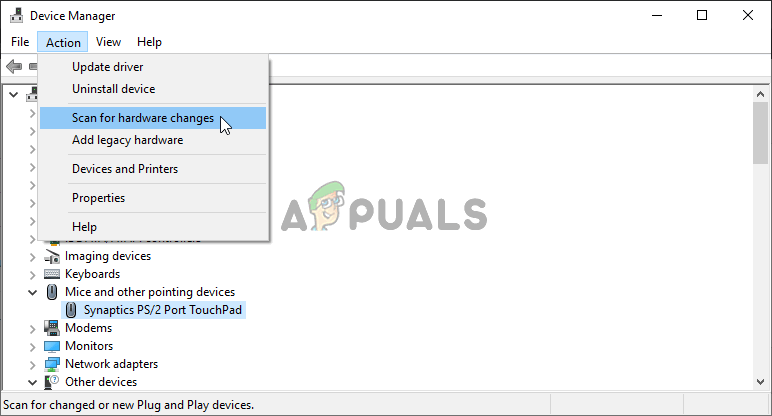
    Initiating a scan for hardware changes
  4. Check to see if the issue has been resolved.
ABOUT THE AUTHOR

Kevin Arrows


Kevin Arrows is a highly experienced and knowledgeable technology specialist with over a decade of industry experience. He holds a Microsoft Certified Technology Specialist (MCTS) certification and has a deep passion for staying up-to-date on the latest tech developments. Kevin has written extensively on a wide range of tech-related topics, showcasing his expertise and knowledge in areas such as software development, cybersecurity, and cloud computing. His contributions to the tech field have been widely recognized and respected by his peers, and he is highly regarded for his ability to explain complex technical concepts in a clear and concise manner.

Comments

32
    DA
    davidvian Mar 27, 2020

    tried all solutions, still doesnt work

      SW
      Shane Warren Author Mar 28, 2020

      In Human Interface Devices, also enable the USB input devices and try to update driver for them by right-clicking.

      FH
      fellow human May 11, 2020

      I was having same issues, trying for hours.

      What worked for me was that I went to Device manager and then right clicked and slected ‘ scan for hardware changes’ and bang controller started working.

      Reply
        SW
        Shane Warren Author May 17, 2020

        Thank you for sharing, it has been added to the article.

    CH
    christopherkreschollek May 18, 2020

    The controller works, but it doesn’t get recognized in DS4.

      SW
      Shane Warren Author May 22, 2020

      Have you tried these methods?

        CH
        christopherkreschollek May 22, 2020

        everything except uninstalling a windows update

          SW
          Shane Warren Author May 27, 2020

          Try doing that aswell, that might be the fix for you

        CH
        christopherkreschollek May 23, 2020

        The bluetooth driver works Steam but the software is a lost cause.

      NQ
      Nazriel El Qodri Aug 4, 2022

      Same, works on steam but not found on ds4

    DH
    David Homoki Jun 18, 2020

    Worked beautifully. Turns out my computer disabled the controller. Enabled it and my controller was immediately found. Thanks for the help!

    TA
    Tatooin Aug 3, 2020

    thanks it helped me fix my controller <3

    RA
    RAUL Aug 27, 2020

    not working

      SW
      Shane Warren Author Aug 27, 2020

      Try connecting the controller to another console and check if it works. This can also occur due to a physical issue with the controller

    PI
    Pingey Oct 16, 2020

    well but the controller works fine on the games that support ps4 controllers but those who dont i wont get to play them with a controller because ds4 isnt working for me

      MZ
      Muhammad Zubyan Author Oct 16, 2020

      Have you tried using alternatives to DS4Windows? like InputMapper? But let me make it clear first InputMapper is a bit slower and sluggish compared to DS4Windows. Also, I suggest you turn on exclusive mode on DS4Windows if you haven’t already it might fix the problem you are having.

        PI
        Pingey Oct 17, 2020

        thanks it worked

    ET
    Eric Torres Feb 16, 2021

    none of this works for me, the annoying thing is the controller is recognized when using steam games but when i try to use it for PSNow (the reason i got it in the 1st place) it isnt recognized, and ds4 doesnt recognize it either, however my XBox controller NP except fucking PS games want to use the midle expression button and this isn’t on the xbox controller

    VA
    Vader2018 Mar 31, 2021

    For me, all of these suggestions did not work. I also tried changing the registry under HIDGuardian Paramaters and adding an entry that made the USB Ports not disable to USB ports when a device has been disconnected. That didn’t do anything. I have tried connecting all of my PS4 Controllers to my PS4, which they all work fine, before and after I reset them via my PS4 and via the Reset Button on the controllers. I have also tried using InputMapper, which it cannot detect my PS4 controllers because Windows 10 does not detect them and neither does DS4. I also regularly use all of my PS4 controllers on my Laptop and they all work fine with absolutely not problems. I have also connected my Steam Controller and it detects it and runs fine with Steam.

    I am seriously stumped on what the problem is with this. These worked fine about 1 month ago and now, they all will not work on this Windows 10 PC.

      MZ
      Muhammad Zubyan Author Mar 31, 2021

      I suggest you turn on exclusive mode on DS4Windows if you haven’t already it might fix the problem you are having.

    K
    k Apr 1, 2021

    does’t work still 🙁

      MZ
      Muhammad Zubyan Author Apr 1, 2021

      I suggest you turn on exclusive mode on DS4Windows if you haven’t already it might fix the problem you are having.

    IA
    Islam Assem Jun 27, 2021

    It happened after I restarted laptop after installing xbox so uninstailling xbox and restart fix the problem

    Reply
    PD
    Paul Duggan Jul 15, 2021

    This helped me. Thank you.

    SL
    Sufi Levy Oct 12, 2021

    If this does not solve your problem, try switching to other micro-USB cable. There are cables that can transfer only power, and cables that can transfer both power and data.

    Reply
    EL
    Eevertti Leipälä Nov 7, 2021

    Thank you. The 1st solution worked perfectly. I had had a problem where my primary ds4 controller did not show up on ds4windows but my secondary controller did, but now they both work fine!

    MC
    MadDog Cabal Nov 10, 2021

    After doing the first fix, removing the “Wireless Controller” itself in Control Panel, and then re-connecting the controller and repeating the first step, it started working for me again. Thank you for this article. It’s still helping people years later.

    Reply
    ST
    stobeboy Dec 1, 2021

    Thank you. The first solution worked perfectly: all I had to do was uninstall and re-connect controller.

    JS
    Jason Stoessel Jan 21, 2022

    I am going insane with this. Nothing is working for me please can someone help me out I have tried literally everything possible. My PS4 dualshock controller used to connect automatically by USB without an issue ever and now nothing is possible to make this controller even work with ANY of my games I want to play with it. Any help towards this will be much appreciated. Currently I cannot understand why none of this is successful for me but is for everybody else

      MZ
      Muhammad Zubyan Author Jan 27, 2022

      Have you tried re-installing the Windows?

      PM
      Patrik Marek Dec 7, 2022

      have you tried different cable ? Some cables dont’ work. I was accidentaly using a different cable and I couldn’t connect either of my controlllers, I switched to my old cable and it was found right away

    AD
    Andrei Despinoiu Jun 6, 2022

    Here’s what worked for me, using the official Bluetooth adapter because I also wanted sound through the 3.5mm jack:
    – Let the controller charge for a few minutes just in case it’s completely dead.
    – Reset the controller (which was probably unnecessary) using a bent paperclip (or, in my case, a SIM removal “key”) held in the small pin hole on the bottom next to L2 trigger for 10 seconds.
    – Hold both the PS button and SHARE button at the same time until the controller light blinks in short bursts. Make sure the controller is turned off (hold the PS button for 10 seconds to turn it off).
    – While it blinks in short bursts, double “tap” (and by “tap” I mean press on it, perpendicular to the surface of the USB panel) the USB dongle and hold for a few seconds on the second tap until the controller light no longer blinks.
    – Click the “Stop” button in DS4Windows and click “Start”.

    You’ll see the ID show up instead of the dreaded “00:00:00:00:00:0”, with a correct battery percentage. I don’t remember if I connected a USB cable or not. This process is called pairing. You’ll have to do it again if you want to use it with a different device (i.e. a PS4 or another Bluetooth adapter). Good luck!

    Reply