How to Fix “com.process.systemui has stopped” Error?

The com.process.systemui has stopped error can come from various causes, such as a faulty custom ROM installation, a deleted OS file, or a problematic third-party app—often the latter. There have been reports of issues with the Firefox app causing this error.
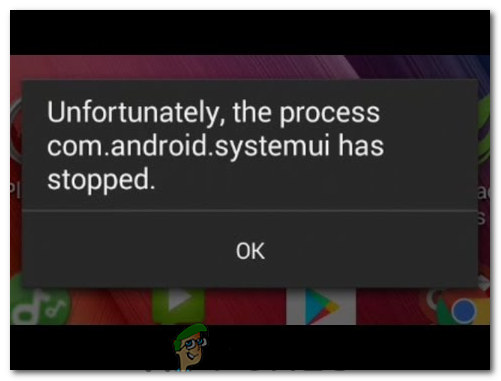
One of the most widespread issues affecting the Android Operating System is the com.android.systemui has stopped error. This error results in the entire User Interface of a device becoming unresponsive, sometimes lasting up to an hour.

Below are the most effective methods to troubleshoot and resolve this problem:

1. Download and Run CM Security

By installing and running CM Security—a well-known antivirus and anti-malware application—you effectively scan your Android device for potential threats. The app’s ability to identify and eliminate these threats can, in turn, restore smooth functionality to your Android system interface, thus potentially resolving the error in question.

  1. Head to the Play Store and search for CM Security.
  2. Install the CM Security app and open it.
  3. Conduct a scan, which should fix the problem.

2. Wipe the Device’s Cache Partition

This process removes temporary files that pile-up over time, which can sometimes cause operational issues and errors. By cleansing the cache, we encourage the device to rebuild and refresh these files, potentially resolving the error and improving overall performance.

  1. Power off the device.
  2. Boot the device into Recovery Mode by pressing and holding the Power, Volume Up, and Home buttons simultaneously.
  3. Once in Recovery Mode, use the Volume Rocker to navigate to the ‘Wipe Cache Partition‘ option.
  4. Confirm the selection by pressing the Power Button.
  5. Once the cache is wiped, reboot the device.

3. Eliminate Any Third-Party Apps That Might Be Responsible

Firstly, verify if the com.android.systemui has stopped error is due to a third-party app by booting the device into Safe Mode and using it for a while to ensure the error doesn’t reoccur.

Examine the apps on your device to pinpoint the one that caused the issue, typically the one installed just before the problem arose.

Remove any apps you find suspect, then exit Safe Mode. If you suspect multiple apps, reinstall them one at a time to identify the actual cause.

4. Reinstall or Change the Device’s ROM (For Rooted Users)

Rooted devices offer the freedom to tweak the system extensively, and a custom ROM installation requires a precise process to ensure smooth operation. However, if the data and cache partition weren’t thoroughly wiped during this customization, it can lead to instability and errors, including the com.android.systemui has stopped message.

By re-flashing the ROM—which means reinstalling it—or choosing a different, perhaps more stable ROM and executing a clean wipe of the data and cache partitions, you’re basically giving your device a fresh start. This can eliminate remaining system conflicts or corrupted files that might be causing the interface to crash.

Remember, this process should be approached with caution and is usually recommended for more experienced users familiar with the variation of Android’s underlying framework.

5. Uninstall Google Updates

Sometimes, recent updates to Google apps may have compatibility issues with your current operating system, which can lead to unforeseen errors. By removing these updates, you basically revert the apps to a previous state that may be more in sync with your Android version, thus potentially eliminating the source of the error. It’s a simple process that could restore stability without drastic measures.

  1. Swipe down the notification panel and tap on Settings.
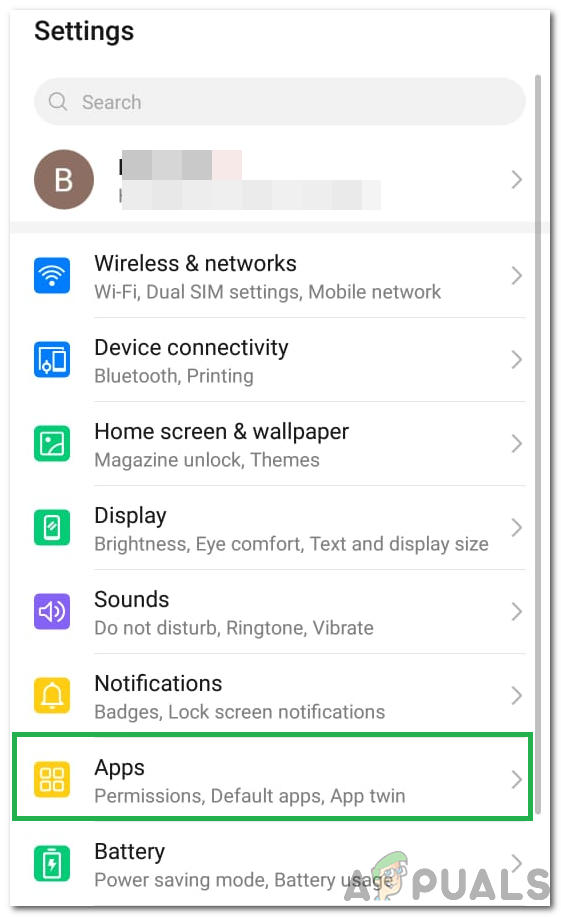
  2. Under Settings, click on Applications and then select Apps.
  3. Tap on the Three Dots at the top right and select Show System Apps.
  4. Find and tap Google App.
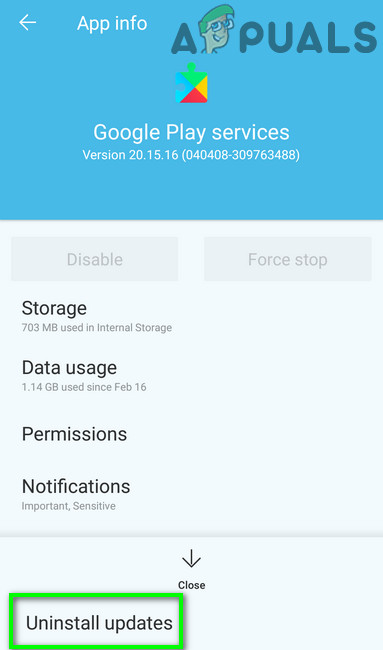
  5. Select Uninstall Updates to remove all installed updates for the Google App.
  6. Follow any prompts, then check if the error persists after the uninstallation.

6. Clearing Cache/Data

This simple yet powerful action clears temporary data that can slow down your device’s performance. When you clear the cache, you give your phone a fresh start, removing any temporary files that may have become corrupted and are causing the error. It’s like giving your phone a mini detox; it can breathe easier and operate more efficiently without the baggage of unnecessary data.

  1. Access Settings from your home screen.
  2. Select Applications followed by Apps to open the app management panel.
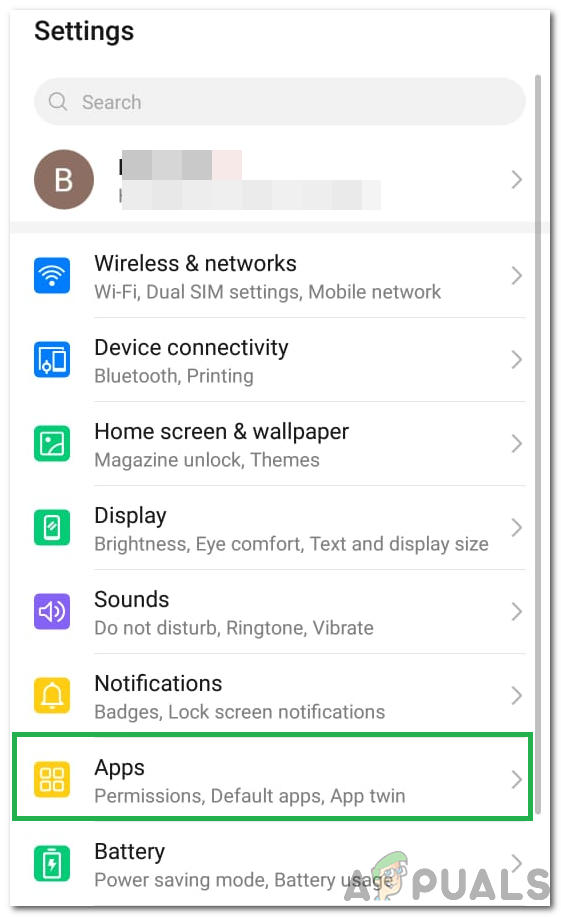
  3. Tap on Three Dots at the top right and choose Show System Apps.
  4. Select Google Play Store.
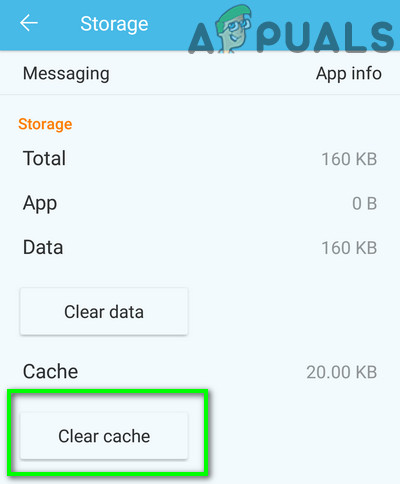
  5. Click Storage then Clear Cache.
    Tap on Clear Cache
  6. Wait, then tap on Clear Data.
  7. Confirm prompts, and check if the issue is resolved.

7. Disabling Auto-Updates

Taking control of when your apps update is a strategic move to maintain stability on your Android device. Disabling auto-updates prevents the automatic installation of new versions that could introduce bugs or incompatibilities with your current system UI.

By managing updates manually, you can wait to see if any issues are reported with the latest versions before committing to the change, effectively reducing the likelihood of encountering the error.

  1. Launch Google Play Store from your home screen or app drawer.
  2. Tap on the Menu and select Settings.
  3. Under Settings, tap on Auto-Update Apps.
    Selecting Do not auto-update apps
  4. Choose Do not auto-update apps and confirm with OK.
  5. Verify if this resolves the issue.

8. Disable Auto-Start Management

When certain apps automatically initiate upon startup, they may interfere with essential system processes. By disabling Auto-Start Management, you prevent these apps from launching by themselves, thus reducing potential conflicts that might lead to the error.

This action allows you to rule out interference from auto-starting applications, creating a more stable environment for your device’s system user interface to operate.

  1. Swipe down from the top to access the notification panel and tap on settings.
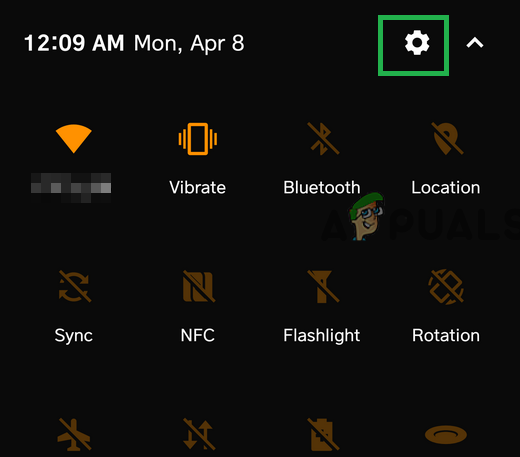
    Accessing settings from the notifications panel
  2. Scroll to Security and tap Auto-start Management.
  3. Unmark the checkboxes for all listed apps and save your changes.
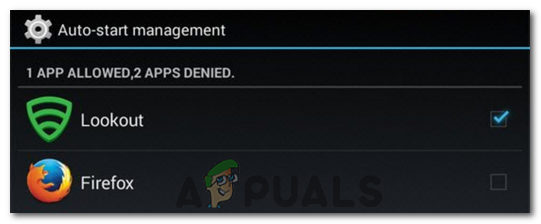
    Adjusting Auto-start permissions
  4. Check if the issue is resolved after these changes.

9. Clearing the System Interface Cache

This specialized cache holds temporary data that optimizes the performance and responsiveness of UI elements. Over time, however, it can accumulate corrupted files, leading to errors such as the “com.android.systemui has stopped” error. By clearing this cache, you’re essentially giving the system interface a clean slate to rebuild its temporary data from scratch, which often eliminates glitches and restores normal operation.

  1. Go to Settings on your home screen.
  2. Tap Applications and then Apps.
    Accessing the Applications option
  3. Select Three Dots at the top right and Show System Apps.
  4. Choose System Interface and then Storage.
  5. Tap on Clear Cache and Clear Data.
    Clearing Cache
  6. Check if the error is resolved post-clearance.

10. Allowing System UI to Draw on Top

Granting the System UI permission to display over other apps is like giving it a VIP pass to operate smoothly across your device. By enabling this feature, you make sure that the System UI can properly render notifications, status bars, and other elements on top of active applications, which can resolve errors associated with interface disruptions. It’s a quick toggle that can restore order to your smartphone’s visual experience.

  1. Select Settings from your screen.
  2. Tap on Applications and Application Manager.
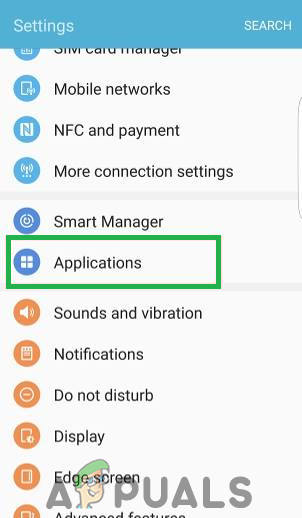
    Opening Settings and tapping Applications option
  3. Hit the Three Dots at the top right, and select Apps That Can Appear on Top.
  4. Click on System UI and enable the permission.
  5. Confirm that this resolutions the issue.

Workarounds:

  • Install an alternative launcher from the Play Store, like Nova Launcher.
  • Consider a factory reset for your device if all else fails.
ABOUT THE AUTHOR

Kevin Arrows


Kevin Arrows is a highly experienced and knowledgeable technology specialist with over a decade of industry experience. He holds a Microsoft Certified Technology Specialist (MCTS) certification and has a deep passion for staying up-to-date on the latest tech developments. Kevin has written extensively on a wide range of tech-related topics, showcasing his expertise and knowledge in areas such as software development, cybersecurity, and cloud computing. His contributions to the tech field have been widely recognized and respected by his peers, and he is highly regarded for his ability to explain complex technical concepts in a clear and concise manner.

Comments

80
    VV
    Vivek Vaishya Nov 7, 2015

    I just rooted my tablet swipe 3d life plus. Just to change its notification bar and buttons theme, i replaced its systemui.apk file to another sytemui.apk file i have downloaded from the internet. After five seconds of replacing that apk, the error ” systemui has stopped working” came. And again and again it is showing the same error. I tried to factory restore the and wipe the cache and data, but still it is not working. I flashed an new ROM but then also nothing happened.

      ST
      sterrett Apr 28, 2016

      did the same thing bud

    KE
    kevin Jan 17, 2016

    bro i wipe and clear cache again and again i t doesn’t work please help me

    DA
    David A Mar 8, 2016

    I got this error, but the tablet does not let me do anything, can not go into recovery mode, do not give me access to the menu to make hard reset, turns on and the error appears and does not pass the same

      KA
      K. Arrows Author Mar 9, 2016

      Try uninstalling the latest updates.

      DD
      danial d Jan 6, 2017

      @David A i have the same problem like yours

    JJ
    Jakub Jabłoński Apr 25, 2016

    Mobile firefox caused this problem on my phone.

      BR
      Bruno Apr 29, 2016

      The same was for me. firefox app, thanks a lot for your post!!!!

    BW
    Bern White May 27, 2016

    My phone was rooted and I did the factory reset. Now, the “com.android.systemui has stopped” keeps coming every single second. Can’t get rid of it, what can I do? Please help.

    JE
    Jess Jan 16, 2017

    I need help this only pops up when I double press the home button and it wonto stop it’s really bothering me

      AP
      April Jan 21, 2017

      That happens to me too. Whenever I press and hold the home button, this error appears. Have you found a solution for this?

        FE
        Felix Jan 22, 2017

        I just fix this Isuse with CM security. Thank you.

          PL
          plutobear Jan 23, 2017

          CM Security not needed. Go to Application Manager and remove (uninstall updates) of Google App. Walla…problem fixed. Also stop “Automatic Updates) in the Google Play Store! CM Security is a temporary fix that is not necessary. If you uninstall it, the problem will return. Just remove this bad Google App!

          ლქ
          ლევან ქორიძე Jan 27, 2017

          thanks very much:)
          it was useful for me

        PL
        plutobear Jan 23, 2017

        See my post for resolution!

    MM
    Maggie M Jan 18, 2017

    OMG, it’s finally gone. I tried with the first suggestion and it didn’t work. So I went to my “Clean Master” app to scan for a virus, my Samsung was exposed so it suggested I download ‘CM Security’ and I kid you not it works. My phone is back to normal, try it, it actually worked for me.

    Reply
      OL
      Oliver Jan 21, 2017

      You are a saint. It’s almost 5 in the morning, but everything is back to normal, thank you.

        SN
        Stefan Novakovic Jan 21, 2017

        It did worked actually, Installed CM Security, Started Scan with Antivirus and it found 5 threats cleaned and Surprisingly Error wasn’t showing up anymore! Thank you!

          OM
          Oliver Mister Jan 27, 2017

          after I uninstall CM security the same problem occurs again. if CM security is ONLY installed problem is solved… 🙁

          SN
          Stefan Novakovic Jan 28, 2017

          Same for me too, i removed Google Search and problem is gone, everyone said it is prob with Google Search Last update. So just Uninstall it and Disable it and Problem is Gone 🙂

          NP
          Nilesh P Jan 30, 2017

          Uninstalled google app updates to bring it to factory settings & it worked. Thanks for the fix.

      AG
      Anmol K Grover Jan 21, 2017

      thanks man
      downloaded ‘CM security’
      did a scan and resolved issues and it works

      should try this once
      thanks man

      GM
      Ganesh Murthy Jan 21, 2017

      I had the same problem and tried various steps suggested. Nothing worked. Finally I adopted ur advice of cleaning for virus. Yes the problem vanished. It is true that sometimes when android infected with virus this error gets displayed. Thank you for ur advice. Friends you may try this to resolve ur problem too.

      EM
      Em Feb 1, 2017

      Thank you! This worked like a charm!

    ST
    Steven Jan 21, 2017

    The “com.android.systemui has stopped working” message keeps popping up on my phone whenever I try to fully close an app (holding the home button). All the sites say that the problem is with an app I installed or an update on my phone, but I haven’t downloaded any apps or updated my phone. What do I do?

      PL
      plutobear Jan 22, 2017

      You don’t need CM Security. The problem is with the latest Google App update. Go into Application Manager and uninstall the Google App update. This will get rid of it and revert back to the factory one. Clearing the cache will not help. My problem started yesterday on my Galaxy S3 and my Tablet 2 10.1. Anyway, this should resolve your issue.

      Reply
        BS
        Ben Steele Jan 22, 2017

        Saved my day Thanks

          KV
          KVK Jan 24, 2017

          This worked for me as well…Uninstalled and disabled Google app and Mobile is working fine

        J
        Johnny C. Jan 22, 2017

        Yes, this fixed it. Thanks Plutobear!
        After uninstalling Google Apps updates, all went back to normal.

        PL
        plutobear Jan 23, 2017

        In addition, I recommend going to Google Play Store, go to Settings (3 horizontal lines on the top left corner) and uncheck “Automatic Updates!” Google Play Store will continue to install this Google App on your device. After I removed it on my table last Saturday, yesterday it reinstalled itself. I have subsequently removed “Automatic Updates” for my devices. Interesting to note, in the last several months on my S3, when I did a Google search, I lost the audio sound; I only had vibration. By removing this Google App and reverting back to factory settings, the audio is back. Bottom line, this Google App is not good for a lot of devices.

        DJ
        Danny Johnson Jan 23, 2017

        I never login to website to comment, but wanted to say THANK YOU. After fighting with it for 3 days I was ready to get a new phone (S3 is on its last legs anyway). I uninstalled Google App Update and everything functions as it should.. Thanks.

        PL
        plutobear Jan 23, 2017

        You also should log on to Google Play and in Settings stop Automatic Updates! If not, Google Play will reinstall the Google App and the problem will return.

        Reply
        KJ
        KJcloud Jan 23, 2017

        Thanks, this fixed it on my wife’s S3
        Got rid of CM ages ago on my wife’s S3 as it was a resource hog. It’s fine on my Moto G though. Anyway not needed as you note.

        MG
        Maxim Grechikhin Jan 24, 2017

        Oh yes! It was most useful advice!

        OM
        Oliver Mister Jan 27, 2017

        YES it WORKS

        PE
        Peter Feb 1, 2017

        worked beautifully, no installation of additional antivirus program or resetting and testing all extra applications. Would be nice if Google would send out a notice.

    HO
    Hornacek Jan 21, 2017

    Method #1 worked – thank you!

    GG
    Gio Gio Jan 21, 2017

    Great !!!!! I have installed CM Security run it twice re-start the mobile and issued disappeared!!

    MI
    Mitss Jan 21, 2017

    I spent my whole day trying to figure this out..the “ui system has stopped” error.

    CM Security antivirus did it! Finally! Thank you so much Kevin!

    YB
    ybc Jan 21, 2017

    Its great and excellent ‘CM security’ made up day getting rid of those annoying popups…wpnderful job guys…kudos

    AD
    Admirateur Jan 21, 2017

    I’m speechless, installed CM security and fiddled with it and bam, no more systemUI stupid error. Bye Bye avast, hello CM security.

    MI
    Michal8 Jan 21, 2017

    Thank you! CM Security seems to have done the job!

    AN
    AnthonyU Jan 21, 2017

    You’re right! Downloaded CM Security and it was gone in a minute.

    DK
    Dip Kotak Jan 21, 2017

    Thanks, worked out very well. I downloaded CM Security app and it repaired the problem.

    NI
    Nilgen1 Jan 22, 2017

    CM Security worked good as gold whilst all the other suggestions on the WWW failed

    CH
    charlene Jan 22, 2017

    Kevin..Your an Angel..thank you !!! fixed er right up :O)…YaaaY

    AM
    aByEaZ MaNsIb Jan 22, 2017

    thx man.i used 1st method and it worked.

    JA
    John Andrei Jan 22, 2017

    Thank you so much I could rest now been searching for solution for about an hour CM security works the best

    HC
    HighlandHills Chihuahuas Cecil Jan 22, 2017

    me too worked for me as well installed Clean Master ran and then CM Security and ran and my issue is solved thanks for the info!

    TT
    Tea Time Jan 22, 2017

    THANK YOU SO MUCH!!! I can’t thank you enough for helping me fix my phone. BLESS YOUR EXISTENCE.

    CO
    colinire Jan 22, 2017

    Yes CM Security worked a treat. Thanks.

    GP
    Gregory Phillips Jan 22, 2017

    I was having the very same issue with my note 2 and CM security scanned and fixed the problem. Folks it really does work.

    RA
    Ranjana Jan 23, 2017

    Thank you so much. CM Security worked like a charm.

    AG
    Adeboye Grillo Jan 23, 2017

    CM security worked like magic after I installed it and scanned for threats and issues

    KK
    kol Kras Jan 23, 2017

    cm security realy helped , thank you so much .

    RO
    Ro718 Jan 23, 2017

    Thanks CM Security worked for me

    AS
    Asfandyar Jan 23, 2017

    CM Security did the job for me. Thanks a bunch!!!

    UT
    Ujwal Teja Jan 23, 2017

    Thank you SO Much Mr Kevin. It worked. i Mean the CM Security. I am pleased with ur suggestion. Thanks a lot.

    GA
    Gail Jan 24, 2017

    Thanks a million! It worked!

    BU
    Bogdan Ungureanu Jan 24, 2017

    In my case, the “com.android.systemui has stopped” error was caused by the latest Google app update a few days ago.

    https://play.google.com/store/apps/details?id=com.google.android.googlequicksearchbox

    I uninstalled it (aka reverted to base version, since my phone isn’t rooted and can’t fully uninstall it) and now the error is gone. I have a Samsung Galaxy S4 with Android 4.4.2.

    Reply
    UK
    Utsav Kaushal Jan 24, 2017

    Hi Kevin,

    I am using Micromax Android One device and am getting the ‘System UI has stopped’ error. I have tried cleaning the cache and factory reset from recover mode.
    But am still getting the same error. the problem is that I am not able to perform any action on phone due to this error.

    My device is currently on Android 6.0.
    Please suggest

      NH
      Nick Hall Feb 26, 2017

      K did u fix this mine is the same way

    CA
    Caroline Jan 25, 2017

    Thank you!! I’m not “techy” and started to panic. Your suggestions (#1 – CM Security) worked – and it was quick! Everything is back to normal. Many, many thanks.
    – Caroline

    CR
    Colin Ryan Jan 25, 2017

    CM Security has worked first time for me. Thank you very much!

    SH
    shiroi Jan 25, 2017

    oh thank God !! thank you so much !!
    that ‘CM Security’ works so well

    BP
    Blaise Pereira Jan 25, 2017

    ‘CM Security’ did it for me too… thanks

    LS
    Lucy Smith Jan 27, 2017

    The “com.android.systemui has stopped” error was caused by the latest Google app update a few days ago.

    I uninstalled it and now the error is gone. I have a Samsung Galaxy S4 mini with Android 4.4.2.

      PE
      Peter Feb 5, 2017

      Thanks Lucy, It was the google app update. Deleted the latest update and everything works perfect.

    AD
    Ana D Jan 27, 2017

    Worked!!!! 🙂 thank you for recommending 🙂

    RS
    RK Shaboom Jan 27, 2017

    Soooo….CM Security worked for me too but WTF? Kinda weird that this one app resolves this issue.

    PA
    Paula Jan 28, 2017

    CM security fixed it for me and it was free.

    KL
    Klara Jan 29, 2017

    Thank you, thank you, thank you. First I did the factory reset and it worked for a minute, but when my apps were installed, it stopped working again. So I downloaded and run the CM Security, as you suggested, and the problem was fixed. I only wish I did this before the reset. So thanks again.

    EL
    ElemC Jan 30, 2017

    CM security cured the problem and running through some of its options seems to have improved my phones peformance. Thank you for the advice.

    MP
    Mike Pantaleo Jan 31, 2017

    Loading CM Security did the job. Thank you! Note and Android 4.4.2.

    S
    Suradet C. Feb 2, 2017

    Thank you. My problem has gone with Method 1: Download and Run CM Security.

    2S
    2sen Feb 2, 2017

    Fantastic! CM Security did it for me too. What a neat little app. Thanks for sharing.

    PL
    plutobear Feb 3, 2017

    You are all wasting your time with CM Security. I posted a fix last month but I don’t see it in this thread. Go into Application Manager and unistall the Google App. It has a bug in it causing the aforementioned error message. Also go onto Play Store/Settings and stop Automatic Updates…if not,your problem will return.

    Reply
    AS
    aman singh Apr 2, 2017

    i cannot download any thing. nither wipe catche is working…please help what to do…

    AR
    Ajayendra Raftaar Apr 25, 2017

    plzz sugggest me guys…….my phone is getting continously error
    it is not giving chance to go anywhere and i did reset 3 times and 3 times recoverd too but……nothing happened help me out guys please

    CB
    Clover Batz Oct 27, 2017

    my phone is already rooted..but it actually popin-up the “System UI has stopped” every single second and wont stop…What should I do? My phone is Huawei..
    help me please