Fix: Blue Screen due to APC Index Mismatch
Some users have reported frequent BSOD crashes that point towards APC Index Mismatch as the main culprit. Most affected users report that the BSOD crashes occur for no apparent reason. Most of the time, BSOD a crash that points towards the APC index mismatch in the dump file is regarded as a hardware issue, but that’s not always the case.
A lot of software (drivers and third-party applications) might contribute to a BSOD crash caused APC Index Mismatch. A fairly common trigger of the APC Index Mismatch BSOD is when users are trying to use a webcam with Skype. Other users report that they usually get BSOD APC Index Mismatch crashes when playing video games or performing another resource demanding activity.
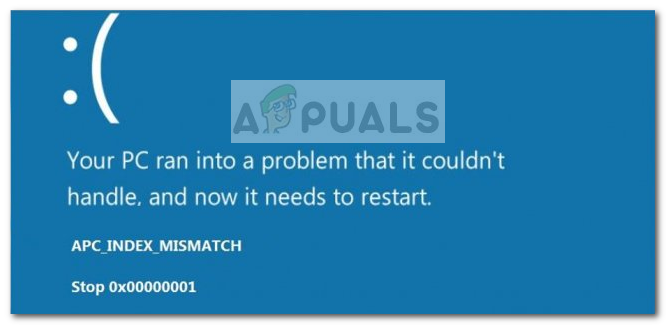
APC is an acronym for Asynchronous Procedure Call – a function that is designed to run outside and separately from the main program when certain circumstances are met. This is why BSOD crashes pointing towards the APC Index Mismatch as the culprit will only occur after or during the boot process.
The error APC Index Mismatch is generally an indicator that there is an inconsistency in the number of processes that entered an area of operations where the program is running and the number of processes that left. The error APC Index Mismatch is essentially the operating system telling you that no software can run without risk of damaging the system – hence the BSOD (Blue Screen of Death) crash.
If you’re currently struggling with regular APC Index Mismatch BSOD crashes, the following fixes might help. Below you have a collection of methods that other users in a similar situation have used to resolve the issue on their side. Please follow each method in order until you encounter a fix that is effective for your particular situation. Let’s begin
Method 1: Update to the latest Windows 10 version
If your system crashes with the APC Index Mismatch BSOD while using your webcam through Skype on Windows 10, the fix is extremely easy. You’ll just need to apply all Windows update that is currently pending.
Initially, the APC Index Mismatch error associated with Skype was produced by an internal bug introduced with a Windows update. Luckily, the glitch was promptly fixed – first by a Fast Ring build and since the beginning of 2018 by a standard Windows Update.
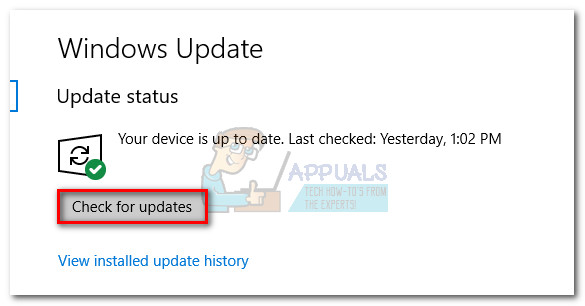
To update your Windows 10 OS to the latest version, open a Run box by pressing Windows key + R. Then, type “ms-settings:windowsupdate” and hit Enter to open the Windows Update screen. Finally, click on Check for updates and follow the screen prompts to install all pending updates. Depending on how many pending updates you have, your PC might restart on several occasions.
Method 2: Install a newer version of Realtek High Definition
Apparently, the APC Index Mismatch can be caused by an outdated or corrupted Realtek High Definition Audio Function Driver. Some users finding themselves in a similar situation have managed to prevent the BSOD APC Index Mismatch crashes from occurring again by reinstalling the Realtek audio driver.
If your BSOD APC Index Mismatch is pointing towards the RTKVHD64.SYS, a trip to Realtek’s download page will probably stop the BSOD crashes from occurring again. To do this, visit this link (here) and download the latest version of the Realtek High Definition Audio driver according to your OS architecture.
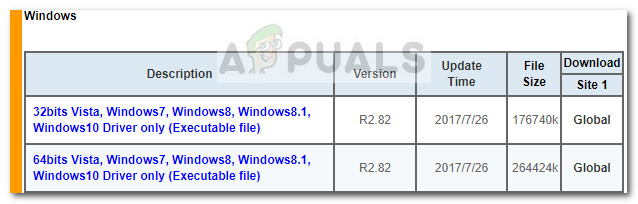
Once the driver is downloaded, follow the on-screen prompts to install it on your system, then restart your system to complete the process.
At the next startup, monitor your PC for any BSOD crashes. If they are still occurring, move down to the other methods below.
Method 3: Using the Base Windows Audio Driver
If you are suspecting that the issue is caused by your audio driver, there’s one more repair strategy that seemed to have yielded results for a lot of users in a similar situation. As it turns out, certain laptop models will BSOD crash with the APC Index Mismatch when the Audiodg.exe file is used. This is a typical occurence with Dell models.
Some affected users have discovered that uninstalling the Realtek Audio driver and using the Windows Base Audio driver made the BSOD crashes stop. Here’s a quick guide on how to do this:
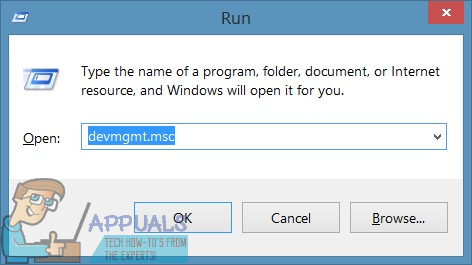
- Press Windows key + R to open up a Run window. Then, type “devmgmt.msc” and press Enter to open the Device Manager screen.
- In Device Manager, scroll down and expand the Sound, video and game controllers drop-down menu.
- Right-click on Realtek High Definition Audio and choose Uninstall Device.
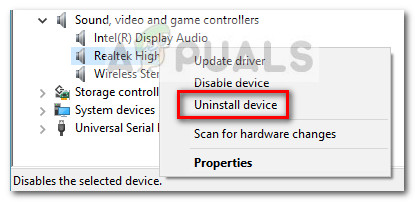
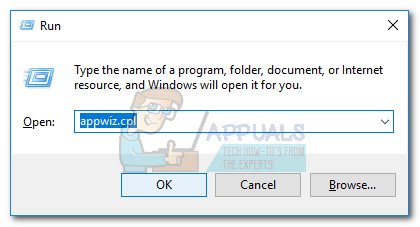
- Close Device Manager and press Windows key + R to open up another Run box. Then, type “appwiz.cpl” and hit Enter to open Programs and Features.
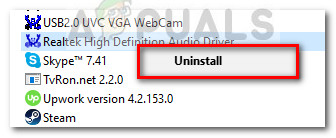
- In Programs and Features, scroll through the list and identify Realtek High Definition Audio Driver. Once you do, right-click on it and choose Uninstall. Then, follow the on-screen prompts to remove the Realtek driver from your system.
- Once the Realtek driver has been completely uninstalled, reboot your computer in order to allow Windows to fill the gap with the Windows base audio driver. At the nest startup, return to Device manager and see if Windows audio base driver is listed under Sound, video and game controller.
- Once you confirm that the Windows audio base driver is in place, monitor your PC and see if you continue to get APC Index Mismatch BSOD crashes.
If you continue to get the same APC Index Mismatch BSOD error followed by a crash, continue with the other methods below.
Method 4: Making sure all drivers are properly installed
The APC Index Mismatch error is sometimes attributed to hardware that is malfunctioning because a driver is missing or improperly installed. It’s also possible that a new hardware that you recently installed is not fully compatible with your computer and is causing the APC Index Mismatch BSOD crashes.
To exclude the possibility of a faulty driver causing the issue, let’s make sure that all installed devices are using proper drivers. The quickest way to do this is via Device Manager. Here’s a quick guide on making sure that all your drivers are properly installed:
- Press Windows Key + R to open up a Run command. Then, type “devmgmt.msc” and hit Enter to open Device Manager.
- In Device Manager, scroll through the list of devices and see whether you can spot any device that has a yellow icon. This is an indicator that the driver needs to be updated, is improperly installed or is incompatible with the hardware.
- If you see any occurrences of this type, right-click on them and click Update Driver. Once WU updates the driver, reboot your computer.
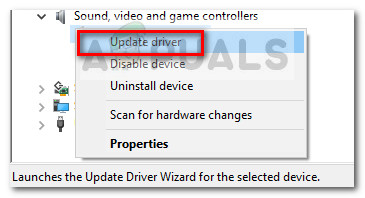 Note: If Windows Update is unable to find a newer version of the driver marked with the yellow question mark, either search for the driver manually online or click on Uninstall device and physically remove the hardware from your computer.
 - See whether you experience the same APC Index Mismatch BSOD crashes at the next startup. If your PC no longer crashes with the APC Index Mismatch error code while the driver is uninstalled, you might need to contact the hardware manufacturer for support.
If this method wasn’t applicable or you’re still encountering the APC Index Mismatch even after updating all your drivers from Device Manager, continue with the method below.
Method 5: Uninstall the Display Link driver (if applicable)
A number of users have reported that the APC Index Mismatch BSOD crashes have entirely stopped after they uninstalled the Display Link drivers.
DisplayLink can be a great software to use if you want to use an additional monitor for increased productivity. However, there are a lot of reports of incompatibility issues leading to BSOD crashed on Windows 10. Some users struggling to stop the APC Index Mismatch BSOD crashes from occurring have managed to resolve the issue by uninstalling the DisplayLink driver. Here’s a quick guide on how to do this:
- Open a Run box by pressing Windows key + R. Then, type “appwiz.cpl” and hit Enter to open Programs and Features.
- In Programs and Features, scroll down through the list of applications and locate the DisplayLink Core software. Once you do, right-click on it and choose Uninstall, then follow the on-screen prompts to remove it from your system.
- Once the software is uninstalled, visit this link (here) and download DisplayLink Installation Cleaner. Once the download is complete, run the software to clean the leftover DisplayLink files and restart your computer.
At the next startup, see if the APC Index Mismatch BSOD crashes have been resolved. If you still experience the same symptoms, move over to the final methods.
Method 6: Revert to the default RAM, CPU or GPU frequencies (if applicable)
As expected, this issue can also be caused by a malfunctioning hardware piece. Most of the time, instability among the hardware components is caused by overclocking. If you don’t know what overclocking is, your sistem is most likely not overclocked.
But if you overclocked your CPU, GPU or RAM frequencies, you might want to revert to the default frequencies and see weither you experience the same BSOD APC Index Mismatch BSOD crashes. If you find that your system no longer crashes while the stock frequencies are enforced, you can begin to slowly raise the frequencies again (but don’t go near the previous threshold).
If you don’t have an overclocked system or you’ve determined that the custom frequencies where not causing the APC Index Mismatch BSOD crashes, move over to the final method.
Method 7: Clean Windows Reset or Reinstall
After trying out every workaround in the book, some users have decided to go through performing a clean install (or reset). While this is less than ideal, it seemed to work for a lot of users that weren’t left with any choice.
If you’re on Windows 10, you can even preserve some of your personal files by performing a reset and opting to keep your personal files (photos, videos, music and user preferences). If you decide to do a Windows 10 reset, follow this link (here). Else, you can go for a clean reinstall using this link (here).


I tried allot of BSOD ACP index mismatch solutions for my girlfriends laptop after she had issues with opening adobe after effects and Skype, the error was a corrupt realtec audio driver and a manual installation that did the trick. Thanks for this article, i was litterly trying 100s of other website solutions but this one helped me out.