How to Fix Fall Guys “Failed to Login” Connection Error?
The error “Failed to login, Please check your connection“ in Fall Guys appears when the game cannot complete the required server login handshake during startup. This handshake verifies your Epic Games account, checks your region routing, and syncs your profile/entitlements. If any part of this process fails, the game rejects the login and you cannot reach the main menu.
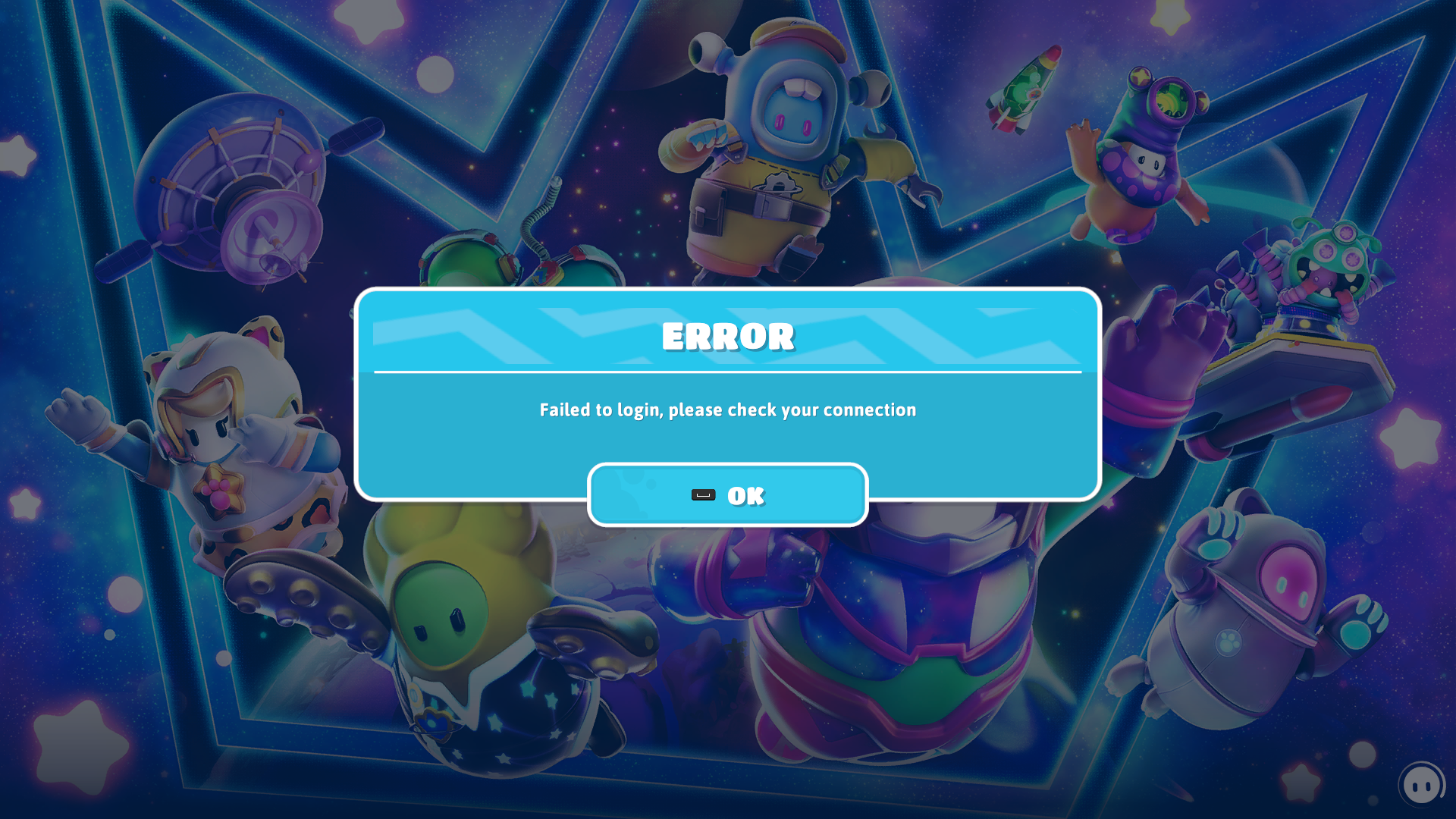
Although the message suggests an internet issue, this error is often caused by other factors, including server outages, incorrect region settings, bad routing from your ISP, or corrupted local files that break the handshake sequence. These issues prevent Fall Guys from establishing a clean session with Epic Online Services, even if your general browsing works normally.
The most commonly confirmed causes behind this error are:
- Server outages or maintenance
- Incorrect regional routing
- Connection instability or bad ISP routing
- Corrupted temporary or configuration files in AppData or the registry
1. Change Your PC’s Region
If your current region is affected by routing problems or misconfigured backend routing, Fall Guys may fail the handshake. Changing your PC’s region (for example, to the United Kingdom) forces Windows to refresh its regional network configuration and often reroutes your traffic through a more stable path.
Note: This does not affect your game progress. You can switch back anytime.
- Press Win + I to open Settings.
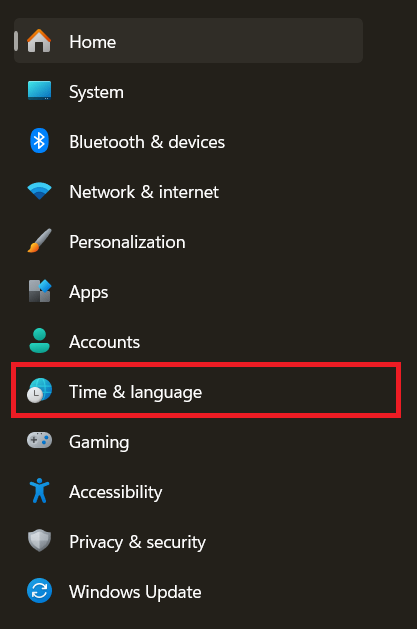
- Click Time & Language.
- Select Language & region.
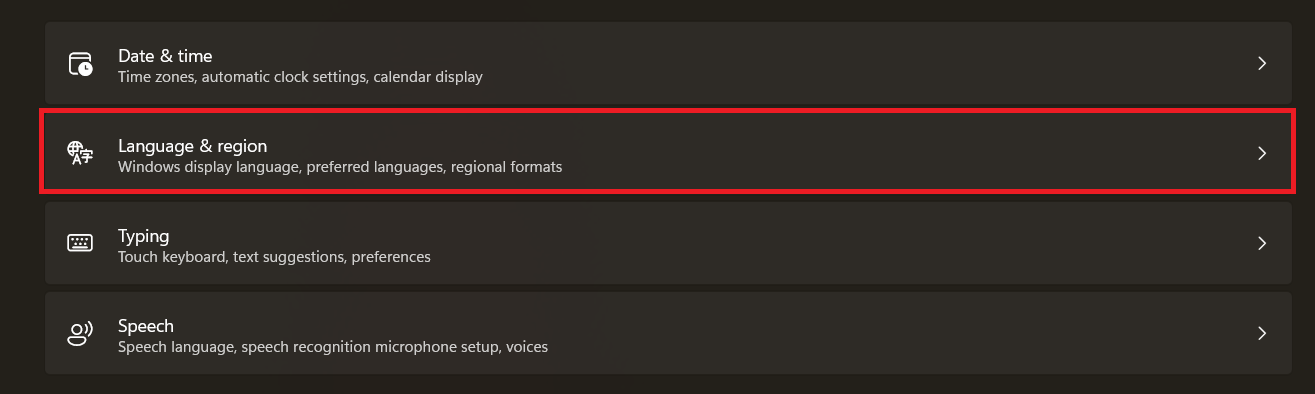
- Under Country or region, choose United Kingdom.
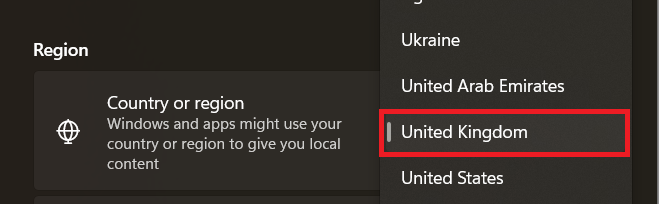
- Restart your PC and relaunch Fall Guys.
2. Temporarily Connect Using a Mobile Hotspot
If your current network suffers from bad routing, ISP issues, or your IP is temporarily flagged/blocked by the routing servers, connecting through a mobile hotspot gives you a clean IP and a new routing path. This often allows the handshake to succeed.
Mobile data usage is extremely small – typically only 1–5 MB for login.
- Enable Mobile Data and turn on Hotspot on your phone.
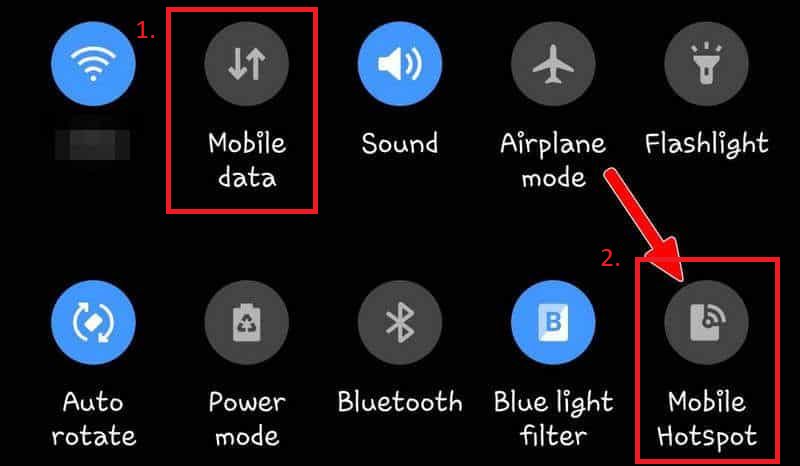
- Connect your PC to the hotspot.
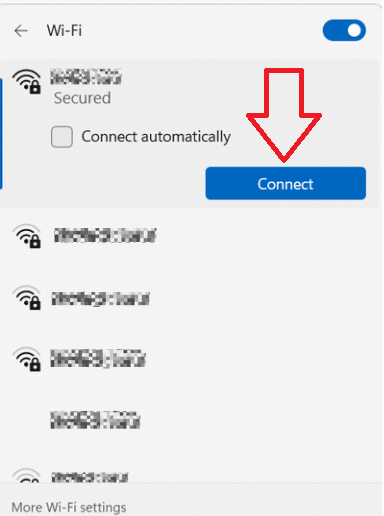
- Launch Fall Guys and attempt to log in.
- If it works, you can switch back to your normal Wi-Fi after reaching the main menu.
3. Reset Your Network Adapter Settings
A full network reset rebuilds all networking components and clears:
- Corrupted TCP/IP or Winsock data
- Incorrect DNS settings
- Leftover VPN/Proxy configurations
- Broken routing tables
These issues can silently block your connection to Fall Guys even when the rest of your internet appears normal.
Warning: This removes saved Wi-Fi networks and VPN setups. You’ll need to reconnect afterward.
- Press Win + I → open Settings.
- Go to Network & internet.
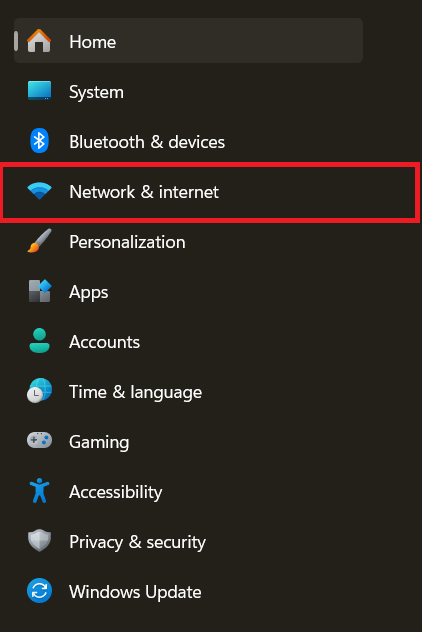
- Select Advanced network settings.
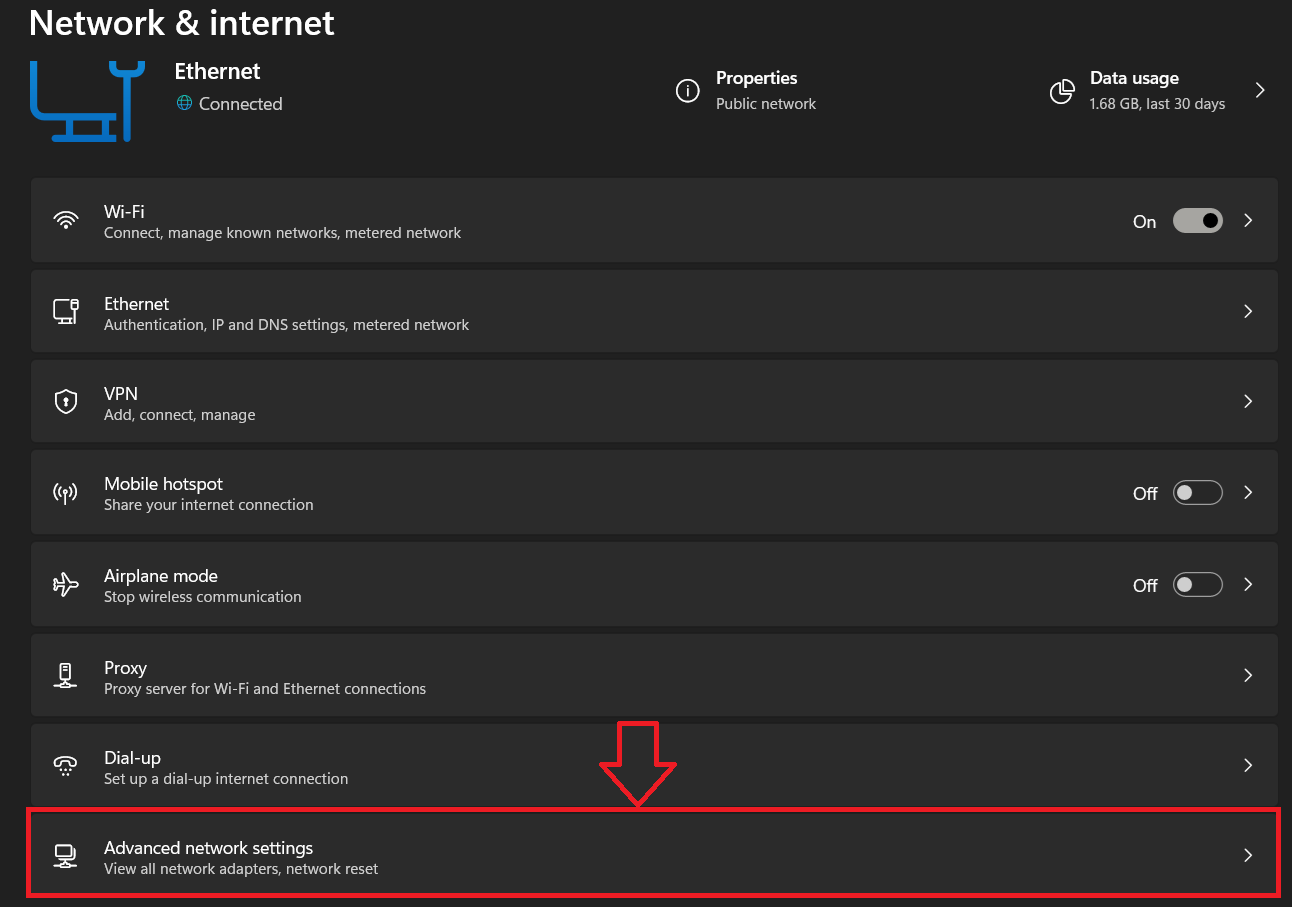
- Under More settings, click Network reset.
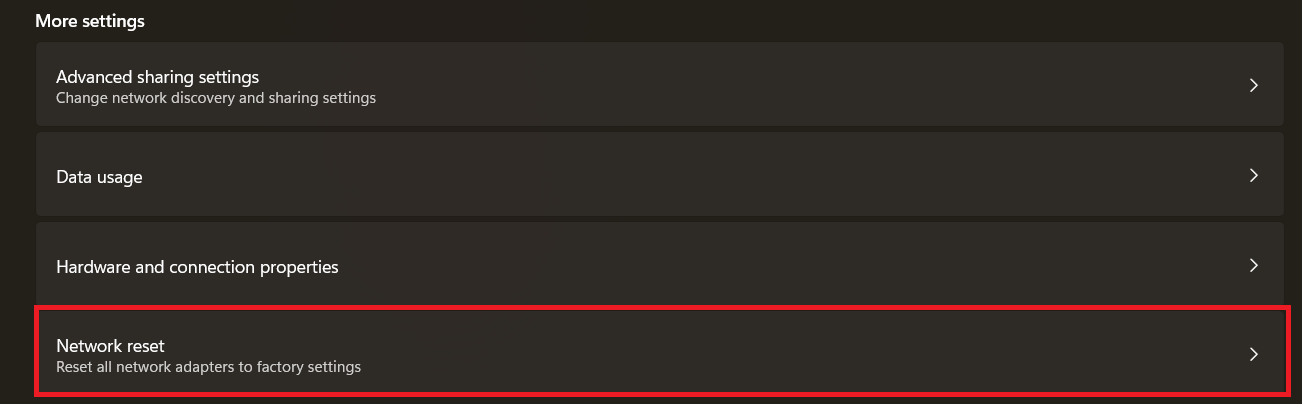
- Click Reset now.

- Click Yes when prompted.
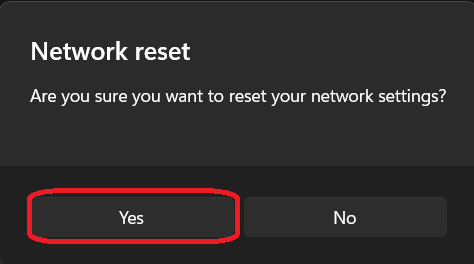
- Restart your PC and reconnect to Wi-Fi. Then try launching the game.
4. Delete Temporary Files and Registry Entries Related to Fall Guys
Fall Guys stores cache files in AppData and configuration entries in the Windows Registry. If these become corrupted, the handshake can fail repeatedly. Removing them forces the game to rebuild fresh configuration files.
Note: This does not delete your in-game progress. Progress is tied to your Epic account, not your PC.
Registry Backup Tip: Right-click the folder → Export before deleting anything.
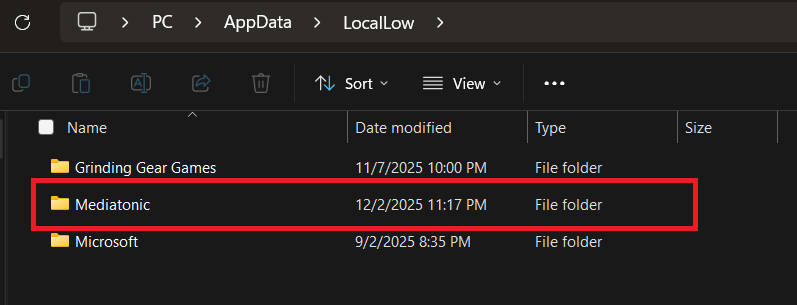
- Press Windows + R, type AppData, and press Enter.
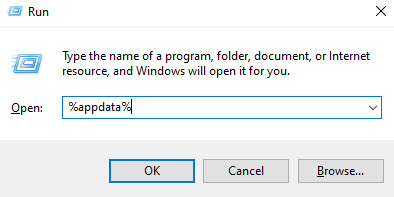
- Open the LocalLow folder.

- Open Mediatonic.
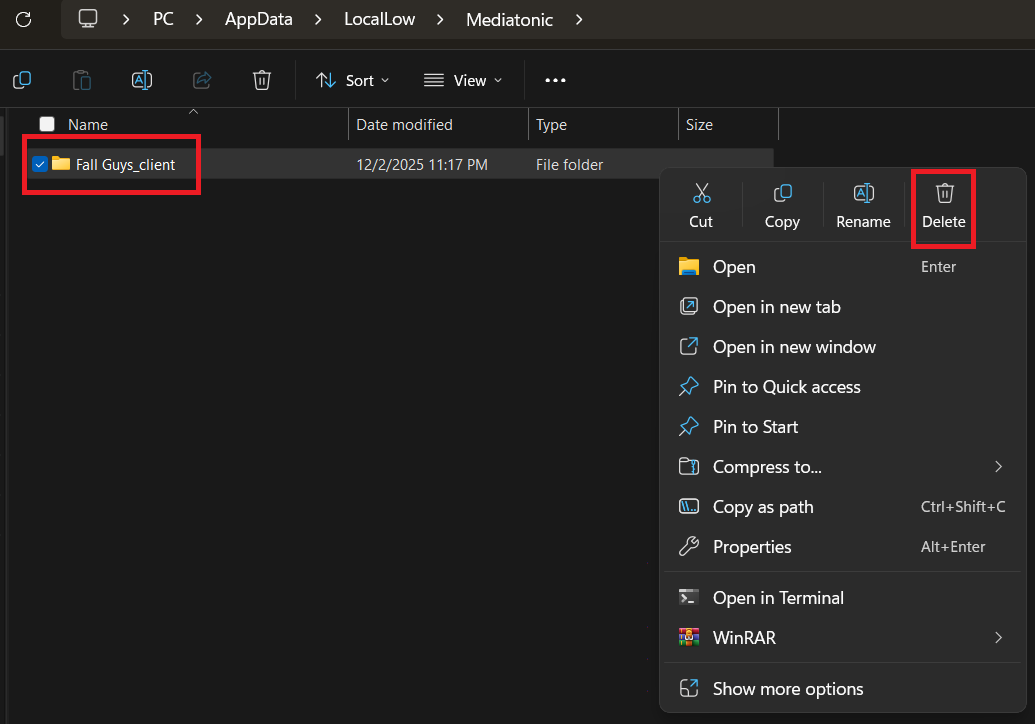
- Delete the FallGuys_client folder.
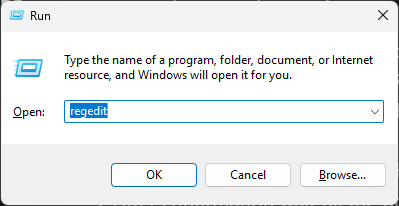
- Press Windows + R → type regedit.
- Navigate to:
HKEY_CURRENT_USER\Software\Mediatonic
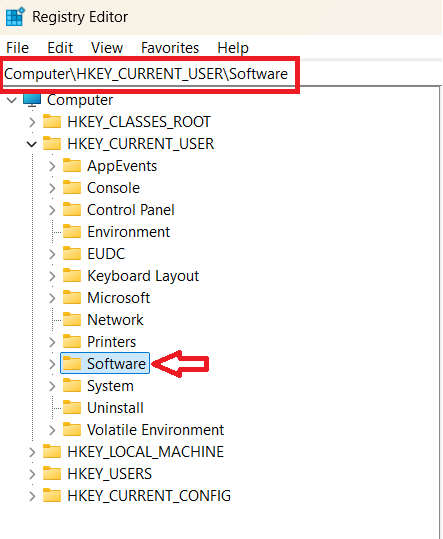
- Right-click the FallGuys entry → select Delete.
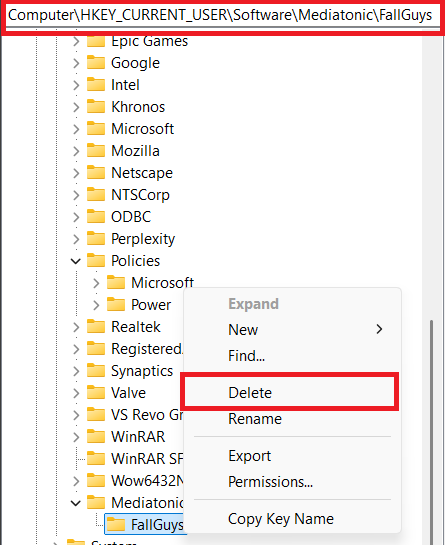
- Restart your PC and launch the game.
5. Verify Integrity of Game Files
If any installation files are corrupted, missing, or outdated, the login handshake may fail before it even begins. Verifying the game files forces your launcher to re-download anything that is damaged.
- Open your game launcher (e.g., Steam).
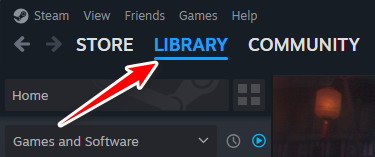
- Go to Library.
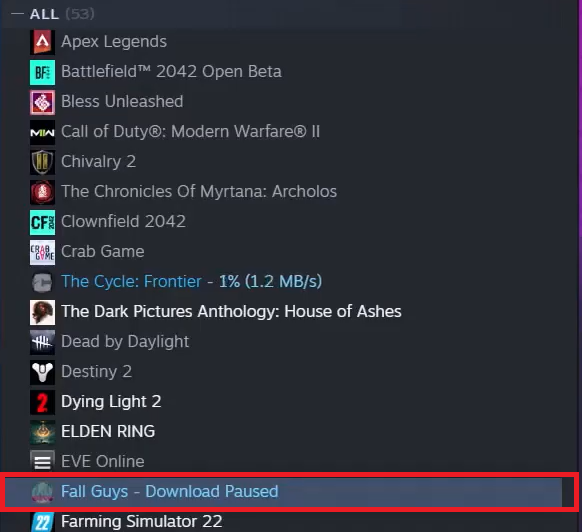
- Select Fall Guys.
- Right-click → Properties…
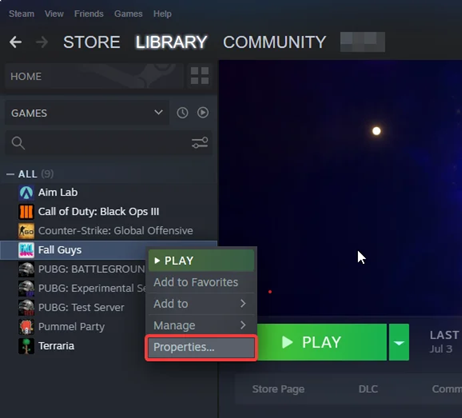
- Open Installed Files → click Verify integrity of game files.
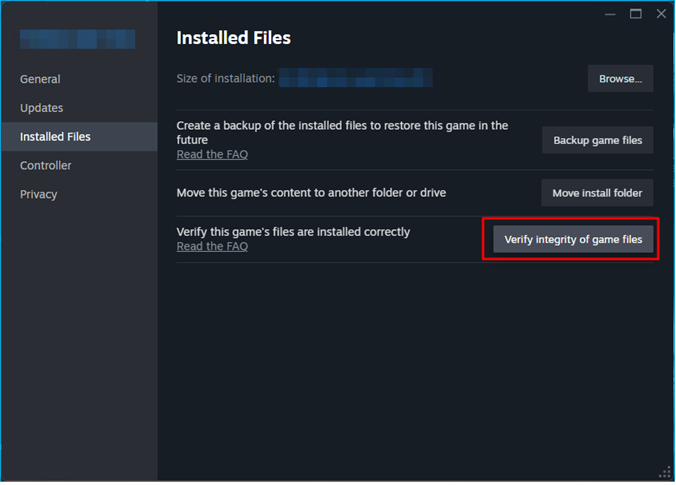
- Wait for the scan to complete, then try logging in again.