How To Fix Facebook Reel/Video Tab Missing?
The “Missing Reels/Video tab” issue appears when the Reels section disappears from Facebook’s navigation bar. You can often still watch Reels from other parts of the app, but the dedicated tab is gone.
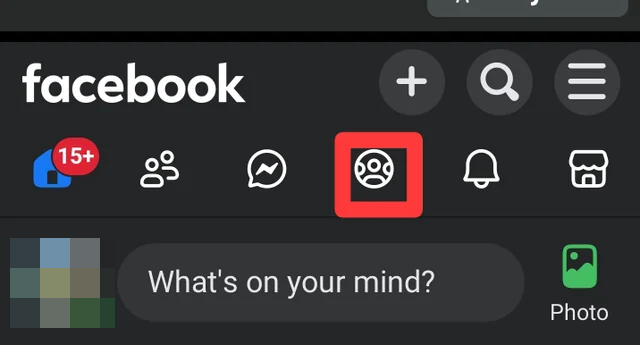
Facebook regularly tests different navigation layouts by account, region, and app version, so your tabs may look different from someone else’s even on the same phone model.
Use the fixes below in order. If a menu option does not exist in your app, skip that step and move on.
1. Search Reels in the Search Bar
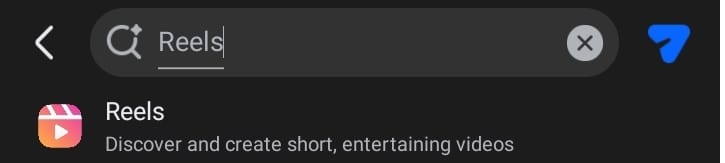
If you only need fast access and do not care where the tab is for now, you can open Reels through Facebook Search. This does not usually restore the tab, but lets you watch and scroll Reels while you work on the real fixes below.
To do this: Open Facebook > tap the Search icon > type “Reels” > open the main Reels result and start scrolling.
If you do not see a clear “Reels” result: Open any creator/profile from Search, tap a Reel if they have one, then keep scrolling inside the Reels viewer.
2. Unhide Reels from Tab Bar Settings (Restore the Tab)
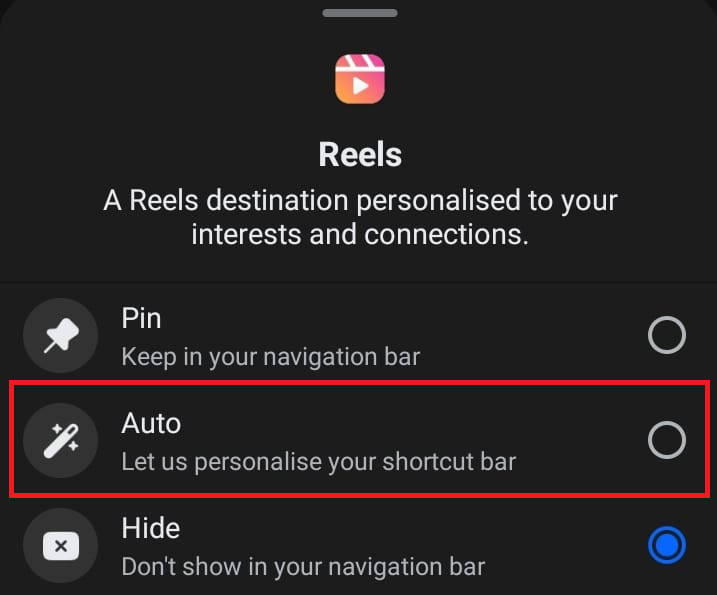
On many accounts, Facebook lets you choose which shortcuts appear in the navigation bar. If Reels is set to Hidden, the tab will disappear. Switching it to Auto or Pin usually brings it back and is the fastest way to fix this if you have the option.
- Open Facebook > tap your Profile icon > tap the Settings (gear) icon.
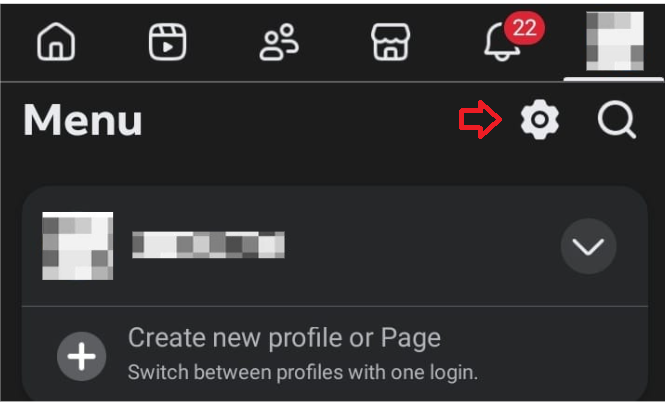
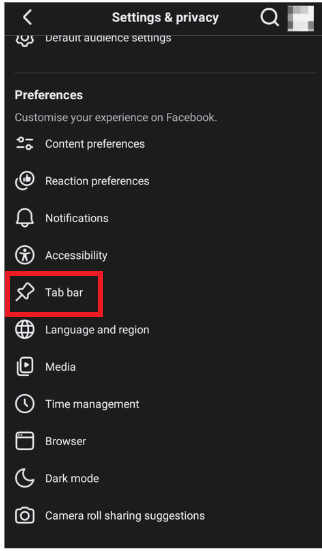
- Tap Tab bar under Preferences.
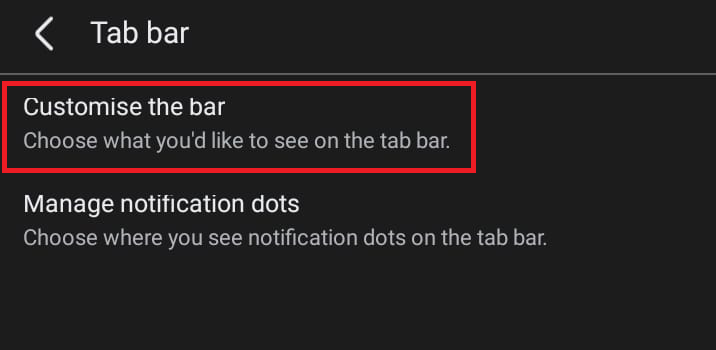
- Tap Customize the bar.
- If Reels is set to Hidden, change it to Auto or Pin.
- Close Facebook completely from the app switcher, reopen it, and check whether the Reels tab is back.
3. Restart Facebook and Your Phone
A minor app or system glitch can temporarily hide navigation shortcuts. Restarting both the app and your phone reloads Facebook and background services, which can bring missing tabs back with almost no downside.
On iPhone: Open the app switcher, swipe Facebook away, restart your iPhone, then open Facebook again.
On Android: Go to Settings > Apps > Facebook > tap Force stop. Restart your phone, then open Facebook and recheck the navigation bar.
4. Update the Facebook App
Layout changes and new tabs usually arrive with app updates. If you are running an older version, the Reels or Video tab may not load correctly or your navigation may not match what Facebook currently uses on its servers. Updating gives you the latest layout and often restores tabs that vanished after older builds.
- Open the App Store (iPhone) or Google Play Store (Android).
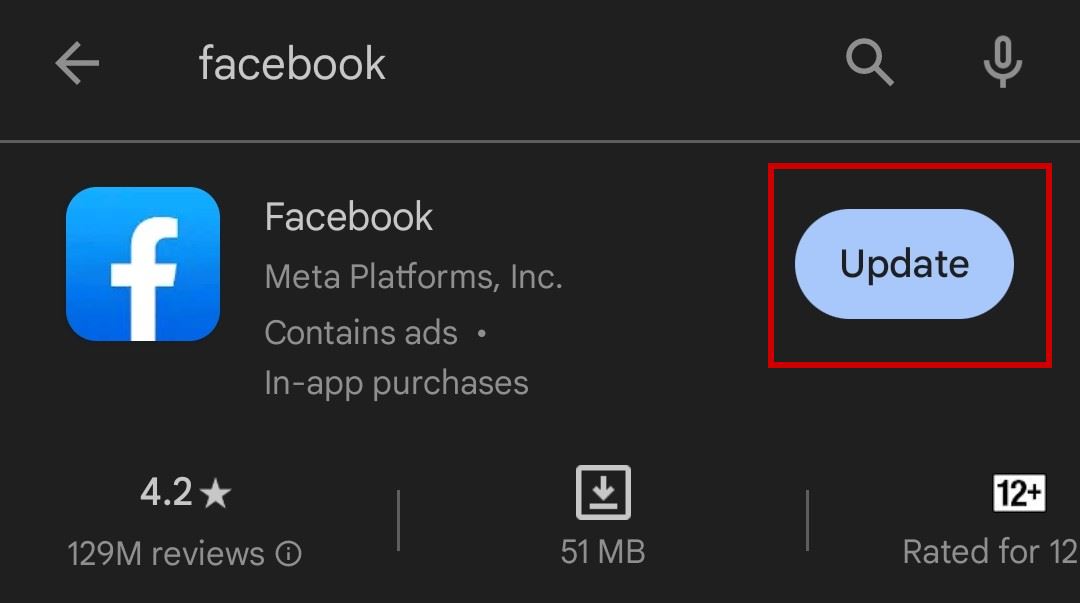
- Search for Facebook.
- Tap Update if available, then reopen Facebook and check whether the Reels or Video/Watch tab appears.
5. Clear Facebook Cache (Android) or Reinstall the App (iPhone)
Damaged or stale local data can cause UI elements like navigation tabs to fail to load, even though your account settings on Facebook’s side are correct. Refreshing that local data forces the app to pull a fresh layout from the server.
For Android (clear cache, keeps your login):
- Open Settings > Apps or Apps & notifications > Facebook.
- Tap Storage > tap Clear cache.
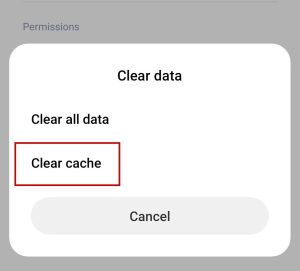
- Reopen Facebook and see if the Reels tab returns.
For iPhone (clean reinstall):
- Open Settings > General > iPhone Storage.
- Select Facebook.
- Tap Delete App to remove the app and its local data, then reinstall Facebook from the App Store.
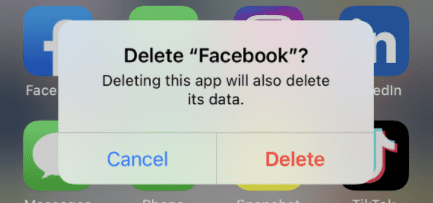
- Sign in again and check the navigation bar for the Reels tab.
Optional, less aggressive (iPhone): You can try Offload App first to keep documents and data, but Delete App is more effective if the UI seems stuck or corrupted.
6. Log Out and Log Back In
Because Facebook often applies navigation layouts to your account on the server side, logging out and back in can force your profile to reload its assigned layout. This is useful when the app is up to date, but your account seems stuck on an older or broken tab configuration.
- Open Facebook > go to the Menu (three lines).
- Scroll down and tap Log Out.
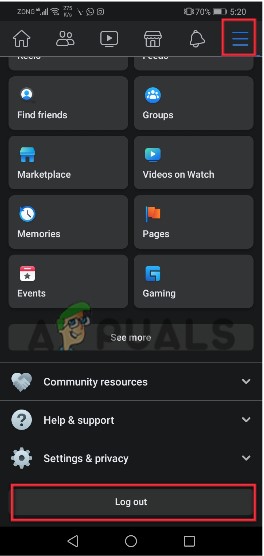
- Restart your phone so all Facebook processes close.
- Sign back into Facebook and check whether the Reels tab is now visible.
7. Reinstall Facebook
If the tab went missing after a failed update or long term use, a full reinstall on both platforms can fix broken app files and misapplied layouts. Use this when simpler refresh and cache steps did not help.
- Uninstall Facebook from your phone.
- Restart the device to clear any leftover background processes.
- Install Facebook again from the App Store or Google Play Store.
- Sign in and check if the Reels tab or Video/Watch shortcut has returned.
8. Update Your Phone’s Software
If your system software is far behind, modern Facebook builds may not behave correctly, especially after major UI changes. Updating your phone improves compatibility and can fix issues where tabs fail to appear even though the app itself is current.
For Android users:
- Open Settings and search for Software update.
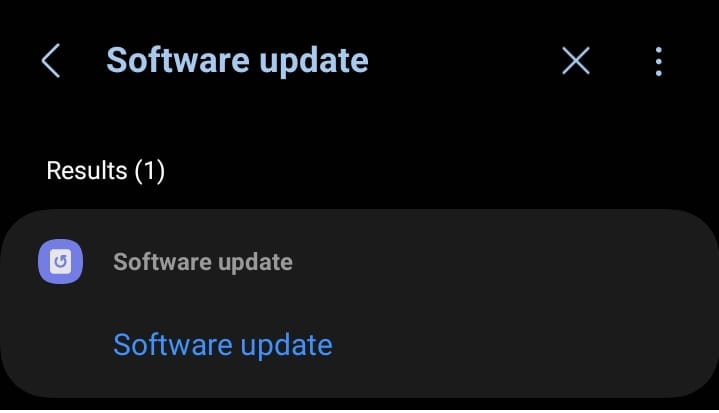
- Download and install any available update.
- After the phone restarts, open Facebook and check if the Reels tab is back.
For iPhone users:
- Open Settings > General > Software Update > tap Download and Install if an update is available.
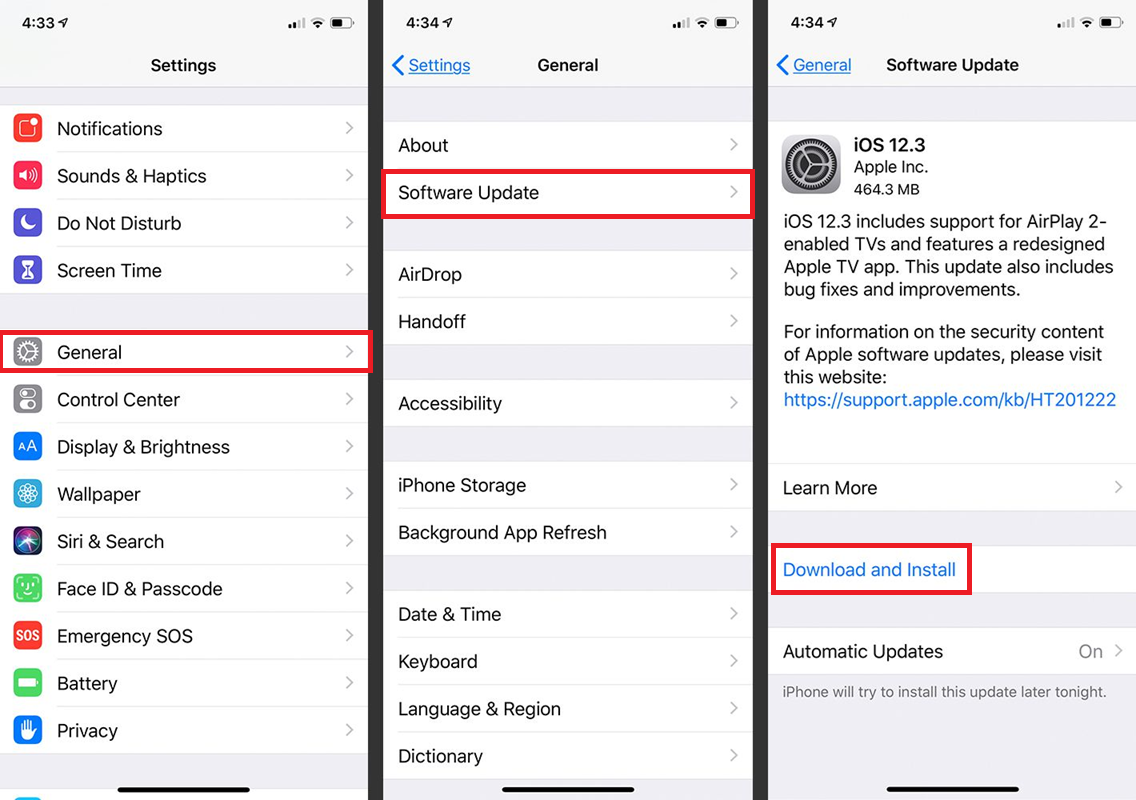
- Once updated, open Facebook and check whether the Reels tab or Video section is now visible.