Fix: Escape From Tarkov “Critical Error 228” Can’t Move Item
The “Critical error 228 – ItemMoving[Move]: Can’t move item” error in Escape from Tarkov appears when the game fails to properly synchronize inventory changes between your local client and Tarkov’s backend servers. Every time you move an item between your stash, containers, trader screens, or character inventory, the action must be validated server-side before it is finalized.
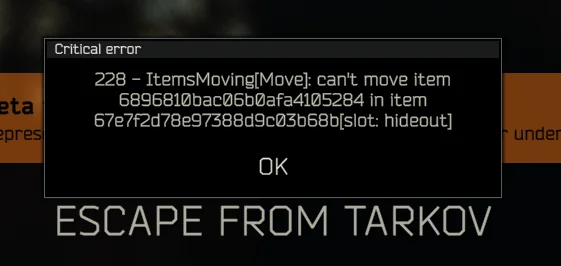
If this synchronization fails, the server rejects the movement request and the item becomes temporarily locked, preventing it from being moved, sold, equipped, or discarded. In many cases, interacting with the same item repeatedly triggers Error 228.
Before You Begin: Check if the Issue Is Server-Side
Error 228 frequently appears during backend instability or after game updates.
- Check Escape from Tarkov community forums or Reddit discussions.
- If multiple players report Error 228, wait for server stabilization.
- Avoid discarding valuable items until synchronization fixes are attempted.
If many players are reporting inventory problems at the same time, the issue may resolve automatically without intervention.
1. Restart the Game and Launcher to Re-Sync Inventory
Restarting forces Tarkov to establish a completely new backend session and reload your inventory directly from server data instead of cached local information.
- Close Escape from Tarkov.
- Exit the Battlestate Games Launcher completely.
- Press Ctrl + Shift + Esc to open Task Manager.
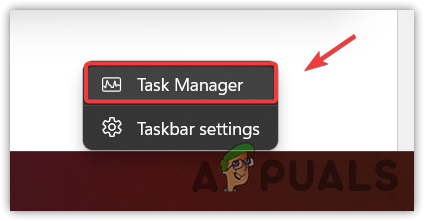
- End all BSGLauncher.exe and EscapeFromTarkov.exe processes.
- Wait 2–3 minutes so the previous backend session fully expires.
- Launch the Battlestate Games Launcher again.
- Open the game and check your stash.
2. Identify and Remove the Bugged Item
A corrupted inventory entry can continuously trigger Error 228 until the affected item is removed or revalidated by the server.
- Identify the item triggering the error.
- Right-click the item.
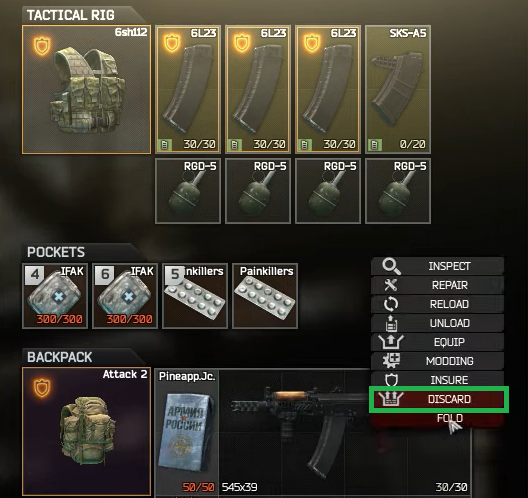
- Select Discard.
- Confirm the prompt.
3. Free Up Stash Space (Optional Workaround)
A completely full stash may cause inventory actions to be accepted locally but rejected by backend validation systems.
Note: Purchasing stash space is not required and should only be considered if your stash is entirely full and you already plan to expand storage.
- Visit the Stash Expansion page.
- Select Purchase.

- Log in to your account.
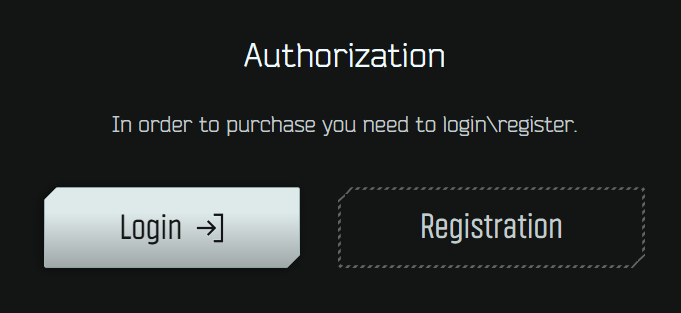
- Complete the upgrade.
- Restart the game afterward.
4. Verify the Integrity of Game Files
Although Error 228 is mainly backend-related, crashes or interrupted updates may leave local inventory data temporarily inconsistent. Running an integrity check ensures all client files match server requirements.
- Close Escape from Tarkov.
- Open the Battlestate Games Launcher.
- Click Game Settings.
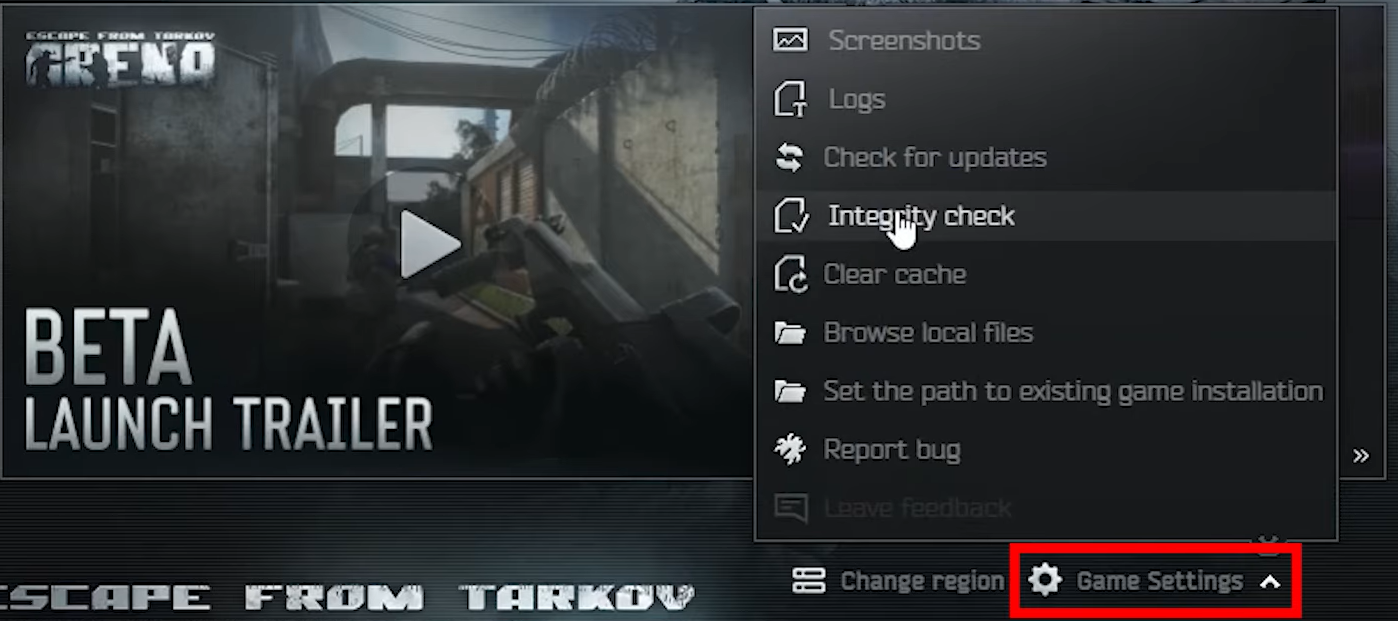
- Select Integrity Check.
- Wait for verification to finish.
- Restart the game.
5. Wait for Backend Repair or Contact Support
If none of the methods resolve the issue, your account inventory may be affected by a backend inconsistency. These problems often resolve automatically after server maintenance or account re-synchronization.
You can submit a request through the official Battlestate Games support page and include:
- A screenshot of the affected item
- Your full stash layout
- The exact Error 228 message
Support may review your account inventory state and assist if manual correction is required.