How to Download Hytale and Play With Friends?
Hytale is a sandbox adventure game made by Hypixel Studios. The game allows players to explore a large open world, collect resources, build structures, fight enemies, and go on different missions and adventures. It is inspired by Minecraft, but includes improved visuals, stronger story elements, and built-in tools for mods and custom games.
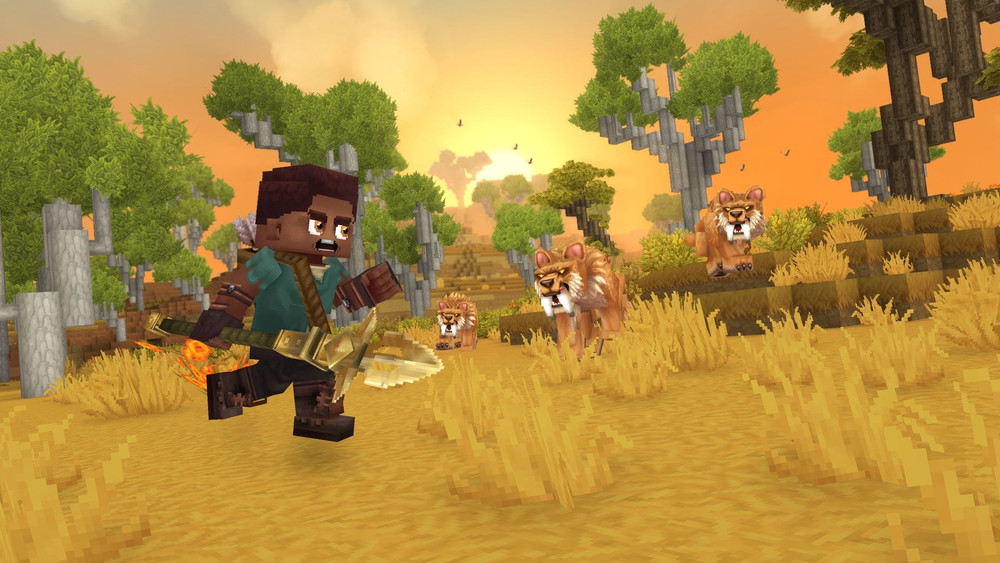
Players can explore different biomes, discover dungeons, and play both solo and multiplayer modes.
Part 1: How To Download and Play Hytale
Before installing the game on your computer, ensure your PC meets the minimum and recommended requirements for playing Hytale smoothly. You can check the requirements on the official download page.
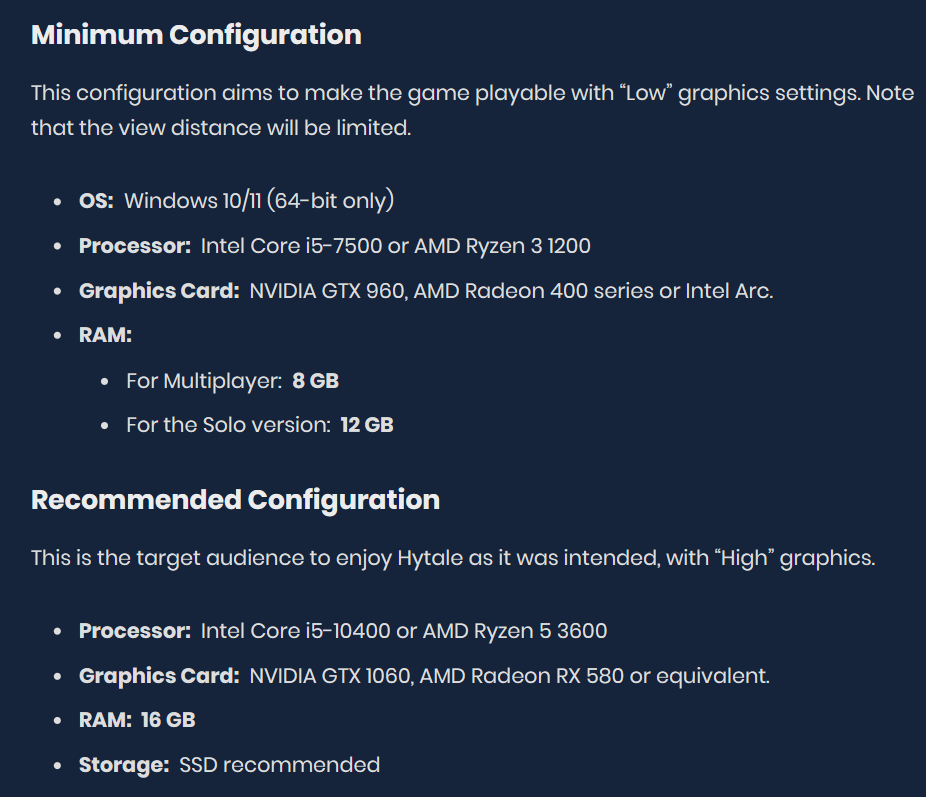
Step-by-Step Guide (Download + Install)
- Go to the official Hytale website.
- Create a Hytale account or log in using your existing account on the official website.
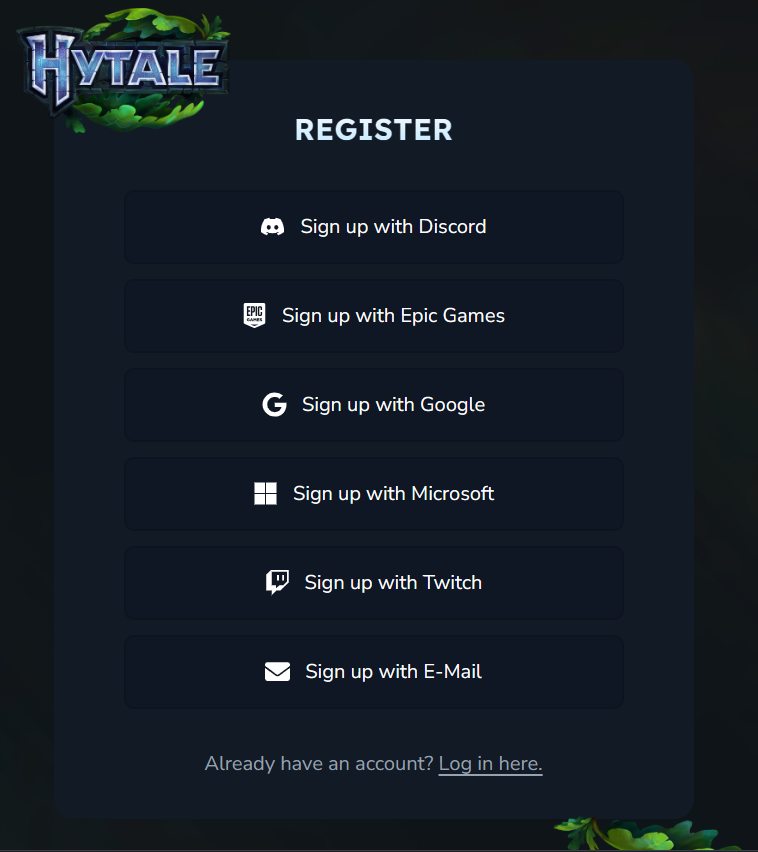
- Click on Purchase to buy multiple editions on your account.
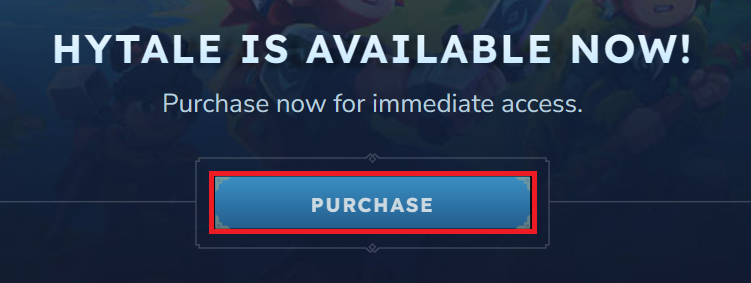
- Choose the available edition according to your need.
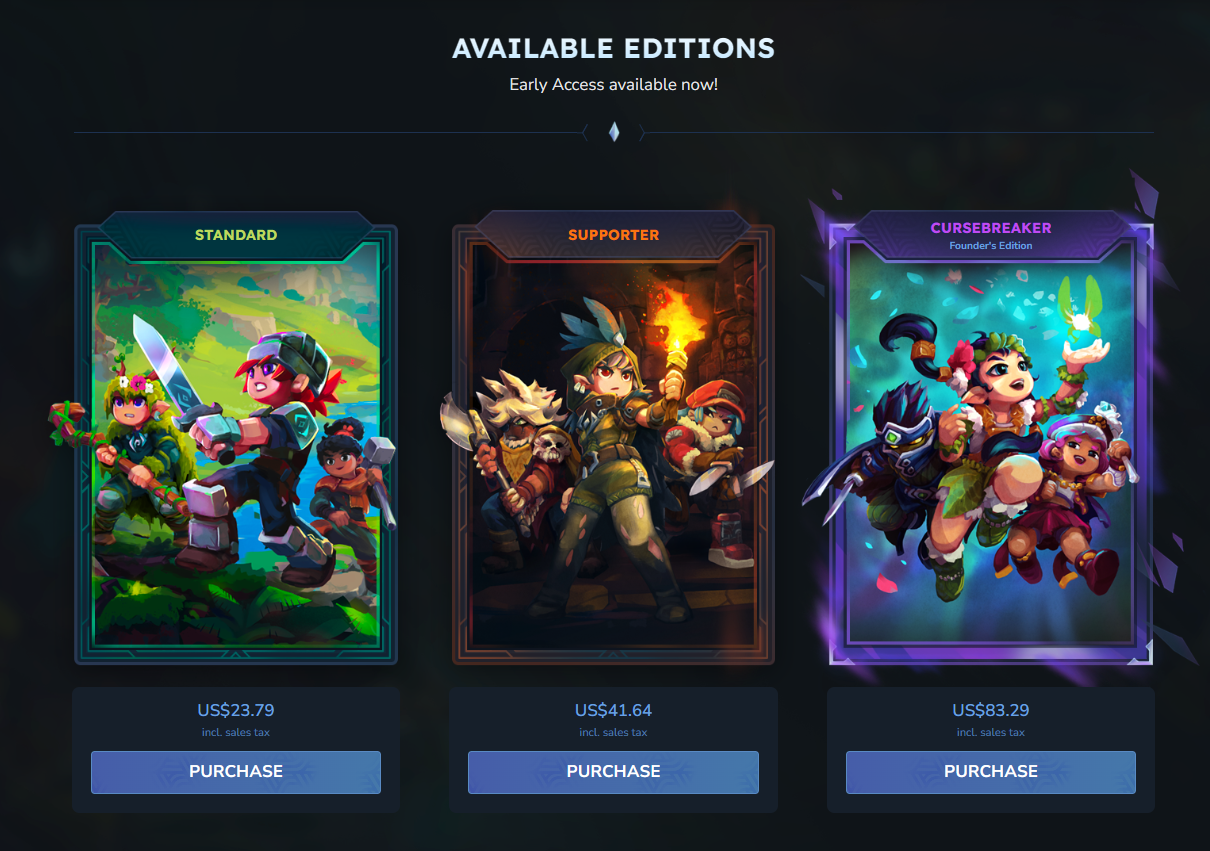
- After that, click on Download on the site.

- Click on DOWNLOAD FOR WINDOWS.

- Run the Hytale installer and click on Next to proceed.
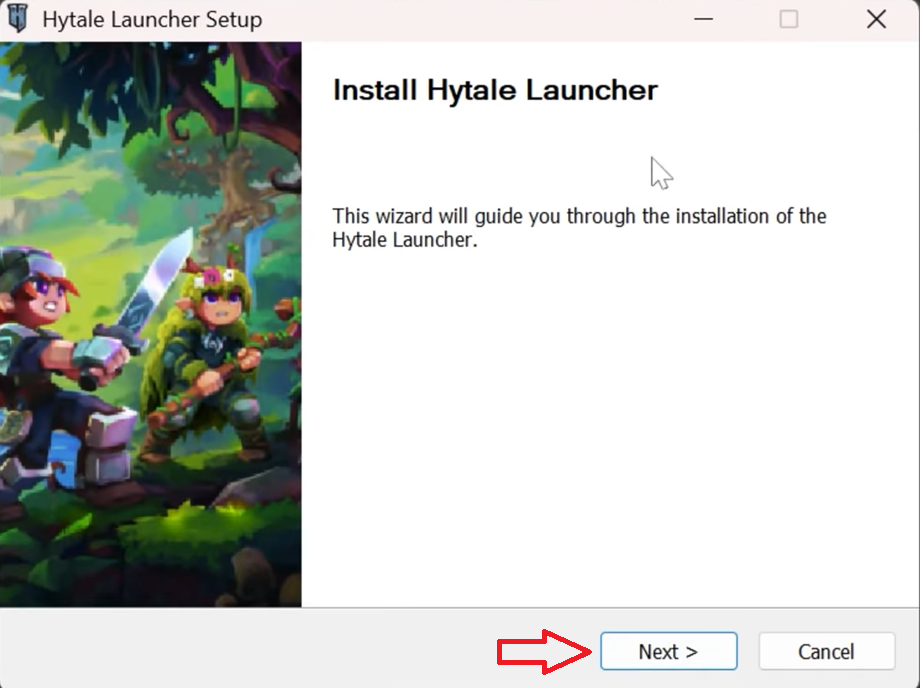
- Once the launcher is installed on your PC, launch it.
- Click on SIGN IN.
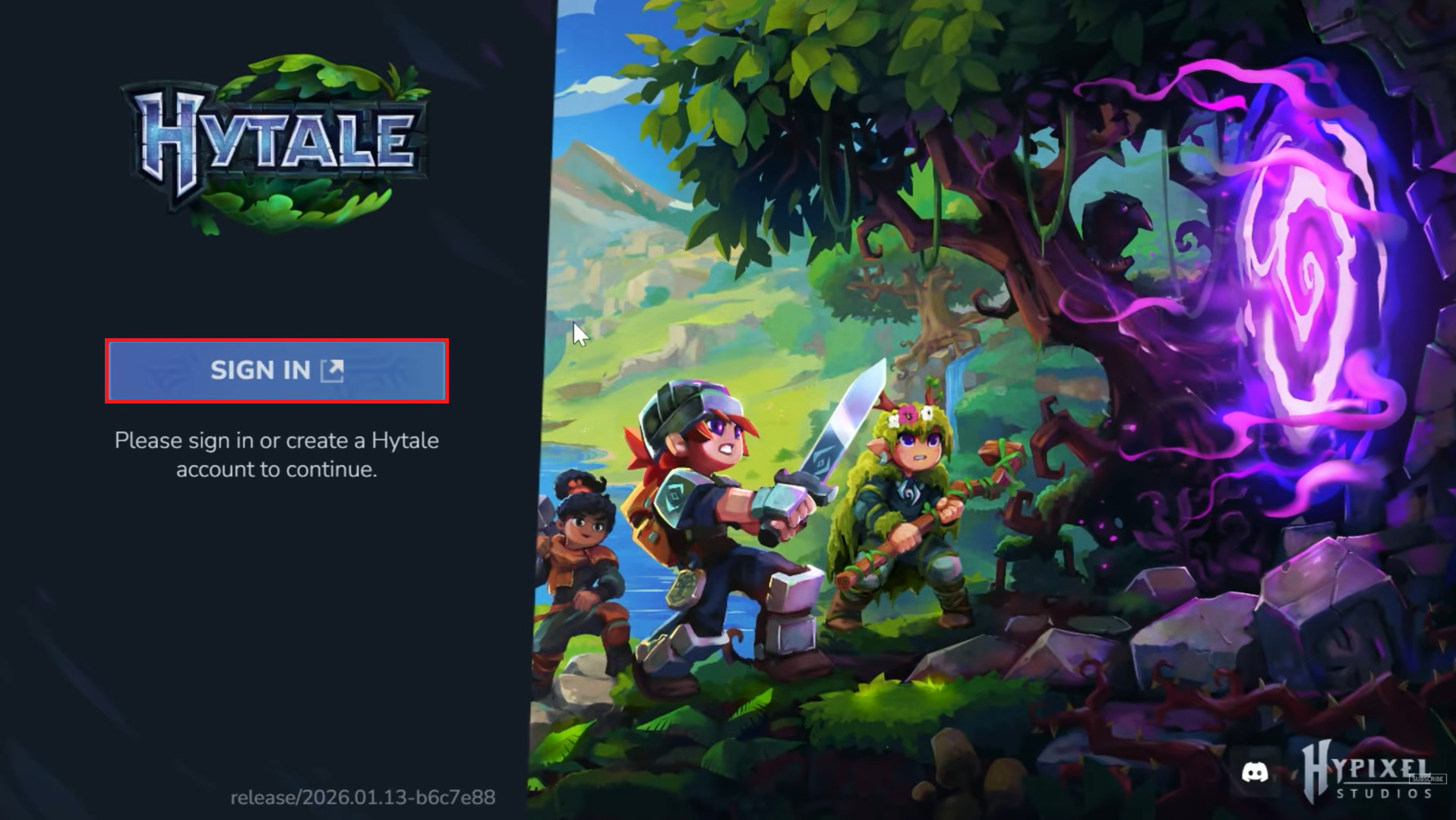
- Once you’re signed in to your account, click on INSTALL.
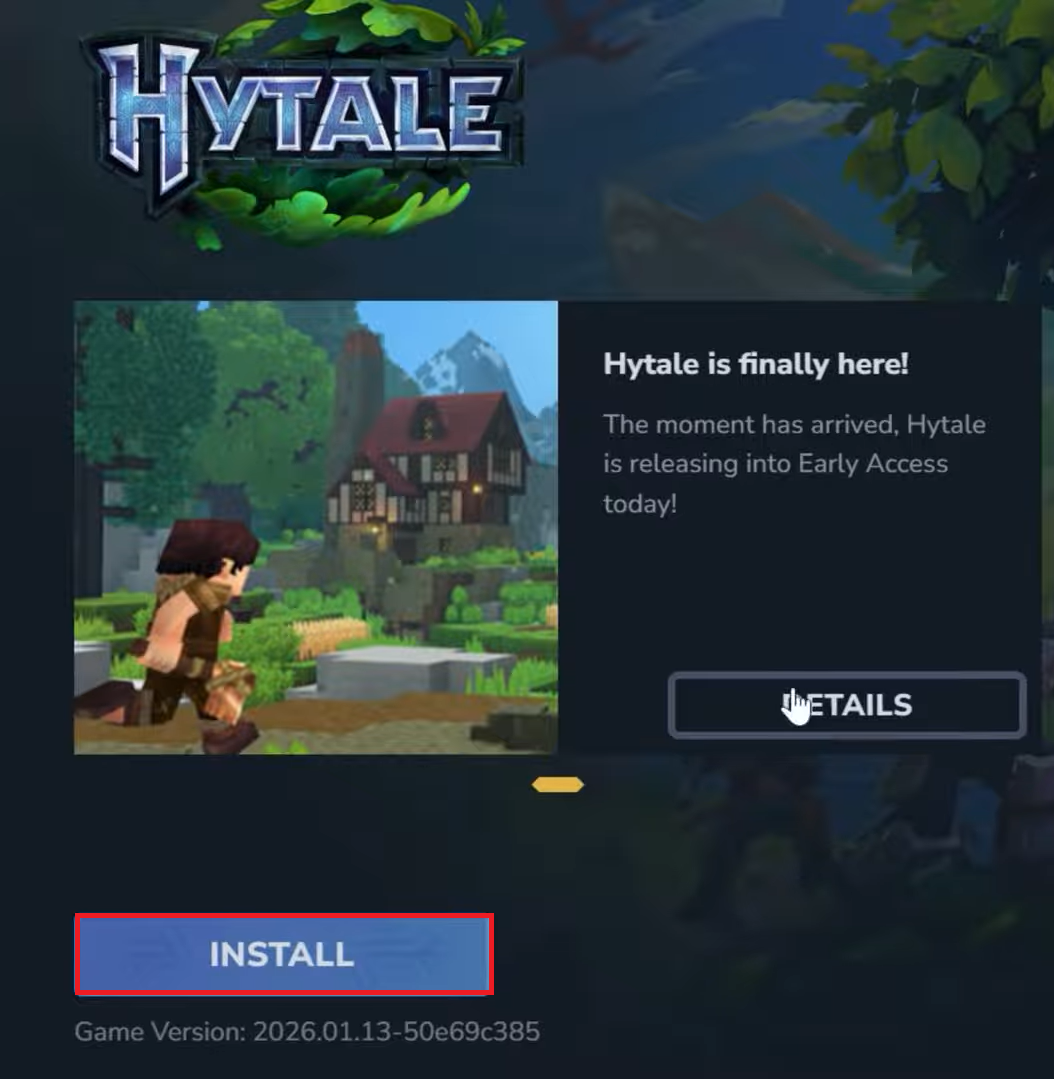
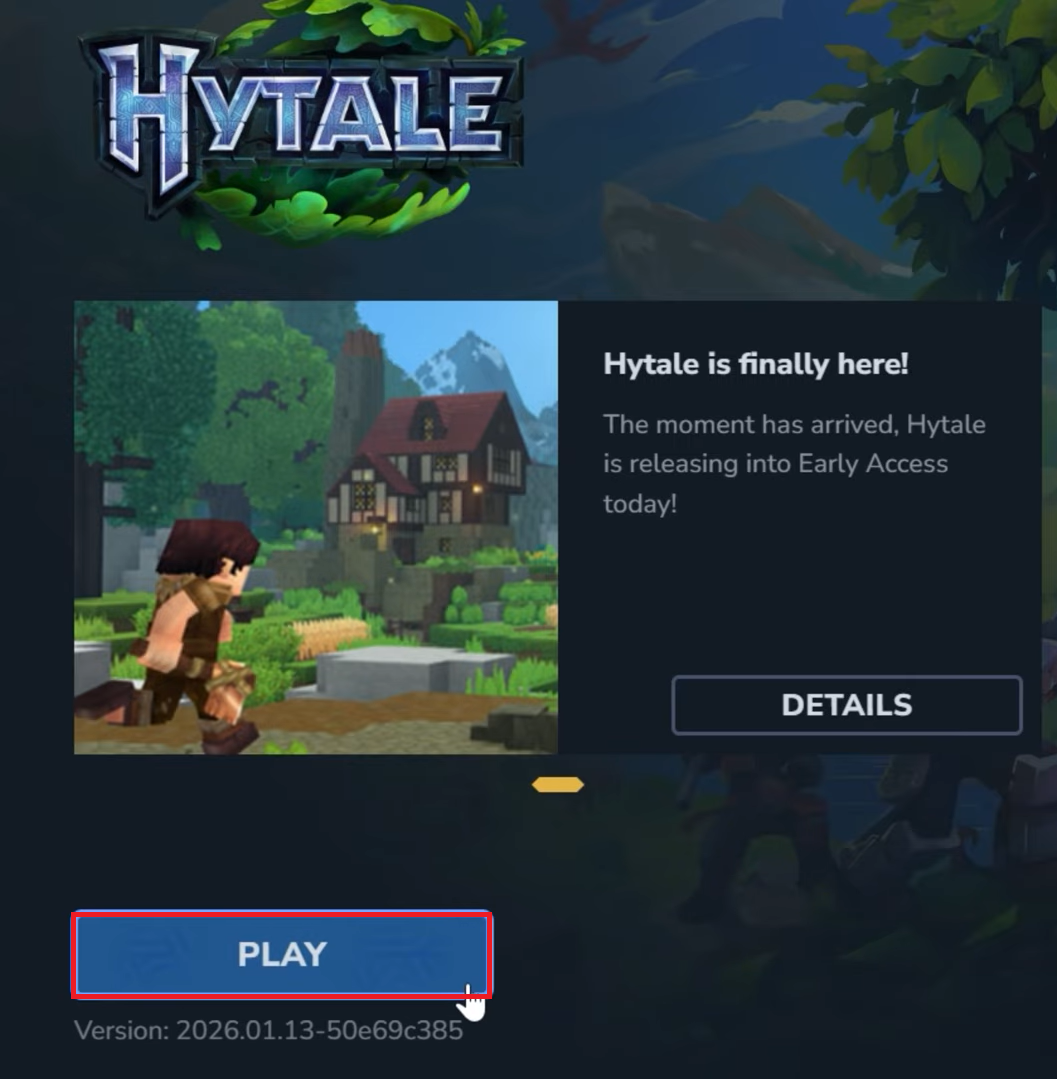
- Once the game is installed, click on Play.
Part 2: How to Play Hytale With Your Friends (Share Code Method)
One of the best features of Hytale is that it lets you play with friends easily even without setting up a dedicated server. You can open your singleplayer world to friends and invite them directly using a share code.
 The share code system makes multiplayer very convenient for casual players because it avoids manual server setup. In many cases, Hytale automatically configures the router using UPnP (Universal Plug and Play), so friends can join with just a few steps.
Step-by-Step Guide (Host + Join)
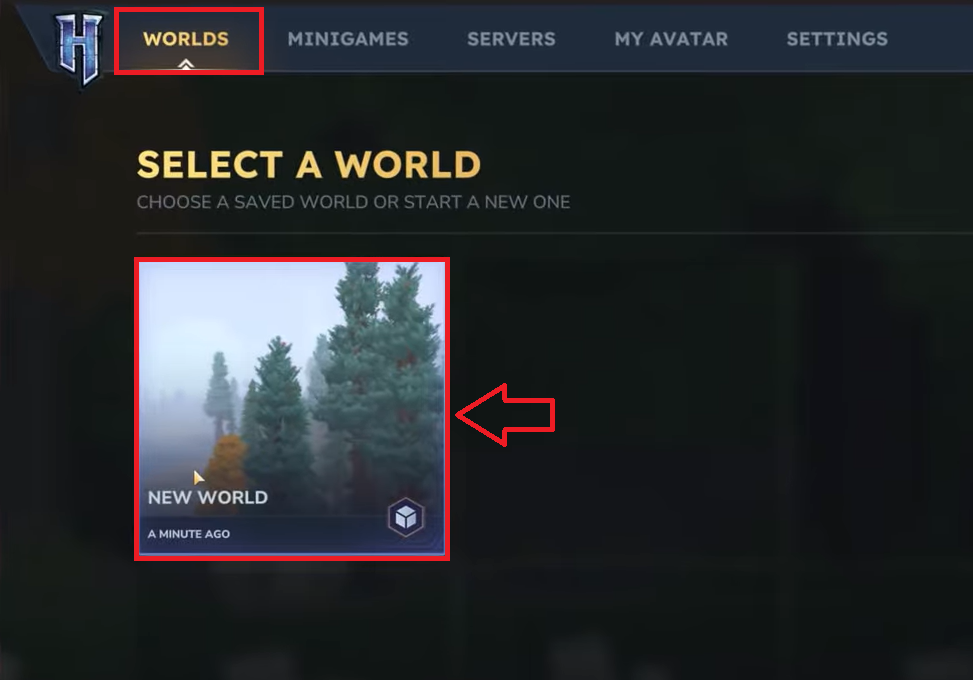
- Load into your singleplayer world in Hytale.
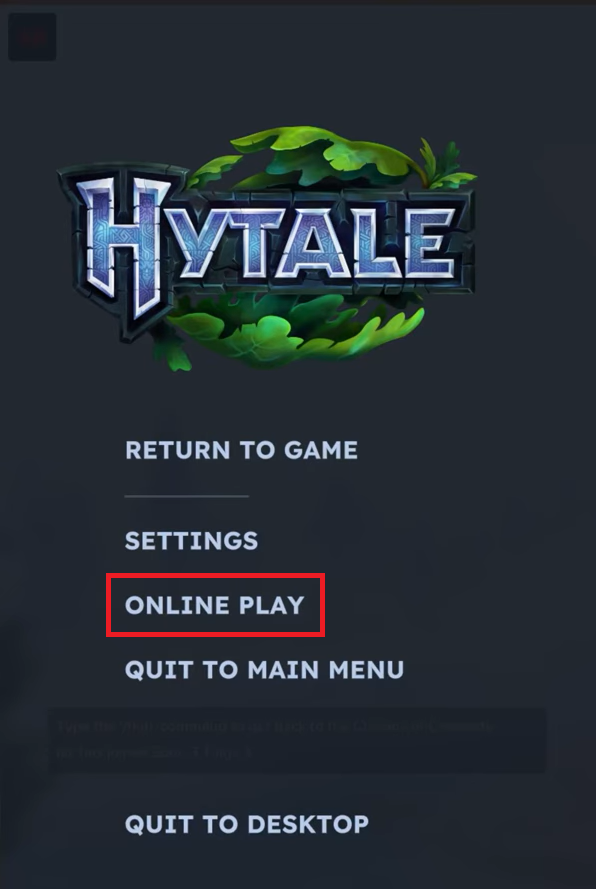
- Press ESC to open the pause menu.
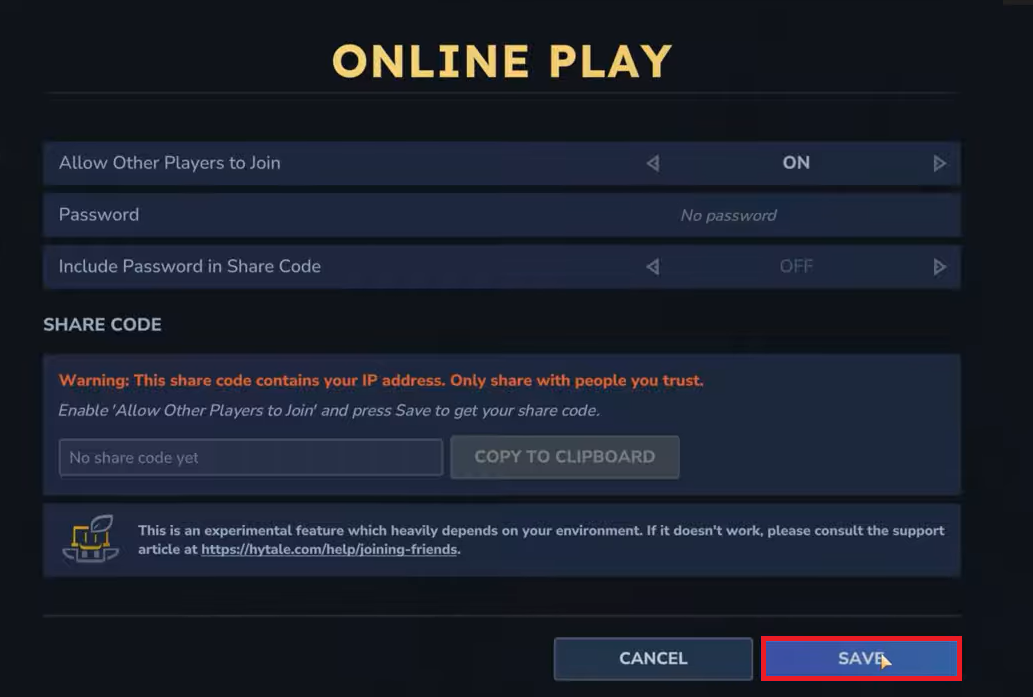
- Click on Online Play.
- Toggle Allow other Players to Join to ON.
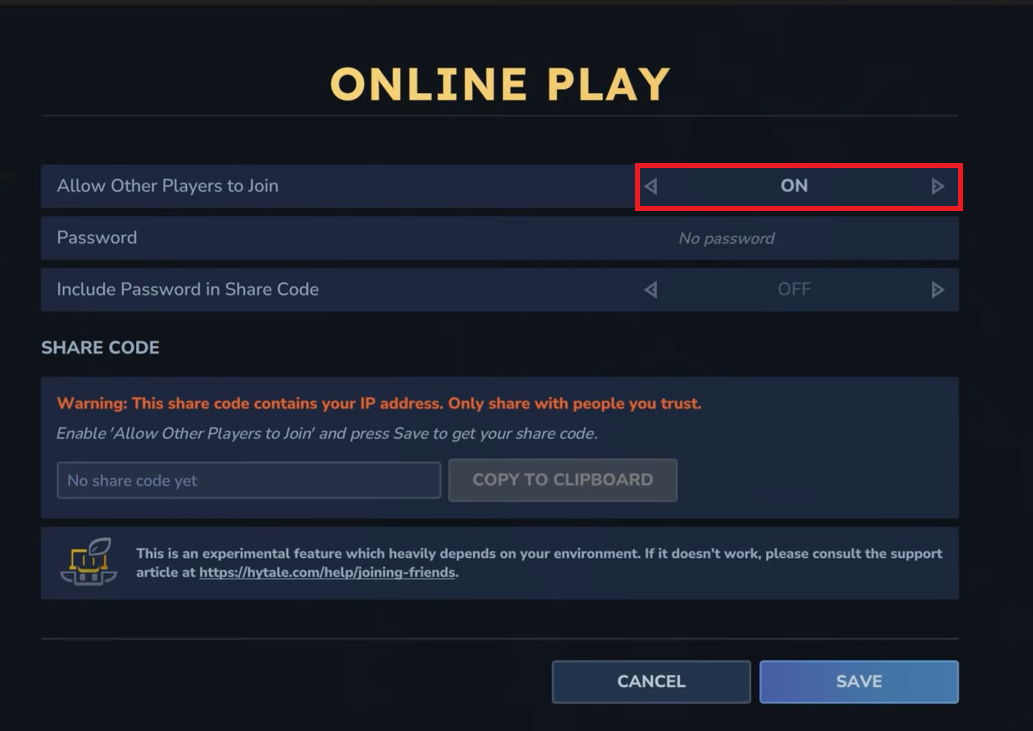
- Set a password if you want to restrict access.
- Enable Include Password in Share Code if you want the password to be embedded.
- Click Save to apply the settings.
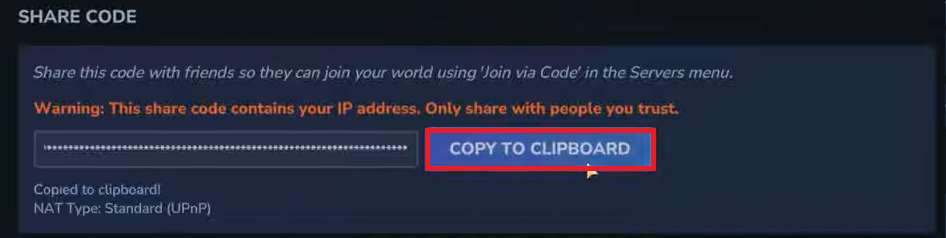
- Once the connection is ready, a share code will appear on the screen.
- The connection status and NAT type will also be displayed below.
- Click Copy to Clipboard and send the share code to your friends.
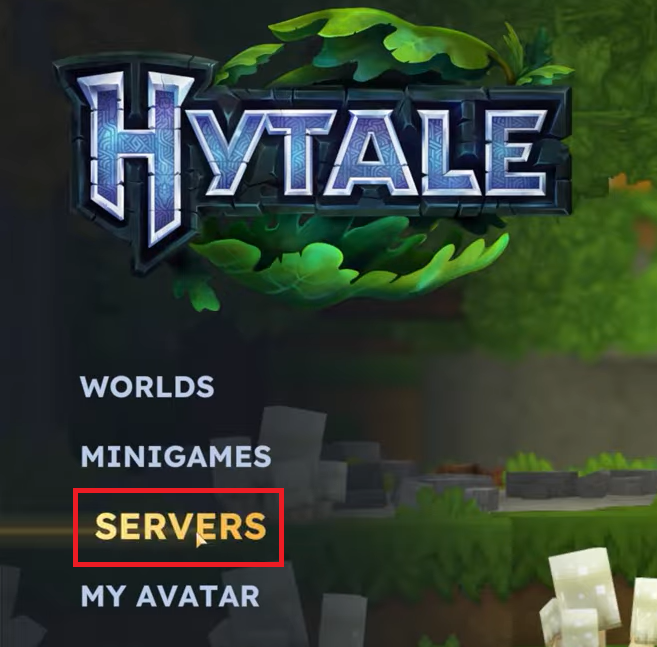
- Ask your friends to open Hytale and go to the Servers menu.
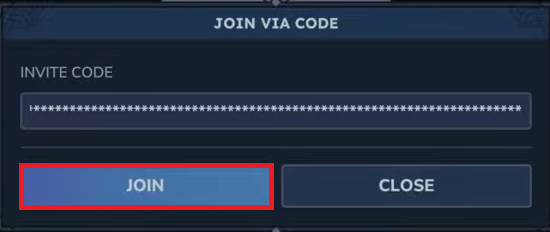
- They should click Join via Code.

- They should enter the code and click on Join.
- If a password is required and not embedded, they should enter it.
Part 3: How to Port Forward a Hytale Server (Dedicated Server Method)
If you want to host a Hytale server for friends outside your local network (and you want a more “server-like” setup), port forwarding can be an important part of the setup. This method is usually used when UPnP/share codes don’t work reliably, or when you want a more direct external connection setup.

Port forwarding allows your router to send incoming connections directly to your computer where the Hytale server is running. This makes your server accessible to other players outside your home network. Setting up port forwarding helps reduce connection issues and makes it easier for friends to connect.
How to Port Forward a Hytale Server
- Make sure your Hytale server is installed and running on your computer.
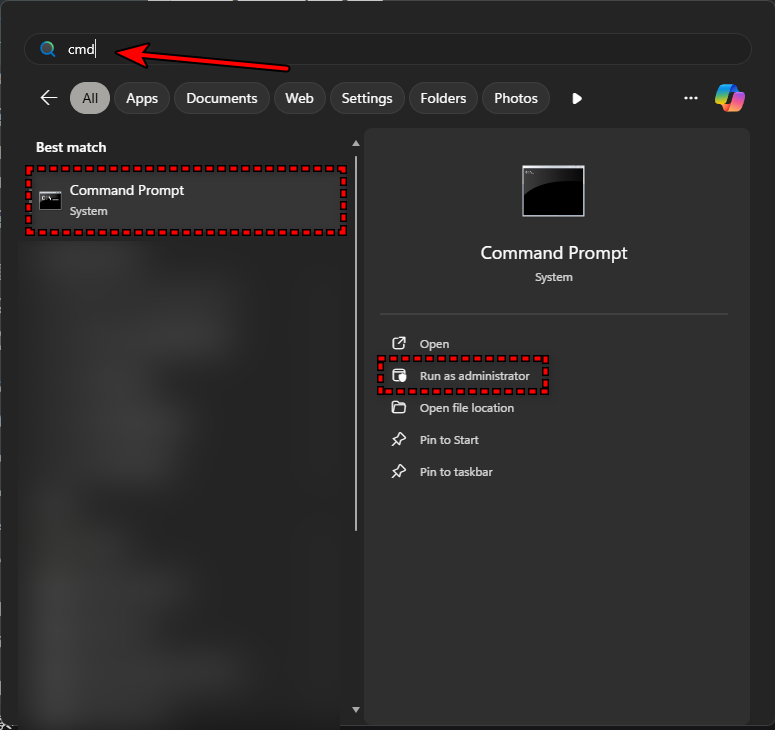
- Open Command Prompt on your computer.
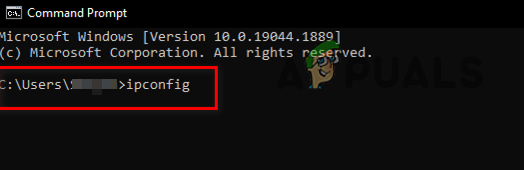
- Type ipconfig and hit Enter.
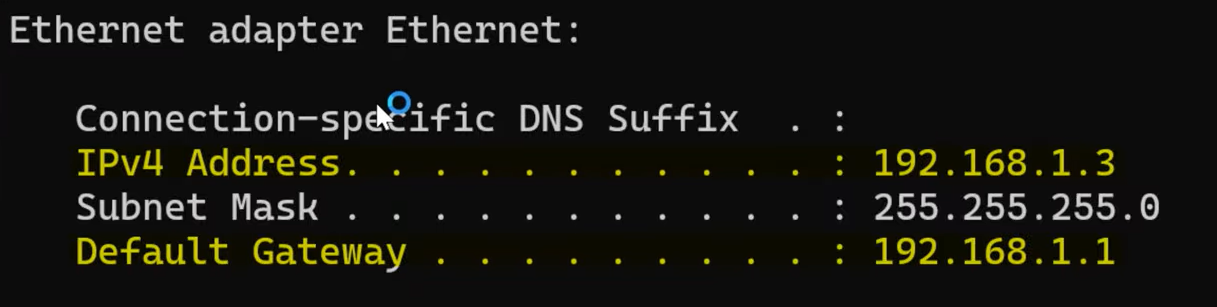
- Note down the IPv4 Address and Default Gateway.
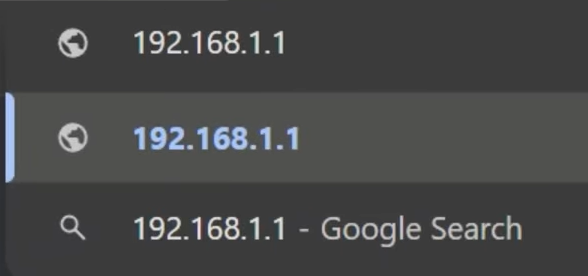
- Copy and paste the Default Gateway in your browser.
- Enter your router username and password to log in.
- Go to Advanced tab, Security tab, or Firewall tab to find Port Forwarding (the exact location depends on your router).
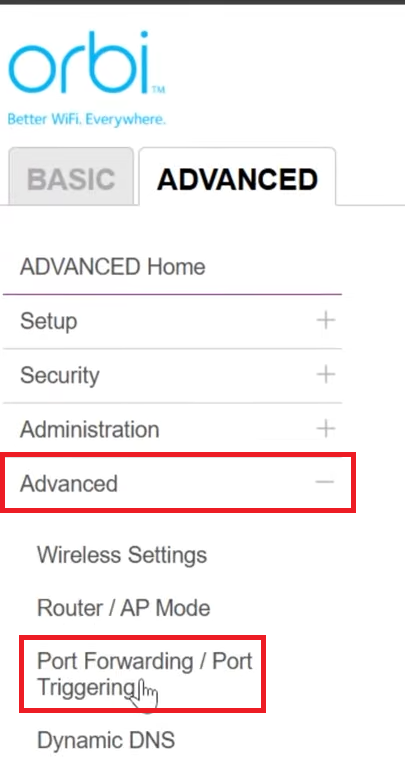
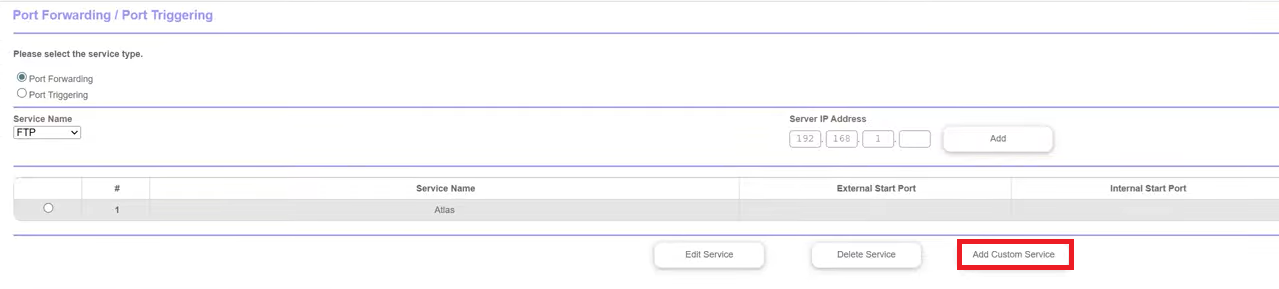
- Click on Add custom service.
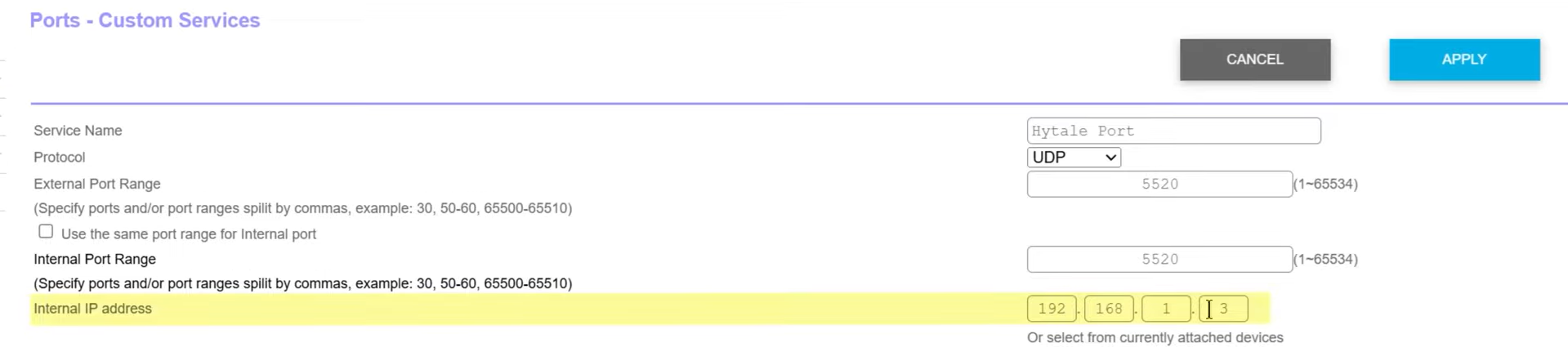
- Enter the Service Name as Hytale Port > Set the protocol as UDP > Enter the External and Internal Port Range as 5520 and enter your Internal IP address (IPv4 Address) that you’ve noted down.
- Go to What’s My IP Address to get your Public IP Address.
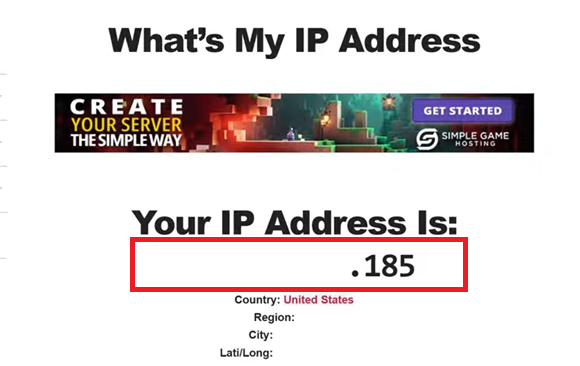
Note: Don’t share the Public IP Address with anybody, only with the people you absolutely trust. - In Hytale’s menu, click on Servers > Join via code.
- Enter the Public IP address that you have copied and the server name then click on Add server.
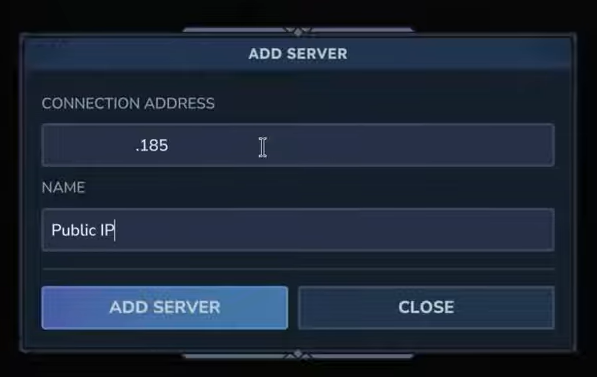
- Once the server is added, click on the server in the list to join.
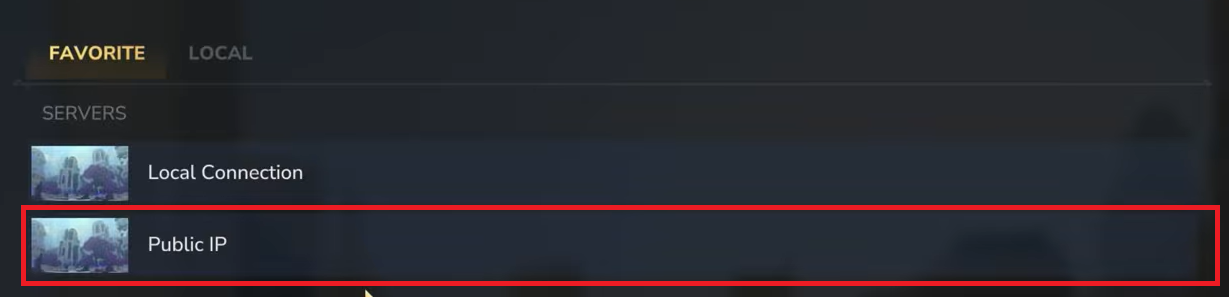
Important Notes (So Friends Can Actually Connect)
In most cases, when you set up port forwarding, the router’s firewall automatically allows the required traffic. However, one common limitation is carrier-grade NAT (CGNAT). If your internet connection uses CGNAT, you do not have a dedicated public IP address, and the same IP is shared among multiple users on your ISP’s network. Because of this, port forwarding will not work, and external players will be unable to connect to your Hytale server.
In this situation, you can contact your ISP to request a dedicated public IP, but this often comes at an additional cost. In many cases, the cost can be similar to renting a game server from a hosting provider, so it is recommended to compare both options before deciding.