How to Connect MG3620 wirelessly using Printers Control Panel

Like most PIXMA multifunction machines, Canon PIXMA MG3620 lets you connect to your wireless network. Everyone can share this printer without messy cables. Follow this guide to connect your printer to Wi-Fi.

Before starting, ensure you are logged in as an administrator, saved your work, and closed other programs.

Connect MG3620 Wirelessly Using Control Panel

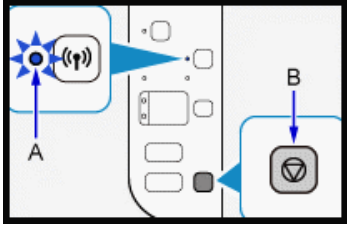
  1. If the printer is busy (printing, cleaning, aligning), wait until it finishes. If the Wi-Fi light is flashing, press the Stop button [B].2016-05-03_144406
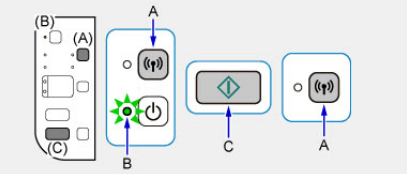
  2. Press and hold the Wi-Fi Button [A] until the ON light [B] flashes.2016-05-03_144525
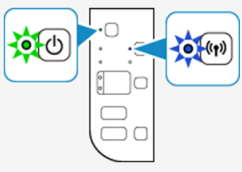
  3. Press the Color button [C] then the Wi-Fi button. Ensure the Wi-Fi light flashes and the ON light is lit.2016-05-03_144618
  4. To continue the wireless setup, install the drivers and software on your computer.
  5. Insert the software CD into the CD drive. The setup should start automatically. If not, browse to the CD-ROM folder and run the exe. Alternatively, download Canon MG3620 software from the Canon website.
  6. If any dialog boxes from Windows User Account Control or antivirus/firewall pop up, allow the installation.
  7. Click the Start Setup button.
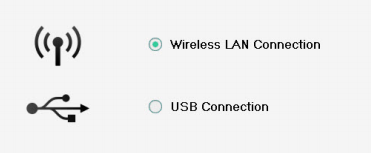
  8. Follow on-screen instructions. Select your country, accept the license agreement, etc. When you reach Select Connection Method, choose Wireless LAN Connection and click Next.2016-05-03_144940
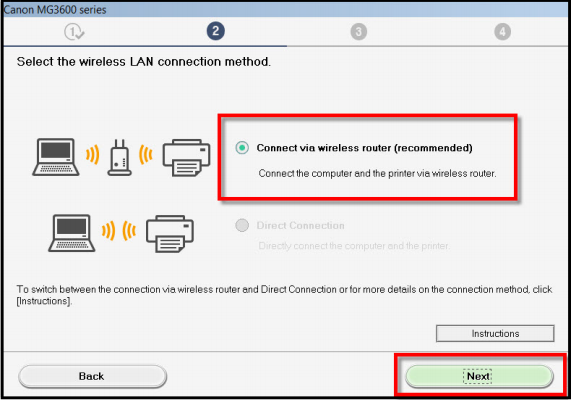
  9. Next, select Connect via wireless router (recommended) and click Next.2016-05-03_145015
  10. The following screens will appear in order. Ensure your Canon PIXMA3620 is selected in all of them. Verify the serial number on the sticker at the back of the printer.
    Check Power
    
    Printers on Network List (Ensure the printer is selected)
    
    Connection Completed
    
    Setup Complete
    
  11. The Software Installation List will appear. Choose optional software you want to install and click Next.
  12. An “Installation completed successfully” screen will appear. Click Exit to finish setup.
ABOUT THE AUTHOR

Kevin Arrows


Kevin Arrows is a highly experienced and knowledgeable technology specialist with over a decade of industry experience. He holds a Microsoft Certified Technology Specialist (MCTS) certification and has a deep passion for staying up-to-date on the latest tech developments. Kevin has written extensively on a wide range of tech-related topics, showcasing his expertise and knowledge in areas such as software development, cybersecurity, and cloud computing. His contributions to the tech field have been widely recognized and respected by his peers, and he is highly regarded for his ability to explain complex technical concepts in a clear and concise manner.

Comments

23
    IM
    Ivan Michelsen Nov 29, 2017

    mg 3620 try to connect to router but the router have a password what do i do

      KA
      K. Arrows Author Dec 2, 2017

      You need your wifi key to connect to it, or if you router has a WPS feature then use that to connect printer to the router. Please see manual for MG3620 to view WPS instructions.

      Reply
    GL
    Greg Littmann May 2, 2018

    Problem solved.

    ME
    Melanie Aug 2, 2018

    I pressed and held the wifi button but it still does not flash ?

      KA
      Kamil Anwar Aug 6, 2018

      Did you mean the WPS button?

    CH
    Cierra Hooks Feb 5, 2019

    I’ve tried everything and my printer just wont connect to my computer or laptop, help anyone

      SW
      Shane Warren Author Sep 20, 2019

      Try reinstalling the drivers for the printer and try this method again. Make sure that you connect it wirelessly through the router and if you are trying to enter the password also make sure to try and connect it through the WPS button.

    EF
    elizabeth furai Aug 22, 2019

    Hi, after i Followed your instruction my printer Canon MG3620 worked perfectly.Then I turned off my computer and my printer and now I turned on both of them hope it will still work good but it doesn’t. On my PC when i try to print document, it says the printer is not responding and I don’t even print. please sir what can I do? may I uninstall all product for canon and installed wirelessly again as you did in this video? please reply sir, I need help

    SW
    Shane Warren Author Sep 5, 2019

    Yes try to reinstall the products for canon and check if it solves the issue.

    MH
    Michelle Jenn Hill Oct 19, 2019

    Thank you!!!! This is about the most frustrating setup for a printer i have ever seen. It is not explained in any of the manuals included with the printer, nor are canon’s online directions explain this.

    PR
    Phil Rizzuto Feb 3, 2020

    This is literally the worst printer on the market.
    Its become a game to try and get it to work. It has literally never printed 1 single letter ever. It claims to be wifi capable but IT IS NOT. Even using usb cable (which it didnt come with) it will not complete setup.
    Save yourself the aggravation and DONT BUY THIS PRINTER.

      CT
      Charline Tate Mar 7, 2020

      LOL thanks. I feel so much better.

      AG
      Ag Oct 17, 2020

      Same problem very difficult to use

    CT
    Charline Tate Mar 7, 2020

    Wifi is connected but still getting error stating not communication

      SW
      Shane Warren Author Mar 10, 2020

      Try reinstalling all the drivers and check if that fixes the issue for you. Unfortunately, we have seen a lot of bad reviews for this printer in which it causes connectivity issues so it might just be unfixable but do tell what happens when you reinstall the drivers.

    GI
    Girliusmaximus May 6, 2020

    What if you have a laptop for work that does not allow for installation of non-approved software? Is there another way to connect it wirelessly?

      SW
      Shane Warren Author May 11, 2020

      Im afraid you need to install the software and the drivers to be able to continue.

      MX
      Michael Xi May 13, 2020

      Use Canon PRINT app from app store. It is a pain to set this printer with wifi.

      Reply
    BR
    Brandy Rae Oct 30, 2020

    i was able to print for 3 days . just bought it new then ATT flipped to 5g, now it will not print anymore … great

      MZ
      Muhammad Zubyan Author Oct 30, 2020

      Unfortunately, The PIXMA MG6620 is not compatible with the 5GHz band of routers. Check the backside of your router they might have the address for the homepage to set up your router once you are in the settings check for the band selection field, you can select 2.4 GHz or 5 GHz. Set the bands to 2.4 GHz to start printing again Keep in mind that this will decrease the speed of your Wifi dramatically.

      Reply
    AB
    Anand Bhardwaj Mar 10, 2021

    The issue is getting the printer to connect to the right wifi with the right password.
    Here’s what worked for me:

    1: Download Canon PRINT app on your phone.

    2: On the printer, hold down the wifi button until the power flashes, then press the color print button, then press the wifi button again

    3: On your phone, you’ll now see a new wifi network, canon_ij_XXXX. Connect to it.

    4: Open the Canon app, connect to your printer. It will ask you to enter your wifi info. Enter your home wifi router info.

    Your printer is now on your home wifi and discoverable by your Mac or PC. Add it as you would any wifi printer using a generic or canon driver.

    Reply
      KN
      Khalil Nasir Mar 29, 2022

      This method worked for me!!! Thanks for sharing this! Once my smartphone connected successfully, then the Canon setup software saw the printer and install was able to proceed.

      AJ
      Amit Joshi May 25, 2023

      Without this comment I never would have figured out how to connect this thing. Thank you!