Fix: “Preauth PlayIntegrity verification failed” in ChatGPT
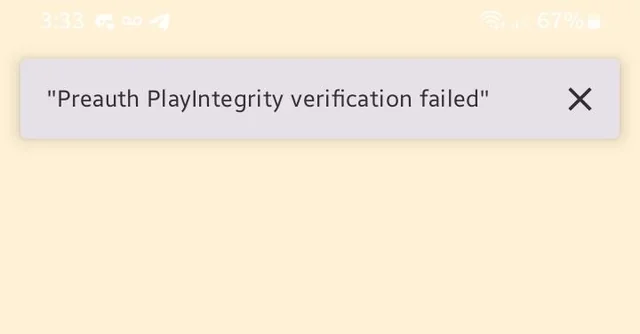
When you open the ChatGPT app and try to sign in, you may see “Preauth PlayIntegrity verification failed”. This means the app couldn’t pass a Google Play Integrity check during a quick pre-check (before sign-in completes), so login stops early.
- Play Integrity: Google’s verification that checks if your device/software environment looks trustworthy enough for secure verification.
- Preauth: A short pre-check that runs before sign-in finishes.
- Play Protect certification: Whether Google recognizes your device as certified in the Play Store (helpful, but not a guarantee).
It’s most common on devices that are uncertified, bootloader-unlocked, rooted, or running a custom ROM. It can also happen on normal phones if Google Play services can’t complete verification due to blocked network requests, wrong time, corrupted Play components, or aggressive battery/data restrictions.
Common Causes
- Root / unlocked bootloader / custom ROM (integrity fails).
- Device is not Play Protect certified (Uncertified/Unknown).
- Google Play services / Play Store is corrupted, outdated, or stuck.
- VPN / Proxy / Private DNS or filtering (ad-block DNS, firewall apps) blocks Google verification.
- Incorrect Date & Time.
- Modified/cloned ChatGPT APK (not the official Play Store build).
- Emulator/virtual device.
- No fully working/official Google Mobile Services (GMS) (some Huawei/China ROM/de-Googled setups).
- Old security updates or heavily restricted system environment.
- Battery/Data restrictions blocking Play services/Play Store in the background.
Quick Checks (Do These First)
- Restart your phone and try again.
- Switch networks (Wi-Fi ↔ Mobile Data).
- Check updates:
- Android system update (Settings → System → System update)
- Google Play system update (Settings → Security & privacy → Updates → Google Play system update)
- Confirm ChatGPT is installed from the Google Play Store (avoid modded APKs).
If it still fails, check your device’s Play Protect certification. On an uncertified device, Play Integrity often fails before login can complete.
Check Play Protect Certification
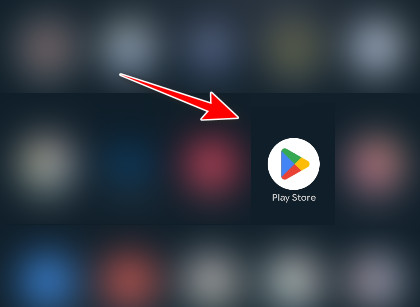
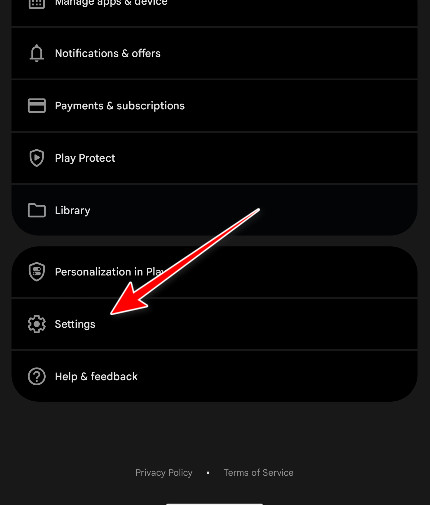
- Open the Google Play Store app on your phone.
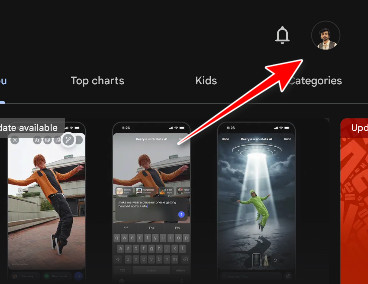
- Tap your Profile icon.
- Tap Settings.
- Go to About → check Play Protect certification.
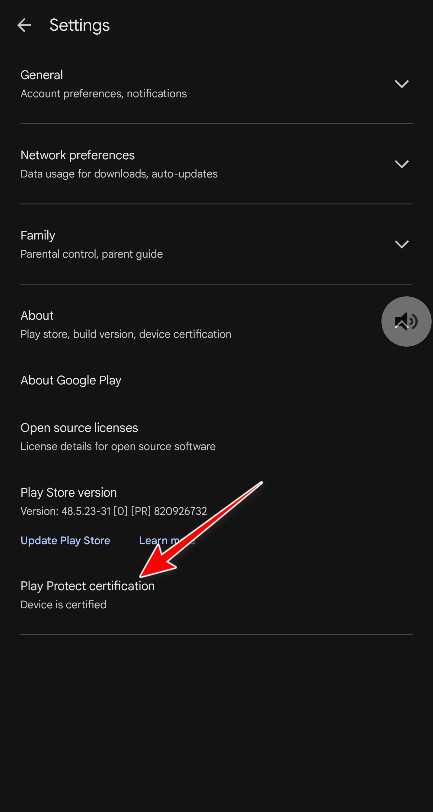
What to do next:
- If it says “Device is certified”, start with Solution 1.
- If it says “Device is not certified” or “Unknown”, go to Solution 4 first, then return to Solutions 1–3.
1. Clear ChatGPT Data
If ChatGPT’s local login/session data is corrupted, clearing storage removes cached tokens and forces a fresh verification attempt.
- Press and hold the ChatGPT icon and tap App info.
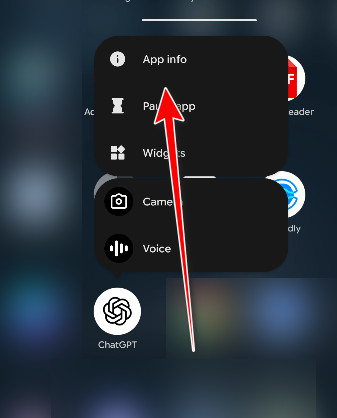
- Tap Force stop (if available), then open Storage.
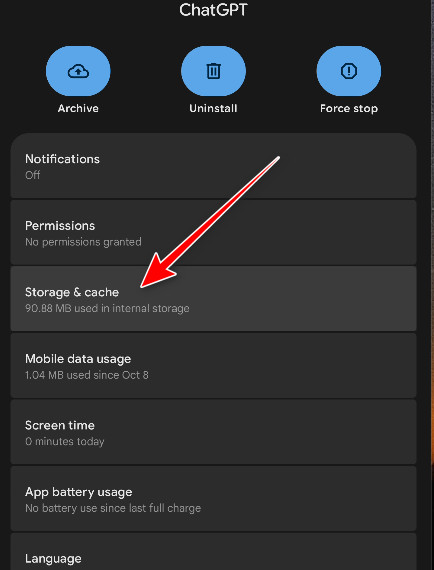
- Tap Clear cache (if shown), then tap Clear data.
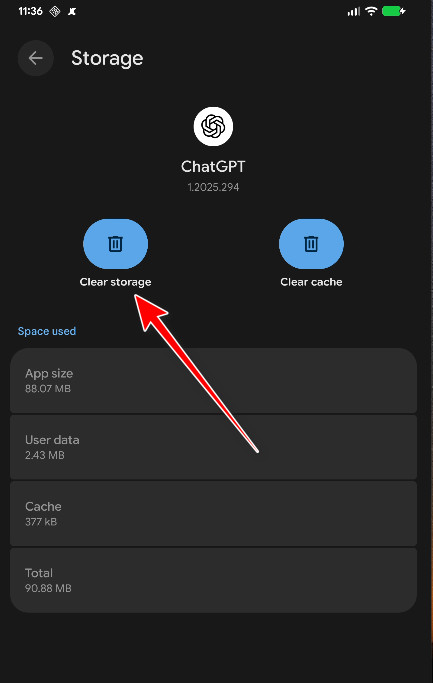
- Reopen ChatGPT and try signing in again.
2. Disable VPN/Private DNS, Fix Date & Time, and Remove Network Filtering
Play Integrity depends on Google’s network verification. VPNs, Private DNS, firewalls, ad-block DNS, or wrong time settings can break verification before sign-in finishes.
- Turn off any VPN (including Always-on VPN).
- Disable Private DNS temporarily (Settings → Network & Internet → Private DNS → Off/Automatic).
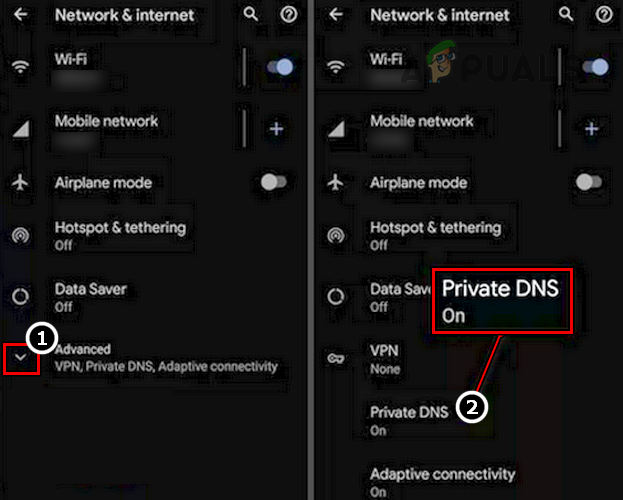
- Disable any ad-block DNS / firewall app temporarily.
- Enable Set time automatically and Set time zone automatically (Settings → System → Date & time).
- Turn Data Saver off and allow background data for Google Play services and Google Play Store.
- Switch networks (Wi-Fi ↔ Mobile Data) and try signing in again.
3. Reset Google Play Store and Google Play Services
If Play Store/Play services data is corrupted, the integrity check can fail repeatedly. Clearing their storage forces a rebuild.
- Go to Settings → Apps.
- Open Google Play Store → Force stop → Storage → Clear cache → Clear data.
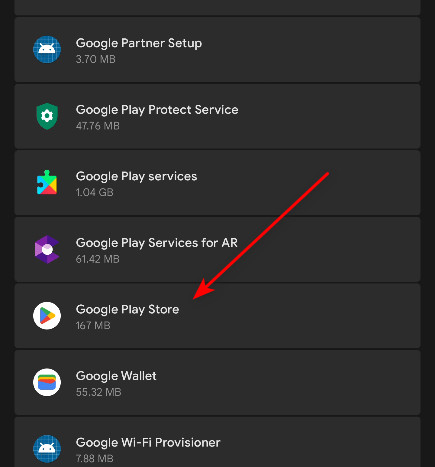
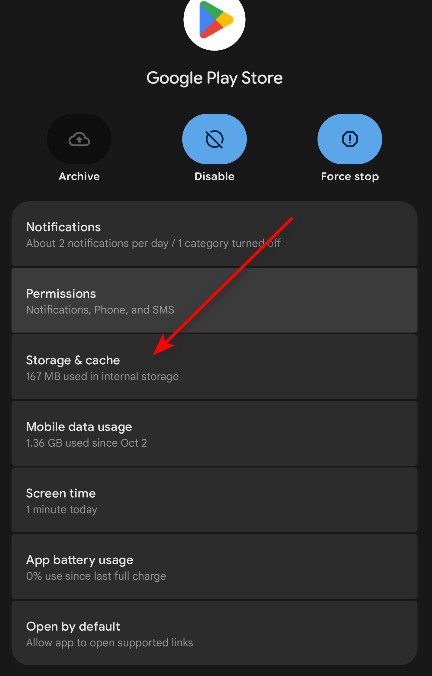
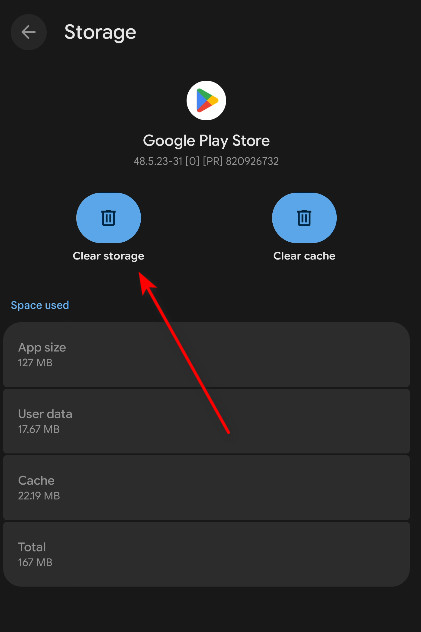
- Go back, open Google Play services → Force stop → Storage/Manage storage → Clear cache → Clear data.
- Restart your phone.
- Open Google Play Store and leave it open for 1–2 minutes, then try signing in to ChatGPT again.
4. Fix “Device Not Certified” (Uncertified/Unknown)
If Play Protect certification shows Uncertified or Unknown, Play Integrity commonly fails regardless of what you do inside ChatGPT. This is usually caused by root, an unlocked bootloader, a custom ROM, or missing/unsupported Google Mobile Services (GMS).
The reliable fix is to restore a certified, official device state. Depending on your device, that can mean:
- Return to official/stock firmware (manufacturer ROM).
- Remove root modifications (if present).
- Relock the bootloader only if your device/ROM supports it safely (relocking on the wrong setup can brick some devices).
- Make sure Google Play services is installed and working normally.
- Install pending Android security updates and Google Play system updates.
After making changes, re-check Play Protect certification in the Play Store. Once it shows “Device is certified”, try Solutions 1–4 again.
5. Reinstall ChatGPT
Reinstalling removes corrupted app data and ensures you’re using the latest official Play Store build.
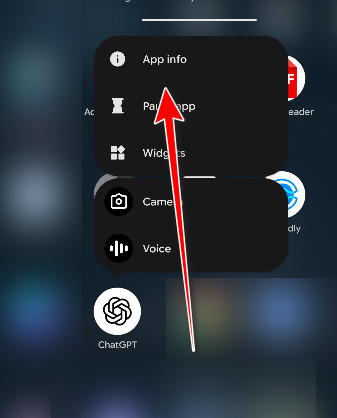
- Press and hold the ChatGPT icon and tap App info.
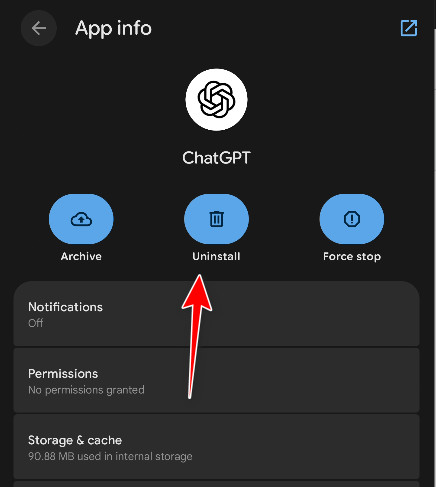
- Tap Uninstall.
- Restart your phone.
- Install ChatGPT again from the Google Play Store.
- Launch the app and try signing in.
Workaround: Use the Browser Version
If Play Integrity keeps failing (especially on uncertified/modified devices or devices without official GMS), use ChatGPT in a browser. The web version doesn’t rely on the Android Play Integrity login flow.
- Open your phone’s web browser.
- Go to ChatGPT and sign in.
If none of the solutions work: Try signing in on a different Android phone (to confirm your account is fine), and use the browser workaround while you troubleshoot the device certification/environment issue.