Fix: AutoCad FATAL ERROR Unhandled Access Violation
The “FATAL ERROR: Unhandled Access Violation Reading 0x0028 Exception at FED94060h” in AutoCAD is a critical crash that occurs when AutoCAD attempts to access a region of system memory that is invalid, restricted, or no longer available. When this happens, Windows immediately terminates the application to prevent system instability or data corruption.
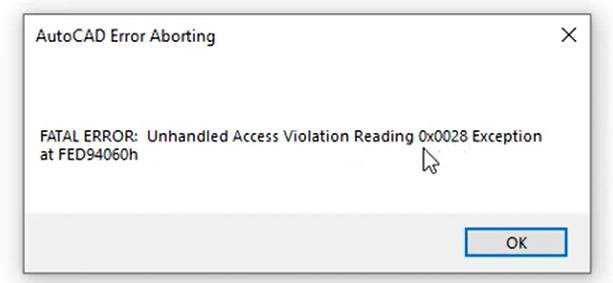
This error is commonly reported when opening drawings, switching layouts, rendering 3D objects, plotting files, or shortly after launching AutoCAD following a Windows or graphics driver update.
This issue does not usually indicate faulty physical RAM. Instead, it is typically caused by software conflicts, corrupted drawing data, unstable graphics drivers, damaged AutoCAD settings, or incompatible add-ins interfering with AutoCAD’s memory handling.
The error message may appear with different hexadecimal values, such as:
- Unhandled Access Violation Reading 0x0028 Exception at B3D24A0Fh
- Unhandled Access Violation Reading 0x0028 Exception at 2C87E970h
The hexadecimal address varies because it represents the specific memory location involved during the crash.
1. Set GPU Preference to Power Saving (Workaround)
On systems with multiple GPUs, aggressive switching between integrated and dedicated graphics processors may introduce rendering instability.
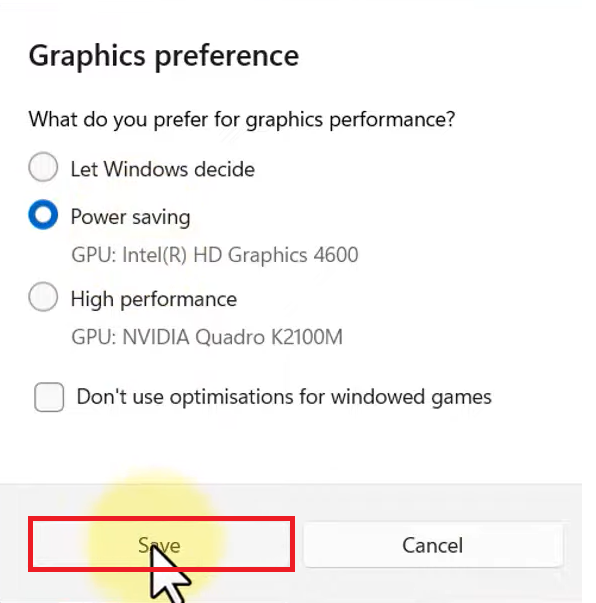
Selecting the Power Saving profile forces AutoCAD to use the integrated GPU, bypassing unstable dedicated GPU driver interactions. This acts as a troubleshooting workaround rather than a permanent performance recommendation.
- Press the Windows key and search for Graphics Settings.
- Click Browse under Custom options for apps.
- Navigate to:
C:\Program Files\Autodesk\AutoCAD 2020\acad.exe
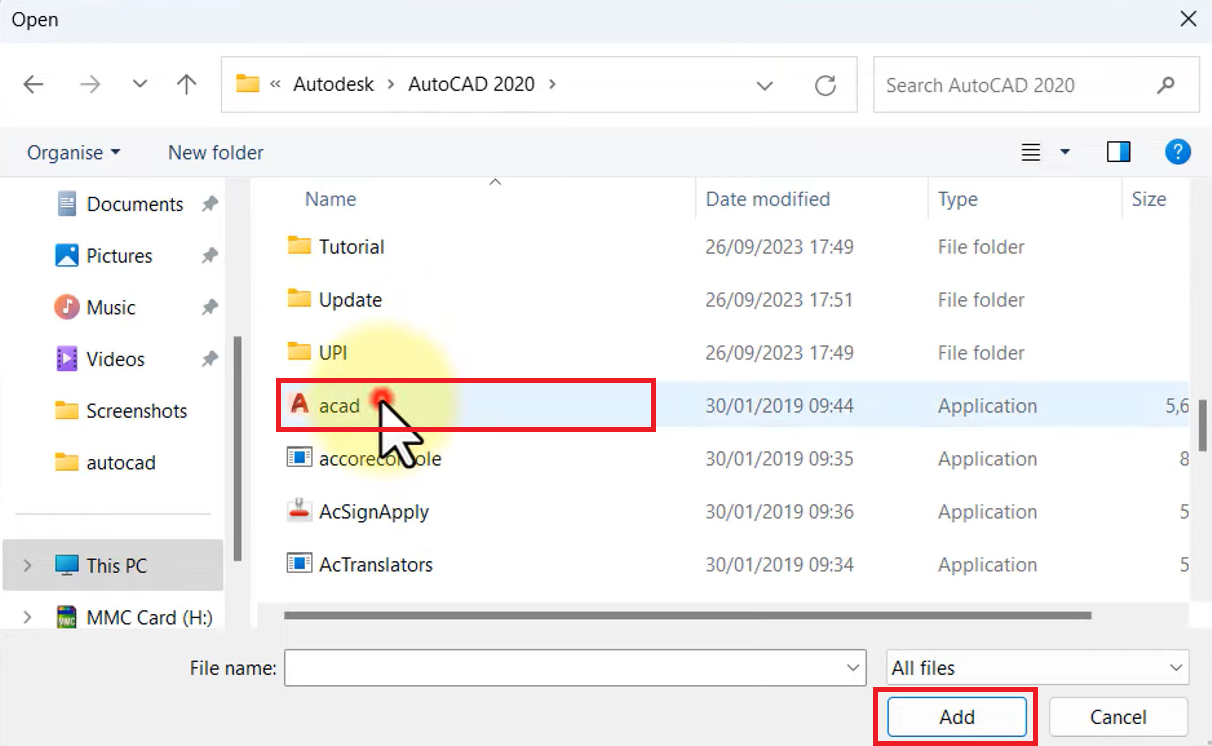
- Select AutoCAD and click Options.
- Choose Power saving and click Save.
- Relaunch AutoCAD and test stability.
2. Disable Optimizations for Windowed Applications
Windows includes graphical optimizations designed primarily for games running in windowed or borderless modes. These optimizations can also affect professional GPU-accelerated applications such as AutoCAD.
In certain configurations, these additional rendering layers interfere with AutoCAD’s communication with graphics drivers and may trigger access violation crashes.
- Open Graphics Settings.
- Select AutoCAD from the applications list.
- Click Options.
- Enable Don’t use optimizations for windowed games.
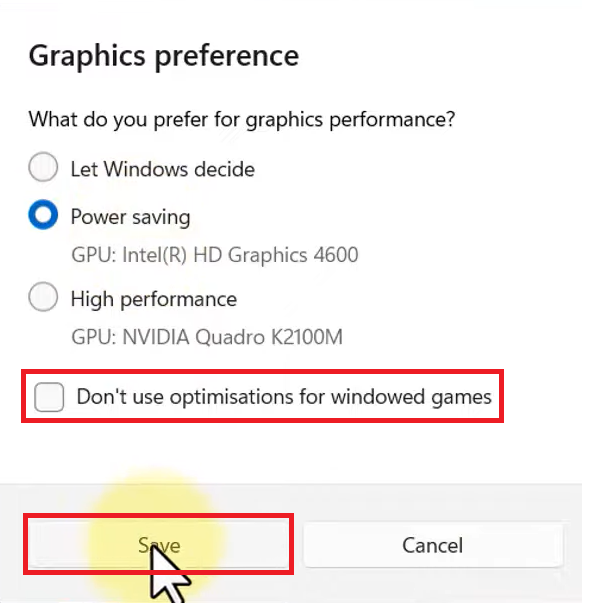
- Click Save.
If this option is not visible, ensure Windows is fully updated or temporarily disable Hardware-Accelerated GPU Scheduling from Graphics Settings.
3. Update or Reinstall Graphics Drivers
Corrupted or incompatible graphics drivers frequently cause GPU memory handling failures that result in access violation errors.
Whenever possible, use graphics drivers certified by Autodesk for maximum stability.
For AMD Users:
- Open AMD Software.
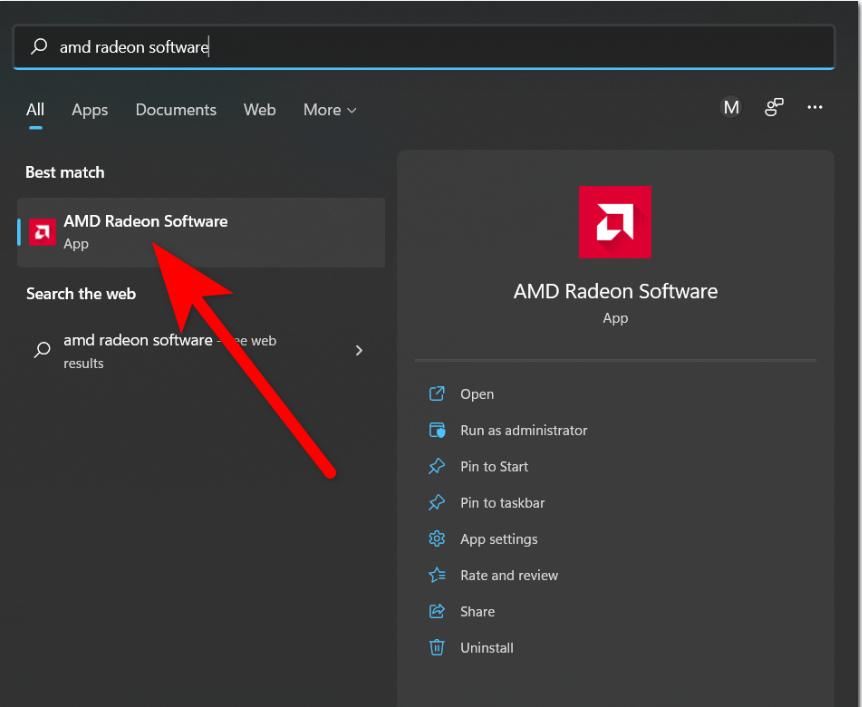
- Click Check for Updates.
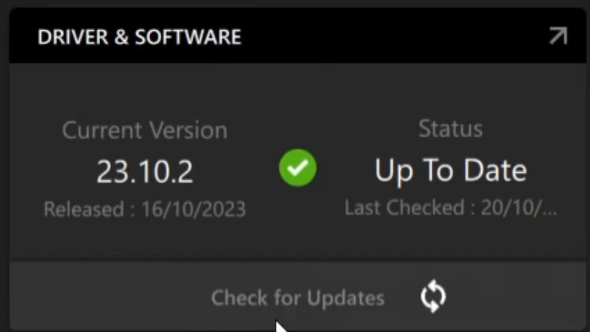
- Install updates or perform a clean reinstall if crashes continue.
For NVIDIA Users:
- Open the NVIDIA App.
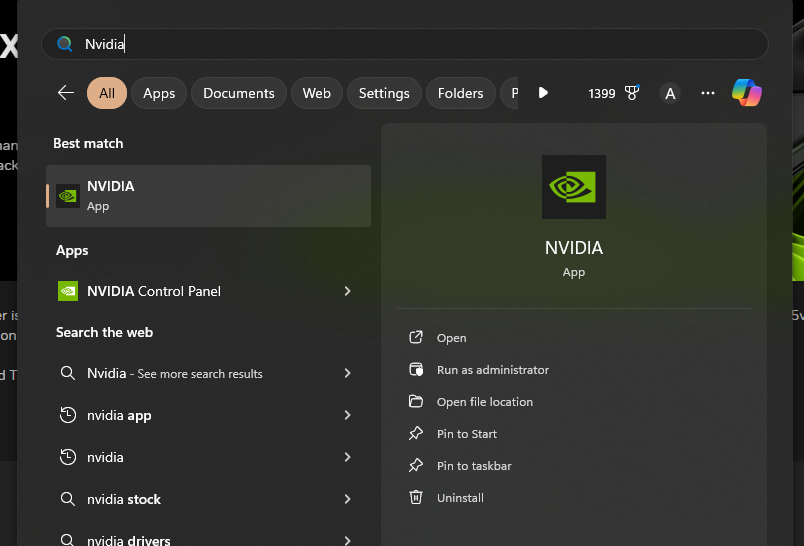
- Go to the Drivers tab.
- Download and install the latest available driver.

- Restart your computer after installation.