How to Fix Crashing and Freezing Problem in ARC Raiders?
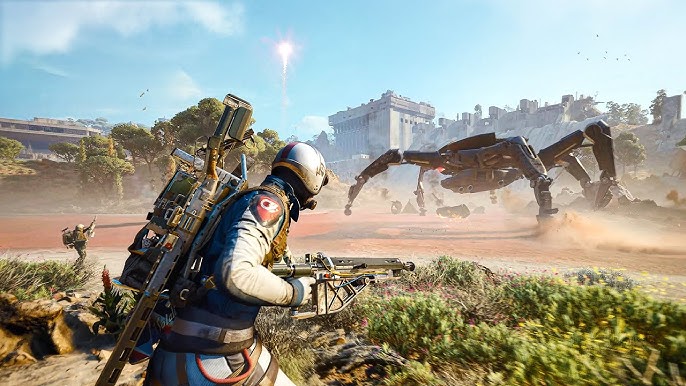
ARC Raiders may crash, freeze, or close unexpectedly during startup, loading, or gameplay if it fails to initialize graphics drivers, memory, or core engine components correctly.
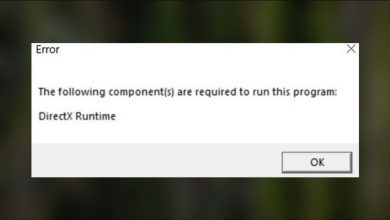
Common causes include unstable system settings, driver issues, overlay conflicts, DirectX problems, corrupted files, or missing Windows components. The issue may also appear after Windows updates or hardware changes.
Also identify when the crash occurs. Crashes before launch usually indicate driver issues, missing files, or permissions. Crashes during gameplay are more often linked to GPU load, memory usage, or background interference.
1. Verify Game Files (Steam/Epic)
Corrupted or missing files can prevent the game from launching or cause crashes during loading. Verification compares your installation with official files and replaces any damaged data automatically. This is one of the fastest and most effective fixes for startup issues.
- Open Steam or Epic Games Launcher.
- Go to your Library.
- Right-click ARC Raiders and open Properties or Manage.
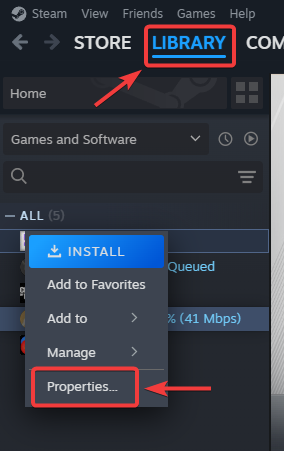
- Select Installed Files or Verify.
- Click Verify integrity of game files.
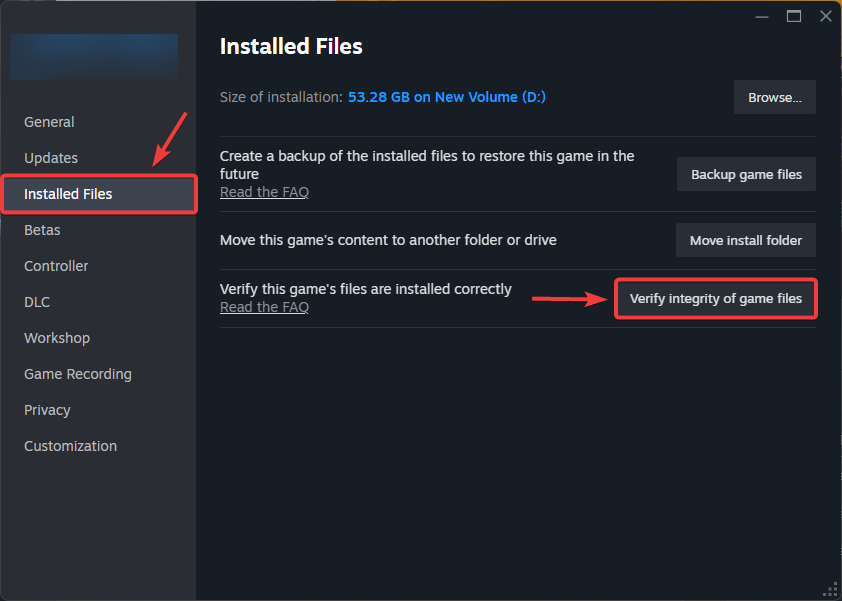
- Wait for completion, then relaunch the game.
2. Update or Reinstall GPU Drivers
Graphics drivers directly affect stability. Outdated or corrupted drivers can cause crashes, freezing, or shader issues. Updating ensures compatibility, while a clean reinstall removes leftover conflicts.
- Press Windows + X and open Device Manager.
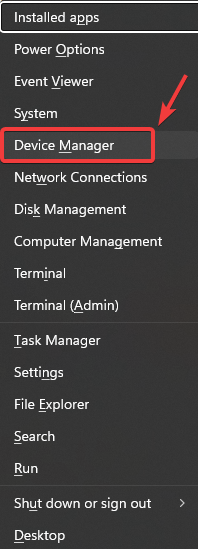
- Expand Display adapters and note your GPU.
- Download the latest driver from NVIDIA, AMD, or Intel.
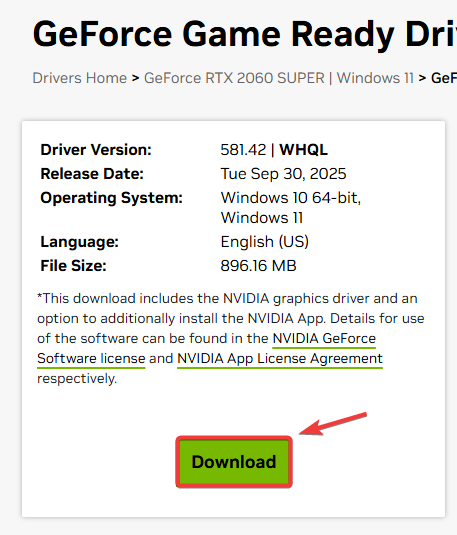
- Install using clean installation if available.
- Restart your PC and test the game.
3. Disable Overlays and Background Apps
Overlays and background apps can interfere with rendering and memory usage. Disabling them reduces conflicts, especially if crashes occur after launch or during loading.
- Close unnecessary apps such as browsers and Discord.
- Disable the NVIDIA GeForce Experience overlay.
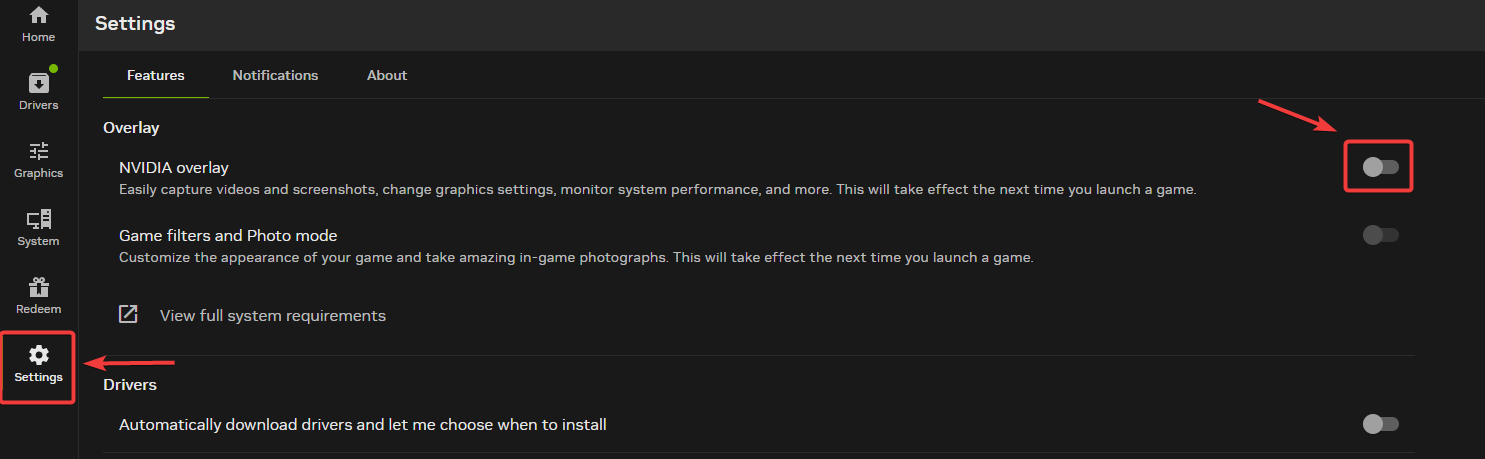
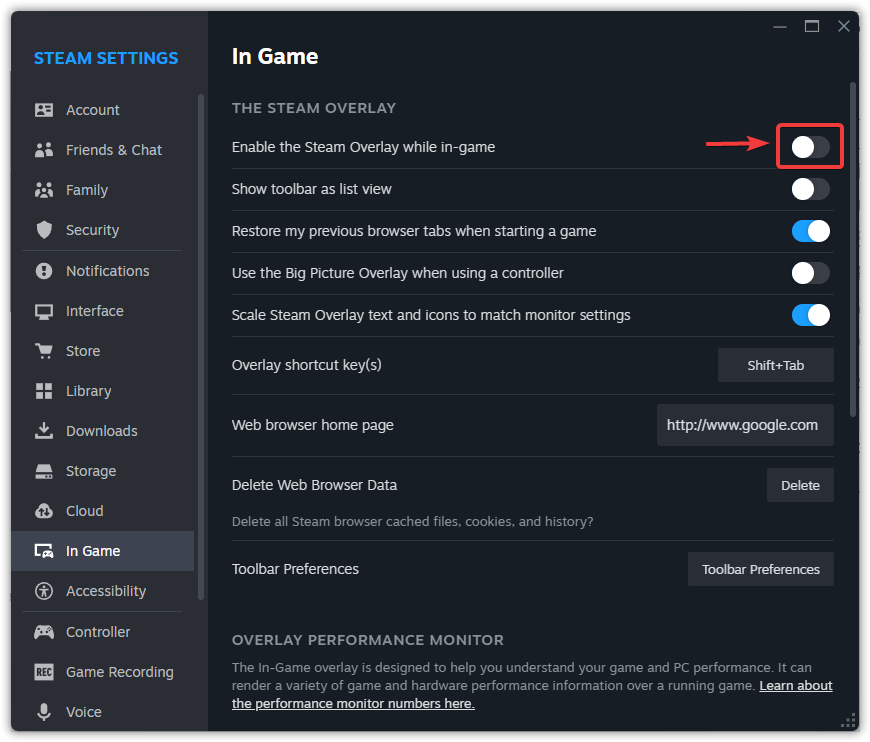
- Disable Steam or Epic overlay.
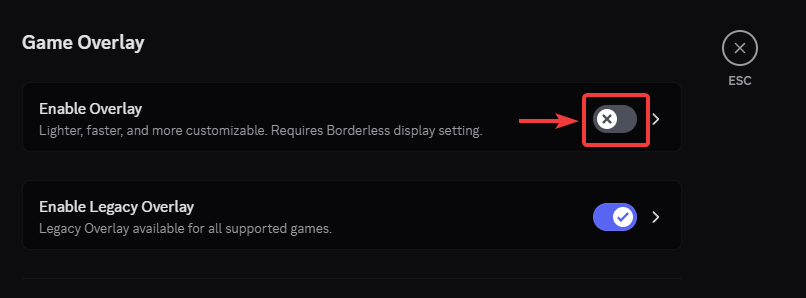
- Disable the Discord overlay.
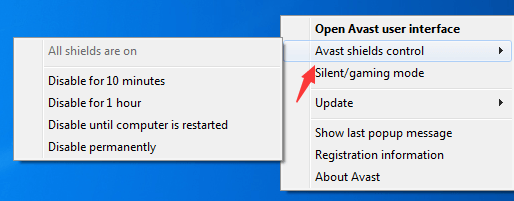
- Temporarily disable antivirus real-time protection for testing, then re-enable it.
- Relaunch the game.
There are some other overlays that you may be able to disable as well, check our detailed guide on this specific topic: How to Disable In-Game Overlays to Fix Lag & FPS Drops?
4. Force DirectX 11 Launch
Newer DirectX modes can be unstable on some systems due to driver or hardware compatibility. Forcing DirectX 11 often improves stability and reduces startup crashes.
- Open Steam or Epic Games Launcher.
- Go to your Library.
- Right-click ARC Raiders and open Properties.
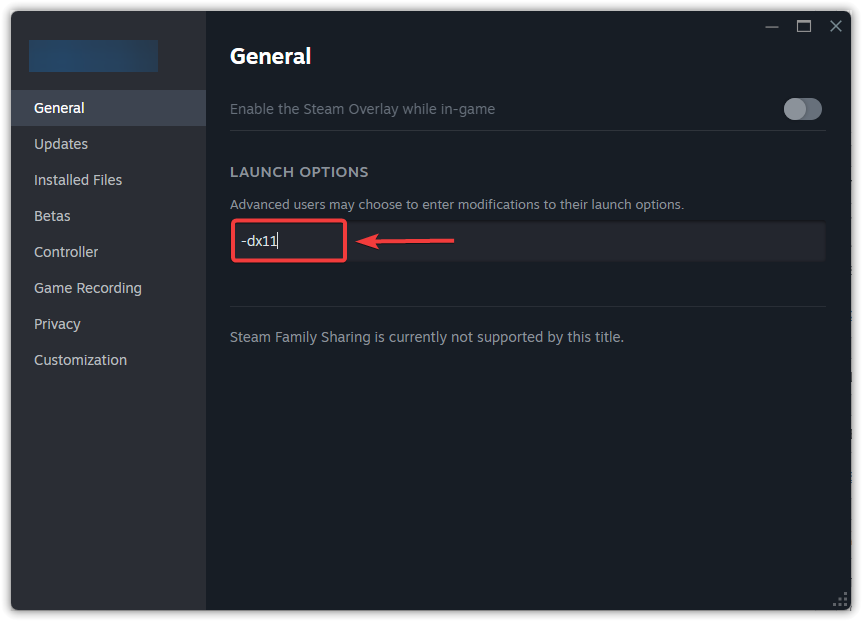
- Find Launch Options and enter -dx11.
- Launch the game.
5. Lower Graphics Settings
If crashes occur during gameplay, your system may be under high load. Lowering graphics reduces GPU and memory usage, improving stability.
- Launch ARC Raiders.
- Open Settings.
- Lower the Graphics Preset.
- Reduce Textures, Shadows, and Effects.
- Disable motion blur and similar effects.
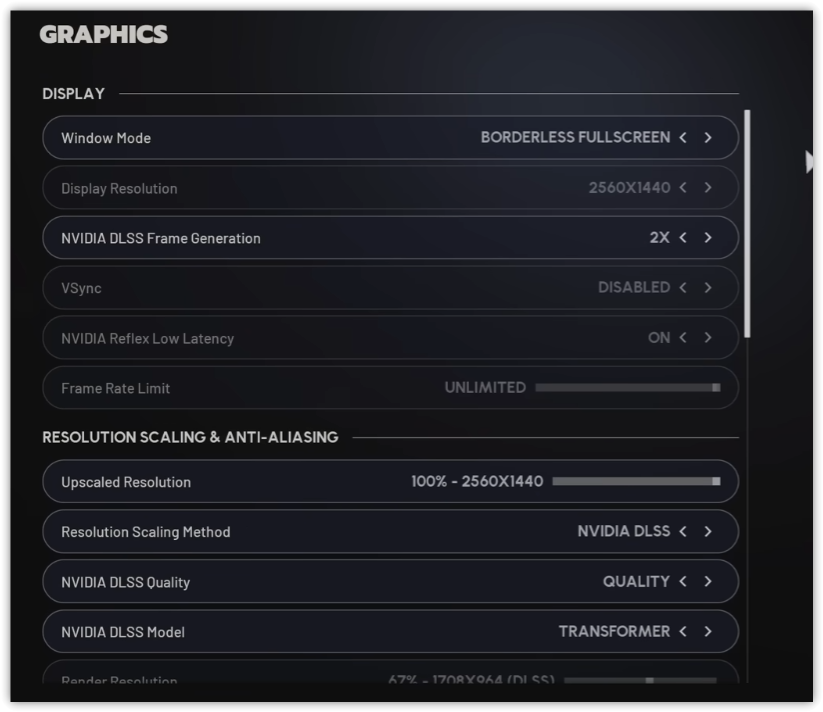
- Apply changes and restart the game.
6. Update Windows and Install Required Components
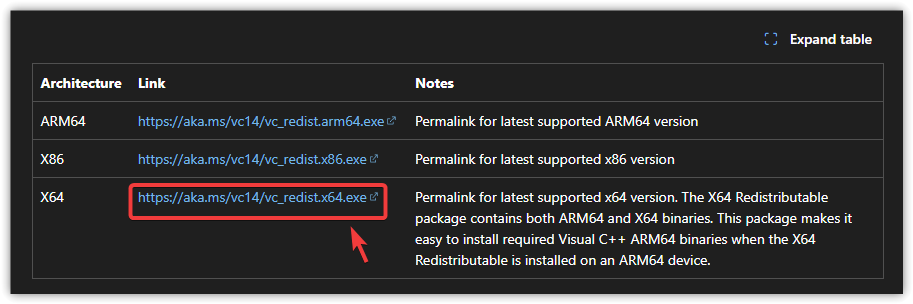
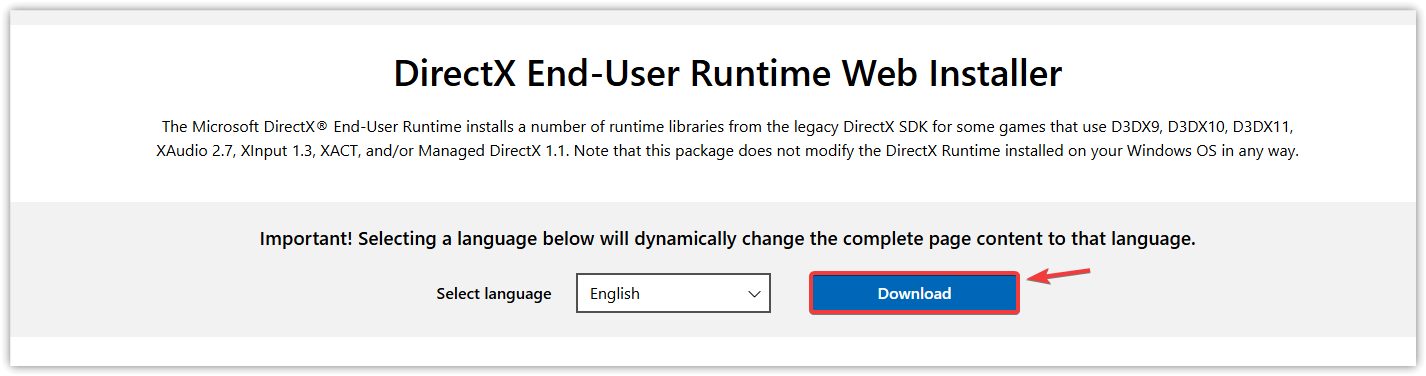
Missing or outdated components like DirectX or Visual C++ can cause crashes. Updating ensures all required dependencies are available.
- Open Windows Settings and go to Windows Update.
- Install all available updates.
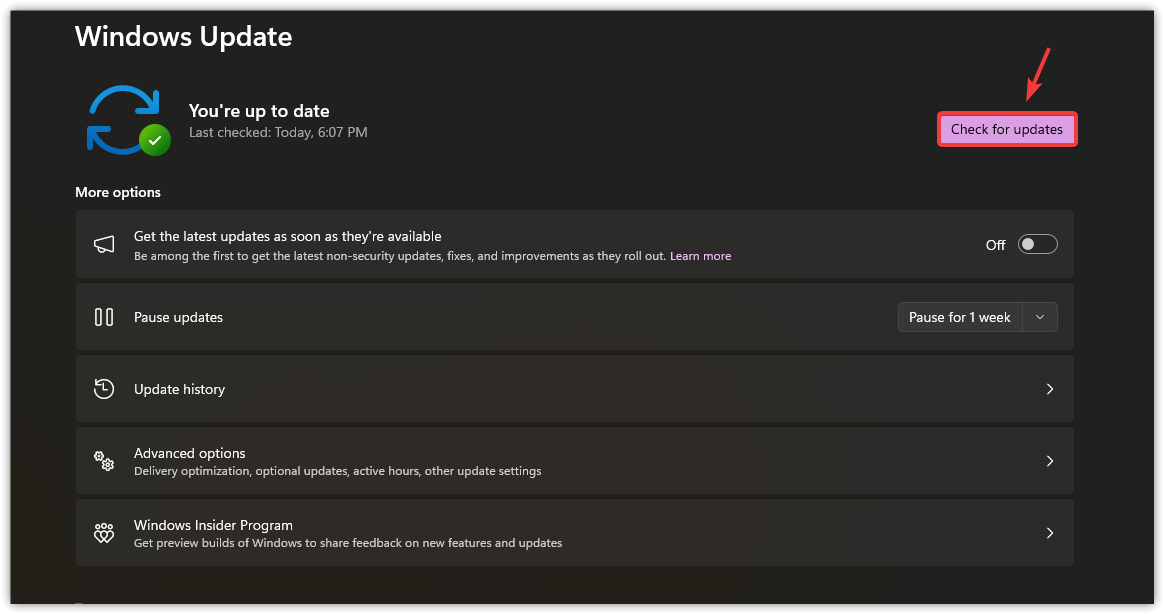
- Install the latest Microsoft Visual C++ Redistributables (x64 and x86).
- Install or repair the DirectX End-User Runtime.
- Restart your PC.
7. Reinstall ARC Raiders
If the issue persists, reinstalling removes corrupted data and resets the game. If crashes continue, the cause is likely driver, hardware, or system-level instability.
- Open your launcher and go to Library.
- Right-click ARC Raiders and select Uninstall.
- Restart your PC.
- Reinstall the game and test it.