How to Fix Connection Problem in ARC RAIDERS?
The “Connection to Game Server Lost. Error Code: AREX0024” in ARC Raiders means the game client lost communication with the game servers while trying to connect or during an active session. In simple terms, the connection between your PC and the ARC Raiders servers was interrupted, so the game disconnected to prevent issues such as session desynchronization or failed progress syncing.

This problem is most commonly caused by a temporary network interruption, high latency, packet loss, corrupted or outdated DNS data, firewall or antivirus interference, misconfigured network settings, server-side instability, or a temporary launcher/game issue. In some cases, an unstable graphics driver can cause the game client to crash or close unexpectedly, and the server then reports that disconnect as a lost connection error.
Because this error is usually related to connection interruptions, local network interference, or temporary service issues, the fixes below focus on refreshing your connection path, removing anything that may block the game, and helping you tell whether the problem is on your side or the server’s side.
1. Restart Your PC and Router
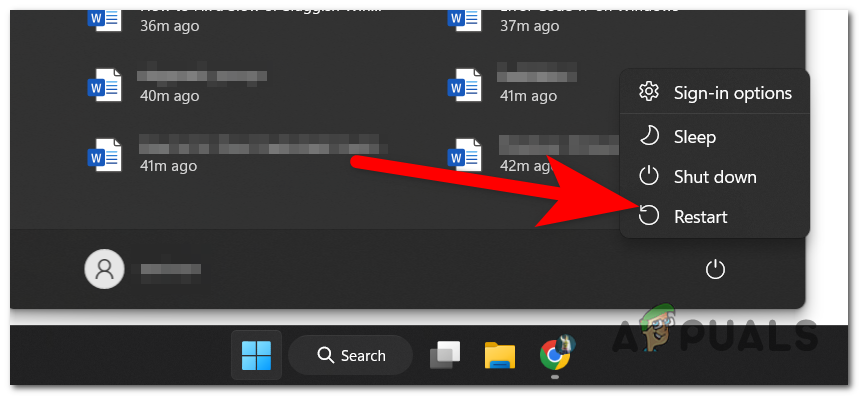
Restarting both your PC and router helps clear temporary connection faults, stuck background services, short-lived routing problems, and bad local network states that can interrupt communication between ARC Raiders and its servers. Restarting the router refreshes your internet path, while restarting the PC resets temporary software and network-related processes.
- Close ARC Raiders completely.
- Restart your PC.
- Turn off your router or modem for about 30 to 60 seconds, then turn it back on.
- Wait until your internet connection is fully restored.
- Launch the game again and check whether the error still appears.
2. Check the Game’s Server Status
Before changing Windows settings, make sure the problem is not coming from the game’s side. If ARC Raiders servers are down, under maintenance, or experiencing instability, your connection can fail even when your own internet is working normally.
- Check the game’s official channels, such as its launcher notices, official website, official social pages, or community announcements, for maintenance or outage updates.
- See whether other players are reporting the same error at the same time.
- If the servers are down or unstable, wait until service is restored and then try again.
If many players are reporting the same issue at once, the problem is more likely server-side than local.
3. Flush the DNS Cache
Flushing the DNS cache helps because Windows stores address records to speed up connections to online services. If those saved records become outdated or corrupted, ARC Raiders may try to reach the wrong service endpoint or fail to resolve the connection properly, which can trigger the AREX0024 error.
- Press Windows + R, type cmd, then press Ctrl + Shift + Enter to open Command Prompt as administrator.
- Click Yes if prompted by User Account Control.
- Type the following command and press Enter:
ipconfig /flushdns

- Close Command Prompt.
- Restart ARC Raiders and check whether the issue is resolved.
4. Temporarily Disable Antivirus and Allow the Game Through the Firewall
Temporarily disabling antivirus protection and allowing ARC Raiders through the firewall helps because security software can sometimes block or interrupt the game’s connection attempts. If the launcher’s or game’s network traffic is filtered or restricted, the client may lose communication with the server and trigger this error. After testing, make sure to turn your protection back on.
- Open Virus & threat protection.

- Click Manage settings and temporarily turn off Real-time protection.

- Open Firewall & network protection.

- Click Allow an app through firewall.

- Find ARC Raiders in the list. If it is not listed, add the game’s executable manually. If the game uses a separate launcher, allow that as well.
- Make sure both Private and Public boxes are checked.
- Save the changes, relaunch the game, and test again.
- Turn your antivirus protection back on after the test.
6. Reset Your Network Settings
Resetting the network settings helps because incorrect adapter settings, damaged TCP/IP configuration, or corrupted network components can cause packet loss, unstable routing, or failed communication with the game servers. A network reset restores these components to their default state and can remove hidden configuration problems that are difficult to spot manually.
Note: This can remove saved Wi-Fi networks and reset network adapters, so you may need to reconnect to your internet afterward.
- Press Windows + I to open Settings.
- Go to Network & Internet.

- Scroll down and click Advanced network settings.

- Select Network reset.

- Click Reset now and confirm.

- Restart your PC after the reset finishes.
If the error still appears after trying all of the methods above, the problem is more likely related to server instability, ISP routing problems, packet loss outside your local network, or a game-side connection bug that cannot be fixed locally. This is especially likely if the issue started suddenly without any major changes on your system, or if other players are reporting it at the same time.
At that point, try the game again later, test another network if possible, and monitor official ARC Raiders channels for server updates or patch announcements. If needed, contact support and include useful details such as when the disconnect happens, whether it also happens on another network, and whether other online games work normally on your system.


