How to Fix an Apple Watch Black Screen or Not Turning On?
A black Apple Watch screen does not always mean the watch has switched off. It may still vibrate or play alerts without displaying anything. After the battery runs out, it can also stay blank on the charger before showing any sign of charging.
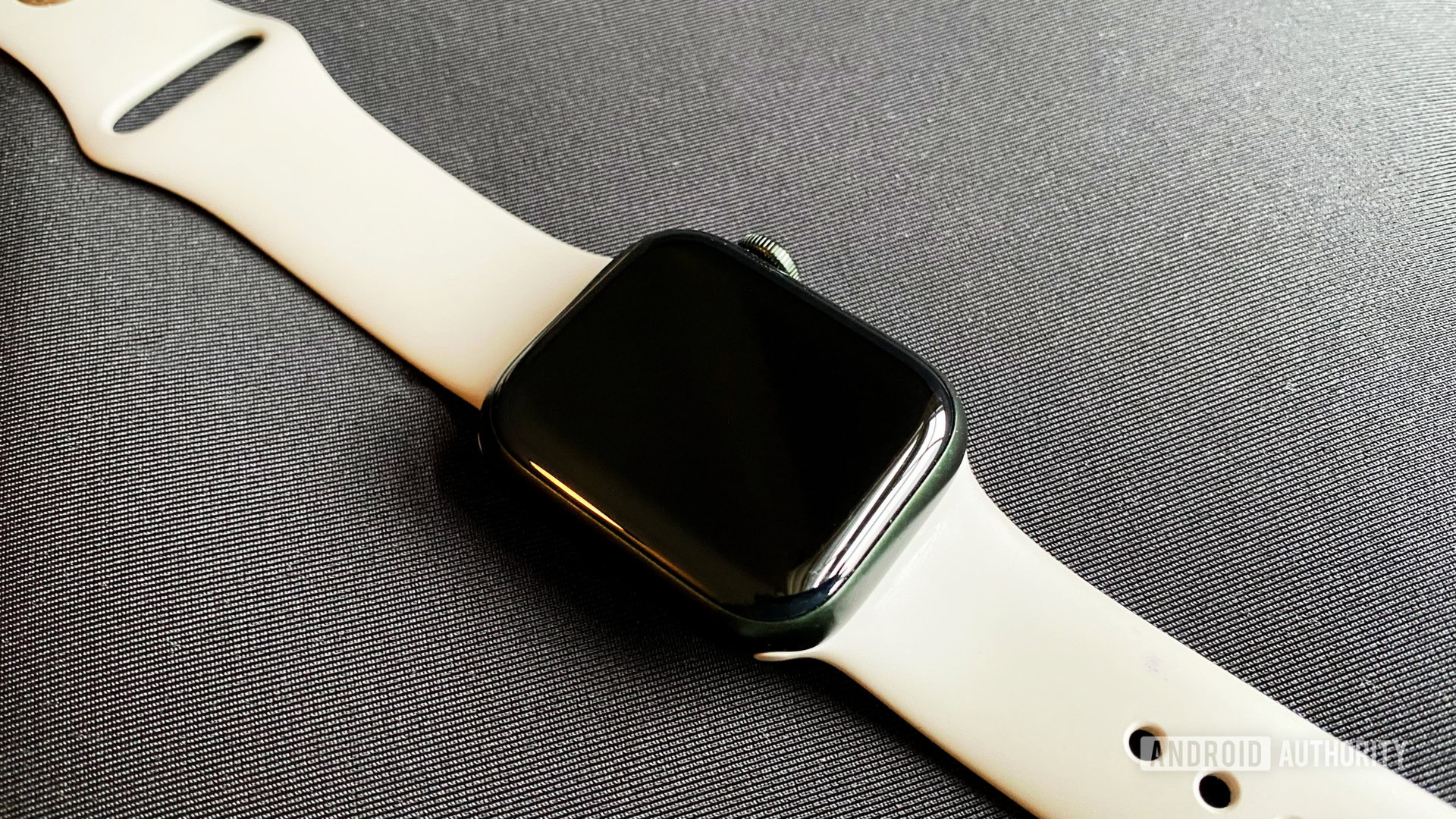
A depleted battery needs time to recover, while Screen Curtain deliberately hides the display without stopping the watch. A frozen watch or damaged screen can look similar, so sounds and charging symbols are more useful than the black screen alone.
Check Whether the Watch Still Responds
- Tap the display, then press or slowly turn the Digital Crown. Listen for sounds and feel for haptics.
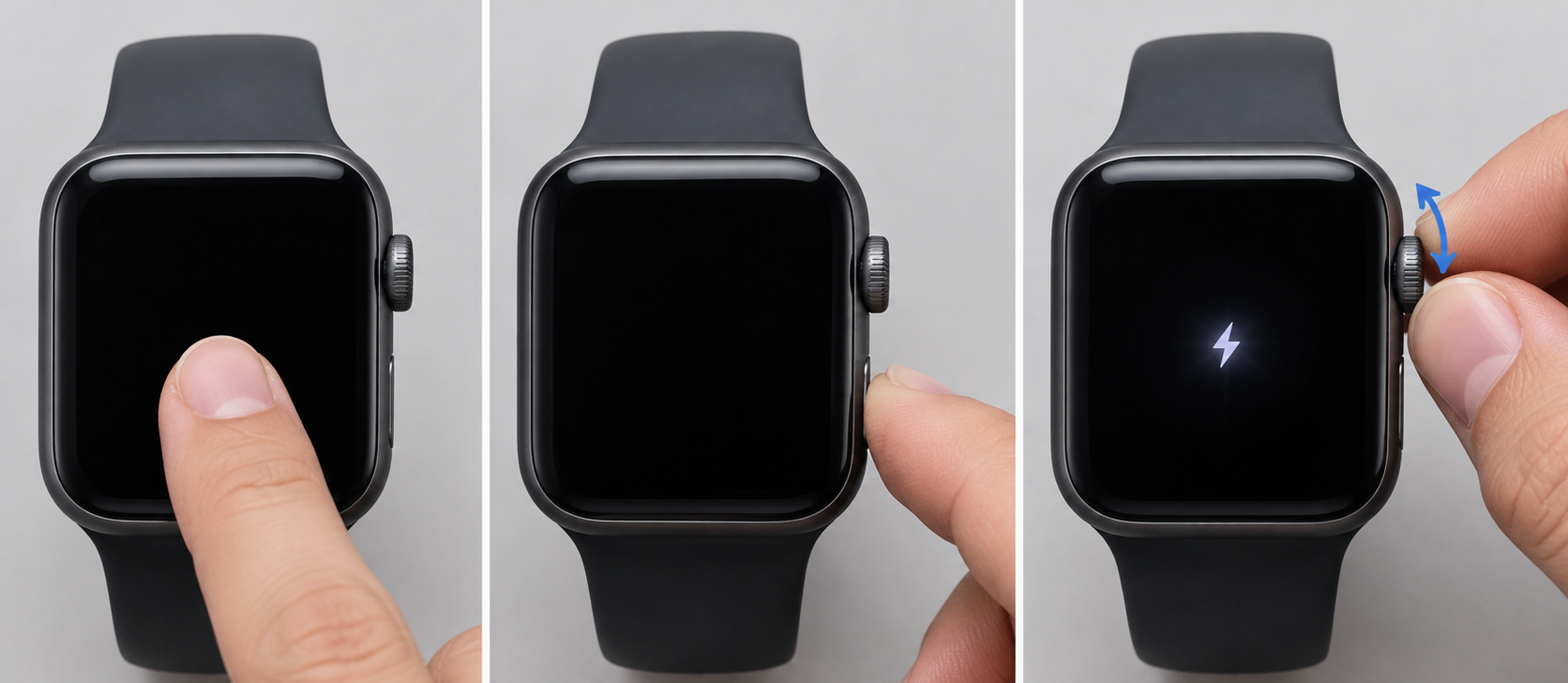
Show a staged watch while testing the display. Hide messages, health information, complications, contact details, passcodes, and device identifiers. - On the paired iPhone, open Find My > Devices > Apple Watch and tap Play Sound, or Play. Hearing it now confirms a response. A saved device entry or old map location does not.
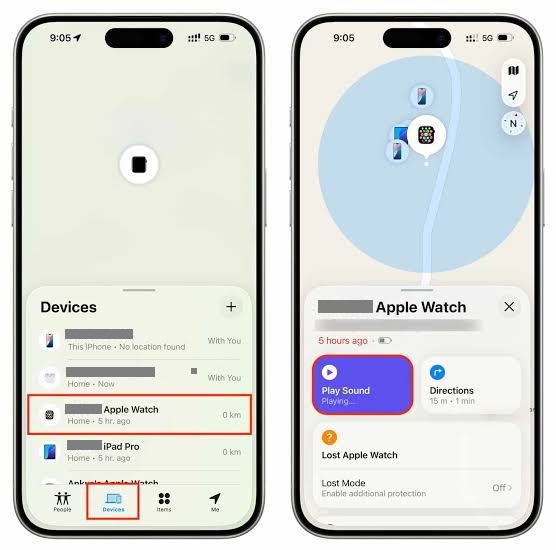
Show a disposable or fully redacted device entry. Hide the map, location, owner name, Apple Account, device name, battery level, serial number, and notifications.
Sound Pending means the request has not reached the watch; silence alone does not prove a dead battery. Apple’s Find My instructions explain this distinction. Keep the watch paired; do not erase or remove it while testing.
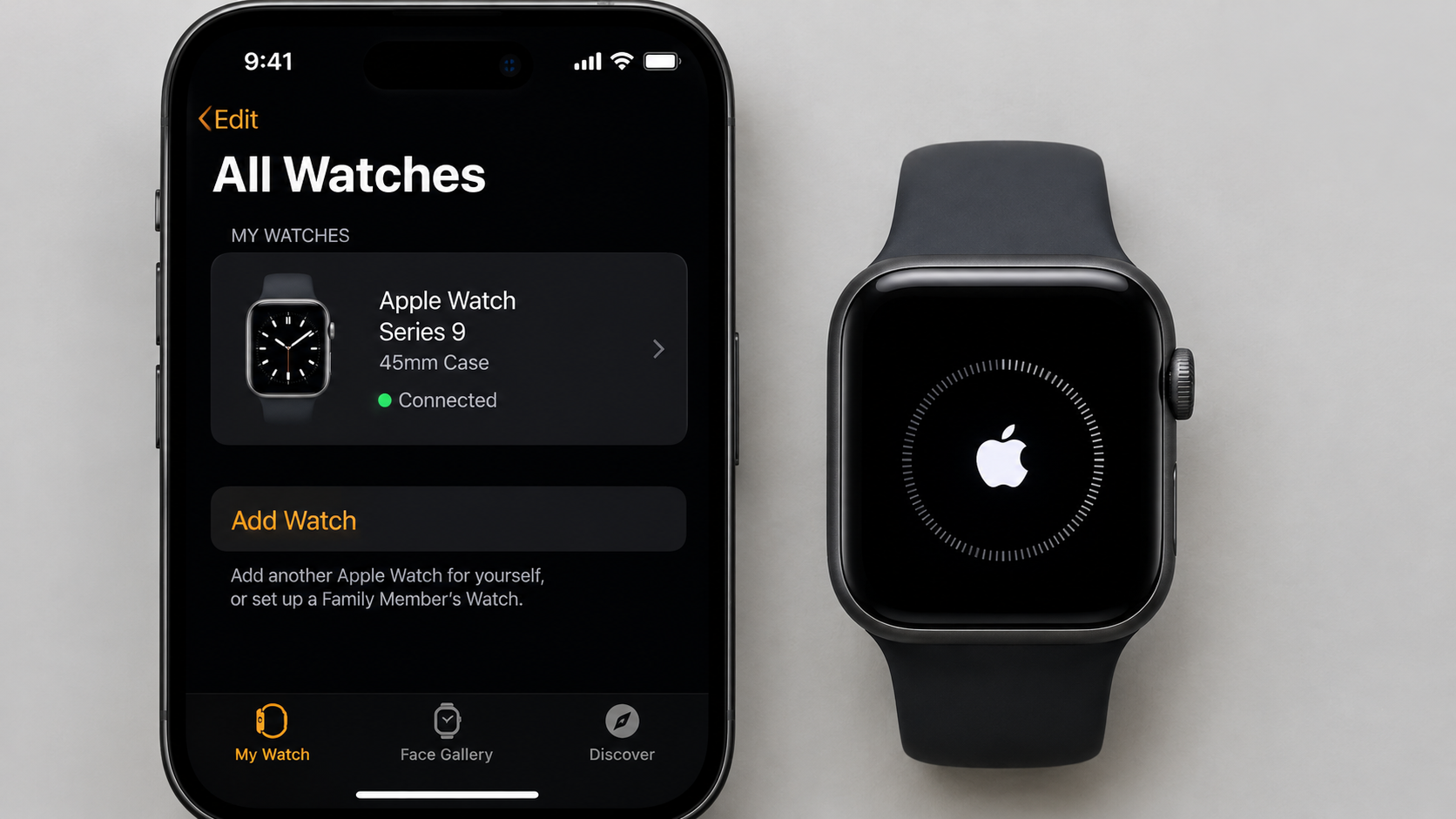
A logo surrounded by an update progress ring, as pictured below, is different from a completely black screen. Let the update finish without restarting the watch.
| What you see or hear | What to check |
|---|---|
| Nothing, or a red lightning bolt or charging-cable symbol. | Allow charging time, then check the accessories. |
| Sounds or vibrations, but no picture. | Check Screen Curtain before assuming the display has failed. |
| An Apple logo that stays or repeatedly returns, without an update ring. | The Apple Watch stuck-on-logo checks address startup separately. Avoid repeated restarts or erasing a watch you cannot operate. |
| An iPhone-and-watch animation or red exclamation point. | Follow Apple’s nearby recovery procedure. |
1. Give a Drained Watch Time to Charge
A red lightning bolt means there is not enough power to start. Apple’s charging guidance allows up to 30 minutes before a drained watch turns on or even shows a charging symbol.
- Connect the watch’s original Apple magnetic charging cable to a compatible USB power adapter and working outlet.
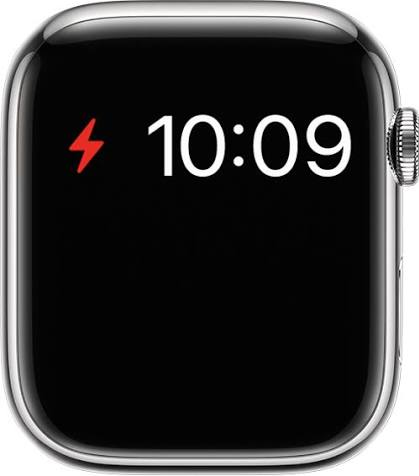
Show only the low-battery symbol on a test watch. Hide the time, device identity, notifications, complications, and nearby personal items. - Center the watch back on the charger. Use the original cable for this test, not the portable charger pictured below. Remove a case or stand that prevents flat contact.
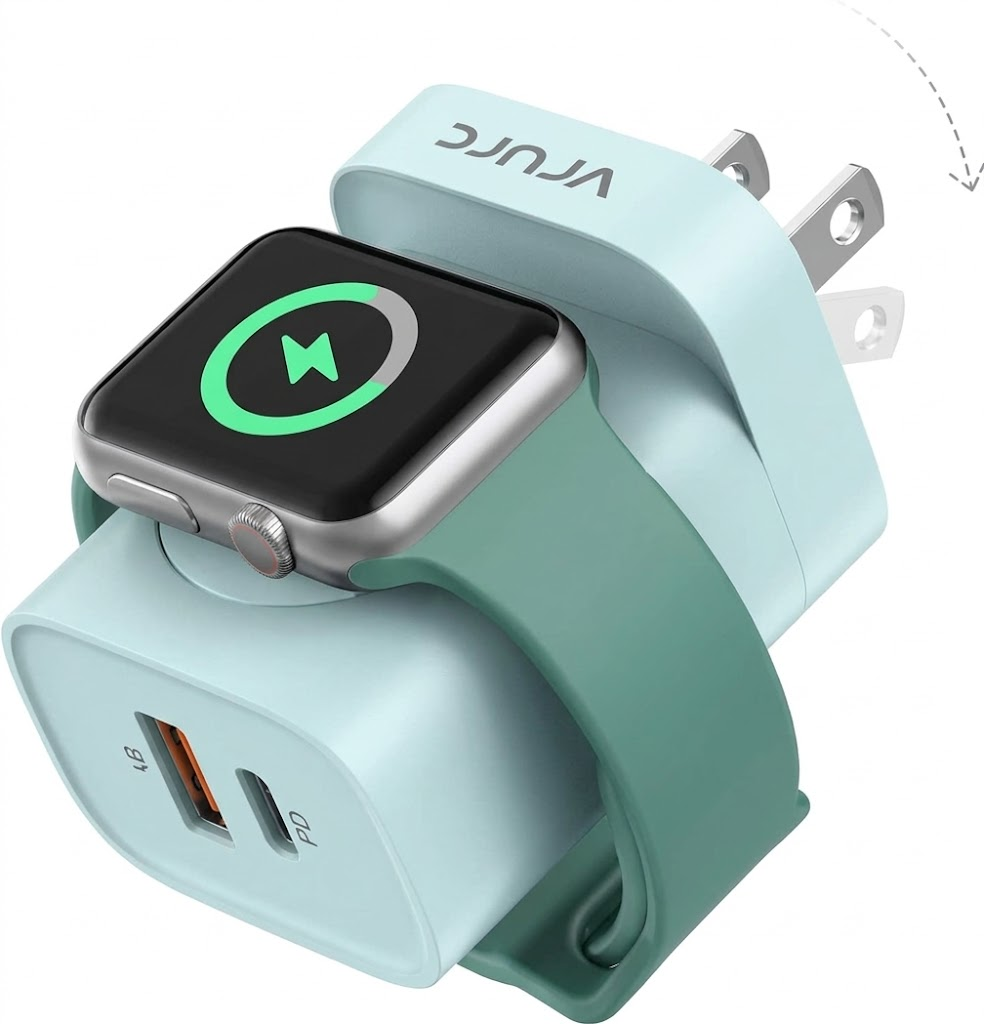
Show the charger flat in a ventilated area. Exclude damaged accessories, personal desk items, labels, serial numbers, and account information. - A red bolt inside a ring indicates charging has begun; a green charging symbol may appear as the battery recovers.
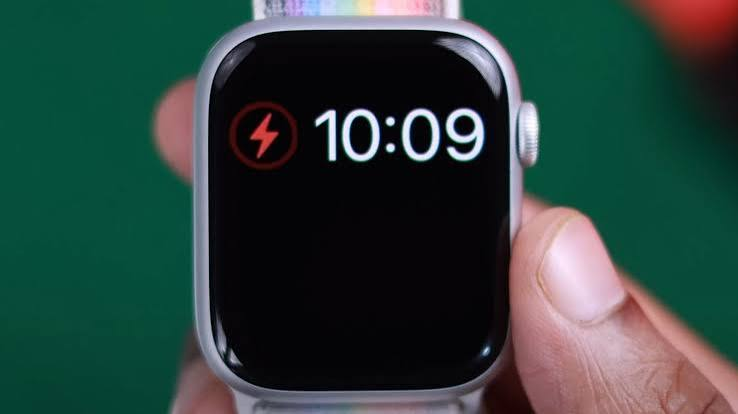
Show only the charging state on a test watch. Hide the time, notifications, device name, health data, account details, and surrounding personal information. - Leave it connected for 30 minutes. If it has not started, hold the side button until the Apple logo appears, then release.
If it starts, keep charging. If nothing changes, check the charging accessories before assuming the battery has failed.
2. Check the Cable, Adapter and Contact
The magnets can hold the watch in place even when the charger is not delivering power. A second working cable or adapter can reveal an accessory problem.
- Disconnect power. Clean the watch back and charger with a soft, dry cloth; remove packaging film from both sides of a new charging puck.
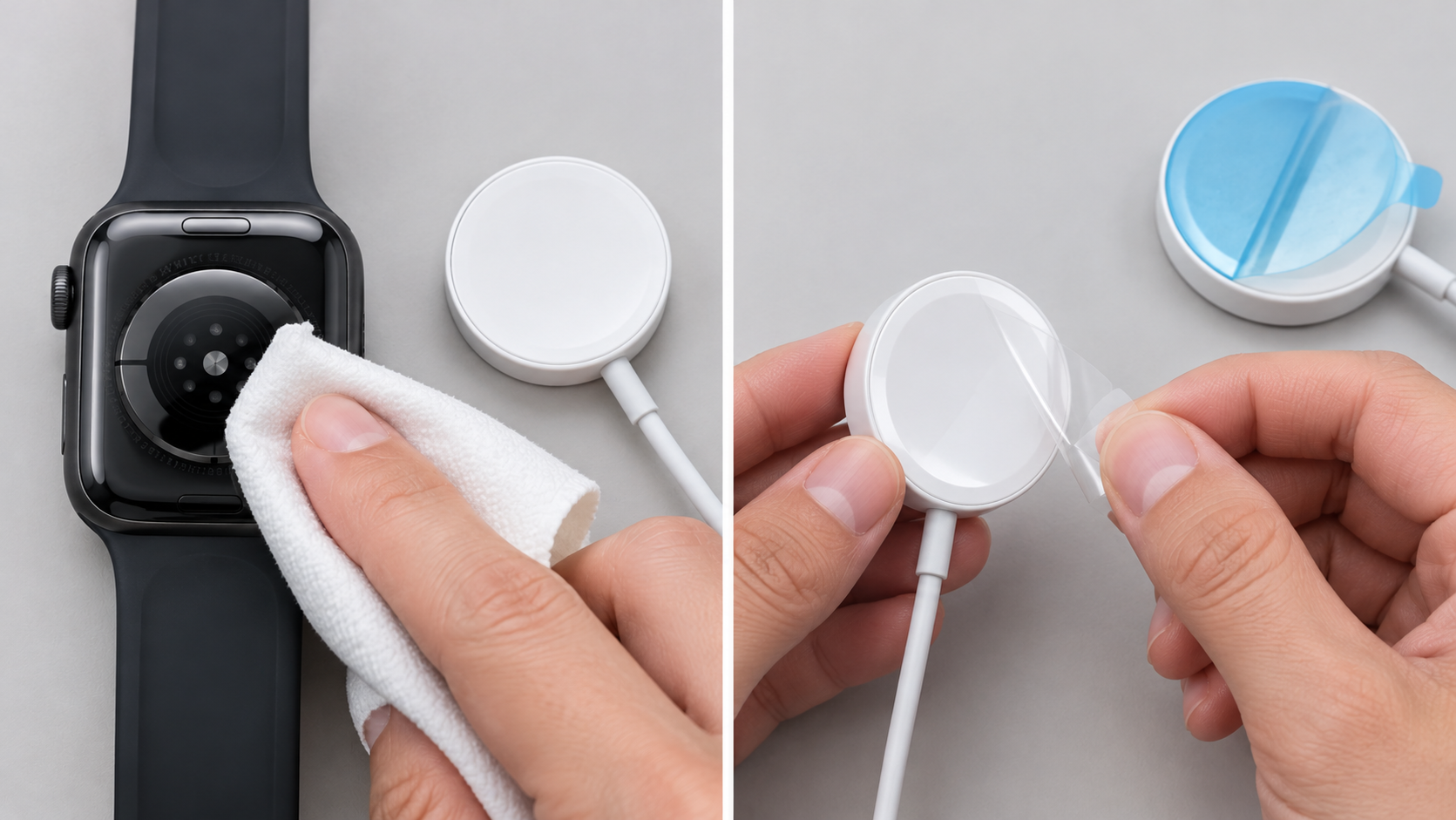
Show clean, dry charging surfaces and removed packaging film. Hide serial numbers, regulatory labels, receipts, and unrelated devices. - Reconnect firmly and try another outlet, cable and compatible USB adapter, changing one at a time.
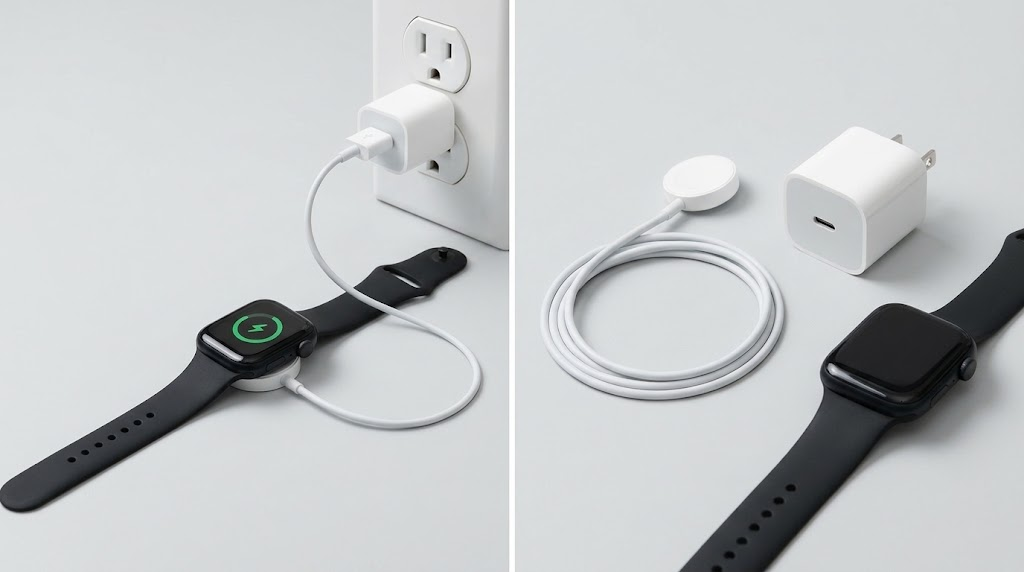
Show undamaged Apple charging equipment and a safe outlet. Hide home details, labels, serial numbers, other connected devices, and account information. - With a large watch on an Apple magnetic dock or MagSafe Duo, adjust the angle or lay it flat. Remove an Ultra’s band if it blocks contact.
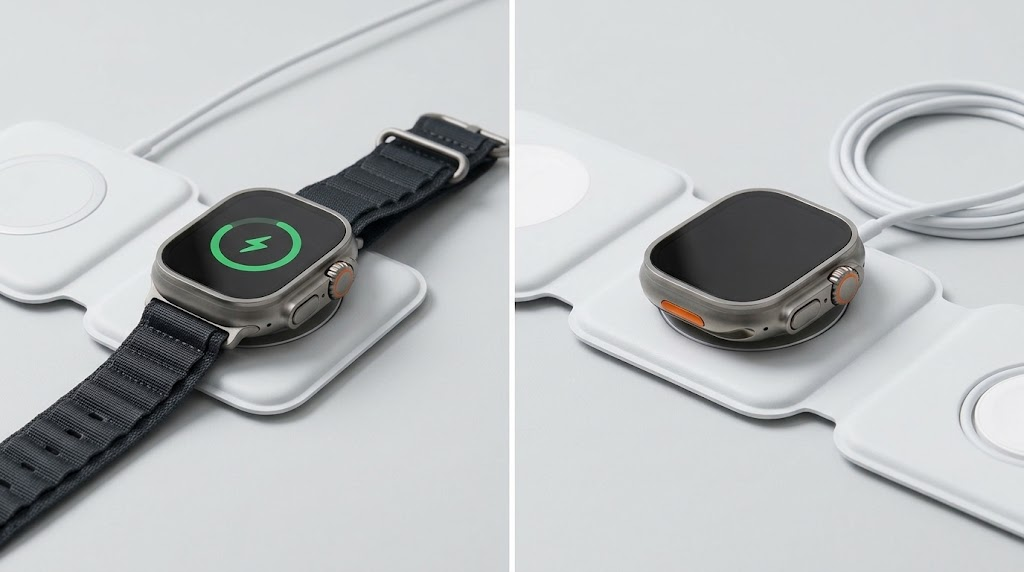
Show the dock lying flat and a staged large watch. Do not expose a distinctive personal band, engraving, serial number, or surrounding private items.
Allow up to 30 minutes after changing accessories. If a substitute works, replace the original faulty accessory. For charging that keeps cutting out, the Apple Watch charging checks provide further connection tests.
3. Force Restart an Unresponsive Watch Once
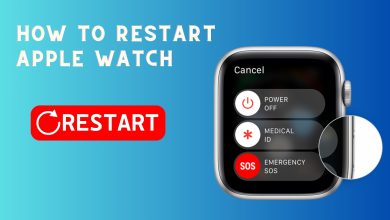
When the screen cannot show the power controls, a force restart may restore an unresponsive watch. It does not erase saved data. Try it after the charging checks, not during an update or recovery.
- Hold the flat side button and Digital Crown together for at least 10 seconds. Apple’s charging procedure permits this attempt on the charger if the watch still will not charge.
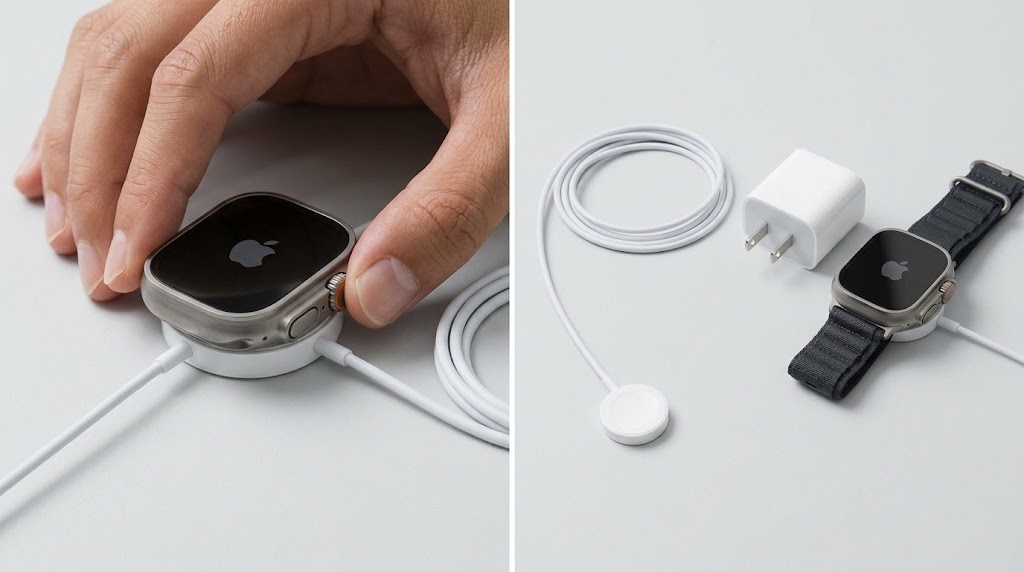
Show both controls being held on a staged watch. Hide notifications, account information, passcodes, serial numbers, and identifiable accessories. - Release both when the Apple logo appears, then allow startup to finish.
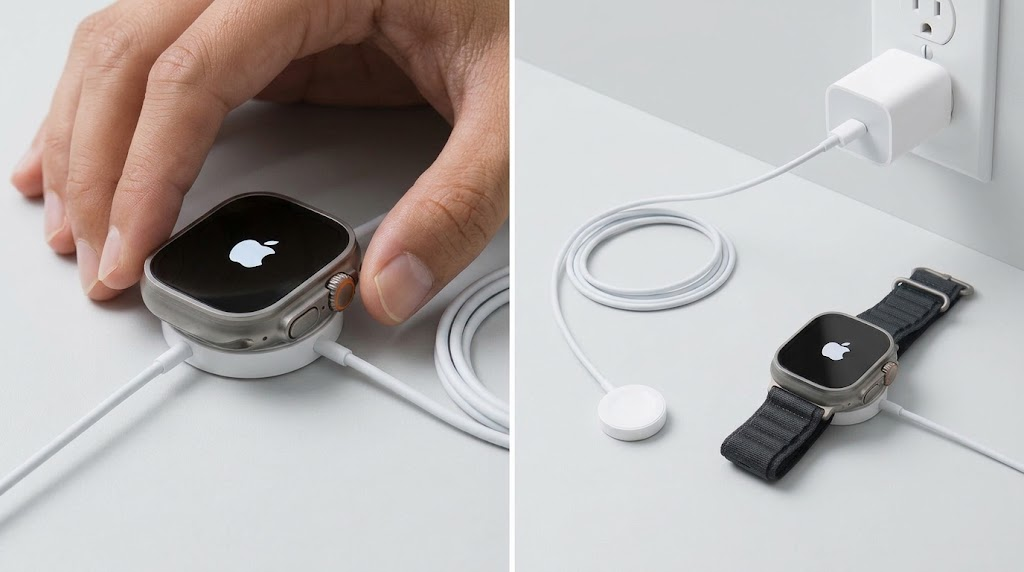
Show the normal startup logo without pairing details, notifications, device identifiers, health information, or nearby personal devices.
If the watch face returns, no reset is needed. Sounds without a picture call for checking display settings. With no response after the accessory tests, contact Apple Support. Keep the watch paired.
4. Check Screen Curtain and Display Wake Settings
A watch that still makes sounds may have Screen Curtain enabled. This VoiceOver feature intentionally turns off the display. Apple’s Screen Curtain instructions let you change it from the paired iPhone, if that phone can still reach the watch.
- Open the iPhone’s Watch app, then My Watch > Accessibility > VoiceOver > Screen Curtain. Turn Screen Curtain off if enabled. Keep VoiceOver on if you use it.
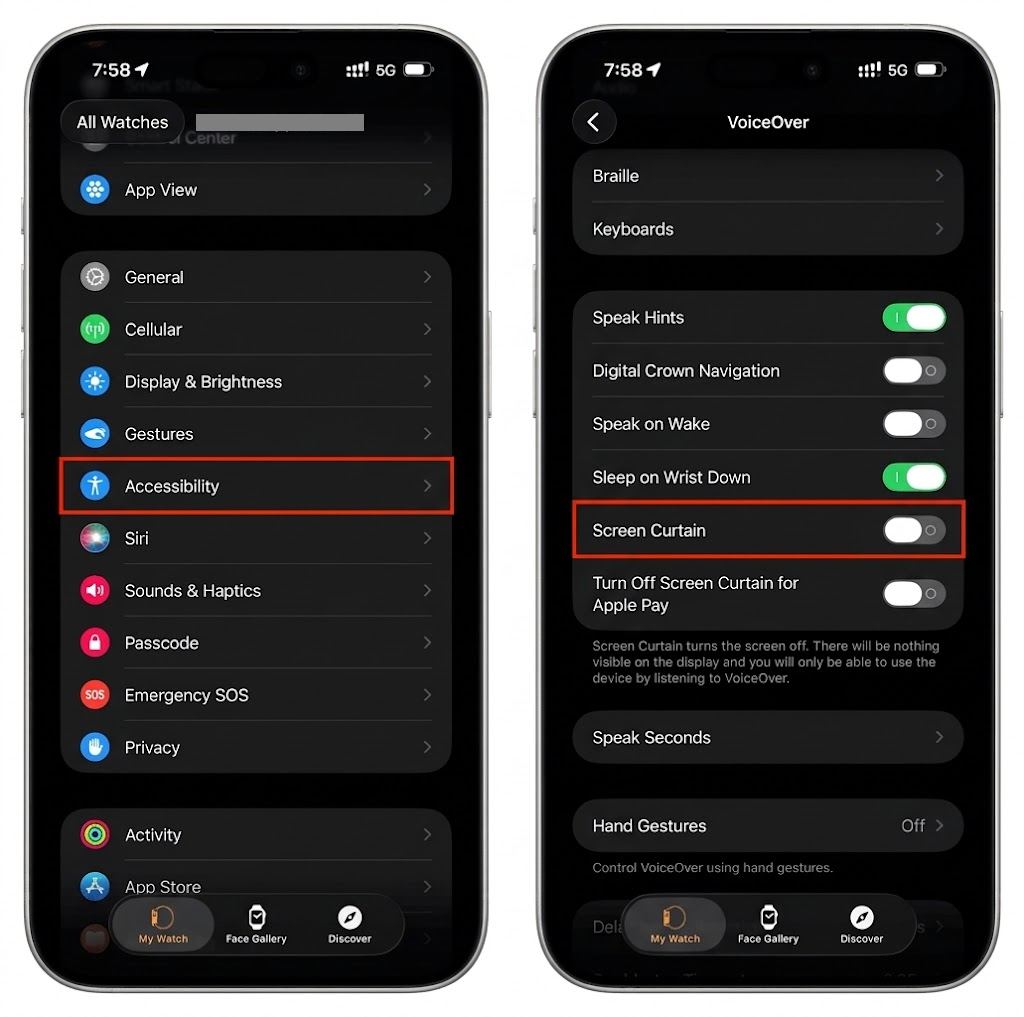
Show My Watch, Accessibility, VoiceOver, and Screen Curtain on a test setup. Hide the Apple Account, watch name, health data, notifications, and other accessibility preferences. - Return to My Watch > Display & Brightness. Increase brightness and enable Wake on Wrist Raise if that is the missing behavior.
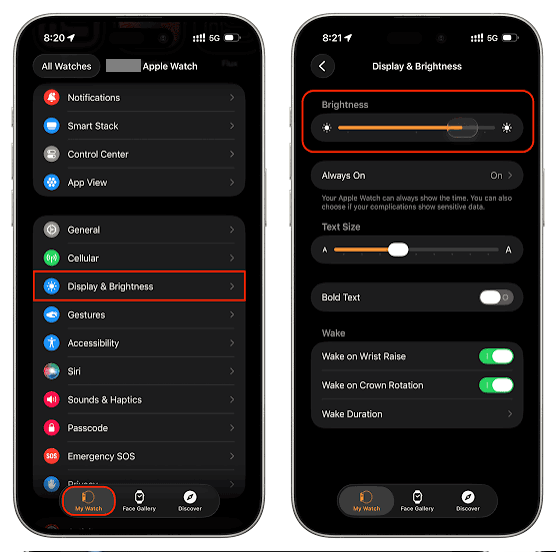
Show only the relevant Display and Brightness controls. Hide the watch name, Apple Account, notifications, health data, and unrelated preferences. - If a tap wakes the screen but raising your wrist does not, turn off Theater Mode (two masks) in Control Center. Open it with the side button; on watchOS 9 or earlier, swipe up from the watch face.
Theater Mode and Low Power Mode do not explain a screen that never wakes on a tap or Crown press. Low Power Mode can disable Always On, which is different. Apple’s display-setting guide covers wake controls.
If Screen Curtain is already off and the watch stays responsive but black, arrange an inspection rather than unpairing it or repeatedly changing settings.
5. Use Nearby Recovery Only for a Recovery Symbol
An iPhone-and-watch animation or red exclamation point calls for Apple’s nearby recovery instructions. A plain black screen does not. Do not try to create a recovery symbol by interrupting startup.
- Prepare an unlocked iPhone or iPad with current compatible iOS or iPadOS, Wi-Fi and Bluetooth on. It need not be the paired iPhone. Charge the watch to at least 50%; keep it on its charger.
- For the iPhone-and-watch animation, bring that device close, double-click the watch’s flat side button, and follow the prompt. The photo below shows ordinary charging/StandBy, not that recovery prompt.
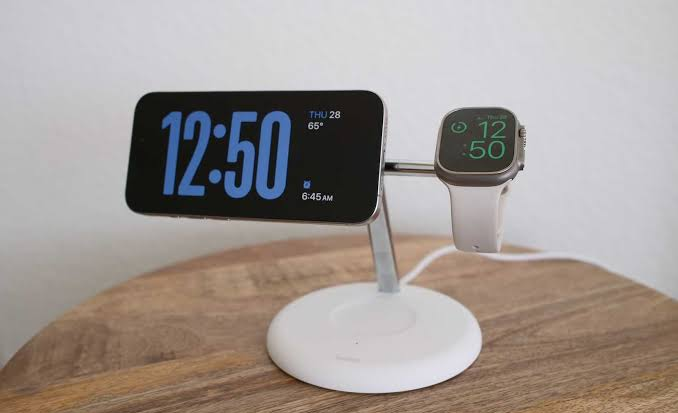
Show a staged restore prompt without pairing codes, device names, Apple Account details, Wi-Fi names, notifications, serial numbers, or recovery data. - For a red exclamation point, double-click the side button first, confirm the charging and nearby-device conditions, then double-click again and follow the prompt. Use the flat button, not the round Crown.
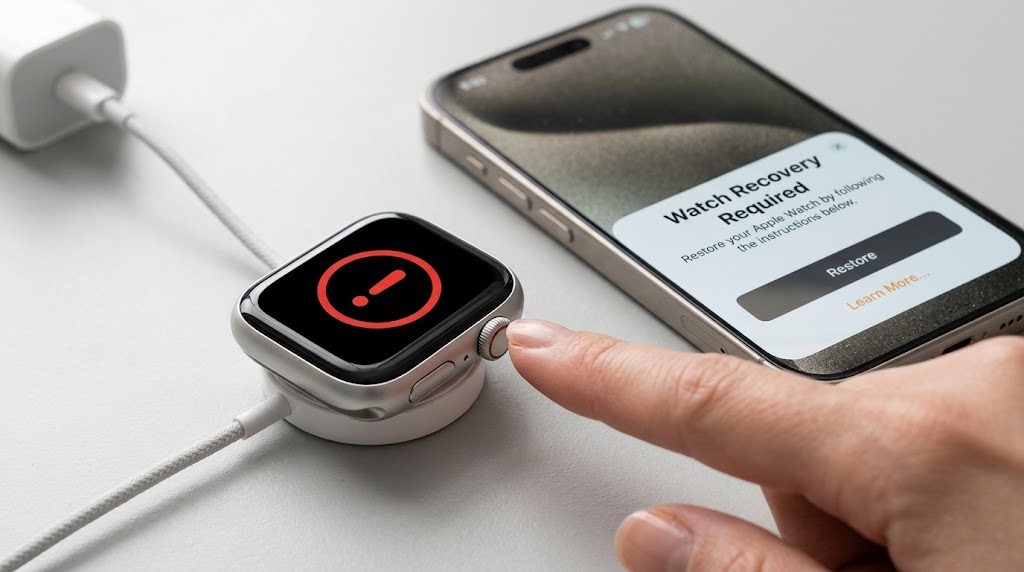
Recreate the symbol from official guidance rather than forcing a failure. Hide every device identifier, account detail, pairing code, and personal notification.
If recovery cannot connect, try a trusted 2.4 GHz Wi-Fi network without a browser sign-in or enterprise authentication. If the charge requirement cannot be confirmed or recovery still fails, ask Apple Support.
Once recovery finishes, follow any setup prompts and check that the watch face appears.
When to Arrange Service
Apple can assess a watch that remains unresponsive with working charging equipment, stays black while making sounds, or keeps returning to recovery. A failed home check does not identify which part needs repair.
Use Apple Watch service options for inspection and an estimate. Mention drops, liquid exposure, heat or a lifting display. Follow the service preparation instructions; do not erase or unpair it before you are asked to.