How to Open HTML Files in Browser from Notepad++
When working with HTML files in Notepad++, many users expect to open the current file directly in Google Chrome or Mozilla Firefox using the Run option. However, Chrome and Firefox do not appear by default in Notepad++.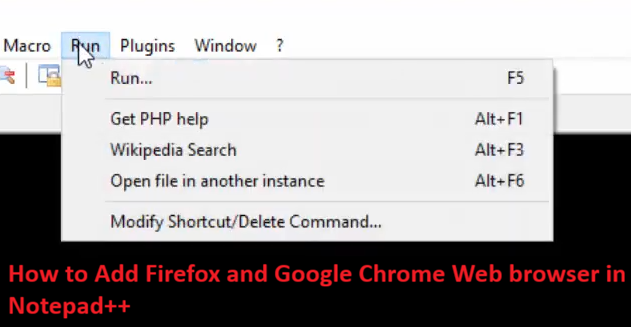
This happens because Notepad++ does not include built-in browser commands by default. To launch your active file in a browser, you must manually add the browser’s executable path to Notepad++.
Below, we’ll show you how to add Chrome and Firefox to Notepad++ using the built-in Run feature so you can preview the currently opened HTML file instantly.
- Open Notepad++ on your computer.
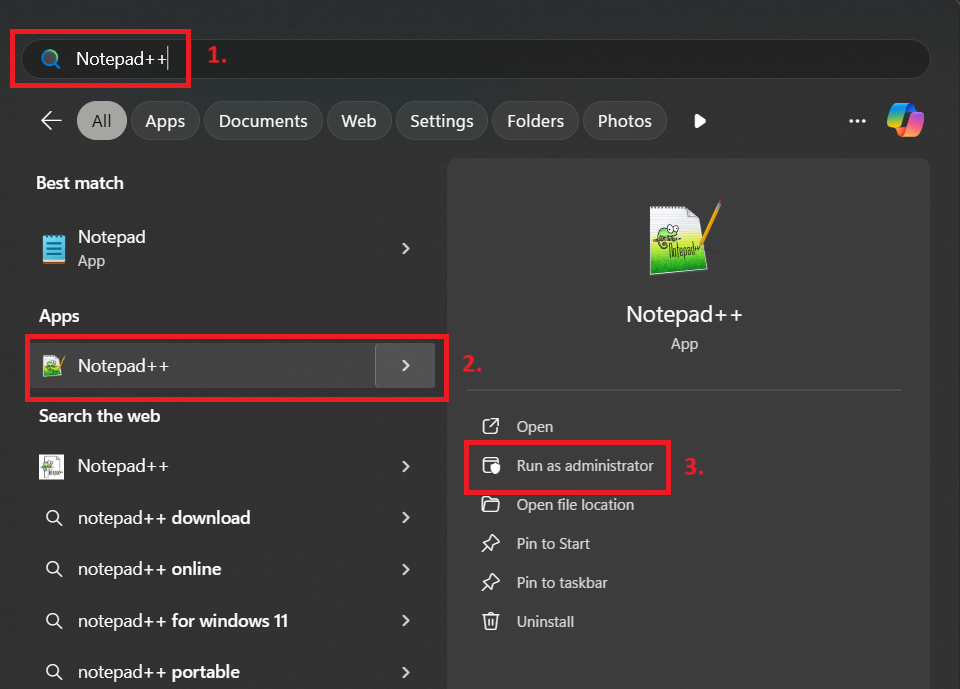
- Click the Run menu from the top menu bar.

- Select Run… from the dropdown list.
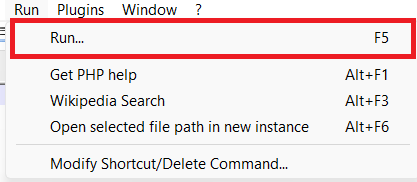
- In the Run dialog box, enter the browser’s executable path and add “$(FULL_CURRENT_PATH)” at the end (including the quotation marks). This tells the browser to open the file you currently have active in Notepad++.
- For Google Chrome:
C:\Program Files\Google\Chrome\Application\chrome.exe "$(FULL_CURRENT_PATH)"
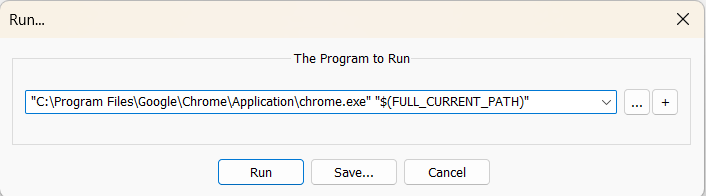
- For Mozilla Firefox:
C:\Program Files\Mozilla Firefox\firefox.exe "$(FULL_CURRENT_PATH)"
Note: If your browser is installed in a different location
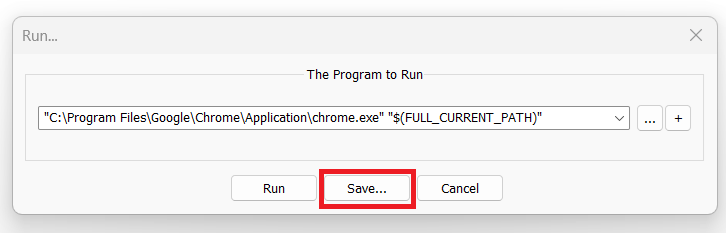
(such as Program Files (x86)), adjust the path accordingly. - Click the Save… button.
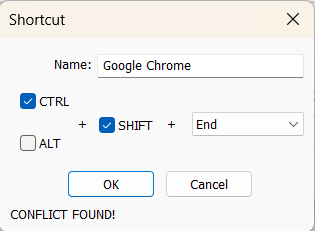
- Give the browser command a name and (optional) assign a
keyboard shortcut for faster access.
- Click OK to save the command.