How to Wipe Drives, SSDs & SEDs Using BitRaser Drive Eraser?
Many people assume that deleting files or resetting a system is enough before giving away or selling a device. However, this is purely a myth. Data remains on the drive even after formatting the device, and can still be recovered using standard data recovery tools. This is one of those risks that does not always show up immediately, but when it does, the impact can be significant. A well-known example is the Morgan Stanley data breach incident, where sensitive customer data of over 15 million individuals was exposed after data center storage drives were resold without being properly wiped. The issue was not hacking or malware, but a failure to perform basic data sanitization. These situations almost always trace back to the same root cause: the drive was never truly erased.
Why Basic Wiping Methods Are Not Enough?
File deletion, factory reset, or formatting a drive only removes file references. They do not touch the underlying data blocks. This means that the deleted information is still physically present on the drive until it is overwritten. With SSDs, the situation becomes even more complicated. Because of wear leveling and internal controllers, even overwriting is not always reliable unless the software communicates directly with the drive firmware.
This is why professional data erasure tools exist. Their job is not to make data invisible, but to make it permanently unrecoverable.
What BitRaser Drive Eraser Does Differently?
BitRaser Drive Eraser is a professional data erasure tool that permanently erases data from the drive beyond the scope of recovery. Instead of working at the file level, it operates at the storage layer and uses industry-approved erasure methods like Secure Erase, Block Erase, and Cryptographic Erase as recommended by media sanitization guidelines such as NIST 800-88 R2 and IEEE 2883:2022.
BitRaser Drive Eraser supports erasure of drives and devices, including PC, Laptop, Mac, HDDs, SSDs, NVMe, hybrid, and SEDs (Self-Encrypting Drives). The software provides audit-ready proof of erasure in the form of reports & certificate of destruction (COD). For businesses, this COD is critical as without this proof of erasure, there is no way to prove that erasure was done.
How To Erase Drives (HDD, SSD) Using BitRaser?
The BitRaser application has an intuitive user interface that makes the process straightforward & simple for all kinds of users. It does not require advanced technical skills. In practice, the steps to erase drives and devices remain largely the same across different storage types.
To erase drives and devices using the BitRaser application, you need the following:
- Software Licenses
- Bootable USB
- Internet Connectivity
Step 1: Post-purchase of BitRaser Drive Eraser licenses, you will receive an email with your BitRaser Cloud Console credentials. Using them, log in to the Cloud Console and download BitRaser ISO file.
An ISO file (or ISO image) is a file that contains an exact, uncompressed digital copy of the software.
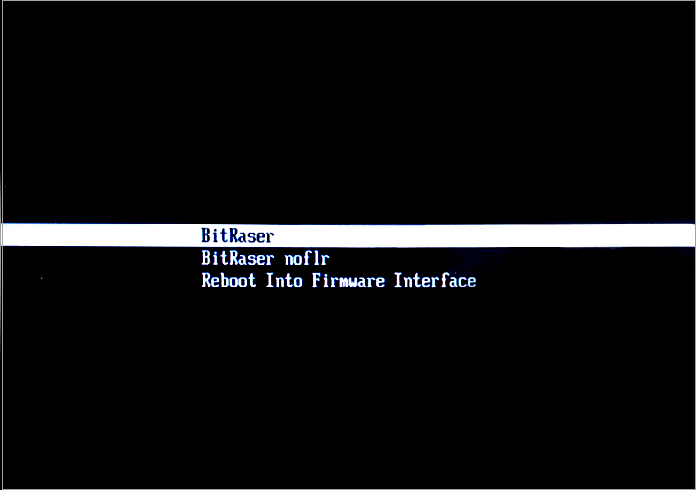
Step 2: Using the BitRaser ISO file create a bootable USB, by using a third-party tool like Rufus. It is a free utility that is used to create a bootable USB. Using the BitRaser USB boot the system that you want to erase. You need to access BIOS / UEFI by pressing the specific key recommended by the device manufacturer to boot the system with BitRaser.
Once the system is booted with BitRaser, all connected drives will be listed on the software’s main screen.
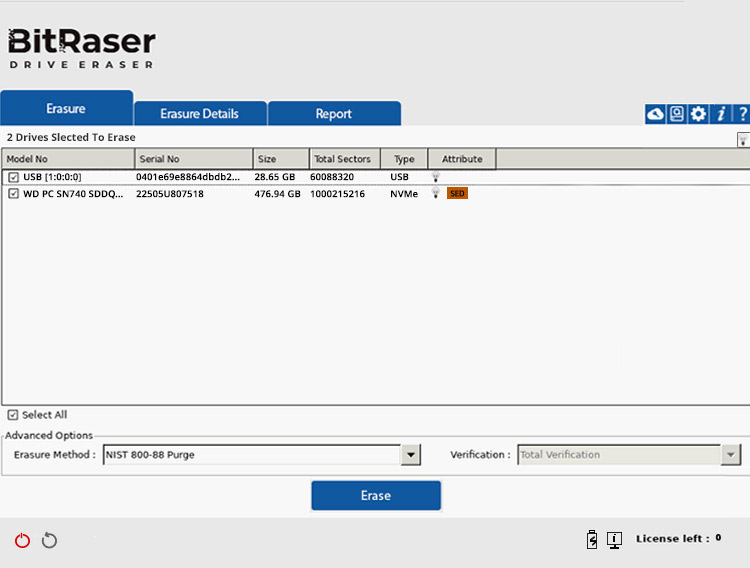
Step 3: Connect the application to the Internet via Wi-Fi or Ethernet. This network connectivity is required for establishing a connection with the BitRaser Server to fetch erasure licenses.
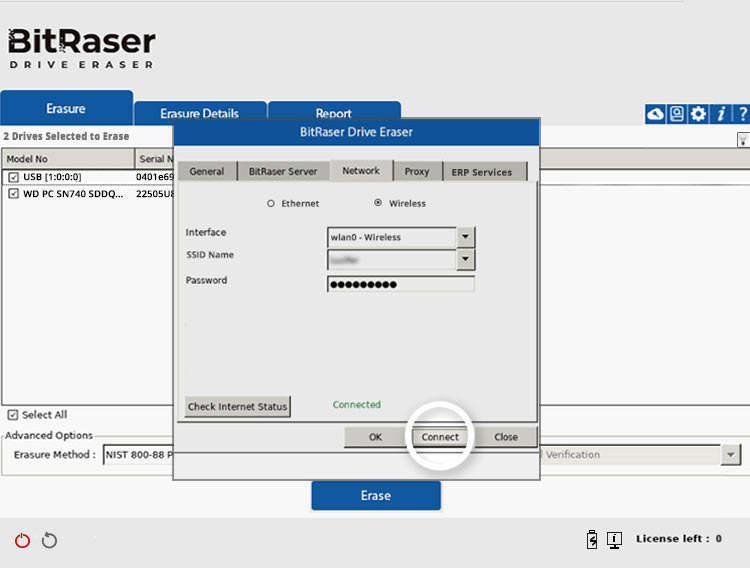
Step 4: Connect the application to BitRaser server using the BitRaser Cloud Console credentials. Once connection is established the application gets licenses and automatically saves erasure reports on BitRaser Cloud.
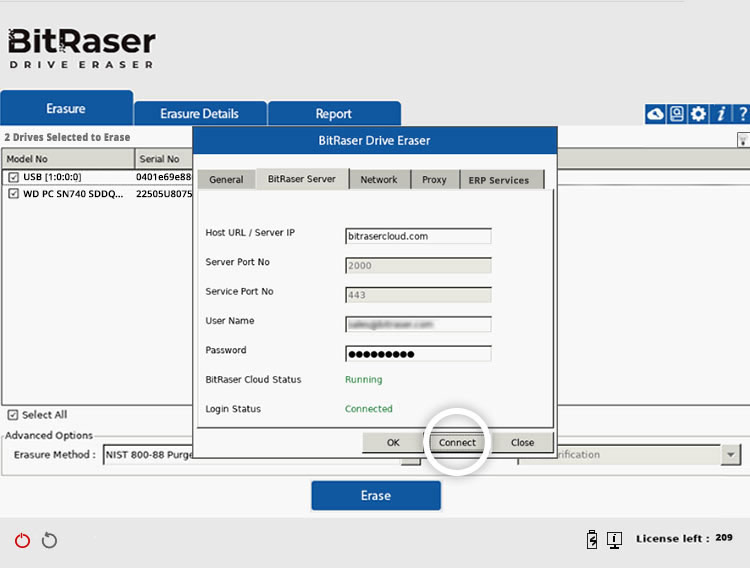
Step 6: Select all the drives that you want to erase, and then click ‘Erase’. BitRaser supports wiping of 100 drives simultaneously when deployed on a single machine. If you deploy the same ISO image over a Network using PXE boot the application can wipe several thousand drives simultaneously.
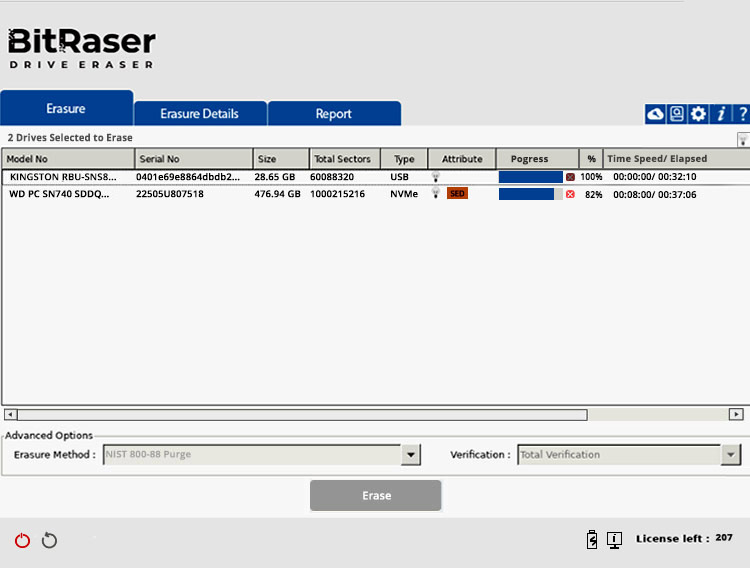
The selected drives will be erased using the erasure method that you have selected. Once the process is completed, the erasure report and certificate of erasure will be saved on BitRaser Cloud. Reports have all the fields suggested by the NIST media sanitization guidelines.
Why Businesses Prefer BitRaser?
Free wiping tools are fine for consumers or home users. For businesses, they lack support for SSD, SSHD, SMR, and SED drives and don’t have a mechanism for erasure verification. Moreover, they don’t generate any reports or certificates, which is a necessity from a compliance standpoint.
BitRaser is used by IT departments, data centers, and ITAD companies because it fits into existing workflows, is easy to use, and supports erasure on all types of drives and devices. It works in both Internet-enabled and offline environments, with bulk erasure capabilities to wipe multiple drives simultaneously. The software integrates with ServiceNow and popular ERP solutions like Makor & RazorERP, helping organizations centrally manage their erasure reports. In practical terms, it reduces legal risk and simplifies asset lifecycle management.
Final Thoughts
The act of Securely Wiping Data is usually only taken seriously when an incident arises, and at that point it is already too late. A Professional Data Erasure Tool like BitRaser Drive Eraser ensures that data will be permanently erased from a hard drive or storage device, and that it will be done using a method that can be verified. This service is NOT simply a nice extra to have, but is instead a basic requirement of data protection and security.