How to Fix WinRAR Diagnostic Messages?
WinRAR diagnostic messages appear when the program runs into a problem during compression, extraction, or archive validation. In simple terms, it means WinRAR cannot correctly read or process the archive, so it refuses to finish the operation.
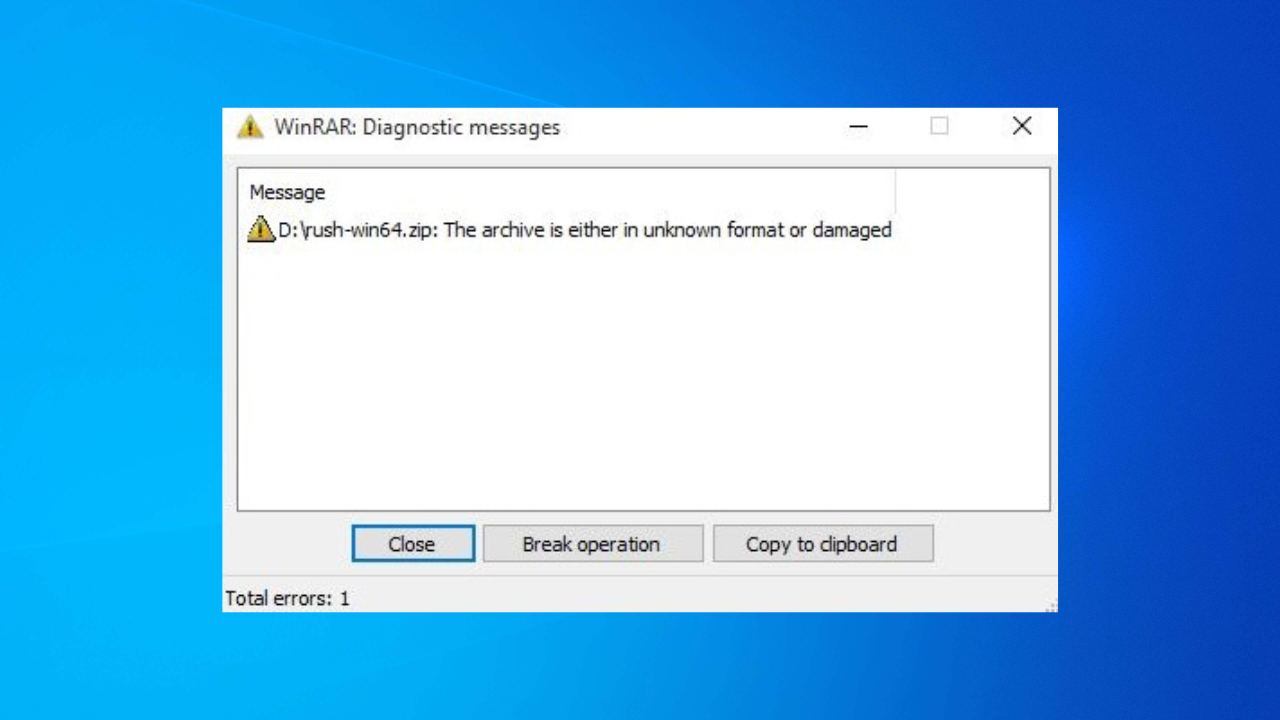
These messages can show up as errors like CRC failed, Unexpected end of archive, Cannot open file, or Archive is corrupt (wording may vary). They usually happen when WinRAR doesn’t have proper access to the file, the archive is partially damaged, or the file was created using a newer compression method that your current WinRAR version does not fully support.
Common triggers include:
- Permission issues, especially when files are moved between different user accounts or PCs.
- File corruption caused by incomplete downloads or interrupted file transfers.
- Antivirus interference that prevents WinRAR from properly reading the archive.
- Insufficient disk space available for extraction (WinRAR needs extra space to unpack files).
- Another program accessing or locking the same file at the same time (cloud sync tools and backup apps can do this).
Now that you know what these diagnostic messages mean and why they happen, use the solutions below to resolve the issue and extract your files normally.
1. Update WinRAR
Older versions of WinRAR may not fully support newer compression methods, which can cause errors when opening archives created with updated algorithms. Updating WinRAR also fixes known bugs and improves compatibility with newer archive formats. Keep in mind that an update mainly helps with compatibility issues, it may not fix an archive that is already corrupted.
- Launch your browser.
- Go to the official WinRAR website.
- Scroll down and click Download.
- Select the 64-bit version and download it.
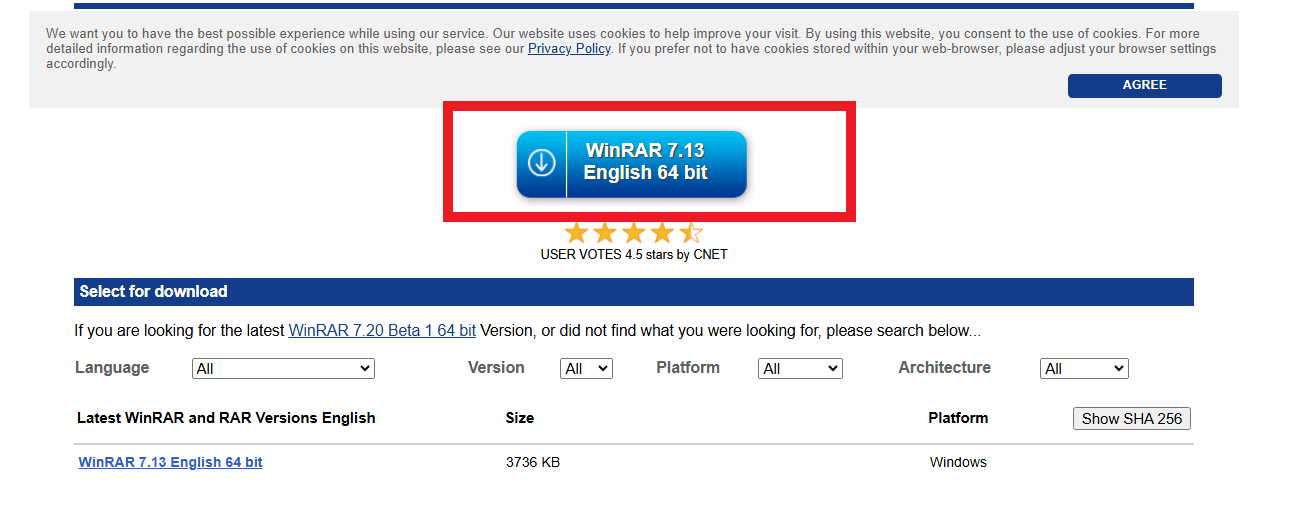
- After downloading, run the installer to update WinRAR, then try extracting the archive again.
2. Disable Windows Defender temporarily
Windows Defender’s real-time protection can sometimes scan or temporarily lock an archive while WinRAR is working with it. If Defender blocks or holds the file mid-process, WinRAR may fail to read it properly and display a diagnostic message. Temporarily disabling real-time protection helps you confirm whether Defender is the cause.
Important: Disable Windows Defender only to test extraction. Re-enable it immediately after you’re done to keep your system protected.
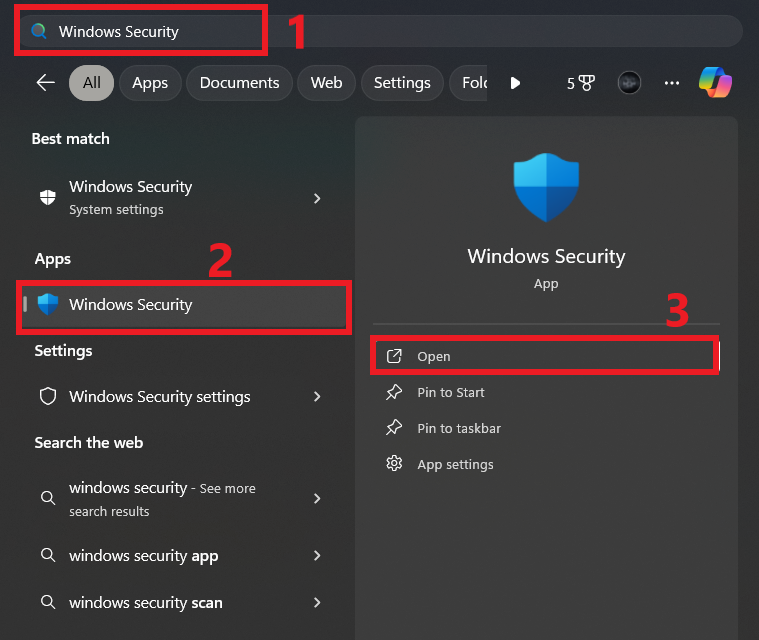
- Click the Start menu, search for Windows Security, and open it.
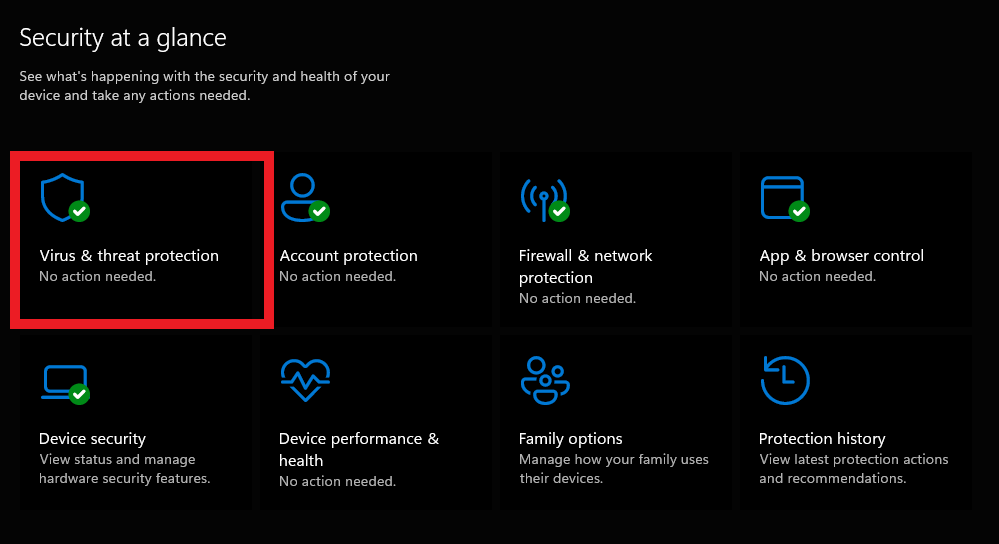
- Click Virus & threat protection.
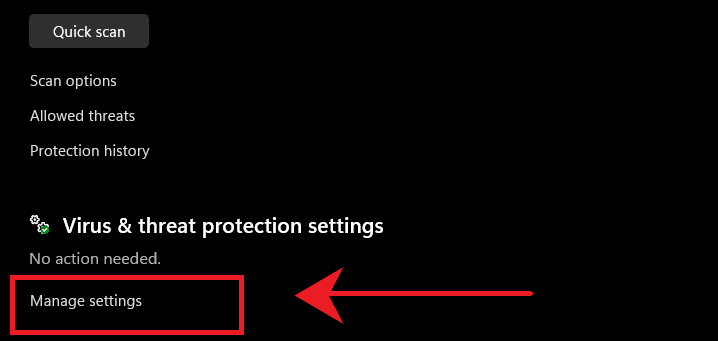
- Scroll down and click Manage settings.
- Toggle off Real-time protection.
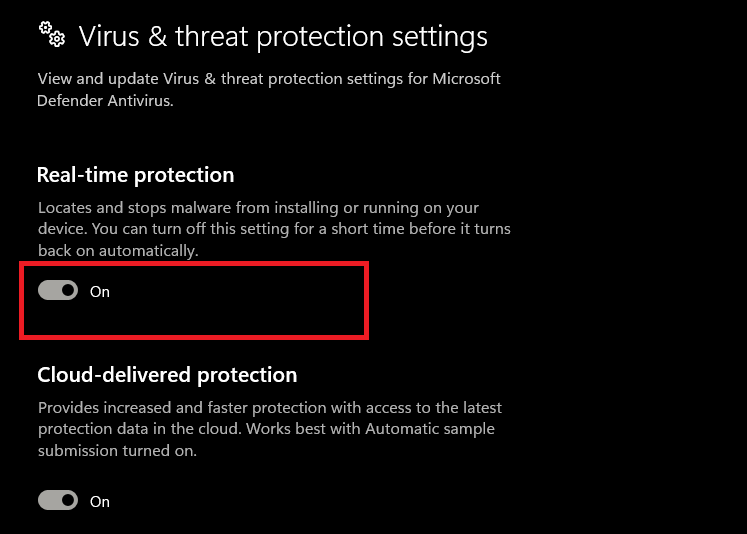
- Try extracting the archive again. Once finished, return here and turn Real-time protection back on.
3. Take Full Control of the File
If the archive was copied from another PC, downloaded under a different account, or inherited restricted security settings, Windows may block access even if you can see the file. This is normal behavior for files that come from “outside” your account or device. Taking full control gives your account ownership and the required permissions to read and extract the archive, which can eliminate access-related diagnostic errors.
- Right-click the affected RAR file and select Properties.
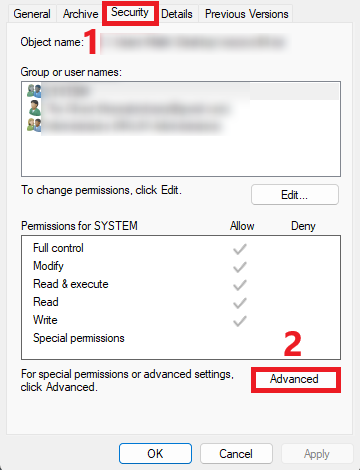
- Open the Security tab and click Advanced.
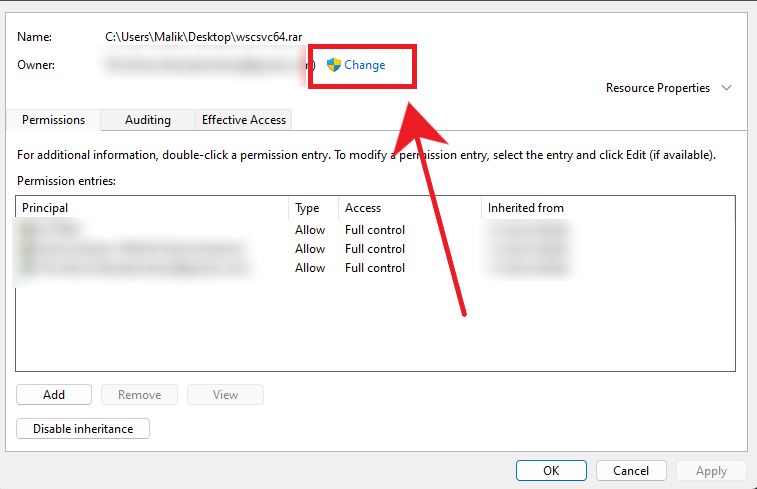
- Click the Change link next to Owner.
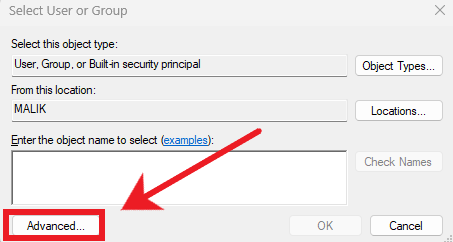
- In the Select User or Group window, click Advanced.
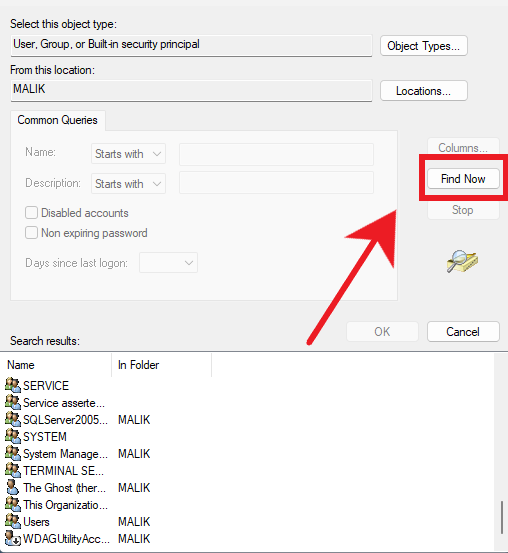
- Click Find Now, select your user account (or Administrators if you are on an admin PC), then click OK.
- Click OK again to set the new owner and close the window.
- Back in Advanced Security settings, make sure your user (or the chosen group) has Full control. If needed, click Add or Edit and set permissions to Allow for Full control.
- Click Apply and then OK, then try extracting the archive again.
4. Repair Corrupted Archives
If the archive structure is damaged, WinRAR may fail validation and display a diagnostic message before it can extract anything. WinRAR’s built-in repair feature attempts to rebuild the archive structure and recover as much data as possible. This is most useful when you see errors like CRC failed or Unexpected end of archive.
- Open the corrupted archive with WinRAR.
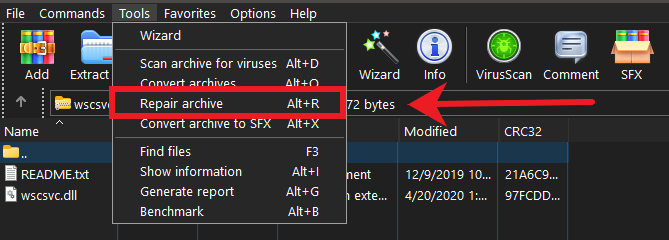
- Click Tools on the top menu and select Repair archive.
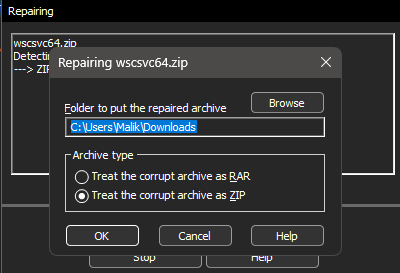
- Click Browse to choose a location to save the repaired file.
- Select the appropriate format (ZIP or RAR) and click OK to start the repair process.
- After the repair completes, try extracting the repaired archive file.
5. Extract files using the “Keep broken files” option
When an archive contains one or more damaged files, WinRAR may stop the entire extraction to avoid producing incomplete output. Enabling Keep broken files tells WinRAR to continue extracting whatever it can instead of aborting the whole operation. This is useful when you only need part of the archive or want to recover as much data as possible.
Note: This is different from Repair. Repair tries to rebuild the archive structure first, while Keep broken files forces extraction to continue even if some files are damaged. If Repair doesn’t help and you’re okay with missing or incomplete files, this option can still recover the usable parts.
- Right-click the affected archive and select Extract Files.
- Under the Miscellaneous section, check Keep broken files.
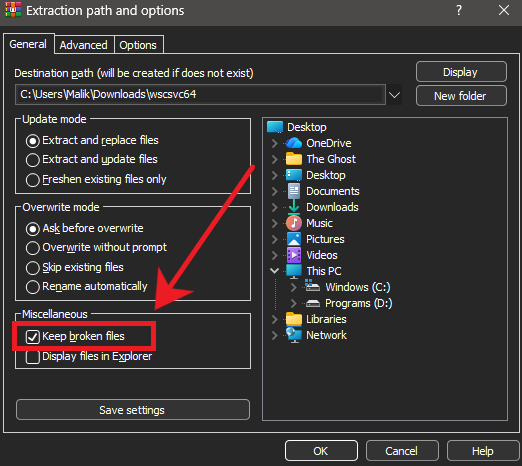
- Select your extraction destination and click OK.
6. Use Alternate Extraction Tools
If WinRAR still shows diagnostic messages, the archive may be compressed in a way your WinRAR build can’t handle well, or the file damage may be easier for another tool to work around. Alternatives like 7-Zip and PeaZip use different extraction engines and may successfully open archives that WinRAR fails to process.
- Launch your browser.
- Go to the official website of 7-Zip or PeaZip.
- Select the 64-bit version and download it.
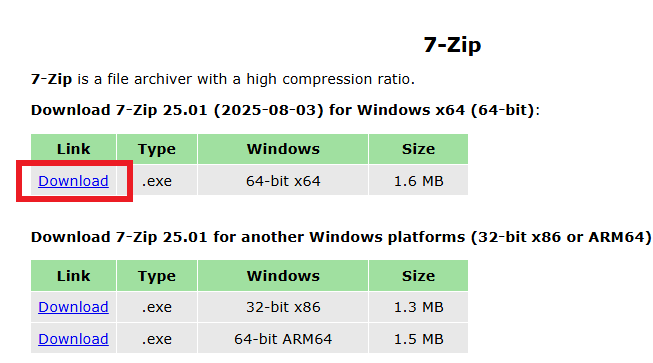
- After downloading, open the installer and follow the on-screen instructions to complete the installation.
- Once installed, right-click the archive and try extracting it using the new tool.
If the issue persists: Download the archive again from the original source, preferably using a stable connection. If the file is consistently broken even after re-downloading, the archive may be damaged on the uploader’s side, and you may need a fresh copy.