How to Fix “system32\config\systemprofile\Desktop” Error

Have you logged onto your Windows system only to find your desktop completely blank, unable to locate any data you previously had on your desktop? The following error may pop up, leaving you baffled and clueless as to what you should do next: “\system32\config\systemprofile\Desktop refers to a location that is unavailable. It could be on a hard drive on this computer, or on a network. Please check to make sure that the disk is properly inserted or that you are connected to the Internet or your network. Then try again. If it still cannot be located, the information might have been moved to a different location.” If this is your case, you are not alone.

This error usually occurs after a corrupt Windows update is installed on your computer, or when your system crashes abruptly. The cause can be as simple as an incorrect location path or as significant as corrupt system files. If a simple reboot has not solved your problem, then follow this guide to restore your desktop and its data to the way it was.
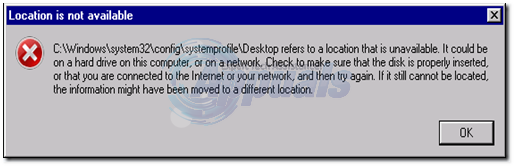
location is not available

Solution 1: Restarting Windows Explorer.

Sometimes, the error occurs if Windows Explorer isn’t functioning correctly. Therefore, in this step, we will restart Windows Explorer after completely terminating it. To do so:

  1. PressWindows” + “X” keys simultaneously.
  2. SelectTask Manager” from the list and click on the processes tab.
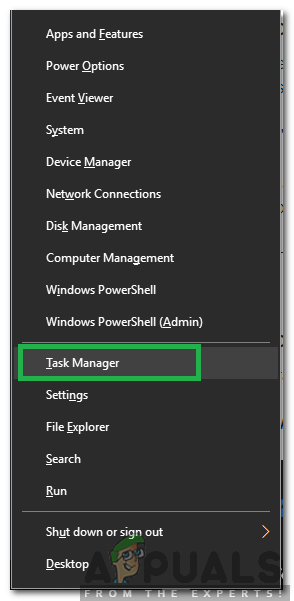
    Selecting Task Manager from the list
  3. Scroll and select the ‘Windows Explorer’ option from the list.
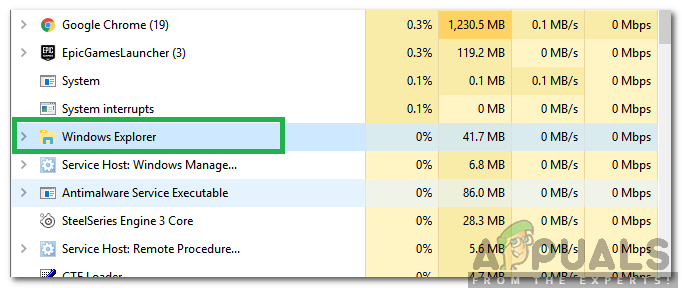
    Selecting Windows Explorer from the list
  4. Right-Click on it and then click on the “End Task” button to end it.
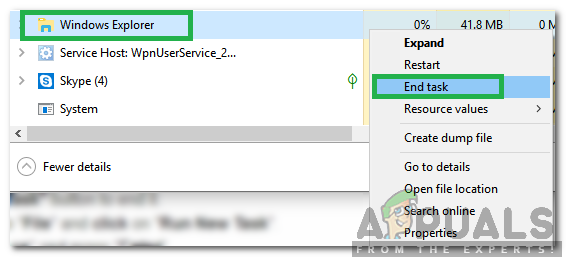
    Right-clicking and then selecting the “End Task” option
  5. Hover the pointer to “File” and click on “Run New Task“.
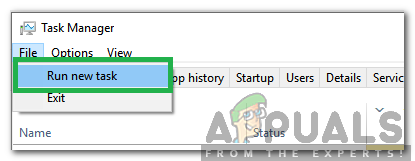
    Clicking on File and then selecting Run New Task option
  6. Type in ‘Explorer.exe’ and press ‘Enter’.
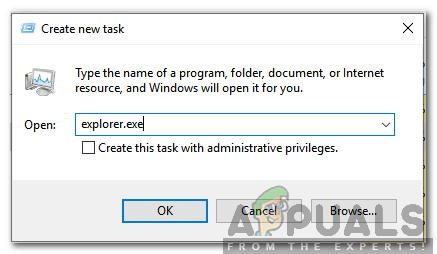
    Typing explorer.exe and pressing enter
  7. Check to see if the issue persists.

Solution 2: Reset Desktops’ Location

Your operating system may not be able to link your desktop to its default location.

Hold the Windows Key and press R. In the run dialog, type

C:\Users
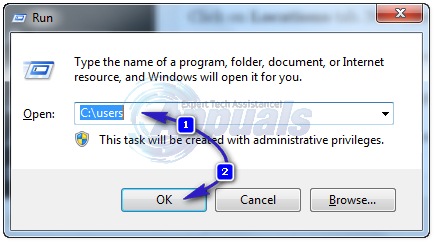
2015-12-26_214358

Open the folder with your username. There will be a folder named Desktop. Right click on it and click Properties.
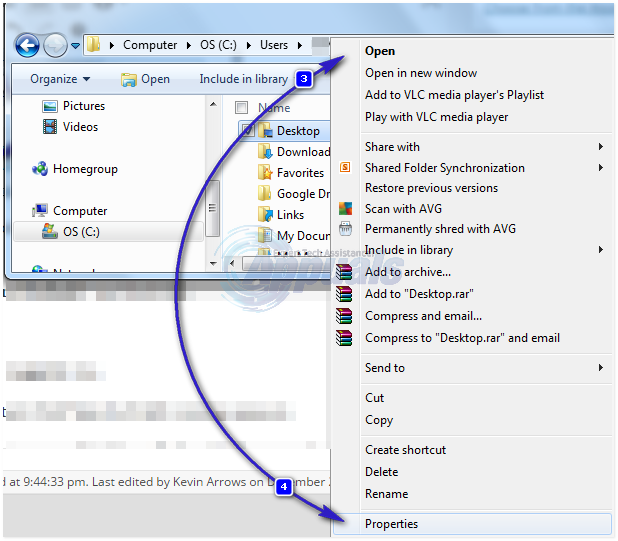
2015-12-26_214514

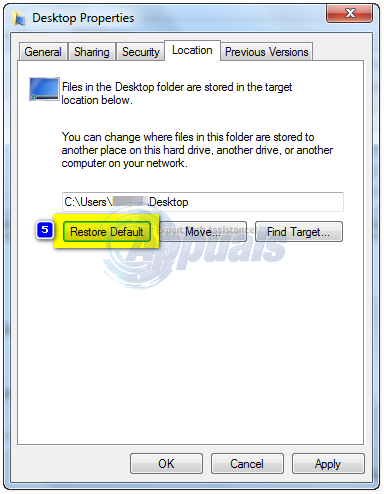
Click on the ‘Location’ tab. Now, click the ‘Restore Default’ button and then click ‘OK’. Close all windows and restart your system.
2015-12-26_214632

If that did not work, we could also change its location through the registry.

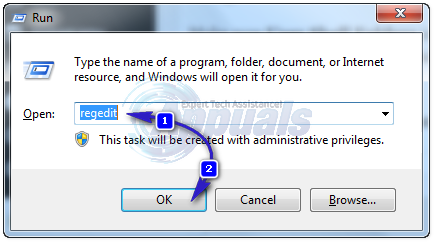
Press Windows key + R. Type regedit and press Enter. Click Yes if a UAC warning appears.
2015-12-26_214755

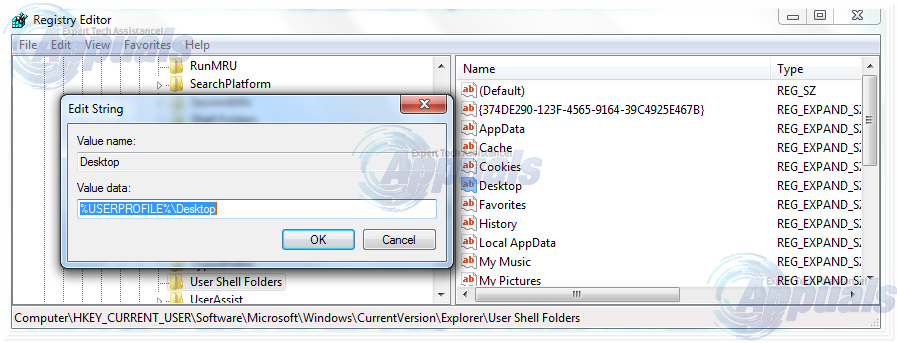
In the left pane, click on HKEY_CURRENT_USER to expand it. Now click on Software under it. Similarly navigate to Microsoft\Windows\CurrentVersion\Explorer\User Shell Folders.

Ensure that ‘User Shell Folders’ is highlighted and selected in the left pane, then double-click ‘Desktop.’ Check that the ‘Value data:’ is either ‘%USERPROFILE%\Desktop’ or ‘C:\Users\%USERNAME%\Desktop.’ Click OK and close the registry editor. Then, restart your system and verify whether your problem has been resolved.
2015-12-26_215041

If not, move on to the next method.

Solution 3: Move Profile’s Content Back to Its Location

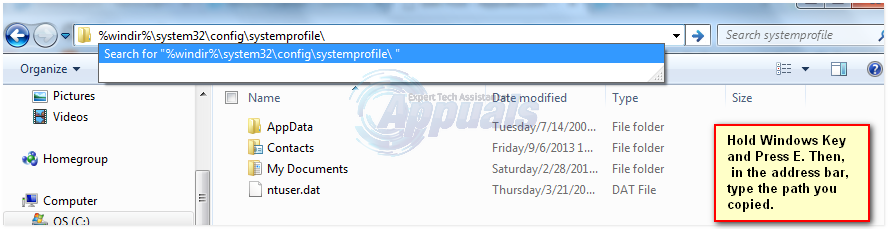
Press the Windows key + E to open the File Explorer. Copy %windir%\system32\config\systemprofile\, then click on the address bar above to make it editable, and paste the path you copied. Press Enter to go to the path.
2015-12-26_215230

A folder will open. Proceed to delete the folder named ‘Desktop.’ If an ‘Access Denied’ error appears, you must first take ownership of the ‘systemprofile’ folder. You can do this by following ‘Solution 5’ provided in our guide, accessible via this link. Afterward, you should be able to delete the folder successfully.

Hold the Windows key and press ‘E’. Then, open the ‘C:’ drive. There, you should find a folder named ‘Users’. Open this folder. Afterwards, open the folder associated with your account. This folder will have the same name as your username.

Now you can see a folder named “Desktop.” This folder will contain all the data you previously had on your desktop. If you have two folders named “Desktop,” open each one and delete the “Desktop” folder that is either empty or contains incorrect files that are not supposed to be there.

Similarly, if you can identify any additional duplicate folders, delete the folders that contain files they are not supposed to have or that are empty.

Now right click on the remaining Desktop folder and click copy.

Go back to %windir%\system32\config\systemprofile\ and paste the desktop folder there.

Now restart your system and check if your system’s back to normal. If not, you will have to create a new account and move your old data to it. Move to the next solution to do that.

Solution 4: Create a New User Profile

In this solution, we will create a new account and migrate your old data to it. Doing this can automatically fix corrupt paths in the registry.

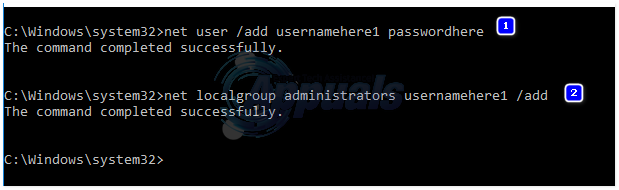
Click ‘Start’ and type ‘cmd.’ Right-click on ‘cmd’ and select ‘Run as Administrator.’ In the command prompt, type and execute the following two commands.
user-add

net user /add usernamehere passwordhere

net localgroup administrators usernamehere /add

This works exclusively for local accounts. However, should you wish, you can switch your account to Microsoft on Windows 8/10 by using any app from the Windows Store, which will prompt you to sign into the Microsoft Account. This is optional. Subsequently, you can copy your data from the corrupt or previous profile by following these steps:

  1. Hold the Windows key and press E to open Windows Explorer.
  2. For Windows 7, click on ‘Organize’ in the upper left corner, and then select ‘Folder and Search Options’.
  3. Click on the ‘View’ tab. Select ‘Show hidden files, folders, and drives.’
  4. Uncheck the box by clicking on it next to Hide protected operating system files.
  5. Confirm the warning, then click OK and close all windows.
  6. For Windows 8 and 10, click on View tab, and click on Options at the right corner.
  7. Click on the ‘View’ tab, then select ‘Show hidden files, folders, and drives.
  8. Uncheck the box next to ‘Hide protected operating system files’ by clicking on it.
  9. Confirm the warning, then click OK and close all windows.
  10. Navigate to the C: drive > Users > Old_Profile, where C: is the drive where your Windows is installed, and Old_Profile is the name of your old Windows account.
  11. Now copy all the files and folders here except Ntuser.dat, Ntuser.dat.log, and Ntuser.ini.
  12. New_Profile’ is the name of the new account you just created. Paste the copied content there.
  13. Once you have ensured that all your data has been moved to the new account, you can delete the old account by going to ‘Add or Remove User Accounts’ again in the Control Panel.
  14. Your problem should be resolved now. If not, please let us know your exact situation in the comment section below.
ABOUT THE AUTHOR

Kamil Anwar


Kamil is a certified MCITP, CCNA (W), CCNA (S) and a former British Computer Society Member with over 9 years of experience Configuring, Deploying and Managing Switches, Firewalls and Domain Controllers also an old-school still active on FreeNode.

Comments

53
    ER
    Erica Mar 17, 2016

    How do I do this using Windows 10?

      KA
      K. Arrows Author Mar 17, 2016

      Which step are you stuck at on Windows 10? The methods listed here works on 10 as well.

        DC
        Dr Cyanide Apr 9, 2016

        I am stuck on the locations tab in Desktop properties. I could not find the location tab.

          KA
          K. Arrows Author Apr 10, 2016

          Can you check and see if your system has restore points to the time when it worked perfectly? Click Stat -> type system restore, and open it. Click Next and put a check on show more restore points to view it.

    AL
    AlexM Mar 28, 2016

    When I try the first solution, it turns out I cannot open config folder. In a folder of my profile Desktop folder is completely fine with all the data inside. However, there is no location tab in properties. I have widows 8.1 64bit
    When I try to access configsystemprofile it says that the path is invalid
    Sorry for any mistakes, I hope the description is clear enough.

    LU
    Lu2cy May 16, 2016

    Hi.. we are now on solution 3! We can not click on start button. Any ideas?

    LU
    Lu2cy May 16, 2016

    Help! We cannot do solution 2 as the system will not recognise the address. Tried solution 3 but we can not even right or left click the start button …all caused by a windows10 update ..arggh

      KA
      K. Arrows Author May 16, 2016

      When was it updated? seems like locations have been seriously messed up.

        LU
        Lu2cy May 16, 2016

        Hi Kevin. …thank you so much for your reply. The problem was that we could not reboot, but now we’ve found a restart button and this hashould solved the problem!! Yippee 🙂

    TI
    Tia May 23, 2016

    THANK YOU SOOOO MUCH!!!!! I didnt have a location tab for the first one but the second one worked perfectly!!!! Thank God for the Internet, awesome people like you and for my tablet lol

      KA
      K. Arrows Author May 23, 2016

      welcome.

    OH
    Osama Hijjawi Jun 18, 2016

    i cant open the start menu >> I tried to press the windows key and its still not open …

      KA
      K. Arrows Author Jun 19, 2016

      download classic shell, and then try.

    MS
    Max Salmons Jul 4, 2016

    THANKS YOU SOO MUCH <3 I DID THE FIRST ONE ( PART 2) AND IT WORKED !!
    OMG IVE BEEN TRYING TO FIND OUT HOW TO FIX IT FOR LIKE 3 WEEKS. I HAVE GONE THROUGHT LIKE 3 WHOLE GOOGLE PAGE <3. THANKYOU SO SO SO MUCH !

    MG
    mr gamer Aug 8, 2016

    Thanx a lot

    Mate…. This shity windows 10 😛

      KA
      K. Arrows Author Aug 8, 2016

      welcome

    BG
    Bill Gambill Aug 11, 2016

    I did all this and actually have my desktop back, but my programs all fail when I try and launch them. Any ideas?

      KA
      K. Arrows Author Aug 11, 2016

      what is the error you’re getting when you launch them?

        BG
        Bill Gambill Aug 12, 2016

        I’m running two programs. Quickbooks is one and it comes on with a C++ runtime error. The other is an obscure program for my business and it just crashes with no error message other than the “windows is searching for a solution” screen. I did CCleaner and that was successful. I did a virus scan and that came up with a lot of error messages about different system files couldn’t be opened. They were the hiberfil.sys, pagefile.sys, and swap something.

          KA
          K. Arrows Author Aug 12, 2016

          Can you type me the exact quickbook error? I need to read it to understand the issue.

    BA
    Beth Any Oct 4, 2016

    I tried all of these and still nothing. I did an update on my Toshiba Satellite and ever since then it deleted 3 of my folders- which I thought were backed up by OneDrive automatically, but I guess not. These folders show under “frequent folders” but when I click on them it says location unavailable. Is this a Windows 10 issue or Toshiba issue?

    Toshiba wants $70 to troubleshoot this issue. ANY help would be appreciated!

      KA
      K. Arrows Author Oct 5, 2016

      It’s a Windows issue. Back up all your data, and add a new user account, then move the data to the new user acct.

        BA
        Beth Any Oct 5, 2016

        It is only 2 specific folders that this says “location unavailable”. Everything else is there after the update…

          KA
          K. Arrows Author Oct 9, 2016

          Those may be references only, the actual folders appears to have been lost.

          AP
          Arnav puri Nov 15, 2016

          Heyy can u tell me.. How can i back up my data? As i am not able to open anything …. Coz my first priority is to save my data… In way way if i can tranfer it to my hd! Pls help! I hv been looking for solution since weeks! Appreciate your help

          KA
          K. Arrows Author Dec 11, 2016

          You can get a disk enclosure to transfer data to another PC

          AP
          Arnav puri Nov 15, 2016

          Heyy.. Can u pls suggest me a way to save my data! As i am facing the same issue.. And not able to open any damn thing on my pc… I just want to tranfer my data first to my hd.. If there anyway if u can help…pls..been looking for solution since weeks! Thanks

    DI
    Daryl Jay Ison Oct 6, 2016

    Hi guys i followed all the steps and still my computer havent got fixed evrytime i restart my computer and login.. it takes me to 20min update before it loads up.. then i get this error.. start button dont work either.. please help me anyone i can contact?

      KA
      K. Arrows Author Oct 9, 2016

      You should back up all your data, and do a reset.

    SE
    Sean Nov 29, 2016

    None of these work for me. All of a sudden also my D drive is missing which may have something to do with it.

      KA
      K. Arrows Author Dec 11, 2016

      I can help you troubleshoot the issue directly. Please send me an email on kevinarrows@appuals.com.

    KC
    KS C Dec 25, 2016

    I have tried all 3 methods and hit a block in each one. Please help with any other suggestions.

    Method 1 – will not let me restore default

    Method 2 – will not take me anywhere when copied into address bar at start, not recognised

    Method 3 – will not let me access new profile; I can create a new one through control panel, and made admin, but will not let me log on, cannot create using method stated

    DS
    Dhan Singh Apr 27, 2017

    I tried all methods but none worked for me , then i found this simple method and it worked !!!!This solution is quite simple and DOES NOT Require a REBOOT.
    1. Open Task manager (Cntl-Alt_Dlet),
    2. Click Process tab,
    3. Find Explorer.exe (or explorer.exe).
    4. Terminate it. (ignore warning)
    5. Click Applications tab
    6. Then New Task.
    7. Enter (guess what) explorer.exe and press enter

    your desktop and taskbar will reappear (and your long running app will still be running)

    Reply
      KA
      K. Arrows Author May 15, 2017

      thanks

      IG
      Isaac Stolzer-Gary Jan 7, 2018

      YOU ARE A LIFE SAVER. THANK YOU. Mine was a setup a little differently but this method finally worked for me. Listing below.

      1. Press Ctrl + Alt + Del
      2. Click on “Task Manager”
      3. Under Process tab, find “Windows Explorer”
      4. Right-Click it and hit “End Task”
      5. Then go to File tab, and select “Run new task” from dropdown menu.
      6. Type in “explorer.exe” and hit enter.

      Wooh! Thank you!

      Reply
    한효
    한효린 May 15, 2017

    Can you help me? I’m confused as hell.

    My laptop was automatically updated and after that, all of these happened at the same time :
    1. My mouse pointer gone, but my touchpad works
    2. That ‘Hi. We are setting this up for you things.’
    3. Desktop unavailable
    4. Windows failed to contact to System Event Notification Service
    5. Startup (accumulation) took at least 15-20 minutes

      KA
      K. Arrows Author May 15, 2017

      Looks like you were updated to Creator Updates. Follow Method 1 from here, https://appuals.com/how-to-fix-windows-10-freezes-crashes-after-anniversary-update/

      Microsoft acknowledges that the creator update is buggy, so until a bug free update is rolled out i would suggest rolling back.

    RA
    Rastus Jun 12, 2017

    Thank you VERY MUCH for this article and the solutions contained therein. The first solution worked.

    AL
    AlJihad21 Jun 26, 2017

    This is really helpful, youre a life saver

      KA
      K. Arrows Author Jul 14, 2017

      Welcome.

    AN
    Annu Jul 6, 2017

    My laptop was taking too much time and after that, all of these happened at the same time :
    1. C:Windowssystem32configsystemprofiledesktop is not accessible
    Access is denied.
    2. different error messages also appearing.
    3. Desktop unavailable
    4. Windows failed to contact to System Event Notification Service
    5. Startup (accumulation) took at least 15-20 minutes sometimes again log off
    6.user profile service is not available when i write my password it prompts user profile service is not available

    please help me to resolve it

      KA
      K. Arrows Author Jul 14, 2017

      Considering the number of issues you’re having it would be best to just do a reinstall.

    AN
    Annu Jul 6, 2017

    i forget to tell u its windows 7 ultimate

    IS
    István Dec 31, 2017

    Thank you very much. The Solution 2: Reset Desktop’s Location was perfect for me. The youtube contains a lot of false solution video for this issue. It was perfect. Nice.

    Reply
    CG
    Cynthia Gosney Apr 12, 2018

    Hi Kevin my message says this but also says it might be deleted. I have tried and follow your directs here but it`s not working. Help please

    ID
    Ian Davies May 24, 2018

    i can use win+r but not win+e to reach explorer i have to click on browse tb in win+r. with new user systemprofile error is present.

    OO
    orchid ong Jun 13, 2019

    hi,
    i’ve tried all still failed there is no windows explorer found, on task manager under process its also empty

    SW
    Shane Warren Author Sep 10, 2019

    Have you tried to reset the computer to an earlier date?

    SW
    Shane Warren Author Sep 28, 2019

    Some new methods were added to accommodate more solutions, check them out and see if they help.

    SW
    Shane Warren Author Sep 29, 2019

    New methods have been added recently try them out first. Also, if the new method doesn’t work, try to reset the PC to an earlier date.

    RA
    Ross Aikin Jul 3, 2020

    Can I just reset the whole things? Seems easier

      SW
      Shane Warren Author Jul 4, 2020

      Yea you can do that as well

    GC
    Guido Albornoz Carrazza May 2, 2021

    Hello! Thanks for share!
    Here is Guido, from Brazil.
    At first i had the same issue, but I made a new windows installation keeping the old files. But, the user name that windows created was the same.