How to Fix VS Code Notebook Not Responding?
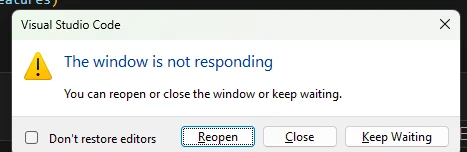
When VS Code freezes with “Window is not responding” while opening or running a Python notebook (.ipynb), something in the notebook stack is blocking the UI thread.
- The notebook renderer (trying to render huge saved outputs)
- The extension host (Jupyter/Python/Pylance conflict)
- The Jupyter kernel (stuck starting or hung on a cell).
This is usually caused by large embedded outputs, an extension update/conflict, a wrong interpreter/kernel, corrupted cache/state, or a GPU acceleration rendering issue.
1. Clear Notebook Outputs
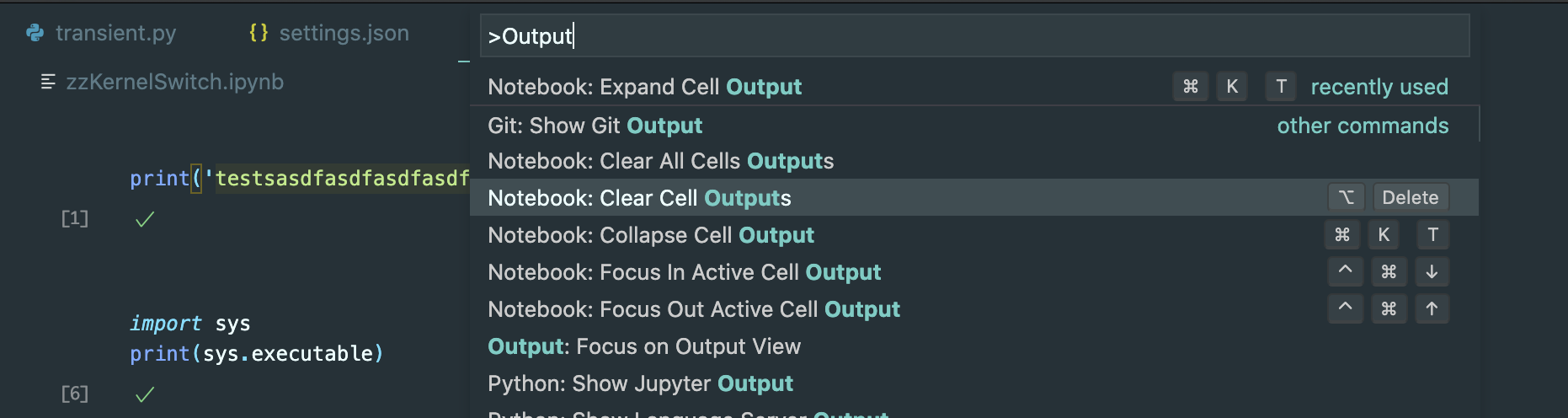
If VS Code freezes on open, the notebook is often too heavy to render because outputs are saved inside the .ipynb (dataframes, logs, plots, HTML). Clearing outputs reduces the file to cells only, which makes the renderer load fast again.
- Open the notebook (if it opens).
- Notebook toolbar → … → Clear All Outputs.
- Save, fully close VS Code, reopen, then run a small cell like
1+1.
2. Disable GPU Acceleration
If the freeze is a rendering issue (driver/acceleration bug), starting VS Code without GPU often restores stability because the UI runs in a safer software mode.
- Close all VS Code windows.
- Open Command Prompt or PowerShell.
- Run:
code --disable-gpu
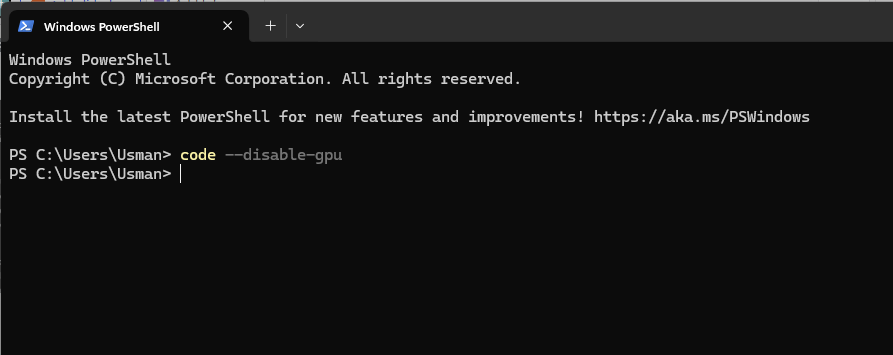
- Open the notebook and test again.
If this works: keep launching this way, or disable hardware acceleration in settings (if your version exposes it).
3. Roll Back Jupyter/Python/Pylance
If freezing started right after updating an extension, roll back to a known stable version to remove regressions.
- Open Extensions.
- For Pylance → version menu → Install Specific Version.
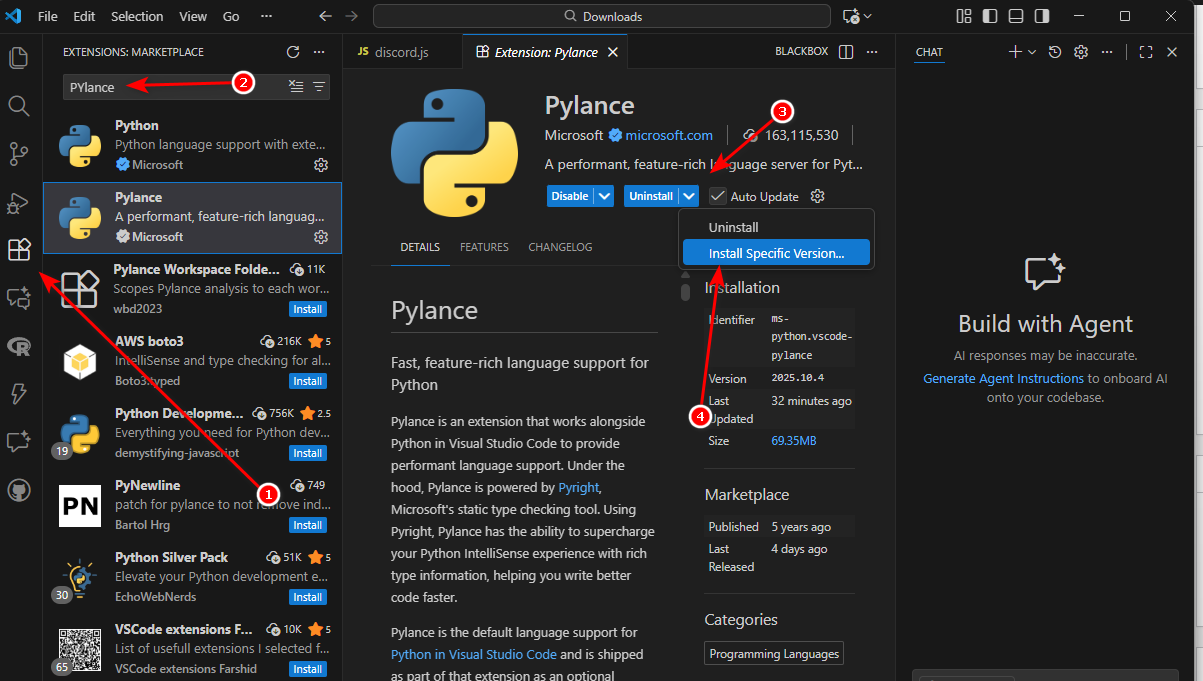
- Reload VS Code and test.
- Repeat for Jupyter and Python if needed.
- After rollback, pause updates temporarily so it does not auto-upgrade back.
4. Revert VS Code Version
If notebooks broke immediately after a VS Code update, the build itself may have a regression. Installing an older stable build can restore notebook behavior.
- Close VS Code.
- Download an older build from the official VS Code updates page.
- Install, launch, and test the notebook.
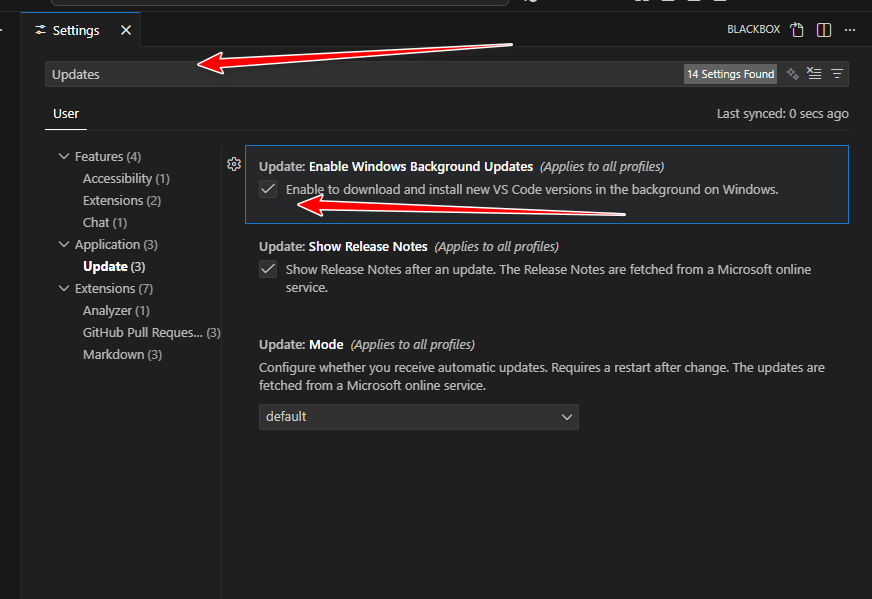
- Settings (CTRL + ,) → search Update → disable automatic updates to avoid reintroducing the bug.