How to Fix “Undetermined Error While Formatting” in Rufus?
If Rufus shows “Undetermined error while formatting”, it means Rufus failed during the formatting step (preparing the USB so files can be written to it) before it could write the bootable image. When this happens, Rufus stops and you can’t finish creating a bootable USB (for example, a Windows installer).
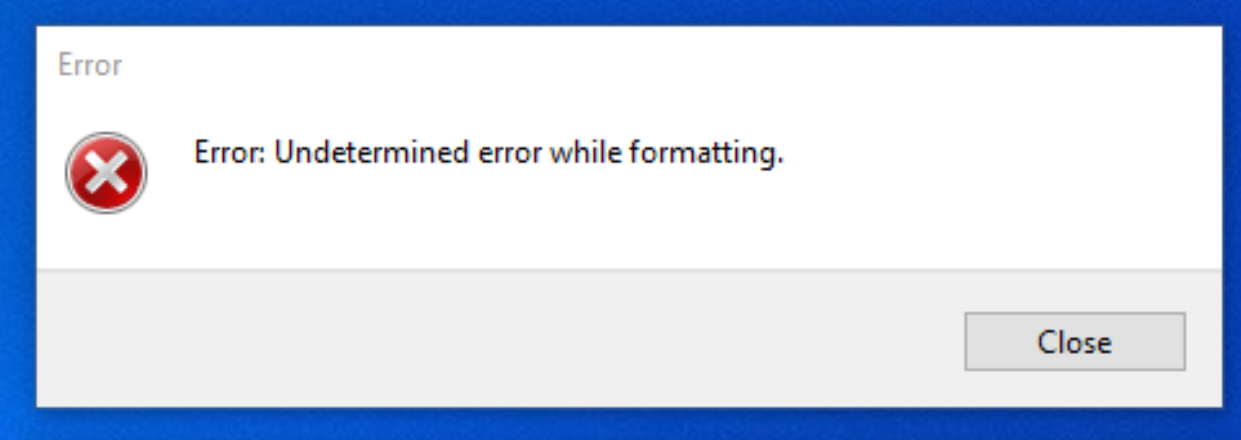
This error is most commonly caused by a failing/low-quality USB drive, a bad USB port or hub, a write-protected (read-only) state, file system/partition corruption, or another program/service that is locking the drive (antivirus, disk tools, encryption utilities). Follow the fixes below in order.
1. Replug the USB, Switch Ports, and Avoid Hubs (Test Another USB if Possible)
A loose connection, unstable port, or a USB hub/front-panel port can interrupt low-level formatting. Plug the drive directly into the PC so Windows can re-detect it cleanly and Rufus can access it without interruptions.
- Unplug the USB drive.
- Wait 10 seconds.
- Plug it back in directly to the PC (avoid hubs/docks while testing).
- Try a different USB port:
- Desktops: Prefer a rear motherboard USB port.
- Laptops: Prefer a main port on the device (avoid pass-through hubs).
- If you only tried USB 3.x ports, also try a USB 2.0 port (sometimes more stable for boot media creation).
- If the error continues, test with a different USB drive (some drives fail during heavy write/format operations).
Note: If multiple PCs show the same error with the same USB drive, that USB is very likely failing or has bad blocks. Also, if the USB shows 0 bytes, No media, or stays RAW even after cleaning, it usually indicates hardware failure.
2. Do a Clean Format in Windows, Then Use Rufus With “Quick Format” Disabled
Formatting the drive in Windows first can clear basic file system corruption. Then, disabling Quick format in Rufus forces a full format pass, which takes longer but helps detect bad blocks and prevents “fast format” glitches. If a full format fails again, it strongly indicates the USB drive is unreliable.
Important: Rufus may choose FAT32 or NTFS automatically depending on the ISO and your settings. The goal here is simply to start from a clean state, Windows formatting here is not meant to “pick the final” file system for the boot USB.
- Plug the USB into your system.
- Press Win + E to open File Explorer.
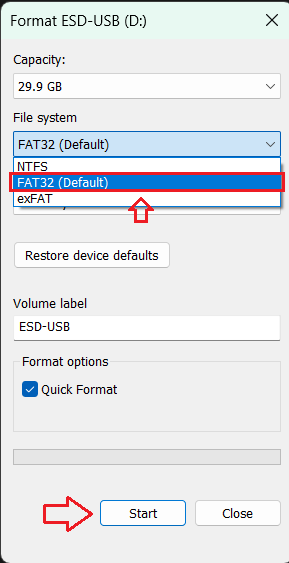
- Right-click your USB drive and select Format.
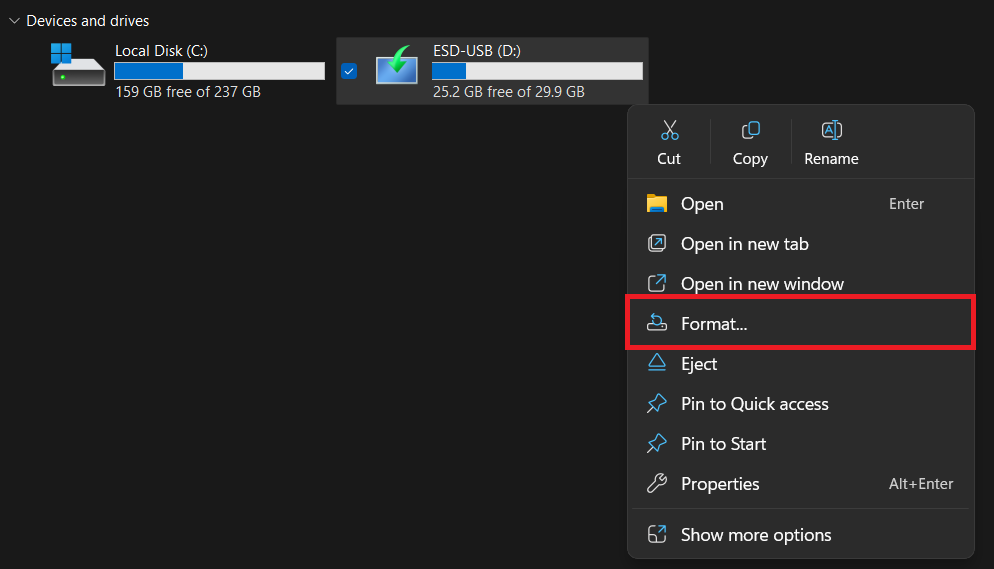
- Choose a file system (for a general clean format, FAT32 is fine if available) and click Start.
Why FAT32 here? It’s widely compatible and works as a simple “clean slate” format. Rufus will still recreate the correct layout later.
Tip: If FAT32 is not available here, you can still continue, this step is mainly to clear corruption,
not to force Rufus to use a specific file system.
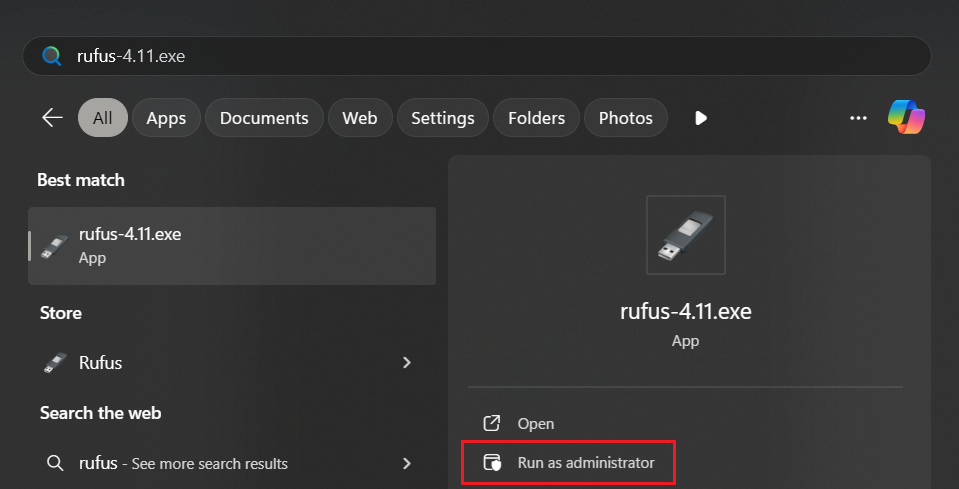
- Launch Rufus as Administrator.
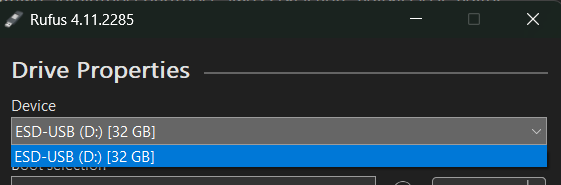
- Choose your USB device under Device (double-check the correct drive).
- Choose your bootable ISO under Boot selection.
- Click Show advanced format options, then uncheck Quick format.
This makes Rufus perform a slower, more thorough format process.
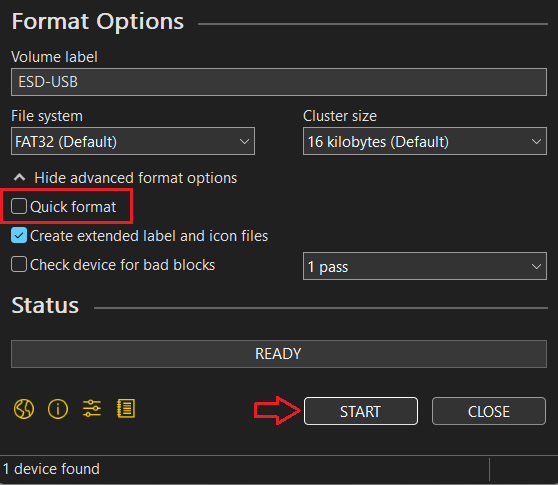
- Click Start and let Rufus complete the process without unplugging the drive.
3. Rufus “Windows User Experience” Options
Rufus may show Windows installation customization options such as “Disable BitLocker automatic device encryption”. These options affect Windows setup behavior after installation.
Note: The steps below are included only to explain what these options do. If your problem is a formatting failure,
focus on Steps 1–6.
- Plug your USB drive into your PC.
- Run Rufus as Administrator.
- Select your USB drive under Device.
- Under Boot selection, click Select and choose your Windows ISO.
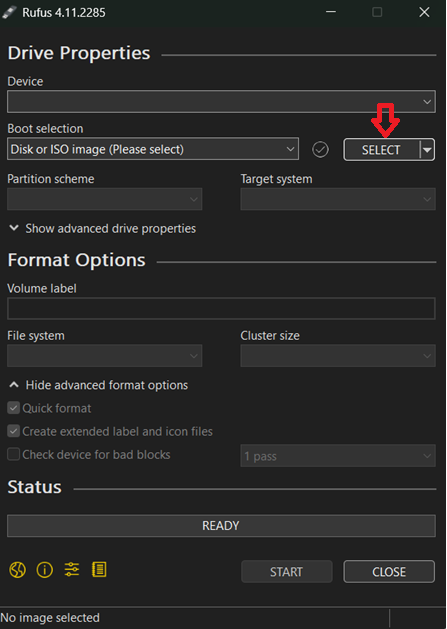
- Once the ISO is loaded in Rufus, additional options may appear.
- Under Image option, select Standard Windows installation (if it isn’t already selected).
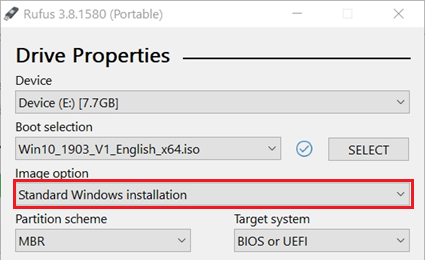
- In the Windows User Experience options, you can check Disable BitLocker automatic device encryption
if you specifically want Windows to avoid automatically enabling device encryption after install.
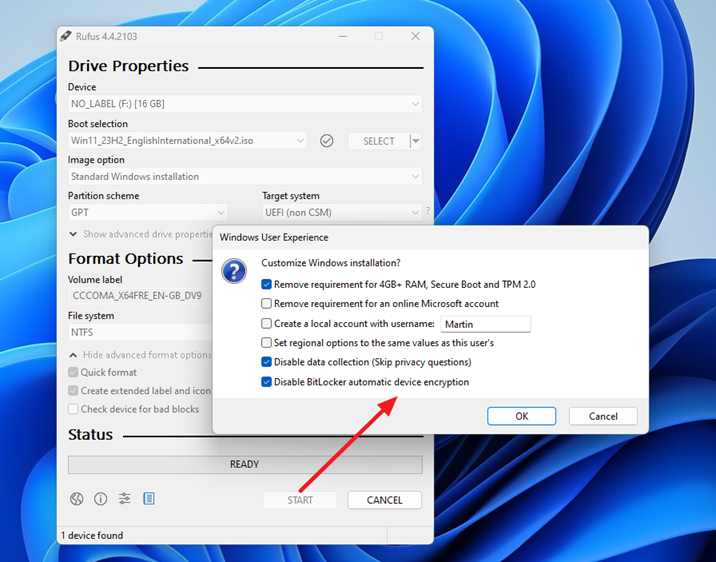
- Click Start to begin writing the image.
If It Still Fails: The USB Drive Is Likely Bad (Use a Reliable, Larger USB 3.x Drive)
If Rufus repeatedly fails at the formatting stage even after switching ports, clearing read-only, closing background tools, and doing a full format, the USB drive likely has bad blocks or a failing controller. This is common on older, off-brand, or heavily used flash drives. In that case, the most reliable “fix” is replacing the USB.
- Try a different USB (prefer a known brand USB 3.0/3.1/3.2 drive).
- For modern Windows ISOs, avoid very small/old drives (use 8GB minimum, and 16GB+ is safer).
- Don’t use USB hubs while creating the bootable drive.