How to Fix “Unable to Load Site” ChatGPT Issue?
When trying to access ChatGPT, if you see a blank page, get stuck on endless loading, or see errors like “Unable to load site”, it usually means your browser or network can’t fully load (or run) the ChatGPT web app.
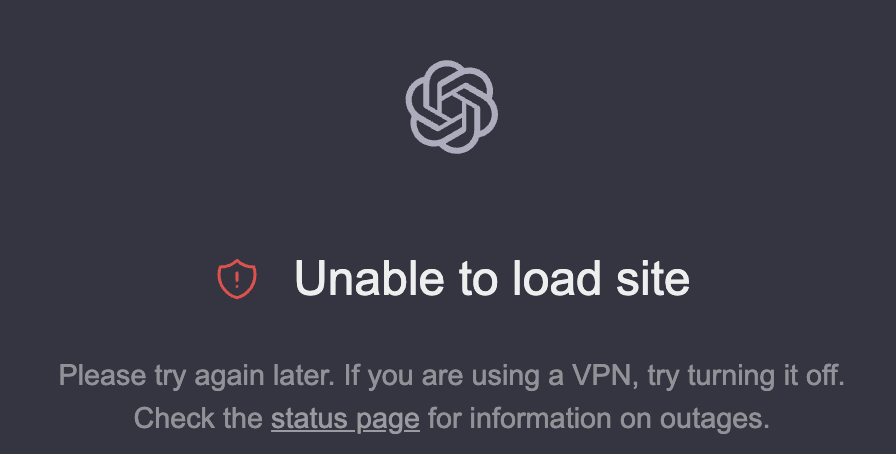
In most cases, your device or network is blocking ChatGPT from loading correctly (for example: corrupted site data, a browser extension, DNS/routing, or network filtering).
Note: This guide focuses on desktop browsers (Windows/macOS). If you’re using ChatGPT on mobile, the fixes are different (app/browser cache, device DNS, and carrier/network restrictions).
1. Check OpenAI / Server Status First
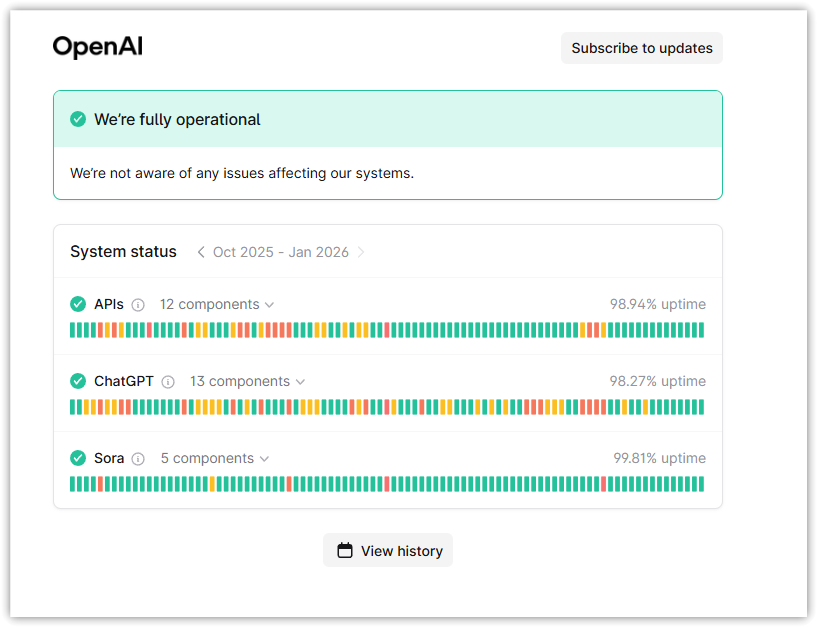
Before changing anything locally, confirm the issue isn’t on OpenAI’s side. If ChatGPT is down or degraded, your browser will keep loading forever or show a blank screen, and local fixes won’t help.
- Open a new tab.
- Go to the official status page: status.openai.com.
- Check ChatGPT and any related components.
- If an incident is ongoing, wait until it’s resolved, then reload ChatGPT.
2. Try an Incognito/Private Window
This is a fast test to separate browser profile problems (extensions/cookies) from network problems. Private mode starts a cleaner session and often disables or limits extensions.
- Open an Incognito/Private window (Chrome/Edge: Ctrl + Shift + N).
- Open chatgpt.com.
- If it works here, the issue is almost always an extension or site data problem in your main profile.
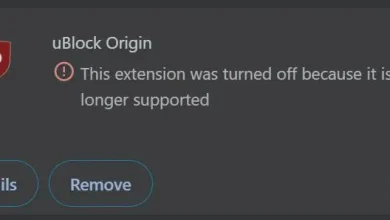
3. Disable Extensions (Most Common Cause)
Ad blockers, privacy/script blockers, “security” extensions, and some password managers can block scripts or requests ChatGPT needs. That can cause a blank page, infinite spinner, or a page that loads with missing UI.
- Open your browser’s Extensions page:
- Chrome: Settings > Extensions
- Edge: Settings > Extensions
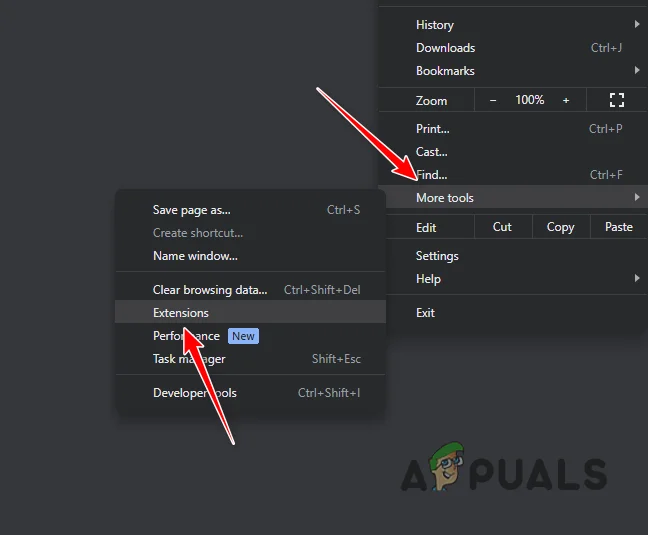
- Turn off all extensions (start with ad blockers/privacy blockers).
- Reload chatgpt.com.
- If it works, re-enable extensions one-by-one to find the one breaking ChatGPT.
4. Clear Browser Cache & Cookies
If ChatGPT’s cookies or cached files are corrupted or outdated, your browser may keep loading broken data and never complete sign-in or page rendering. Clearing them forces a fresh reload.
Tip: If you don’t want to wipe everything, clear data only for chatgpt.com in Site settings. For a reliable test, clearing All time is the most effective.
- Open your browser Settings.
- Go to Privacy and Security.
- Open Delete browsing data.
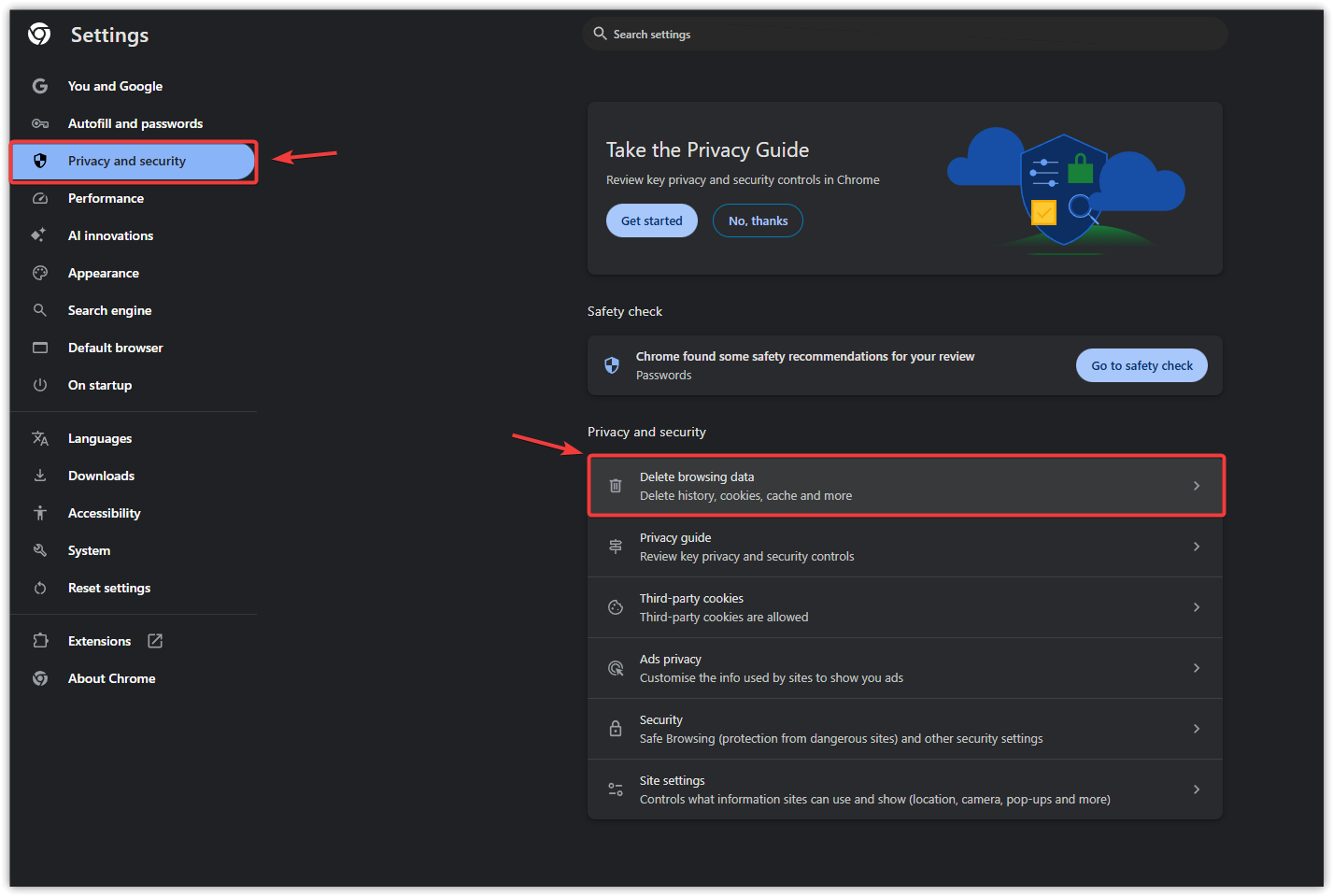
- Select Cookies and other site data and Cached images and files.
- Set time range to All time.
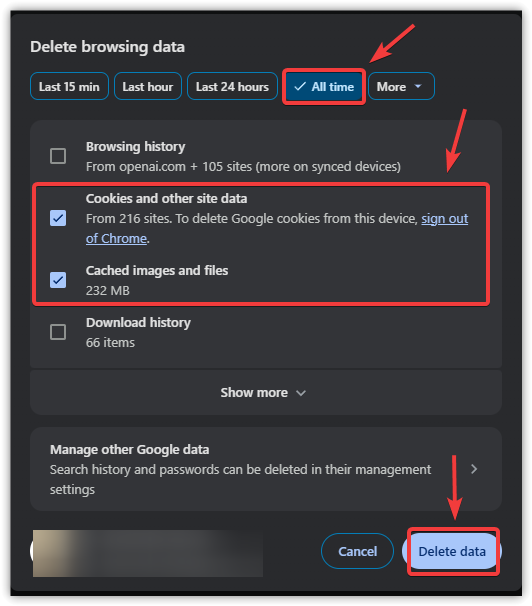
- Click Delete data, restart the browser, then open ChatGPT again.
5. Use Google DNS (Or Another Public DNS)
DNS turns domains (like chatgpt.com) into server IP addresses. If your DNS is slow, blocked, or returning the wrong route, ChatGPT may never load. Switching to a reliable public DNS can fix resolution and routing.
- Press Windows + R, type ncpa.cpl, then press Enter.
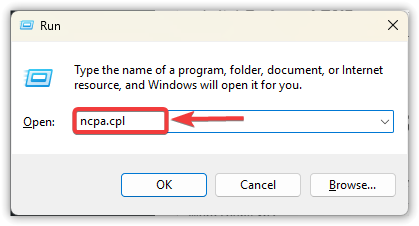
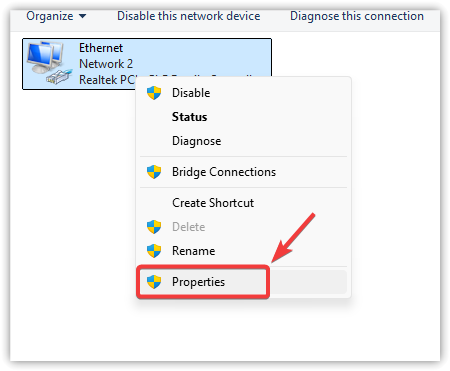
- Right-click your active network adapter and choose Properties.
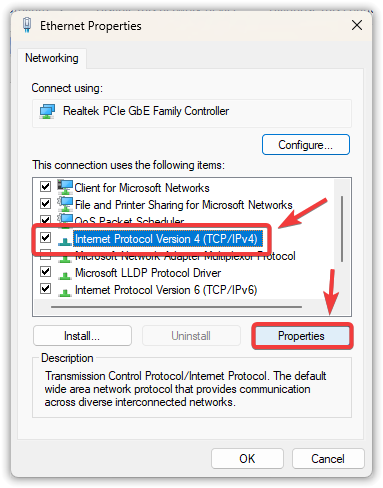
- Select Internet Protocol Version 4 (IPv4) > Properties.
- Select Use the following DNS server addresses.
- Set Preferred DNS to 8.8.8.8.
- Set Alternate DNS to 8.8.4.4.
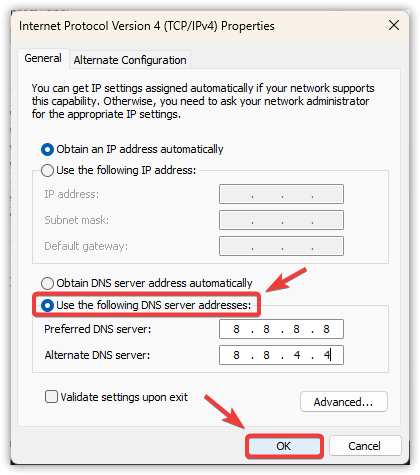
- Click OK, then restart your browser and test ChatGPT again.
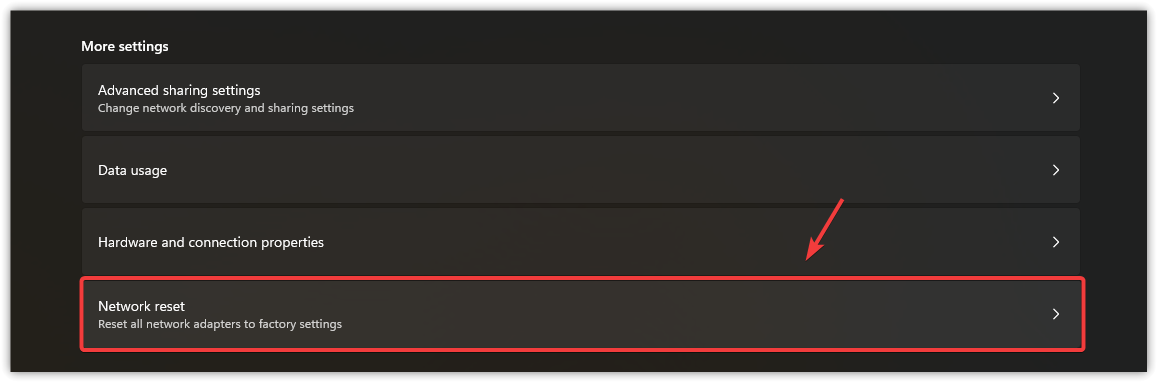
6. Reset Network Settings
If nothing works, Windows networking may be stuck (bad proxy/VPN leftovers, corrupted adapter config, or routing issues). A network reset rebuilds the network stack and often fixes stubborn “won’t load” cases.
- Open Windows Settings.
- Go to Network & Internet.
- Select Advanced network settings.
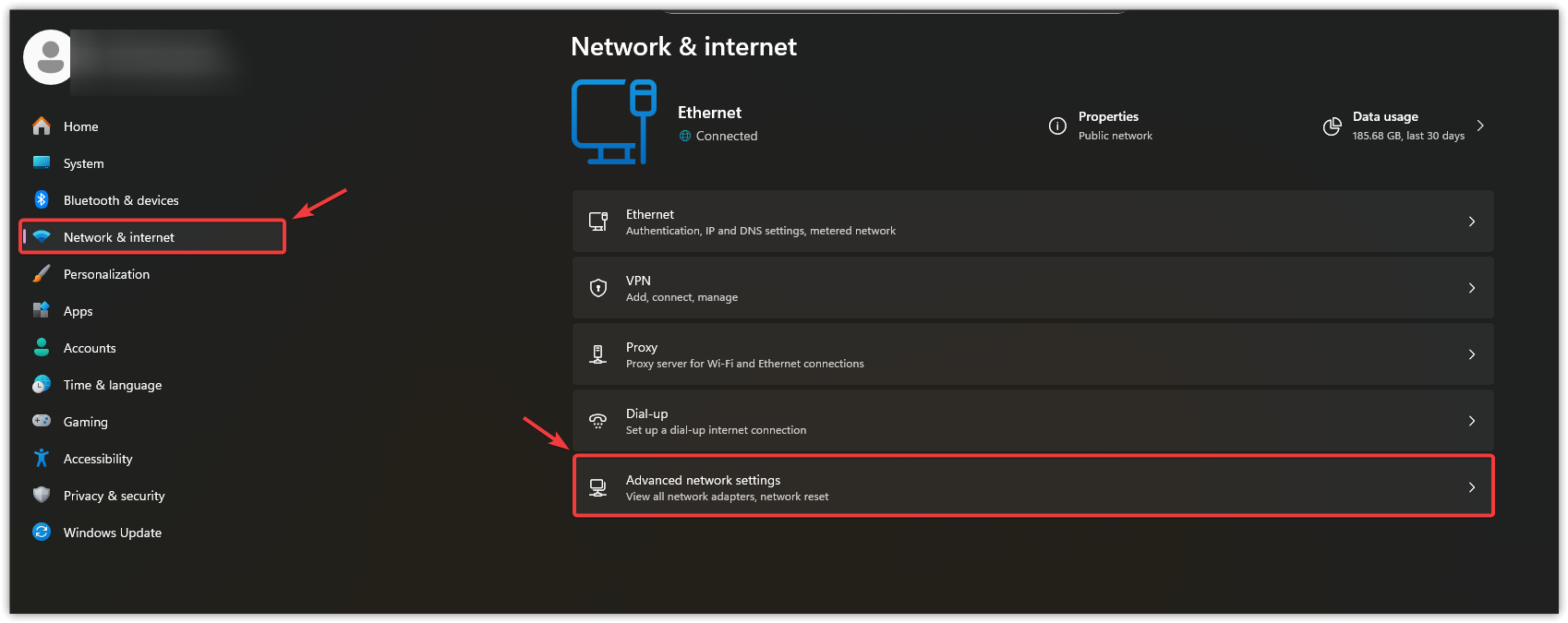
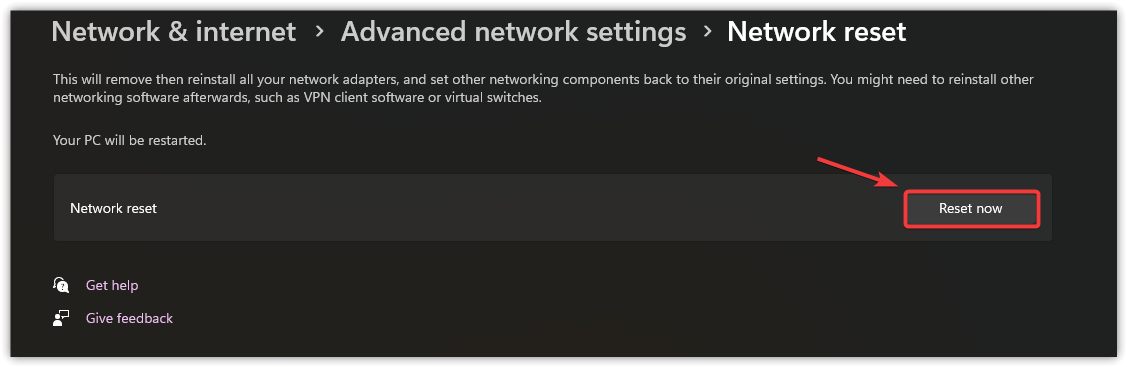
- Click Network reset > Reset now.
- Restart your PC, reconnect to Wi-Fi/Ethernet, then test ChatGPT again.
7. Reset the Browser
If ChatGPT still fails, your browser profile may have a setting or corruption that keeps breaking the site. Resetting restores defaults and disables extensions, which is ideal for testing in a clean environment.
Note: This usually keeps bookmarks, but it disables extensions and resets many site/permission settings.
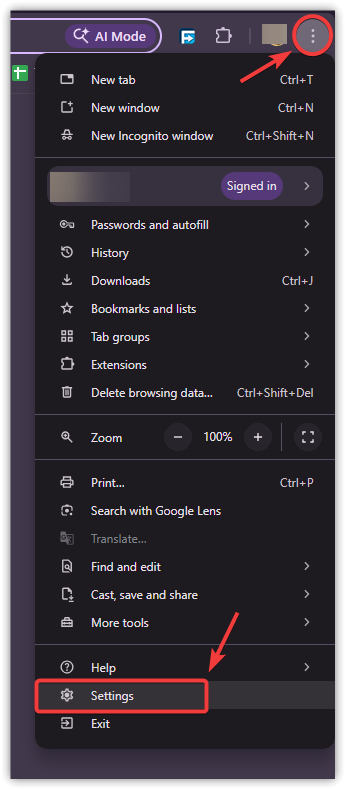
- Open your browser and go to Settings.
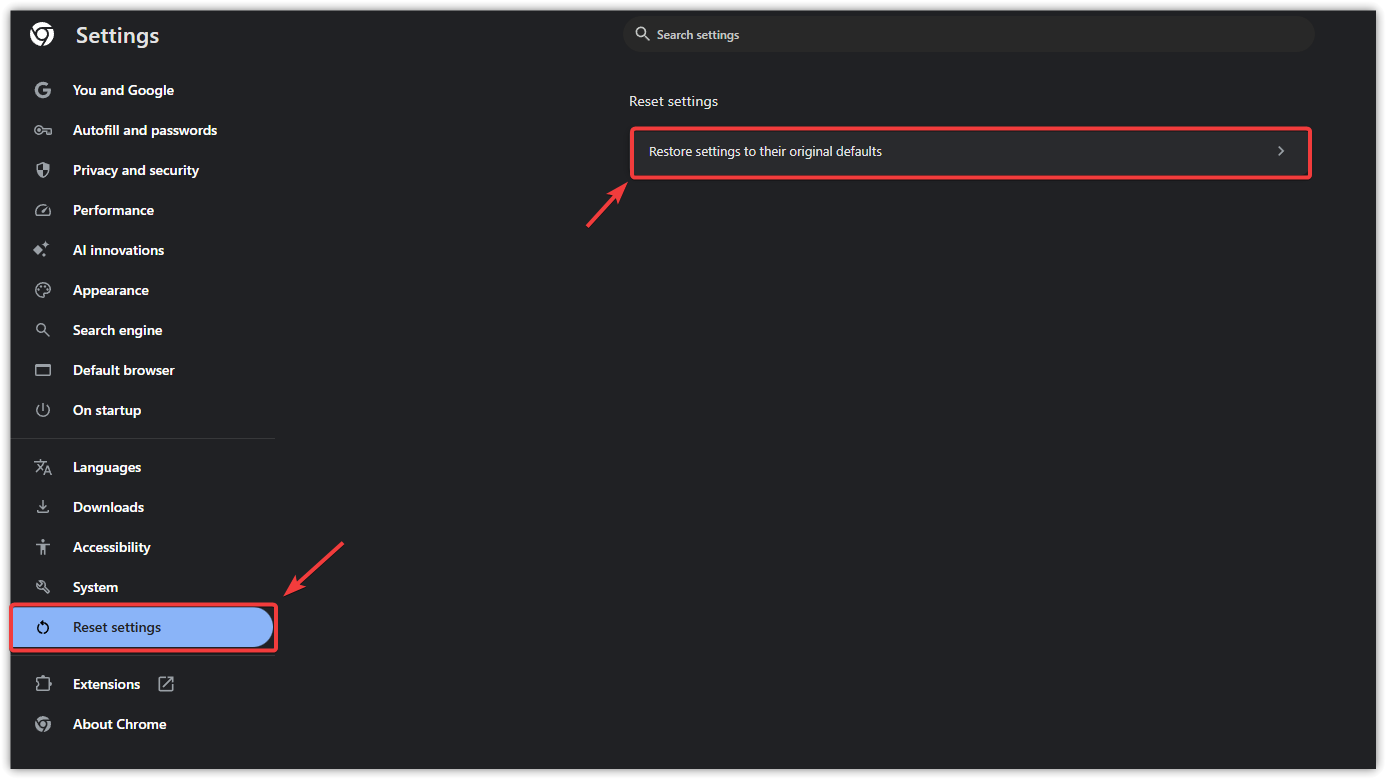
- Open Reset settings.
- Choose Restore settings to their original defaults and confirm.
- Test ChatGPT first. If it works, re-enable extensions one-by-one to find the cause.
If you’ve tried all fixes above and ChatGPT still won’t load, it’s usually network-side (workplace/school firewall, ISP filtering, DNS interception, or regional routing issues) rather than your account.
To confirm, test ChatGPT on a different device and a different network (mobile hotspot is a quick check). If it only fails on one network, contact your ISP or your organization’s IT team and explain that OpenAI/ChatGPT traffic isn’t loading reliably on that connection.