Fix: “This Setting is Disabled on Managed Browsers” Chrome
The error “This setting is disabled on managed browsers for Use secure DNS” appears in Google Chrome when browser policies control network or security settings. When Chrome detects these policies, the Secure DNS option becomes locked and cannot be changed manually.
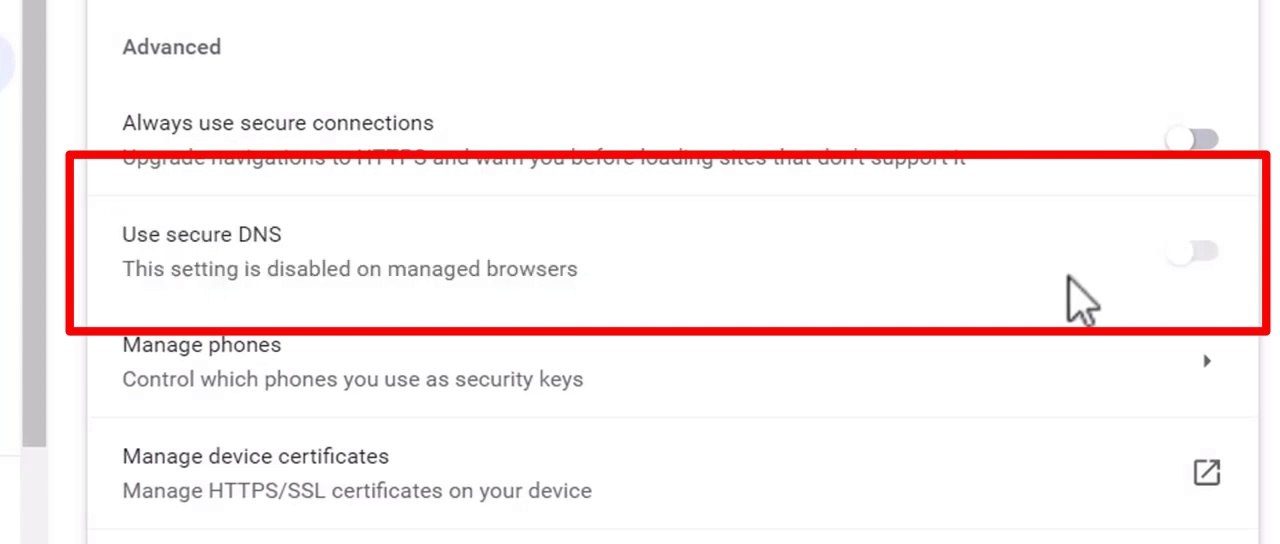
Secure DNS uses DNS-over-HTTPS (DoH) to encrypt domain lookups and improve privacy. When disabled, Chrome falls back to standard DNS resolution.
This message normally appears on work or school devices but can also occur on personal systems due to leftover policies or security software that applies administrative rules.
Common Causes:
- Leftover Chrome enterprise policies
- VPN or DNS-filtering software
- Antivirus web protection
- Parental-control or network security tools
- Previously installed enterprise management software
When policies are detected, Chrome marks itself as managed and disables Secure DNS controls.
Important: Do not remove policies on organization-managed devices unless authorized.
Seeing “Managed by your organization” on a personal PC usually indicates locally applied policies, not remote control or compromise.
Before troubleshooting, open:
chrome://policy
If policies are listed, Chrome will remain managed until they are removed. A successful cleanup should display “No policies set.”
1. Remove Chrome Policies from Windows Registry
Leftover registry policies are the most common cause. Removing them restores default Chrome behavior.
Warning: Back up the registry before making changes.
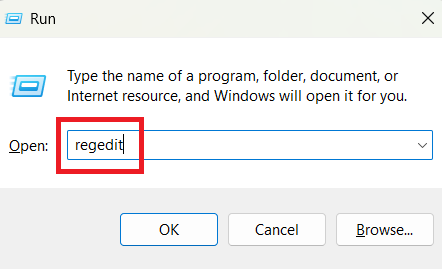
- Press Windows + R, type:
regedit
and press Enter.
- Navigate to:
HKEY_CURRENT_USER\SOFTWARE\Policies\Google\Chrome
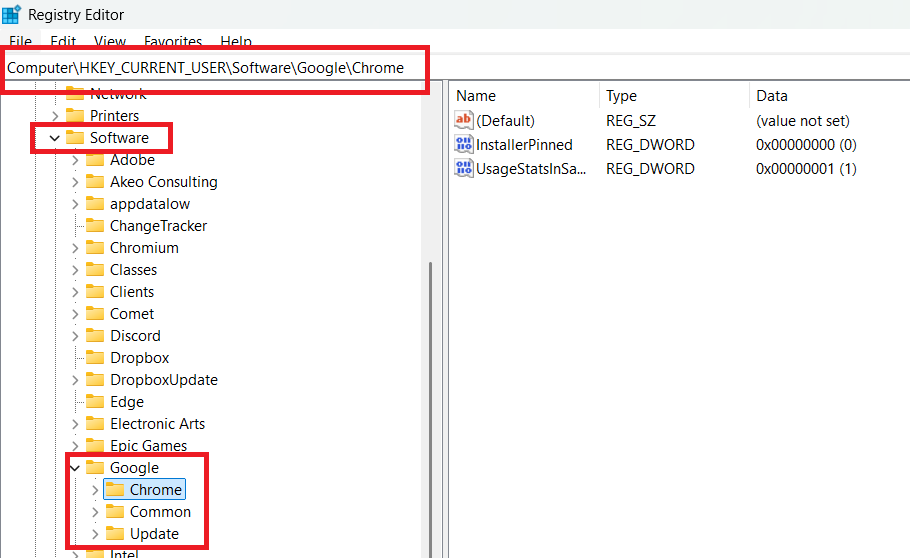
- Delete all entries inside the Chrome folder.
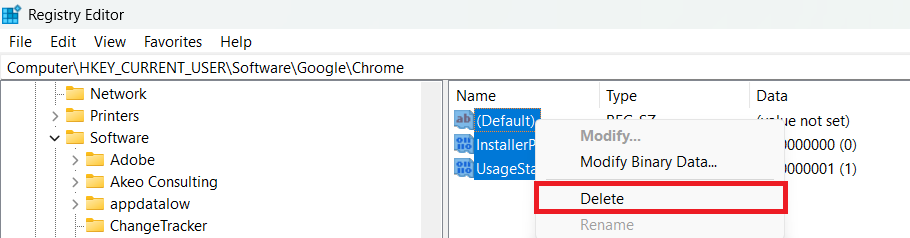
- Repeat for:
HKEY_LOCAL_MACHINE\SOFTWARE\Policies\Google\Chrome
HKEY_LOCAL_MACHINE\SOFTWARE\WOW6432Node\Policies\Google\Chrome
- Close Registry Editor and restart Chrome or Windows.
- Open:
chrome://policy
and confirm “No policies set.”
If Secure DNS remains unavailable, continue below.
2. Manually Enable Secure DNS via Registry (Optional)
If another application keeps enforcing DNS restrictions, you can manually apply Chrome DoH settings through policy override.
Note: Chrome may still show “Managed by your organization.” This is expected.
- Open Registry Editor as Administrator.
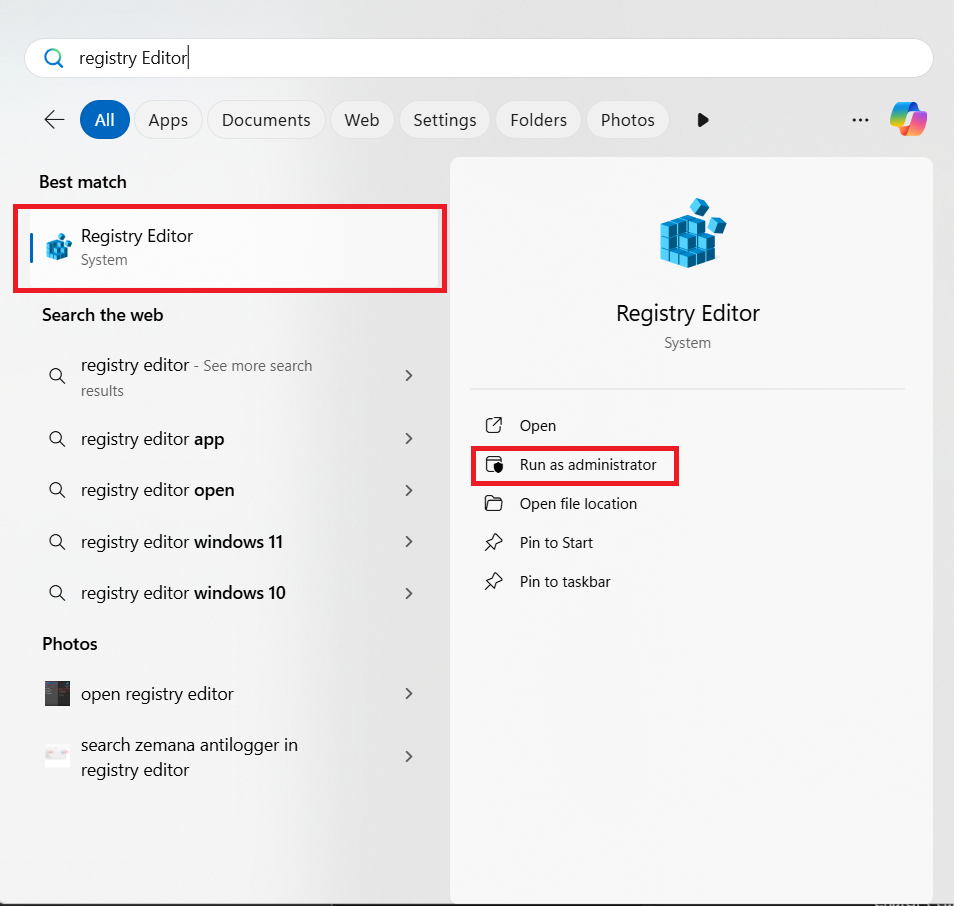
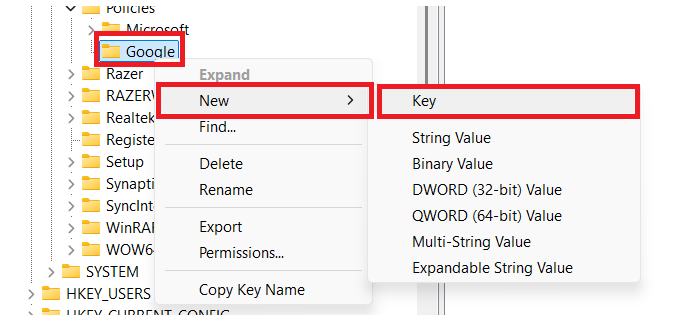
- Navigate to:
HKEY_LOCAL_MACHINE\SOFTWARE\Policies\Google
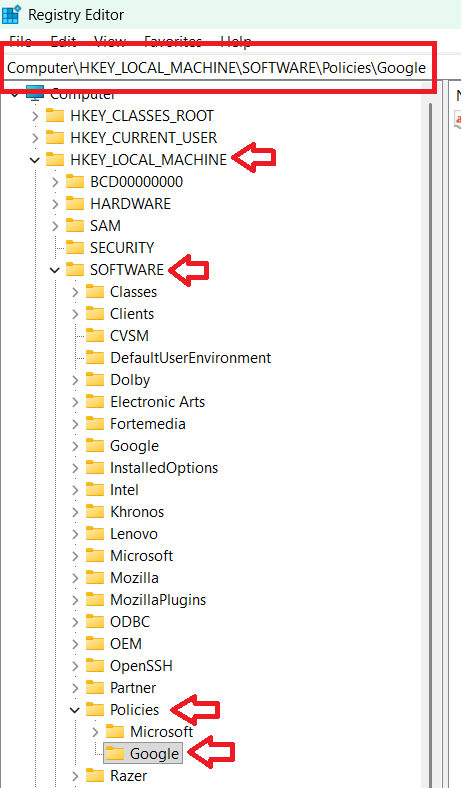
- Create a new key named Chrome.
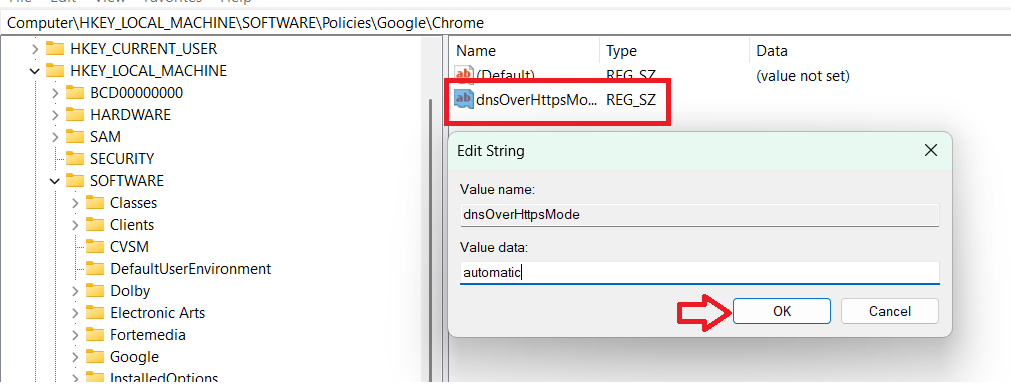
- Create a String Value:
DnsOverHttpsMode
Set value:
automatic
- Create another String Value:
DnsOverHttpsTemplates
Set one provider:
https://dns.google/dns-query
https://cloudflare-dns.com/dns-query
- Restart Chrome or reboot Windows.
If the issue persists, temporarily disable DNS filtering or web protection features in software such as:
- AdGuard
- Kaspersky Web Protection
- Bitdefender Online Threat Prevention
- Cisco Umbrella
- Cloudflare WARP
- NextDNS Client
- Enterprise VPN clients