Fix: This Phone Number Cannot Be Used at This Time (Apple ID)
You’ll usually see the error “This phone number cannot be used at this time. Try again later” while setting up a new Apple ID, signing in, or trying to add a trusted phone number for two-factor authentication. When this happens, the setup stops because Apple refuses to accept the number, so you can’t receive the verification code needed to continue.
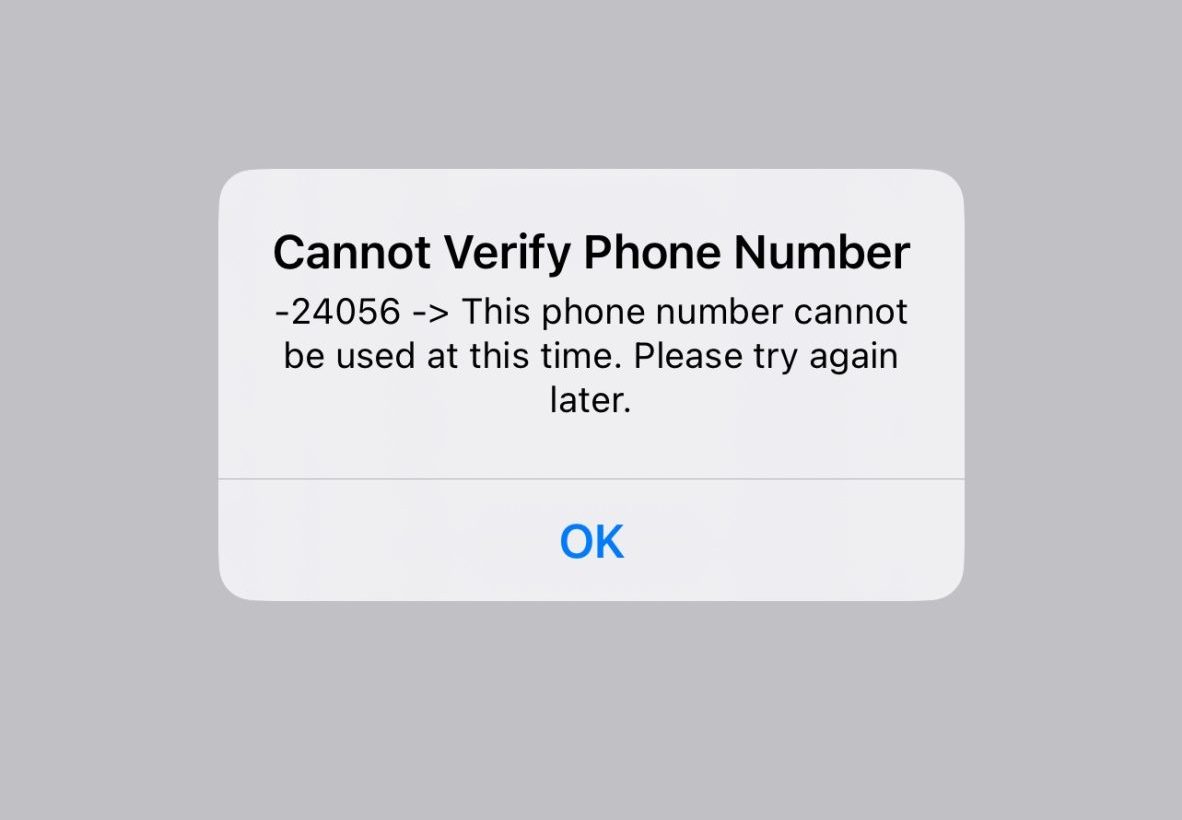
Apple’s security and verification system may temporarily reject a number if it looks already in use (for example, it’s currently tied to another Apple ID as a trusted number or it was recently used in an Apple verification flow), flagged, or if there have been too many verification attempts in a short time. In some cases, the issue is not your number at all, but a server-side outage that prevents verification from completing, or a carrier/network delivery problem where the SMS or call simply never arrives.
Common causes include:
- The phone number is already linked to another Apple ID (for example, it’s saved as a trusted number or recovery-related number), or it was recently used during Apple ID verification.
- Too many verification attempts triggered a temporary block for the number, device, or Apple ID request. This type of block can last from a short cooldown to several hours, depending on the pattern of attempts.
- Carrier/network issues are preventing the verification SMS or call from being delivered, even if the number itself is valid.
Now that you know what typically triggers this message, use the methods below to get the number accepted and receive the verification code.
1. Check Apple Servers
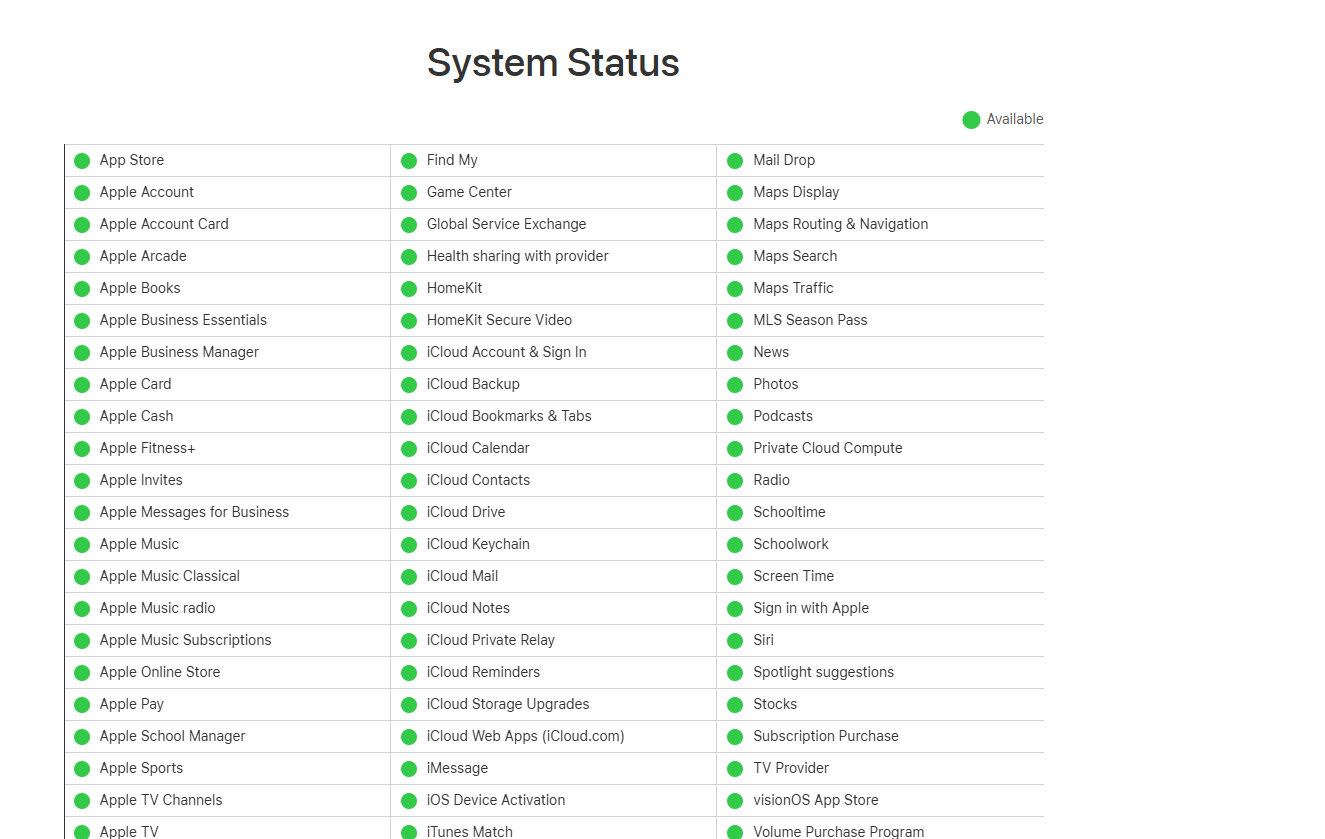
Before changing anything on your device, confirm Apple’s services are working normally. If Apple ID or iCloud verification systems are having an outage, your request may fail even if your phone number is valid. If the status page shows a problem, the only real fix is to wait until Apple reports normal operation again.
- Go to Apple’s official system status page and check Apple ID and iCloud Account & Sign In.
2. Retry Verification Requests
Sometimes the first verification request fails or times out, especially during server load or weak network conditions. Retrying can trigger a fresh request and eventually push the code through. If a code arrives late, always use the newest one, because older codes can expire quickly. However, repeated retries can also trigger a temporary cooldown, so keep attempts limited and pause if the same rejection keeps appearing.
- Stay on the screen where Apple asks you to enter the verification code.
- Tap Resend code and wait a short moment.
- If no text or call arrives, tap Resend code again, but keep it to 2–3 total attempts to avoid adding more failed requests to a cooldown.
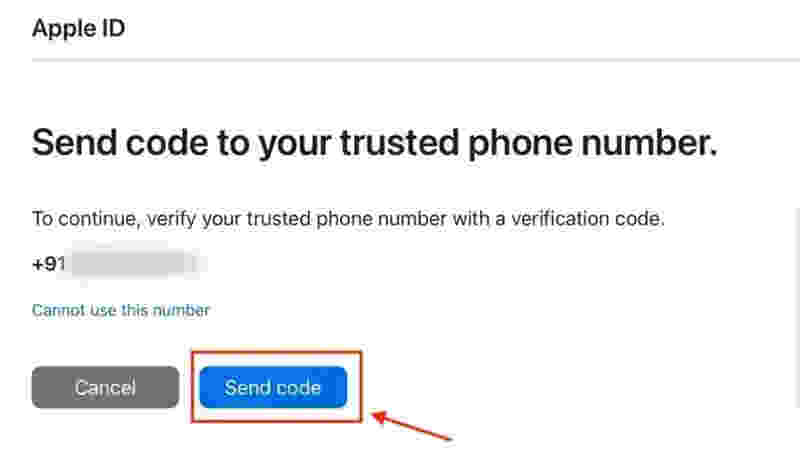
- Once a code arrives, enter the newest code and complete the setup.
- If you still see the same message after a few tries, stop and wait 30–60 minutes before trying again.
3. Use a Different Internet Connection
Even though the verification itself arrives by SMS or call, your device still has to successfully send the verification request to Apple’s servers first. If your current connection is unstable, filtered, or experiencing routing issues, Apple’s verification request may not complete properly. Switching networks often fixes “try again later” type errors and can also improve overall delivery reliability.
- Turn off Wi-Fi on your iPhone, iPad, or computer.
- Enable mobile data or connect to a different Wi-Fi network (or a hotspot from another phone).
- Go back to the Apple ID setup screen and try to add or verify your phone number again.
4. Sign Up Through the Mail App or Apple’s Official Website
If the error appears during the normal setup flow, switching to a different sign-in path can help. The Mail app and Apple’s official website can sometimes complete verification more reliably because they use a different account setup screen and may avoid a bug or a temporary issue in one specific flow. This is especially useful when the issue seems tied to one setup path rather than the phone number itself.
- Open Settings.
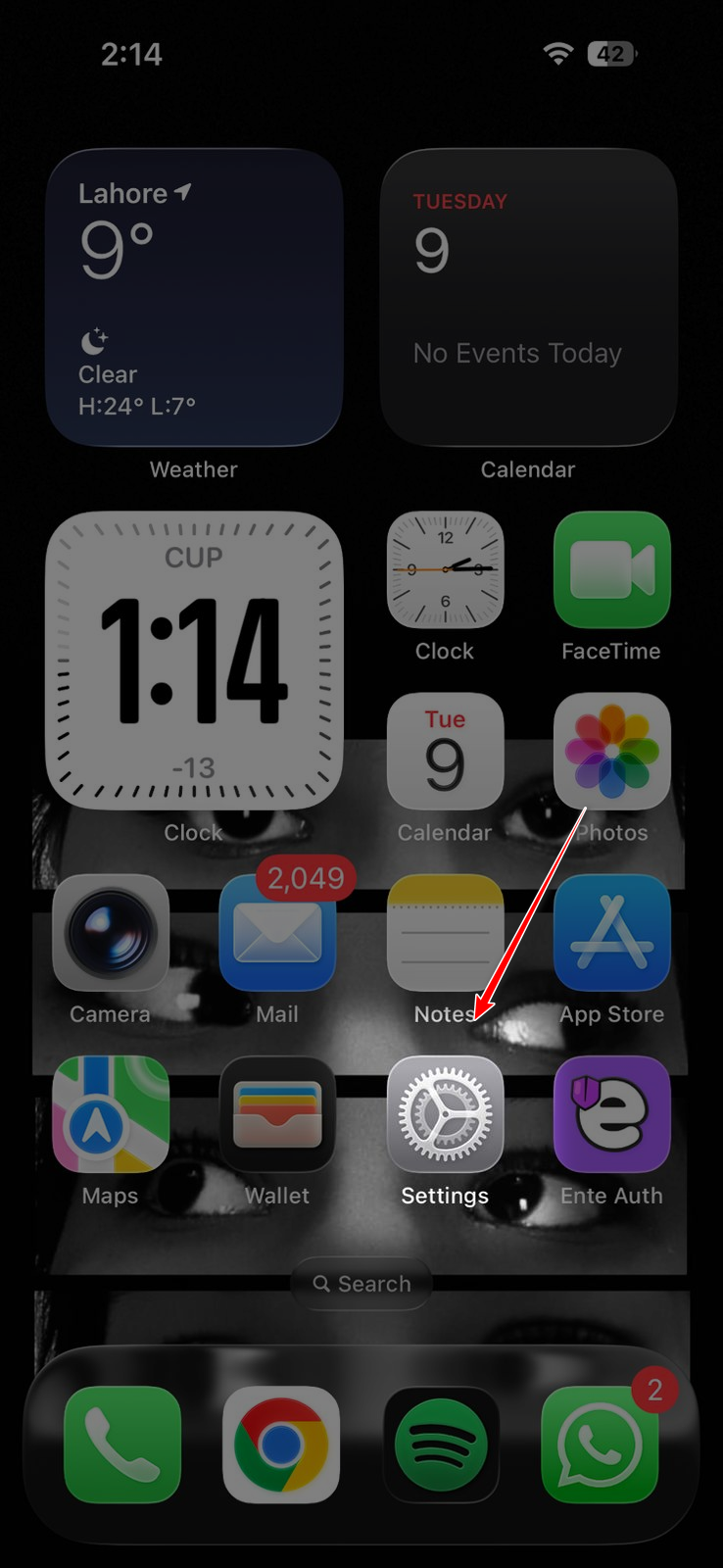
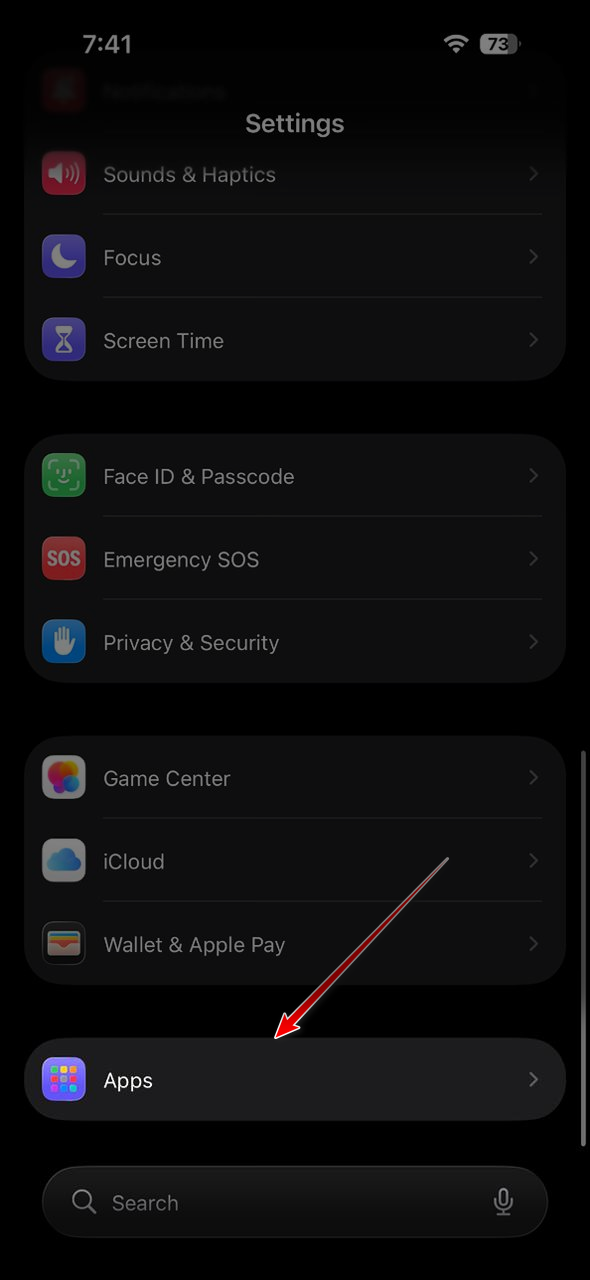
- Scroll to Apps.
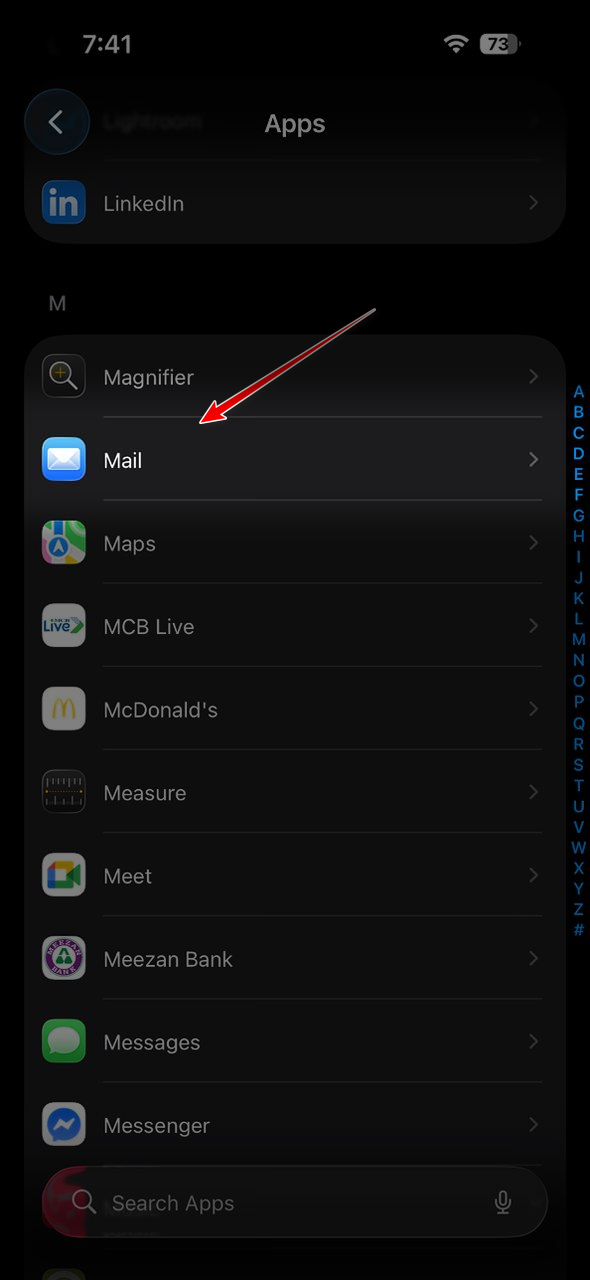
- Tap Mail.
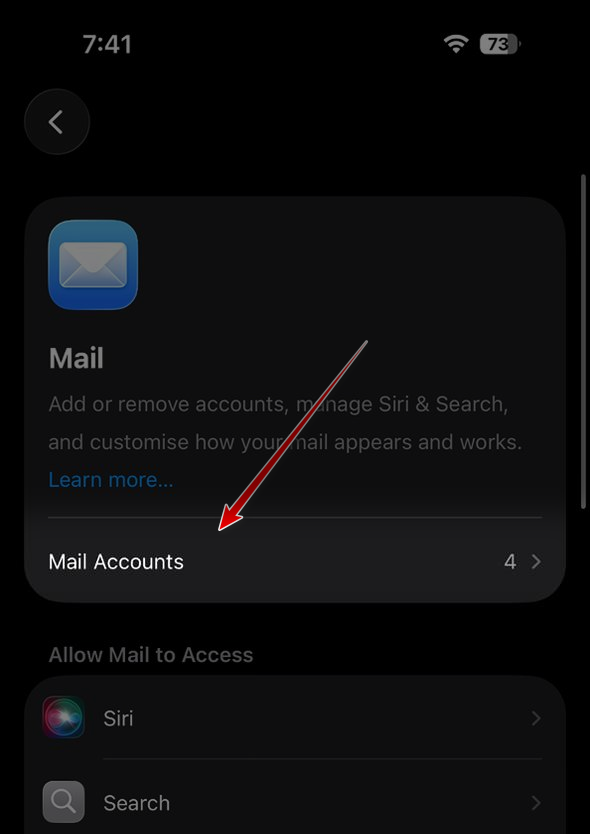
- Tap Mail Accounts.
- Choose Add Account.
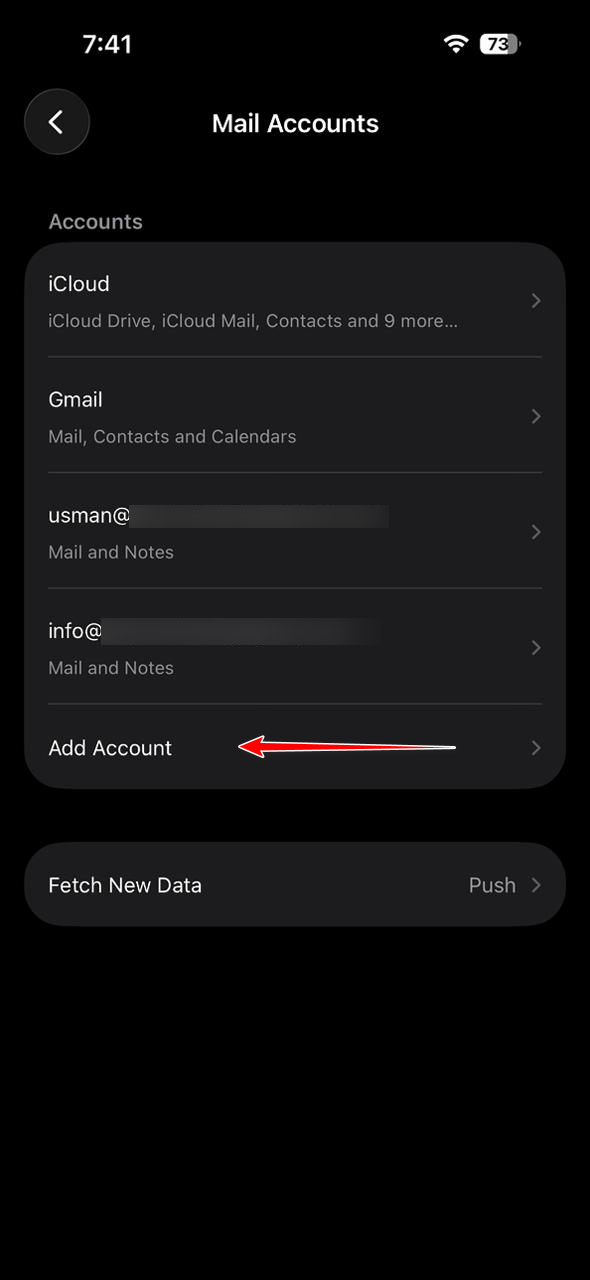
- Select iCloud and follow the prompts to sign in or create a new Apple ID, then enter your phone number when asked.
- If you prefer using a browser, try creating/signing in to your Apple ID on Apple’s official website and repeat the phone verification from there.
5. Contact Apple Support
If the error keeps returning, your phone number may be blocked, linked to another Apple ID, or held by Apple’s security system in a way you cannot see from your side. In that situation, only Apple Support can check the internal status of the number and tell you whether the restriction is temporary or if the number needs to be changed.
Tip: If you have access to another phone number, try adding that temporarily to finish setup, then update the trusted number later once the restriction clears.