Fix: iPhone Cannot Be Backed Up Not Enough iCloud Storage
If you see “This iPhone cannot be backed up because there is not enough iCloud storage available” even though iCloud shows some free space, it usually means one of two things:
- The backup is bigger than the “usable” free iCloud space (so it can’t start/finish).
- iCloud storage hasn’t refreshed yet after deletions (so it still thinks you’re out of space).
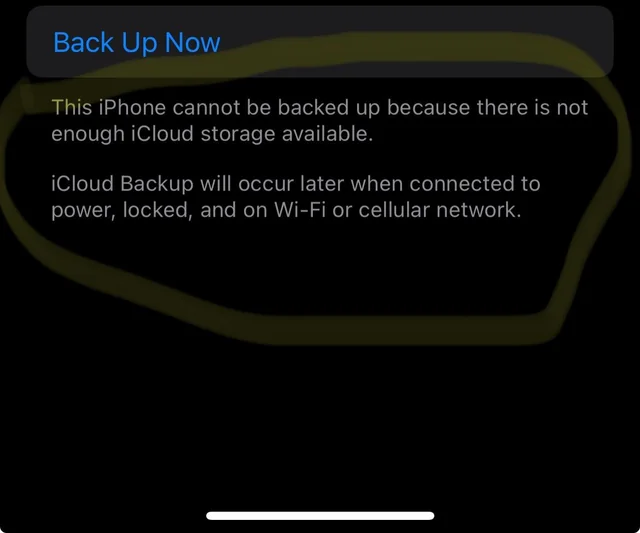
This is common after you free space by deleting photos/files. Items may still be sitting in Recently Deleted (Photos/Files), old device backups may still be stored in iCloud, or large categories like Messages attachments, iCloud Drive, or app data may be using more space than you realize.
Note: If Next Backup Size is higher than your available iCloud space, the backup cannot complete until you free more space, reduce what’s included, upgrade iCloud+, or back up to a computer.
Do this first so you don’t delete random stuff. This tells you if the backup is simply too large.
- Open Settings.
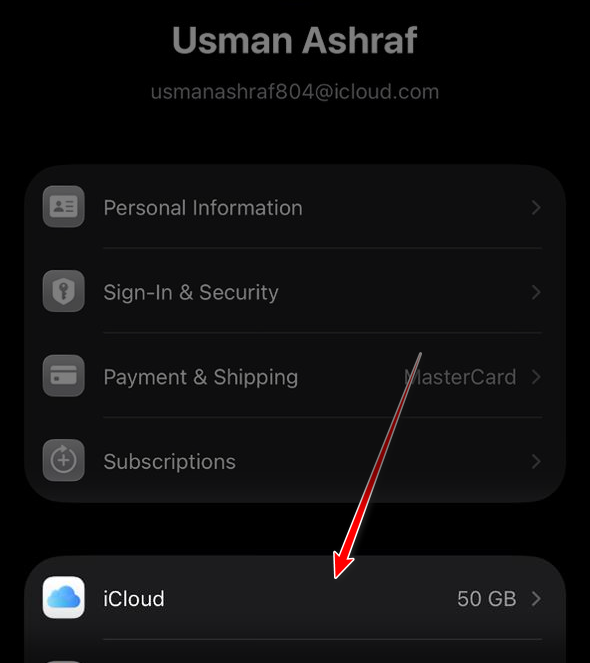
- Tap your Apple ID name > iCloud.
- Check your Available iCloud storage.
- Open iCloud Backup and check Next Backup Size (wait for it to finish calculating).
- If you don’t see it: iCloud > Manage Account Storage (or Manage Storage) > Backups > select your iPhone.
How to decide:
- If Next Backup Size > Available storage → you must free space or reduce backup content.
- If Next Backup Size ≤ Available storage but it still fails → it’s likely a storage refresh/cache issue (try fixes below).
1. Delete the Existing iCloud Backup and Recreate It
This forces iCloud to rebuild the backup and fixes cases where iCloud is using a stale estimate or a corrupted backup entry.
Important: This deletes the backup copy in iCloud (your restore point). It does not delete your photos/apps from the phone. If the backup is critical, make a computer backup first.
- Open Settings on your iPhone.
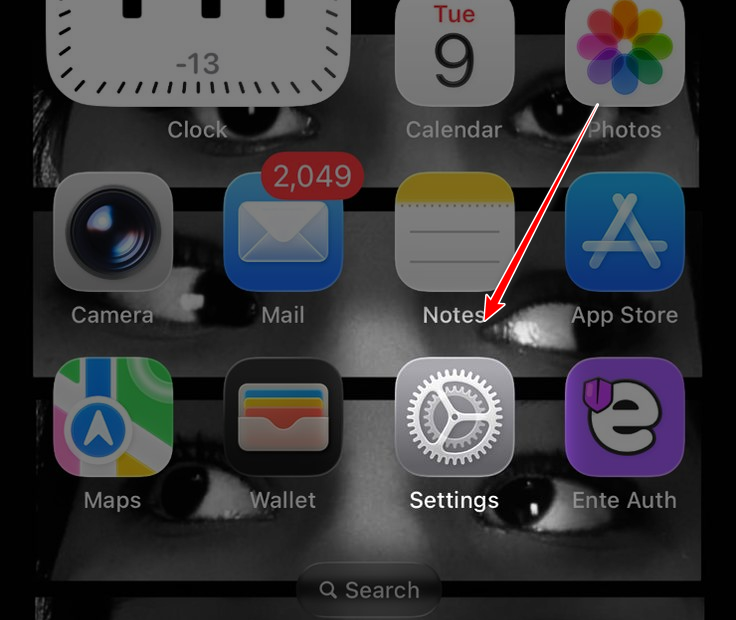
- Tap your Apple ID name > iCloud.
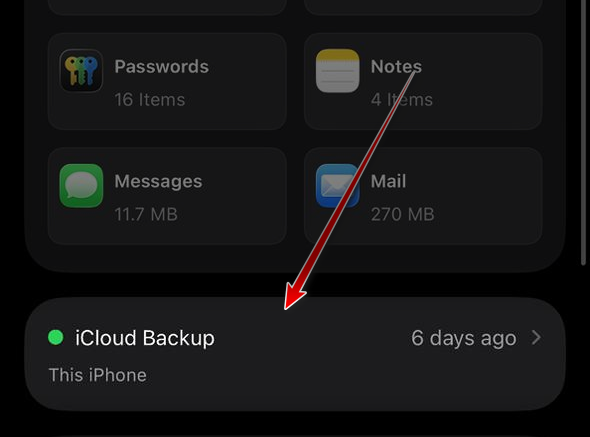
- Tap iCloud Backup.
- Select your device.
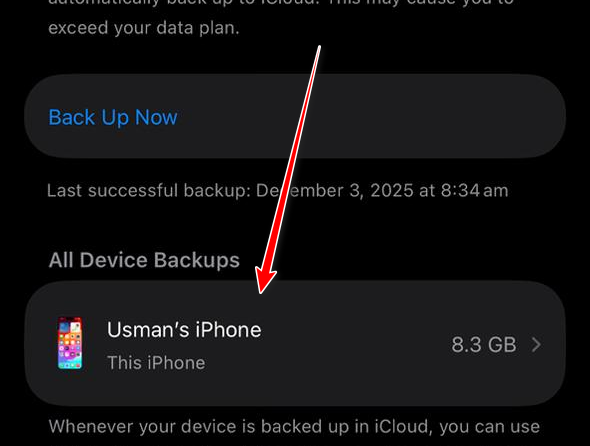
Note: If you don’t see the device list, go to iCloud > Manage Account Storage (or Manage Storage) > Backups > select your device.
- Tap Turn Off and Delete from iCloud.
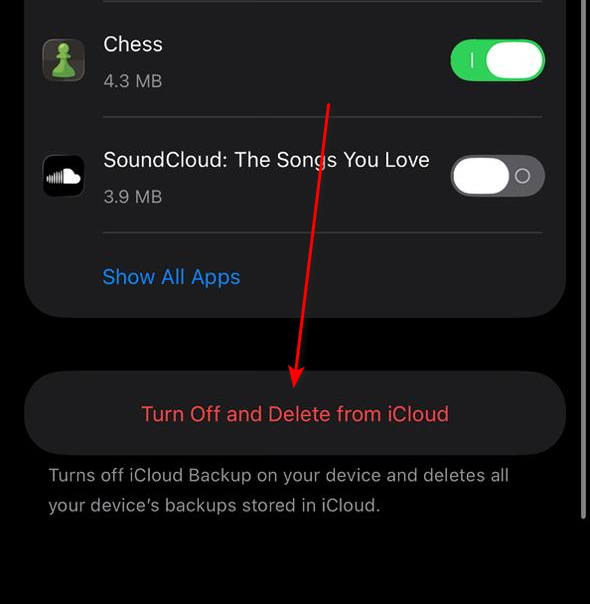
- Wait for it to disappear, then restart the iPhone.
- Go back and tap Back Up Now to create a fresh backup.
- If it still fails, wait 10 minutes (storage refresh) and try again.
2. Turn Off Backup for Unnecessary Items
Use this when Next Backup Size is too big. Disabling backup for heavy apps can drop the size quickly (especially apps that store large offline files).
- Open Settings > tap your Apple ID name.
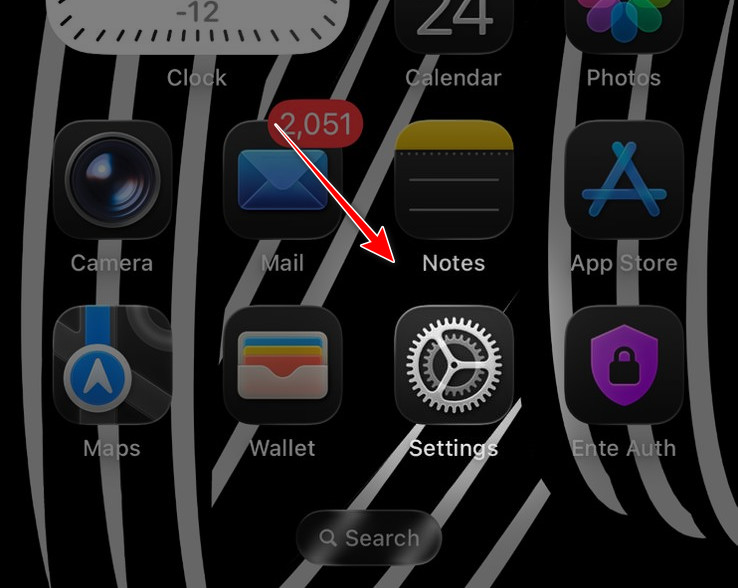
- Tap iCloud.
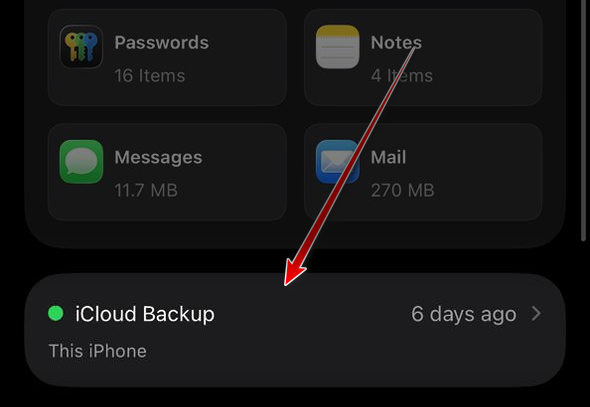
- Tap iCloud Backup.
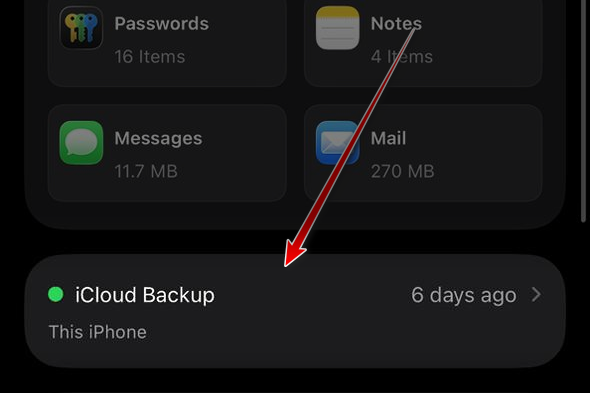
- Select your device.
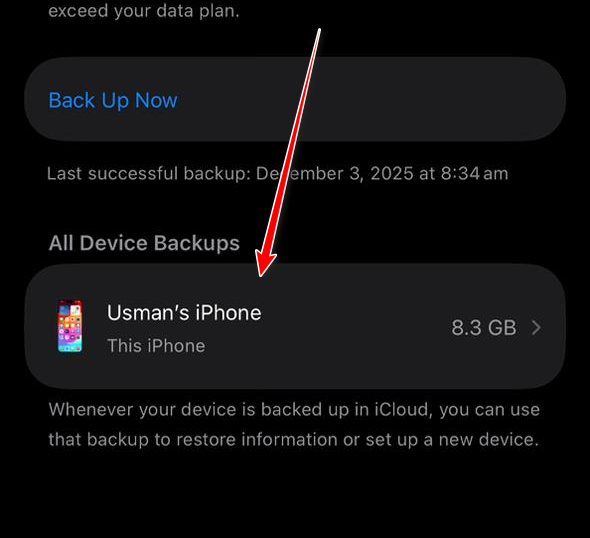
- Wait for the list to load fully.
- Turn off backup for apps you don’t need included (big messaging apps, video editors, file managers, etc.).
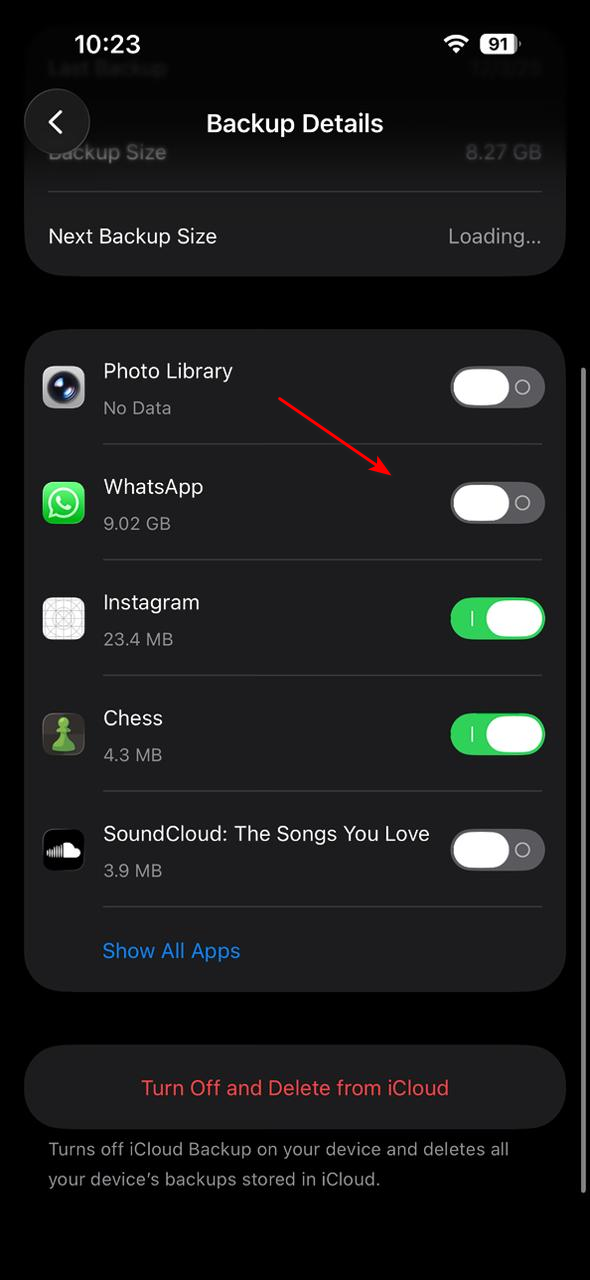
- Go back and confirm Next Backup Size dropped.
- Tap Back Up Now.
3. Empty Recently Deleted Items in Photos and Files
Deleting is not the same as freeing space. Until you clear Recently Deleted, iCloud may still count that data.
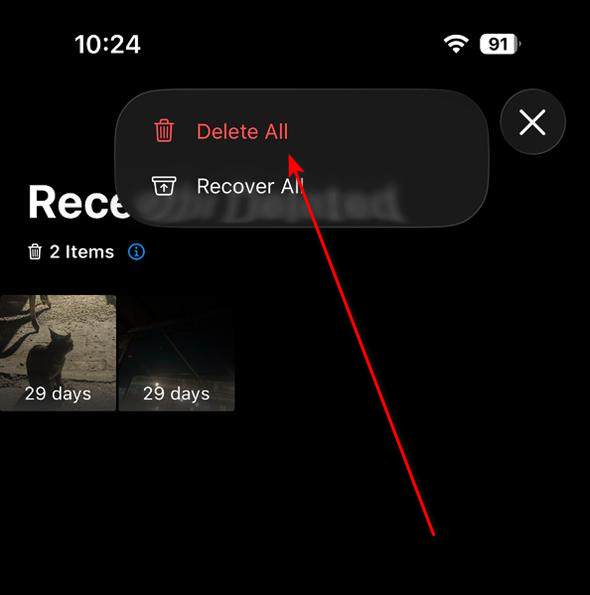
- Open Photos > go to Recently Deleted (often under Utilities or Albums).
- Tap Recently Deleted.
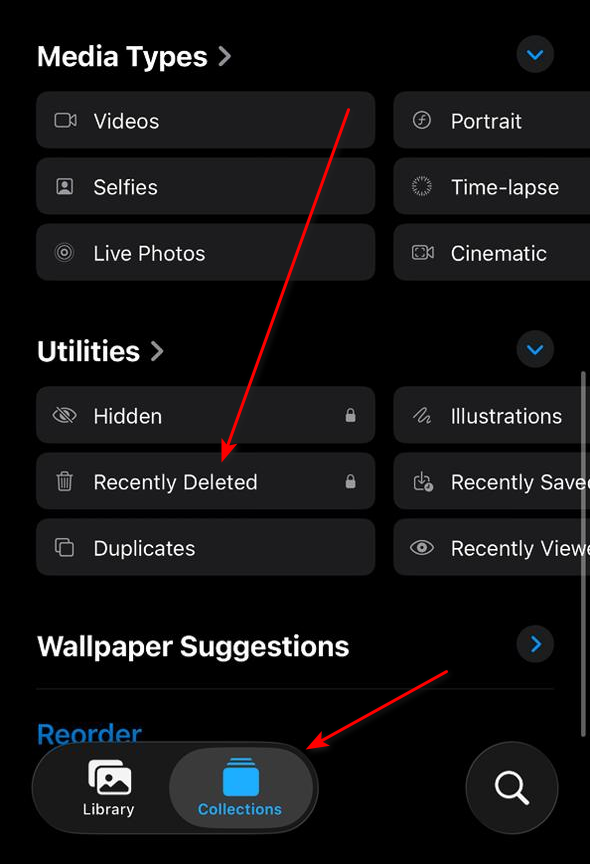
- Tap Select > Delete All (if you don’t need them).
- Open Files > Browse > Recently Deleted.
- Permanently delete large items.
- Wait a few minutes, then try Back Up Now.